

Microsoft Excel hides or disables several high-value productivity features by default, including the Camera tool, expanded status bar calculations, automatic decimal insertion, Solver, and Power Pivot, even though each can materially change how users build reports, enter data, and analyze workbooks. That is not just a quirk of interface design. It is a revealing example of Excel’s central tension: the world’s most ubiquitous business application is also a warehouse of capabilities many users never discover. The real productivity win is not learning one more formula, but surfacing the machinery Microsoft has already shipped.
Excel has always been a paradox. It is the default canvas for everything from household budgets to global finance models, yet many of its most useful functions sit outside the normal flow of the ribbon, hidden behind add-in dialogs, right-click menus, and customization panes. Microsoft has spent years modernizing Excel with dynamic arrays, cloud collaboration, Python integration, Power Query, and AI-adjacent features, but some of the most practical upgrades still require a user to go looking for them.
That matters because most Excel users do not work like spreadsheet power users. They inherit files, copy ranges into reports, reconcile numbers, produce dashboards, and perform quick checks under time pressure. For that audience, a hidden command can be more useful than a newly announced feature if it removes a repetitive step from the daily grind.
The tools in question are not experimental. Solver is a long-standing optimization add-in. Power Pivot is Microsoft’s bridge between traditional spreadsheets and business intelligence. The Camera tool has existed for years as a clever way to create live workbook snapshots. Even the humble status bar can become a lightweight statistical console with a few clicks.
The problem is not that Excel lacks productivity features. The problem is that Excel’s default interface presents a curated subset of a much larger application, and that curation often favors approachability over power.
That is a small miracle for anyone who builds dashboard pages inside Excel. Traditional spreadsheet dashboards often require awkward compromises: merged cells, copied values, duplicated formatting, or fragile linked formulas scattered across multiple sheets. The Camera tool offers a different model. You can keep the working table where it belongs and display a polished, resized, live view of it somewhere else.
The feature is especially useful because the snapshot behaves like an image. It can be moved, resized, layered with shapes, placed near charts, or arranged on a report sheet without disturbing the source data. That makes it possible to build a presentation-like page while leaving the workbook’s real calculation structure intact.
Microsoft does not put the Camera tool on the standard ribbon. To use it, users typically add it to the Quick Access Toolbar by customizing commands and selecting it from the full command list. That placement tells the story: Excel has the capability, but it treats it as a specialist command rather than a mainstream reporting feature.
That is a shame, because the Camera tool addresses one of the oldest spreadsheet problems: the gap between calculation and communication. Excel users are not merely calculating numbers; they are explaining them. A live image of a range can be the difference between a workbook that functions and a workbook that communicates.
There are caveats. Linked pictures can become confusing in heavily edited workbooks, and users should be deliberate about what the image represents. A dashboard filled with anonymous snapshots can be hard to audit later. But used sparingly, the Camera tool is one of Excel’s most elegant hidden bridges between raw grid work and polished reporting.
By default, many users see familiar statistics such as sum, count, and average when selecting a range of numbers. Right-clicking the status bar exposes additional options, including minimum, maximum, and numerical count. Once enabled, these values appear automatically when a relevant range is selected.
This is not a glamorous feature, but it is exactly the kind of feature that changes daily spreadsheet behavior. Users often create temporary formulas just to answer simple questions: What is the largest number in this column? How many numeric entries are in this messy export? Is the minimum value obviously wrong? The status bar can answer those questions instantly.
The distinction between count and numerical count is particularly useful in real-world spreadsheets, where imported data often mixes numbers, blanks, text labels, and formatting artifacts. A normal count of selected cells is not always the same as a count of numeric values. For auditing a rough selection, that difference matters.
There is also a subtle workflow advantage. Because status bar calculations do not alter the sheet, they reduce clutter. No helper cells, no formulas to delete, no accidental dependencies, no risk that a temporary check becomes part of the workbook’s logic. It is ephemeral analysis, which is exactly what many quick spreadsheet checks should be.
Excel even allows some status bar values to be copied to the clipboard by clicking them, depending on the version and configuration. That turns the bar from a passive display into a lightweight extraction tool. Again, this is not the kind of feature that headlines a Microsoft 365 launch event, but it is the sort of feature that saves thousands of tiny interruptions.
For users entering long lists of currency amounts, invoice values, register totals, or other fixed-decimal data, this can be a major speed boost. It turns numeric entry into a rhythm: type digits, press Enter, move on. Anyone who has spent time with a ten-key keypad understands the appeal.
The important point is that this is not merely formatting. Currency formatting changes how a value appears. Automatic decimal insertion changes what Excel accepts as the value. That makes it more powerful than a number format and more dangerous if left enabled after the task is complete.
This is why Microsoft’s decision to keep it tucked inside Excel Options makes sense. A user who turns it on intentionally for a controlled data-entry session may benefit enormously. A user who forgets it is enabled can corrupt future entries without noticing. Typing
The setting belongs in the category of workflow modes. Like overtype mode in a text editor or manual calculation mode in Excel itself, it changes the assumptions under which the application operates. Those modes are useful when visible and intentional. They are hazardous when invisible and forgotten.
That does not make automatic decimal insertion a bad feature. It makes it a feature that deserves respect. Teams that use it should build habits around it: enable it for the entry task, verify a few rows, and disable it when done. In high-volume accounting workflows, that discipline can turn a buried option into a serious productivity tool.
The add-in is designed to find an optimal value for a formula by changing other cells, subject to constraints. In plain English, it can help answer problems such as how to maximize profit, minimize cost, allocate limited resources, or hit a target value while obeying business rules. That is not simple arithmetic; it is optimization.
Microsoft includes Solver with Excel installations, but users usually need to load it before it appears. On Windows, that typically means opening Excel Options, going to Add-ins, choosing Excel Add-ins, and enabling Solver. Once loaded, it appears on the Data tab in the Analysis group.
The fact that Solver is disabled by default is understandable. It is not a tool every spreadsheet user needs, and its interface can intimidate users who only want to sum a column. But hiding it also reinforces a narrow view of Excel. Many people who could benefit from optimization never discover that they already have a solver built into the application they use every day.
Solver’s value is not limited to MBA classroom examples. It can be used to assign staff hours, tune pricing assumptions, balance inventory, calculate production mixes, or model constraints in small organizations that do not have dedicated operations research software. The results are only as good as the model, but that is true of almost everything in Excel.
The risk is that Solver can make weak assumptions look authoritative. An optimization result carries a certain aura of mathematical certainty, even when the constraints are incomplete or the objective is badly chosen. The responsible use of Solver requires documenting the model’s assumptions and testing the output under different scenarios.
That is the larger lesson. Enabling Solver does not make a spreadsheet intelligent. It gives the user a more powerful lever. Whether that lever moves the right object depends on the modeler.
Microsoft describes Power Pivot as a data modeling technology for creating data models, establishing relationships, and performing calculations in a high-performance environment. In practice, it lets users work with larger and more structured datasets than ordinary worksheet techniques comfortably allow. It also reduces the dependence on brittle lookup chains that often make large workbooks hard to maintain.
The feature is built into certain versions of Office and Excel, but it is not enabled by default in the same way a basic ribbon command is. Users generally activate it through COM Add-ins, after which the Power Pivot tab appears. That extra step has probably kept countless capable Excel users from discovering the tool.
Power Pivot’s biggest conceptual leap is the Data Model. Instead of flattening every dataset into one giant worksheet, users can import multiple tables and define relationships between them. Sales can connect to products, products to categories, orders to customers, and dates to calendars. Reports can then draw from that model rather than from a maze of worksheet formulas.
That matters because many business spreadsheets are really small databases pretending to be grids. Once a workbook reaches that stage, traditional spreadsheet habits start to break down. Copy-pasted tables drift out of sync. VLOOKUP and XLOOKUP formulas multiply. File size grows. Refreshing the workbook becomes a ritual of fear.
Power Pivot does not eliminate complexity, but it moves complexity into a more appropriate structure. Measures can be defined once. Relationships can be inspected. PivotTables can be built from a shared model. The workbook becomes less like a pile of sheets and more like a compact analytical system.
There are limits and licensing wrinkles depending on Excel version and platform. Some users may not see Power Pivot in their edition, and Mac support has historically differed from Windows support. That fragmentation is part of the reason many organizations standardize reporting workflows around Power BI or centrally managed data tools instead of assuming every Excel install has identical capabilities.
Still, for Windows users with the right Microsoft 365 or Office version, Power Pivot remains one of Excel’s most underused upgrades. It is the point at which Excel stops being merely a spreadsheet and starts behaving like a personal business intelligence engine.
But defaults are not just about discoverability. They are also about risk management. Excel is used by hundreds of millions of people with wildly different skill levels. Every button Microsoft places on the main ribbon competes for attention, and every mode-changing setting creates an opportunity for confusion.
The Camera tool is powerful, but it can obscure workbook logic. Automatic decimal insertion is efficient, but it can silently alter future data entry. Solver can produce impressive results from questionable assumptions. Power Pivot can introduce a modeling layer that some users are not prepared to maintain.
Microsoft’s default Excel experience therefore reflects a conservative bargain. The company exposes common actions and hides specialized power. That keeps the first-run experience approachable, but it also means Excel’s most capable users must assemble their own version of the application.
This is where customization becomes part of literacy. The Quick Access Toolbar, custom ribbon groups, add-ins, and status bar options are not cosmetic features. They are how users promote the tools that match their work. A financial analyst’s Excel should not look exactly like a teacher’s gradebook or a sysadmin’s asset tracker.
The larger problem is that most users are never taught to customize Excel this way. They learn formulas, shortcuts, and maybe PivotTables, but not the application’s own control surface. As a result, they adapt their workflow to the default interface instead of adapting the interface to their workflow.
Status bar calculations are low-risk. The Camera tool is mostly a presentation and dashboard convenience, though it can complicate workbook review if overused. Automatic decimal insertion is useful but should be treated carefully in controlled data-entry processes. Solver and Power Pivot sit in a higher-impact category because they can affect business decisions and data architecture.
Power Pivot in particular deserves organizational attention. Once users begin creating data models, they may also begin reproducing logic that should live in a governed reporting layer. That is not a reason to ban it. It is a reason to teach it properly and define when a workbook should graduate into Power BI, a database-backed report, or another managed system.
Solver presents a different governance challenge. It can support operational decisions, but it can also produce outputs that are hard for non-specialists to audit. A department that uses Solver for pricing, staffing, or resource allocation should treat the workbook as a model, not a casual spreadsheet. Version control, assumptions, and review matter.
This is the recurring pattern with advanced Excel features. The same capabilities that make an individual user more productive can make an organization more dependent on opaque workbooks. Excel’s strength is that it empowers users without waiting for central IT. Excel’s weakness is that it empowers users without waiting for central IT.
The right response is not lockdown by default. It is education, templates, and review paths. If users are going to build dashboards with linked images, model constraints with Solver, or relate tables with Power Pivot, the organization should help them do it in a way that survives handoff, audit, and renewal.
A good first step is to customize the Quick Access Toolbar with commands that match recurring work. If the Camera tool is useful, put it there. If certain paste options, form controls, or formatting commands are constantly buried, promote them. Excel is most efficient when the interface reflects the job rather than Microsoft’s generalized assumptions about the average user.
The same applies to add-ins. Solver should be loaded on machines where optimization modeling is part of the work. Power Pivot should be enabled and taught where users regularly combine datasets. These are not tricks; they are capabilities that belong in the standard toolkit for many roles.
Status bar customization is even easier. Right-clicking the bottom bar and enabling additional calculations takes seconds, but it changes how quickly users can interrogate data. That kind of lightweight improvement often has more cumulative value than a complex macro.
Automatic decimal insertion is the exception that proves the rule. It should be enabled only when needed and disabled afterward. Not every useful feature should be permanently on. Some should be treated as temporary instruments for a specific task.
The deeper point is that Excel expertise is not just formula knowledge. It is environmental awareness. Power users know where Excel’s switches are, what they change, and when those changes are worth the risk.
 Excel’s Best Tricks Are Often Buried in Plain Sight
Excel has always been a paradox. It is the default canvas for everything from household budgets to global finance models, yet many of its most useful functions sit outside the normal flow of the ribbon, hidden behind add-in dialogs, right-click menus, and customization panes. Microsoft has spent years modernizing Excel with dynamic arrays, cloud collaboration, Python integration, Power Query, and AI-adjacent features, but some of the most practical upgrades still require a user to go looking for them.That matters because most Excel users do not work like spreadsheet power users. They inherit files, copy ranges into reports, reconcile numbers, produce dashboards, and perform quick checks under time pressure. For that audience, a hidden command can be more useful than a newly announced feature if it removes a repetitive step from the daily grind.
The tools in question are not experimental. Solver is a long-standing optimization add-in. Power Pivot is Microsoft’s bridge between traditional spreadsheets and business intelligence. The Camera tool has existed for years as a clever way to create live workbook snapshots. Even the humble status bar can become a lightweight statistical console with a few clicks.
The problem is not that Excel lacks productivity features. The problem is that Excel’s default interface presents a curated subset of a much larger application, and that curation often favors approachability over power.
The Camera Tool Turns Ranges Into Living Report Objects
The Camera tool is one of those Excel features that sounds like a novelty until you understand what it actually does. It lets users select a range of cells and place that selection elsewhere as a linked picture. When the source cells change, the picture updates.That is a small miracle for anyone who builds dashboard pages inside Excel. Traditional spreadsheet dashboards often require awkward compromises: merged cells, copied values, duplicated formatting, or fragile linked formulas scattered across multiple sheets. The Camera tool offers a different model. You can keep the working table where it belongs and display a polished, resized, live view of it somewhere else.
The feature is especially useful because the snapshot behaves like an image. It can be moved, resized, layered with shapes, placed near charts, or arranged on a report sheet without disturbing the source data. That makes it possible to build a presentation-like page while leaving the workbook’s real calculation structure intact.
Microsoft does not put the Camera tool on the standard ribbon. To use it, users typically add it to the Quick Access Toolbar by customizing commands and selecting it from the full command list. That placement tells the story: Excel has the capability, but it treats it as a specialist command rather than a mainstream reporting feature.
That is a shame, because the Camera tool addresses one of the oldest spreadsheet problems: the gap between calculation and communication. Excel users are not merely calculating numbers; they are explaining them. A live image of a range can be the difference between a workbook that functions and a workbook that communicates.
There are caveats. Linked pictures can become confusing in heavily edited workbooks, and users should be deliberate about what the image represents. A dashboard filled with anonymous snapshots can be hard to audit later. But used sparingly, the Camera tool is one of Excel’s most elegant hidden bridges between raw grid work and polished reporting.
The Status Bar Is a Quiet Alternative to Throwaway Formulas
Excel’s status bar is often ignored because it looks like interface furniture. It sits at the bottom of the window, quietly displaying information about the current selection, workbook state, and view. But with the right toggles enabled, it becomes a fast calculation tracker that saves users from writing disposable formulas.By default, many users see familiar statistics such as sum, count, and average when selecting a range of numbers. Right-clicking the status bar exposes additional options, including minimum, maximum, and numerical count. Once enabled, these values appear automatically when a relevant range is selected.
This is not a glamorous feature, but it is exactly the kind of feature that changes daily spreadsheet behavior. Users often create temporary formulas just to answer simple questions: What is the largest number in this column? How many numeric entries are in this messy export? Is the minimum value obviously wrong? The status bar can answer those questions instantly.
The distinction between count and numerical count is particularly useful in real-world spreadsheets, where imported data often mixes numbers, blanks, text labels, and formatting artifacts. A normal count of selected cells is not always the same as a count of numeric values. For auditing a rough selection, that difference matters.
There is also a subtle workflow advantage. Because status bar calculations do not alter the sheet, they reduce clutter. No helper cells, no formulas to delete, no accidental dependencies, no risk that a temporary check becomes part of the workbook’s logic. It is ephemeral analysis, which is exactly what many quick spreadsheet checks should be.
Excel even allows some status bar values to be copied to the clipboard by clicking them, depending on the version and configuration. That turns the bar from a passive display into a lightweight extraction tool. Again, this is not the kind of feature that headlines a Microsoft 365 launch event, but it is the sort of feature that saves thousands of tiny interruptions.
Automatic Decimal Insertion Is Powerful Enough to Be Dangerous
Automatic decimal insertion is a classic example of an Excel setting that is both brilliant and risky. When enabled, Excel automatically places a decimal point in numbers as they are entered. If the setting is configured for two decimal places, typing1550 becomes 15.50.For users entering long lists of currency amounts, invoice values, register totals, or other fixed-decimal data, this can be a major speed boost. It turns numeric entry into a rhythm: type digits, press Enter, move on. Anyone who has spent time with a ten-key keypad understands the appeal.
The important point is that this is not merely formatting. Currency formatting changes how a value appears. Automatic decimal insertion changes what Excel accepts as the value. That makes it more powerful than a number format and more dangerous if left enabled after the task is complete.
This is why Microsoft’s decision to keep it tucked inside Excel Options makes sense. A user who turns it on intentionally for a controlled data-entry session may benefit enormously. A user who forgets it is enabled can corrupt future entries without noticing. Typing
2026 and getting 20.26 is not a harmless interface preference.The setting belongs in the category of workflow modes. Like overtype mode in a text editor or manual calculation mode in Excel itself, it changes the assumptions under which the application operates. Those modes are useful when visible and intentional. They are hazardous when invisible and forgotten.
That does not make automatic decimal insertion a bad feature. It makes it a feature that deserves respect. Teams that use it should build habits around it: enable it for the entry task, verify a few rows, and disable it when done. In high-volume accounting workflows, that discipline can turn a buried option into a serious productivity tool.
Solver Reminds Users That Excel Is Not Just a Grid
Solver is the feature that most clearly exposes Excel’s deeper identity. To casual users, Excel is a grid with formulas. To analysts, operations managers, and finance teams, it can also be a modeling environment. Solver sits firmly in that second world.The add-in is designed to find an optimal value for a formula by changing other cells, subject to constraints. In plain English, it can help answer problems such as how to maximize profit, minimize cost, allocate limited resources, or hit a target value while obeying business rules. That is not simple arithmetic; it is optimization.
Microsoft includes Solver with Excel installations, but users usually need to load it before it appears. On Windows, that typically means opening Excel Options, going to Add-ins, choosing Excel Add-ins, and enabling Solver. Once loaded, it appears on the Data tab in the Analysis group.
The fact that Solver is disabled by default is understandable. It is not a tool every spreadsheet user needs, and its interface can intimidate users who only want to sum a column. But hiding it also reinforces a narrow view of Excel. Many people who could benefit from optimization never discover that they already have a solver built into the application they use every day.
Solver’s value is not limited to MBA classroom examples. It can be used to assign staff hours, tune pricing assumptions, balance inventory, calculate production mixes, or model constraints in small organizations that do not have dedicated operations research software. The results are only as good as the model, but that is true of almost everything in Excel.
The risk is that Solver can make weak assumptions look authoritative. An optimization result carries a certain aura of mathematical certainty, even when the constraints are incomplete or the objective is badly chosen. The responsible use of Solver requires documenting the model’s assumptions and testing the output under different scenarios.
That is the larger lesson. Enabling Solver does not make a spreadsheet intelligent. It gives the user a more powerful lever. Whether that lever moves the right object depends on the modeler.
Power Pivot Is Excel’s Doorway Into Real Data Modeling
Power Pivot is more than an add-in; it is a philosophical shift. Traditional Excel encourages users to think in worksheets, ranges, and lookup formulas. Power Pivot encourages them to think in tables, relationships, measures, and data models. That is a very different way of working.Microsoft describes Power Pivot as a data modeling technology for creating data models, establishing relationships, and performing calculations in a high-performance environment. In practice, it lets users work with larger and more structured datasets than ordinary worksheet techniques comfortably allow. It also reduces the dependence on brittle lookup chains that often make large workbooks hard to maintain.
The feature is built into certain versions of Office and Excel, but it is not enabled by default in the same way a basic ribbon command is. Users generally activate it through COM Add-ins, after which the Power Pivot tab appears. That extra step has probably kept countless capable Excel users from discovering the tool.
Power Pivot’s biggest conceptual leap is the Data Model. Instead of flattening every dataset into one giant worksheet, users can import multiple tables and define relationships between them. Sales can connect to products, products to categories, orders to customers, and dates to calendars. Reports can then draw from that model rather than from a maze of worksheet formulas.
That matters because many business spreadsheets are really small databases pretending to be grids. Once a workbook reaches that stage, traditional spreadsheet habits start to break down. Copy-pasted tables drift out of sync. VLOOKUP and XLOOKUP formulas multiply. File size grows. Refreshing the workbook becomes a ritual of fear.
Power Pivot does not eliminate complexity, but it moves complexity into a more appropriate structure. Measures can be defined once. Relationships can be inspected. PivotTables can be built from a shared model. The workbook becomes less like a pile of sheets and more like a compact analytical system.
There are limits and licensing wrinkles depending on Excel version and platform. Some users may not see Power Pivot in their edition, and Mac support has historically differed from Windows support. That fragmentation is part of the reason many organizations standardize reporting workflows around Power BI or centrally managed data tools instead of assuming every Excel install has identical capabilities.
Still, for Windows users with the right Microsoft 365 or Office version, Power Pivot remains one of Excel’s most underused upgrades. It is the point at which Excel stops being merely a spreadsheet and starts behaving like a personal business intelligence engine.
Microsoft’s Defaults Favor Safety, Not Mastery
It is tempting to blame Microsoft for hiding useful features. In some cases, that criticism is fair. Excel’s interface has accumulated decades of capability, and the path to many commands feels less like product design than archaeology. Users should not need to spelunk through “All Commands” to find tools that solve everyday reporting problems.But defaults are not just about discoverability. They are also about risk management. Excel is used by hundreds of millions of people with wildly different skill levels. Every button Microsoft places on the main ribbon competes for attention, and every mode-changing setting creates an opportunity for confusion.
The Camera tool is powerful, but it can obscure workbook logic. Automatic decimal insertion is efficient, but it can silently alter future data entry. Solver can produce impressive results from questionable assumptions. Power Pivot can introduce a modeling layer that some users are not prepared to maintain.
Microsoft’s default Excel experience therefore reflects a conservative bargain. The company exposes common actions and hides specialized power. That keeps the first-run experience approachable, but it also means Excel’s most capable users must assemble their own version of the application.
This is where customization becomes part of literacy. The Quick Access Toolbar, custom ribbon groups, add-ins, and status bar options are not cosmetic features. They are how users promote the tools that match their work. A financial analyst’s Excel should not look exactly like a teacher’s gradebook or a sysadmin’s asset tracker.
The larger problem is that most users are never taught to customize Excel this way. They learn formulas, shortcuts, and maybe PivotTables, but not the application’s own control surface. As a result, they adapt their workflow to the default interface instead of adapting the interface to their workflow.
The Enterprise Angle Is Governance, Not Just Productivity
For IT departments and spreadsheet-heavy organizations, hidden Excel features raise a governance question. Should users be encouraged to enable these tools, or should organizations standardize which ones are supported? The answer depends on the feature and the business context.Status bar calculations are low-risk. The Camera tool is mostly a presentation and dashboard convenience, though it can complicate workbook review if overused. Automatic decimal insertion is useful but should be treated carefully in controlled data-entry processes. Solver and Power Pivot sit in a higher-impact category because they can affect business decisions and data architecture.
Power Pivot in particular deserves organizational attention. Once users begin creating data models, they may also begin reproducing logic that should live in a governed reporting layer. That is not a reason to ban it. It is a reason to teach it properly and define when a workbook should graduate into Power BI, a database-backed report, or another managed system.
Solver presents a different governance challenge. It can support operational decisions, but it can also produce outputs that are hard for non-specialists to audit. A department that uses Solver for pricing, staffing, or resource allocation should treat the workbook as a model, not a casual spreadsheet. Version control, assumptions, and review matter.
This is the recurring pattern with advanced Excel features. The same capabilities that make an individual user more productive can make an organization more dependent on opaque workbooks. Excel’s strength is that it empowers users without waiting for central IT. Excel’s weakness is that it empowers users without waiting for central IT.
The right response is not lockdown by default. It is education, templates, and review paths. If users are going to build dashboards with linked images, model constraints with Solver, or relate tables with Power Pivot, the organization should help them do it in a way that survives handoff, audit, and renewal.
The Ribbon Is Not the Boundary of Excel
The most important lesson from these hidden features is that Excel’s visible ribbon is not the boundary of the product. It is only the default map. Serious users should treat that map as editable.A good first step is to customize the Quick Access Toolbar with commands that match recurring work. If the Camera tool is useful, put it there. If certain paste options, form controls, or formatting commands are constantly buried, promote them. Excel is most efficient when the interface reflects the job rather than Microsoft’s generalized assumptions about the average user.
The same applies to add-ins. Solver should be loaded on machines where optimization modeling is part of the work. Power Pivot should be enabled and taught where users regularly combine datasets. These are not tricks; they are capabilities that belong in the standard toolkit for many roles.
Status bar customization is even easier. Right-clicking the bottom bar and enabling additional calculations takes seconds, but it changes how quickly users can interrogate data. That kind of lightweight improvement often has more cumulative value than a complex macro.
Automatic decimal insertion is the exception that proves the rule. It should be enabled only when needed and disabled afterward. Not every useful feature should be permanently on. Some should be treated as temporary instruments for a specific task.
The deeper point is that Excel expertise is not just formula knowledge. It is environmental awareness. Power users know where Excel’s switches are, what they change, and when those changes are worth the risk.
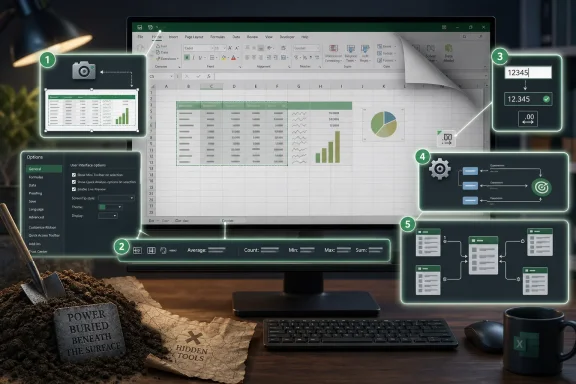
Five Switches That Make Excel Feel Less Like the Default Install
These features are not equally important for every user, but together they show how much practical capability is left on the table when Excel is used exactly as installed. The smartest approach is not to enable everything blindly. It is to match each hidden tool to a real workflow and make that workflow easier to repeat.- The Camera tool is most valuable for dashboards and report pages that need live views of source ranges without duplicating the underlying data.
- Expanded status bar calculations are a low-risk upgrade that makes quick checks faster by showing values such as minimum, maximum, and numerical count.
- Automatic decimal insertion can dramatically speed fixed-decimal numeric entry, but it should be turned off immediately after the data-entry session ends.
- Solver is worth enabling for users who model constraints, targets, optimization problems, or resource allocation inside Excel.
- Power Pivot is the major upgrade for users who need relationships, large datasets, reusable measures, and a more disciplined alternative to sprawling lookup formulas.
References
- Primary source: How-To Geek
Published: 2026-06-20T20:12:07.321451
The most useful Microsoft Excel tools and features that aren't enabled by default
Dashboard snapshots, richer status bar data, faster numeric entry, and deeper analysis tools expand what Excel can do. www.howtogeek.com
- Official source: support.microsoft.com
Load the Solver Add-in in Excel | Microsoft Support
How to load the Solver add-in into Excel (not available on mobile devices).support.microsoft.com - Official source: appsource.microsoft.com
Solver Free
Solve optimization models in Excel Online and Excel on iPad, upward compatible from Solver in Excel.appsource.microsoft.com
- Official source: microsoft.com
Introduction to PowerPivot in Excel 2013 | Microsoft 365 Blog
This blog post was brought to you by Diego Oppenheimer a Program Manager on the Excel team. Some weeks ago I introduced an important, new part of the Excel 2013 Data Model and how you could create relationships between different data sources right in your Excel workbook...www.microsoft.com - Related coverage: excelbuddy.com
Add Camera Tool in Excel to Toolbar - Excelbuddy.com
Learn how to add the camera tool in Excel to the quick access toolbar. The camera tool can be used in various dashboard applications.excelbuddy.com - Official source: powerbi.microsoft.com
Working with Data Models Created Using SQL Server ... - Microsoft Fabric Community
Power BI supports Power Pivot data models of any version. Users can choose between SQL Server 2008 R2 and SQL Server 2012 Power Pivot for Excel 2010powerbi.microsoft.com
- Official source: learn.microsoft.com
MS Excel 2016 Power Pivot not displayed - Microsoft Q&A
Hi there, I am working with Office 365 home on the 2016 version of excel etc. I'm trying to get things configured for a Masters class I have starting in a little over a week that I need to complete the pre-req for. It requires that Power Pivot be…learn.microsoft.com - Related coverage: dummies.com
How to Activate Excel's Power Pivot Add-In | dummies
www.dummies.com
- Related coverage: rbnenergy.com
- Official source: download.microsoft.com
