

Secure Boot is the firmware-level gatekeeper that stops unsigned and tampered code from running before Windows starts — enabling it is one of the single most effective steps you can take to harden a Windows 11 PC at boot time.
Secure Boot is part of the UEFI firmware specification and enforces digital-signature checks on early-boot components such as UEFI drivers, bootloaders, and the OS loader. When Secure Boot is active, the firmware will refuse to start components whose signatures do not match keys in the platform’s signature database, which dramatically reduces the attack surface for bootkits and rootkits. This capability is a foundational security primitive that Microsoft requires for Windows 11 upgrades alongside a TPM 2.0 implementation and UEFI firmware. Why this matters now: game publishers, anti‑cheat vendors, and Microsoft itself increasingly use Secure Boot together with TPM‑anchored measurements to create trusted, attested boot environments. That makes Secure Boot not only a defensive control against advanced threats but also a practical compatibility requirement for some modern software.
Enable Secure Boot carefully, verify each step with the system tools (msinfo32, tpm.msc, mbr2gpt validation, Confirm‑SecureBootUEFI) and keep your recovery keys close — that single precaution separates a smooth security upgrade from an emergency recovery event.
Source: ZDNET Protect your PC as you turn it on - how to enable secure boot in Windows 11
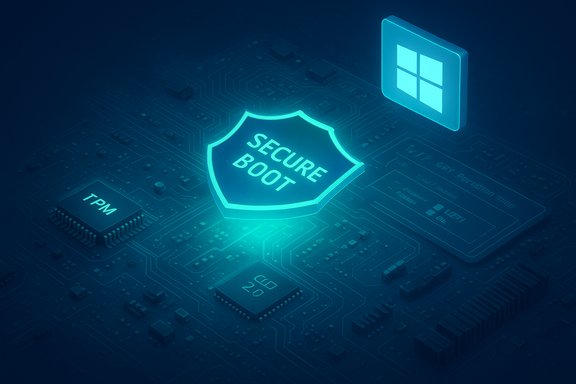 Background / Overview
Secure Boot is part of the UEFI firmware specification and enforces digital-signature checks on early-boot components such as UEFI drivers, bootloaders, and the OS loader. When Secure Boot is active, the firmware will refuse to start components whose signatures do not match keys in the platform’s signature database, which dramatically reduces the attack surface for bootkits and rootkits. This capability is a foundational security primitive that Microsoft requires for Windows 11 upgrades alongside a TPM 2.0 implementation and UEFI firmware. Why this matters now: game publishers, anti‑cheat vendors, and Microsoft itself increasingly use Secure Boot together with TPM‑anchored measurements to create trusted, attested boot environments. That makes Secure Boot not only a defensive control against advanced threats but also a practical compatibility requirement for some modern software.What Secure Boot actually protects against
- Bootkits and rootkits that run before the OS and remain hidden from traditional antivirus tools.
- Unsigned or altered boot-time drivers which can subvert kernel integrity.
- Unauthorized boot managers or modified OS loaders that could disable security features or exfiltrate keys.
Quick preflight — what to check inside Windows before you touch firmware
Before you reboot into firmware (UEFI/BIOS), gather authoritative state from Windows. These checks are fast and avoid needless firmware fiddling.- Open System Information (Win + R → msinfo32) and confirm:
- BIOS Mode should read UEFI (not Legacy/CSM).
- Secure Boot State will show On, Off, or Unsupported.
- Open TPM Management (Win + R → tpm.msc) and confirm:
- TPM Present and Specification Version is 2.0.
- In Disk Management (diskmgmt.msc) check the system disk’s Partition style: it must be GUID (GPT) for Secure Boot to operate reliably. If it’s MBR, you will need to convert or perform a clean UEFI install.
The safe, step‑by‑step path to enable Secure Boot on a Windows 11 PC
Follow this sequence exactly — doing steps out of order (for example switching firmware to UEFI before converting an MBR disk) is the most common cause of an unbootable system.Preparation: backups and BitLocker
- Back up everything critical. Prefer a verified full disk image plus separate copies of documents and photos.
- If BitLocker or Device Encryption is enabled, suspend protection and make sure your BitLocker recovery key is exported and stored safely (Microsoft account, USB, printed copy). BitLocker will commonly trigger a recovery prompt when TPM or boot configuration changes.
Verify current Windows state (again)
- Re-run msinfo32, tpm.msc, and check Disk Management to confirm the starting point: BIOS Mode, Secure Boot State, TPM presence/version, and whether the disk is GPT or MBR. If everything already reports UEFI + Secure Boot = On + GPT + TPM 2.0, you don’t need to do anything.
If the system disk is MBR: convert to GPT using Microsoft’s supported tool
- Use Microsoft’s mbr2gpt.exe tool — it can convert a system disk from MBR to GPT without data loss when the preconditions are met. Always run validation first:
- Open an elevated Command Prompt as administrator.
- Validate (replace the disk number with the proper disk; typically 0):
mbr2gpt.exe /validate /disk:0 /allowFullOS - If validation succeeds, convert:
mbr2gpt.exe /convert /disk:0 /allowFullOS
Enter UEFI firmware and enable TPM / fTPM / Intel PTT
- Reboot into firmware. Common entry keys are Del, F2, F10, F12, Esc — or use Settings → Recovery → Advanced startup → UEFI Firmware Settings → Restart.
- In firmware, enable the TPM. Vendor labels vary:
- Intel: Intel PTT (Platform Trust Technology)
- AMD: fTPM (firmware TPM)
- Motherboard label: TPM, Security Device, TPM‑SPI, or Security Device Support
- Save and reboot back into Windows and confirm tpm.msc shows the TPM is “ready for use” and Specification Version = 2.0. Be careful: clearing or resetting TPM will delete keys and may render BitLocker-protected volumes inaccessible unless you have the recovery key. Always follow vendor guidance for TPM provisioning.
Switch boot mode to UEFI and enable Secure Boot
- In firmware set Boot Mode to UEFI (disable CSM/Legacy).
- Locate Secure Boot (often under Boot, Security, or Authentication menus) and enable it.
- Some firmwares require you to set an administrator/supervisor password before changing Secure Boot.
- Others require you to Restore Factory Keys or Install Default Keys to enroll platform keys; choose the OEM-recommended option (typically “Standard” or “Default”) unless you purposefully manage your own keys.
- Save, exit firmware, then boot to Windows and re-check msinfo32: Secure Boot State = On, BIOS Mode = UEFI. Optionally run the PowerShell cmdlet Confirm‑SecureBootUEFI to get a True/False result.
Troubleshooting the common pitfalls
- Secure Boot option is greyed out
- Typical causes: firmware still in Legacy/CSM mode or disk is still MBR. Convert to GPT and switch firmware to UEFI first. If keys are missing, use the firmware’s “Restore Factory Keys” option or set an admin password and try again. Firmware updates from the vendor sometimes add missing functionality.
- BitLocker recovery prompt on boot
- Expected if BitLocker was not suspended. Have the recovery key ready. Suspend BitLocker before major firmware or partition changes.
- Drivers or applications stop working after enabling Secure Boot
- Secure Boot enforces signature checks for kernel-mode drivers. Older unsigned drivers (legacy RAID, HBA, or antivirus kernel agents) may be blocked. Update to vendor-signed drivers or remove incompatible components.
- Dual‑boot Linux problems
- Secure Boot blocks unsigned GRUB or kernels. Solutions include using a signed shim (many mainstream distributions provide one) or enrolling your own keys — the latter is advanced and error-prone for casual users. Plan accordingly before toggling Secure Boot.
- Firmware bugs or missing Secure Boot capability
- Some older motherboards simply don’t implement Secure Boot correctly. A firmware update may help; otherwise hardware replacement is the only practical path.
Practical checklist (one‑page action plan)
- Back up your data (full image + separate file copy).
- Export BitLocker recovery keys and suspend BitLocker.
- Run msinfo32, tpm.msc, and Disk Management to confirm current state.
- If disk = MBR, run mbr2gpt.exe /validate then /convert if validation passes.
- Reboot to UEFI firmware. Enable Intel PTT or AMD fTPM as required.
- Set Boot Mode to UEFI and enable Secure Boot (restore default keys if prompted).
- Reboot to Windows and verify Secure Boot State = On and TPM = 2.0.
- Re-enable BitLocker (if used) and confirm normal boot.
Cross‑checks and authoritative references used to validate the procedure
- Microsoft’s official documentation for the MBR2GPT tool — authoritative guidance on non‑destructive MBR→GPT conversion and the strict validation preconditions.
- Microsoft’s Secure Boot requirements in their Windows Hardware Compatibility Program and Microsoft Surface guidance on checking Secure Boot state. These explain the role of provisioned signature databases and the expectation that Windows 11 devices be Secure Boot capable.
- Independent how‑to reporting from reputable outlets (Lifewire, Wired) and community-tested step sequences that align with Microsoft guidance help illustrate common real‑world pitfalls like BitLocker recovery prompts and unsigned drivers being blocked.
- Community and technical threads that document firmware naming conventions (Intel PTT, AMD fTPM), the successful use of mbr2gpt, and troubleshooting tactics (suspend BitLocker, enroll factory keys, firmware updates). These community notes reflect repeated, real-world experiences across many vendors.
Strengths, trade‑offs and risk analysis
Strengths — what you gain by enabling Secure Boot
- Early‑boot integrity: Secure Boot prevents untrusted code from executing before the OS loads, making persistent firmware-based attacks far harder.
- Ecosystem benefits: TPM + Secure Boot enable BitLocker key protection, attestation for corporate compliance, and trusted boot signals used by anti‑cheat and DRM systems.
- Default posture for modern devices: Windows 11 treats these features as baseline, so enabling them reduces compatibility friction for future updates and software.
Trade‑offs and operational risks
- BitLocker/TPM exposure: Changing or clearing TPM without backups can permanently lock you out of encrypted data. This is the single largest operational danger. Always export BitLocker keys and suspend protection before making firmware changes.
- Compatibility headaches: Older drivers, legacy enterprise software, and some dual‑boot configurations may break. This can require driver updates or configuration changes that are nontrivial in managed environments.
- Firmware variability: UEFI menu layouts and naming differ across vendors; some consumer boards ship TPM disabled or hide Secure Boot keys behind options that are hard to discover. Firmware updates may be required and are sometimes necessary to expose missing toggles.
Mitigation guidance
- Staged approach for large fleets: test on a small pilot group, document OEM‑specific steps, and ensure recovery processes (updated recovery media, BitLocker key escrow) are in place before mass enabling.
- For gamers and home users: check publisher guidance on anti‑cheat and verify that your platform reports Secure Boot and TPM correctly via msinfo32 or tools like Steam’s System Information.
Advanced topics and special cases
Enrolling custom keys and Secure Boot modes
Some advanced users or organizations enroll their own keys or use Custom Secure Boot modes to control which signed binaries run. This is powerful but risky — misconfiguration can render a device unbootable and complicate legitimate software updates. These advanced operations are recommended only for experienced administrators with rollback plans. Community reports show that restoring factory keys is usually the safer default for consumer devices.Virtual machines and Secure Boot / vTPM
Hypervisors such as Hyper‑V and VMware can expose virtual TPMs and Secure Boot to guests; configuration differs by hypervisor and is documented by vendors. Virtualized Secure Boot is useful for testing but must be configured correctly to mirror the physical platform’s behavior.When firmware updates are necessary
If Secure Boot options are missing or buggy, check the OEM’s support pages for UEFI firmware updates. Firmware fixes frequently add TPM/PTT/fTPM toggles or correct Secure Boot variable handling. Apply vendor-supplied firmware per instructions and only after a full backup and verified recovery media are prepared.Final verdict — practical, production-ready advice
Secure Boot provides a measurable security improvement at the earliest point in platform startup. For home users, gamers, and enterprises alike, enabling Secure Boot (with TPM 2.0 active and the OS disk on GPT) is a best-practice baseline that delivers real security and compatibility benefits for modern Windows 11 features and many anti‑cheat/attestation scenarios. However, because enabling Secure Boot touches firmware and often triggers BitLocker, the safe approach is conservative: back up first, export recovery keys, validate disk conversion preconditions with Microsoft’s tools, and apply firmware changes in a controlled order. If you follow the steps above and keep recovery plans in place, enabling Secure Boot is a high‑reward security control with manageable, well‑understood risks.Enable Secure Boot carefully, verify each step with the system tools (msinfo32, tpm.msc, mbr2gpt validation, Confirm‑SecureBootUEFI) and keep your recovery keys close — that single precaution separates a smooth security upgrade from an emergency recovery event.
Source: ZDNET Protect your PC as you turn it on - how to enable secure boot in Windows 11
