

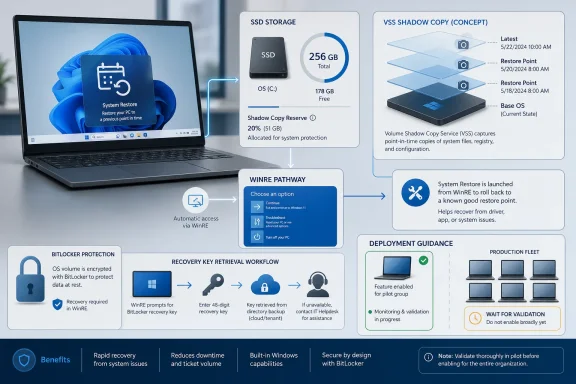
Enable Windows 11 Point-in-time restore now only on devices that pass four checks: the OS volume is at least 200 GB, free space and Volume Shadow Copy Service capacity are healthy, BitLocker recovery-key retrieval is confirmed, and a Windows Recovery Environment restore has been tested on a pilot device. If you cannot validate those basics, pilot first. For broad managed fleets, wait until your organization can test the full recovery loop instead of treating this as a simple feature toggle.
Point-in-time restore is a useful Windows 11 recovery improvement, but it is not free protection. It stores rollback data locally, depends on recovery environment access, and can require a BitLocker recovery key during restore. WindowsForum user reports have described the feature as a built-in rewind button for recent Windows problems, a fast local rollback option using VSS, and a full-PC rollback capability tested first in Insider Experimental builds. That framing is right as long as the word “recent” stays at the center.
Enable now on personal or enthusiast Windows 11 systems where the OS volume is at least 200 GB, free space is healthy, BitLocker recovery information is accessible, and the user understands that this is a short-term local rollback feature rather than a backup system.
Pilot first on Pro workstations, developer systems, and small-business laptops where storage churn, encryption, or support procedures could complicate recovery.
Wait on broad enterprise rollout unless you can validate enablement, restore-point creation, WinRE access, BitLocker recovery-key retrieval, actual restoration, and post-restore compliance checks.
The other major gate is disk size. Devices need an OS volume of at least 200 GB for default enablement. Smaller systems may still be able to use the feature, but the threshold is a practical warning: local rollback needs local room.
WindowsForum readers have repeatedly framed Point-in-time restore as a fast way to recover from recent breakage. One report described it as a built-in rewind button for modern Windows problems. Another focused on VSS-backed local rollback. Early Insider coverage described a 72-hour full-PC rollback test model, while later WindowsForum coverage discussed availability for Windows 11 24H2 and later systems. Together, those reports point to the same conclusion: this is a recovery shortcut for recent instability, not a replacement for backup, imaging, or enterprise recovery planning.
For a personal desktop with a roomy SSD, enabling the feature can be sensible. For a corporate laptop with a crowded OS volume, BitLocker, endpoint security, and compliance requirements, the safer first move is a controlled pilot.
That makes it valuable for cases such as:
That is the decision lens the article should use: not “is this feature good?” but “is this device prepared to rely on it?”
The important facts are operational. Point-in-time restore creates local restore points automatically, uses local storage and VSS, and restores through a Windows Recovery Environment flow. Organizations can manage the feature through policy, including the Recovery CSP. Those facts are enough to guide the decision without pretending that every build, edition, OEM image, and managed configuration will expose the same click-by-click Settings path.
Administrators should document the actual enablement and recovery flow observed in their own environment. A support runbook should not be built from assumptions. It should be built from a tested device that matches the fleet: same Windows version, same management state, same encryption posture, same security tooling, and similar storage pressure.
The first deployment step is not “enable everywhere.” It is “prove the loop.”
Microsoft’s default behavior points to automatic restore-point creation on a roughly daily cadence. That makes free space and VSS capacity part of the recovery design, not an afterthought. A device can have the feature enabled and still be a poor candidate if restore points cannot be retained long enough to be useful.
This is especially important for machines with small drives or heavy local churn. Developer systems, virtual machines, containers, local databases, large application caches, offline files, and frequent build outputs can all put pressure on the same storage pool. That does not mean those systems should never use Point-in-time restore. It means they should be observed in a pilot before a policy is standardized.
A clean lab machine with little user data is not a good proxy for a real laptop that has months of browser profiles, collaboration caches, security agents, local projects, and update history. If the pilot does not include realistic devices, the storage conclusions will be weak.
For home users, the question is simple: can you get your recovery key if Windows will not boot normally? If the answer is no, fix that before depending on Point-in-time restore.
For organizations, the question is broader. Helpdesk staff need to know where keys are escrowed, how to verify the user, how to identify the correct device, how to provide the key safely, and how to escalate if retrieval fails. If the user is stuck in recovery and nobody can retrieve the key, the fast rollback feature has not saved time. It has moved the incident from Windows troubleshooting to access and support workflow.
Pilot testing must include BitLocker from the start. Testing Point-in-time restore on an unencrypted lab device and then assuming the same experience will apply to encrypted production laptops is a mistake. The moment WinRE asks for a recovery key, the test becomes operational, not just technical.
That distinction affects user communication. Users need to understand that a restore may require restarting into recovery, selecting an earlier restore point, entering a BitLocker recovery key, and accepting that recent local changes after the chosen point may be lost.
Administrators need to plan for the same reality. A support script should explain how to reach WinRE, how to identify the right restore point, when to stop and escalate, and what to verify after Windows starts again. Devices should be connected to power during recovery, and users should be warned not to interrupt the process.
This does not reduce the feature’s value. It places the feature in the correct category: serious recovery for recent breakage.
Cloud sync can reduce data-loss risk, but it does not make recovery frictionless. Local and cloud states can diverge. Sync conflicts may appear. Applications may need to reindex, reauthenticate, or repair local caches. A restored desktop is not the same thing as a fully validated device.
For business systems, the restore is only the middle of the incident. After boot, the device may need to check in with management, reapply policy, update security tools, confirm encryption state, and verify line-of-business applications. A machine that boots but is no longer compliant is only partly recovered.
The safest guidance is straightforward: use Point-in-time restore when recent system recovery is worth the risk of rolling back recent local changes, and validate the machine afterward.
WindowsForum’s VSS-focused coverage is helpful here because it connects the new recovery experience to familiar Windows storage plumbing. The interface and positioning may be modern, but the constraints are still practical: local disk capacity, restore-point availability, recovery environment access, and encryption workflow.
The behavioral shift is the real change. Enthusiasts should stop treating restore points as occasional manual rituals before risky changes. Administrators should think in terms of rollback windows, storage eligibility, BitLocker readiness, support scripts, and validation after restore.
Point-in-time restore should own the “recent breakage” lane where it works. It should not be stretched into every recovery role.
If the feature is available but off, enable it only after checking two things: that the device has enough free space and that you can retrieve the BitLocker recovery key if the machine is encrypted. Do not wait until Windows is broken to find out where the key is stored.
The main consumer mistake will be assuming this replaces backup. It does not. If the SSD fails, local restore points fail with it. If the device is stolen, local restore points are gone. If you need a file from last month, a short-term rollback feature is the wrong tool.
Still, for the type of Windows problem that sends users into forums late at night, Point-in-time restore can be valuable. WindowsForum reports have described it as a lower-friction way to get a machine back to an earlier working state after recent trouble. That is where it belongs: between random troubleshooting and a full reset or reinstall.
The best home setup is simple: keep backup or cloud sync in place, keep recovery-key access ready, maintain free disk space, and treat Point-in-time restore as a short-term safety net.
That distinction matters because many WindowsForum readers run Pro for Hyper-V, BitLocker, Remote Desktop, local policy controls, or development work without being part of a formal enterprise fleet. Those users should not assume that “Pro” alone answers the question. The management state matters.
Before enabling or depending on the feature, check:
A useful enterprise pilot should include real production-like conditions:
Storage needs its own pilot lane. Devices with smaller OS volumes, aggressive update rings, developer workloads, or large local caches may behave differently from clean test machines. The worst result is a feature that appears enabled but has no useful restore point when a user needs it.
For home users, post-restore validation means checking Windows Update, confirming security software is active, opening important applications, and checking cloud sync for conflicts.
For enthusiasts and developers, it means checking drivers, package managers, virtual machines, local repositories, development environments, and any tools that may have changed after the restore point.
For businesses, post-restore validation should be formal. The device should check in with management, confirm encryption state, update security tools, apply required policies, and verify line-of-business applications. If the restore was used to recover from a bad deployment, the machine may also need to move into a safer deployment ring until the root cause is understood.
Recovery without validation is not complete recovery. It is only a successful boot.
That sequence matters because it shows both promise and restraint. The promise is obvious: Windows users need a faster path between “something broke” and “reset the PC.” A local restore point can shorten the support path dramatically when the problem is recent and the restore point is usable.
The restraint is just as important. A feature that depends on local storage, WinRE access, and BitLocker recovery keys is only as reliable as the preparation around it. Treating Point-in-time restore as a magic undo button will disappoint users. Treating it as one layer in a recovery plan will produce better results.
The practical reading is neither hype nor dismissal. Point-in-time restore is a strong recovery improvement for the right scenario, provided the device passes the readiness checks.
First, does the OS volume meet the practical storage requirement? Start with the 200 GB threshold and then check actual free space and VSS capacity.
Second, can the device be unlocked during recovery? If BitLocker is enabled, prove that the recovery key can be retrieved without relying on the broken Windows session.
Third, can the device actually restore? Do not assume. Test WinRE access and perform a controlled restore on a pilot machine.
Fourth, can the restored machine be trusted afterward? Confirm updates, security tools, application health, sync state, and management compliance.
If the answer to all four is yes, Point-in-time restore is a strong addition to the recovery toolkit. If any answer is uncertain, pilot first. If you are responsible for a managed fleet and have not validated the full loop, wait.
The wrong answer is treating this as just another Windows Update feature toggle. Point-in-time restore changes recovery expectations at the device level. It can save time when recent breakage makes Windows unreliable, but only if storage, encryption, recovery access, and validation are ready before the failure.
A local restore point that brings a machine back quickly can be much better than reset, reinstall, or hours of trial-and-error troubleshooting. WindowsForum’s coverage captures why users are interested: this is a fast local rollback tool for recent problems, built around the idea that Windows should be easier to rewind after a bad change.
But the promise holds only under the right conditions. The restore point must exist. The disk must have enough room. VSS must be healthy. WinRE must be reachable. BitLocker recovery-key access must work. The restored machine must be validated afterward.
Enable it where those conditions are true. Pilot it where they are unproven. Wait where the support and compliance model is not ready.
That is the practical recommendation: use Point-in-time restore as a short-term recovery layer for recent Windows breakage, not as a substitute for backup, imaging, security hygiene, or disciplined deployment.
The new detail for admins is Microsoft’s stated default retention model: restore points are created every 24 hours, retained for up to 72 hours, and capped at 2% of disk usage, with some Enterprise settings configurable. The GA release also adds or documents management-facing pieces including CSP-based remote configuration, reserved storage integration, restore point visibility, and disk usage reporting.
Microsoft also confirms a current operational limitation: restores must still be initiated locally from Windows Recovery Environment, where users select Point-in-time restore, provide a BitLocker recovery key if prompted, choose a restore point, and confirm the rollback. Microsoft warns that files, apps, and settings changed after the selected restore point can be lost.
The forward-looking enterprise change is remote initiation through Intune recovery, which Microsoft says is planned for later. That does not change today’s recommendation to pilot the full WinRE and BitLocker loop first, but it could make fleet-scale recovery more practical once available.
That matters for IT teams planning Point-in-time restore policy because Microsoft’s current default split changes with 26H2: Enterprise, Education, and managed Pro devices remain off by default until that release. A lower-disruption 26H2 servicing path may make it easier for organizations to align recovery-policy testing with their next annual feature update validation cycle.
There is one exception noted in the report: Windows 11 version 26H1 devices will not move directly to 26H2 because 26H1 uses a different Windows core. Microsoft says those systems will instead have a path to a future Windows release.
For admins, the practical takeaway is to include Point-in-time restore readiness in 26H2 pilot planning now: app compatibility, management policy, BitLocker recovery, WinRE restore flow, storage reporting, and post-restore compliance should be validated alongside the feature update rather than treated as a separate last-minute toggle.
The report also sharpens Microsoft’s positioning against legacy System Restore. Microsoft describes the new feature as more comprehensive because snapshots can include the operating system, installed apps, settings, configurations, and local user files, while also integrating with modern Windows management and retention controls.
For admins, that reinforces both the benefit and the risk. Point-in-Time Restore may recover more of the machine state than older restore workflows, but rollbacks can still remove files, apps, or settings created after the selected restore point. TechRepublic also notes Microsoft’s broader recovery push, including Cloud Rebuild testing, as part of the same resilience strategy.

 www.techrepublic.com
The report also clarifies that the 200 GB system-drive threshold is for default enablement on retail or OEM Home and Pro PCs. Systems with smaller drives may still be able to turn the feature on manually through Settings, while Windows 11 Enterprise remains off by default and may require administrator approval.
One admin-relevant caveat is configuration scope. ZDNET says disk-usage limits can be changed from the Point-in-time Restore settings page, but snapshot frequency and the number of retained snapshots are currently configurable only on Windows 11 Enterprise. That reinforces the existing guidance: consumer systems may get a simple safety net, but managed environments still need policy testing.
ZDNET also underlines the user-data risk: a Point-in-time Restore can remove local files and changes made after the selected snapshot, and there does not appear to be an easy undo for the restore itself. For users and helpdesks, the safest message remains the same: cloud sync or backup should be in place before anyone treats this as a dependable recovery layer.
Point-in-time restore is a useful Windows 11 recovery improvement, but it is not free protection. It stores rollback data locally, depends on recovery environment access, and can require a BitLocker recovery key during restore. WindowsForum user reports have described the feature as a built-in rewind button for recent Windows problems, a fast local rollback option using VSS, and a full-PC rollback capability tested first in Insider Experimental builds. That framing is right as long as the word “recent” stays at the center.
 Recommendation Matrix
Enable now on personal or enthusiast Windows 11 systems where the OS volume is at least 200 GB, free space is healthy, BitLocker recovery information is accessible, and the user understands that this is a short-term local rollback feature rather than a backup system.Pilot first on Pro workstations, developer systems, and small-business laptops where storage churn, encryption, or support procedures could complicate recovery.
Wait on broad enterprise rollout unless you can validate enablement, restore-point creation, WinRE access, BitLocker recovery-key retrieval, actual restoration, and post-restore compliance checks.
The Right Default Is A Validation-Based Pilot
The split in Microsoft’s rollout model matters. Unmanaged Windows 11 Home devices and eligible Pro devices may have Point-in-time restore on by default, while enterprise-managed systems remain off by default until Windows 11 version 26H2. That is the key operational signal: consumers get more automatic protection, but managed fleets are being given time to prepare policy, support, storage, and compliance procedures.The other major gate is disk size. Devices need an OS volume of at least 200 GB for default enablement. Smaller systems may still be able to use the feature, but the threshold is a practical warning: local rollback needs local room.
WindowsForum readers have repeatedly framed Point-in-time restore as a fast way to recover from recent breakage. One report described it as a built-in rewind button for modern Windows problems. Another focused on VSS-backed local rollback. Early Insider coverage described a 72-hour full-PC rollback test model, while later WindowsForum coverage discussed availability for Windows 11 24H2 and later systems. Together, those reports point to the same conclusion: this is a recovery shortcut for recent instability, not a replacement for backup, imaging, or enterprise recovery planning.
For a personal desktop with a roomy SSD, enabling the feature can be sensible. For a corporate laptop with a crowded OS volume, BitLocker, endpoint security, and compliance requirements, the safer first move is a controlled pilot.
What Point-in-time Restore Is Good For
Point-in-time restore is best understood as a short-term local rollback lane. If a device was healthy yesterday and broken today, a recent restore point may get it back faster than uninstalling drivers, resetting Windows, or rebuilding the machine.That makes it valuable for cases such as:
- A recent driver or configuration change that destabilizes Windows.
- A failed application or system change that leaves the device unreliable.
- A recent update sequence that causes boot, sign-in, or usability problems.
- A support scenario where a fast local rollback is preferable to reset or reinstall.
That is the decision lens the article should use: not “is this feature good?” but “is this device prepared to rely on it?”
The Setting Is Easy; The Recovery Commitment Is Not
The visible control, where exposed, is the least important part of the decision. Turning on a recovery feature does not prove it will work when the machine is unstable, the user is under pressure, and the volume is encrypted.The important facts are operational. Point-in-time restore creates local restore points automatically, uses local storage and VSS, and restores through a Windows Recovery Environment flow. Organizations can manage the feature through policy, including the Recovery CSP. Those facts are enough to guide the decision without pretending that every build, edition, OEM image, and managed configuration will expose the same click-by-click Settings path.
Administrators should document the actual enablement and recovery flow observed in their own environment. A support runbook should not be built from assumptions. It should be built from a tested device that matches the fleet: same Windows version, same management state, same encryption posture, same security tooling, and similar storage pressure.
The first deployment step is not “enable everywhere.” It is “prove the loop.”
What To Check Before Enabling
Before enabling Point-in-time restore or expanding it beyond a pilot group, check the device against a short readiness list:- OS volume size: Confirm that the Windows OS volume is at least 200 GB if you are relying on default eligibility behavior.
- Free space: Confirm that the OS drive has enough free space for normal operation plus local restore-point storage.
- VSS health and capacity: Confirm that Volume Shadow Copy Service behavior is healthy and that shadow storage is not already constrained or failing.
- BitLocker status: Confirm whether the OS volume is encrypted and whether recovery will require a BitLocker key.
- Recovery-key access: Confirm that the user or helpdesk can retrieve the correct BitLocker recovery key without relying on the broken Windows session.
- WinRE access: Confirm that the device can reach Windows Recovery Environment reliably.
- Restore-point creation: Confirm that restore points are being created as expected after enablement.
- Actual restore test: Perform a controlled restore on at least one pilot device before depending on the feature in production.
- Post-restore checks: Confirm that the restored device can update, run security tools, open critical applications, and return to management compliance.
Storage Is The First Deployment Blocker
Point-in-time restore stores restore points locally. That is why it can be fast, and also why it needs scrutiny. Local rollback avoids waiting for a network image or full rebuild, but it competes with Windows, applications, updates, user data, caches, developer tools, and security software on the same OS volume.Microsoft’s default behavior points to automatic restore-point creation on a roughly daily cadence. That makes free space and VSS capacity part of the recovery design, not an afterthought. A device can have the feature enabled and still be a poor candidate if restore points cannot be retained long enough to be useful.
This is especially important for machines with small drives or heavy local churn. Developer systems, virtual machines, containers, local databases, large application caches, offline files, and frequent build outputs can all put pressure on the same storage pool. That does not mean those systems should never use Point-in-time restore. It means they should be observed in a pilot before a policy is standardized.
A clean lab machine with little user data is not a good proxy for a real laptop that has months of browser profiles, collaboration caches, security agents, local projects, and update history. If the pilot does not include realistic devices, the storage conclusions will be weak.
BitLocker Turns Recovery Into A Process Test
BitLocker is the second major readiness check. On encrypted volumes, restoration through WinRE may require the BitLocker recovery key. That is appropriate from a security perspective, but it means the recovery experience is only as good as the key-retrieval process.For home users, the question is simple: can you get your recovery key if Windows will not boot normally? If the answer is no, fix that before depending on Point-in-time restore.
For organizations, the question is broader. Helpdesk staff need to know where keys are escrowed, how to verify the user, how to identify the correct device, how to provide the key safely, and how to escalate if retrieval fails. If the user is stuck in recovery and nobody can retrieve the key, the fast rollback feature has not saved time. It has moved the incident from Windows troubleshooting to access and support workflow.
Pilot testing must include BitLocker from the start. Testing Point-in-time restore on an unencrypted lab device and then assuming the same experience will apply to encrypted production laptops is a mistake. The moment WinRE asks for a recovery key, the test becomes operational, not just technical.
WinRE Makes This A Recovery Workflow, Not A Casual Undo Button
Point-in-time restore should not be described to users as if it were a desktop timeline they can casually browse and reverse. The restore path depends on Windows Recovery Environment. That places it closer to startup repair, reset, and recovery operations than to a normal Settings change.That distinction affects user communication. Users need to understand that a restore may require restarting into recovery, selecting an earlier restore point, entering a BitLocker recovery key, and accepting that recent local changes after the chosen point may be lost.
Administrators need to plan for the same reality. A support script should explain how to reach WinRE, how to identify the right restore point, when to stop and escalate, and what to verify after Windows starts again. Devices should be connected to power during recovery, and users should be warned not to interrupt the process.
This does not reduce the feature’s value. It places the feature in the correct category: serious recovery for recent breakage.
What Restore Means For User Data And Device State
Point-in-time restore rolls the device back to an earlier captured state. That is both the value and the risk. Changes made after the selected restore point may not survive. Users should assume recent local changes are at risk and protect important files through normal backup or sync before starting a restore when possible.Cloud sync can reduce data-loss risk, but it does not make recovery frictionless. Local and cloud states can diverge. Sync conflicts may appear. Applications may need to reindex, reauthenticate, or repair local caches. A restored desktop is not the same thing as a fully validated device.
For business systems, the restore is only the middle of the incident. After boot, the device may need to check in with management, reapply policy, update security tools, confirm encryption state, and verify line-of-business applications. A machine that boots but is no longer compliant is only partly recovered.
The safest guidance is straightforward: use Point-in-time restore when recent system recovery is worth the risk of rolling back recent local changes, and validate the machine afterward.
Concrete Validation Checklist
Before treating Point-in-time restore as dependable, validate it on a pilot device that resembles the devices you actually plan to support.Pre-enable checks
- Confirm the OS volume is 200 GB or larger if you expect default eligibility.
- Confirm the OS drive has healthy free space.
- Confirm VSS is functioning and has enough capacity to create and retain useful restore points.
- Confirm whether BitLocker is enabled.
- Confirm that the correct BitLocker recovery key can be retrieved outside the broken Windows session.
- Confirm WinRE is available and accessible.
- Confirm backup or cloud sync is in place for important user data.
Pilot restore test
- Enable Point-in-time restore on a pilot device.
- Confirm that restore points are created.
- Record the observed enablement and restore workflow for that Windows build and management state.
- Boot into WinRE.
- Confirm whether BitLocker prompts for a recovery key.
- Retrieve and enter the recovery key through the normal user or helpdesk process.
- Restore to a selected point.
- Confirm that Windows starts successfully after restore.
Post-restore validation
- Check Windows Update state.
- Confirm security software is running.
- Confirm BitLocker status.
- Confirm management check-in for managed devices.
- Reapply or verify required policies.
- Open critical applications.
- Check cloud sync status and possible conflicts.
- Confirm that the original problem is resolved.
- Decide whether the device should remain in its deployment ring or be moved to a safer update group.
System Restore Is Not Dead, But Its Role Is Narrower
Point-in-time restore does not make every older recovery habit obsolete. Traditional System Restore, reset workflows, backup, imaging, and enterprise recovery tooling still have roles. The difference is that Windows 11 now has a more modern local rollback path for recent problems where the feature is available and validated.WindowsForum’s VSS-focused coverage is helpful here because it connects the new recovery experience to familiar Windows storage plumbing. The interface and positioning may be modern, but the constraints are still practical: local disk capacity, restore-point availability, recovery environment access, and encryption workflow.
The behavioral shift is the real change. Enthusiasts should stop treating restore points as occasional manual rituals before risky changes. Administrators should think in terms of rollback windows, storage eligibility, BitLocker readiness, support scripts, and validation after restore.
Point-in-time restore should own the “recent breakage” lane where it works. It should not be stretched into every recovery role.
Home Users Should Leave It On If Their Disk Is Healthy
For unmanaged Home users, the advice is direct. If Windows enables Point-in-time restore by default on a device with a large enough OS volume and healthy free space, leave it on unless local storage is tight or you have a specific reason to disable it.If the feature is available but off, enable it only after checking two things: that the device has enough free space and that you can retrieve the BitLocker recovery key if the machine is encrypted. Do not wait until Windows is broken to find out where the key is stored.
The main consumer mistake will be assuming this replaces backup. It does not. If the SSD fails, local restore points fail with it. If the device is stolen, local restore points are gone. If you need a file from last month, a short-term rollback feature is the wrong tool.
Still, for the type of Windows problem that sends users into forums late at night, Point-in-time restore can be valuable. WindowsForum reports have described it as a lower-friction way to get a machine back to an earlier working state after recent trouble. That is where it belongs: between random troubleshooting and a full reset or reinstall.
The best home setup is simple: keep backup or cloud sync in place, keep recovery-key access ready, maintain free disk space, and treat Point-in-time restore as a short-term safety net.
Pro Users Need To Know Whether The Device Is Managed
Windows 11 Pro sits between consumer and enterprise behavior. A personal Pro workstation may behave like an unmanaged device. A domain-joined or endpoint-managed Pro laptop may fall under organizational defaults and policy.That distinction matters because many WindowsForum readers run Pro for Hyper-V, BitLocker, Remote Desktop, local policy controls, or development work without being part of a formal enterprise fleet. Those users should not assume that “Pro” alone answers the question. The management state matters.
Before enabling or depending on the feature, check:
- Is the device managed by an organization?
- Is BitLocker enabled?
- Can the recovery key be retrieved without normal Windows access?
- Is the OS volume at least 200 GB?
- Is there enough free space for restore points?
- Does the workload create heavy local churn?
- Can WinRE restore be tested without risking important work?
Enterprises Should Wait Unless They Can Validate The Whole Loop
Enterprise-managed systems staying off by default until Windows 11 version 26H2 should be treated as a planning window. The operational implication is not that the feature is bad. It is that managed environments need policy, storage rules, helpdesk scripts, BitLocker procedures, and compliance validation before broad deployment.A useful enterprise pilot should include real production-like conditions:
- BitLocker configured as it is in the fleet.
- Endpoint detection and response tools installed.
- Management enrollment active.
- Normal user data and application patterns.
- Realistic free-space conditions.
- Standard helpdesk key-retrieval procedures.
- Post-restore compliance checks.
Storage needs its own pilot lane. Devices with smaller OS volumes, aggressive update rings, developer workloads, or large local caches may behave differently from clean test machines. The worst result is a feature that appears enabled but has no useful restore point when a user needs it.
The Hidden Cost Is Validation After The Machine Boots
A restored machine may look fixed because Windows loads. That is only the first checkpoint. The device may still need updates, policy refresh, security validation, application checks, and sync cleanup.For home users, post-restore validation means checking Windows Update, confirming security software is active, opening important applications, and checking cloud sync for conflicts.
For enthusiasts and developers, it means checking drivers, package managers, virtual machines, local repositories, development environments, and any tools that may have changed after the restore point.
For businesses, post-restore validation should be formal. The device should check in with management, confirm encryption state, update security tools, apply required policies, and verify line-of-business applications. If the restore was used to recover from a bad deployment, the machine may also need to move into a safer deployment ring until the root cause is understood.
Recovery without validation is not complete recovery. It is only a successful boot.
What WindowsForum’s Coverage Adds
WindowsForum’s user reports give this feature a practical spine. The consistent theme is that Point-in-time restore is meant to reduce friction when a recent Windows change breaks a PC. Reports described it as a built-in rewind button, a fast local rollback feature using VSS, an Insider-tested full-PC rollback model, and a Windows 11 24H2-and-later recovery option for undoing recent PC breakage.That sequence matters because it shows both promise and restraint. The promise is obvious: Windows users need a faster path between “something broke” and “reset the PC.” A local restore point can shorten the support path dramatically when the problem is recent and the restore point is usable.
The restraint is just as important. A feature that depends on local storage, WinRE access, and BitLocker recovery keys is only as reliable as the preparation around it. Treating Point-in-time restore as a magic undo button will disappoint users. Treating it as one layer in a recovery plan will produce better results.
The practical reading is neither hype nor dismissal. Point-in-time restore is a strong recovery improvement for the right scenario, provided the device passes the readiness checks.
Frequently Asked Questions
Is Point-in-time restore the same as backup?
No. Point-in-time restore is a local rollback feature for recent Windows problems. Backup protects data against broader risks such as device loss, disk failure, long-term file deletion, or recovery beyond the short restore window. You still need backup or cloud sync for important files.Should home users leave it on?
Yes, if the device has enough free storage and the user can access the BitLocker recovery key if needed. For many unmanaged Home PCs with healthy disk space, leaving it on is reasonable because the feature may provide a faster recovery path after recent breakage.Should businesses enable it everywhere immediately?
No. Businesses should pilot first unless they have already validated storage impact, BitLocker recovery-key retrieval, WinRE access, helpdesk procedure, and post-restore compliance. Microsoft’s choice to keep enterprise-managed systems off by default until Windows 11 version 26H2 supports a cautious rollout.Does Point-in-time restore work if the drive fails?
No. Restore points are stored locally. If the physical drive fails, local restore points are not a recovery plan. That is why backup, imaging, cloud storage, or enterprise recovery tooling still matters.What is the biggest deployment risk?
The biggest practical risks are insufficient storage, unavailable BitLocker recovery keys, inaccessible WinRE, and lack of post-restore validation. Any one of those can turn a promising recovery feature into a stalled support incident.Why does BitLocker matter so much?
Encrypted volumes may require the BitLocker recovery key during restore from WinRE. If the user or helpdesk cannot retrieve that key, recovery may stop before the feature can help. Every pilot should test with BitLocker enabled.Is this useful for developers and power users?
Yes, but they should pilot carefully. Developer workloads can create heavy local churn through virtual machines, containers, databases, build outputs, and package caches. That does not make Point-in-time restore a bad fit, but it does mean storage behavior should be observed on real workloads.Does this replace System Restore?
Not completely. Point-in-time restore gives Windows 11 a more modern short-term rollback option where available, but older recovery methods, backup, imaging, and reset workflows still have roles. The right tool depends on the failure, device state, and required recovery window.The Sensible Decision Is Smaller Than It Looks
The decision does not require a long policy document. It requires a clear answer to four questions.First, does the OS volume meet the practical storage requirement? Start with the 200 GB threshold and then check actual free space and VSS capacity.
Second, can the device be unlocked during recovery? If BitLocker is enabled, prove that the recovery key can be retrieved without relying on the broken Windows session.
Third, can the device actually restore? Do not assume. Test WinRE access and perform a controlled restore on a pilot machine.
Fourth, can the restored machine be trusted afterward? Confirm updates, security tools, application health, sync state, and management compliance.
If the answer to all four is yes, Point-in-time restore is a strong addition to the recovery toolkit. If any answer is uncertain, pilot first. If you are responsible for a managed fleet and have not validated the full loop, wait.
The wrong answer is treating this as just another Windows Update feature toggle. Point-in-time restore changes recovery expectations at the device level. It can save time when recent breakage makes Windows unreliable, but only if storage, encryption, recovery access, and validation are ready before the failure.
Faster Recovery, But Not Free Recovery
The central takeaway is simple: Windows 11 Point-in-time restore can make recovery faster, but it does not make recovery free.A local restore point that brings a machine back quickly can be much better than reset, reinstall, or hours of trial-and-error troubleshooting. WindowsForum’s coverage captures why users are interested: this is a fast local rollback tool for recent problems, built around the idea that Windows should be easier to rewind after a bad change.
But the promise holds only under the right conditions. The restore point must exist. The disk must have enough room. VSS must be healthy. WinRE must be reachable. BitLocker recovery-key access must work. The restored machine must be validated afterward.
Enable it where those conditions are true. Pilot it where they are unproven. Wait where the support and compliance model is not ready.
That is the practical recommendation: use Point-in-time restore as a short-term recovery layer for recent Windows breakage, not as a substitute for backup, imaging, security hygiene, or disciplined deployment.
Update: General availability adds restore details and future Intune path (July 6, 2026)
Campus Technology reports that Microsoft now describes Point-in-time restore as generally available for Windows 11 version 24H2 and later across Home, Pro, Enterprise, and Education editions, with the same default split already important to deployment planning: Home and unmanaged Pro can be on by default on eligible 200 GB-plus OS volumes, while Enterprise, Education, and managed Pro remain off by default until Windows 11 version 26H2.The new detail for admins is Microsoft’s stated default retention model: restore points are created every 24 hours, retained for up to 72 hours, and capped at 2% of disk usage, with some Enterprise settings configurable. The GA release also adds or documents management-facing pieces including CSP-based remote configuration, reserved storage integration, restore point visibility, and disk usage reporting.
Microsoft also confirms a current operational limitation: restores must still be initiated locally from Windows Recovery Environment, where users select Point-in-time restore, provide a BitLocker recovery key if prompted, choose a restore point, and confirm the rollback. Microsoft warns that files, apps, and settings changed after the selected restore point can be lost.
The forward-looking enterprise change is remote initiation through Intune recovery, which Microsoft says is planned for later. That does not change today’s recommendation to pilot the full WinRE and BitLocker loop first, but it could make fleet-scale recovery more practical once available.
Update: Windows 11 26H2 will use enablement package path for most 24H2 and 25H2 devices (July 7, 2026)
Campus Technology also reports a deployment detail tied to Microsoft’s broader resiliency messaging: Windows 11 version 26H2 is expected to arrive as a small enablement package for devices already running Windows 11 versions 24H2 or 25H2, rather than as a full OS replacement.That matters for IT teams planning Point-in-time restore policy because Microsoft’s current default split changes with 26H2: Enterprise, Education, and managed Pro devices remain off by default until that release. A lower-disruption 26H2 servicing path may make it easier for organizations to align recovery-policy testing with their next annual feature update validation cycle.
There is one exception noted in the report: Windows 11 version 26H1 devices will not move directly to 26H2 because 26H1 uses a different Windows core. Microsoft says those systems will instead have a path to a future Windows release.
For admins, the practical takeaway is to include Point-in-time restore readiness in 26H2 pilot planning now: app compatibility, management policy, BitLocker recovery, WinRE restore flow, storage reporting, and post-restore compliance should be validated alongside the feature update rather than treated as a separate last-minute toggle.
Update: Microsoft says preview reached over two million devices (July 7, 2026)
TechRepublic adds one notable adoption datapoint not covered above: Microsoft says Point-in-Time Restore was enabled on more than two million devices during public preview before reaching general availability.The report also sharpens Microsoft’s positioning against legacy System Restore. Microsoft describes the new feature as more comprehensive because snapshots can include the operating system, installed apps, settings, configurations, and local user files, while also integrating with modern Windows management and retention controls.
For admins, that reinforces both the benefit and the risk. Point-in-Time Restore may recover more of the machine state than older restore workflows, but rollbacks can still remove files, apps, or settings created after the selected restore point. TechRepublic also notes Microsoft’s broader recovery push, including Cloud Rebuild testing, as part of the same resilience strategy.
Microsoft Makes Windows 11 Point-in-Time Restore Generally Available
Microsoft’s Point-in-Time Restore gives Windows 11 users a built-in way to roll back PCs after failed updates, driver issues, or corruption.
Update: ZDNET testing adds timing and configuration caveats (July 9, 2026)
ZDNET’s Ed Bott adds hands-on detail on how Point-in-time Restore behaves in real use. On his test PCs, applying a restore point from Windows Recovery Environment took about 30 to 45 minutes, though he notes restore time will vary by hardware.The report also clarifies that the 200 GB system-drive threshold is for default enablement on retail or OEM Home and Pro PCs. Systems with smaller drives may still be able to turn the feature on manually through Settings, while Windows 11 Enterprise remains off by default and may require administrator approval.
One admin-relevant caveat is configuration scope. ZDNET says disk-usage limits can be changed from the Point-in-time Restore settings page, but snapshot frequency and the number of retained snapshots are currently configurable only on Windows 11 Enterprise. That reinforces the existing guidance: consumer systems may get a simple safety net, but managed environments still need policy testing.
ZDNET also underlines the user-data risk: a Point-in-time Restore can remove local files and changes made after the selected snapshot, and there does not appear to be an easy undo for the restore itself. For users and helpdesks, the safest message remains the same: cloud sync or backup should be in place before anyone treats this as a dependable recovery layer.
References
- Primary source: learn.microsoft.com
Point-in-time restore for Windows | Microsoft Learn
documentation for point-in-time restore featurelearn.microsoft.com - Independent coverage: support.microsoft.com
- Independent coverage: allthings.how
Windows 11 KB5095093 preview brings Point-in-time Restore (build 26200.8728)
The July 2026 preview update adds system recovery snapshots, calendar-based update pausing, and quieter Widgets across 25H2 and 24H2.allthings.how - Independent coverage: windowscentral.com
Windows 11 is getting a new point-in-time restore feature and other advanced recovery tools | Windows Central
Microsoft has unveiled new recovery methods for Windows 11 PCs in the event where a PC is no longer able to boot, or data has become corrupted.www.windowscentral.com - Independent coverage: thewincentral.com
Windows 11 Update KB5095093: Download link & What's new - WinCentral
Microsoft has released Windows 11 KB5095093 Preview Update (Builds 26100.8737 and 26200.8737), bringing File Explorer enhancements, Point-in-Time Restore, Widgets improvements, and numerous fixes. - Read in Windows 11 News on WinCentral thewincentral.com
- Primary source: WindowsForum
Windows 11 Point-in-Time Restore: Fast Local Rollback for Recent Problems | Windows Forum
Windows 11’s new Point‑in‑Time Restore acts like a built‑in rewind button for modern Windows problems, letting you roll a machine back to an earlier...windowsforum.com

Last edited:

