

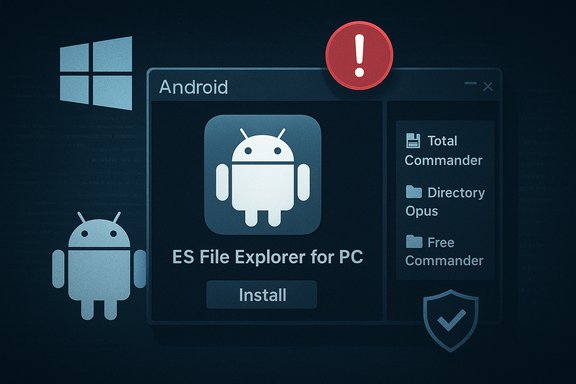
The write-ups and download pages now appearing for “ES File Explorer for PC” are misleading: there is no verified, official native Windows build of ES File Explorer — what’s being promoted as a “PC version” is either the Android app run inside an emulator or third‑party repackages, and using those carries real security and privacy risks given ES File Explorer’s troubled history.
ES File Explorer began life as one of the most popular file managers on Android. For years it shipped a rich feature set—cloud integrations, archive handling, FTP/SMB access, and a root browser—that made it attractive to mobile power users. That Android pedigree is the reason some sites and advertisers now pitch an “ES File Explorer for PC” experience: the idea is to bring those mobile conveniences to Windows. On Android, however, ES File Explorer’s record is mixed. Multiple security researchers and vendors publicly documented serious issues in 2018–2019 (an unauthenticated HTTP server, remote‑access risks, and other flaws), and the app’s publisher later found itself entangled in ad‑fraud allegations that triggered a Play Store purge for apps tied to the same publisher. These are not ancient anecdotes: they explain why users should treat new download packages and “PC ports” with extreme caution. The clean, user‑friendly description you saw in the PrioriData‑style writeup (multi‑tab interface, cloud integration, compression, FTP/SMB, small installer, low RAM needs) accurately lists features typical of modern file managers, but those claims must be separated into two classes:
This analysis synthesizes the product claims, community context, and independent security reporting so Windows users can make an informed, cautious choice rather than following an unverified download link.
Source: PrioriData ES File Explorer for PC | Download on Windows | Priori Data
 Background / Overview
ES File Explorer began life as one of the most popular file managers on Android. For years it shipped a rich feature set—cloud integrations, archive handling, FTP/SMB access, and a root browser—that made it attractive to mobile power users. That Android pedigree is the reason some sites and advertisers now pitch an “ES File Explorer for PC” experience: the idea is to bring those mobile conveniences to Windows. On Android, however, ES File Explorer’s record is mixed. Multiple security researchers and vendors publicly documented serious issues in 2018–2019 (an unauthenticated HTTP server, remote‑access risks, and other flaws), and the app’s publisher later found itself entangled in ad‑fraud allegations that triggered a Play Store purge for apps tied to the same publisher. These are not ancient anecdotes: they explain why users should treat new download packages and “PC ports” with extreme caution. The clean, user‑friendly description you saw in the PrioriData‑style writeup (multi‑tab interface, cloud integration, compression, FTP/SMB, small installer, low RAM needs) accurately lists features typical of modern file managers, but those claims must be separated into two classes:- Features that are true of the Android ES File Explorer app (cloud access, archive support, remote file protocols).
- Claims that imply an official native Windows application or installer — these are unverified and likely false.
What the PrioriData-style page claims (brief summary)
- ES File Explorer is now available as a Windows desktop application and can be downloaded as a small (~50–100 MB) installer.
- The PC version preserves the Android app’s UI and features: multi‑tab browsing, cloud integrations (Google Drive, Dropbox, OneDrive), compression/extraction (ZIP, RAR, 7Z, TAR), FTP/SMB, and modest system requirements (Windows 7+, 2 GB RAM, 500 MB free).
- The article positions the PC build as free, lightweight, and a direct improvement over Windows File Explorer.
Verification: what independent sources show
No official Windows desktop build found
Authoritative public records and product pages show ES File Explorer as an Android application. Major summaries and encyclopedia entries list the supported OS as Android and document the app’s history on mobile; they do not show an official Windows release from the vendor. In other words, there is no traceable official vendor download for a native Windows ES File Explorer application in the normal software ecosystem.The safe, verifiable way people run ES File Explorer on a PC is via emulation
When people report “ES File Explorer on Windows,” they most often mean the Android APK installed into an Android emulator (BlueStacks, Nox, LDPlayer, etc.. Emulators create an Android runtime on top of Windows and let you install the original Android app; that approach is widely described in how‑to guides and is the commonly recommended method if your objective is to run the Android app on a desktop. That is not a native Windows port — it’s an Android runtime inside Windows.Security and trust history
ES File Explorer’s past research findings and vendor advisories are well documented. Security vendors (Avast, Android Authority) and mainstream tech outlets (TechCrunch) reported on critical vulnerabilities and behavioral problems. Separately, Google removed a set of apps associated with the developer group DO Global after advertisers and researchers identified ad‑fraud techniques; ES File Explorer and related properties were affected by that ecosystem scrutiny. Those events supply clear context for why third‑party “PC download” packages should be treated as risky until their provenance is confirmed.Repackaged/third‑party “PC” installers are common — and often suspicious
A number of download pages and software aggregator sites present installers that claim to be a Windows version of ES File Explorer. Many such pages are either emulator guides or repackaged APKs wrapped in a Windows installer. Independent website trust checks raise red flags for some of these domains (hidden WHOIS, low traffic, mixed hosting), a classic pattern for opportunistic repackaging sites that can bundle adware or unwanted extras. Treat those downloads as suspicious until you validate the publisher and file signature.Why the differences matter: functional and security implications
- Running an Android app inside an emulator is functionally different from running a native Windows program. Integration with Windows features (context menus, shell extensions, file associations, native performance) is imperfect or absent when using an emulator. The emulator method works, but it’s a workaround — not a replacement for a real Windows app.
- A repackaged installer that claims to be “ES File Explorer for PC” can bundle adware, telemetry, or worse. Given ES File Explorer’s own history of problematic ad code on mobile, bundling further ad/spyware with a desktop wrapper compounds risk. Always check the digital signature, vendor identity, and reputation of the download site before running an installer.
- Features such as SMB/FTP server exposure, HTTP remote control, or cookie‑based cloud access must be configured carefully. Unsecured remote services or unnecessarily broad permissions create network attack surfaces. The Android vulnerabilities historically included an exposed port and functions that could be misused on local networks; similar risks exist whenever file managers expose network services.
If you want the ES File Explorer experience on Windows: safer options
There are two practical routes to get the workflow improvements the PrioriData piece describes — without risking untrusted installers.- Use a trustworthy, native Windows file manager that provides the specific features you want.
- Run the Android ES File Explorer app inside a contained environment (emulator or virtual machine) with strict network and I/O controls, only from verified APK sources.
Native alternatives worth considering
- Total Commander — veteran dual‑pane file manager with extensive plugin support, archive handling, FTP/SFTP client, and batch tools. Shareware licensing (trial then purchase). It is maintained by a long‑running single author and distributed from an official site; that provenance reduces supply‑chain risk.
- Directory Opus — a premium, highly customizable Explorer replacement. It supports tabs, archives (ZIP/7z/RAR via plug‑ins), FTP, scripting, and extensive UI customization. It’s a paid product aimed at users who want a polished, feature‑complete, and officially supported application.
- FreeCommander — a free, no‑ads dual‑pane manager that offers a good balance of features and simplicity for users who want more than File Explorer but without the premium price. It’s actively distributed from a stable project site.
If you still want to run ES File Explorer on a PC: secure step‑by‑step (emulator route)
Running the Android app inside an emulator is the least risky way to use the authentic ES mobile app on a desktop — but only if you follow strict precautions.- Choose a reputable emulator.
- Prefer widely used projects with long public histories (BlueStacks, Nox, LDPlayer). Install the emulator from its official website.
- Obtain the ES File Explorer APK only from trusted sources.
- Prefer the official vendor distribution if available, or a recognized app store snapshot. Avoid random “PC installer” sites that wrap APKs inside EXE installers. If a Play Store entry exists inside the emulator, use that rather than sideloading.
- Run the emulator in a sandbox or non‑privileged account.
- Limit permissions: don’t grant the emulator or the app undue access to your entire Windows filesystem unless you need it. Use emulator‑provided shared folders for controlled file exchange.
- Disable any remote server features you don’t need.
- Do not enable FTP/HTTP servers over an open network. If you must use FTP/SMB, restrict to the loopback address or a known private network and use strong authentication.
- Keep everything updated and scan downloads.
- Maintain the latest emulator version, use a modern AV, and verify APK hashes when possible.
- Isolate high‑risk activity.
- If you plan to test unknown file downloads or server features, do it inside a disposable virtual machine (snapshots make rollback easy).
Red flags to watch for (do not ignore)
- Installers that claim “ES File Explorer for Windows” and present an EXE/MSI installer from an unknown publisher.
- Domain names and download pages whose WHOIS information is hidden, or which have low reputation scores from site‑trust checks. Scamadviser‑style indicators often flag repackagers and scam sites.
- Downloads that come bundled with third‑party installers, browser toolbars, or “system optimizers” — these are commonly used to monetize repackaged packages.
- Promises of an “official” Windows build where no vendor statement, vendor GitHub, or authoritative product page confirms the release.
- Unverified or outdated APKs — vulnerabilities patched in 2019 and later may still affect older builds; sideloading an old APK reintroduces those risks.
How to evaluate a file manager safely (checklist)
- Vendor provenance: Is the app distributed from an official, established site or store?
- Digital signatures: Does the installer carry a valid code signing certificate?
- Review history: Do multiple independent publications or large communities discuss and recommend the app?
- Network services: Does the app expose a server or listening port that could be accessible to other devices on your network?
- Privacy footprint: What permissions are required and why? For a desktop native app, ask whether it collects telemetry or ads.
- Update mechanism: Does the app update via a trusted channel (Microsoft Store, vendor server) or via bundled updaters that may be abused?
Critical analysis — strengths and risks
Strengths (what the PrioriData-style description got right)
- The feature list described (tabs, archives, cloud links, FTP/SMB) represents real, useful capabilities that power users value. Modern file managers with dual panes or tabs genuinely speed up workflows and reduce context switching. Good software that delivers these features increases productivity.
- Running an Android file manager inside an emulator can make sense when you need a specific mobile capability (for example, using an APK that provides device‑specific automation), and emulator sandboxes are a legitimate, common workaround.
Risks and caveats (what the marketing copy underplays or omits)
- The claim of an official native Windows version is unverified. If you follow a download link that promises a “PC installer,” treat it as suspect until you confirm the publisher. The absence of an official Windows product page from the vendor is telling.
- ES File Explorer’s prior vulnerabilities and the publisher’s involvement in ad‑fraud controversies create a higher baseline risk for any repackaged or sideloaded copies. The security record isn’t hypothetical — it’s documented — so exercise caution.
- Third‑party download sites often misstate system requirements, bundle unwanted software, or replace legitimate installers with ad‑laden wrappers. The small download size and low RAM claims for a native Windows app are not verifiable facts when no official Windows build exists; treat those figures as promotional placeholders unless you can validate them.
Practical recommendations (bottom line)
- If your objective is a modern, secure file manager on Windows, choose a native, well‑supported product (Total Commander, Directory Opus, FreeCommander, the community Files app) rather than chasing an unverified “ES File Explorer for PC” installer. These alternatives give you the features claimed by the PrioriData writeup and come from safer, auditable sources.
- If you must use ES File Explorer itself, run it inside a trusted emulator and adopt strict isolation (sandbox/VM, disable unneeded network services, verify APK provenance). Do not expose emulator‑hosted servers to public or untrusted networks.
- Always validate download provenance, check digital signatures, and scan installers with updated security tools before running them. When in doubt, prefer official vendor channels or established app stores.
Conclusion
The copywriting you read about “ES File Explorer for PC” neatly packages a list of features many Windows users want, but the critical missing piece is vendor confirmation: there is no verifiable native Windows release from the official ES/DO Global lineage. The honest, practical options are native Windows file managers (recommended) or the Android app inside an emulator (accepting the limitations and adopting strict safety controls). Given ES File Explorer’s documented security incidents and the existence of repackaged installers, the safest path is to avoid untrusted “PC” packages and use known, reputable Windows alternatives unless and until a vendor‑signed native Windows release is published and independently verified.This analysis synthesizes the product claims, community context, and independent security reporting so Windows users can make an informed, cautious choice rather than following an unverified download link.
Source: PrioriData ES File Explorer for PC | Download on Windows | Priori Data
