

Microsoft is rolling out a new Excel interface change in Microsoft 365 that places a floating Copilot button in the bottom-right corner of worksheets, and users are complaining in Microsoft’s feedback channels that the control cannot be fully hidden. The complaint is not really about one icon. It is about Microsoft’s growing habit of treating working space inside paid productivity software as a distribution surface for AI. Excel users are reacting sharply because the spreadsheet grid is not decorative chrome; it is the product.
For years, Microsoft’s Office design language has observed a useful bargain: commands live in the ribbon, context menus, panes, and toolbars, while the document canvas belongs to the user. Excel has always bent that rule a little with smart tags, paste options, and contextual mini-buttons, but those controls usually appear in response to an action and then get out of the way. The new Copilot entry point changes the balance by putting a persistent assistant button inside the worksheet viewport itself.
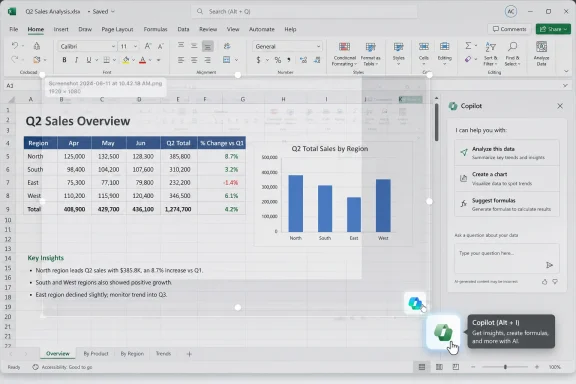
According to user reports and Microsoft 365 rollout references, the change is tied to Microsoft’s effort to consolidate Copilot entry points across Office apps. In Excel, that means the Copilot icon migrates away from its familiar ribbon placement and becomes a bottom-right floating control. Hovering over it exposes suggested actions such as researching with Copilot, creating a table, or learning something about Excel; clicking it opens the Copilot side pane.
That may sound minor if you do not live in spreadsheets. But Excel’s bottom-right corner is not empty space. It is where users scan the last visible columns, line up screenshots, manipulate scroll bars, and check whether a worksheet’s shape is behaving as expected on a particular display. A button that looks harmless in a product demo can become a daily irritation when it sits on top of a ledger, validation sheet, model output, or client-facing screenshot.
The deepest mistake is that Microsoft has framed Copilot as infrastructure while many users still experience it as advertising. A persistent button inside a worksheet says, in effect, that Microsoft’s preferred AI workflow deserves permanent residence in the document. For users who have not asked for Copilot, do not have a license for full Copilot, or work in environments where AI features are restricted, that design choice lands less like help and more like occupation.
That distinction matters. Microsoft can argue that the icon is movable, dockable, and part of a broader interface cleanup. Users are arguing that none of those things answers the actual demand: they want the ability to remove it from the worksheet canvas altogether. A feature that can be repositioned but not dismissed is still a mandate.
Excel is especially unforgiving territory for this kind of experiment. Word has margins, PowerPoint has slide-adjacent workspace, and Outlook has an inbox layout already full of panes and controls. Excel’s grid, by contrast, is the work surface, the database, the report, the calculator, and often the final artifact. Interfering with the grid is not the same as adding another button to a toolbar.
The screenshot complaint is particularly revealing. Many Excel users do not merely calculate inside spreadsheets; they use them as evidence. They capture snapshots for audits, validation, bug reports, finance reviews, and operational sign-offs. A floating Copilot badge over a data range is not just ugly. It can contaminate the artifact the user is trying to produce.
The floating Copilot button breaks that détente. It treats the worksheet as if it were a modern web app canvas where help widgets, chat bubbles, upsell badges, and recommendation controls can be pinned wherever engagement metrics say they perform best. That assumption is common in consumer software, but Office is not a consumer growth funnel in the usual sense. It is paid work infrastructure.
Microsoft’s design case is easy to imagine. Copilot is supposed to become a universal assistant across Microsoft 365. A consistent bottom-right entry point teaches users where to find it, reduces dependence on the ribbon, and makes Copilot available at the moment of work rather than hidden in command groups. For a company spending heavily to make AI feel native, the logic is coherent.
But coherence inside Redmond is not the same as consent outside it. A universal assistant is useful only if users believe the assistant is there on their terms. The more Microsoft forces Copilot into permanent visual contact, the more it risks training customers to see the assistant not as ambient intelligence, but as a stubborn overlay.
Excel users are not reacting in isolation. They have watched Windows gain and lose Copilot placements, watched the Microsoft 365 app rebrand around Copilot, and watched Teams become a place where premium prompts and upgrade messaging can feel hard to escape. When a new Copilot control appears inside Excel and cannot be dismissed, it is read through that history. The question becomes not “What does this button do?” but “Why is Microsoft putting another thing I did not ask for in my way?”
That is a dangerous position for a productivity vendor. Microsoft’s Office monopoly is durable, but its legitimacy rests on a promise of continuity. Professionals tolerate subscriptions, interface churn, and licensing complexity because Word, Excel, PowerPoint, and Outlook remain the standard tools through which work gets done. If those tools start to feel like delivery vehicles for Microsoft’s strategic priorities rather than instruments under the user’s control, resentment compounds quickly.
Copilot may eventually become indispensable inside Excel. Natural-language formula help, table generation, data explanation, and model inspection are obvious use cases. But the path to indispensability runs through trust, not exposure. A user who discovers Copilot because it solved a real spreadsheet problem will remember that. A user who notices Copilot because it blocked a cell will remember that too.
That creates the familiar enterprise gap between product rollout and operational readiness. Microsoft may document controls for disabling Copilot features or managing Copilot availability, but admins still have to translate those controls into a lived user experience. If the user sees a button, the user assumes something has changed. If clicking it opens a pane, prompts a license limitation, or exposes a feature the organization has not trained for, the help desk inherits the confusion.
This matters because Copilot is not just a UI feature. It is bound up with organizational data access, content grounding, retention questions, model behavior, and employee expectations. In regulated workplaces, the decision to enable AI assistance in Excel is not simply a personal preference. It may involve policy reviews about financial data, customer information, export-controlled material, or sensitive internal forecasts.
A floating button that appears before an organization is ready can look like Microsoft deciding the deployment timeline on the customer’s behalf. Even if admins can ultimately suppress or govern the feature, the first impression is that control is reactive. Enterprise IT hates reactive control because it means the rollout reached users before the governance story did.
Those instincts can improve products when the software is optional and lightweight. They are more dangerous in tools that users inhabit for hours a day under deadlines. Excel is not a streaming app hoping you discover a new tab. It is a professional environment where visual stability, muscle memory, and screen economy are part of the value proposition.
Microsoft knows this better than almost anyone. The company has spent decades learning that Office users resist change not because they are irrationally conservative, but because their workflows are densely optimized. A tiny interface movement can break macros, training materials, screenshots, documentation, accessibility routines, and habits built across thousands of repetitions. The cost of change is distributed across millions of users, most of whom never asked to participate in the experiment.
That is why the lack of a simple hide toggle feels so provocative. A toggle would not undermine Copilot’s future. It would merely acknowledge that the user’s workspace is not Microsoft’s billboard. By withholding that escape hatch, Microsoft turns a design preference into a power struggle.
The problem is that those benefits are contextual. Copilot is most useful when summoned at the point of need: when a range is selected, when a formula fails, when a table is ambiguous, when a user asks for analysis, or when a workbook contains patterns the assistant can explain. A persistent button floating over the grid is a crude solution to a more subtle design challenge.
A better Copilot interface would behave more like a respectful colleague than a chat widget. It would appear when there is a plausible reason to help, retreat when dismissed, and remain discoverable through the ribbon, keyboard shortcuts, and command search. It would let users choose whether the assistant belongs in the canvas, the side pane, or nowhere visible at all.
Microsoft appears to be betting that consistency across apps will reduce friction. But consistency is not the highest design virtue. In Excel, the bottom-right corner has different meaning than it does in Word or PowerPoint. Treating every Office app as a canvas for the same assistant button ignores the distinct ergonomics that made those apps successful.
This is where Microsoft’s messaging problem sharpens. The company can say Copilot is a productivity feature, not an advertisement. Yet Copilot is also a paid product, a licensing strategy, and a central pillar of Microsoft’s AI revenue ambitions. When Copilot’s icon becomes unavoidable, users understandably see more than a feature launcher. They see the business model.
The challenge for Microsoft is that Office users are unusually sensitive to motive. They know the difference between a feature added because it makes their work easier and a feature promoted because the vendor needs adoption. The floating Copilot icon may well serve both purposes, but the absence of user control makes the second motive harder to ignore.
Microsoft’s best defense would be humility. Acknowledge that Excel’s canvas is different, provide a per-app visibility control, and let organizations decide whether Copilot should appear in the grid, the ribbon, the side pane, or only through policy-approved entry points. That would preserve the assistant’s availability without making it feel compulsory.
Trust in productivity software is cumulative. It is built through thousands of sessions in which the product does what the user expects and does not surprise them unnecessarily. It is eroded through little intrusions: a prompt that returns after dismissal, a button that cannot be removed, a feature that reappears after an update, a setting that exists for admins but not for the individual staring at the screen.
Microsoft has spent years encouraging customers to think of Microsoft 365 as a continuously updated service rather than a static suite. That bargain works when updates feel like maintenance, security, and incremental improvement. It becomes more contentious when service updates alter the working surface in ways users cannot refuse.
The Copilot button is therefore a referendum on control. If Microsoft wants AI to be ambient, it must also make AI governable. Ambient features that cannot be governed are not ambient; they are imposed.
For now, the concrete takeaways are simple:
Source: Neowin Excel users are raging over Microsoft's unremovable Copilot button inside their sheets
 Microsoft Put Copilot Where the Work Happens
For years, Microsoft’s Office design language has observed a useful bargain: commands live in the ribbon, context menus, panes, and toolbars, while the document canvas belongs to the user. Excel has always bent that rule a little with smart tags, paste options, and contextual mini-buttons, but those controls usually appear in response to an action and then get out of the way. The new Copilot entry point changes the balance by putting a persistent assistant button inside the worksheet viewport itself.According to user reports and Microsoft 365 rollout references, the change is tied to Microsoft’s effort to consolidate Copilot entry points across Office apps. In Excel, that means the Copilot icon migrates away from its familiar ribbon placement and becomes a bottom-right floating control. Hovering over it exposes suggested actions such as researching with Copilot, creating a table, or learning something about Excel; clicking it opens the Copilot side pane.
That may sound minor if you do not live in spreadsheets. But Excel’s bottom-right corner is not empty space. It is where users scan the last visible columns, line up screenshots, manipulate scroll bars, and check whether a worksheet’s shape is behaving as expected on a particular display. A button that looks harmless in a product demo can become a daily irritation when it sits on top of a ledger, validation sheet, model output, or client-facing screenshot.
The deepest mistake is that Microsoft has framed Copilot as infrastructure while many users still experience it as advertising. A persistent button inside a worksheet says, in effect, that Microsoft’s preferred AI workflow deserves permanent residence in the document. For users who have not asked for Copilot, do not have a license for full Copilot, or work in environments where AI features are restricted, that design choice lands less like help and more like occupation.
Excel Users Are Not Objecting to AI So Much as Trespass
The reaction on Microsoft’s Excel feedback portal has been blunt. Users have called the icon visually disruptive, complained that it obscures cells, and asked Microsoft to restore the old ribbon placement or provide a toggle to hide the button. Some say docking the button does not solve the problem, because it merely moves the affordance to the side and preserves a caret-style launcher that can bring the floating control back.That distinction matters. Microsoft can argue that the icon is movable, dockable, and part of a broader interface cleanup. Users are arguing that none of those things answers the actual demand: they want the ability to remove it from the worksheet canvas altogether. A feature that can be repositioned but not dismissed is still a mandate.
Excel is especially unforgiving territory for this kind of experiment. Word has margins, PowerPoint has slide-adjacent workspace, and Outlook has an inbox layout already full of panes and controls. Excel’s grid, by contrast, is the work surface, the database, the report, the calculator, and often the final artifact. Interfering with the grid is not the same as adding another button to a toolbar.
The screenshot complaint is particularly revealing. Many Excel users do not merely calculate inside spreadsheets; they use them as evidence. They capture snapshots for audits, validation, bug reports, finance reviews, and operational sign-offs. A floating Copilot badge over a data range is not just ugly. It can contaminate the artifact the user is trying to produce.
The Ribbon Was a Compromise; the Floating Button Is a Claim
Microsoft’s ribbon has been controversial since its introduction, but it ultimately worked because it was a negotiated layer between application complexity and document focus. It gave Microsoft room to expose features without scattering them across the page. Users might grumble about where commands moved, but the spreadsheet itself remained visually sovereign.The floating Copilot button breaks that détente. It treats the worksheet as if it were a modern web app canvas where help widgets, chat bubbles, upsell badges, and recommendation controls can be pinned wherever engagement metrics say they perform best. That assumption is common in consumer software, but Office is not a consumer growth funnel in the usual sense. It is paid work infrastructure.
Microsoft’s design case is easy to imagine. Copilot is supposed to become a universal assistant across Microsoft 365. A consistent bottom-right entry point teaches users where to find it, reduces dependence on the ribbon, and makes Copilot available at the moment of work rather than hidden in command groups. For a company spending heavily to make AI feel native, the logic is coherent.
But coherence inside Redmond is not the same as consent outside it. A universal assistant is useful only if users believe the assistant is there on their terms. The more Microsoft forces Copilot into permanent visual contact, the more it risks training customers to see the assistant not as ambient intelligence, but as a stubborn overlay.
Microsoft’s AI Ambition Is Colliding With Office Muscle Memory
The backlash also reflects a larger fatigue around Microsoft’s Copilot push. Over the past two years, Microsoft has added Copilot branding across Windows, Edge, Microsoft 365, Teams, Outlook, and the Office apps. Some of these integrations are useful; some are unfinished; some feel like signage for a future that has not fully arrived. The cumulative effect is that every new Copilot surface now arrives with baggage.Excel users are not reacting in isolation. They have watched Windows gain and lose Copilot placements, watched the Microsoft 365 app rebrand around Copilot, and watched Teams become a place where premium prompts and upgrade messaging can feel hard to escape. When a new Copilot control appears inside Excel and cannot be dismissed, it is read through that history. The question becomes not “What does this button do?” but “Why is Microsoft putting another thing I did not ask for in my way?”
That is a dangerous position for a productivity vendor. Microsoft’s Office monopoly is durable, but its legitimacy rests on a promise of continuity. Professionals tolerate subscriptions, interface churn, and licensing complexity because Word, Excel, PowerPoint, and Outlook remain the standard tools through which work gets done. If those tools start to feel like delivery vehicles for Microsoft’s strategic priorities rather than instruments under the user’s control, resentment compounds quickly.
Copilot may eventually become indispensable inside Excel. Natural-language formula help, table generation, data explanation, and model inspection are obvious use cases. But the path to indispensability runs through trust, not exposure. A user who discovers Copilot because it solved a real spreadsheet problem will remember that. A user who notices Copilot because it blocked a cell will remember that too.
The Admin Problem Is Bigger Than the Button
For IT administrators, the issue is not merely aesthetic. Microsoft 365 environments are governed through licensing, policy, compliance review, training, data-loss prevention, audit expectations, and user support. A visible Copilot button inside Excel can generate tickets even when the underlying feature is unavailable, restricted, or not approved for use in a given organization.That creates the familiar enterprise gap between product rollout and operational readiness. Microsoft may document controls for disabling Copilot features or managing Copilot availability, but admins still have to translate those controls into a lived user experience. If the user sees a button, the user assumes something has changed. If clicking it opens a pane, prompts a license limitation, or exposes a feature the organization has not trained for, the help desk inherits the confusion.
This matters because Copilot is not just a UI feature. It is bound up with organizational data access, content grounding, retention questions, model behavior, and employee expectations. In regulated workplaces, the decision to enable AI assistance in Excel is not simply a personal preference. It may involve policy reviews about financial data, customer information, export-controlled material, or sensitive internal forecasts.
A floating button that appears before an organization is ready can look like Microsoft deciding the deployment timeline on the customer’s behalf. Even if admins can ultimately suppress or govern the feature, the first impression is that control is reactive. Enterprise IT hates reactive control because it means the rollout reached users before the governance story did.
The Consumerization of Office Has a Cost
The Copilot button is also a symptom of a broader design drift: the consumerization of enterprise software. Modern software makers obsess over activation, retention, discoverability, and feature engagement. Buttons are moved closer to the action; prompts are made more visible; empty states become marketing surfaces; assistants become ever-present companions.Those instincts can improve products when the software is optional and lightweight. They are more dangerous in tools that users inhabit for hours a day under deadlines. Excel is not a streaming app hoping you discover a new tab. It is a professional environment where visual stability, muscle memory, and screen economy are part of the value proposition.
Microsoft knows this better than almost anyone. The company has spent decades learning that Office users resist change not because they are irrationally conservative, but because their workflows are densely optimized. A tiny interface movement can break macros, training materials, screenshots, documentation, accessibility routines, and habits built across thousands of repetitions. The cost of change is distributed across millions of users, most of whom never asked to participate in the experiment.
That is why the lack of a simple hide toggle feels so provocative. A toggle would not undermine Copilot’s future. It would merely acknowledge that the user’s workspace is not Microsoft’s billboard. By withholding that escape hatch, Microsoft turns a design preference into a power struggle.
Copilot Needs Better Placement, Not Louder Placement
There is a strong product argument for Copilot in Excel. Spreadsheets are full of tasks that are conceptually simple but mechanically annoying: cleaning columns, explaining formulas, summarizing tables, suggesting charts, detecting anomalies, and generating formulas from plain English. Excel is also intimidating for occasional users, and Copilot can reduce the distance between intent and execution.The problem is that those benefits are contextual. Copilot is most useful when summoned at the point of need: when a range is selected, when a formula fails, when a table is ambiguous, when a user asks for analysis, or when a workbook contains patterns the assistant can explain. A persistent button floating over the grid is a crude solution to a more subtle design challenge.
A better Copilot interface would behave more like a respectful colleague than a chat widget. It would appear when there is a plausible reason to help, retreat when dismissed, and remain discoverable through the ribbon, keyboard shortcuts, and command search. It would let users choose whether the assistant belongs in the canvas, the side pane, or nowhere visible at all.
Microsoft appears to be betting that consistency across apps will reduce friction. But consistency is not the highest design virtue. In Excel, the bottom-right corner has different meaning than it does in Word or PowerPoint. Treating every Office app as a canvas for the same assistant button ignores the distinct ergonomics that made those apps successful.
The Teams “Unlock Premium” Lesson Was Apparently Too Narrow
The Excel flare-up follows another recent complaint: Microsoft placing an always-visible “Unlock Premium” button in the Teams interface. That controversy was more obviously commercial, because the button functioned as a persistent upgrade prompt. The Excel Copilot button is different in purpose, but similar in feel. Both changes ask users to accept permanent interface real estate for Microsoft’s strategic monetization layers.This is where Microsoft’s messaging problem sharpens. The company can say Copilot is a productivity feature, not an advertisement. Yet Copilot is also a paid product, a licensing strategy, and a central pillar of Microsoft’s AI revenue ambitions. When Copilot’s icon becomes unavoidable, users understandably see more than a feature launcher. They see the business model.
The challenge for Microsoft is that Office users are unusually sensitive to motive. They know the difference between a feature added because it makes their work easier and a feature promoted because the vendor needs adoption. The floating Copilot icon may well serve both purposes, but the absence of user control makes the second motive harder to ignore.
Microsoft’s best defense would be humility. Acknowledge that Excel’s canvas is different, provide a per-app visibility control, and let organizations decide whether Copilot should appear in the grid, the ribbon, the side pane, or only through policy-approved entry points. That would preserve the assistant’s availability without making it feel compulsory.
This Is a Trust Problem Disguised as a UI Problem
The reaction to the Copilot button is intense because it touches a trust boundary. Users trust Excel to show their data faithfully, preserve their layout, and keep the interface predictable enough that the tool disappears into the work. A floating button violates that expectation in a small but persistent way.Trust in productivity software is cumulative. It is built through thousands of sessions in which the product does what the user expects and does not surprise them unnecessarily. It is eroded through little intrusions: a prompt that returns after dismissal, a button that cannot be removed, a feature that reappears after an update, a setting that exists for admins but not for the individual staring at the screen.
Microsoft has spent years encouraging customers to think of Microsoft 365 as a continuously updated service rather than a static suite. That bargain works when updates feel like maintenance, security, and incremental improvement. It becomes more contentious when service updates alter the working surface in ways users cannot refuse.
The Copilot button is therefore a referendum on control. If Microsoft wants AI to be ambient, it must also make AI governable. Ambient features that cannot be governed are not ambient; they are imposed.
Excel’s Small Purple Button Carries a Large Warning
The practical lesson is not that Microsoft should remove Copilot from Excel. It is that Microsoft should stop confusing visibility with value. Users will tolerate prominent AI controls when those controls solve visible problems, but they will revolt when the controls become problems themselves.For now, the concrete takeaways are simple:
- Microsoft is moving Copilot access in Excel toward a persistent bottom-right entry point as part of a broader Microsoft 365 interface strategy.
- Users are objecting because the control appears inside the worksheet area and reportedly cannot be fully hidden through ordinary Excel customization.
- Docking the icon may reduce the obstruction for some users, but it does not satisfy those who want Copilot removed from the canvas entirely.
- The controversy is sharper in Excel because the grid is both the workspace and the artifact users often share, capture, or audit.
- Enterprise administrators should expect user confusion wherever Copilot visibility, licensing, and organizational AI policy are not aligned.
- Microsoft can defuse most of the backlash by adding a clear per-app toggle and respecting the distinction between discoverability and persistence.
Source: Neowin Excel users are raging over Microsoft's unremovable Copilot button inside their sheets
