

Microsoft said on May 12, 2026, that Copilot in Microsoft 365 apps is being consolidated into fewer, more predictable entry points across Word, Excel, PowerPoint, and Outlook, with a floating button, contextual prompts, revised shortcuts, and general availability expected by early June. The change sounds cosmetic, but it is really about habit formation. Microsoft is no longer treating Copilot as an optional pane bolted onto Office; it is redesigning the surface of Office so the assistant is always one nudge away.
That matters because the hardest part of selling AI inside productivity software is not only model quality, licensing, or security posture. It is whether users remember the tool exists at the exact moment it might be useful. Microsoft’s latest Copilot shuffle is an admission that the previous answer — scatter buttons, panes, ribbon commands, and app-specific affordances across a sprawling suite — was too messy for a product it wants to make ordinary.
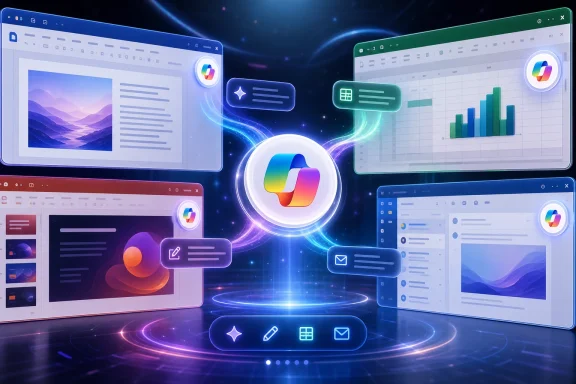
The headline change is simple: Copilot is being reduced to two primary access patterns in the core Office apps. Users will see a Copilot icon at the bottom-right corner of the screen, and they will also encounter contextual entry points when they interact with content, such as selecting text in a document.
That is a classic Microsoft move, and not necessarily a bad one. Office has always been a product of accumulated affordances: ribbons, panes, right-click menus, mini toolbars, keyboard sequences, backstage views, and add-ins layered across decades of user behavior. Copilot arrived into that environment as another surface competing for attention, which meant even interested users could miss it, ignore it, or forget which version of the button belonged to which workflow.
By narrowing Copilot’s visibility to a persistent floating control and content-aware suggestions, Microsoft is trying to replace discovery with muscle memory. The assistant is no longer something users must go looking for in the ribbon. It is a standing presence in the document window, workbook, slide deck, or message flow.
The risk is equally obvious. A persistent AI button is useful only if it feels like a tool rather than a sales placard. Microsoft is walking a fine line between lowering friction and turning every blank page, paragraph selection, and spreadsheet range into an invitation to use a paid AI feature.
But the bottom-right corner is also contested territory. In Word, it can sit near the end of a line, the last visible paragraph, comments, or reviewing controls. In Excel, it can hover near cells users are actively editing. In PowerPoint, it may intrude on slide canvas work, especially on smaller laptop screens or split-window setups.
Microsoft appears to understand that problem because the company is adding a docking option. Users will be able to right-click the Copilot button and choose “Dock,” moving it away from the content. Microsoft also says future behavior will allow dragging the icon to dock it to the right side of the content, or to the left side for right-to-left locales.
That concession is more important than it sounds. The modern Office user is not just typing a memo on a 27-inch monitor. They are working in virtual desktops, remote sessions, Teams calls, browser windows, tablets, and cramped laptop layouts. A floating AI icon that saves two seconds in a demo can become a daily irritant if it covers the exact thing a user is trying to edit.
The docking option is Microsoft’s implicit acknowledgment that ambient AI can become visual noise. The company wants Copilot to be ever-present, but it cannot afford for Copilot to feel like Clippy with a cloud subscription.
This is where Microsoft’s strategy becomes more interesting than a button placement story. The company is not merely asking users to open Copilot. It is trying to infer intent from the unit of work the user has selected.
That shift changes the relationship between user and software. Traditional Office commands wait for explicit instruction: bold this, sort that, insert a chart, accept this revision. Copilot’s contextual prompts attempt to convert selection itself into a hint. The act of highlighting text becomes a possible signal that the user wants transformation, explanation, or generation.
In theory, that is exactly where AI assistance makes sense. Users often know what feels wrong before they know which command to invoke. A paragraph is too long, a table is confusing, a slide is dull, an email sounds too abrupt. If Copilot can meet the user at that moment with relevant options, it may feel less like a chatbot and more like an extension of the editing surface.
In practice, the quality of those suggestions will determine whether this is a breakthrough or another layer of prompts to dismiss. The selected-text workflow is powerful because it is precise. It is also fragile because a bad suggestion at the wrong moment makes the assistant look less intelligent than a spellchecker.
This is a meaningful change for keyboard-heavy Office users, though not necessarily an unambiguous win. Alt-key ribbon sequences are awkward to explain but deeply embedded in Office’s accessibility and power-user culture. They are deterministic, visible through key tips, and part of a broader system that many users have learned over years.
F6, by contrast, is already a navigation key in Office and Windows interfaces, commonly used to cycle focus through panes and regions. Making it part of the Copilot discovery path may improve consistency for some users while adding another focus stop for others. The details will matter, especially for screen-reader users and people who rely on predictable keyboard traversal rather than mouse-driven floating controls.
The simplified Alt + C and Command + Control + I shortcuts are the more obvious attempt to make Copilot feel native across platforms. A single memorable shortcut is easier to teach than a ribbon chord. It is also easier for IT departments, trainers, and internal champions to put on cheat sheets.
Still, shortcut changes carry a cultural tax in Office. Every new mapping enters a crowded namespace of habits, macros, accessibility tools, language settings, and regional keyboard layouts. Microsoft’s promise that more app and language support will follow is a reminder that consistency across Office is always less tidy than the announcement makes it sound.
That schedule puts administrators in a familiar position. The change is not a giant migration, but it will be visible, user-facing, and likely to generate help-desk questions. Any UI change involving Copilot now intersects with licensing, privacy expectations, training, and employee sentiment about AI in the workplace.
For organizations that have embraced Microsoft 365 Copilot, the simplified entry point may be welcome. Adoption programs often stumble because users do not know where to start, or because Copilot behaves differently enough across apps that training becomes fragmented. A common visual affordance and a common shortcut story make it easier to teach the suite as a single AI-enabled workspace.
For organizations that have not fully licensed Copilot, or that restrict it by policy, the optics become trickier. Users may see Copilot controls, references, or prompts that imply functionality they cannot use. That creates the worst kind of enterprise software confusion: the feature appears to exist, but the user cannot tell whether it is disabled, unlicensed, unavailable in their channel, or simply not working.
That is why the build numbers matter. They are not just trivia for release notes. They give admins a way to tie user reports to deployment rings, update channels, and platform differences before the help desk gets buried in “Where did this button come from?” tickets.
This is the same playbook Microsoft used with earlier Office-era transitions. The ribbon turned scattered menus into a visible command surface. Autosave and cloud presence indicators made collaboration feel persistent. Editor, Designer, and Ideas brought machine assistance into documents and slides before the generative AI wave had fully arrived.
Copilot is different because it asks for more trust. A spellchecker underlines a word. Copilot may rewrite a paragraph, summarize an email chain, analyze data, or draft slides. The interface must therefore do more than expose a feature; it must signal when Copilot is acting, what content it is using, and how reversible the results are.
Microsoft has recently emphasized more agentic capabilities in Word, Excel, and PowerPoint, including multi-step actions inside files. That makes the entry-point redesign timely. If Copilot can increasingly act inside the document rather than merely chat about it, Microsoft needs the invocation model to be both obvious and bounded.
The button is the obvious part. The boundary is harder. Users need to know whether Copilot is about to suggest, draft, edit, summarize, calculate, transform, or execute a multi-step change. The more capable the assistant becomes, the more the UI must communicate scope before action.
A finance analyst may know exactly how to manipulate a workbook manually. A project manager may already have a deck template. A lawyer may distrust generated language. An executive assistant may prefer proven Outlook habits over an AI summary that might miss nuance. Copilot has to earn its place inside those workflows, not merely appear beside them.
That is why proactive suggestions are central to this rollout. Microsoft is not waiting for users to write perfect prompts. It is trying to offer plausible starting points based on what the user is doing. In consumer software, that might be called onboarding. In enterprise software, it is closer to workflow capture.
If the suggestions are good, they reduce the blank-prompt problem. If they are mediocre, they train users to ignore Copilot as one more notification-shaped object in a productivity suite already full of nudges.
The most consequential part of the announcement may therefore be the least flashy: suggestions that change depending on selected content. Microsoft is betting that Copilot adoption improves when the software proposes the first move.
Word, Excel, PowerPoint, and Outlook are not just apps; they are regulated workspaces in many organizations. They contain contracts, financial models, HR records, sales forecasts, privileged communications, and intellectual property. Any new AI surface that appears inside those spaces will be judged not only on convenience but on governance.
Microsoft’s Copilot architecture and Microsoft 365 positioning emphasize permissions, tenant boundaries, and data access through Microsoft Graph. But users do not experience architecture diagrams. They experience a button that appears beside a document and suggests actions. If an employee does not understand what data Copilot can see, what it can send, and what it can change, the interface has outpaced the trust model.
Admins will need to update internal guidance. Screenshots in training materials may be wrong. Shortcut references may need revision. Support teams may need to explain the difference between Copilot Chat, app-specific Copilot features, licensed Microsoft 365 Copilot capabilities, and consumer-facing Copilot branding.
That last point remains one of Microsoft’s self-inflicted wounds. The word “Copilot” now spans Windows, Edge, Microsoft 365, GitHub, security products, admin tools, and consumer subscriptions. Simplifying the entry point inside Office helps, but it does not fully solve the naming sprawl around the brand.
The same is true of proactive suggestions. A helpful suggestion at the right moment feels like intelligence. A repeated suggestion in the wrong place feels like an interruption. The difference is not merely model quality; it is restraint.
Office users have long memories when it comes to intrusive assistance. Microsoft does not need another mascot-shaped cautionary tale to understand that productivity software must respect concentration. The modern version of that lesson is subtler: an AI assistant can be visually minimal and still cognitively loud.
The best version of this rollout would make Copilot easier to discover without making Office feel more cluttered. The worst version would turn every editing action into a prompt funnel. Microsoft’s inclusion of docking suggests it knows the danger. Whether the default behavior is restrained enough is something users will decide quickly.
Most workers do not want to become prompt engineers. They want a cleaner paragraph, a better email, a useful summary, a chart that explains itself, or a slide deck that does not look like it was assembled at midnight. Copilot’s value proposition depends on translating those everyday desires into actions.
A contextual Copilot entry point is an attempt to make that translation automatic. Selecting a sentence is not a prompt, but it is a clue. Highlighting a table is not an instruction, but it narrows the problem space. Hovering over the Copilot button is not intent, but it creates an opportunity for Microsoft to propose intent.
This is why the interface matters more than the announcement’s modest scope suggests. The future of AI in Office will not be decided solely in model benchmarks. It will be decided in tiny moments of friction: whether the user sees the right suggestion, trusts the right button, and understands the result well enough to keep it.
If Microsoft can make those moments feel natural, Copilot becomes part of Office muscle memory. If not, it remains a feature users know exists but rarely invite into serious work.
Near term, users will notice the floating icon, the dock option, and the revised shortcuts. Medium term, admins will need to account for training, policy, support, and update-channel timing. Longer term, Microsoft is creating the interface scaffolding for more agentic Office behavior, where Copilot does not just answer questions but takes structured action inside files.
The danger is that Microsoft’s commercial urgency outruns user consent. Microsoft wants Copilot to be easy to find because Copilot is central to the company’s productivity-software story. Users want it to be easy to use when they need it and easy to ignore when they do not.
That tension is now sitting in the bottom-right corner of Word, Excel, and PowerPoint.
Source: Neowin Microsoft streamlines access to Copilot in Word, Excel, PowerPoint and Outlook
That matters because the hardest part of selling AI inside productivity software is not only model quality, licensing, or security posture. It is whether users remember the tool exists at the exact moment it might be useful. Microsoft’s latest Copilot shuffle is an admission that the previous answer — scatter buttons, panes, ribbon commands, and app-specific affordances across a sprawling suite — was too messy for a product it wants to make ordinary.
 Microsoft Is Standardizing the Doorway Before It Standardizes the Assistant
The headline change is simple: Copilot is being reduced to two primary access patterns in the core Office apps. Users will see a Copilot icon at the bottom-right corner of the screen, and they will also encounter contextual entry points when they interact with content, such as selecting text in a document.That is a classic Microsoft move, and not necessarily a bad one. Office has always been a product of accumulated affordances: ribbons, panes, right-click menus, mini toolbars, keyboard sequences, backstage views, and add-ins layered across decades of user behavior. Copilot arrived into that environment as another surface competing for attention, which meant even interested users could miss it, ignore it, or forget which version of the button belonged to which workflow.
By narrowing Copilot’s visibility to a persistent floating control and content-aware suggestions, Microsoft is trying to replace discovery with muscle memory. The assistant is no longer something users must go looking for in the ribbon. It is a standing presence in the document window, workbook, slide deck, or message flow.
The risk is equally obvious. A persistent AI button is useful only if it feels like a tool rather than a sales placard. Microsoft is walking a fine line between lowering friction and turning every blank page, paragraph selection, and spreadsheet range into an invitation to use a paid AI feature.
The Floating Button Is a Product Strategy Wearing a UI Costume
The new Copilot button will sit at the bottom-right corner of the app window, which is not an accidental choice. That area is visible without occupying the main ribbon, close enough to the content to feel contextual, and familiar to anyone who has used chat widgets, help bubbles, or assistant overlays on the web.But the bottom-right corner is also contested territory. In Word, it can sit near the end of a line, the last visible paragraph, comments, or reviewing controls. In Excel, it can hover near cells users are actively editing. In PowerPoint, it may intrude on slide canvas work, especially on smaller laptop screens or split-window setups.
Microsoft appears to understand that problem because the company is adding a docking option. Users will be able to right-click the Copilot button and choose “Dock,” moving it away from the content. Microsoft also says future behavior will allow dragging the icon to dock it to the right side of the content, or to the left side for right-to-left locales.
That concession is more important than it sounds. The modern Office user is not just typing a memo on a 27-inch monitor. They are working in virtual desktops, remote sessions, Teams calls, browser windows, tablets, and cramped laptop layouts. A floating AI icon that saves two seconds in a demo can become a daily irritant if it covers the exact thing a user is trying to edit.
The docking option is Microsoft’s implicit acknowledgment that ambient AI can become visual noise. The company wants Copilot to be ever-present, but it cannot afford for Copilot to feel like Clippy with a cloud subscription.
Context Is the Real Interface Microsoft Wants to Own
The second main access point is contextual: Copilot appears when the user interacts with content. Select a whole document, and the assistant may suggest broad drafting or summarization help. Select a paragraph, sentence, or word, and the suggestions become more targeted, such as rewriting, editing, fixing, or improving a smaller piece of text.This is where Microsoft’s strategy becomes more interesting than a button placement story. The company is not merely asking users to open Copilot. It is trying to infer intent from the unit of work the user has selected.
That shift changes the relationship between user and software. Traditional Office commands wait for explicit instruction: bold this, sort that, insert a chart, accept this revision. Copilot’s contextual prompts attempt to convert selection itself into a hint. The act of highlighting text becomes a possible signal that the user wants transformation, explanation, or generation.
In theory, that is exactly where AI assistance makes sense. Users often know what feels wrong before they know which command to invoke. A paragraph is too long, a table is confusing, a slide is dull, an email sounds too abrupt. If Copilot can meet the user at that moment with relevant options, it may feel less like a chatbot and more like an extension of the editing surface.
In practice, the quality of those suggestions will determine whether this is a breakthrough or another layer of prompts to dismiss. The selected-text workflow is powerful because it is precise. It is also fragile because a bad suggestion at the wrong moment makes the assistant look less intelligent than a spellchecker.
The Keyboard Shortcut Change Reveals the Accessibility Trade-Off
Microsoft is also changing how users reach Copilot from the keyboard. The older Alt + H, F, X sequence for opening the Copilot pane is giving way to a simpler model in which F6 focuses the Copilot button and the up arrow moves through suggested prompts. Microsoft is also promoting simplified shortcuts such as Alt + C and Command + Control + I in Outlook and Word for Windows and Mac in English, with support for more apps and languages to follow.This is a meaningful change for keyboard-heavy Office users, though not necessarily an unambiguous win. Alt-key ribbon sequences are awkward to explain but deeply embedded in Office’s accessibility and power-user culture. They are deterministic, visible through key tips, and part of a broader system that many users have learned over years.
F6, by contrast, is already a navigation key in Office and Windows interfaces, commonly used to cycle focus through panes and regions. Making it part of the Copilot discovery path may improve consistency for some users while adding another focus stop for others. The details will matter, especially for screen-reader users and people who rely on predictable keyboard traversal rather than mouse-driven floating controls.
The simplified Alt + C and Command + Control + I shortcuts are the more obvious attempt to make Copilot feel native across platforms. A single memorable shortcut is easier to teach than a ribbon chord. It is also easier for IT departments, trainers, and internal champions to put on cheat sheets.
Still, shortcut changes carry a cultural tax in Office. Every new mapping enters a crowded namespace of habits, macros, accessibility tools, language settings, and regional keyboard layouts. Microsoft’s promise that more app and language support will follow is a reminder that consistency across Office is always less tidy than the announcement makes it sound.
General Availability by June Means IT Has a Small Window to Prepare
The rollout is aimed at Word, Excel, and PowerPoint on Windows and Mac first, with web support coming later. Microsoft expects the feature to reach general availability by early June, and the required versions are Windows Build 2606, version 19822.20182 or later, and Mac Build 16.108, version 26050324 or later.That schedule puts administrators in a familiar position. The change is not a giant migration, but it will be visible, user-facing, and likely to generate help-desk questions. Any UI change involving Copilot now intersects with licensing, privacy expectations, training, and employee sentiment about AI in the workplace.
For organizations that have embraced Microsoft 365 Copilot, the simplified entry point may be welcome. Adoption programs often stumble because users do not know where to start, or because Copilot behaves differently enough across apps that training becomes fragmented. A common visual affordance and a common shortcut story make it easier to teach the suite as a single AI-enabled workspace.
For organizations that have not fully licensed Copilot, or that restrict it by policy, the optics become trickier. Users may see Copilot controls, references, or prompts that imply functionality they cannot use. That creates the worst kind of enterprise software confusion: the feature appears to exist, but the user cannot tell whether it is disabled, unlicensed, unavailable in their channel, or simply not working.
That is why the build numbers matter. They are not just trivia for release notes. They give admins a way to tie user reports to deployment rings, update channels, and platform differences before the help desk gets buried in “Where did this button come from?” tickets.
Office Is Becoming Less Like a Suite and More Like a Surface
The broader story is that Microsoft is trying to make Copilot behave less like a separate product and more like a layer across Office. That is not new as a slogan, but the UI work is where the slogan becomes real. A floating button, contextual suggestions, and shared shortcuts are not glamorous, but they are how a feature becomes part of daily work.This is the same playbook Microsoft used with earlier Office-era transitions. The ribbon turned scattered menus into a visible command surface. Autosave and cloud presence indicators made collaboration feel persistent. Editor, Designer, and Ideas brought machine assistance into documents and slides before the generative AI wave had fully arrived.
Copilot is different because it asks for more trust. A spellchecker underlines a word. Copilot may rewrite a paragraph, summarize an email chain, analyze data, or draft slides. The interface must therefore do more than expose a feature; it must signal when Copilot is acting, what content it is using, and how reversible the results are.
Microsoft has recently emphasized more agentic capabilities in Word, Excel, and PowerPoint, including multi-step actions inside files. That makes the entry-point redesign timely. If Copilot can increasingly act inside the document rather than merely chat about it, Microsoft needs the invocation model to be both obvious and bounded.
The button is the obvious part. The boundary is harder. Users need to know whether Copilot is about to suggest, draft, edit, summarize, calculate, transform, or execute a multi-step change. The more capable the assistant becomes, the more the UI must communicate scope before action.
The Real Competition Is Not Another AI Chatbot
It is tempting to frame every Copilot update as Microsoft versus Google, OpenAI, Anthropic, or whichever assistant is currently ascendant. But inside Office, the tougher competition is inertia. Most users already have workflows that are good enough, even if they are inefficient.A finance analyst may know exactly how to manipulate a workbook manually. A project manager may already have a deck template. A lawyer may distrust generated language. An executive assistant may prefer proven Outlook habits over an AI summary that might miss nuance. Copilot has to earn its place inside those workflows, not merely appear beside them.
That is why proactive suggestions are central to this rollout. Microsoft is not waiting for users to write perfect prompts. It is trying to offer plausible starting points based on what the user is doing. In consumer software, that might be called onboarding. In enterprise software, it is closer to workflow capture.
If the suggestions are good, they reduce the blank-prompt problem. If they are mediocre, they train users to ignore Copilot as one more notification-shaped object in a productivity suite already full of nudges.
The most consequential part of the announcement may therefore be the least flashy: suggestions that change depending on selected content. Microsoft is betting that Copilot adoption improves when the software proposes the first move.
The Admin View Is Less Magical Than the Demo
For IT pros, the question is not whether a floating button is useful. It is how the change lands across fleets with different update channels, operating systems, languages, licenses, compliance requirements, and user populations.Word, Excel, PowerPoint, and Outlook are not just apps; they are regulated workspaces in many organizations. They contain contracts, financial models, HR records, sales forecasts, privileged communications, and intellectual property. Any new AI surface that appears inside those spaces will be judged not only on convenience but on governance.
Microsoft’s Copilot architecture and Microsoft 365 positioning emphasize permissions, tenant boundaries, and data access through Microsoft Graph. But users do not experience architecture diagrams. They experience a button that appears beside a document and suggests actions. If an employee does not understand what data Copilot can see, what it can send, and what it can change, the interface has outpaced the trust model.
Admins will need to update internal guidance. Screenshots in training materials may be wrong. Shortcut references may need revision. Support teams may need to explain the difference between Copilot Chat, app-specific Copilot features, licensed Microsoft 365 Copilot capabilities, and consumer-facing Copilot branding.
That last point remains one of Microsoft’s self-inflicted wounds. The word “Copilot” now spans Windows, Edge, Microsoft 365, GitHub, security products, admin tools, and consumer subscriptions. Simplifying the entry point inside Office helps, but it does not fully solve the naming sprawl around the brand.
The User View Is About Control, Not Capability
End users tend to judge AI features less by theoretical capability than by whether they remain in control. The new docking feature is a small but revealing example. Microsoft can say the floating button improves access, but if users cannot move it, the feature becomes something done to them rather than for them.The same is true of proactive suggestions. A helpful suggestion at the right moment feels like intelligence. A repeated suggestion in the wrong place feels like an interruption. The difference is not merely model quality; it is restraint.
Office users have long memories when it comes to intrusive assistance. Microsoft does not need another mascot-shaped cautionary tale to understand that productivity software must respect concentration. The modern version of that lesson is subtler: an AI assistant can be visually minimal and still cognitively loud.
The best version of this rollout would make Copilot easier to discover without making Office feel more cluttered. The worst version would turn every editing action into a prompt funnel. Microsoft’s inclusion of docking suggests it knows the danger. Whether the default behavior is restrained enough is something users will decide quickly.
Microsoft Is Teaching Office to Ask for the Prompt
The old assumption behind generative AI in productivity tools was that users would learn to prompt. The new assumption is that software should prompt the user to prompt. That sounds recursive, but it is the heart of Microsoft’s design problem.Most workers do not want to become prompt engineers. They want a cleaner paragraph, a better email, a useful summary, a chart that explains itself, or a slide deck that does not look like it was assembled at midnight. Copilot’s value proposition depends on translating those everyday desires into actions.
A contextual Copilot entry point is an attempt to make that translation automatic. Selecting a sentence is not a prompt, but it is a clue. Highlighting a table is not an instruction, but it narrows the problem space. Hovering over the Copilot button is not intent, but it creates an opportunity for Microsoft to propose intent.
This is why the interface matters more than the announcement’s modest scope suggests. The future of AI in Office will not be decided solely in model benchmarks. It will be decided in tiny moments of friction: whether the user sees the right suggestion, trusts the right button, and understands the result well enough to keep it.
If Microsoft can make those moments feel natural, Copilot becomes part of Office muscle memory. If not, it remains a feature users know exists but rarely invite into serious work.
The Copilot Button Carries More Weight Than Its Pixels Suggest
This rollout is small enough to describe in a few release-note bullets, but large enough to reveal Microsoft’s direction. The company is moving from Copilot as a pane toward Copilot as a persistent companion surface. That is a strategic shift wrapped in interface housekeeping.Near term, users will notice the floating icon, the dock option, and the revised shortcuts. Medium term, admins will need to account for training, policy, support, and update-channel timing. Longer term, Microsoft is creating the interface scaffolding for more agentic Office behavior, where Copilot does not just answer questions but takes structured action inside files.
The danger is that Microsoft’s commercial urgency outruns user consent. Microsoft wants Copilot to be easy to find because Copilot is central to the company’s productivity-software story. Users want it to be easy to use when they need it and easy to ignore when they do not.
That tension is now sitting in the bottom-right corner of Word, Excel, and PowerPoint.
The New Office Habit Microsoft Wants Users to Learn
This is the practical shape of the change as it reaches desktops over the next few weeks:- Copilot is being consolidated around a floating bottom-right button and contextual entry points that appear when users work with selected content.
- The floating button can be docked through a right-click option, with drag-to-dock behavior planned for a later update.
- Proactive prompt suggestions will vary depending on whether the user is working with a full document, a paragraph, a sentence, a word, or other content.
- Word, Excel, and PowerPoint for Windows and Mac are first in line, while web support is expected later.
- The rollout targets general availability by early June 2026 and requires Windows Build 2606 version 19822.20182 or later, or Mac Build 16.108 version 26050324 or later.
- Outlook and Word already have simplified shortcuts in English on Windows and Mac, with broader app and language coverage expected after the new entry point rolls out.
Source: Neowin Microsoft streamlines access to Copilot in Word, Excel, PowerPoint and Outlook
Last edited:
