

Microsoft is rolling out a unified Copilot button and keyboard shortcut model across Microsoft 365 apps in May and June 2026, starting with Word and Outlook before expanding to Excel, PowerPoint, and other Office experiences. The practical change is small: fewer places to look, fewer shortcuts to memorize, and a bottom-right Copilot entry point that behaves more consistently. The strategic change is larger. Microsoft is trying to turn Copilot from a feature you hunt for into an interface layer that quietly follows you through Office.
For the past two years, Copilot inside Microsoft 365 has often felt less like one product than a family of related pop-ups. Word had its own rhythm. Excel had another. Outlook had still another. The web apps, desktop apps, and contextual menus did not always agree on where the AI assistant should live or how a user should summon it.
That inconsistency mattered because Microsoft has been asking customers to treat Copilot as a new way of working, not merely a better Clippy. If an assistant is supposed to become part of the daily muscle memory of writing, analyzing, summarizing, and presenting, it cannot feel like an Easter egg tucked into a ribbon tab. A feature that demands discovery every time it appears in a different place is not a platform; it is decoration.
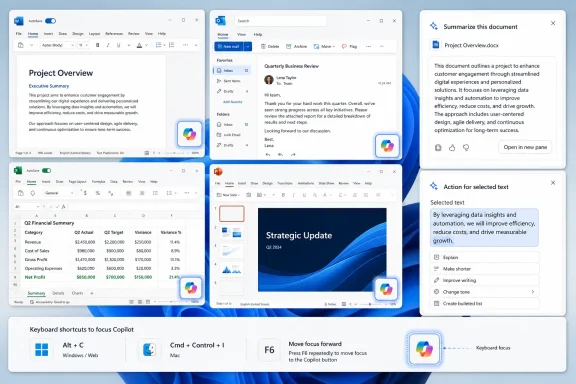
The new model pares that down to two primary routes. Users will see a Copilot icon in the bottom-right corner of the app canvas, and they will still get contextual Copilot options when they do something meaningful, such as selecting text. That is the right architectural instinct: one persistent door, plus one situational door.
The move also reflects a familiar Microsoft pattern. The company often experiments loudly, scatters entry points across its products, watches user confusion accumulate, and then standardizes around whatever survives contact with real workflows. Copilot is now entering that second phase.
This is not just keyboard housekeeping. Microsoft is trying to make Copilot behave like a first-class part of the document surface rather than a pane bolted onto the side. The difference is subtle but important. A ribbon command says, “launch this feature.” A focus target says, “this is part of the working environment.”
The F6 behavior is especially telling because F6 has long been associated with moving focus between interface regions in Microsoft apps. Folding Copilot into that navigation flow positions it as another standard UI zone, not a special event. For accessibility, power users, and keyboard-heavy workers, that matters more than a shiny new icon.
It also lowers the cost of trying Copilot in the moment. If a user has to remember whether Word used one shortcut, Excel another, and Outlook a third, the assistant loses to habit. If the same shortcut works across the suite, Copilot has a chance to become reflexive.
But the bottom-right corner also has a psychological effect. It makes Copilot feel ambient. The assistant is not the document, and it is not the toolbar. It is a hovering layer that can intervene, suggest, or be summoned when the user is ready.
That is where some users will bristle. The more persistent Copilot becomes, the more it risks looking like another case of Microsoft turning productivity software into a sales funnel for AI. A static button is one thing. Proactive suggestions bubbling up from that button are another.
Microsoft’s promise that Copilot will eventually edit content directly from conversation is the clearest sign of the destination. The company does not merely want Copilot to answer questions about a document. It wants Copilot to become the command surface for changing the document.
That is why unified entry points matter more than they appear to. If Copilot is just a helper tucked inside Word, shortcuts are a convenience. If Copilot is the interface through which users will ask Office to revise, summarize, transform, calculate, and present, shortcut consistency becomes infrastructure.
This is also why Microsoft has been pushing Copilot Chat as a common experience across Microsoft 365 apps, Edge, and the Microsoft 365 Copilot app. The company is not merely sprinkling AI into individual products. It is attempting to create a cross-app assistant that carries the same conceptual shape wherever the user happens to be working.
That strategy has obvious upside. A worker who learns Copilot in Word should not need to relearn it in PowerPoint. A sysadmin training users should not have to maintain separate “how to open Copilot” guides for every app. A keyboard user should not have to memorize a family tree of half-related shortcuts.
But the strategy also raises the stakes for quality. When Microsoft standardizes a shortcut, it is telling users the feature is ready for routine use. If Copilot’s answers are inconsistent, if suggestions are noisy, or if licensing rules make the button appear for some users and vanish for others, standardization will amplify frustration as much as convenience.
That staggered deployment is normal for Microsoft 365, where features move through update channels, tenants, platforms, and app-specific release schedules. It is also exactly the kind of thing that makes administrators groan. The user-facing message is “Copilot is becoming consistent,” but the operational reality is “consistency will arrive inconsistently.”
For IT departments, this creates the familiar support gap between announcement and deployment. Some users will see the button. Some will not. Some will have the shortcut. Some will have the shortcut but not the same Copilot entitlement. Some will be on desktop builds where the behavior differs from the web version.
That does not make the change bad. It does mean the first wave of questions will not be philosophical questions about AI productivity. They will be practical questions: why does my coworker have the button, why does Alt + C do nothing here, why did F6 land somewhere unexpected, and why does Copilot appear in one app but not another?
That context matters because a unified Copilot button is only reassuring if users understand what happens after they click it. In consumer Microsoft 365, business Microsoft 365, Copilot Chat, Copilot Pro, and Microsoft 365 Copilot environments, the word “Copilot” can point to meaningfully different experiences. The icon may be unified before the licensing story feels unified.
For administrators, this is the real support burden. A shortcut can be documented in five minutes. A confusing entitlement matrix can consume help desk time for months. If the same visual affordance opens different capabilities depending on account type, license assignment, tenant policy, platform, and rollout phase, Microsoft has standardized the door but not the room behind it.
That is why the company’s language about consistency should be read carefully. Consistent access is not the same as consistent capability. A user may be able to reach the Copilot button in a predictable way while still encountering restrictions on what Copilot can see, summarize, edit, or generate.
Microsoft is betting that the long-term value of a familiar interface outweighs the short-term messiness of licensing and deployment. That may be true. But for WindowsForum’s IT pro audience, the operational lesson is simple: do not confuse a cleaner UI with a simpler product matrix.
F6 support is particularly important because it uses an existing navigation convention rather than inventing another AI-specific gesture. That makes Copilot easier to incorporate into established workflows for screen reader users and keyboard-first workers. It also gives trainers and documentation writers a cleaner path: move focus, open suggestions, type if the pane is already active.
The Alt + C and Cmd + Control + I shortcuts are more direct, but they also create a clearer mental model. The shortcut targets the Copilot button in the canvas. If chat is already open, it targets the chat box. That is the kind of behavior that sounds obvious only after someone has done the product work to make it obvious.
This is where Microsoft deserves credit. AI features often arrive first as demos for mouse users on clean screens. Making them behave coherently under keyboard navigation is less glamorous, but it is what separates a novelty from workplace software.
Good proactive assistance is contextual, sparse, and easy to ignore. Bad proactive assistance is the productivity equivalent of a browser notification prompt. Office users are especially sensitive to this because they spend long, focused stretches inside documents, spreadsheets, decks, and inboxes. A mistimed suggestion can feel less like help than interruption.
The challenge is sharper in enterprise environments. A junior employee drafting a memo may welcome suggestions. A lawyer redlining contract language may not. A financial analyst working in a complex workbook may want natural-language help but not unsolicited nudges that imply the model understands the sheet better than the analyst does.
Microsoft’s phrase about Copilot editing content directly from conversation points to a future in which the assistant is no longer just suggesting next steps but executing them. That future requires trust. Trust requires predictability. Predictability requires Microsoft to be disciplined about when Copilot speaks up and what it changes.
The unified Copilot shortcut strategy fits that history. Microsoft is not removing the ribbon. It is building a parallel layer that can eventually route around it. Instead of remembering where a command lives, users can ask for the outcome they want.
That could make Office dramatically easier for casual users. Many people use only a fraction of Word, Excel, and PowerPoint because the applications are deep, old, and full of buried capability. If Copilot can expose that capability through natural language, Microsoft can make Office feel simpler without actually making it smaller.
But power users will judge the system differently. They do not need Copilot to find common commands. They need it to preserve structure, respect data, understand formatting, avoid breaking formulas, and explain what it changed. For them, the shortcut is just the front door to a harder question: is Copilot competent enough to touch serious work?
The most immediate task is communication. Users should know that Copilot access is moving toward a bottom-right button and a smaller set of shortcuts. They should also know that the rollout may not reach every app, platform, or account at the same moment.
The second task is policy review. Organizations that restrict Copilot, manage connected experiences, or separate users by license tier should test what the new entry points expose. A visible button that leads to a blocked or limited experience is not necessarily a security problem, but it is a support problem.
The third task is workflow evaluation. If Copilot suggestions become more proactive, organizations will need to decide whether those suggestions are helpful in regulated, confidential, or highly structured work. Microsoft can provide the switchgear, but customers still need to decide how aggressively they want AI assistance embedded into everyday document work.
This is especially true for sectors that care about auditability. When a person edits a document manually, the chain of responsibility is familiar. When a user asks Copilot to revise a section, generate an executive summary, or reshape a spreadsheet, the organization must decide how that work is reviewed, attributed, and retained.
A unified Copilot entry point keeps users inside Office. It says: do not copy this text into a chatbot; ask the assistant already sitting in the document. Do not upload the spreadsheet somewhere else; query it here. Do not start your presentation in a separate AI workspace; generate and refine it in PowerPoint.
That is strategically vital for Microsoft. Office documents, Outlook mailboxes, Teams chats, OneDrive files, SharePoint libraries, and organizational graph data form the moat around Microsoft 365. Copilot’s value depends on being close to that data and embedded in the apps where work already happens.
The shortcut change, then, is a small tactical move in a much larger platform contest. Microsoft wants Copilot to feel less like a destination and more like a default reflex. The fewer seconds between intent and Copilot, the stronger that reflex becomes.
Source: Windows Central https://www.windowscentral.com/micr...yboard-shortcuts-are-coming-to-microsoft-365/
 Microsoft Finally Admits the Copilot Door Was Too Hard to Find
For the past two years, Copilot inside Microsoft 365 has often felt less like one product than a family of related pop-ups. Word had its own rhythm. Excel had another. Outlook had still another. The web apps, desktop apps, and contextual menus did not always agree on where the AI assistant should live or how a user should summon it.That inconsistency mattered because Microsoft has been asking customers to treat Copilot as a new way of working, not merely a better Clippy. If an assistant is supposed to become part of the daily muscle memory of writing, analyzing, summarizing, and presenting, it cannot feel like an Easter egg tucked into a ribbon tab. A feature that demands discovery every time it appears in a different place is not a platform; it is decoration.
The new model pares that down to two primary routes. Users will see a Copilot icon in the bottom-right corner of the app canvas, and they will still get contextual Copilot options when they do something meaningful, such as selecting text. That is the right architectural instinct: one persistent door, plus one situational door.
The move also reflects a familiar Microsoft pattern. The company often experiments loudly, scatters entry points across its products, watches user confusion accumulate, and then standardizes around whatever survives contact with real workflows. Copilot is now entering that second phase.
The Shortcut Is the Message
The headline shortcut changes sound mundane, but they reveal where Microsoft thinks Office is going. On Windows and the web, Alt + C is slated to focus the Copilot button in the canvas; if the Copilot Chat pane is already open, the same shortcut moves focus to the chat edit box so the user can begin typing. On Mac desktop and web apps, Cmd + Control + I serves the equivalent role. F6, meanwhile, moves focus to the Copilot button across platforms.This is not just keyboard housekeeping. Microsoft is trying to make Copilot behave like a first-class part of the document surface rather than a pane bolted onto the side. The difference is subtle but important. A ribbon command says, “launch this feature.” A focus target says, “this is part of the working environment.”
The F6 behavior is especially telling because F6 has long been associated with moving focus between interface regions in Microsoft apps. Folding Copilot into that navigation flow positions it as another standard UI zone, not a special event. For accessibility, power users, and keyboard-heavy workers, that matters more than a shiny new icon.
It also lowers the cost of trying Copilot in the moment. If a user has to remember whether Word used one shortcut, Excel another, and Outlook a third, the assistant loses to habit. If the same shortcut works across the suite, Copilot has a chance to become reflexive.
The Bottom-Right Button Is Microsoft’s New Beachhead
The bottom-right placement is not accidental. It keeps Copilot visible without competing directly with the ribbon, which remains sacred territory in Office. The ribbon is where generations of users have learned to look for formatting, review, data, and layout controls; Microsoft has every incentive not to make Copilot feel like it is vandalizing that map.But the bottom-right corner also has a psychological effect. It makes Copilot feel ambient. The assistant is not the document, and it is not the toolbar. It is a hovering layer that can intervene, suggest, or be summoned when the user is ready.
That is where some users will bristle. The more persistent Copilot becomes, the more it risks looking like another case of Microsoft turning productivity software into a sales funnel for AI. A static button is one thing. Proactive suggestions bubbling up from that button are another.
Microsoft’s promise that Copilot will eventually edit content directly from conversation is the clearest sign of the destination. The company does not merely want Copilot to answer questions about a document. It wants Copilot to become the command surface for changing the document.
Office Is Becoming a Conversation Layer With Files Attached
The old Office model was command-driven. You selected text, opened menus, applied formatting, inserted charts, built slides, and saved files. The new model Microsoft is building is conversational first: describe the intent, let the system infer the operation, then inspect the result.That is why unified entry points matter more than they appear to. If Copilot is just a helper tucked inside Word, shortcuts are a convenience. If Copilot is the interface through which users will ask Office to revise, summarize, transform, calculate, and present, shortcut consistency becomes infrastructure.
This is also why Microsoft has been pushing Copilot Chat as a common experience across Microsoft 365 apps, Edge, and the Microsoft 365 Copilot app. The company is not merely sprinkling AI into individual products. It is attempting to create a cross-app assistant that carries the same conceptual shape wherever the user happens to be working.
That strategy has obvious upside. A worker who learns Copilot in Word should not need to relearn it in PowerPoint. A sysadmin training users should not have to maintain separate “how to open Copilot” guides for every app. A keyboard user should not have to memorize a family tree of half-related shortcuts.
But the strategy also raises the stakes for quality. When Microsoft standardizes a shortcut, it is telling users the feature is ready for routine use. If Copilot’s answers are inconsistent, if suggestions are noisy, or if licensing rules make the button appear for some users and vanish for others, standardization will amplify frustration as much as convenience.
The Rollout Solves One Confusion While Exposing Another
The immediate rollout is uneven. The unified shortcuts and button behavior are starting in Word and Outlook, while broader support across the Microsoft 365 family is expected to arrive later. Word, Excel, and PowerPoint are getting the new Copilot button and related shortcuts, with general availability expected in June.That staggered deployment is normal for Microsoft 365, where features move through update channels, tenants, platforms, and app-specific release schedules. It is also exactly the kind of thing that makes administrators groan. The user-facing message is “Copilot is becoming consistent,” but the operational reality is “consistency will arrive inconsistently.”
For IT departments, this creates the familiar support gap between announcement and deployment. Some users will see the button. Some will not. Some will have the shortcut. Some will have the shortcut but not the same Copilot entitlement. Some will be on desktop builds where the behavior differs from the web version.
That does not make the change bad. It does mean the first wave of questions will not be philosophical questions about AI productivity. They will be practical questions: why does my coworker have the button, why does Alt + C do nothing here, why did F6 land somewhere unexpected, and why does Copilot appear in one app but not another?
Licensing Still Casts a Shadow Over the Button
Microsoft’s Copilot problem has never been only usability. It has also been entitlement. Over the last year, the company has repeatedly adjusted where Copilot Chat appears, what it can do without a paid Microsoft 365 Copilot license, and which experiences are reserved for higher-value subscriptions.That context matters because a unified Copilot button is only reassuring if users understand what happens after they click it. In consumer Microsoft 365, business Microsoft 365, Copilot Chat, Copilot Pro, and Microsoft 365 Copilot environments, the word “Copilot” can point to meaningfully different experiences. The icon may be unified before the licensing story feels unified.
For administrators, this is the real support burden. A shortcut can be documented in five minutes. A confusing entitlement matrix can consume help desk time for months. If the same visual affordance opens different capabilities depending on account type, license assignment, tenant policy, platform, and rollout phase, Microsoft has standardized the door but not the room behind it.
That is why the company’s language about consistency should be read carefully. Consistent access is not the same as consistent capability. A user may be able to reach the Copilot button in a predictable way while still encountering restrictions on what Copilot can see, summarize, edit, or generate.
Microsoft is betting that the long-term value of a familiar interface outweighs the short-term messiness of licensing and deployment. That may be true. But for WindowsForum’s IT pro audience, the operational lesson is simple: do not confuse a cleaner UI with a simpler product matrix.
Accessibility Is the Strongest Case for the Change
The best argument for unified Copilot shortcuts is not marketing. It is accessibility. Keyboard navigation, predictable focus order, and cross-app consistency are essential for users who cannot or do not want to rely on a mouse.F6 support is particularly important because it uses an existing navigation convention rather than inventing another AI-specific gesture. That makes Copilot easier to incorporate into established workflows for screen reader users and keyboard-first workers. It also gives trainers and documentation writers a cleaner path: move focus, open suggestions, type if the pane is already active.
The Alt + C and Cmd + Control + I shortcuts are more direct, but they also create a clearer mental model. The shortcut targets the Copilot button in the canvas. If chat is already open, it targets the chat box. That is the kind of behavior that sounds obvious only after someone has done the product work to make it obvious.
This is where Microsoft deserves credit. AI features often arrive first as demos for mouse users on clean screens. Making them behave coherently under keyboard navigation is less glamorous, but it is what separates a novelty from workplace software.
The Proactive Assistant Will Be the Real Test
The new Copilot button will not merely sit there. Microsoft says it will surface proactive suggestions, and users will be able to reach those actions through keyboard shortcuts or by hovering over the icon. That is where the product could become genuinely useful — or genuinely irritating.Good proactive assistance is contextual, sparse, and easy to ignore. Bad proactive assistance is the productivity equivalent of a browser notification prompt. Office users are especially sensitive to this because they spend long, focused stretches inside documents, spreadsheets, decks, and inboxes. A mistimed suggestion can feel less like help than interruption.
The challenge is sharper in enterprise environments. A junior employee drafting a memo may welcome suggestions. A lawyer redlining contract language may not. A financial analyst working in a complex workbook may want natural-language help but not unsolicited nudges that imply the model understands the sheet better than the analyst does.
Microsoft’s phrase about Copilot editing content directly from conversation points to a future in which the assistant is no longer just suggesting next steps but executing them. That future requires trust. Trust requires predictability. Predictability requires Microsoft to be disciplined about when Copilot speaks up and what it changes.
The Ribbon Survives, but the Center of Gravity Moves
Office has survived many interface revolutions because Microsoft rarely replaces everything at once. Menus gave way to ribbons, ribbons absorbed search, and now search and command surfaces are being joined by chat. The old tools remain, but the center of gravity shifts.The unified Copilot shortcut strategy fits that history. Microsoft is not removing the ribbon. It is building a parallel layer that can eventually route around it. Instead of remembering where a command lives, users can ask for the outcome they want.
That could make Office dramatically easier for casual users. Many people use only a fraction of Word, Excel, and PowerPoint because the applications are deep, old, and full of buried capability. If Copilot can expose that capability through natural language, Microsoft can make Office feel simpler without actually making it smaller.
But power users will judge the system differently. They do not need Copilot to find common commands. They need it to preserve structure, respect data, understand formatting, avoid breaking formulas, and explain what it changed. For them, the shortcut is just the front door to a harder question: is Copilot competent enough to touch serious work?
Admins Should Treat This as a Change-Management Event
It would be easy to dismiss a shortcut rollout as minor. That would be a mistake. For organizations that have deployed or are piloting Microsoft 365 Copilot, interface standardization changes training materials, support scripts, accessibility documentation, and user expectations.The most immediate task is communication. Users should know that Copilot access is moving toward a bottom-right button and a smaller set of shortcuts. They should also know that the rollout may not reach every app, platform, or account at the same moment.
The second task is policy review. Organizations that restrict Copilot, manage connected experiences, or separate users by license tier should test what the new entry points expose. A visible button that leads to a blocked or limited experience is not necessarily a security problem, but it is a support problem.
The third task is workflow evaluation. If Copilot suggestions become more proactive, organizations will need to decide whether those suggestions are helpful in regulated, confidential, or highly structured work. Microsoft can provide the switchgear, but customers still need to decide how aggressively they want AI assistance embedded into everyday document work.
This is especially true for sectors that care about auditability. When a person edits a document manually, the chain of responsibility is familiar. When a user asks Copilot to revise a section, generate an executive summary, or reshape a spreadsheet, the organization must decide how that work is reviewed, attributed, and retained.
The Icon Is Small Because the Ambition Is Not
Microsoft has spent decades defending Office’s central place in work. Copilot is now the company’s attempt to defend that position against a different kind of competition: not another spreadsheet or word processor, but the possibility that knowledge workers will do more of their work in general-purpose AI tools outside Microsoft’s productivity stack.A unified Copilot entry point keeps users inside Office. It says: do not copy this text into a chatbot; ask the assistant already sitting in the document. Do not upload the spreadsheet somewhere else; query it here. Do not start your presentation in a separate AI workspace; generate and refine it in PowerPoint.
That is strategically vital for Microsoft. Office documents, Outlook mailboxes, Teams chats, OneDrive files, SharePoint libraries, and organizational graph data form the moat around Microsoft 365. Copilot’s value depends on being close to that data and embedded in the apps where work already happens.
The shortcut change, then, is a small tactical move in a much larger platform contest. Microsoft wants Copilot to feel less like a destination and more like a default reflex. The fewer seconds between intent and Copilot, the stronger that reflex becomes.
The New Muscle Memory Microsoft Wants Windows Users to Learn
The concrete changes are easy to summarize, but their effect will depend on rollout discipline, licensing clarity, and whether Copilot’s suggestions are good enough to deserve their new prominence.- Microsoft is consolidating Copilot access in Microsoft 365 apps around a persistent bottom-right canvas button and contextual entry points such as selected text.
- Alt + C on Windows and the web is intended to focus the Copilot button, while Cmd + Control + I serves that role on Mac desktop and web apps.
- F6 will move focus to the Copilot button across platforms, making Copilot part of the standard keyboard navigation flow.
- Word and Outlook are seeing the shortcut changes first, with broader Microsoft 365 app support expected later.
- Word, Excel, and PowerPoint are receiving the new Copilot button and related shortcut behavior, with general availability expected in June.
- Administrators should prepare for a transition period in which app version, platform, update channel, tenant policy, and license assignment affect what users actually see.
Source: Windows Central https://www.windowscentral.com/micr...yboard-shortcuts-are-coming-to-microsoft-365/
