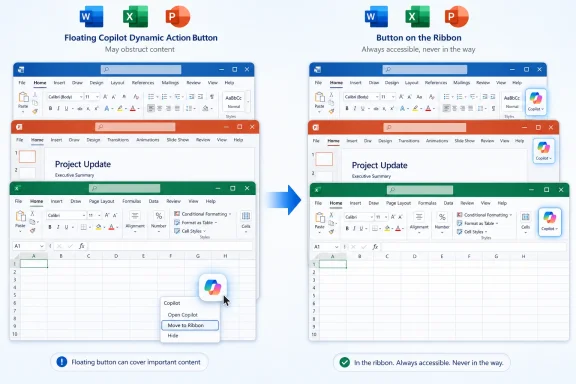
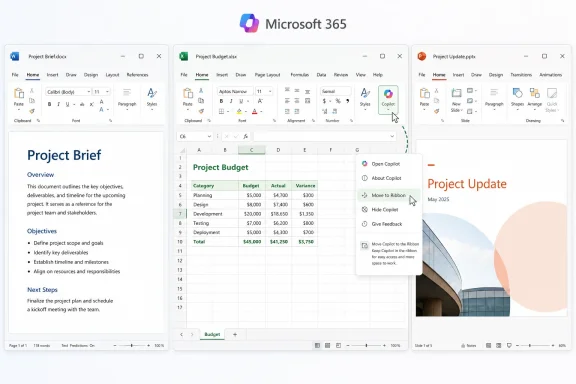
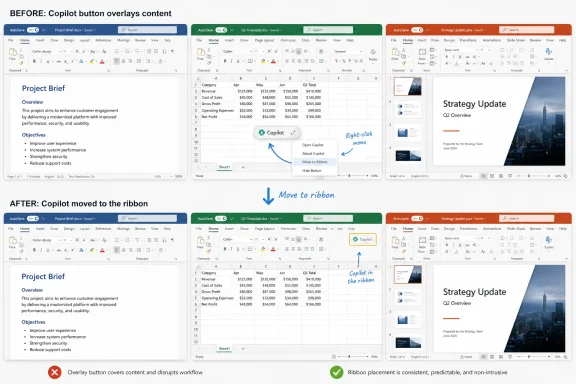
Microsoft is preparing to let Word, Excel, and PowerPoint users move the new floating Copilot button back into the ribbon after complaints that the Microsoft 365 interface change was intrusive, with web app updates expected to begin rolling out in late May 2026 and desktop updates likely to follow. The retreat is small, but the lesson is not. Microsoft is learning, one backlash at a time, that AI can be placed everywhere only if users still feel that the software belongs to them.
The floating Copilot button was not a random flourish from an overcaffeinated design team. It was part of Microsoft’s larger effort to make Copilot feel less like an add-on and more like a native layer inside Office. In Word, Excel, and PowerPoint, the company wants the assistant to appear at the point of work: near the document, near the spreadsheet, near the slide, and eventually near the action it thinks the user is about to take.
That strategy makes business sense. Microsoft is spending heavily to make AI the defining feature of Microsoft 365, and the company needs users to discover Copilot repeatedly enough that it becomes habit rather than novelty. A button buried in the ribbon is easy to ignore. A floating control in the canvas is not.
The problem is that Office is not a blank playground. It is decades of muscle memory, corporate process, keyboard-driven habit, and visual precision. Excel users in particular do not treat screen space as decoration; a cell grid is the product. Put a persistent AI affordance over that grid, and the interface stops feeling helpful before the model has typed a single word.
Microsoft’s partial reversal acknowledges that tension without abandoning the strategy. The Copilot Dynamic Action Button is not disappearing. Users will instead get a way to move it back to the ribbon, while the docked caret behavior is being adjusted so it stays tucked away during a document session rather than springing back into floating form. That is less a rollback than a recalibration: Copilot remains present, but the user gets a little more say over how loudly it announces itself.
That distinction matters because Office users often work in states of concentration. A floating button is not merely a button; it is a visual claim on attention. It says this new feature deserves to sit alongside the work itself, not with the rest of the tools.
Microsoft’s argument is that Copilot is not just another tool. The company wants Copilot to be contextual, conversational, and capable of editing content directly. If the assistant is going to summarize a deck, explain a formula, rewrite a paragraph, or act on selected text, keeping it closer to the document has an internal logic.
But software interfaces are not judged only by internal logic. They are judged by trust. For many users, the ribbon placement signaled that Copilot was optional; the floating placement signaled that Copilot was being marketed at them inside their own files.
That is why the right-click option to move the button back is more than a minor preference toggle. It restores the old contract for users who want it. Microsoft can still argue that Copilot belongs in the flow of work, but it now has to concede that some customers define flow as the absence of a floating AI prompt.
That makes Excel unusually sensitive to visual obstruction. A floating button in Word can be annoying. A floating button in PowerPoint can be visually distracting. A floating button in Excel can feel like it is sitting on top of the actual product.
There is also a cultural difference. Excel power users are among the most automation-friendly people in the Microsoft ecosystem, but they tend to prefer automation they control. They write formulas, build macros, connect data sources, shape pivots, and obsess over repeatable logic. A persistent AI button that cannot be dismissed easily lands not as empowerment, but as a sales pitch.
Microsoft can fairly say that Copilot in Excel has legitimate potential. Formula explanation, data summarization, chart generation, and natural-language analysis are exactly the kinds of tasks where an assistant could save time. Yet potential is not permission. The more capable Copilot becomes, the more Microsoft needs to prove that its interface respects the user’s working surface.
The company’s revised dock behavior is an implicit admission of that point. If a user docks the Copilot entry point, it should stay docked. A control that keeps reappearing after being pushed aside is not adaptive; it is needy.
This is the old metrics trap in a new AI wrapper. Product teams can optimize for usage and still degrade satisfaction. A feature can become more discoverable while also making the host application feel less stable, less familiar, and less respectful of user intent.
AI products are especially vulnerable to this confusion because vendors are under enormous pressure to demonstrate momentum. Copilot is not a minor toolbar feature; it is a strategic bet tied to licensing, cloud consumption, enterprise renewals, and Microsoft’s broader claim that AI will reshape productivity work. That creates a bias toward visibility.
But users do not experience strategy decks. They experience the button that appeared in the corner of their spreadsheet. They experience the friction between yesterday’s workflow and today’s experiment. If the product feels like it is being reorganized around Microsoft’s quarterly AI narrative rather than the user’s task, resentment becomes predictable.
This is why the company’s language about flexibility matters. The goal is not merely to give users a hiding place for Copilot. The goal is to convince them that the assistant is not being forced into every surface for Microsoft’s benefit alone.
The pattern is straightforward. Microsoft makes Copilot more prominent. Users complain that an existing workflow was disrupted. Microsoft later adds a control that restores some of the old behavior.
This does not mean Microsoft is abandoning AI. Quite the opposite. It means the company is discovering the cost of making AI unavoidable before it is universally wanted. The lesson is especially sharp because Microsoft’s strongest software franchises are not young consumer apps where users expect constant visual churn. Windows and Office are infrastructure.
Infrastructure has different rules. A change that looks minor to a product manager can ripple through training materials, accessibility workflows, regulated environments, shared workstations, help desk scripts, and the habits of people who have used the same applications for decades. In that context, an AI button is never just an AI button.
The smarter long-term play is not to hide Copilot, but to make its presence feel earned. A Copilot action that appears when selected text can genuinely be summarized is easier to defend than a generic floating prompt. A contextual suggestion that saves a finance analyst 20 minutes is more welcome than an icon that hovers over cells all day. Microsoft’s challenge is to move from constant availability to timely relevance.
Microsoft 365 is deployed across schools, hospitals, law firms, governments, manufacturers, and financial institutions. Many of those environments care less about whether Copilot is interesting than whether it is predictable. The operational question is not “Can a user move the button?” but “Can the organization standardize the experience?”
The answer will matter because Copilot is becoming more deeply integrated across Microsoft 365. The company has already been shifting from Copilot as a chat pane toward Copilot as an action layer inside applications. That progression raises new questions about data access, auditability, licensing boundaries, training, and user support.
A floating button may sound trivial compared with those governance issues, but it is often the first visible sign that a deeper platform change is underway. Users see the icon before they understand the permission model. Help desks get the tickets before administrators have finished reading the message center post. Security teams get asked whether Copilot can read a document because the button is now sitting inside it.
That is why Microsoft should treat this episode as more than a UX complaint. It is a trust signal from the exact customers the company needs for Copilot to become durable enterprise infrastructure.
The emotional language around intrusive AI also reflects a broader fatigue. Users have spent the last several years watching Copilot branding spread across Windows, Edge, Office, keyboards, search surfaces, and mobile apps. Some of those integrations are useful. Some feel experimental. Some feel like ad inventory dressed as productivity.
Microsoft’s difficulty is that Office users are not uniformly anti-AI. Many are pragmatic. They will accept automation that improves proofreading, analysis, formatting, meeting follow-up, and document creation. What they resist is the sense that AI is being elevated above their own workflow preferences.
That resistance is not irrational. Productivity software is a place where small frictions compound. A button that seems harmless in a demo can become irritating when it appears hundreds of times a week. A docked control that will not stay docked tells the user that the software heard the command but did not respect the intent.
The company’s latest adjustment is therefore both sensible and overdue. It gives users a mechanism to restore the older visual hierarchy while allowing Microsoft to keep testing a more Copilot-forward model. The important question is whether Microsoft treats that as a one-off accommodation or as a design principle.
That future may be real. A Word document that can be reshaped through conversation, an Excel workbook that can explain its own assumptions, and a PowerPoint deck that can adjust itself to an audience are plausible productivity gains. Microsoft is not wrong to chase them.
But the path from today’s Office to that future runs through user tolerance. If every AI integration feels like a land grab, Microsoft will train customers to distrust the very features it wants them to adopt. If every new entry point arrives before a credible opt-out or management story, administrators will see Copilot as another change-control headache.
The best AI interface may ultimately be one that appears less often. That sounds counterintuitive in a market where every vendor wants its assistant visible, branded, and measurable. But the most valuable productivity features in Office often disappear into habit. AutoSave, spellcheck, formula autocomplete, and live collaboration are powerful because they support the work without demanding constant attention.
Copilot has not yet earned that status. Until it does, Microsoft should be cautious about treating visibility as virtue. A button can invite, but it can also accuse the application of serving two masters.
There is also a less flattering reading: Microsoft keeps shipping Copilot placements that would have benefited from more humility before rollout. The Windows Copilot key, the scattered AI buttons across system apps, and now the Office floating button all suggest a company that sometimes confuses strategic urgency with user readiness.
Both readings can be true. Microsoft is under pressure to make Copilot ubiquitous, and it is also responsive enough to soften the sharpest edges when users push back. The danger is that repeated partial retreats create a reputation problem. Customers may begin to assume that every new Copilot surface is negotiable only after public complaint.
That is not a healthy feedback loop. Enterprise customers should not have to rely on backlash as a configuration mechanism. Windows and Office users should not have to wait for social media outrage before Microsoft adds a basic preference.
The better model is obvious: ship prominent AI entry points with clear controls from day one. Let users pin, dock, hide, restore, or move them. Let administrators set defaults. Let Copilot prove its value in context rather than occupying space as an act of corporate will.
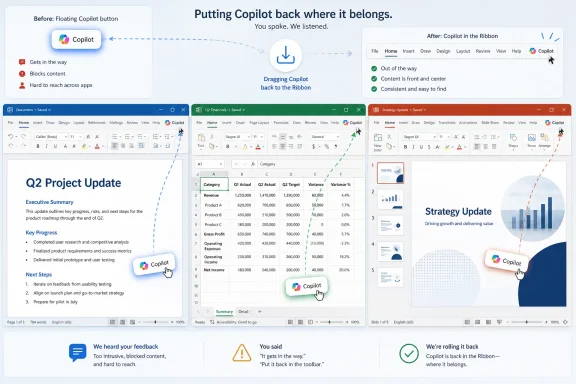 Microsoft Put Copilot Where the Work Happens — and Users Noticed
The floating Copilot button was not a random flourish from an overcaffeinated design team. It was part of Microsoft’s larger effort to make Copilot feel less like an add-on and more like a native layer inside Office. In Word, Excel, and PowerPoint, the company wants the assistant to appear at the point of work: near the document, near the spreadsheet, near the slide, and eventually near the action it thinks the user is about to take.That strategy makes business sense. Microsoft is spending heavily to make AI the defining feature of Microsoft 365, and the company needs users to discover Copilot repeatedly enough that it becomes habit rather than novelty. A button buried in the ribbon is easy to ignore. A floating control in the canvas is not.
The problem is that Office is not a blank playground. It is decades of muscle memory, corporate process, keyboard-driven habit, and visual precision. Excel users in particular do not treat screen space as decoration; a cell grid is the product. Put a persistent AI affordance over that grid, and the interface stops feeling helpful before the model has typed a single word.
Microsoft’s partial reversal acknowledges that tension without abandoning the strategy. The Copilot Dynamic Action Button is not disappearing. Users will instead get a way to move it back to the ribbon, while the docked caret behavior is being adjusted so it stays tucked away during a document session rather than springing back into floating form. That is less a rollback than a recalibration: Copilot remains present, but the user gets a little more say over how loudly it announces itself.
The Ribbon Was the Social Contract
The ribbon has always been controversial, but it has also become the organizing grammar of Office. Users may complain about it, customize around it, or collapse it, but they understand the deal: commands live at the top, content lives in the workspace. Microsoft violated that mental boundary when it moved the Copilot entry point onto the canvas.That distinction matters because Office users often work in states of concentration. A floating button is not merely a button; it is a visual claim on attention. It says this new feature deserves to sit alongside the work itself, not with the rest of the tools.
Microsoft’s argument is that Copilot is not just another tool. The company wants Copilot to be contextual, conversational, and capable of editing content directly. If the assistant is going to summarize a deck, explain a formula, rewrite a paragraph, or act on selected text, keeping it closer to the document has an internal logic.
But software interfaces are not judged only by internal logic. They are judged by trust. For many users, the ribbon placement signaled that Copilot was optional; the floating placement signaled that Copilot was being marketed at them inside their own files.
That is why the right-click option to move the button back is more than a minor preference toggle. It restores the old contract for users who want it. Microsoft can still argue that Copilot belongs in the flow of work, but it now has to concede that some customers define flow as the absence of a floating AI prompt.
Excel Made the Backlash Inevitable
If Microsoft had tested this first in a less spatially rigid app, the backlash might have been softer. Excel, however, is where interface intrusions go to die. A spreadsheet is not just a document; it is a work surface, a database, a calculator, a model, a report, and in many organizations, a barely governed application platform.That makes Excel unusually sensitive to visual obstruction. A floating button in Word can be annoying. A floating button in PowerPoint can be visually distracting. A floating button in Excel can feel like it is sitting on top of the actual product.
There is also a cultural difference. Excel power users are among the most automation-friendly people in the Microsoft ecosystem, but they tend to prefer automation they control. They write formulas, build macros, connect data sources, shape pivots, and obsess over repeatable logic. A persistent AI button that cannot be dismissed easily lands not as empowerment, but as a sales pitch.
Microsoft can fairly say that Copilot in Excel has legitimate potential. Formula explanation, data summarization, chart generation, and natural-language analysis are exactly the kinds of tasks where an assistant could save time. Yet potential is not permission. The more capable Copilot becomes, the more Microsoft needs to prove that its interface respects the user’s working surface.
The company’s revised dock behavior is an implicit admission of that point. If a user docks the Copilot entry point, it should stay docked. A control that keeps reappearing after being pushed aside is not adaptive; it is needy.
Engagement Is Not the Same Thing as Consent
Microsoft reportedly saw increased engagement after making Copilot more visible. That should surprise no one. Put a button in the middle of the workflow, and more people will click it. The harder question is whether those clicks represent adoption, curiosity, irritation, or accidental interaction.This is the old metrics trap in a new AI wrapper. Product teams can optimize for usage and still degrade satisfaction. A feature can become more discoverable while also making the host application feel less stable, less familiar, and less respectful of user intent.
AI products are especially vulnerable to this confusion because vendors are under enormous pressure to demonstrate momentum. Copilot is not a minor toolbar feature; it is a strategic bet tied to licensing, cloud consumption, enterprise renewals, and Microsoft’s broader claim that AI will reshape productivity work. That creates a bias toward visibility.
But users do not experience strategy decks. They experience the button that appeared in the corner of their spreadsheet. They experience the friction between yesterday’s workflow and today’s experiment. If the product feels like it is being reorganized around Microsoft’s quarterly AI narrative rather than the user’s task, resentment becomes predictable.
This is why the company’s language about flexibility matters. The goal is not merely to give users a hiding place for Copilot. The goal is to convince them that the assistant is not being forced into every surface for Microsoft’s benefit alone.
The Copilot Button Is Part of a Larger Pattern
The Office button controversy landed in the same general moment as another Copilot concession: Microsoft’s plan to give Windows 11 users more control over the dedicated Copilot key on newer PCs. That hardware key was pitched as a generational change, but for some users it replaced keys they actually used, including Right Ctrl or the context menu key. Microsoft’s move toward remapping options shows the same pattern playing out at the keyboard level.The pattern is straightforward. Microsoft makes Copilot more prominent. Users complain that an existing workflow was disrupted. Microsoft later adds a control that restores some of the old behavior.
This does not mean Microsoft is abandoning AI. Quite the opposite. It means the company is discovering the cost of making AI unavoidable before it is universally wanted. The lesson is especially sharp because Microsoft’s strongest software franchises are not young consumer apps where users expect constant visual churn. Windows and Office are infrastructure.
Infrastructure has different rules. A change that looks minor to a product manager can ripple through training materials, accessibility workflows, regulated environments, shared workstations, help desk scripts, and the habits of people who have used the same applications for decades. In that context, an AI button is never just an AI button.
The smarter long-term play is not to hide Copilot, but to make its presence feel earned. A Copilot action that appears when selected text can genuinely be summarized is easier to defend than a generic floating prompt. A contextual suggestion that saves a finance analyst 20 minutes is more welcome than an icon that hovers over cells all day. Microsoft’s challenge is to move from constant availability to timely relevance.
Admins Will Read This as Another Governance Warning
For IT administrators, the immediate change is welcome but incomplete. A user-level right-click option is useful for individuals. It is not the same as a clean administrative policy surface that lets organizations decide where Copilot appears, who sees it, how aggressively it prompts, and whether UI experiments arrive before internal communications are ready.Microsoft 365 is deployed across schools, hospitals, law firms, governments, manufacturers, and financial institutions. Many of those environments care less about whether Copilot is interesting than whether it is predictable. The operational question is not “Can a user move the button?” but “Can the organization standardize the experience?”
The answer will matter because Copilot is becoming more deeply integrated across Microsoft 365. The company has already been shifting from Copilot as a chat pane toward Copilot as an action layer inside applications. That progression raises new questions about data access, auditability, licensing boundaries, training, and user support.
A floating button may sound trivial compared with those governance issues, but it is often the first visible sign that a deeper platform change is underway. Users see the icon before they understand the permission model. Help desks get the tickets before administrators have finished reading the message center post. Security teams get asked whether Copilot can read a document because the button is now sitting inside it.
That is why Microsoft should treat this episode as more than a UX complaint. It is a trust signal from the exact customers the company needs for Copilot to become durable enterprise infrastructure.
The Consumer Backlash Carries Enterprise Weight
It is tempting to dismiss consumer complaints about a button as internet overreaction. That would be a mistake. Consumer irritation often previews enterprise friction, especially when the product is Microsoft 365. The same apps used for home budgets and school projects are also used for board reports, payroll models, contract drafts, and incident reviews.The emotional language around intrusive AI also reflects a broader fatigue. Users have spent the last several years watching Copilot branding spread across Windows, Edge, Office, keyboards, search surfaces, and mobile apps. Some of those integrations are useful. Some feel experimental. Some feel like ad inventory dressed as productivity.
Microsoft’s difficulty is that Office users are not uniformly anti-AI. Many are pragmatic. They will accept automation that improves proofreading, analysis, formatting, meeting follow-up, and document creation. What they resist is the sense that AI is being elevated above their own workflow preferences.
That resistance is not irrational. Productivity software is a place where small frictions compound. A button that seems harmless in a demo can become irritating when it appears hundreds of times a week. A docked control that will not stay docked tells the user that the software heard the command but did not respect the intent.
The company’s latest adjustment is therefore both sensible and overdue. It gives users a mechanism to restore the older visual hierarchy while allowing Microsoft to keep testing a more Copilot-forward model. The important question is whether Microsoft treats that as a one-off accommodation or as a design principle.
Microsoft Is Still Trying to Invent the AI-Native Office
The deeper story is that Microsoft is trying to redesign Office around an assistant that is not yet fully normalized. The company’s public framing increasingly points toward an AI-native productivity suite, where Copilot is not a sidebar chatbot but an agentic participant in document creation. In that world, buttons, panes, shortcuts, and contextual prompts are transitional scaffolding.That future may be real. A Word document that can be reshaped through conversation, an Excel workbook that can explain its own assumptions, and a PowerPoint deck that can adjust itself to an audience are plausible productivity gains. Microsoft is not wrong to chase them.
But the path from today’s Office to that future runs through user tolerance. If every AI integration feels like a land grab, Microsoft will train customers to distrust the very features it wants them to adopt. If every new entry point arrives before a credible opt-out or management story, administrators will see Copilot as another change-control headache.
The best AI interface may ultimately be one that appears less often. That sounds counterintuitive in a market where every vendor wants its assistant visible, branded, and measurable. But the most valuable productivity features in Office often disappear into habit. AutoSave, spellcheck, formula autocomplete, and live collaboration are powerful because they support the work without demanding constant attention.
Copilot has not yet earned that status. Until it does, Microsoft should be cautious about treating visibility as virtue. A button can invite, but it can also accuse the application of serving two masters.
The Ribbon Retreat Shows Microsoft Can Still Hear the Room
There is a charitable reading of Microsoft’s response: the company moved fast, listened to feedback, and adjusted before the annoyance hardened into another long-running grievance. In cloud software, that is the bargain. Interfaces change, telemetry flows, complaints surface, and vendors iterate.There is also a less flattering reading: Microsoft keeps shipping Copilot placements that would have benefited from more humility before rollout. The Windows Copilot key, the scattered AI buttons across system apps, and now the Office floating button all suggest a company that sometimes confuses strategic urgency with user readiness.
Both readings can be true. Microsoft is under pressure to make Copilot ubiquitous, and it is also responsive enough to soften the sharpest edges when users push back. The danger is that repeated partial retreats create a reputation problem. Customers may begin to assume that every new Copilot surface is negotiable only after public complaint.
That is not a healthy feedback loop. Enterprise customers should not have to rely on backlash as a configuration mechanism. Windows and Office users should not have to wait for social media outrage before Microsoft adds a basic preference.
The better model is obvious: ship prominent AI entry points with clear controls from day one. Let users pin, dock, hide, restore, or move them. Let administrators set defaults. Let Copilot prove its value in context rather than occupying space as an act of corporate will.
The Office Button Fight Leaves Microsoft a Narrower Path
Microsoft’s next move is not to make Copilot invisible. It is to make Copilot feel accountable to the person using the app. That means respecting the old interface geography even while inventing new AI workflows.- Microsoft is adding an option to move the floating Copilot button in Word, Excel, and PowerPoint back to the ribbon.
- The docked Copilot caret is being changed so it remains docked during a document session instead of restoring the floating button automatically.
- The first updates are expected for the web versions of Word, Excel, and PowerPoint, with desktop updates likely to follow later.
- The backlash was strongest because the button occupied the document canvas, where Office users expect their work—not Microsoft’s feature promotion—to have priority.
- The episode reinforces a broader lesson from Windows and Microsoft 365: AI integrations need user and admin controls at launch, not after complaints pile up.
References
- Primary source: Neowin
Published: 2026-05-22T04:00:07.935072
Office users hated the new Copilot button, now Microsoft is changing it - Neowin
Microsoft is finally giving Office users a way to move the controversial floating Copilot button after widespread complaints. www.neowin.net
- Related coverage: windowscentral.com
Microsoft admits Windows 11's dedicated Copilot key breaks certain workflows: Confirms plans to let users restore "Right Ctrl" or "Context menu" key later this year | Windows Central
Windows 11's special Copilot Key has not been the popular hit that Microsoft was hoping it would be, and has now confirmed plans to let users remap the button back to its old functionality.www.windowscentral.com - Related coverage: tomsguide.com
Microsoft admits Windows users 'experienced some challenges' with the forced CoPilot key — now it's finally doing something about it | Tom's Guide
Microsoft has acknowledged the dedicated Copilot key on Windows hasn't been universally loved, and a future Windows 11 update will allow users to remap it.www.tomsguide.com - Official source: microsoft.com
Copilot's agentic capabilities in Word, Excel, and PowerPoint are generally available | Microsoft 365 Blog
Copilot's newest features are now generally available as the default experience across all Microsoft 365 subscriptions.www.microsoft.com - Related coverage: windowsreport.com

Microsoft Faces Backlash Over New Floating Copilot Button in Excel
Microsoft is facing criticism after adding a floating Copilot button inside Excel worksheets that users cannot fully disable.
windowsreport.com
- Official source: support.microsoft.com

The Microsoft 365 app transition to the Microsoft 365 Copilot app | Microsoft Support
The Microsoft 365 (Office) app is now called the Microsoft 365 Copilot app. Get the details about the change and what it means to you.
support.microsoft.com
- Related coverage: office-watch.com
Copilot Floating Button Now Hovers Over Word, Excel and PowerPoint
Microsoft has added a Copilot floating button to Word, Excel and PowerPoint, parking a persistent icon in the bottom right corner of every document, spreadsheetoffice-watch.com
- Related coverage: techradar.com
Microsoft Office has been rebranded to Microsoft 365 Copilot, or has it?
There's some serious confusion around a potential rebrand from Microsoftwww.techradar.com
- Related coverage: techcrunch.com
Microsoft rolls back some of its Copilot AI bloat on Windows | TechCrunch
The company is reducing Copilot entry points on Windows, starting with Photos, Widgets, Notepad, and other apps. techcrunch.com
- Related coverage: theregister.com
Microsoft makes Copilot easier to summon, harder to ignore in Office
It looks like you're trying to get more Microsoft 365 users to engage with your assistant. Would you like help?www.theregister.com - Related coverage: windowsforum.com
Microsoft 365 Copilot Gets Unified Button and Shortcuts (Alt+C, F6) in 2026 | Windows Forum
Microsoft is rolling out a unified Copilot button and keyboard shortcut model across Microsoft 365 apps in May and June 2026, starting with Word and Outlook...windowsforum.com - Related coverage: ashgabattimes.com