

Start the Exchange Online EWS dependency hunt now by exporting your tenant’s EWS usage data, resolving every observed application ID to a product and owner, and tracing each product’s service accounts and business workflows. Begin discovery before Microsoft’s phased retirement enforcement affects your tenant. This playbook focuses on dependencies that an Entra application inventory commonly misses: legacy Outlook integrations, native macOS apps, backup and archiving platforms, CRM and scheduling connectors, public-folder tools, and unattended scripts.
WindowsForum administrators discussing the EWS retirement consistently identify tenant usage reporting as the practical starting point. It shows observed activity, while configuration exports and staff interviews show only what teams already know or remember.
EWS has supported mail, calendars, contacts, delegates, mailbox synchronization, notifications, public folders, and related workflow patterns. A dependency may therefore appear as a calendar-booking feature, archive collector, public-folder utility, or scheduled script rather than an application labeled “EWS.”
An Entra application export remains useful, but it is not a complete inventory. It may identify an application without explaining the product, mailbox scope, service identity, endpoint, or business process behind the observed activity. Microsoft 365 Message Center notices can help prompt investigation, but they should not replace a maintained dependency register.
Create one row for each distinct combination of application ID, product, workload, and operational owner:
For each application ID:
Inventory managed and unmanaged Macs, identify which native applications connect to Exchange Online, and assign the findings to an accountable endpoint or collaboration owner. Treat any allow-list entry as a temporary compatibility measure with a documented review date, not as a completed migration.
For each product, establish:
Test representative operations:
Require owners to demonstrate the workflow under test conditions. Access to ordinary mailbox folders does not prove that a replacement supports the required public-folder operation.
Review service identities for:
Before approving an ID, confirm that it belongs to the expected product, determine what it accesses, document the business reason, and set an exit date. Do not turn an unresolved GUID into an indefinite exception merely because a workflow breaks.
Tenants that set EWSEnabled=True are excluded from those tests. Understand that consequence before changing the setting: forcing EWS on may preserve service temporarily, but it can also remove a useful discovery signal.
For every migration:
Before phased retirement enforcement affects the tenant, every observed EWS dependency should have a confirmed product, functional purpose, technical owner, business owner, tested remediation path, and time-limited exception where migration cannot yet be completed.
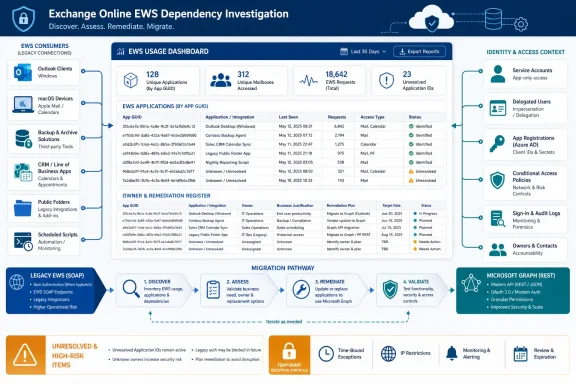 Start with observed EWS usage
WindowsForum administrators discussing the EWS retirement consistently identify tenant usage reporting as the practical starting point. It shows observed activity, while configuration exports and staff interviews show only what teams already know or remember.- Sign in to the Microsoft 365 admin center.
- Locate the tenant-specific reporting for Exchange Online EWS usage.
- Select a reporting period that covers a representative business cycle.
- Export or otherwise preserve the available usage data as a baseline evidence file.
- Record when the data was obtained and the period it covers.
- Create a working row for every observed application ID.
- Repeat the collection regularly through migration so that snapshots can be compared.
EWS has supported mail, calendars, contacts, delegates, mailbox synchronization, notifications, public folders, and related workflow patterns. A dependency may therefore appear as a calendar-booking feature, archive collector, public-folder utility, or scheduled script rather than an application labeled “EWS.”
An Entra application export remains useful, but it is not a complete inventory. It may identify an application without explaining the product, mailbox scope, service identity, endpoint, or business process behind the observed activity. Microsoft 365 Message Center notices can help prompt investigation, but they should not replace a maintained dependency register.
Apply an evidence hierarchy before dispositioning a GUID
No application ID should be approved, migrated, or dismissed from one source alone. Use this evidence hierarchy:- Usage-report observation: Establish that EWS activity was observed in the tenant and preserve the relevant reporting evidence.
- Entra lookup: Resolve the application ID where possible and collect its display name, ownership, publisher, and sign-in context.
- Endpoint and service-account evidence: Find the host, scheduled task, automation platform, managed device, credential, or vendor service generating the activity.
- Owner confirmation: Have the technical and business owners confirm the workflow, impact, mailbox scope, and required remediation.
Turn application IDs into an accountable remediation list
The useful deliverable is an owner-and-remediation register that can survive staff changes, vendor delays, and budget cycles.Create one row for each distinct combination of application ID, product, workload, and operational owner:
| Field | Required information |
|---|---|
| Application ID | GUID associated with observed EWS activity |
| Display name | Entra enterprise application or identified client |
| Product or script | Human-readable system name |
| EWS function | Mail, calendar, contacts, delegates, synchronization, notifications, or public folders |
| Mailboxes accessed | User, shared, resource, archive, or public-folder scope |
| Authentication identity | Application, user, or service identity |
| Business owner | Person accountable for the process |
| Technical owner | Team supporting the integration |
| Vendor contact | Support case, account contact, or escalation route |
| Current status | Investigating, exception candidate, testing, blocked, or retired |
| Replacement | Microsoft Graph, vendor update, redesigned process, or retirement |
| Test evidence | Date, scope, and result of functional testing |
| Exception expiry | Date temporary EWS access must end |
- Search Microsoft Entra admin center > Identity > Applications > Enterprise applications.
- Match the observed application ID to the corresponding application, if present.
- Record recognizable ownership, sign-in context, display-name, and publisher information.
- Determine which installed product, hosted service, script, or endpoint generates the calls.
- Identify the mailboxes and business functions involved.
- Contact the technical and business owners to confirm what fails if access stops.
- Obtain the vendor’s written migration position when a third-party product is involved.
- Assign a written disposition: migrate, update, replace, retire, or request a temporary exception.
- Give every exception an accountable owner and expiry date.
Hunt the dependencies inventories miss
Old Outlook-era integrations
Review Outlook add-ins and companion applications that read mailboxes, create appointments, synchronize contacts, process delegates, or monitor folders. Ask about functions rather than protocols:- Does the tool file or classify messages?
- Does it synchronize CRM contacts?
- Does it create or modify appointments?
- Does it use shared or delegated mailboxes?
- Does it monitor a folder for incoming requests?
Native applications on macOS
Native Apple Mail, Calendar, Contacts, Notes, and Reminders on macOS may need to be allow-listed until Apple updates them so that EWS is no longer required.Inventory managed and unmanaged Macs, identify which native applications connect to Exchange Online, and assign the findings to an accountable endpoint or collaboration owner. Treat any allow-list entry as a temporary compatibility measure with a documented review date, not as a completed migration.
Backup and archiving products
Backup, migration, archive, and eDiscovery-support products are high-risk because they often operate unattended and may access many mailboxes.For each product, establish:
- Whether EWS is used for discovery, collection, restore, or several operations.
- Which mailboxes and mailbox types it accesses.
- Whether the deployed release supports Microsoft Graph.
- Whether migration requires a new connector, license, consent, or reauthorization.
- Whether historical backups remain restorable after changing connectors.
- How collection and restore failures appear in monitoring.
CRM, scheduling, and workflow connectors
CRM synchronization, room-booking systems, interview schedulers, ticketing tools, and approval workflows may call EWS only when a particular feature runs. Low volume can therefore represent an important process.Test representative operations:
- Creating, updating, and canceling appointments
- Synchronizing contacts
- Reading or processing a shared mailbox
- Handling delegate access
- Detecting a new message or folder change
- Recovering from an expired credential or denied permission
Public-folder tooling
Give public folders their own workstream. Locate migration utilities, synchronization products, archive collectors, line-of-business readers, and scripts that enumerate or copy public-folder content.Require owners to demonstrate the workflow under test conditions. Access to ordinary mailbox folders does not prove that a replacement supports the required public-folder operation.
Scripts and forgotten service identities
Search scheduled tasks, automation servers, runbooks, integration hosts, deployment records, and source repositories for Exchange endpoints, EWS libraries, SOAP requests, stored credentials, and mailbox-processing code.Review service identities for:
- Noninteractive accounts with Exchange-related names
- Accounts exempted from normal sign-in controls
- Shared credentials held by multiple teams
- Tasks running under former employees or generic administrators
- Scripts accessing shared mailboxes or calendars
- Jobs running only weekly, monthly, quarterly, or during incidents
Decide what to migrate, allow, or remove
| Workload | Preferred action | Required proof |
|---|---|---|
| Supported client | Update and retest | EWS activity ends without feature loss |
| Outlook-era vendor integration | Install a Graph-capable release | End-to-end workflow succeeds |
| Native macOS applications | Track the required update; use a temporary exception if necessary | Managed-client test and documented exit date |
| Backup or archive platform | Move to a supported connector | Collection and restore tests succeed |
| CRM or scheduler | Reauthorize, upgrade, or replace | Calendar, contact, and delegate tests pass |
| Public-folder tool | Validate explicit replacement support | Required public-folder operation succeeds |
| Custom script | Rewrite, replace, or retire | Graph test or signed retirement approval |
| Unknown GUID | Investigate; do not approve blindly | Identified product, owner, identity, and scope |
EWSAllowedAppIDs identifies applications permitted to continue through their Microsoft Entra application IDs. Treat an allow-list entry as an exception control, not as evidence that the application is ready for EWS retirement.Before approving an ID, confirm that it belongs to the expected product, determine what it accesses, document the business reason, and set an exit date. Do not turn an unresolved GUID into an indefinite exception merely because a workflow breaks.
Test without losing control of the evidence
Microsoft may conduct temporary EWS “scream tests” that expose hidden dependencies. A failure during a test can reveal systems that did not appear in interviews or inventories.Tenants that set EWSEnabled=True are excluded from those tests. Understand that consequence before changing the setting: forcing EWS on may preserve service temporarily, but it can also remove a useful discovery signal.
For every migration:
- Preserve the current usage evidence for the application.
- Define the exact user and system operations to test.
- Move a controlled pilot to the replacement.
- Test normal operations, delegated access, failures, and recovery.
- Check product and Microsoft 365 monitoring for errors.
- Collect a later EWS usage snapshot after enough time has passed for the tested workflow to run.
- Confirm that old activity has stopped or is declining as expected.
- Obtain business-owner acceptance.
- Remove the exception only after verification.
- Retain targeted rollback instructions through post-cutover monitoring.
Troubleshoot unresolved or persistent activity
If EWS activity continues after migration:- Confirm that every production instance received the new connector or configuration.
- Check disaster-recovery hosts, test systems, old virtual machines, and secondary automation nodes.
- Look for cached credentials or scheduled tasks still using the former path.
- Verify that the vendor’s desktop, server, and hosted components were all addressed.
- Recheck shared service identities for use by another workflow.
- Ask the owner to run the business process while endpoint and identity evidence is collected.
- Keep the item open until new usage observations, technical evidence, and owner confirmation agree.
Frequently Asked Questions
Is an Entra app-registration export enough?
No. It may identify registered applications without explaining the product, service identity, mailbox scope, endpoint, or business workflow behind observed EWS activity. Combine usage observations, Entra lookup, endpoint or service-account evidence, and owner confirmation.Does low EWS call volume mean an application is unimportant?
No. Scheduling, restore, public-folder, reporting, and incident-response workflows may run only occasionally. Assess business impact and function, not call count alone.Can EWSAllowedAppIDs be used as the final solution?
No. It is a temporary control for explicitly permitted applications while they are updated, migrated, replaced, or retired. Every allow-listed ID needs an owner, business justification, review date, and exit date.Does this retirement apply to on-premises Exchange?
The Microsoft Graph migration guidance discussed here targets Exchange Online and hybrid deployments accessing Exchange Online. Microsoft Graph does not provide Exchange on-premises support as a replacement for on-premises EWS.Before phased retirement enforcement affects the tenant, every observed EWS dependency should have a confirmed product, functional purpose, technical owner, business owner, tested remediation path, and time-limited exception where migration cannot yet be completed.
References
- Primary source: learn.microsoft.com
Migrate Exchange Web Services (EWS) apps to Microsoft Graph - Microsoft Graph | Microsoft Learn
Because there is no longer an active investment in EWS APIs for Exchange Online, you can migrate your EWS apps that access Exchange Online to Microsoft Graph.learn.microsoft.com - Independent coverage: techcommunity.microsoft.com
- Primary source: WindowsForum
EWS Retirement in Exchange Online: Plan Inventory and Migrate to Graph (2026-27) | Windows Forum
Microsoft’s timetable for retiring Exchange Web Services (EWS) in Exchange Online is now concrete, and the next 14–28 months are a critical window for IT...windowsforum.com
