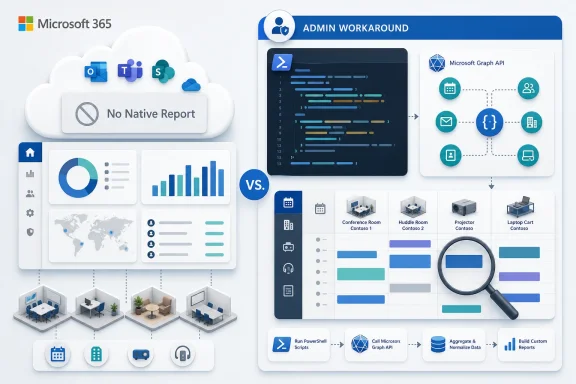
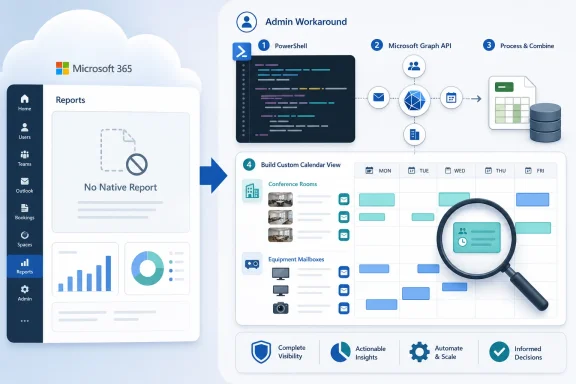
Microsoft’s Exchange Team said in May 2026 that Exchange Online still has no native report showing which room, equipment, or workspace resource mailboxes are actively used, leaving administrators to infer utilization from calendar data through PowerShell, Microsoft Graph, or mailbox folder statistics. That sounds like a niche administrative inconvenience until you remember how many physical-world decisions now hang off Microsoft 365 data. Office footprints, hybrid-work policies, room panels, facilities budgets, and access governance all depend on knowing whether “Conf Room 3B” is a living business asset or a forgotten object with a calendar. The real story is not that Microsoft forgot to add another chart; it is that Exchange Online’s operational truth still lives in low-level signals administrators must assemble themselves.
Resource mailboxes are deceptively simple objects. A room mailbox represents a conference room, an equipment mailbox might represent a projector or shared device, and a workspace mailbox can represent bookable desks or flexible seating areas. In practice, these objects sit at the junction of Exchange, Teams, Outlook, Entra ID, facilities management, and corporate real estate.
That is why the lack of a first-class utilization report feels oddly out of step with the rest of Microsoft 365. Admin centers are full of usage dashboards for mail, Teams, SharePoint, OneDrive, and identity activity, but the humble resource mailbox remains something of a blind spot. If an organization wants to know which rooms are actually being booked, it must query the calendars directly.
Microsoft’s guidance effectively acknowledges this reality. There is no magic “show me active resource mailboxes” button. Instead, administrators get three practical routes: query calendar views with Exchange Online PowerShell, query events with Microsoft Graph, or inspect calendar folder statistics for a cruder signal.
That is not necessarily bad engineering. Resource usage is context-dependent, and a “used” room means different things to different organizations. But it does mean the burden of interpretation falls on administrators, who must decide whether they are measuring booking count, occupied hours, organizer patterns, future reservations, historical activity, or simple evidence that anything exists on the calendar at all.
Microsoft’s first suggested path is
The appeal of this approach is speed and scope. It targets the calendar rather than rummaging through every mailbox folder, and it fits naturally into Exchange Online PowerShell workflows. If an administrator already knows how to use
The limitation is equally important. The meeting subject is not exposed as a property in the way many admins would want for a human-readable report. For a utilization audit, that may not matter; for a facilities review or executive report, it probably does. Counting events is enough to separate “dead” from “alive,” but it is not enough to explain how the resource is being used.
This is where the philosophical split begins. Exchange Online PowerShell is excellent when the question is administrative: which objects, which types, which recipients, which calendars contain items. Microsoft Graph is stronger when the question becomes analytical: who organized the booking, when did it begin, how long did it last, what metadata should be exported, and how might this data feed a broader reporting pipeline.
That distinction matters. Microsoft Graph can query calendar views, but Graph does not always map as cleanly to the administrative categories Exchange admins use every day. If the job is “show me all room mailboxes that have at least one meeting in the last 180 days,” Exchange PowerShell is the shorter path.
A practical administrator would probably build a report that records the resource display name, primary SMTP address, mailbox type, event count, first event date, last event date, and perhaps whether future bookings exist. Even without subjects, that report is enough to identify obvious candidates for cleanup. A mailbox with zero meetings for a year and no future bookings belongs on a review list.
But this approach should not be mistaken for a full utilization model. It tells you that the calendar has items; it does not tell you whether people actually attended, whether the room was a no-show hotspot, whether meetings were cancelled but left behind artifacts, or whether recurring bookings are squatting on valuable space. Exchange calendar data is strong evidence of intent, not guaranteed evidence of physical occupancy.
Still, for Exchange administrators asked to produce an answer by Friday, intent is often enough. The fastest answer is rarely the perfect answer, and Microsoft’s recommendation reflects a familiar truth in operations: start with the least invasive query that can resolve the business question.
That extra detail changes the nature of the work. With Graph, an admin can move beyond “does this room have bookings?” and toward “how heavily is this room used, by whom, and during which parts of the week?” That is the difference between cleanup and planning. One produces a stale-object report; the other informs whether a company needs fewer conference rooms, more small huddle spaces, or better booking rules.
The tradeoff is setup complexity. Graph access requires appropriate permissions, usually through an Entra ID app registration for unattended scripts or delegated permissions for user-driven access. Application permissions are powerful because they let a script run non-interactively, but they can also be dangerously broad if granted across every mailbox in the tenant.
Microsoft’s guidance points administrators toward a more controlled model: use Exchange Online Role Based Access Control for Applications to scope what an app can access. That matters because “Calendars.Read for the tenant” is a large permission, especially when calendar subjects may contain customer names, legal matters, merger discussions, medical information, HR events, or security incidents. A room mailbox audit should not become a quiet expansion of application access to every executive calendar.
Graph is therefore the better answer when the organization has the maturity to handle it. If the output needs to feed Power BI, a facilities dashboard, a chargeback model, or a recurring operational report, Graph is the platform-shaped solution. If the goal is a quick inventory check, it may be overkill.
Delegated permissions mean the app acts as a signed-in user and can access what that user is allowed to access. That is often easier to reason about for interactive work, but it is not ideal for scheduled reporting. Application permissions are designed for non-interactive automation, but they shift the risk from “what can this user see?” to “what can this app see?”
That is why scoping matters. If the app only needs resource mailboxes, it should only be able to read resource mailboxes. Microsoft’s RBAC for Applications model is the right direction because it lets Exchange Online define a management scope, such as a recipient filter for resource mailboxes, and assign application roles against that scope.
The operational catch is that admins must avoid accidentally combining scoped and unscoped grants. If an application retains broad Graph permissions in Entra ID while also receiving scoped Exchange RBAC permissions, the practical result may still be broader access than intended. This is the kind of configuration detail that turns a harmless reporting script into an audit finding.
The best pattern is boring but defensible: create a dedicated app registration for resource mailbox reporting, use certificate-based authentication where practical, scope access to the smallest mailbox set possible, document the management scope, and review the app periodically. Calendar reporting is useful; tenant-wide calendar visibility should never be casual.
This is not rich utilization reporting. It will not tell the story of booking density, meeting duration, organizer behavior, or peak usage. But it can be enough for a first sweep, especially in tenants where the immediate question is whether old resource mailboxes have any calendar life at all.
The virtue of this method is that it is simple and familiar. Exchange admins already use mailbox folder statistics for many housekeeping tasks, and the command can be run in bulk against a set of resource mailboxes. For cleanup projects, simplicity has value.
The danger is false confidence. A calendar folder with items is not necessarily a currently used resource; old recurring meetings, migrated data, test bookings, or stale calendar objects can all create misleading signals. Conversely, a resource created for a future office opening might have little historical data but still be important.
So this method belongs in the triage stage, not the final report. It can help identify mailboxes that deserve deeper inspection, but it should not be the sole basis for deleting resources, changing booking policies, or telling facilities that a room is unused.
They are useful, but for a different job. Calendar diagnostic logs are designed to troubleshoot individual meeting problems. They include calendar-related data from multiple places, not just the Calendar folder, and they can produce a surprisingly large volume of log entries for a single meeting.
That makes them a poor fit for bulk reporting. Running diagnostic-log queries across many rooms and many meetings is likely to be slow, noisy, fragile, and hard to interpret. It may time out, return errors, or generate far more data than the administrator needs.
This is a classic systems-administration trap: using a forensic tool as a reporting tool because it exposes more data. More data is not always more truth. For utilization, the question is aggregate and repeatable. Diagnostic logs are event-specific and investigative. Confusing the two creates work without creating confidence.
Room and equipment mailboxes are a perfect example. They are not glamorous. They do not sell Copilot licenses, headline Ignite demos, or anchor security keynotes. But they quietly encode how a company’s physical space is being used, and that has become strategically important in the hybrid-work era.
A native report would not need to solve everything. Even a modest built-in view showing resource mailbox type, event count, last booking, next booking, total booked hours, and top-level utilization bands would save administrators from reinventing the same scripts across thousands of tenants. More advanced organizations could still use Graph for custom analytics.
The fact that Microsoft’s answer is “here are the building blocks” rather than “here is the report” reflects the broader Microsoft 365 bargain. The platform is powerful enough to let admins extract the answer, but not always polished enough to hand them the answer. For many IT teams, that gap is where operational toil lives.
A useful utilization project should separate several categories. There are resources with recent past bookings, resources with future bookings, resources with only old bookings, resources with recurring meetings but little variety, and resources with no meaningful calendar activity. Each category implies a different next step.
For cleanup, the best targets are mailboxes with no recent bookings, no future bookings, no known physical asset owner, and no special business purpose. For workplace planning, the richer signals matter more: number of booked hours, room size, location, weekday patterns, and the ratio of recurring to ad hoc meetings.
This is also where naming and metadata become painful. If room mailboxes are inconsistently named, missing location data, or disconnected from building and floor conventions, the report will be harder to use. Exchange can tell you that a mailbox has events; it cannot magically know that “CR-East-17” and “Boston Huddle 17” belong to the same facilities planning model unless the tenant’s data hygiene supports it.
That hybrid model plays to each tool’s strengths. Exchange PowerShell is excellent at recipient discovery and broad administrative filtering. Graph is better for detailed event properties and integration with custom reporting workflows.
For example, an administrator might use Exchange to pull all room mailboxes, workspaces, and equipment mailboxes, then run a quick calendar-view query across a one-year window. Any mailbox with zero events becomes a cleanup candidate. Any mailbox with activity moves into the Graph stage, where the script calculates booking counts, total hours, organizer distribution, and recurring meeting patterns.
This layered approach also reduces unnecessary exposure. Not every audit requires pulling subjects and organizers for every room. If a simple event count resolves half the estate, the more sensitive Graph report can be limited to the resources where detail is justified.
The result is not just better security; it is better administration. Reports that collect only what they need are easier to explain, easier to maintain, and easier to defend when someone asks why an app can read calendar data.
A good resource mailbox review should connect technical findings to ownership. Every resource should have a business owner, a physical or logical purpose, a booking policy, and a lifecycle. If nobody can explain why a mailbox exists, the calendar data is only one part of the evidence.
Administrators should also be careful with deletion. Removing a resource mailbox can break future bookings, historical references, room panels, Teams Rooms configurations, third-party scheduling tools, or facilities integrations. The safer pattern is to disable booking, hide the mailbox from address lists if appropriate, notify owners, wait through a review period, and then remove it.
There is also an end-user communications angle. If people have been booking a room that facilities considers retired, the problem may not be the mailbox. It may be that the directory still advertises the wrong spaces, or that booking policies allow behavior the organization no longer wants.
The reporting exercise, in other words, often exposes governance drift. The mailboxes are just where the drift becomes visible.
 Microsoft Leaves the Room Report to the People Who Need It Most
Resource mailboxes are deceptively simple objects. A room mailbox represents a conference room, an equipment mailbox might represent a projector or shared device, and a workspace mailbox can represent bookable desks or flexible seating areas. In practice, these objects sit at the junction of Exchange, Teams, Outlook, Entra ID, facilities management, and corporate real estate.That is why the lack of a first-class utilization report feels oddly out of step with the rest of Microsoft 365. Admin centers are full of usage dashboards for mail, Teams, SharePoint, OneDrive, and identity activity, but the humble resource mailbox remains something of a blind spot. If an organization wants to know which rooms are actually being booked, it must query the calendars directly.
Microsoft’s guidance effectively acknowledges this reality. There is no magic “show me active resource mailboxes” button. Instead, administrators get three practical routes: query calendar views with Exchange Online PowerShell, query events with Microsoft Graph, or inspect calendar folder statistics for a cruder signal.
That is not necessarily bad engineering. Resource usage is context-dependent, and a “used” room means different things to different organizations. But it does mean the burden of interpretation falls on administrators, who must decide whether they are measuring booking count, occupied hours, organizer patterns, future reservations, historical activity, or simple evidence that anything exists on the calendar at all.
The Calendar Is the Utilization Database Now
The cleanest short answer is that a resource mailbox is “active” if its calendar contains relevant events inside the window the organization cares about. That window matters. A boardroom with no bookings in the last six months may be obsolete, but a training room booked only quarterly may still be important.Microsoft’s first suggested path is
Get-CalendarViewDiagnostics, an Exchange Online PowerShell cmdlet that returns meetings from a mailbox calendar over a specified time range. The example Microsoft gives is a symmetrical one: six months back and six months forward. That is a useful starting point because it catches both stale resources and future-facing rooms that may not have recent history but are clearly still in circulation.The appeal of this approach is speed and scope. It targets the calendar rather than rummaging through every mailbox folder, and it fits naturally into Exchange Online PowerShell workflows. If an administrator already knows how to use
Get-Mailbox to pull every room mailbox, the next step is straightforward: pipe those mailboxes into Get-CalendarViewDiagnostics and count the results.The limitation is equally important. The meeting subject is not exposed as a property in the way many admins would want for a human-readable report. For a utilization audit, that may not matter; for a facilities review or executive report, it probably does. Counting events is enough to separate “dead” from “alive,” but it is not enough to explain how the resource is being used.
This is where the philosophical split begins. Exchange Online PowerShell is excellent when the question is administrative: which objects, which types, which recipients, which calendars contain items. Microsoft Graph is stronger when the question becomes analytical: who organized the booking, when did it begin, how long did it last, what metadata should be exported, and how might this data feed a broader reporting pipeline.
PowerShell Gives Administrators the Fastest First Pass
For many tenants, the sensible first pass is not Graph. It is Exchange Online PowerShell, because Exchange already knows what a room mailbox is.Get-Mailbox -RecipientTypeDetails RoomMailbox can build the population, and Get-CalendarViewDiagnostics can test each mailbox for meetings inside the chosen window.That distinction matters. Microsoft Graph can query calendar views, but Graph does not always map as cleanly to the administrative categories Exchange admins use every day. If the job is “show me all room mailboxes that have at least one meeting in the last 180 days,” Exchange PowerShell is the shorter path.
A practical administrator would probably build a report that records the resource display name, primary SMTP address, mailbox type, event count, first event date, last event date, and perhaps whether future bookings exist. Even without subjects, that report is enough to identify obvious candidates for cleanup. A mailbox with zero meetings for a year and no future bookings belongs on a review list.
But this approach should not be mistaken for a full utilization model. It tells you that the calendar has items; it does not tell you whether people actually attended, whether the room was a no-show hotspot, whether meetings were cancelled but left behind artifacts, or whether recurring bookings are squatting on valuable space. Exchange calendar data is strong evidence of intent, not guaranteed evidence of physical occupancy.
Still, for Exchange administrators asked to produce an answer by Friday, intent is often enough. The fastest answer is rarely the perfect answer, and Microsoft’s recommendation reflects a familiar truth in operations: start with the least invasive query that can resolve the business question.
Graph Turns a Mailbox Audit Into a Data Product
Microsoft’s second option, Microsoft Graph, is the more flexible and more sensitive route. ThecalendarView endpoint can return calendar events for a defined start and end time, and Graph PowerShell exposes that through commands such as Get-MgUserCalendarView. Unlike Get-CalendarViewDiagnostics, Graph can expose properties administrators often want in a report, including organizer, subject, start time, and end time.That extra detail changes the nature of the work. With Graph, an admin can move beyond “does this room have bookings?” and toward “how heavily is this room used, by whom, and during which parts of the week?” That is the difference between cleanup and planning. One produces a stale-object report; the other informs whether a company needs fewer conference rooms, more small huddle spaces, or better booking rules.
The tradeoff is setup complexity. Graph access requires appropriate permissions, usually through an Entra ID app registration for unattended scripts or delegated permissions for user-driven access. Application permissions are powerful because they let a script run non-interactively, but they can also be dangerously broad if granted across every mailbox in the tenant.
Microsoft’s guidance points administrators toward a more controlled model: use Exchange Online Role Based Access Control for Applications to scope what an app can access. That matters because “Calendars.Read for the tenant” is a large permission, especially when calendar subjects may contain customer names, legal matters, merger discussions, medical information, HR events, or security incidents. A room mailbox audit should not become a quiet expansion of application access to every executive calendar.
Graph is therefore the better answer when the organization has the maturity to handle it. If the output needs to feed Power BI, a facilities dashboard, a chargeback model, or a recurring operational report, Graph is the platform-shaped solution. If the goal is a quick inventory check, it may be overkill.
Permissions Are the Hidden Cost of Better Reporting
The most important administrative detail in Microsoft’s guidance is not the syntax. It is the warning implied by the permissions model. Once an organization chooses Graph for calendar reporting, it has entered the world of app registrations, delegated versus application permissions, certificates or client secrets, consent, and scoped access.Delegated permissions mean the app acts as a signed-in user and can access what that user is allowed to access. That is often easier to reason about for interactive work, but it is not ideal for scheduled reporting. Application permissions are designed for non-interactive automation, but they shift the risk from “what can this user see?” to “what can this app see?”
That is why scoping matters. If the app only needs resource mailboxes, it should only be able to read resource mailboxes. Microsoft’s RBAC for Applications model is the right direction because it lets Exchange Online define a management scope, such as a recipient filter for resource mailboxes, and assign application roles against that scope.
The operational catch is that admins must avoid accidentally combining scoped and unscoped grants. If an application retains broad Graph permissions in Entra ID while also receiving scoped Exchange RBAC permissions, the practical result may still be broader access than intended. This is the kind of configuration detail that turns a harmless reporting script into an audit finding.
The best pattern is boring but defensible: create a dedicated app registration for resource mailbox reporting, use certificate-based authentication where practical, scope access to the smallest mailbox set possible, document the management scope, and review the app periodically. Calendar reporting is useful; tenant-wide calendar visibility should never be casual.
Folder Statistics Offer a Blunt Instrument That Still Has a Place
Microsoft’s third option,Get-MailboxFolderStatistics, is the administrative equivalent of checking whether the lights are on. With -FolderScope Calendar and -IncludeOldestAndNewestItems, an admin can inspect the calendar folder and see signals such as item counts and oldest or newest items.This is not rich utilization reporting. It will not tell the story of booking density, meeting duration, organizer behavior, or peak usage. But it can be enough for a first sweep, especially in tenants where the immediate question is whether old resource mailboxes have any calendar life at all.
The virtue of this method is that it is simple and familiar. Exchange admins already use mailbox folder statistics for many housekeeping tasks, and the command can be run in bulk against a set of resource mailboxes. For cleanup projects, simplicity has value.
The danger is false confidence. A calendar folder with items is not necessarily a currently used resource; old recurring meetings, migrated data, test bookings, or stale calendar objects can all create misleading signals. Conversely, a resource created for a future office opening might have little historical data but still be important.
So this method belongs in the triage stage, not the final report. It can help identify mailboxes that deserve deeper inspection, but it should not be the sole basis for deleting resources, changing booking policies, or telling facilities that a room is unused.
Calendar Diagnostics Are the Wrong Tool for Bulk Truth
Microsoft is unusually direct about one method administrators should avoid:Get-CalendarDiagnosticObjects. The warning is worth taking seriously because the name sounds tempting. If you are diagnosing calendar use, surely calendar diagnostic logs must be useful.They are useful, but for a different job. Calendar diagnostic logs are designed to troubleshoot individual meeting problems. They include calendar-related data from multiple places, not just the Calendar folder, and they can produce a surprisingly large volume of log entries for a single meeting.
That makes them a poor fit for bulk reporting. Running diagnostic-log queries across many rooms and many meetings is likely to be slow, noisy, fragile, and hard to interpret. It may time out, return errors, or generate far more data than the administrator needs.
This is a classic systems-administration trap: using a forensic tool as a reporting tool because it exposes more data. More data is not always more truth. For utilization, the question is aggregate and repeatable. Diagnostic logs are event-specific and investigative. Confusing the two creates work without creating confidence.
The Missing Report Says Something About Microsoft 365 Admin Life
The absence of a native resource utilization report is not catastrophic, but it is revealing. Microsoft 365 has become the system of record for how organizations communicate and coordinate, yet some of the most practical operational questions still require stitched-together scripts. The admin center often tells you what Microsoft thinks is important; PowerShell tells you what customers actually need.Room and equipment mailboxes are a perfect example. They are not glamorous. They do not sell Copilot licenses, headline Ignite demos, or anchor security keynotes. But they quietly encode how a company’s physical space is being used, and that has become strategically important in the hybrid-work era.
A native report would not need to solve everything. Even a modest built-in view showing resource mailbox type, event count, last booking, next booking, total booked hours, and top-level utilization bands would save administrators from reinventing the same scripts across thousands of tenants. More advanced organizations could still use Graph for custom analytics.
The fact that Microsoft’s answer is “here are the building blocks” rather than “here is the report” reflects the broader Microsoft 365 bargain. The platform is powerful enough to let admins extract the answer, but not always polished enough to hand them the answer. For many IT teams, that gap is where operational toil lives.
Practical Use Starts With Defining “Active”
Before running any command, administrators should define what “actively used” means. That sounds obvious, but it is the difference between a report that settles an argument and a report that starts one. A room with one booking in 12 months is technically active; it may still be functionally irrelevant.A useful utilization project should separate several categories. There are resources with recent past bookings, resources with future bookings, resources with only old bookings, resources with recurring meetings but little variety, and resources with no meaningful calendar activity. Each category implies a different next step.
For cleanup, the best targets are mailboxes with no recent bookings, no future bookings, no known physical asset owner, and no special business purpose. For workplace planning, the richer signals matter more: number of booked hours, room size, location, weekday patterns, and the ratio of recurring to ad hoc meetings.
This is also where naming and metadata become painful. If room mailboxes are inconsistently named, missing location data, or disconnected from building and floor conventions, the report will be harder to use. Exchange can tell you that a mailbox has events; it cannot magically know that “CR-East-17” and “Boston Huddle 17” belong to the same facilities planning model unless the tenant’s data hygiene supports it.
The Best Answer Is Usually a Two-Step Report
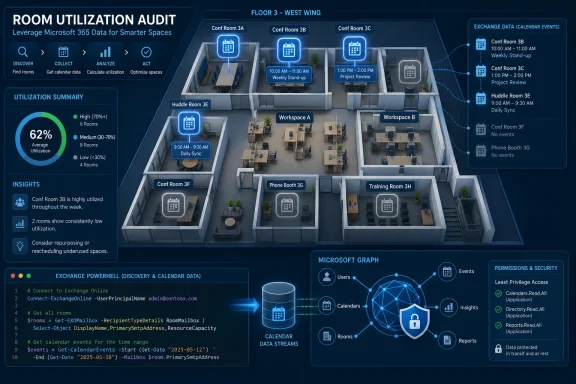
The most defensible approach is a two-step process. First, use Exchange Online PowerShell to identify the population of resource mailboxes and get a quick activity signal. Then, for resources that need deeper analysis, use Graph to pull richer event data.That hybrid model plays to each tool’s strengths. Exchange PowerShell is excellent at recipient discovery and broad administrative filtering. Graph is better for detailed event properties and integration with custom reporting workflows.
For example, an administrator might use Exchange to pull all room mailboxes, workspaces, and equipment mailboxes, then run a quick calendar-view query across a one-year window. Any mailbox with zero events becomes a cleanup candidate. Any mailbox with activity moves into the Graph stage, where the script calculates booking counts, total hours, organizer distribution, and recurring meeting patterns.
This layered approach also reduces unnecessary exposure. Not every audit requires pulling subjects and organizers for every room. If a simple event count resolves half the estate, the more sensitive Graph report can be limited to the resources where detail is justified.
The result is not just better security; it is better administration. Reports that collect only what they need are easier to explain, easier to maintain, and easier to defend when someone asks why an app can read calendar data.
The Script Is Not the Governance Model
There is a temptation in Microsoft 365 administration to treat a working script as the end of the story. It is not. A script can find resource mailbox activity, but it cannot decide who owns a room, whether a stale equipment mailbox should be deleted, or whether a workspace reflects a real workplace policy.A good resource mailbox review should connect technical findings to ownership. Every resource should have a business owner, a physical or logical purpose, a booking policy, and a lifecycle. If nobody can explain why a mailbox exists, the calendar data is only one part of the evidence.
Administrators should also be careful with deletion. Removing a resource mailbox can break future bookings, historical references, room panels, Teams Rooms configurations, third-party scheduling tools, or facilities integrations. The safer pattern is to disable booking, hide the mailbox from address lists if appropriate, notify owners, wait through a review period, and then remove it.
There is also an end-user communications angle. If people have been booking a room that facilities considers retired, the problem may not be the mailbox. It may be that the directory still advertises the wrong spaces, or that booking policies allow behavior the organization no longer wants.
The reporting exercise, in other words, often exposes governance drift. The mailboxes are just where the drift becomes visible.
The Resource-Mailbox Audit Microsoft Still Hasn’t Productized
The concrete path forward is clear enough, even if Microsoft has not wrapped it in a native report. Administrators should resist the urge to over-collect on day one and instead build a repeatable inventory that can mature over time.- Start with Exchange Online PowerShell when the immediate need is to identify room, equipment, or workspace mailboxes and count calendar activity over a defined window.
- Use Microsoft Graph when the report needs event-level detail such as organizer, subject, start time, end time, duration, or downstream analytics.
- Scope Graph application access to resource mailboxes wherever possible, because broad calendar permissions are too sensitive for a convenience script.
- Treat
Get-MailboxFolderStatisticsas a triage tool rather than a complete utilization report. - Avoid
Get-CalendarDiagnosticObjectsfor bulk reporting because it is designed for troubleshooting individual calendar issues, not estate-wide usage analysis. - Define “active” before collecting data, because a single booking, a recurring placeholder, and a heavily used conference room should not all mean the same thing.
References
- Primary source: Microsoft Exchange Team Blog
Published: Thu, 21 May 2026 13:38:55 GMT
How to determine which Resource Mailboxes are being actively used | Microsoft Community Hub
Here are some tips on how to learn more about Exchange Online resource mailbox use.   techcommunity.microsoft.com
- Official source: learn.microsoft.com
List calendarView - Microsoft Graph v1.0 | Microsoft Learn
Get the occurrences, exceptions and single instances of events in a calendar view defined by a time range.learn.microsoft.com - Related coverage: windowsforum.com
Exchange Online Room Mailbox Utilization: No Native Report, Use PowerShell or Graph | Windows Forum
Microsoft’s Exchange Team said on May 21, 2026, that Exchange Online still lacks a native utilization report for resource mailboxes, leaving administrators...windowsforum.com - Official source: microsoft.github.io

Get-CalendarDiagnosticObjectsSummary - Microsoft - CSS-Exchange
microsoft.github.io
- Related coverage: javadoc.io
- Related coverage: msxfaq.de
- Related coverage: appgovscore.com
How to Use Role-Based Access Control (RBAC) for Applications
Discover how Role-Based Access Control (RBAC) optimizes Graph API permissions for applications, ensuring precise & secure access within Microsoft Entra ID. www.appgovscore.com
- Related coverage: exchange.xforce.ibmcloud.com
- Official source: learn.microsoft.com.mcas.ms

Continue
learn.microsoft.com.mcas.ms
- Related coverage: office365itpros.com
How to Report the Daily Usage Pattern for Room Mailboxes
Room mailboxes are still heavily used for in-person meetings. It's good to know how often and when rooms are used, which is why we have the room mailbox report.office365itpros.com - Official source: cdn-dynmedia-1.microsoft.com
- Official source: download.microsoft.com