

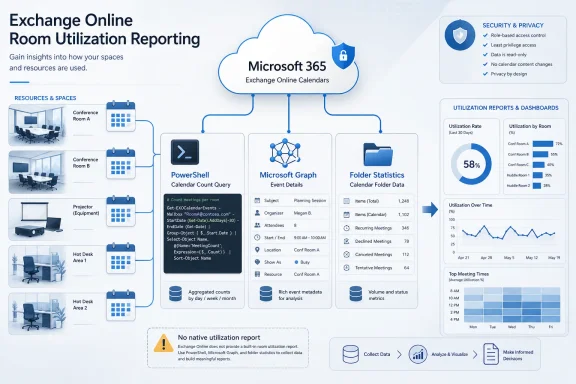
Microsoft’s Exchange Team said on May 21, 2026, that Exchange Online has no native utilization report for resource mailboxes, leaving administrators to determine active use by querying calendar data through Exchange Online PowerShell, Microsoft Graph, or folder statistics. That is a practical answer, but it is also a revealing one. A cloud platform that can surface security posture, license consumption, and AI readiness still cannot directly answer a basic facilities question: which rooms, equipment mailboxes, and workspaces are actually being used? The result is another Microsoft 365 admin chore where the truth exists inside the service, but only if IT knows which seams to pull apart.
Resource mailboxes are not glamorous infrastructure. They represent conference rooms, shared hardware, projectors, vehicles, hot desks, labs, studios, and the other bookable assets that keep an organization’s calendar from becoming a hallway negotiation. In Exchange, these objects are mailboxes with special booking behavior; in the business, they are operational inventory.
That split is where the trouble begins. Facilities teams think in terms of utilization: how often is a room booked, which locations are underused, whether the new hybrid-work floor plan is actually working. Exchange Online, at least as described by Microsoft’s own Exchange Team, does not currently expose a native report that answers that question for resource mailboxes.
The absence is odd because Microsoft 365 is already full of reporting surfaces. Admins can inspect mailbox usage, Teams activity, sign-ins, risky users, storage, audit events, and service health. Yet for rooms and equipment, the official guidance is essentially: query the calendar yourself.
This is not catastrophic. The workaround paths are reasonable, and Microsoft’s post is refreshingly direct about what works and what does not. But the gap matters because it exposes a wider pattern in Microsoft 365 administration: everyday operational reporting often remains one PowerShell loop away from being usable.
That makes the problem conceptually simple. Pick a time window, enumerate the resource mailboxes, count the calendar items, and decide what counts as “active.” The hard part is that each available method gives a different amount of detail, requires different permissions, and carries a different operational risk.
Microsoft’s first suggested path is
The attractive part of this method is speed and focus. It targets the calendar rather than rummaging through the whole mailbox, and it can be combined with
But the limitation is equally important. Microsoft notes that the meeting subject is not exposed by this approach. That may be perfectly acceptable for utilization analysis, and in many privacy-conscious organizations it may even be preferable. But it means
This matters in the real world. Many tenant administrators are already connected to Exchange Online PowerShell when they are cleaning up recipients, checking booking policies, or reconciling room lists. Being able to pipe resource mailbox objects into a calendar query is the difference between a quick operational check and a small project.
It also benefits from Exchange’s recipient filtering.
The tradeoff is that Exchange PowerShell gives administrators a utilization signal, not necessarily a rich reporting dataset. That is not a criticism so much as a boundary. If you want to know whether a room has ten meetings or none, this is a good path. If you want organizer names, subjects, recurring meeting patterns, or a report that feeds a dashboard, Microsoft’s own guidance points you toward Graph.
That flexibility comes at a cost. To use Graph properly, administrators need the Microsoft Graph PowerShell module or their own application code, an Entra ID app registration, and the appropriate calendar permissions. Microsoft’s example uses application permissions for non-interactive automation, which is exactly the pattern most enterprises would prefer for scheduled reports.
The catch is scope. A Graph application permission such as
Microsoft’s answer to that concern is Exchange Online RBAC for Applications. Instead of letting an app read calendar data everywhere, admins can create a management scope that limits what the app can access, such as only resource mailboxes. The permission is then granted through Exchange Online role assignment rather than left as a broad Entra ID application grant.
That is the right architectural direction. It is also not the simplest path. An organization that casually grants tenant-wide calendar read access just to build a room-utilization report has solved one problem by creating another.
Calendar data is sensitive even when it belongs to a room. A room calendar may reveal executives’ travel patterns, HR meetings, product launch discussions, legal reviews, incident-response sessions, customer briefings, or union negotiations. The fact that the mailbox is a resource does not mean the data is harmless.
That is why RBAC-scoped Graph access deserves more attention than it usually gets. If an app needs only resource calendars, it should not have practical access to every user calendar in the tenant. If a report needs only counts and timestamps, it probably should not collect subjects unless there is a specific reason to do so.
This is where Microsoft 365 administration increasingly resembles data governance. The admin is no longer just choosing a command; the admin is deciding how much organizational behavior to expose to an automation account. The safe implementation is not merely the one that works, but the one that retrieves the least sensitive data required to answer the business question.
Graph is powerful because it can deliver the richer answer. It is risky for exactly the same reason. The more detailed the report, the more careful the authorization model must be.
This is the kind of method that experienced admins keep in the toolbox because it is fast, boring, and low-friction. It does not try to reconstruct every meeting. It does not require a Graph application. It does not pretend to be a utilization analytics platform.
Its weakness is obvious: it gives a coarse view. If leadership wants to know whether a room is booked every Tuesday by engineering or whether a workspace is popular only during quarterly planning, folder statistics will not get them there. But if the job is mailbox hygiene, it may be sufficient.
That distinction matters because not every utilization question is the same. A cleanup exercise needs to identify dead or suspiciously inactive resources. A workplace-planning exercise needs detailed booking trends. A security review may need to confirm which automations can access calendars and why.
Microsoft’s three options are not interchangeable so much as graduated. Folder statistics are the quick pulse check.
That warning is worth taking seriously. Diagnostic tooling often looks tempting because it exposes detailed internals. But diagnostic logs are usually optimized for investigation, not aggregation. They include extra data, produce noisy output, and may touch more locations than the administrator expects.
Microsoft notes that Calendar Diagnostic Log data can include information not only from the Calendar folder, but also from places such as Inbox, Sent Items, Deleted Items, and Recoverable Items where calendar-related information may appear. It also says that querying even a single meeting can sometimes produce more than a thousand logs. That is a flashing red light for anyone thinking about looping it across hundreds of rooms.
This is a classic admin anti-pattern: using a forensic tool as a reporting API. It works just well enough in a test to be dangerous, then fails under scale, throttling, or supportability pressure. Microsoft’s message is clear enough: if you open a support case because your bulk
The broader lesson is that Exchange Online contains multiple ways to observe calendar state, but not all observation paths are designed for reporting. In a cloud service, unsupported scale patterns are not merely inefficient; they can become unreliable without warning.
Microsoft’s May 2026 guidance is written in the context of Exchange Online, and not every cmdlet or cloud-side diagnostic path maps cleanly back to on-premises Exchange. That leaves on-prem admins with a different problem: the cloud workaround may be official, but it may not exist in their shell.
For Exchange SE environments, the practical route depends on what is actually on-premises. If resource mailboxes are still hosted locally, admins may need to use available Exchange Server cmdlets, mailbox folder statistics, calendar processing settings, EWS-based tooling, or third-party scripts. If the organization is hybrid but resource mailboxes have moved to Exchange Online, then the cloud methods apply to those mailboxes even if management remains split.
This is another reminder that “Exchange” is no longer a single administrative experience. Exchange Online receives tooling and service-side capabilities that do not always land in the same form on Exchange Server. The more Microsoft steers reporting and automation toward Graph and cloud-only service instrumentation, the more on-prem admins will feel the edge.
That does not mean Exchange SE is obsolete for every use case. It does mean that admins should read Microsoft 365 guidance carefully before assuming a cmdlet exists in their environment. The fastest way to waste an afternoon is to troubleshoot a missing command that was never available for the workload you are running.
A conference room with one booking in twelve months is technically used. It may also be effectively dead space. A vehicle reserved twice a year may be critical if those bookings support regulated field work. A hot desk with hundreds of reservations may still be misconfigured if users book it and never show up.
Calendar data proves reservation behavior, not physical occupancy. That distinction has become more important in the hybrid-work era. Employees may reserve rooms speculatively, recurring meetings may persist long after teams change, and no-show rates can distort the picture. Exchange can tell you what was booked; it cannot, by itself, tell you who actually sat down.
This is where IT should resist becoming the sole owner of the business conclusion. The report can identify resources with no calendar events, low event counts, stale future bookings, or unusually heavy use. Facilities, department leaders, and security teams should decide what actions follow.
A good utilization project therefore has two layers. The first is technical: collect event counts, dates, organizers, and perhaps subjects if justified. The second is governance: decide whether to archive, rename, reassign, hide, restrict, or investigate the resource.
For many organizations, aggregate counts are enough. A room with zero events in the last year can be flagged without exposing meeting titles. A list of resources with future bookings can be produced without showing who booked them. A capacity-planning report can group activity by building or resource type without naming individual employees.
When detail is needed, it should be justified. Organizer data may help identify a department that owns an abandoned recurring reservation. Subject data may help distinguish real meetings from placeholder holds. Start and end times are useful for utilization curves, peak booking periods, and after-hours activity.
But every extra field changes the sensitivity of the output. A CSV of room names and event counts is operational metadata. A CSV containing meeting subjects, organizers, and timestamps is a behavioral map of the company. Those reports should not be treated the same way.
This is why Microsoft’s mention of RBAC for Applications is not optional seasoning. It is part of doing the job correctly. If the query becomes more invasive, the access model and report handling need to become more disciplined.
Resource mailbox utilization is not obscure. It affects real estate planning, hybrid-work strategy, license hygiene, equipment management, security, and user experience. Many organizations created large numbers of room and workspace mailboxes during return-to-office experiments, office consolidations, and flexible seating projects. Knowing which ones are active is not a niche request.
Microsoft’s admin centers have improved enormously over the years, but they still skew toward standardized telemetry categories rather than the messy questions organizations actually ask. Is this room still used? Are these workspaces abandoned? Which equipment mailboxes exist only because someone created them during a project five years ago? Those questions often fall between Exchange, Teams, Places, Graph, and facilities systems.
The result is an admin middle mile. The service has the data. The APIs expose much of it. The customer still has to assemble the report, secure the app, handle throttling, normalize output, and defend the interpretation.
That is fine for sophisticated enterprises with automation teams. It is less fine for smaller IT shops, schools, local governments, and nonprofits that live in Microsoft 365 but do not have a dedicated Graph engineering function. For them, the difference between a native report and a script recipe is not cosmetic. It determines whether the work gets done at all.
Admins should also separate one-time cleanup from ongoing reporting. A one-time resource audit can tolerate manual review, exported CSVs, and a few rough edges. A recurring report should have proper app registration hygiene, scoped permissions, documented ownership, and a clear retention policy for output files.
The time window should be explicit. Looking backward six months may miss seasonal assets. Looking forward six months may overstate usage if recurring meetings were never cleaned up. Looking both directions, as Microsoft’s example does, is a reasonable default because it catches recent behavior and upcoming commitments.
The output should also distinguish empty calendars from inaccessible calendars, disabled mailboxes, hidden resources, and mailboxes that are not actually resource mailboxes. Bad inventory data can masquerade as low utilization. Before a resource is deleted or repurposed, someone should confirm that the object type, booking policy, and business owner are understood.
This is where Exchange admins can add value beyond running a command. They can turn raw calendar events into a defensible operational view: which resources are inactive, which are heavily used, which are misclassified, and which need a human owner.
 Microsoft Turns a Room-Booking Question Into a Data-Mining Exercise
Resource mailboxes are not glamorous infrastructure. They represent conference rooms, shared hardware, projectors, vehicles, hot desks, labs, studios, and the other bookable assets that keep an organization’s calendar from becoming a hallway negotiation. In Exchange, these objects are mailboxes with special booking behavior; in the business, they are operational inventory.That split is where the trouble begins. Facilities teams think in terms of utilization: how often is a room booked, which locations are underused, whether the new hybrid-work floor plan is actually working. Exchange Online, at least as described by Microsoft’s own Exchange Team, does not currently expose a native report that answers that question for resource mailboxes.
The absence is odd because Microsoft 365 is already full of reporting surfaces. Admins can inspect mailbox usage, Teams activity, sign-ins, risky users, storage, audit events, and service health. Yet for rooms and equipment, the official guidance is essentially: query the calendar yourself.
This is not catastrophic. The workaround paths are reasonable, and Microsoft’s post is refreshingly direct about what works and what does not. But the gap matters because it exposes a wider pattern in Microsoft 365 administration: everyday operational reporting often remains one PowerShell loop away from being usable.
The Calendar Is the Utilization Database, Whether Microsoft Calls It That or Not
The most important point in Microsoft’s guidance is implicit: resource mailbox usage is calendar usage. If a room is being booked, the evidence lives in the resource calendar. If a projector, workshop bench, company vehicle, or workspace is being reserved, the event data is the utilization trail.That makes the problem conceptually simple. Pick a time window, enumerate the resource mailboxes, count the calendar items, and decide what counts as “active.” The hard part is that each available method gives a different amount of detail, requires different permissions, and carries a different operational risk.
Microsoft’s first suggested path is
Get-CalendarViewDiagnostics, an Exchange Online PowerShell cmdlet that can query a mailbox calendar over a specified time window. The Exchange Team’s example looks six months backward and six months forward, which is a sensible starting point because it captures both recent usage and upcoming reservations.The attractive part of this method is speed and focus. It targets the calendar rather than rummaging through the whole mailbox, and it can be combined with
Get-Mailbox filtering to run against all room mailboxes or all equipment mailboxes. For an admin who wants a count of bookings rather than a business-intelligence-grade report, that is often enough.But the limitation is equally important. Microsoft notes that the meeting subject is not exposed by this approach. That may be perfectly acceptable for utilization analysis, and in many privacy-conscious organizations it may even be preferable. But it means
Get-CalendarViewDiagnostics is better at answering “is this resource being used?” than “how is this resource being used?”Exchange PowerShell Wins When the Question Is Narrow
The Exchange Online PowerShell route is the cleanest fit for many administrators because resource mailboxes already live in Exchange’s administrative model. If the goal is to identify room mailboxes with zero events in the last year, PowerShell can do that without introducing a separate application registration, Graph consent workflow, or custom app architecture.This matters in the real world. Many tenant administrators are already connected to Exchange Online PowerShell when they are cleaning up recipients, checking booking policies, or reconciling room lists. Being able to pipe resource mailbox objects into a calendar query is the difference between a quick operational check and a small project.
It also benefits from Exchange’s recipient filtering.
RecipientTypeDetails RoomMailbox and RecipientTypeDetails EquipmentMailbox are administrative concepts Exchange understands well. If an organization has kept its resource objects cleanly typed, the query model maps neatly to the job.The tradeoff is that Exchange PowerShell gives administrators a utilization signal, not necessarily a rich reporting dataset. That is not a criticism so much as a boundary. If you want to know whether a room has ten meetings or none, this is a good path. If you want organizer names, subjects, recurring meeting patterns, or a report that feeds a dashboard, Microsoft’s own guidance points you toward Graph.
Graph Offers the Richer Report, but It Brings the Permission Problem With It
Microsoft’s second option is Microsoft Graph, specifically calendar view queries against the resource mailbox. This is the modern API answer, and it is the one that fits longer-term automation best. Graph can return useful event properties such as organizer, subject, start time, and end time, and it is accessible from PowerShell as well as from general-purpose languages.That flexibility comes at a cost. To use Graph properly, administrators need the Microsoft Graph PowerShell module or their own application code, an Entra ID app registration, and the appropriate calendar permissions. Microsoft’s example uses application permissions for non-interactive automation, which is exactly the pattern most enterprises would prefer for scheduled reports.
The catch is scope. A Graph application permission such as
Calendars.Read can be broad if granted at the tenant level without additional controls. That is a big step for a script whose business purpose may be no more dramatic than counting conference room bookings.Microsoft’s answer to that concern is Exchange Online RBAC for Applications. Instead of letting an app read calendar data everywhere, admins can create a management scope that limits what the app can access, such as only resource mailboxes. The permission is then granted through Exchange Online role assignment rather than left as a broad Entra ID application grant.
That is the right architectural direction. It is also not the simplest path. An organization that casually grants tenant-wide calendar read access just to build a room-utilization report has solved one problem by creating another.
Application RBAC Is the Security Story Hiding in the Admin Tip
The most interesting part of Microsoft’s post is not the cmdlet syntax. It is the quiet reminder that application permissions are powerful, and that calendar reporting can become a data-exposure problem if it is implemented lazily.Calendar data is sensitive even when it belongs to a room. A room calendar may reveal executives’ travel patterns, HR meetings, product launch discussions, legal reviews, incident-response sessions, customer briefings, or union negotiations. The fact that the mailbox is a resource does not mean the data is harmless.
That is why RBAC-scoped Graph access deserves more attention than it usually gets. If an app needs only resource calendars, it should not have practical access to every user calendar in the tenant. If a report needs only counts and timestamps, it probably should not collect subjects unless there is a specific reason to do so.
This is where Microsoft 365 administration increasingly resembles data governance. The admin is no longer just choosing a command; the admin is deciding how much organizational behavior to expose to an automation account. The safe implementation is not merely the one that works, but the one that retrieves the least sensitive data required to answer the business question.
Graph is powerful because it can deliver the richer answer. It is risky for exactly the same reason. The more detailed the report, the more careful the authorization model must be.
Folder Statistics Are the Blunt Instrument That Still Has a Place
Microsoft’s third option,Get-MailboxFolderStatistics, is the simplest and least nuanced. By using -IncludeOldestAndNewestItems with -FolderScope Calendar, an administrator can inspect basic calendar-folder information for a resource mailbox. It is not a detailed event report, but it may show enough to distinguish an abandoned resource from one with recent calendar activity.This is the kind of method that experienced admins keep in the toolbox because it is fast, boring, and low-friction. It does not try to reconstruct every meeting. It does not require a Graph application. It does not pretend to be a utilization analytics platform.
Its weakness is obvious: it gives a coarse view. If leadership wants to know whether a room is booked every Tuesday by engineering or whether a workspace is popular only during quarterly planning, folder statistics will not get them there. But if the job is mailbox hygiene, it may be sufficient.
That distinction matters because not every utilization question is the same. A cleanup exercise needs to identify dead or suspiciously inactive resources. A workplace-planning exercise needs detailed booking trends. A security review may need to confirm which automations can access calendars and why.
Microsoft’s three options are not interchangeable so much as graduated. Folder statistics are the quick pulse check.
Get-CalendarViewDiagnostics is the targeted Exchange-native calendar count. Graph is the richer reporting substrate.The Cmdlet Microsoft Tells You Not to Use Is the Trap Many Admins Would Find First
The strongest warning in Microsoft’s guidance is reserved forGet-CalendarDiagnosticObjects. The Exchange Team is blunt: do not use it for bulk gathering of calendar events. It may technically retrieve meeting details, but it was designed for troubleshooting individual meetings, not for tenant-wide utilization reporting.That warning is worth taking seriously. Diagnostic tooling often looks tempting because it exposes detailed internals. But diagnostic logs are usually optimized for investigation, not aggregation. They include extra data, produce noisy output, and may touch more locations than the administrator expects.
Microsoft notes that Calendar Diagnostic Log data can include information not only from the Calendar folder, but also from places such as Inbox, Sent Items, Deleted Items, and Recoverable Items where calendar-related information may appear. It also says that querying even a single meeting can sometimes produce more than a thousand logs. That is a flashing red light for anyone thinking about looping it across hundreds of rooms.
This is a classic admin anti-pattern: using a forensic tool as a reporting API. It works just well enough in a test to be dangerous, then fails under scale, throttling, or supportability pressure. Microsoft’s message is clear enough: if you open a support case because your bulk
Get-CalendarDiagnosticObjects report is timing out or erroring, expect to be redirected to one of the other methods.The broader lesson is that Exchange Online contains multiple ways to observe calendar state, but not all observation paths are designed for reporting. In a cloud service, unsupported scale patterns are not merely inefficient; they can become unreliable without warning.
On-Prem Exchange Is the Awkward Edge Case
The Community Hub discussion includes a familiar complaint: an administrator using Exchange Server Subscription Edition on-premises cannot findGet-CalendarViewDiagnostics. That is not a trivial footnote. Hybrid and on-prem Exchange environments remain common, especially in organizations with regulatory constraints, complex legacy integrations, or staged cloud migrations.Microsoft’s May 2026 guidance is written in the context of Exchange Online, and not every cmdlet or cloud-side diagnostic path maps cleanly back to on-premises Exchange. That leaves on-prem admins with a different problem: the cloud workaround may be official, but it may not exist in their shell.
For Exchange SE environments, the practical route depends on what is actually on-premises. If resource mailboxes are still hosted locally, admins may need to use available Exchange Server cmdlets, mailbox folder statistics, calendar processing settings, EWS-based tooling, or third-party scripts. If the organization is hybrid but resource mailboxes have moved to Exchange Online, then the cloud methods apply to those mailboxes even if management remains split.
This is another reminder that “Exchange” is no longer a single administrative experience. Exchange Online receives tooling and service-side capabilities that do not always land in the same form on Exchange Server. The more Microsoft steers reporting and automation toward Graph and cloud-only service instrumentation, the more on-prem admins will feel the edge.
That does not mean Exchange SE is obsolete for every use case. It does mean that admins should read Microsoft 365 guidance carefully before assuming a cmdlet exists in their environment. The fastest way to waste an afternoon is to troubleshoot a missing command that was never available for the workload you are running.
The Real Report Is a Definition of “Active”
Before anyone writes a script, the organization needs to decide what “actively used” means. Microsoft’s examples use a time window spanning six months in the past and six months in the future, but that is a demonstration, not a policy. Different organizations will need different thresholds.A conference room with one booking in twelve months is technically used. It may also be effectively dead space. A vehicle reserved twice a year may be critical if those bookings support regulated field work. A hot desk with hundreds of reservations may still be misconfigured if users book it and never show up.
Calendar data proves reservation behavior, not physical occupancy. That distinction has become more important in the hybrid-work era. Employees may reserve rooms speculatively, recurring meetings may persist long after teams change, and no-show rates can distort the picture. Exchange can tell you what was booked; it cannot, by itself, tell you who actually sat down.
This is where IT should resist becoming the sole owner of the business conclusion. The report can identify resources with no calendar events, low event counts, stale future bookings, or unusually heavy use. Facilities, department leaders, and security teams should decide what actions follow.
A good utilization project therefore has two layers. The first is technical: collect event counts, dates, organizers, and perhaps subjects if justified. The second is governance: decide whether to archive, rename, reassign, hide, restrict, or investigate the resource.
Privacy Should Shape the Query, Not Just the Report
There is a tempting admin instinct to collect everything first and filter later. With resource calendars, that instinct should be checked. The fact that Graph can return organizer and subject fields does not mean a utilization report should include them by default.For many organizations, aggregate counts are enough. A room with zero events in the last year can be flagged without exposing meeting titles. A list of resources with future bookings can be produced without showing who booked them. A capacity-planning report can group activity by building or resource type without naming individual employees.
When detail is needed, it should be justified. Organizer data may help identify a department that owns an abandoned recurring reservation. Subject data may help distinguish real meetings from placeholder holds. Start and end times are useful for utilization curves, peak booking periods, and after-hours activity.
But every extra field changes the sensitivity of the output. A CSV of room names and event counts is operational metadata. A CSV containing meeting subjects, organizers, and timestamps is a behavioral map of the company. Those reports should not be treated the same way.
This is why Microsoft’s mention of RBAC for Applications is not optional seasoning. It is part of doing the job correctly. If the query becomes more invasive, the access model and report handling need to become more disciplined.
Microsoft 365 Still Has a Reporting Middle-Mile Problem
The bigger critique here is not that administrators lack any way to answer the question. They have several. The critique is that Microsoft 365 too often provides raw material instead of an admin-ready report for routine operational decisions.Resource mailbox utilization is not obscure. It affects real estate planning, hybrid-work strategy, license hygiene, equipment management, security, and user experience. Many organizations created large numbers of room and workspace mailboxes during return-to-office experiments, office consolidations, and flexible seating projects. Knowing which ones are active is not a niche request.
Microsoft’s admin centers have improved enormously over the years, but they still skew toward standardized telemetry categories rather than the messy questions organizations actually ask. Is this room still used? Are these workspaces abandoned? Which equipment mailboxes exist only because someone created them during a project five years ago? Those questions often fall between Exchange, Teams, Places, Graph, and facilities systems.
The result is an admin middle mile. The service has the data. The APIs expose much of it. The customer still has to assemble the report, secure the app, handle throttling, normalize output, and defend the interpretation.
That is fine for sophisticated enterprises with automation teams. It is less fine for smaller IT shops, schools, local governments, and nonprofits that live in Microsoft 365 but do not have a dedicated Graph engineering function. For them, the difference between a native report and a script recipe is not cosmetic. It determines whether the work gets done at all.
The Best Answer Depends on Whether You Need a Pulse, a Count, or a Dataset
The sensible way to approach this is to start with the least invasive method that answers the actual question. If all you need is a first pass at abandoned resources, folder statistics orGet-CalendarViewDiagnostics may be enough. If you are building a recurring utilization dashboard, Graph is the better foundation.Admins should also separate one-time cleanup from ongoing reporting. A one-time resource audit can tolerate manual review, exported CSVs, and a few rough edges. A recurring report should have proper app registration hygiene, scoped permissions, documented ownership, and a clear retention policy for output files.
The time window should be explicit. Looking backward six months may miss seasonal assets. Looking forward six months may overstate usage if recurring meetings were never cleaned up. Looking both directions, as Microsoft’s example does, is a reasonable default because it catches recent behavior and upcoming commitments.
The output should also distinguish empty calendars from inaccessible calendars, disabled mailboxes, hidden resources, and mailboxes that are not actually resource mailboxes. Bad inventory data can masquerade as low utilization. Before a resource is deleted or repurposed, someone should confirm that the object type, booking policy, and business owner are understood.
This is where Exchange admins can add value beyond running a command. They can turn raw calendar events into a defensible operational view: which resources are inactive, which are heavily used, which are misclassified, and which need a human owner.
A Practical Reading of Microsoft’s Workaround Menu
Microsoft’s guidance is useful precisely because it does not pretend there is one perfect answer. Each method carries a philosophy about how much data the admin needs and how much complexity the organization is willing to accept.Get-CalendarViewDiagnosticsis the best starting point when an Exchange Online administrator needs a fast count or activity signal from resource calendars without collecting meeting subjects.- Microsoft Graph is the stronger route when the report needs richer event properties, scheduled automation, or integration with tools beyond PowerShell.
- Graph application permissions should be scoped with Exchange Online RBAC for Applications when the app only needs access to resource mailboxes.
Get-MailboxFolderStatisticsis useful for a quick calendar-folder pulse check, but it should not be mistaken for a full utilization report.Get-CalendarDiagnosticObjectsshould be avoided for bulk reporting because it is diagnostic tooling for individual meeting investigations, not a scalable reporting interface.- On-premises Exchange Server administrators should verify cmdlet availability before following Exchange Online guidance, because cloud-side tooling does not always exist in Exchange SE.
References
- Primary source: Microsoft Exchange Team Blog
Published: Tue, 16 Jun 2026 16:38:30 GMT
How to determine which Resource Mailboxes are being actively used | Microsoft Community Hub
Here are some tips on how to learn more about Exchange Online resource mailbox use.   techcommunity.microsoft.com
- Official source: learn.microsoft.com
List calendarPermissions - Microsoft Graph v1.0 | Microsoft Learn
Get a collection of calendarPermission resources that describe the identity and roles of users with whom the specified calendar has been shared or delegated.learn.microsoft.com - Related coverage: windowsforum.com
Exchange Online: No Native Resource Mailbox Utilization Report—How to Audit | Windows Forum
Microsoft’s Exchange Team said in May 2026 that Exchange Online still has no native report showing which room, equipment, or workspace resource mailboxes...windowsforum.com - Related coverage: docs.recal.dev
- Related coverage: support.shortpoint.com
Microsoft Graph API: Supported and Non-Supported Endpoints : ShortPoint Support
 support.shortpoint.com
- Related coverage: bill-long.github.io
- Related coverage: my.cuesystem.com
