

ExplorerPatcher, a free open-source utility for Windows 11 that restores older taskbar, Start menu, File Explorer, and context-menu behavior, has reportedly passed 42 million downloads as frustrated users continue looking for ways to undo Microsoft’s modern shell decisions. That number is not just a vanity metric for a niche tweaking app. It is a referendum on how many people see Windows 11’s interface not as modernization, but as a negotiation they never agreed to join.
The MakeUseOf hands-on review lands because it describes a familiar Windows pattern: Microsoft removes or hides mature controls in the name of simplicity, then power users spend years clawing them back. ExplorerPatcher’s popularity is not nostalgia for skeuomorphic chrome or a refusal to accept change. It is a practical response to a desktop that still serves keyboard-and-mouse workers, multi-monitor users, sysadmins, developers, accountants, editors, and anyone else who treats the taskbar as a command surface rather than a brand canvas.
A utility like ExplorerPatcher should not have become mainstream-adjacent. Shell patchers live in the uneasy space between customization and fragility, because they often depend on behavior Microsoft never promised to preserve. Most users do not wake up wanting to install a tool that hooks into Explorer, restarts the shell, and exposes settings with warning symbols beside them.
And yet here we are. The reported 42 million downloads matter because they suggest Windows 11’s UI backlash has outgrown the usual forum grumbling. A tiny sliver of users will always install third-party themers, icon packs, and shell replacements, but tens of millions of downloads point to something broader: people are not merely decorating Windows 11; they are trying to restore operational muscle memory.
Microsoft has spent the Windows 11 era trying to make the desktop feel cleaner, calmer, and more consistent. Rounded corners, centered icons, simplified menus, and a constrained Start menu all fit that agenda. But the Windows desktop was never beloved because it was calm. It was beloved, or at least depended upon, because it was configurable, visible, and brutally efficient once a user had bent it into shape.
That is why ExplorerPatcher’s appeal is so direct. It does not promise a new operating system. It promises to give back the old affordances: labels on taskbar buttons, more control over grouping, the classic context menu, older File Explorer surfaces, and Start menu options that Microsoft discarded or buried.
The same pattern appeared in the taskbar. Windows 11 initially shipped without several features Windows 10 users considered basic, including labels, familiar ungrouping behavior, and flexible placement. Microsoft has since restored some functionality, including taskbar label and grouping controls in later Windows 11 releases, but the pace has been slow and the coverage incomplete. The result is a strange half-repair: the operating system has admitted that some old behaviors mattered, but it has not fully restored the old contract.
ExplorerPatcher thrives in that gap. It gives users a way to say, “I do not want to wait for the next Moment update, Insider build, or staged rollout.” That sentiment is important because Windows users have already endured years of interface churn around Start, search, widgets, Copilot entry points, system tray changes, and File Explorer redesigns.
The MakeUseOf review’s most telling observation is not that ExplorerPatcher can make Windows 11 look like Windows 10. It is that the system reportedly feels faster after switching File Explorer back toward older interface elements. Whether that is universal or machine-specific, the perception itself is damning. Modern UI is supposed to make the platform feel lighter, not leave users hunting for legacy paths to regain responsiveness.
That is why small taskbar changes can provoke outsized anger. Removing labels is not just an aesthetic choice when a user has six documents open in the same app. Combining buttons is not just tidiness when a sysadmin is bouncing between consoles, terminals, ticket queues, and remote sessions. Fixed placement is not just design discipline when someone has spent a decade running a vertical taskbar on an ultrawide monitor.
ExplorerPatcher’s Windows 10-style taskbar restoration is powerful because it addresses these workflows directly. It lets users bring back small icons, labels, and more explicit grouping behavior. It also allows mixed configurations, such as pairing a Windows 11-style Start button with older taskbar behavior.
That mix-and-match quality is messy, but it is also very Windows. The platform’s historical strength was not that every user’s desktop looked perfect. It was that a user could make the machine fit the job. Microsoft’s modern shell design too often reverses that relationship, asking the job to fit the machine.
Windows 11 reopened the argument by replacing that compromise with a cleaner, more rigid Start menu. Pinned apps, recommendations, and a centered layout may work well enough for some people, but the menu lost much of its sense of spatial ownership. The user can rearrange pins and tune a few settings, but the experience remains tightly prescribed.
ExplorerPatcher’s ability to switch among Windows 11, Windows 10, and even full-screen Windows 8.1-style Start experiences sounds like overkill until you remember how personal launching behavior is. Some users want a compact app list. Some want a tile dashboard. Some want the Start menu at the edge of the screen because that is where decades of muscle memory tells their hand to go.
The important point is not that the Windows 10 Start menu was perfect. It was not. Live tiles never became the developer ecosystem Microsoft wanted, and the menu could become visually chaotic. But it offered a kind of information density and user authorship that Windows 11 reduced.
That loss helps explain why a tool like ExplorerPatcher can feel liberating even when it is rough. It reintroduces the idea that the Start menu belongs to the person using the PC, not only to the design system governing it.
Microsoft’s recent File Explorer work has produced a cleaner visual shell, tabs, refreshed navigation, and a more modern command bar. But users have also complained about sluggishness, inconsistent behavior, and the loss of command density compared with the older ribbon and classic menus. A file manager can be beautiful, but if it hesitates while opening folders or hides frequently used actions, beauty becomes a tax.
ExplorerPatcher’s File Explorer options are therefore more than cosmetic. Restoring older command surfaces and classic context menus can reduce friction for people who perform repetitive file operations all day. The MakeUseOf reviewer’s experience — faster-feeling folder navigation, snappier right-clicks, and less annoyance around the modern command bar — maps closely to the complaints that have followed Windows 11 since launch.
This is where Microsoft’s design problem becomes clearest. The company often frames simplification as accessibility for mainstream users. But in File Explorer, simplification can make the interface less legible for experienced users without necessarily making it more powerful for beginners. Hiding commands does not teach users; it just makes everyone search harder.
But open source does not eliminate operational risk. ExplorerPatcher works because it interacts with components Microsoft can change. Windows feature updates, cumulative updates, and shell revisions can break assumptions. A utility that behaves perfectly on one build may flicker, crash Explorer, or lose features on another until the maintainer catches up.
That is not an indictment of ExplorerPatcher. It is the unavoidable bargain of this category of software. The closer a tool gets to restoring undocumented or deprecated behavior, the more it depends on the stability of internals that Microsoft does not treat as public API.
For enthusiasts, that bargain may be acceptable. For a work laptop, managed endpoint, or family member’s PC, it is more complicated. A shell tweak that saves a power user ten minutes a day can become a support burden when a monthly update changes the ground underneath it.
The basic tension is easy to understand. Microsoft wants to secure, simplify, and evolve the shell. Third-party tools want to preserve or re-create behavior Microsoft has removed. Users want both: the latest Windows security and compatibility updates, plus the workflow affordances they had yesterday.
That tension becomes sharper as Windows moves more shell pieces into modern frameworks, cloud-connected surfaces, and updateable components. The taskbar is no longer merely a strip of pixels. It is tied to search, notifications, widgets, Teams remnants, Copilot entry points, system tray policy, accessibility work, and telemetry-informed design decisions.
ExplorerPatcher is impressive precisely because it swims against that current. But users should not confuse impressive with guaranteed. If Microsoft decides a legacy pathway is gone, or if a future Windows build refactors shell components more aggressively, tools like ExplorerPatcher may need major rewrites or may lose features entirely.
The problem is that Microsoft often restores functionality only after users have already routed around it. By the time a missing feature returns officially, the most affected users may have installed StartAllBack, Start11, ExplorerPatcher, Windhawk mods, registry tweaks, or some combination of all of them. The official fix then competes not with the original pain, but with a customized setup that may already be better for that user.
This creates a credibility problem. When Microsoft removes a mature feature, users no longer assume it is gone temporarily. They assume the company has made a design decision against them. Even if the feature returns two years later, the damage to trust remains.
ExplorerPatcher’s download count should therefore be read less as a victory for modding and more as a warning about product governance. Windows users will tolerate change when it improves their daily work. They are far less forgiving when change removes known-good behavior in exchange for a cleaner screenshot.
This is the uncomfortable paradox of Windows customization in 2026. Microsoft has trained users, correctly, to be suspicious of software that changes system behavior. But some of the most desired Windows fixes now arrive through exactly that kind of software. A user who wants the old taskbar must decide whether to trust a community project more than the vendor that removed the taskbar behavior in the first place.
SmartScreen is not the villain here. Windows needs reputation checks, warnings, and friction around unknown executables. The security ecosystem is too hostile for anything else. But the warning underscores why shell patching will never be a clean mainstream answer, no matter how many downloads ExplorerPatcher accumulates.
The safer outcome would be for Microsoft to make more of these behaviors first-class settings. Not hacks. Not hidden registry values. Not staged experiments. Real controls, documented and supported, especially for the taskbar, Start menu, context menus, and File Explorer command density.
Most IT departments are not philosophically opposed to customization. They deploy browser policies, Start layouts, taskbar pins, default app associations, context-menu handlers, and accessibility settings all the time. What they resist is unmanaged customization that changes how core shell components behave outside Microsoft’s support envelope.
That makes ExplorerPatcher more likely to remain an enthusiast and power-user tool than a standard enterprise migration aid. A small business owner may install it across a handful of PCs and be happy. A large organization with thousands of endpoints will be more cautious, especially when Windows feature updates can alter compatibility.
Still, Microsoft should pay attention to what enterprise users are implicitly asking for. They do not necessarily want a third-party patcher. They want migration continuity. They want a Windows 11 experience that does not force users to relearn basic task switching, file handling, and context-menu behavior at the same time they are dealing with hardware refreshes, security baselines, and application compatibility.
That memory is especially potent because Windows 10 remains the reference point for many PCs still in homes and offices. Users compare Windows 11 not to an abstract design ideal, but to the machine they used yesterday. If yesterday’s machine had a taskbar that displayed labels, a right-click menu that showed all commands, and a Start menu with more layout control, Windows 11 has to justify why those things are gone.
ExplorerPatcher’s genius is that it short-circuits the debate. It does not ask users to accept Microsoft’s rationale. It lets them restore the behavior and move on. That is powerful because productivity software is judged less by ideology than by cumulative seconds saved.
There is a lesson here for every platform vendor. Removing complexity is not the same as improving usability. Sometimes complexity is stored expertise. Sometimes a cluttered menu is faster than a beautiful one. Sometimes the “old way” survives not because users fear change, but because it remains better for certain jobs.
But that messiness is also revealing. It shows how many different design layers Microsoft has stacked into Windows over time. The operating system is already a palimpsest of Win32, UWP, WinUI, XAML Islands, legacy Control Panel surfaces, modern Settings pages, old dialogs, new command bars, and cloud-connected panels. ExplorerPatcher does not create all the inconsistency; it exposes the inconsistency that Windows already contains.
The question is whether inconsistency is always worse than constraint. Microsoft’s answer has leaned toward constraint: fewer visible options, more unified surfaces, more guided interaction. ExplorerPatcher’s users are voting for a different answer: coherence is nice, but control is better when the machine is used for work.
That does not mean every user should install it. A system can become harder to support when every visual and behavioral layer comes from a different Windows generation. But the desire to mix eras is not irrational. It is a user trying to keep the parts that work.
That distinction matters. Many ExplorerPatcher users are not rejecting Windows 11’s kernel improvements, security model, hardware support, gaming features, or ongoing update channel. They want the modern platform without the forced shell minimalism. They want Windows 11 underneath and a more user-directed desktop on top.
Microsoft could interpret this as a niche preference and keep moving. That would be a mistake. Power users are not the majority, but they are often the people who recommend PCs, manage fleets, write documentation, support relatives, build workflows, and decide whether an OS upgrade is “ready.” When those users reach for patchers, they are not just customizing. They are compensating.
ExplorerPatcher’s success is therefore a kind of unpaid user research. It identifies the controls Microsoft should bring back officially, the areas where modern UI still feels slower, and the places where Windows 11’s design priorities diverge from daily desktop work.
The MakeUseOf hands-on review lands because it describes a familiar Windows pattern: Microsoft removes or hides mature controls in the name of simplicity, then power users spend years clawing them back. ExplorerPatcher’s popularity is not nostalgia for skeuomorphic chrome or a refusal to accept change. It is a practical response to a desktop that still serves keyboard-and-mouse workers, multi-monitor users, sysadmins, developers, accountants, editors, and anyone else who treats the taskbar as a command surface rather than a brand canvas.
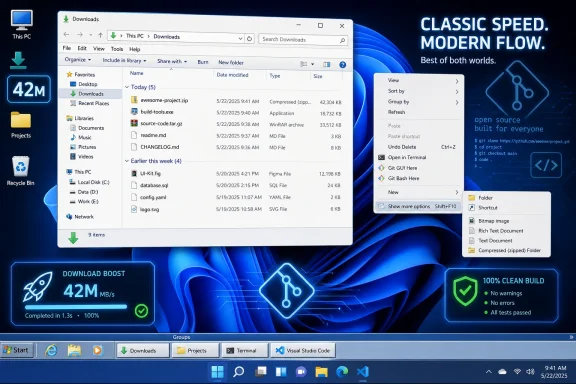 Forty-Two Million Downloads Is a Product Signal Microsoft Should Not Ignore
A utility like ExplorerPatcher should not have become mainstream-adjacent. Shell patchers live in the uneasy space between customization and fragility, because they often depend on behavior Microsoft never promised to preserve. Most users do not wake up wanting to install a tool that hooks into Explorer, restarts the shell, and exposes settings with warning symbols beside them.And yet here we are. The reported 42 million downloads matter because they suggest Windows 11’s UI backlash has outgrown the usual forum grumbling. A tiny sliver of users will always install third-party themers, icon packs, and shell replacements, but tens of millions of downloads point to something broader: people are not merely decorating Windows 11; they are trying to restore operational muscle memory.
Microsoft has spent the Windows 11 era trying to make the desktop feel cleaner, calmer, and more consistent. Rounded corners, centered icons, simplified menus, and a constrained Start menu all fit that agenda. But the Windows desktop was never beloved because it was calm. It was beloved, or at least depended upon, because it was configurable, visible, and brutally efficient once a user had bent it into shape.
That is why ExplorerPatcher’s appeal is so direct. It does not promise a new operating system. It promises to give back the old affordances: labels on taskbar buttons, more control over grouping, the classic context menu, older File Explorer surfaces, and Start menu options that Microsoft discarded or buried.
Windows 11’s Cleanliness Came With a Productivity Tax
The first version of Windows 11 made a bold bet: fewer choices would make Windows feel more coherent. That bet produced a prettier operating system, but also one that asked longtime users to spend more clicks on routine actions. The new context menu is the clearest example. It looks tidy, but for many users it turned right-clicking into a two-stage process: open the modern menu, then click “Show more options” to reach the command they actually wanted.The same pattern appeared in the taskbar. Windows 11 initially shipped without several features Windows 10 users considered basic, including labels, familiar ungrouping behavior, and flexible placement. Microsoft has since restored some functionality, including taskbar label and grouping controls in later Windows 11 releases, but the pace has been slow and the coverage incomplete. The result is a strange half-repair: the operating system has admitted that some old behaviors mattered, but it has not fully restored the old contract.
ExplorerPatcher thrives in that gap. It gives users a way to say, “I do not want to wait for the next Moment update, Insider build, or staged rollout.” That sentiment is important because Windows users have already endured years of interface churn around Start, search, widgets, Copilot entry points, system tray changes, and File Explorer redesigns.
The MakeUseOf review’s most telling observation is not that ExplorerPatcher can make Windows 11 look like Windows 10. It is that the system reportedly feels faster after switching File Explorer back toward older interface elements. Whether that is universal or machine-specific, the perception itself is damning. Modern UI is supposed to make the platform feel lighter, not leave users hunting for legacy paths to regain responsiveness.
The Taskbar Is Still the Center of the Windows Desktop
Microsoft has repeatedly underestimated the emotional and practical weight of the taskbar. To casual users it is a row of icons. To heavy Windows users it is the operating system’s cockpit: a place to identify open work, switch tasks, monitor background activity, launch pinned tools, and manage multiple windows without thinking.That is why small taskbar changes can provoke outsized anger. Removing labels is not just an aesthetic choice when a user has six documents open in the same app. Combining buttons is not just tidiness when a sysadmin is bouncing between consoles, terminals, ticket queues, and remote sessions. Fixed placement is not just design discipline when someone has spent a decade running a vertical taskbar on an ultrawide monitor.
ExplorerPatcher’s Windows 10-style taskbar restoration is powerful because it addresses these workflows directly. It lets users bring back small icons, labels, and more explicit grouping behavior. It also allows mixed configurations, such as pairing a Windows 11-style Start button with older taskbar behavior.
That mix-and-match quality is messy, but it is also very Windows. The platform’s historical strength was not that every user’s desktop looked perfect. It was that a user could make the machine fit the job. Microsoft’s modern shell design too often reverses that relationship, asking the job to fit the machine.
The Start Menu War Never Really Ended
Windows 8 turned the Start menu into a cultural object. What had been a mundane launcher became a symbol of whether Microsoft understood desktop users at all. Windows 10 was, in part, a peace treaty: live tiles and modern design could coexist with a more traditional desktop launching surface.Windows 11 reopened the argument by replacing that compromise with a cleaner, more rigid Start menu. Pinned apps, recommendations, and a centered layout may work well enough for some people, but the menu lost much of its sense of spatial ownership. The user can rearrange pins and tune a few settings, but the experience remains tightly prescribed.
ExplorerPatcher’s ability to switch among Windows 11, Windows 10, and even full-screen Windows 8.1-style Start experiences sounds like overkill until you remember how personal launching behavior is. Some users want a compact app list. Some want a tile dashboard. Some want the Start menu at the edge of the screen because that is where decades of muscle memory tells their hand to go.
The important point is not that the Windows 10 Start menu was perfect. It was not. Live tiles never became the developer ecosystem Microsoft wanted, and the menu could become visually chaotic. But it offered a kind of information density and user authorship that Windows 11 reduced.
That loss helps explain why a tool like ExplorerPatcher can feel liberating even when it is rough. It reintroduces the idea that the Start menu belongs to the person using the PC, not only to the design system governing it.
File Explorer Is Where Modern Windows Most Often Betrays Its Own History
File Explorer is one of the most difficult parts of Windows to modernize because it is not just an app. It is the face of the filesystem, the home of countless workflows, and a bridge between consumer habits and enterprise administration. Every delay, animation, missing command, or changed menu placement is magnified because users touch Explorer constantly.Microsoft’s recent File Explorer work has produced a cleaner visual shell, tabs, refreshed navigation, and a more modern command bar. But users have also complained about sluggishness, inconsistent behavior, and the loss of command density compared with the older ribbon and classic menus. A file manager can be beautiful, but if it hesitates while opening folders or hides frequently used actions, beauty becomes a tax.
ExplorerPatcher’s File Explorer options are therefore more than cosmetic. Restoring older command surfaces and classic context menus can reduce friction for people who perform repetitive file operations all day. The MakeUseOf reviewer’s experience — faster-feeling folder navigation, snappier right-clicks, and less annoyance around the modern command bar — maps closely to the complaints that have followed Windows 11 since launch.
This is where Microsoft’s design problem becomes clearest. The company often frames simplification as accessibility for mainstream users. But in File Explorer, simplification can make the interface less legible for experienced users without necessarily making it more powerful for beginners. Hiding commands does not teach users; it just makes everyone search harder.
Open Source Makes ExplorerPatcher Trustworthy, But Not Risk-Free
ExplorerPatcher’s open-source status is central to its credibility. Users can inspect the project, follow development, and see community discussion around issues. That transparency matters for a tool that modifies shell behavior and operates close to the heart of the Windows desktop experience.But open source does not eliminate operational risk. ExplorerPatcher works because it interacts with components Microsoft can change. Windows feature updates, cumulative updates, and shell revisions can break assumptions. A utility that behaves perfectly on one build may flicker, crash Explorer, or lose features on another until the maintainer catches up.
That is not an indictment of ExplorerPatcher. It is the unavoidable bargain of this category of software. The closer a tool gets to restoring undocumented or deprecated behavior, the more it depends on the stability of internals that Microsoft does not treat as public API.
For enthusiasts, that bargain may be acceptable. For a work laptop, managed endpoint, or family member’s PC, it is more complicated. A shell tweak that saves a power user ten minutes a day can become a support burden when a monthly update changes the ground underneath it.
The 24H2 Lesson Is That Shell Customization Lives on Borrowed Time
Windows 11 version 24H2 became a reminder that deep customization tools exist at Microsoft’s tolerance. Reports around the 24H2 cycle described compatibility warnings and breakage affecting tools that modify the Start menu and taskbar experience. ExplorerPatcher’s maintainers have continued adapting, and later releases have targeted compatibility with newer Windows 11 builds, but the episode exposed the fragility of the arrangement.The basic tension is easy to understand. Microsoft wants to secure, simplify, and evolve the shell. Third-party tools want to preserve or re-create behavior Microsoft has removed. Users want both: the latest Windows security and compatibility updates, plus the workflow affordances they had yesterday.
That tension becomes sharper as Windows moves more shell pieces into modern frameworks, cloud-connected surfaces, and updateable components. The taskbar is no longer merely a strip of pixels. It is tied to search, notifications, widgets, Teams remnants, Copilot entry points, system tray policy, accessibility work, and telemetry-informed design decisions.
ExplorerPatcher is impressive precisely because it swims against that current. But users should not confuse impressive with guaranteed. If Microsoft decides a legacy pathway is gone, or if a future Windows build refactors shell components more aggressively, tools like ExplorerPatcher may need major rewrites or may lose features entirely.
Microsoft Has Been Fixing Windows 11, But Too Slowly for Its Loudest Users
It would be unfair to pretend Microsoft has ignored all complaints. Windows 11 today is not the same shell that launched in 2021. The company has restored taskbar drag-and-drop, added more taskbar behavior controls, improved some Start menu settings, and continued refining File Explorer. The operating system has become more capable and less rigid over time.The problem is that Microsoft often restores functionality only after users have already routed around it. By the time a missing feature returns officially, the most affected users may have installed StartAllBack, Start11, ExplorerPatcher, Windhawk mods, registry tweaks, or some combination of all of them. The official fix then competes not with the original pain, but with a customized setup that may already be better for that user.
This creates a credibility problem. When Microsoft removes a mature feature, users no longer assume it is gone temporarily. They assume the company has made a design decision against them. Even if the feature returns two years later, the damage to trust remains.
ExplorerPatcher’s download count should therefore be read less as a victory for modding and more as a warning about product governance. Windows users will tolerate change when it improves their daily work. They are far less forgiving when change removes known-good behavior in exchange for a cleaner screenshot.
The SmartScreen Warning Is a Small Moment With a Big Message
The MakeUseOf review notes that ExplorerPatcher’s uninstaller can trigger a Windows SmartScreen warning. For technical users, that may be a minor annoyance. For less experienced users, it is a flashing red sign that something has gone wrong.This is the uncomfortable paradox of Windows customization in 2026. Microsoft has trained users, correctly, to be suspicious of software that changes system behavior. But some of the most desired Windows fixes now arrive through exactly that kind of software. A user who wants the old taskbar must decide whether to trust a community project more than the vendor that removed the taskbar behavior in the first place.
SmartScreen is not the villain here. Windows needs reputation checks, warnings, and friction around unknown executables. The security ecosystem is too hostile for anything else. But the warning underscores why shell patching will never be a clean mainstream answer, no matter how many downloads ExplorerPatcher accumulates.
The safer outcome would be for Microsoft to make more of these behaviors first-class settings. Not hacks. Not hidden registry values. Not staged experiments. Real controls, documented and supported, especially for the taskbar, Start menu, context menus, and File Explorer command density.
Enterprise IT Sees the Same Appeal and a Different Risk Equation
For enterprise administrators, ExplorerPatcher is both understandable and difficult to endorse. The appeal is obvious: standardize a more productive Windows 11 shell for users migrating from Windows 10, reduce retraining friction, and preserve workflows that line-of-business teams have built over years. The risk is equally obvious: an unsupported shell customization layer can complicate patching, troubleshooting, and compliance.Most IT departments are not philosophically opposed to customization. They deploy browser policies, Start layouts, taskbar pins, default app associations, context-menu handlers, and accessibility settings all the time. What they resist is unmanaged customization that changes how core shell components behave outside Microsoft’s support envelope.
That makes ExplorerPatcher more likely to remain an enthusiast and power-user tool than a standard enterprise migration aid. A small business owner may install it across a handful of PCs and be happy. A large organization with thousands of endpoints will be more cautious, especially when Windows feature updates can alter compatibility.
Still, Microsoft should pay attention to what enterprise users are implicitly asking for. They do not necessarily want a third-party patcher. They want migration continuity. They want a Windows 11 experience that does not force users to relearn basic task switching, file handling, and context-menu behavior at the same time they are dealing with hardware refreshes, security baselines, and application compatibility.
The Real Competition Is Not Windows 10, It Is User Memory
Microsoft’s most dangerous competitor in this story is not Linux, macOS, or ChromeOS. It is Windows itself. Specifically, it is the memory of a Windows desktop that let users decide more.That memory is especially potent because Windows 10 remains the reference point for many PCs still in homes and offices. Users compare Windows 11 not to an abstract design ideal, but to the machine they used yesterday. If yesterday’s machine had a taskbar that displayed labels, a right-click menu that showed all commands, and a Start menu with more layout control, Windows 11 has to justify why those things are gone.
ExplorerPatcher’s genius is that it short-circuits the debate. It does not ask users to accept Microsoft’s rationale. It lets them restore the behavior and move on. That is powerful because productivity software is judged less by ideology than by cumulative seconds saved.
There is a lesson here for every platform vendor. Removing complexity is not the same as improving usability. Sometimes complexity is stored expertise. Sometimes a cluttered menu is faster than a beautiful one. Sometimes the “old way” survives not because users fear change, but because it remains better for certain jobs.
The Frankenstein Desktop Is a Feature and a Warning
One of ExplorerPatcher’s quirks is that it can produce a visually inconsistent desktop: a Windows 10 taskbar, a Windows 11 Start button, older flyouts, classic menus, and legacy switchers all living together. The MakeUseOf review describes this as a potential “Frankenstein” effect, and that is fair. Users who toggle indiscriminately can end up with an interface assembled from several Windows eras.But that messiness is also revealing. It shows how many different design layers Microsoft has stacked into Windows over time. The operating system is already a palimpsest of Win32, UWP, WinUI, XAML Islands, legacy Control Panel surfaces, modern Settings pages, old dialogs, new command bars, and cloud-connected panels. ExplorerPatcher does not create all the inconsistency; it exposes the inconsistency that Windows already contains.
The question is whether inconsistency is always worse than constraint. Microsoft’s answer has leaned toward constraint: fewer visible options, more unified surfaces, more guided interaction. ExplorerPatcher’s users are voting for a different answer: coherence is nice, but control is better when the machine is used for work.
That does not mean every user should install it. A system can become harder to support when every visual and behavioral layer comes from a different Windows generation. But the desire to mix eras is not irrational. It is a user trying to keep the parts that work.
ExplorerPatcher Is Not a Rebellion Against Windows 11 So Much as a Plea for a Better One
The easy headline is that ExplorerPatcher makes Windows 11 feel like Windows 10. The more interesting conclusion is that it makes Windows 11 feel more like Windows: adaptable, dense, occasionally ugly, and tuned to the person at the keyboard.That distinction matters. Many ExplorerPatcher users are not rejecting Windows 11’s kernel improvements, security model, hardware support, gaming features, or ongoing update channel. They want the modern platform without the forced shell minimalism. They want Windows 11 underneath and a more user-directed desktop on top.
Microsoft could interpret this as a niche preference and keep moving. That would be a mistake. Power users are not the majority, but they are often the people who recommend PCs, manage fleets, write documentation, support relatives, build workflows, and decide whether an OS upgrade is “ready.” When those users reach for patchers, they are not just customizing. They are compensating.
ExplorerPatcher’s success is therefore a kind of unpaid user research. It identifies the controls Microsoft should bring back officially, the areas where modern UI still feels slower, and the places where Windows 11’s design priorities diverge from daily desktop work.
The Numbers Say the Old Controls Still Matter
ExplorerPatcher’s rise should not send everyone rushing to patch Explorer, but it should sharpen the conversation about Windows 11 customization. The practical lesson is narrower and more useful than “install this now.” It is that Microsoft removed too many proven affordances too quickly, then left third-party tools to absorb the demand.- ExplorerPatcher’s reported 42 million downloads show that classic Windows shell behavior remains a mass-market desire, not only a retro-computing hobby.
- The taskbar remains the most important productivity surface in Windows, and labels, grouping controls, density, and placement still matter to serious desktop users.
- The classic context menu and older File Explorer command surfaces survive because they often reduce clicks and expose commands more predictably.
- The utility’s open-source nature improves trust, but its dependence on Windows shell internals makes it inherently vulnerable to future updates.
- Microsoft has restored some Windows 11 functionality over time, but the slow repair cycle has pushed many frustrated users toward third-party tools first.
- The safest long-term answer is not more patching, but more official, supported shell customization for users and administrators.
References
- Primary source: MakeUseOf
Published: Thu, 28 May 2026 16:00:17 GMT
42 million people downloaded this free Windows 11 mod — I finally tried it, and now I get it
One mod fixed everything I hated about 11. www.makeuseof.com
- Related coverage: explorerpatcher.net
ExplorerPatcher - Download to Customize Windows 11
Download ExplorerPatcher for Windows 11. Customize taskbar, restore the classic Start menu, and customize your desktop as you want for free!explorerpatcher.net - Related coverage: windowscentral.com
I tested this Windows 11 customization app with 42 million downloads — why aren't more people discussing it? | Windows Central
ExplorerPatcher keeps gaining users, but I rarely see it mentioned as a way to customize Windows 11. I decided to find out why.www.windowscentral.com - Official source: github.com
ExplorerPatcher's taskbar implementation · valinet/ExplorerPatcher Wiki · GitHub
This project aims to enhance the working environment on Windows - ExplorerPatcher's taskbar implementation · valinet/ExplorerPatcher Wiki github.com
- Related coverage: memstechtips.com
How To Make The Start Menu Full Screen On Windows 11
Make the Windows 11 Start menu full screen using ExplorerPatcher. Windows 11 removed the native toggle — this guide walks through the setup.memstechtips.com - Related coverage: windowsreport.com

ExplorerPatcher removes the old Windows 10 taskbar in Windows 11 24H2
ExplorerPatcher is an app developed by Valinet, which is renowned for modifying Windows UI just released a new version, 22621.3527.65.1.
windowsreport.com
- Related coverage: androidauthority.com
How to ungroup icons on the taskbar in Windows 11
Want to ungroup the icons on your taskbar, but can't find the option in Windows 11? Here's how to ungroup icons on the taskbar in Windows 11.www.androidauthority.com - Related coverage: osnews.com
- Related coverage: newreleases.io
valinet/ExplorerPatcher 22621.3880.66.7_78e6248 on GitHub
New release valinet/ExplorerPatcher version 22621.3880.66.7_78e6248 22621.3880.66.7 on GitHub. newreleases.io
- Related coverage: xda-developers.com
Is the Windows 11 taskbar too hard to use? Here's how to stop combining icons and show labels
Want to quickly identify your apps on the Windows 11 taskbar? Here's how to enable taskbar ungrouping if you're running Microsoft's latest OS. www.xda-developers.com
- Related coverage: ineasysteps.com

