

Windows 11’s File Explorer has become one of those small, infuriating user-experience puzzles: visually modern but intermittently slow, occasionally unstable, and — thanks to a recent preview update — prone to an especially jarring white flash in dark mode. For many enthusiasts and power users, the practical response has been to use ExplorerPatcher, a community-built shell patch that restores legacy taskbar and Explorer behaviors while avoiding the WinUI repaint path that appears to be at the heart of the regression. What follows is a deep, practical, and critical look at ExplorerPatcher: what it does, how it works, why enthusiasts are flocking to it now, and the real operational trade-offs you must accept before installing it on any machine you care about. The analysis draws on the ExplorerPatcher project itself, recent Windows 11 update notes, and broad community testing and reporting to separate verified facts from hopeful anecdotes.
File Explorer’s evolution in Windows 11 is a classic product trade‑off: a modern WinUI front end brings visual parity with new Windows surfaces, but that modernization also changed paint and composition paths. The December preview cumulative update KB5070311 — intended to deepen dark mode coverage across Explorer — introduced a white flash when opening or interacting with Explorer in dark mode. Microsoft documented the behavior as a known issue and said it’s working on a fix. Independent reporting and community tests reproduced the symptom and identified one consistent mitigation: avoid the modern command bar (WinUI) so Explorer uses the legacy rendering path instead. ExplorerPatcher is an open-source utility that hooks Explorer and exposes a compact Properties UI to restore Windows 10–style behaviors. It’s capable of reverting the taskbar to a left-aligned Windows 10 look, replacing the Windows 11 command bar with a Windows 10 Ribbon or an older command bar, and restoring numerous legacy affordances (context menus, search box style, taskbar docking, and more). The project is hosted on GitHub (valinet/ExplorerPatcher) and distributes easy-to-run setup EXEs for x64 and ARM64 machines. Its README and wiki document features, install/uninstall options, and warnings about update fragility.
However, the fundamental weakness is structural: ExplorerPatcher relies on hooking into the Windows shell. That design makes it a reactive solution — it depends on the community maintainer and contributors to patch compatibility every time Microsoft changes internal Explorer behavior. That maintenance model works well for enthusiasts but produces a maintenance burden and a fragile update path for mainstream or enterprise deployments.
Moreover, the security posture is mixed. While Defender often no longer flags EP, SmartScreen and some third‑party AV engines may still treat any unsigned, hook-based shell patcher as risky. The correct response here is prudence: verify releases, scan installers, and avoid adding broad AV exclusions unless absolutely necessary and understood.
Finally, there’s a strategic question: should Microsoft design Windows so third‑party shell patchers are necessary? The Windows 11 design trade-off — prioritizing a modern, consistent UI at the cost of some long‑standing affordances — forced a segment of users to adopt third‑party tools. From a consumer‑experience lens, that’s a failure to meet the needs of power users, even if it’s a deliberate product choice.
That power comes with caveats: update fragility, potential security tool friction, and the need for careful testing and backup. For hobbyists and power users who already manage their own update cadence, ExplorerPatcher is an excellent and cost‑free tool. For mission‑critical or managed fleets, a vendor‑supported paid product or waiting for Microsoft’s official remediation will remain the safer route.
If you choose to use ExplorerPatcher, follow the conservative installation checklist above, test the change in your environment, and keep an eye on both GitHub releases and Microsoft update notes. The community has turned ExplorerPatcher into an effective stopgap for genuine usability regressions — but it remains, at heart, a community glue patch: extremely useful, but not a substitute for robust vendor stability and native settings that respect power‑user workflows.
Source: Thurrott.com What I Use: ExplorerPatcher
 Background / Overview
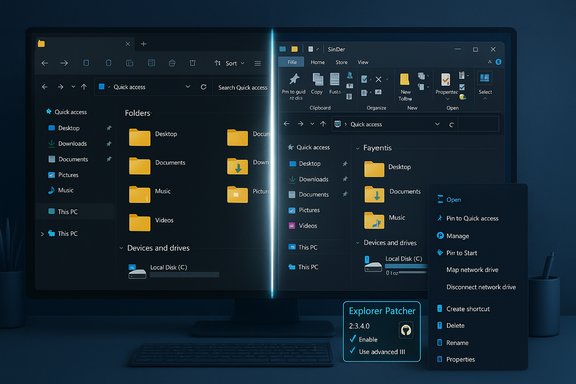
File Explorer’s evolution in Windows 11 is a classic product trade‑off: a modern WinUI front end brings visual parity with new Windows surfaces, but that modernization also changed paint and composition paths. The December preview cumulative update KB5070311 — intended to deepen dark mode coverage across Explorer — introduced a white flash when opening or interacting with Explorer in dark mode. Microsoft documented the behavior as a known issue and said it’s working on a fix. Independent reporting and community tests reproduced the symptom and identified one consistent mitigation: avoid the modern command bar (WinUI) so Explorer uses the legacy rendering path instead. ExplorerPatcher is an open-source utility that hooks Explorer and exposes a compact Properties UI to restore Windows 10–style behaviors. It’s capable of reverting the taskbar to a left-aligned Windows 10 look, replacing the Windows 11 command bar with a Windows 10 Ribbon or an older command bar, and restoring numerous legacy affordances (context menus, search box style, taskbar docking, and more). The project is hosted on GitHub (valinet/ExplorerPatcher) and distributes easy-to-run setup EXEs for x64 and ARM64 machines. Its README and wiki document features, install/uninstall options, and warnings about update fragility. Why ExplorerPatcher is suddenly in the spotlight
The trigger: a dark‑mode flash bug in KB5070311
KB5070311 (preview, December) aimed to make dark mode more consistent across Explorer, dialogs, and progress surfaces. Instead, under certain actions — launching Explorer to Home or Gallery, creating new tabs, toggling the Details pane, or expanding copy/move “More details” — users saw a short-lived white screen before the dark interface painted. Microsoft listed the regression as a known issue, and mainstream outlets and forums reproduced it quickly. For anyone regularly using dark mode (OLED screens, low-light work), this is an accessibility and ergonomics problem that’s also simply annoying.The community finding: revert the command bar
A growing set of tests from power‑user forums, tech outlets, and independent testers showed that switching Explorer’s command bar off — forcing Explorer to use the legacy Ribbon or older command bar — removes the problematic WinUI paint path and often eliminates the white flash. ExplorerPatcher exposes precisely that control, which is why it’s an attractive workaround for affected users who prefer to keep dark mode and avoid the visual regression. This is not an official Microsoft fix; it’s a mitigation that changes how Explorer composes UI.What ExplorerPatcher actually changes (practical breakdown)
ExplorerPatcher is not a single-purpose “skin.” It’s a shell patcher with many discrete controls; you can toggle specific behaviors without applying everything. Key capabilities that matter for this discussion:- Restore Windows 10–style taskbar (small icons, labels, and docking to any screen edge).
- Replace the Windows 11 command bar with the Windows 10 Ribbon or a Windows 7–style command bar, which avoids the WinUI composition path that can cause white flashes.
- Restore classic Start menu behaviors (tiles/apps list), control the Recommended feed, and open All apps by default.
- Provide optional extras: a weather widget, classic flyouts for volume/network, and other quality‑of‑life shell changes.
- Offer x64 and ARM64 installers (ep_setup.exe and ep_setup_arm64.exe) and an extraction mode for advanced users.
Installation and first steps (practical, safe workflow)
- Back up or create a System Restore point. This is the top-line safety step before altering shell behavior; if the shell becomes unstable an immediate rollback is invaluable.
- Download the latest release from the official GitHub releases page and verify you have the appropriate build (x64 vs ARM64). The project explicitly warns not to download EP from unknown mirrors.
- Expect Defender SmartScreen to show an “Unknown publisher” / “Windows protected your PC” dialog occasionally for unsigned binaries. This is common for small open-source projects and can be overridden by clicking “More info” → “Run anyway”, or by unblocking the file via Properties. If you prefer extra assurance, verify the installer checksum (if provided) or scan the file with your antivirus before running.
- Run the installer; it will prompt for administrator elevation, close explorer.exe, install the files, and restart Explorer. After install, right‑click the taskbar and open “Properties (ExplorerPatcher)” to access settings.
- To specifically mitigate the white flash: open ExplorerPatcher Properties → File Explorer (or the Control Interface section) → set Control Interface to Windows 10 Ribbon (or Windows 7 Command Bar) → click Restart File Explorer or sign out and back in to apply. Validate by opening Explorer in dark mode and reproducing previously flashing actions. Several community testers reported that the flash disappeared after this change.
Verified claims and what is still anecdotal
- Verified: ExplorerPatcher is open‑source, distributed on GitHub, and provides both Intel/AMD (x64) and ARM64 installers. The GitHub repository and releases page document the installer names and installation process.
- Verified: KB5070311 introduced a white flash in File Explorer in dark mode and Microsoft listed it as a known issue while working on a fix. Multiple reputable outlets reproduced and reported the behavior.
- Verified: ExplorerPatcher exposes a setting that disables the Windows 11 command bar and shows the legacy Ribbon/command bar instead; community testers consistently reported that this mitigates the white flash on many machines. The project wiki documents the feature and the mitigation has been discussed across community forums.
- Anecdotal: Claims about universal, quantifiable performance improvements (e.g., specific MB savings in memory or precise milliseconds shaved from cold-launch times) vary widely. Benchmarks differ per machine, installed shell extensions, cloud sync providers, and workload. Community reports show noticeable improvements for some configurations but not a consistent, machine‑independent metric. Treat performance claims as user‑reported evidence rather than guaranteed facts.
Risks, limitations, and maintenance obligations
ExplorerPatcher is a powerful tool, but it carries real tradeoffs — some subtle, some concrete:- Update fragility. ExplorerPatcher modifies or hooks into Explorer internals. When Microsoft ships a feature update or a cumulative update that changes Explorer internals, ExplorerPatcher can misbehave until the project publishes a compatible release. The GitHub README and community advisories explicitly caution about this fragility; many users monitor the project’s releases before applying major Windows updates to avoid breakage.
- No official Microsoft support. This is not a supported Microsoft tool. On managed or enterprise devices, installing shell-level modifications may violate company policy and will place you outside vendor support channels.
- Antivirus and security flags. Historically, some security scanners flagged ExplorerPatcher (heuristic detections because it hooks into Explorer). The project now notes that Windows Defender no longer flags EP in many builds, but other AV products or SmartScreen may still raise alerts. The GitHub releases page and community discussions recommend downloading only from the official releases page and, in some cases, adding exclusions if your AV quarantines the DLLs used by EP. Treat that guidance cautiously and only add exclusions if you understand the implications.
- Feature mismatch and partial restoration. Some behaviors — Live Tiles’ full dynamic content, or certain system-privileged UIs — can’t be fully restored because Microsoft has removed or deprecated underlying platform features. ExplorerPatcher reworks the shell chrome and interaction model, but the underlying platform differences remain.
- Potential accessibility and UX regressions. Reverting to legacy chrome can improve some interactions for power users but could break or change other behaviors (e.g., newer flyouts, rounded controls, or accessibility features tied to the modern UI stack). Test thoroughly.
Alternatives and context: when ExplorerPatcher is the right tool
ExplorerPatcher sits in a landscape of options; some are minimal, some paid, and others modular:- Start11 / StartAllBack (paid): Commercial, polished replacements that restore Start and taskbar behaviors with vendor support. For organizations or users wanting low‑risk, supported behavior restoration, these paid options are more conservative.
- Open‑Shell: A free Start-menu-only replacement that’s less invasive than a full shell patch. Good for users who only want the Start menu back without touching Explorer internals.
- Windhawk / modular mods: Offers modular changes (taskbar tweaks, UI mods) that are less monolithic. Good for tinkerers who want incremental changes rather than a single shell-layer patch.
- ViVeTool and feature flag toggles: Advanced users can toggle certain Windows features at the feature-flag level to disable modern Explorer surfaces, but this is fragile and build-specific. Use only if you understand the feature ID differences across builds.
- You want a free, full-featured tool that can restore many classic behaviors quickly.
- You enjoy tuning your system and are comfortable with monitoring EP releases relative to Windows updates.
- You prefer a single download with an integrated UI to manage multiple reversion choices (taskbar, Start menu, File Explorer chrome, etc..
Real‑world deployment guidance — practical checklist
- Create a System Restore point or disk image.
- Backup critical data and, if possible, test EP on a non-production device first.
- Download only from the official GitHub releases page and verify the build (x64 vs ARM64).
- If Defender SmartScreen appears, review the dialog and use “More info → Run anyway” only if you confirmed the file came from the official releases page and scans clean.
- After installing, switch only the option(s) you need (for the white flash issue, change Control Interface to Windows 10 Ribbon and test).
- Monitor EP’s GitHub releases and issues for compatibility notes before installing major Windows feature updates; reversion or a quick uninstall may be necessary while EP updates to support new builds.
- If running enterprise security, check corporate policy and coordinate with IT before deploying.
Critical analysis — strengths, weaknesses, and long-term perspective
ExplorerPatcher’s strengths are straightforward and compelling: it’s free, actively developed, and highly configurable. For long-time Windows users and power users, it restores familiar workflows (left-docked taskbar, labeled buttons, and the Windows 10 Ribbon in Explorer) that are productivity features, not just aesthetics. The project’s active issue tracker and frequent releases make it responsive to Windows updates — a major advantage versus a stagnant tool.However, the fundamental weakness is structural: ExplorerPatcher relies on hooking into the Windows shell. That design makes it a reactive solution — it depends on the community maintainer and contributors to patch compatibility every time Microsoft changes internal Explorer behavior. That maintenance model works well for enthusiasts but produces a maintenance burden and a fragile update path for mainstream or enterprise deployments.
Moreover, the security posture is mixed. While Defender often no longer flags EP, SmartScreen and some third‑party AV engines may still treat any unsigned, hook-based shell patcher as risky. The correct response here is prudence: verify releases, scan installers, and avoid adding broad AV exclusions unless absolutely necessary and understood.
Finally, there’s a strategic question: should Microsoft design Windows so third‑party shell patchers are necessary? The Windows 11 design trade-off — prioritizing a modern, consistent UI at the cost of some long‑standing affordances — forced a segment of users to adopt third‑party tools. From a consumer‑experience lens, that’s a failure to meet the needs of power users, even if it’s a deliberate product choice.
Conclusion
ExplorerPatcher is a powerful, pragmatic tool that addresses real pain points — especially in light of recent regressions like the File Explorer dark‑mode white flash tied to KB5070311. It’s a measured, reversible workaround for users who value practical functionality and responsiveness over a strictly vendor‑supported experience. The project is well‑maintained, clearly documented on GitHub, and capable of selectively reverting the modern WinUI chrome to legacy rendering paths that avoid the flash.That power comes with caveats: update fragility, potential security tool friction, and the need for careful testing and backup. For hobbyists and power users who already manage their own update cadence, ExplorerPatcher is an excellent and cost‑free tool. For mission‑critical or managed fleets, a vendor‑supported paid product or waiting for Microsoft’s official remediation will remain the safer route.
If you choose to use ExplorerPatcher, follow the conservative installation checklist above, test the change in your environment, and keep an eye on both GitHub releases and Microsoft update notes. The community has turned ExplorerPatcher into an effective stopgap for genuine usability regressions — but it remains, at heart, a community glue patch: extremely useful, but not a substitute for robust vendor stability and native settings that respect power‑user workflows.
Source: Thurrott.com What I Use: ExplorerPatcher
