

Windows Update’s default behavior — download, install, repeat — is a convenience for many but a data bill nightmare for others, and a simple registry tweak that’s circulated in tech blogs and forums can extend Windows’ “Pause updates” well beyond the default limit so updates stop chewing through limited bandwidth when you’re on a hotspot or capped connection.
Windows provides several built‑in controls to limit when and how updates download: the Pause updates control in Settings, the metered connection flag, and enterprise policies via Group Policy or MDM. For most users, the Settings pause is the obvious choice, but it’s limited by design: Windows allows a pause of up to 35 days (commonly shown in the UI as “up to 5 weeks”), after which updates resume automatically. Microsoft documents the pause behavior as a 35‑day pause window for both feature and quality updates when controlled by the Update UI or by Update/Policy CSPs. That short window is fine for a short trip or a tight week, but it’s frustrating when you need longer control — for example, when tethering to a mobile hotspot or managing a device with strict monthly data caps. Community guides and how‑to sites have long shown that the pause UI enforces a limits value that can be read and modified through the registry, and that Windows adds a set of timestamped registry keys when you use the Pause control. These keys can be edited to extend the pause period or to set explicit start/end times. Independent walkthroughs from respected Windows how‑to sites document the same keys and practical registry edits.
However, it’s not a best‑practice long‑term solution. The pause is intentionally limited by Microsoft for security and stability reasons, and enterprise management tools exist to provide supported, auditable control. The registry approach should be treated as a temporary, user‑controlled convenience with explicit plans to re‑apply updates regularly. Microsoft may change the underlying behavior at any time; administrators should prefer supported policies.
Windows Update was designed to keep millions of devices secure and relatively consistent, but that design assumes reliable connectivity and reasonably open windows for patching. When those assumptions don’t hold — capped mobile hotspots, limited satellite connections, or a moment when bandwidth is absolutely critical — pragmatic users have found registry knobs that buy time. Use those knobs responsibly: back up your system, plan for manual patching, and prefer supported enterprise controls when managing fleets. If the goal is to stop unexpected bandwidth usage now, the registry tweak is a useful tool in the toolbox; if the goal is secure, maintainable long‑term configuration, managed policies are the right path.
Source: MakeUseOf This registry hack finally stopped Windows updates from hogging my bandwidth
 Background
Windows provides several built‑in controls to limit when and how updates download: the Pause updates control in Settings, the metered connection flag, and enterprise policies via Group Policy or MDM. For most users, the Settings pause is the obvious choice, but it’s limited by design: Windows allows a pause of up to 35 days (commonly shown in the UI as “up to 5 weeks”), after which updates resume automatically. Microsoft documents the pause behavior as a 35‑day pause window for both feature and quality updates when controlled by the Update UI or by Update/Policy CSPs. That short window is fine for a short trip or a tight week, but it’s frustrating when you need longer control — for example, when tethering to a mobile hotspot or managing a device with strict monthly data caps. Community guides and how‑to sites have long shown that the pause UI enforces a limits value that can be read and modified through the registry, and that Windows adds a set of timestamped registry keys when you use the Pause control. These keys can be edited to extend the pause period or to set explicit start/end times. Independent walkthroughs from respected Windows how‑to sites document the same keys and practical registry edits. What the hack changes — a technical overview
At the heart of the tweak are two registry locations:- HKLM\SOFTWARE\Microsoft\WindowsUpdate\UpdatePolicy\Settings
- This location holds status flags such as PausedFeatureStatus and PausedQualityStatus, which indicate whether feature and quality updates are currently marked paused by the system or by policy. Microsoft documents these status values and how they map to paused/not‑paused states.
- HKLM\SOFTWARE\Microsoft\WindowsUpdate\UX\Settings
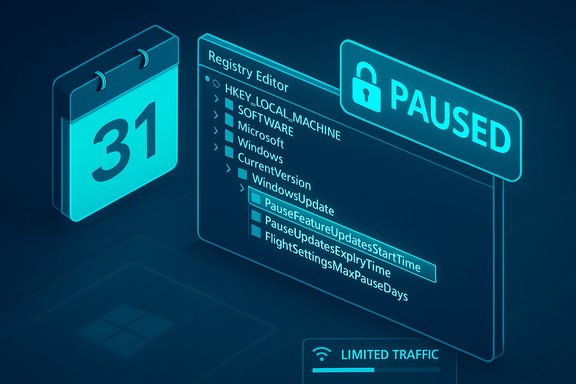
- This location contains the timestamp keys the Settings UI uses to show pause start and expiry times: PauseFeatureUpdatesStartTime, PauseFeatureUpdatesEndTime, PauseQualityUpdatesStartTime, PauseQualityUpdatesEndTime, PauseUpdatesStartTime, and PauseUpdatesExpiryTime, and the UI limit key FlightSettingsMaxPauseDays. Manipulating these entries lets you alter the “pause window” the Settings app reports — effectively causing Windows to treat updates as paused until whatever future expiry date you supply. Multiple community and troubleshooting articles reproduce and test these same keys.
Step‑by‑step: what the commonly shared registry script does (and how it works)
Below is the conceptual breakdown of the typical .reg content that has been circulating (the exact values differ in different articles and scripts). The script performs two tasks:- Set the pause status flags so Windows believes updates are paused.
- Create or extend timestamp fields (and increase the UI limit) so the Settings app and the update client consider the pause valid through the provided expiry date.
- Set PausedFeatureStatus and PausedQualityStatus to the “paused” value in HKLM\SOFTWARE\Microsoft\WindowsUpdate\UpdatePolicy\Settings.
- Set FlightSettingsMaxPauseDays in HKLM\SOFTWARE\Microsoft\WindowsUpdate\UX\Settings to a large decimal dword (this is the UI limit that controls how many days the Pause dropdown will allow).
- Write the start and end ISO‑8601 timestamps for PauseFeatureUpdatesStartTime, PauseFeatureUpdatesEndTime, PauseQualityUpdatesStartTime, PauseQualityUpdatesEndTime, PauseUpdatesStartTime, and PauseUpdatesExpiryTime to dates far in the future (e.g., 2035 or later).
Hands‑on: a safe checklist before you change the registry
Editing the registry is powerful but risky. Before you proceed, do the following:- Create a full System Restore point and export the specific registry keys you will modify so you can restore them.
- Make sure you have local administrator rights and can re‑enable updates manually if needed.
- Understand that pausing updates indefinitely increases exposure to security fixes; plan to check for and install critical updates on a schedule (recommended: at least every 3–6 months).
- If the device is managed by an employer, school, or MDM, do not attempt to override policies; administrative policies may be in place for compliance reasons.
How to apply (concise steps)
- Pause updates once through Settings > Windows Update > Pause updates (choose the maximum option). This causes Windows to create the pause keys and timestamps you’ll edit.
- Create a backup of the relevant registry keys:
- Export HKLM\SOFTWARE\Microsoft\WindowsUpdate\UpdatePolicy\Settings
- Export HKLM\SOFTWARE\Microsoft\WindowsUpdate\UX\Settings
- Use an elevated registry editor or a carefully reviewed .reg file / PowerShell script to:
- Set PausedFeatureStatus and PausedQualityStatus appropriately (value indicating paused).
- Set FlightSettingsMaxPauseDays to a large decimal value you choose (for example 3650 decimal for ~10 years).
- Set PauseFeatureUpdatesStartTime, PauseFeatureUpdatesEndTime, PauseQualityUpdatesStartTime, PauseQualityUpdatesEndTime, PauseUpdatesStartTime, and PauseUpdatesExpiryTime to ISO‑8601 UTC timestamp strings that reflect the start and end of the pause window you want.
- Restart (or restart the Windows Update service) and confirm Settings shows updates as paused through the desired date.
- When you want updates again, use Settings > Windows Update > Resume updates or restore your exported registry keys.
Testing and verification — what to look for after applying the tweak
- The Windows Update pane should show the Resume updates button and the UI should display the pause expiry date you set.
- The Windows Update service should not actively download large updates in the background while the pause is in effect. Use Task Manager / Resource Monitor or your router’s traffic meter to confirm no unusual download traffic from the device. Community threads frequently recommend using Delivery Optimization activity monitor for additional visibility.
- A Group Policy or MDM policy overriding local settings. Microsoft documents how Update/Policy CSP and Group Policy interact with pause settings; managed devices can be forced to resume updates.
- A major Windows feature update may reset or remove custom user registry edits. Users report that feature upgrades sometimes restore default update behavior — reapplying the tweak after a major update may be necessary, but be cautious until you verify behavior on the new build.
Delivery Optimization and other background sources of bandwidth usage
This registry tweak only affects the Windows Update engine’s automatic update downloads; it does not automatically prevent other Microsoft services from using bandwidth. Two common culprits are:- Delivery Optimization (DO) — the peer‑to‑peer component Windows uses to fetch and share update bits and Microsoft Store content. DO can upload or download chunks to/from other PCs, which can consume upstream bandwidth on metered networks. To limit DO, open Settings > Windows Update > Advanced options > Delivery Optimization and turn off Allow downloads from other PCs or set bandwidth limits. Microsoft documents Delivery Optimization and provides UI controls for bandwidth; independent guides corroborate turning DO off to stop unexpected uploads.
- Microsoft Store / Game Pass / OneDrive / App updates — these services can download content independently. Check app settings and pause or limit their updates while on a metered connection. Community troubleshooting threads suggest monitoring Delivery Optimization activity and per‑app background activity via Settings and Task Manager to catch unexpected downloads.
Risks, caveats, and why Microsoft might close this loophole
There are important trade‑offs and caveats:- Security risk: Pausing updates for long periods postpones security fixes. Even if you trust yourself to install updates manually, leaving devices without critical patches increases exposure to malware and targeted exploits. Best practice is to schedule manual update windows and keep devices patched regularly.
- Fragility: Microsoft can and has changed how update timing and UI work. The registry locations used by this tweak are not part of a public, stable API — they’re implementation details the Windows Update client and Settings UI rely on. Microsoft could remove, rename, or ignore these keys in future updates, and administrators should assume the change can be reverted by Microsoft at any time. Multiple writers warn this is a brittle workaround and that major Windows upgrades may reset these keys.
- Policy conflicts: On enterprise or managed devices, domain policies or MDM profiles can override or block local registry edits. Attempting to override an organization’s policy may violate acceptable use or compliance rules; consult IT before making changes on work devices.
Reverting, cleaning up, and maintaining control responsibly
If you decide to stop using the tweak:- Use Settings > Windows Update > Resume updates to return to normal update behavior; Windows will check and download outstanding updates.
- If Settings is unresponsive or the UI doesn’t present expected options, restore the exported registry keys you saved before making changes, or remove the custom entries you added. Community help articles provide reversal .reg snippets and PowerShell commands to delete the Pause* timestamps and reset FlightSettingsMaxPauseDays.
- Schedule a monthly or quarterly manual update session: temporarily Resume updates, allow critical security patches to install, then reapply the pause if needed.
- Monitor the Windows Update History and Windows Security notifications to ensure that critical updates are not being silently skipped forever.
- Keep a short log of when you pause and resume updates so you don’t lose track of months or years without patches.
Enterprise and advanced administration considerations
For IT administrators or advanced users with Windows Pro/Enterprise/Education:- The supported method to control update delivery and timing is Group Policy or MDM (Policy CSP). The Update Policy CSP exposes managed fields to pause and schedule updates in a supported way; Microsoft documents these settings with limits and expected behavior. For long‑term, fleet‑wide control, use the supported management channels instead of local registry hacks.
- Delivery Optimization is configurable via Group Policy with fine‑grained download and upload limits; if bandwidth management is the goal for many devices on a network, configure DO centrally rather than toggling it per machine.
Community evidence and real‑world reports
This registry technique has been reproduced by multiple independent how‑to sites and community threads, which is why it keeps appearing in step‑by‑step guides. AskVG documented the FlightSettingsMaxPauseDays key years ago and demonstrated changing the limit from 35 days to larger values; modern blogs and troubleshooting posts have extended that work to the Pause* timestamp keys required on current Windows builds. Several user reports also show that the tweak works across a variety of Windows 10 and Windows 11 builds, though behavior can differ slightly by release. Windows community forums also recommend checking Delivery Optimization activity and other background sources of uploads/downloads; the Delivery Optimization UI and Activity Monitor can help confirm whether Windows Update is the only thing using bandwidth.Verdict: when this makes sense — and when it doesn’t
This registry hack is a practical, widely circulated workaround for users who need to conserve limited bandwidth in the short and medium term — for example, when tethering a laptop to a mobile hotspot during travel or when a critical deadline means you can’t allow automatic updates to interrupt or saturate a connection. It’s effective in the short term and simple to apply for experienced users.However, it’s not a best‑practice long‑term solution. The pause is intentionally limited by Microsoft for security and stability reasons, and enterprise management tools exist to provide supported, auditable control. The registry approach should be treated as a temporary, user‑controlled convenience with explicit plans to re‑apply updates regularly. Microsoft may change the underlying behavior at any time; administrators should prefer supported policies.
Quick reference: safe checklist and commands (summary)
- Backup first: create a System Restore point and export the two registry keys you’ll change.
- Pause once via Settings > Windows Update > Pause updates.
- Edit or apply a carefully inspected .reg or PowerShell script that:
- Sets PausedFeatureStatus and PausedQualityStatus under HKLM\SOFTWARE\Microsoft\WindowsUpdate\UpdatePolicy\Settings, and
- Writes Pause* timestamps and FlightSettingsMaxPauseDays under HKLM\SOFTWARE\Microsoft\WindowsUpdate\UX\Settings.
- Confirm behavior: Settings shows a future resume date and the device stops automatic downloads. Monitor Delivery Optimization and other apps.
Windows Update was designed to keep millions of devices secure and relatively consistent, but that design assumes reliable connectivity and reasonably open windows for patching. When those assumptions don’t hold — capped mobile hotspots, limited satellite connections, or a moment when bandwidth is absolutely critical — pragmatic users have found registry knobs that buy time. Use those knobs responsibly: back up your system, plan for manual patching, and prefer supported enterprise controls when managing fleets. If the goal is to stop unexpected bandwidth usage now, the registry tweak is a useful tool in the toolbox; if the goal is secure, maintainable long‑term configuration, managed policies are the right path.
Source: MakeUseOf This registry hack finally stopped Windows updates from hogging my bandwidth
