

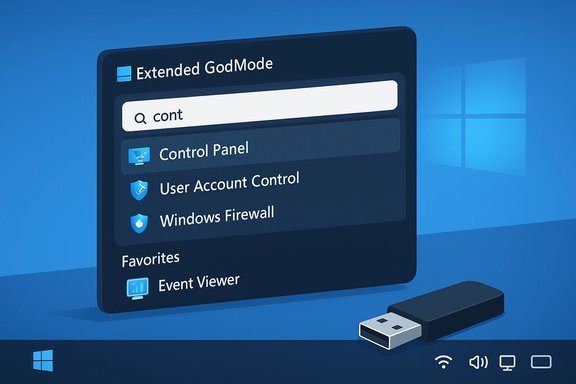
Extended GodMode arrives as a compact, portable utility that expands the decades‑old “God Mode” trick in Windows into a searchable, bookmarkable admin console — putting Control Panel links, Admin Tools, and saved searches into a single, lightweight interface for technicians and power users.
The original “God Mode” (officially the Windows All Tasks or Master Control Panel shortcut) is a shell namespace trick: create an empty folder and rename it with the special GUID pattern and Explorer will render a consolidated list of hundreds of Control Panel and admin items in a single view. It’s not a privilege escalation; it merely aggregates existing links and will still prompt for elevation where required. The trick is widely documented and still works on modern Windows builds. That convenience spawned a class of small utilities that wrap or extend the idea, providing search, categorization, and extras that the raw folder view lacks. Extended GodMode, produced by WinTools.Info, is one of the more polished entries: a portable EXE that presents the same All Tasks content but adds saved searches, favorites, usage lists, and tray‑menu shortcuts. The developer’s page and independent download sites list the utility as free and portable, with the most recent public release (at the time this article was researched) shown as 1.0.2.18, dated March 31, 2023.
Key functions included in the tool’s design:
However, it must be treated with standard caution for any third‑party binary: verify downloads, scan before execution, use it from a vetted toolkit, and avoid using it to make broad, unreviewed changes on managed or production devices. For organizations, the tool is best used within controlled runbooks or in sandboxed repair environments rather than installed across a fleet without change control.
If speed and discoverability are priorities in your daily Windows support tasks, Extended GodMode is worth a place on your USB toolbox — provided you follow basic supply‑chain hygiene and operational safeguards.
Conclusion: Extended GodMode turns an old but useful Windows trick into a practical, searchable admin utility that meaningfully reduces friction for troubleshooting and system configuration. Its value lies in improved discoverability, saved searches, and quick‑access menus — balanced by the usual caveats that come with running portable third‑party executables on production systems. Use it wisely, verify binaries, and combine it with policy and backup safeguards to get the most benefit with minimal risk.
Source: BetaNews Extended GodMode unlocks advanced features in Windows 10
 Background
The original “God Mode” (officially the Windows All Tasks or Master Control Panel shortcut) is a shell namespace trick: create an empty folder and rename it with the special GUID pattern and Explorer will render a consolidated list of hundreds of Control Panel and admin items in a single view. It’s not a privilege escalation; it merely aggregates existing links and will still prompt for elevation where required. The trick is widely documented and still works on modern Windows builds. That convenience spawned a class of small utilities that wrap or extend the idea, providing search, categorization, and extras that the raw folder view lacks. Extended GodMode, produced by WinTools.Info, is one of the more polished entries: a portable EXE that presents the same All Tasks content but adds saved searches, favorites, usage lists, and tray‑menu shortcuts. The developer’s page and independent download sites list the utility as free and portable, with the most recent public release (at the time this article was researched) shown as 1.0.2.18, dated March 31, 2023. Overview: what Extended GodMode actually does
Extended GodMode is not a backdoor or privilege elevator. Instead, it is a user interface that aggregates and enhances the same system links the Control Panel and Admin Tools already provide.Key functions included in the tool’s design:
- Searchable index of system settings and admin tasks with instant filtering.
- Ability to save searches into named groups so common troubleshooting flows can be reopened quickly.
- Favourites, Recently used, and Most used lists to surface the items admins touch frequently.
- Integration of Control Panel and Admin Tools (this integration is optional and can be disabled).
- System tray menu quick‑launch for individual items, making the tool act like a tiny admin launcher.
Why this matters to technicians and power users
God Mode has always been a discovery and convenience tool: it lists what’s available and lets you jump directly to the right applet or MMC snap‑in. Extended GodMode raises the usefulness of that idea in three practical ways:- Faster discovery — a real search box with saved queries is dramatically faster than the default folder search for repeated troubleshooting patterns.
- Repeatable workflows — saved searches and favourites let a technician build a compact, repeatable toolkit (for example, a saved set for networking checks, another for disk/volume repair).
- Portability — the EXE can live on a USB stick or toolkit directory; carry a searchable admin view without changing target machines.
Verified technical details
The most load‑bearing technical claims about Extended GodMode were checked against multiple independent sources:- The official WinTools.Info product page lists the utility as Extended GodMode v1.0.2.18, dated 2023‑03‑31, and describes the features above (search, saved searches, favourites, tray menu).
- MajorGeeks and Softpedia — longstanding, independent download repositories — host the same version and mirror the feature set and compatibility notes (portable, free, 64‑bit builds supported).
- The tool’s usage and guidance pages recommend scanning the downloaded EXE with VirusTotal and verifying the digital signature before running — a prudent recommendation for any portable tool you did not build yourself.
Installation and quick start (portable, step‑by‑step)
- Download the appropriate package (64‑bit recommended) from the official WinTools.Info page or a reputable mirror. Verify the file hash if available.
- Scan the downloaded file with VirusTotal or your corporate AV stack and check the digital signature if one is present. If you don’t trust the file, do not run it.
- Copy extgmode.exe to a tools folder or USB toolkit. Because the utility is portable, there is no installer and no Add/Remove Programs footprint.
- Run extgmode.exe (ideally as a standard user first — the program simply enumerates settings; it should not require admin to open, though items it launches may request elevation).
- Use the search box to find items by name or save a search to create a reusable group. Add commonly used items to Favourites or pin them via the tray menu for one‑click access.
Feature deep dive
Search and saved searches
The search is instant and incremental, listing matches as you type. Saved searches persist between sessions and appear in the tray menu — useful for repeatable checklists (e.g., a “networking” saved search that surfaces IPConfig, Network Diagnostics, and Network Adapters). This is the single feature that most differentiates Extended GodMode from the raw GodMode folder.Favourites, Recent, Most used
- Favourites let admins assemble a custom toolbox.
- Recent and Most used dynamically surface the items you actually run, so the interface learns your workflow over time.
Those lists speed repeated operations and reduce mouse travel during long troubleshooting sessions.
Integration with Control Panel and Admin Tools
Extended GodMode will merge items from both the Control Panel’s All Tasks view and the Admin Tools/Windows Tools list. If you prefer the raw All Tasks view only, the integration can be disabled. This flexibility helps technicians who rely on MMC snap‑ins as well as those who prefer Control Panel applets.Tray menu quick access
The system tray icon exposes saved searches, favourites, and often‑used items so you can open specific tools without bringing the main window to the foreground — a small but real productivity gain.Security analysis and risks
Extended GodMode is useful, but not risk‑free. The most important considerations for safe use:- The tool is third‑party code. Even with the best intentions, any executable you download from the web introduces supply‑chain risk. The developer explicitly recommends scanning the EXE with VirusTotal and verifying any digital signature before running. Treat these checks as mandatory when you use the tool on production endpoints.
- It does not bypass UAC. Items that require elevation will still prompt for consent. God Mode and Extended GodMode are UI aggregators, not privilege escalation mechanisms. Never assume this tool changes Windows security boundaries.
- Accidental changes by inexperienced users. Making advanced settings more discoverable increases the chance that novices will change something harmful. Strongly restrict use on managed or shared machines: either run it from an admin toolkit or use screen‑recorded procedures / runbooks to guide any novice who needs to perform steps.
- Enterprise and managed devices. Group Policy, MDM, and corporate baseline tools can be affected by manual changes done via God Mode. Avoid applying broad or destructive changes on corporate endpoints without change control and backups.
- Unsigned binaries and mirrors. If the download is offered only via a mirror, check the file hash and prefer downloads hosted on the original site or a reputable mirror (MajorGeeks, Softpedia) that publishes checksums. If no checksum or signature is available, treat the download as higher risk.
- Scan every downloaded binary with VirusTotal or equivalent.
- Run the tool on a test device before rolling into a support toolkit.
- Use it from a USB toolkit, not on the end user’s desktop, unless the device is yours to administer.
- Keep UAC enabled to preserve elevation prompts and auditing.
Alternatives and complementary tools
Extended GodMode fills a specific niche. Other options you might consider alongside or instead of it:- The native God Mode folder (create a folder named Label.{ED7BA470-8E54-465E-825C-99712043E01C}) — zero third‑party software required.
- Winaero Tweaker — a broader registry‑backed tuning suite for UI and behavior tweaks (uses registry edits and provides undo).
- Super God Mode / MyGodMode — other community utilities that generate shortcut sets or scripts to create clickable links to the same shell items.
- PowerToys Run or other launchers — may provide quick searching and command launch but do not aggregate Control Panel items as comprehensively.
Choose a tool that matches your risk tolerance: Extended GodMode is lightweight and low‑impact, while bigger tweak suites change registry and policy keys and require more conservative use on production hosts.
Practical workflows: how to use Extended GodMode in real support scenarios
- Build a “first‑response” saved search that includes Event Viewer, Device Manager, Disk Management, Services, and Network Diagnostics. Keep it on a support USB so any tech can run the same checklist.
- Use Favourites to create a “quick fix” set: common shell links such as Reset Network, Windows Update Troubleshooter, and System Restore. These become visible in the tray menu for one‑click access.
- Create a “post‑build” saved search used during imaging to verify installed support tools and system services. This streamlines validation after imaging or configuration deployment.
Critical appraisal — strengths and limitations
Strengths- Search and saved queries materially reduce time spent hunting UI options.
- Portable and lightweight — easy to include in a technician toolkit without installation headaches.
- Tray integration and usage lists make frequent tasks trivially accessible and reduce cognitive load for routine fixes.
- Third‑party executable risk. The portable EXE must be vetted before use; the developer suggests VirusTotal and signature checks. If you must operate at scale in an enterprise, prefer signed tools or internal packaging.
- No centralized management. As a single‑user portable tool, there is no enterprise deployment or auditing built into the app itself; administrators should integrate its use into documented runbooks and change control rather than treating it as a managed solution.
- Feature set depends on OS build. The list of available settings varies by Windows version and installed features; the exact count of items you see will change over time and by machine. Treat any item count as an estimate.
Final verdict and practical recommendation
Extended GodMode is a practical, well‑implemented augmentation of a venerable Windows convenience trick. For independent technicians, lab managers, and power users who already rely on God Mode, this tool is a clear productivity win: its saved searches, favourites, and tray access create reusable troubleshooting patterns that save clicks and time. The portability and small footprint are also major pluses.However, it must be treated with standard caution for any third‑party binary: verify downloads, scan before execution, use it from a vetted toolkit, and avoid using it to make broad, unreviewed changes on managed or production devices. For organizations, the tool is best used within controlled runbooks or in sandboxed repair environments rather than installed across a fleet without change control.
If speed and discoverability are priorities in your daily Windows support tasks, Extended GodMode is worth a place on your USB toolbox — provided you follow basic supply‑chain hygiene and operational safeguards.
Conclusion: Extended GodMode turns an old but useful Windows trick into a practical, searchable admin utility that meaningfully reduces friction for troubleshooting and system configuration. Its value lies in improved discoverability, saved searches, and quick‑access menus — balanced by the usual caveats that come with running portable third‑party executables on production systems. Use it wisely, verify binaries, and combine it with policy and backup safeguards to get the most benefit with minimal risk.
Source: BetaNews Extended GodMode unlocks advanced features in Windows 10
