

A fake Windows update scam is designed to make you act before you think: a convincing full-screen warning, a blaring alarm, a claim that malware has already been found, and often a phone number or download button positioned as the only way out. The essential rule is simple: real Windows updates are delivered through Windows itself or through Microsoft’s official download channels—not through an unexpected browser pop-up, a cold call, or an urgent message demanding immediate action.
These scams are more than an annoyance. A fraudulent update page can lead to unwanted downloads, persistent browser notifications, remote-access software, stolen passwords, payment fraud, or malware that survives a reboot. Knowing how to recognize the warning signs, exit safely, and check Windows for leftover changes can turn a frightening moment into a manageable cleanup task.
A fake Windows update scam is usually a social-engineering attack. It imitates the visual language of Windows: progress rings, blue error screens, Defender alerts, update percentages, official-looking logos, and technical jargon.
The goal is rarely to deliver an update. Instead, the page attempts to persuade the victim to take one of several dangerous actions:
A website can look remarkably similar to Windows. It cannot, however, legitimately replace the normal Windows Update workflow. That distinction is the starting point for identifying a scam.
A legitimate download process does not need to frighten the user into action. It does not lock the browser, claim that files will be destroyed in minutes, or insist that a support representative must take control of the device.
Be immediately suspicious of a message that includes language such as:
The full-screen effect can be convincing, especially when the page displays a fake blue screen, an animated update percentage, or a large Defender-style warning. But it is still usually just a browser tab.
A genuine Windows update does not normally present a support number, demand a payment, or require a browser download to continue.
Real Windows security prompts may advise action, but they do not usually use panic-driven countdowns, threatening language, looping sirens, or instructions to call a number.
This is especially true if the download is an executable file such as:
Remote access gives an attacker the opportunity to view files, change settings, install software, steal browser data, add persistence mechanisms, or pressure the victim into making a payment. It also turns a browser scam into a possible full-device compromise.
Once permission is granted, the scam site can deliver alarming notifications directly through Windows. These messages may appear even after the original page is closed, making the problem seem like a genuine system infection.
That does not necessarily mean malware is installed. It often means a browser permission needs to be revoked. Still, it should be treated seriously because notification spam can lead to further phishing attempts and malicious downloads.
Use the following sequence as needed:
If ending the browser is necessary, avoid restoring the prior session when the browser launches again. Browsers often offer to reopen old tabs after an unexpected shutdown; restoring the scam page only recreates the problem.
A system restart is also reasonable if the browser will not close normally. The key point is to avoid engaging with the page itself.
On Windows 11, open Settings > Windows Update and select Check for updates. If Windows identifies an update, install it from there. If there are no updates available, the fake warning has no authority simply because it displayed a convincing animation.
For manual Windows installation or repair media, use only Microsoft’s recognized software-download channels. Avoid third-party download libraries, cloned update pages, link-shortener URLs, pop-up downloads, and files delivered through unsolicited email.
That distinction does not mean Windows is invulnerable to malicious downloads. It means that a legitimate operating-system update follows a controlled path, while a scam must push the user outside it.
If a file was downloaded, a browser extension was installed, a notification permission was granted, a payment was made, or remote access was allowed, perform a more thorough response.
Use the scan choices in a sensible order:
To scan a particular download, open File Explorer, right-click the file or folder, select Show more options if needed, and choose Scan with Microsoft Defender.
Use Quarantine when Defender identifies a suspicious item. Quarantine prevents the item from running while keeping it available for review. Once confident that it is unwanted, remove it permanently.
The Allow on device option should be used sparingly. It creates an exception, and it is appropriate only when the file has been independently verified as safe. A fake update download is not a candidate for a casual exception.
The older Malicious Software Removal Tool can still help remove certain prevalent malware families, but it is not a replacement for a full antivirus scan. For a suspected fake-update infection, Microsoft Defender and Defender Offline are generally the stronger first choices.
Open Windows Security > App & browser control > Reputation-based protection and review the available switches.
Keep these protections enabled where available:
It is a valuable layer, but it has important practical limitations. It is not available on Windows 10, and it is not universally available on every existing Windows 11 installation. Once it has been turned off after evaluation, restoring its evaluation state may require resetting or reinstalling Windows.
That limitation should not be interpreted as a reason to reset a healthy PC merely to enable the feature. Instead, use the protection options already available and keep Windows, browsers, and installed applications current.
Select the three-dot menu beside an unwanted application and choose Uninstall. If it cannot be removed there, use Control Panel > Programs > Programs and Features.
Avoid randomly uninstalling drivers, Microsoft components, or unfamiliar software solely because the name looks technical. Instead, focus on items that clearly coincide with the event or cannot be verified as legitimate.
In Microsoft Edge, open Settings and more > Extensions > Manage extensions. Remove suspicious entries rather than merely disabling them if there is no legitimate reason to keep them.
Also check
In Chrome, use More > Extensions > Manage extensions and remove unwanted entries. Check
Browser resets can be useful when unwanted behavior persists, but they should not be treated as a substitute for examining extensions, notification permissions, downloads, and installed programs.
In Microsoft Edge, review site permissions through Settings > Privacy, search, and services > Site permissions > All sites. Select a suspicious site, locate Notifications, and change the permission to Block. Review Pop-ups and redirects as well.
In Chrome, open Settings > Privacy and security > Site settings > Notifications. Remove or block unfamiliar sites. Also inspect Pop-ups and redirects under Site settings.
In Firefox, open Settings > Privacy & Security, find the Permissions section, and select Settings beside Notifications. Block or remove unfamiliar websites, then save the changes.
A useful habit is to deny notification permission by default. A legitimate site may occasionally have a reason to send notifications, but a random page claiming that a browser click is needed to “verify,” “update,” or “remove viruses” has no credible reason to request that access.
Escalate the response when there is evidence that the scam changed the PC or accessed sensitive information.
On Windows 11, go to Settings > System > Recovery > Advanced startup > Restart now. Another method is to hold Shift while selecting Restart from the power menu.
Then select:
Open it by running
System Restore is helpful, but it is not a guaranteed malware-removal solution. It should complement—not replace—an antivirus scan and account-security review.
Reset this PC can keep personal files while removing applications and settings, or it can remove everything for a more complete fresh start. A full reinstall using trusted Microsoft installation media is the most decisive option when confidence in the system has been lost.
Before entering recovery, make sure the BitLocker recovery key is available if device encryption is enabled. Recovery workflows may request it.
Take these actions promptly:
For a work or school computer, contact the organization’s IT or security team immediately. Managed devices may have security policies, endpoint monitoring, browser controls, and recovery requirements that should guide the response.
Close the suspicious page without clicking inside it, verify updates through Windows Update, scan the device with Microsoft Defender, remove browser permissions and unwanted software, and secure accounts if any information was exposed. Most fake screens lose their power the moment the user stops treating them as Windows and starts treating them as what they are: an untrusted webpage trying to manufacture urgency.
These scams are more than an annoyance. A fraudulent update page can lead to unwanted downloads, persistent browser notifications, remote-access software, stolen passwords, payment fraud, or malware that survives a reboot. Knowing how to recognize the warning signs, exit safely, and check Windows for leftover changes can turn a frightening moment into a manageable cleanup task.
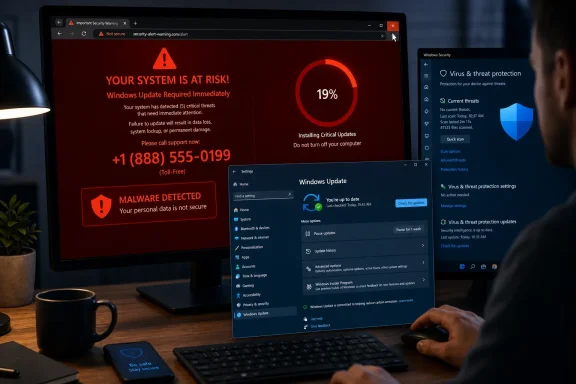 Overview: What a Fake Windows Update Scam Actually Is
A fake Windows update scam is usually a social-engineering attack. It imitates the visual language of Windows: progress rings, blue error screens, Defender alerts, update percentages, official-looking logos, and technical jargon.The goal is rarely to deliver an update. Instead, the page attempts to persuade the victim to take one of several dangerous actions:
- Call a “Microsoft support” number.
- Download an alleged update utility, driver, security fix, or cleanup tool.
- Grant browser notification permissions.
- Install a browser extension or web app.
- Provide a password, verification code, credit-card number, or other personal data.
- Install remote-access software and allow a stranger to control the PC.
A website can look remarkably similar to Windows. It cannot, however, legitimately replace the normal Windows Update workflow. That distinction is the starting point for identifying a scam.
The Fastest Way to Tell a Real Update From a Fake One
The most reliable test is not the color of the screen, the logo, or the wording. It is where the update appears.Real Windows updates appear in Windows Settings
On a Windows 11 PC, use this path:- Open Start.
- Select Settings.
- Choose Windows Update.
- Select Check for updates.
- If an update is offered, use Download & install.
- Restart only when Windows requests it.
- Open Start.
- Select Settings.
- Open Update & Security.
- Select Windows Update.
- Choose Check for updates.
Official download pages are the only exception
There are legitimate cases where Windows installation media, an upgrade tool, or an installation assistant is downloaded manually. Those downloads should begin from Microsoft’s official software-download area, entered directly into the browser rather than reached through an ad, pop-up, or unsolicited link.A legitimate download process does not need to frighten the user into action. It does not lock the browser, claim that files will be destroyed in minutes, or insist that a support representative must take control of the device.
The phone-number test is decisive
A real Windows error or Microsoft security warning does not display a phone number and instruct the user to call it. That single detail is one of the clearest technical-support scam indicators.Be immediately suspicious of a message that includes language such as:
- “Call Microsoft Support now.”
- “Do not turn off your PC.”
- “Your IP address has been compromised.”
- “Windows Defender has detected five viruses.”
- “Your computer is locked for security reasons.”
- “Contact a certified technician within five minutes.”
- “Your subscription has expired and your PC is at risk.”
The Most Common Red Flags
Scammers change artwork and wording, but their tactics remain predictable. A fake Windows update screen typically relies on urgency, authority, confusion, and limited options.Full-screen browser impersonation
Many scams force the browser into full-screen mode. This hides the address bar, tabs, and other browser controls so the page resembles a locked Windows screen.The full-screen effect can be convincing, especially when the page displays a fake blue screen, an animated update percentage, or a large Defender-style warning. But it is still usually just a browser tab.
A genuine Windows update does not normally present a support number, demand a payment, or require a browser download to continue.
Pressure and artificial urgency
Scam pages commonly state that the device is infected, files are being stolen, or access will be disabled unless an action is taken immediately. The urgency is deliberate. It prevents the victim from pausing long enough to verify the warning.Real Windows security prompts may advise action, but they do not usually use panic-driven countdowns, threatening language, looping sirens, or instructions to call a number.
Download buttons outside a trusted workflow
A page that asks for an “urgent Windows update,” “critical codec,” “Defender patch,” “driver repair,” or “PC optimizer” download is dangerous if it did not originate from Windows Settings, the Microsoft Store, or a verified Microsoft download page.This is especially true if the download is an executable file such as:
.exe.msi.scr.bat.cmd.js.vbs
Requests for remote access
A support scam can rapidly escalate once a phone call begins. The scammer may ask the victim to install a legitimate remote-control product, then use that access to manipulate ordinary Windows messages and portray them as evidence of a serious infection.Remote access gives an attacker the opportunity to view files, change settings, install software, steal browser data, add persistence mechanisms, or pressure the victim into making a payment. It also turns a browser scam into a possible full-device compromise.
Notification permission traps
Some fake update pages do not install anything. Instead, they ask the visitor to select Allow in a browser notification prompt, sometimes claiming the click is needed to prove that the user is not a robot.Once permission is granted, the scam site can deliver alarming notifications directly through Windows. These messages may appear even after the original page is closed, making the problem seem like a genuine system infection.
That does not necessarily mean malware is installed. It often means a browser permission needs to be revoked. Still, it should be treated seriously because notification spam can lead to further phishing attempts and malicious downloads.
How to Escape the Fake Screen Without Clicking It
The safest approach is to use Windows and browser controls rather than buttons inside the suspicious page. Do not select Cancel, Close, Scan Now, Update, Call Support, or any other control embedded in the fake warning.Use the following sequence as needed:
- Press Esc to interrupt a loading page or dismiss a browser dialog.
- Press F11 to exit browser full-screen mode.
- Press Ctrl + F4 to close the current browser tab.
- Press Alt + F4 to close the active browser window.
- If the browser is unresponsive, press Ctrl + Shift + Esc to open Task Manager.
- In Task Manager, select the browser and choose End task.
If ending the browser is necessary, avoid restoring the prior session when the browser launches again. Browsers often offer to reopen old tabs after an unexpected shutdown; restoring the scam page only recreates the problem.
A system restart is also reasonable if the browser will not close normally. The key point is to avoid engaging with the page itself.
Confirm That Windows Update Is Real and Working
After exiting the page, go directly to the official update interface in Windows. This accomplishes two things: it confirms the actual update state of the PC, and it removes the uncertainty the scam tried to exploit.On Windows 11, open Settings > Windows Update and select Check for updates. If Windows identifies an update, install it from there. If there are no updates available, the fake warning has no authority simply because it displayed a convincing animation.
For manual Windows installation or repair media, use only Microsoft’s recognized software-download channels. Avoid third-party download libraries, cloned update pages, link-shortener URLs, pop-up downloads, and files delivered through unsolicited email.
Why this distinction matters
Real updates are signed, delivered through established Windows servicing components, and subject to normal Windows controls. Fake updates are usually delivered through web content and rely on human action.That distinction does not mean Windows is invulnerable to malicious downloads. It means that a legitimate operating-system update follows a controlled path, while a scam must push the user outside it.
Scan the PC With Windows Security
If nothing was clicked, downloaded, or installed, the incident may have ended when the tab was closed. Even so, a quick scan and a browser-permission review are worthwhile.If a file was downloaded, a browser extension was installed, a notification permission was granted, a payment was made, or remote access was allowed, perform a more thorough response.
Start with Microsoft Defender
Open Windows Security and select Virus & threat protection.Use the scan choices in a sensible order:
- Quick scan checks commonly targeted areas where active threats are likely to appear.
- Full scan examines files and programs throughout the system and may take much longer.
- Custom scan is useful for checking a specific download folder, removable drive, or suspicious location.
- Microsoft Defender Antivirus offline scan restarts the PC and scans before normal Windows fully loads.
To scan a particular download, open File Explorer, right-click the file or folder, select Show more options if needed, and choose Scan with Microsoft Defender.
Review Protection history carefully
After the scan, check Windows Security > Protection history. Red or yellow items marked as requiring action should be reviewed promptly.Use Quarantine when Defender identifies a suspicious item. Quarantine prevents the item from running while keeping it available for review. Once confident that it is unwanted, remove it permanently.
The Allow on device option should be used sparingly. It creates an exception, and it is appropriate only when the file has been independently verified as safe. A fake update download is not a candidate for a casual exception.
Consider a second-opinion scanner
Microsoft Safety Scanner can be used as an official on-demand second opinion. It is separate from the built-in Microsoft Defender protection and should be obtained only from Microsoft.The older Malicious Software Removal Tool can still help remove certain prevalent malware families, but it is not a replacement for a full antivirus scan. For a suspected fake-update infection, Microsoft Defender and Defender Offline are generally the stronger first choices.
Turn On the Protections That Block the Next Scam
Scam cleanup is important, but prevention matters more. Windows includes several layers that can reduce the chances of an unsafe site, download, or application reaching the user.Open Windows Security > App & browser control > Reputation-based protection and review the available switches.
Keep these protections enabled where available:
- Check apps and files
- SmartScreen for Microsoft Edge
- Potentially unwanted app blocking
- SmartScreen for Microsoft Store apps
- Phishing protection on supported Windows 11 configurations
Smart App Control: strong protection with limits
Eligible Windows 11 systems may also offer Smart App Control. This feature can block untrusted or malicious applications using cloud intelligence and reputation-based evaluation.It is a valuable layer, but it has important practical limitations. It is not available on Windows 10, and it is not universally available on every existing Windows 11 installation. Once it has been turned off after evaluation, restoring its evaluation state may require resetting or reinstalling Windows.
That limitation should not be interpreted as a reason to reset a healthy PC merely to enable the feature. Instead, use the protection options already available and keep Windows, browsers, and installed applications current.
Remove Leftovers: Apps, Startup Items, Extensions, and Web Apps
A fake update scam may leave behind more than one artifact. The visible browser page is often only the first layer.Uninstall suspicious software
Open Settings > Apps > Installed apps. Look for applications installed around the time of the incident, especially ones with unfamiliar names, vague publishers, or remote-control functionality that was not intentionally installed.Select the three-dot menu beside an unwanted application and choose Uninstall. If it cannot be removed there, use Control Panel > Programs > Programs and Features.
Avoid randomly uninstalling drivers, Microsoft components, or unfamiliar software solely because the name looks technical. Instead, focus on items that clearly coincide with the event or cannot be verified as legitimate.
Check what launches at sign-in
Open Settings > Apps > Startup and disable items that should not automatically run. Task Manager provides a second view:- Right-click Start.
- Select Task Manager.
- Open Startup apps.
- Select a suspicious item.
- Choose Disable.
shell:startupshell:common startup
Inspect browser extensions and installed web apps
A malicious extension can redirect searches, inject ads, steal browser data, or create persistent alerts. Remove extensions that are unfamiliar, unnecessary, or installed during the incident.In Microsoft Edge, open Settings and more > Extensions > Manage extensions. Remove suspicious entries rather than merely disabling them if there is no legitimate reason to keep them.
Also check
edge://apps for web apps that may have been installed by a deceptive website. A fake update page can sometimes disguise itself as a desktop-style application after persuading the user to install it.In Chrome, use More > Extensions > Manage extensions and remove unwanted entries. Check
chrome://apps for installed web apps.Browser resets can be useful when unwanted behavior persists, but they should not be treated as a substitute for examining extensions, notification permissions, downloads, and installed programs.
Stop Browser Notifications That Imitate Windows Alerts
Persistent fake update messages that appear in the lower-right corner of the desktop are often browser notifications, not Windows alerts.In Microsoft Edge, review site permissions through Settings > Privacy, search, and services > Site permissions > All sites. Select a suspicious site, locate Notifications, and change the permission to Block. Review Pop-ups and redirects as well.
In Chrome, open Settings > Privacy and security > Site settings > Notifications. Remove or block unfamiliar sites. Also inspect Pop-ups and redirects under Site settings.
In Firefox, open Settings > Privacy & Security, find the Permissions section, and select Settings beside Notifications. Block or remove unfamiliar websites, then save the changes.
A useful habit is to deny notification permission by default. A legitimate site may occasionally have a reason to send notifications, but a random page claiming that a browser click is needed to “verify,” “update,” or “remove viruses” has no credible reason to request that access.
When Safe Mode, System Restore, Reset, or Reinstallation Makes Sense
Not every fake update page warrants a full Windows reset. Escaping a browser tab and running a clean scan is usually enough when there was no download, installation, or remote access.Escalate the response when there is evidence that the scam changed the PC or accessed sensitive information.
Use Safe Mode for stubborn behavior
Windows Recovery Environment can help if unwanted software launches too quickly, normal Windows is unstable, or scans are difficult to run.On Windows 11, go to Settings > System > Recovery > Advanced startup > Restart now. Another method is to hold Shift while selecting Restart from the power menu.
Then select:
- Troubleshoot
- Advanced options
- Startup Settings
- Restart
- Press 4 or F4 for Safe Mode
Use System Restore cautiously
System Restore can roll back system files, registry settings, drivers, and installed programs to an earlier restore point without normally deleting personal documents. It can be useful after a suspicious installation or configuration change.Open it by running
rstrui.exe, or access it through recovery options. Before confirming a restore, use the option to scan for affected programs so the impact is clear.System Restore is helpful, but it is not a guaranteed malware-removal solution. It should complement—not replace—an antivirus scan and account-security review.
Reset or reinstall after a serious compromise
A Windows reset or clean reinstallation becomes more appropriate if:- A scammer had remote control of the PC.
- Unknown administrator accounts appeared.
- Security tools will not run or are repeatedly disabled.
- Malware or scam notifications return after cleanup.
- Sensitive accounts were used during the compromise.
- The device is used for financial, healthcare, legal, or business activity.
Reset this PC can keep personal files while removing applications and settings, or it can remove everything for a more complete fresh start. A full reinstall using trusted Microsoft installation media is the most decisive option when confidence in the system has been lost.
Before entering recovery, make sure the BitLocker recovery key is available if device encryption is enabled. Recovery workflows may request it.
Secure Accounts and Financial Information After Exposure
A fake Windows update incident becomes an account-security incident the moment a password, security code, payment detail, or remote-access session is involved.Take these actions promptly:
- Change the Microsoft account password from a known-clean device if possible.
- Review recent sign-in activity for unfamiliar locations, devices, or sessions.
- Use the option to sign out of other sessions.
- Change passwords for other accounts that reused the same password.
- Enable multi-factor authentication wherever available.
- Contact the bank or card issuer if payment details were entered.
- Monitor financial activity and dispute fraudulent charges quickly.
- Report the support scam after leaving the malicious page.
For a work or school computer, contact the organization’s IT or security team immediately. Managed devices may have security policies, endpoint monitoring, browser controls, and recovery requirements that should guide the response.
The Bottom Line
The strongest defense against a fake Windows update scam is not memorizing every visual trick. It is recognizing the trusted path: Windows updates come through Windows Settings, and legitimate Microsoft support is initiated by the user—not forced through a browser warning or unsolicited call.Close the suspicious page without clicking inside it, verify updates through Windows Update, scan the device with Microsoft Defender, remove browser permissions and unwanted software, and secure accounts if any information was exposed. Most fake screens lose their power the moment the user stops treating them as Windows and starts treating them as what they are: an untrusted webpage trying to manufacture urgency.
References
- Primary source: Technobezz
Published: 2026-07-22T20:11:43.817000+00:00
Loading…
www.technobezz.com - Official source: support.microsoft.com
Uninstall or remove apps and programs in Windows - Microsoft Support
Uninstall or remove apps and programs in the Settings app.support.microsoft.com