Microsoft’s “first sign‑in restore” joins Windows Backup for Organizations, giving IT teams a practical second chance to rehydrate users’ Windows settings, Start menu pins, and Microsoft Store app lists when a new or reimaged device reaches the desktop for the first time. Announced in mid‑January 2026 and rolling into recent Windows 11 builds, the feature extends the restore path beyond the Out‑of‑Box Experience (OOBE) and broadens support to hybrid‑managed environments — including Microsoft Entra hybrid‑joined devices, multi‑user devices, and Windows 365 Cloud PCs — while remaining under tenant control via existing Windows Backup for Organizations policies.
Microsoft introduced Windows Backup for Organizations in 2025 as a lightweight, identity‑anchored way to preserve Windows personalization and a record of Microsoft Store apps so users can resume work quickly after migrations, resets, or device replacements. The product never aimed to be a full disk or file backup solution; instead, it focuses on settings rehydration and app list reinstallation for Start menu and personalization continuity.
On January 14, 2026 Microsoft published the expansion that adds the first sign‑in restore flow — a “second‑chance” restore presented at the first interactive desktop sign‑in when users either missed or were unable to complete the OOBE restore prompt. Microsoft opened a private preview for commercial customers (preview sign‑up window noted through February 13, 2026) and signaled a general availability rollout in early 2026. More recently, implementation notes for Windows 11 cumulative updates and preview OS builds indicate the first sign‑in restore experience is included in the platform updates shipping to Release Preview and channel builds as of late February 2026.
This feature is clearly aimed at real‑world device lifecycles where OOBE is not always the moment a human user interacts with the machine (for example, pre‑provisioned devices, technician imaging, or Cloud PCs). Instead of forcing a single fragile restore opportunity at OOBE, Microsoft now surfaces the same restore dialog later — when the user actually signs into the desktop — while giving admins policy control over where and when it appears.
If your organization manages a mixed fleet, performs frequent device refreshes, or is midway through a Windows 11 migration, treat this capability as a low‑risk productivity booster: pilot it in a controlled ring, validate imaging and update pipelines, and integrate its behavior into support documentation. But don’t delegate your backup obligations to it — keep separate, robust data backup and application deployment processes in place.
With careful planning — focusing on image hygiene, pilot measurement, and operational runbooks for credential re‑enrollment — first sign‑in restore can reduce friction for end users and shave recurring work off the helpdesk queue. It’s a valuable addition to the enterprise toolkit, so long as IT teams understand both its benefits and its boundaries.
Conclusion: first sign‑in restore won’t replace full backup strategies, but used correctly it will make the first day on a new or rebuilt Windows device measurably better for thousands of workers — and that modest boost in productivity and reduction in support calls is precisely the kind of operational win modern IT teams need.
Source: Microsoft - Message Center Windows first sign-in restore experience now available - Windows IT Pro Blog
 Background
Microsoft introduced Windows Backup for Organizations in 2025 as a lightweight, identity‑anchored way to preserve Windows personalization and a record of Microsoft Store apps so users can resume work quickly after migrations, resets, or device replacements. The product never aimed to be a full disk or file backup solution; instead, it focuses on settings rehydration and app list reinstallation for Start menu and personalization continuity.On January 14, 2026 Microsoft published the expansion that adds the first sign‑in restore flow — a “second‑chance” restore presented at the first interactive desktop sign‑in when users either missed or were unable to complete the OOBE restore prompt. Microsoft opened a private preview for commercial customers (preview sign‑up window noted through February 13, 2026) and signaled a general availability rollout in early 2026. More recently, implementation notes for Windows 11 cumulative updates and preview OS builds indicate the first sign‑in restore experience is included in the platform updates shipping to Release Preview and channel builds as of late February 2026.
This feature is clearly aimed at real‑world device lifecycles where OOBE is not always the moment a human user interacts with the machine (for example, pre‑provisioned devices, technician imaging, or Cloud PCs). Instead of forcing a single fragile restore opportunity at OOBE, Microsoft now surfaces the same restore dialog later — when the user actually signs into the desktop — while giving admins policy control over where and when it appears.
What the first sign‑in restore does — and does not
What it restores
- Windows settings and personalization items that Windows Backup for Organizations supports (examples include display preferences, Night Light settings, and other “remember my preferences” categories).
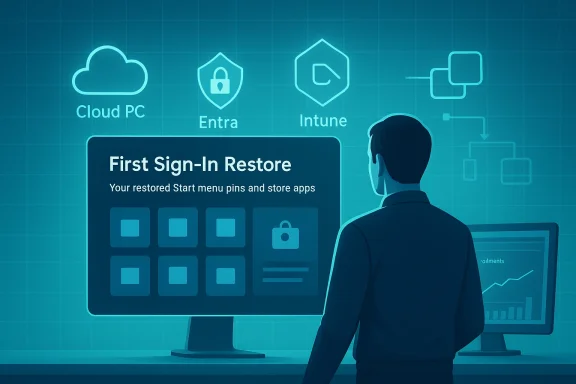
- Start menu pins and the Microsoft Store app list (a list of Store apps previously installed by the user that will be reinstalled or presented as placeholders for reinstallation).
- A streamlined UI at first sign‑in that resembles the OOBE restore experience, allowing users to select a backup profile and continue.
What it intentionally excludes
- User files/documents and full file‑level backups — this is not a data backup or disaster‑recovery tool.
- Credentials like saved Wi‑Fi passwords and many account vault items; sensitive credential re‑enrollment (MFA, authenticator apps, hardware security keys) will typically require re‑registration post‑restore.
- Non‑Microsoft Store desktop applications (Win32 installers) are not reinstalled automatically by this feature.
- Certain provisioning and enrollment flows, plus shared/userless device scenarios, remain unsupported.
Why this matters for IT — practical benefits
Organizations juggling large fleets, hybrid identity configurations, and cloud‑based desktop technologies will find several immediate operational gains from first sign‑in restore:- Faster user productivity. Users regain familiar settings and Store app lists without helpdesk intervention, cutting the time from hardware handoff to productive desktop.
- Lower helpdesk volume. Many tickets are about “my shortcuts are gone” or “my apps aren’t where they used to be.” Restoring personalization programmatically reduces repeat requests.
- Resilience for real provisioning flows. Devices get imaged, pre‑provisioned, or staged by technicians. If OOBE prompts are missed during those flows, the first sign‑in option gives users the restore opportunity exactly when they need it.
- Broader device coverage. By supporting Microsoft Entra hybrid‑joined devices, multi‑user Windows devices, and Windows 365 Cloud PCs, Microsoft addresses mixed fleets common in enterprise deployments.
Technical prerequisites and platform support
Administrators must account for OS builds, identity state, and provisioning flows when enabling first sign‑in restore.Identity and enrollment requirements
- Devices must be enrolled and managed under the tenant’s Windows Backup for Organizations policy. The restore setting is a tenant‑level control.
- The feature targets Microsoft Entra (Azure AD) identities. In its expanded form, it supports Microsoft Entra hybrid‑joined devices in addition to cloud‑only Entra‑joined devices.
- Autopilot usage: the Autopilot profile generally must be configured for user‑driven mode. Self‑deploying, technician flows, and certain pre‑provisioning scenarios are known caveats.
OS and build requirements
- Restore operations that rehydrate the Start menu and reinstall Store app placeholders are supported on Windows 11 builds that meet Microsoft’s minimum thresholds. Administrators should verify device build numbers before enabling restore at scale.
- Microsoft has incorporated the first sign‑in restore behavior into recent Windows 11 builds and cumulative updates. Administrators running broad deployments should ensure inked build levels and ESP (Enrollment Status Page) settings allow the restore operation to complete during onboarding.
Policy configuration
- The first sign‑in restore is controlled using existing Windows Backup for Organizations policies. IT can enable or disable the restore page using Microsoft Intune (Settings Catalog) or Group Policy where applicable.
- The toggle to show the restore page is tenant‑wide in Intune; use pilot rings and enrollment options to stage the rollout and limit blast radius.
Admin controls and deployment patterns
Enabling the experience
- Create or update a Windows 10 and later Settings Catalog profile in Intune and enable the Windows Backup settings.
- In the Intune admin center under Devices > Enrollment > Windows > Enrollment options, flip the Show restore page (or equivalent) to On for pilot rings or tenant‑wide as appropriate.
- Validate Autopilot profiles are user‑driven and that enrollment flows you intend to support are compatible with the restore UX.
Pilot checklist
- Rebuild your golden images with the latest cumulative updates, or configure ESP to install required quality updates at OOBE so the restore UX can execute reliably.
- Run pilot enrollments using user‑driven Autopilot flows. Track metrics: restore prompt frequency, successful restores, post‑restore helpdesk calls, and any restorations that leave residual issues.
- Collect logs from CloudRestore tasks (look in Task Scheduler and the MDM Event Viewer channels) for diagnostics and to refine your imaging process.
Reporting and verification
- Intune provides per‑device reporting for backup and restore state. Check Enrollment details to confirm whether a device encountered a backup/restore profile and the outcome (Succeeded, Failed, No Backup Profiles, Setup as New PC Selected).
- Use reporting to tune scope and expand rings only after baseline success metrics are acceptable.
Supported scenarios, caveats, and known limitations
Supported device types
- Microsoft Entra joined and Microsoft Entra hybrid‑joined devices (expanded support).
- Multi‑user devices where distinct profiles may be present.
- Windows 365 Cloud PCs, where the first sign‑in restore helps make Cloud PC provisioning more resilient for user recoveries.
Not supported
- Device scenarios explicitly called out in Microsoft documentation: certain provisioning flows (self‑deploying Autopilot, technician pre‑provisioning), Group Policy enrollment paths, Configuration Manager co‑management, shared/userless devices, and some SKU variants (for example, specialized editions and certain Cloud SKUs) remain unsupported or partially supported.
- Government clouds and localized sovereign environments may have different support configurations; confirm availability for your cloud tenancy.
Operational caveats
- The restore control in Intune is tenant‑wide. If you need fine‑grained targeting, build pilot rings and control enrollment profiles at the Autopilot or device‑profile level.
- The restore experience is user‑anchored. That is, it ties to the user’s backup profile. Ensure your organizational backup hygiene and retention practices are documented and communicated to users.
- Restores will not circumvent re‑authentication or MFA processes, nor will they restore secret vaults or authenticator states; admins should plan for re‑enrollment steps in support documentation.
Security, privacy, and compliance considerations
The feature’s enterprise value relies on identity‑anchored backups stored within tenant boundaries, but administrators must treat these artifacts as sensitive.- Data residency and encryption. Microsoft indicates backups are stored in tenant‑centric cloud storage aligned with the tenant’s region and protected by Microsoft cloud security controls. Administrators should validate data residency controls with their compliance teams and treat cloud‑stored personalization artifacts as tenant data that require least‑privilege and auditing.
- Access control. Only designated Intune roles (Intune Service Administrator or Global Administrator) can enable the restore toggle, but backup artifacts themselves are tied to the user’s identity; enforce RBAC and audit access to tenant configuration and backup operations.
- What’s not included. Because credentials and secrets are excluded from the restore scope or require re‑enrollment, administrators should ensure secure onboarding steps are in place for MFA and device registration post‑restore.
- Legal and regulatory review. Organizations with special compliance requirements (healthcare, finance, government) should validate that storing personalization artifacts in the tenant cloud matches their retention, eDiscovery, and audit obligations.
Troubleshooting and operational tips
- If users report the restore prompt didn’t appear at first sign‑in:
- Confirm the tenant restore toggle was enabled before the device enrolled.
- Check enrollment flow: was the device enrolled via a supported Autopilot profile or a non‑supported provisioning method?
- Verify the device build meets the minimum Windows 11 threshold required for restore functionality.
- If Store app placeholders fail to reinstall:
- Ensure the device can access Microsoft Store endpoints during enrollment and that quality updates required for the ESP are installed.
- Rebuild golden images to include the latest cumulative updates or ensure your imaging process triggers ESP quality update installation at OOBE.
- For restore failures:
- Collect CloudRestore task logs and MDM event logs.
- Verify the backup profile exists for the signing user and that the backup is in an expected state.
- Use Intune enrollment reports for device-level statuses (Succeeded, Failed, No Backup Profiles).
- When testing, simulate real‑world timing: include devices that have been pre‑staged by imaging teams, devices provisioned by technician flows, and Cloud PCs to validate behavior across the spectrum.
Deployment playbook for IT teams
- Readiness audit.
- Inventory your Windows 11 devices and confirm build levels meet restore requirements.
- Map identity state (Entra joined, hybrid joined) and provisioning flows in use (Autopilot, manual, SCCM).
- Pilot design.
- Choose a small set of user volunteers and pilot devices across device types (physical, VDI/Cloud PC, multi‑user).
- Configure an Intune settings catalog profile enabling Windows Backup for Organizations backup and the "Show restore page" option for pilot tenants or rings.
- Image and update validation.
- Rebuild golden images with recent cumulative updates or configure ESP quality updates to run during OOBE.
- Validate Microsoft Store accessibility from the imaging environment.
- User communication and support workflow.
- Publish simple steps for users about what the restore restores and what it does not.
- Prepare helpdesk runbooks that cover MFA re‑enrollment, edge‑case app reinstalls, and credential re‑registration.
- Measure and iterate.
- Track restore success rates, helpdesk volume for post‑restore issues, and enrollment anomalies.
- Widen pilot rings after confidence thresholds are met, then roll out tenant‑wide if appropriate.
Real‑world considerations and recommendations
- Treat first sign‑in restore as a tool to reduce friction — not a silver bullet. It cuts personalization friction but does not replace imaging discipline, application packaging, or enterprise backup and disaster recovery practices.
- Use tenant‑level enablement cautiously. Because the toggle affects enrollments tenant‑wide, prefer staged rollouts and ringed deployments to measure user impact.
- Keep documentation crisp for support staff. The distinction between what gets restored automatically and what requires manual reinstallation or re‑registration should be visible to tier‑1 and tier‑2 teams.
- Couple the feature with better onboarding education: a short tip in your IT welcome materials explaining what to expect after a restore will reduce confusion and unnecessary support tickets.
- Monitor Microsoft’s update cadence and release notes. Some behavior or supported provisioning paths remain document‑gated and can change across cumulative updates and build releases.
Strengths and risks — a candid assessment
Strengths
- User‑centric recovery model. Moving the restore opportunity to first sign‑in matches the real moment users are ready to work, reducing friction.
- Broader device coverage. Extending support to Entra hybrid join, multi‑user devices, and Cloud PCs addresses typical enterprise heterogeneity.
- Policy control and integration. Using existing Windows Backup for Organizations policies and Intune means administrators can adopt without a separate control plane.
Risks and limitations
- Not a full backup. Organizations might misinterpret the feature as a full recovery solution; it is not — files, credentials, and non‑Store apps are outside its remit.
- Tenant‑wide toggle is blunt. The lack of fine‑grained, per‑OU or per‑collection toggles means administrators must manage scope via enrollment flows and pilot rings.
- Provisioning gaps. Some provisioning and pre‑provisioning flows still won’t present the restore UX reliably, which leaves edge cases for helpdesk work.
- Potential compliance questions. While backups are tenant‑bound, organizations with strict data residency or regulatory constraints must validate storage, retention, and eDiscovery implications.
Final take: where this fits in your device‑lifecycle strategy
The first sign‑in restore experience is a smart, practical refinement of Windows Backup for Organizations. It aligns the restore opportunity with the user’s actual moment of productivity and fills a real gap in enterprise device life cycles where OOBE is frequently missed, bypassed, or consumed during imaging workflows.If your organization manages a mixed fleet, performs frequent device refreshes, or is midway through a Windows 11 migration, treat this capability as a low‑risk productivity booster: pilot it in a controlled ring, validate imaging and update pipelines, and integrate its behavior into support documentation. But don’t delegate your backup obligations to it — keep separate, robust data backup and application deployment processes in place.
With careful planning — focusing on image hygiene, pilot measurement, and operational runbooks for credential re‑enrollment — first sign‑in restore can reduce friction for end users and shave recurring work off the helpdesk queue. It’s a valuable addition to the enterprise toolkit, so long as IT teams understand both its benefits and its boundaries.
Conclusion: first sign‑in restore won’t replace full backup strategies, but used correctly it will make the first day on a new or rebuilt Windows device measurably better for thousands of workers — and that modest boost in productivity and reduction in support calls is precisely the kind of operational win modern IT teams need.
Source: Microsoft - Message Center Windows first sign-in restore experience now available - Windows IT Pro Blog