

Sticky Notes can disappear in a heartbeat — and when they contain meeting action items, passwords, or research crumbs, that sudden loss feels catastrophic; fortunately, there are five practical recovery paths that cover everything from cloud restores to raw-file recovery, plus a sensible, risk-aware workflow to get your notes back (or at least know when to call a pro).
Sticky Notes evolved from a simple desktop utility into a cloud-enabled notes system tied into OneNote and Outlook, but that evolution brought new failure modes. Notes may vanish after app crashes, Windows updates, sign‑out or sync errors, or when the local database (plum.sqlite) becomes corrupted. The modern Sticky Notes implementation stores data both locally and in the cloud for Microsoft‑account users, which means recovery can be either a cloud lookup or a local forensic task depending on how the app was configured.
Before attempting recovery, pause and follow two safety rules: stop using the affected account/PC to avoid overwriting recoverable sectors, and if the notes are critical, create an image of the drive before aggressive repair attempts. These precautions are repeatedly recommended in practical recovery guidance.
Beware of three common pitfalls:
Source: FLUX MAGAZINE 5 Ways to Recover Lost Sticky Notes on Windows | FLUX MAGAZINE
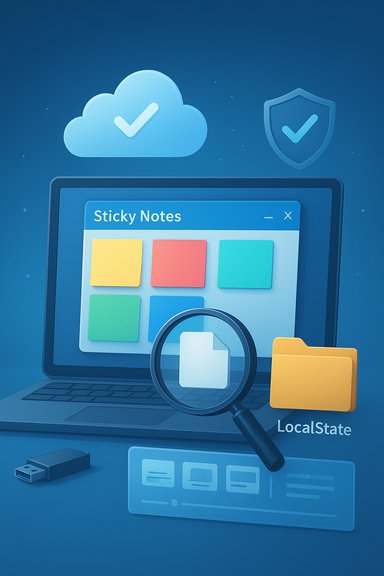 Background
Sticky Notes evolved from a simple desktop utility into a cloud-enabled notes system tied into OneNote and Outlook, but that evolution brought new failure modes. Notes may vanish after app crashes, Windows updates, sign‑out or sync errors, or when the local database (plum.sqlite) becomes corrupted. The modern Sticky Notes implementation stores data both locally and in the cloud for Microsoft‑account users, which means recovery can be either a cloud lookup or a local forensic task depending on how the app was configured.Before attempting recovery, pause and follow two safety rules: stop using the affected account/PC to avoid overwriting recoverable sectors, and if the notes are critical, create an image of the drive before aggressive repair attempts. These precautions are repeatedly recommended in practical recovery guidance.
Quick summary: the five ways to recover lost Sticky Notes
- Check cloud‑synced notes in Outlook or OneNote (best first step for synced accounts).
- Restore from Windows File History / Previous Versions (snapshot-based, low risk).
- Recover legacy .SNT files (applies to older Windows/Sticky Notes versions).
- Use third‑party data recovery tools to find and restore plum.sqlite or deleted files.
- Use Microsoft’s Windows File Recovery (CLI) or professional labs for deep recovery on NTFS/SSD cases.
Why Sticky Notes disappear (short technical primer)
Sticky Notes data lives in a small local database and, for synced users, a cloud copy. Key failure causes include:- Accidental deletion — closing a note or clicking the “X”; the UI can be deceptively easy to misclick.
- App crashes or abrupt restarts — can corrupt the local DB file or interrupt a sync.
- Database corruption — plum.sqlite (or older .snt containers) can be damaged by disk errors or interrupted updates.
- Windows updates / account sign‑out — an update may reset app state or temporarily block cloud sync.
- Sync or sign‑in problems — notes stored in the cloud won’t appear locally until the account and sync service are healthy.
Method 1 — Check Outlook / OneNote (cloud restore, safest first)
Why start here
If Sticky Notes was signed into a Microsoft account and sync was enabled, your notes are likely backed up to the cloud and accessible via Outlook or OneNote. This is the easiest, lowest‑risk recovery path and should be attempted before tinkering with local files.Steps (concise)
- Sign into the exact Microsoft account used by Sticky Notes.
- Open Outlook on the web and look for the Notes folder (often under Folders).
- Alternatively, visit OneNote’s Sticky Notes view (the integrated interface that surfaces cloud‑synced notes).
- If you find the missing notes, copy or restore them back to the local app, or re‑enable sync on the device.
Caveats and analysis
- Sync relies on the same Microsoft account; signing in with a different account will not retrieve your notes.
- Temporary sync outages or account sign‑out can hide notes that still exist in the cloud; patience and a forced resync often fix this.
Method 2 — File History / Previous Versions (snapshot recovery)
Why this works
Windows’ File History and the Previous Versions system restore mechanism keep point‑in‑time copies of files when enabled. If you had these enabled before the loss, restoring the previous version of the Sticky Notes database file is fast and dependable. This should be the second stop after checking cloud copies.Where the Sticky Notes file normally lives
- Newer app (Windows 10/11 modern package): %LocalAppData%\Packages\Microsoft.MicrosoftStickyNotes_8wekyb3d8bbwe\LocalState\plum.sqlite.
- Some references also show a Roaming path for legacy scenarios: C:\Users\<User>\AppData\Roaming\Microsoft\Sticky Notes\ (look for sqlite or SNT files).
Steps (concise)
- Open Control Panel → File History → Restore personal files, or right‑click the folder where plum.sqlite resides → Properties → Previous Versions.
- Navigate to the Sticky Notes folder path shown above and cycle through available versions (use the left/right timeline arrows).
- Restore the desired version to a safe location (not the original drive if you’re unsure), then relaunch Sticky Notes to verify.
Risks and limitations
- File History must have been enabled before the deletion — if it wasn’t, there’s nothing to restore.
- Restoring older versions overwrites current local DB; always copy the existing file to a safe folder before restoring an earlier version.
Method 3 — Recover legacy .SNT files (only for older installations)
What .SNT is and when it helps
On older Windows builds and legacy Sticky Notes, deleted notes were sometimes stored inside a proprietary .SNT file. If you’re running a legacy environment or an old backup, that file can still contain text fragments you can extract.Steps (concise)
- Open Run and enter %AppData%\Microsoft\Sticky Notes\ to browse the folder.
- Look for files with the .SNT extension. Copy the file to a safe location.
- Open with a text editor (Word, WordPad, Notepad) — large editors like Word can be more forgiving if the file contains encoded blobs. Search for readable text and extract it manually.
Analysis
- This method is only applicable when legacy files exist. Modern Sticky Notes uses plum.sqlite and OneNote integration, so .SNT will often be absent on up‑to‑date systems.
- Extraction is manual and crude; you will usually recover plain text fragments rather than neatly formatted notes.
Method 4 — Third‑party recovery software (Stellar, Recuva, EaseUS, etc.
When to use it
Use third‑party recovery when you have no cloud copy or snapshots and the local database file (plum.sqlite) was deleted or corrupted. Commercial tools scan the disk to locate deleted files, reconstruct them, and allow export. Common GUI tools include Stellar Data Recovery, EaseUS, Recuva, Disk Drill, and 4DDiG.How Sticky Notes data is stored
Sticky Notes content is stored in a local SQLite database (plum.sqlite) located in the LocalState/roaming paths mentioned earlier. Recovering that single file can restore all your notes if the DB is intact.Recommended workflow (safe approach)
- Immediately stop using the PC or profile to avoid overwrites.
- Install recovery software on a different drive or run it from a USB environment. Never install recovery tools to the source drive.
- Point the app to the C: drive (or wherever the user profile resides) and scan for deleted files or the specific plum.sqlite filename.
- Preview any found plum.sqlite and recover it to an external drive. Replace the local file (after backing up the current one) and test Sticky Notes.
Benefits and risks
- Benefits: GUI tools are user‑friendly, include file previews, and can recover many file types beyond the SQLite DB.
- Risks: Many consumer tools impose free‑recovery caps; vendor success rates are marketing claims unless independently verified. Tools can also overwrite data if installed incorrectly. Treat vendor recovery percentages as promotional unless verified.
Method 5 — Windows File Recovery (Microsoft CLI) and professional labs
Windows File Recovery (official CLI)
Microsoft’s Windows File Recovery is a free command‑line tool built for NTFS, exFAT and ReFS. It can use metadata (MFT) for fast recovery (/regular) or raw sector scanning (/extensive) for deeper work. It requires Windows 10 version 2004 (build 19041) or later or Windows 11 and must be run elevated. Use it when you know the filename or want a robust no‑cost option.- Install Windows File Recovery from the Microsoft Store.
- Run elevated Command Prompt and run a command like: winfr C: E: /regular /n \Users\YourUserName\AppData\Local\Packages\Microsoft.MicrosoftStickyNotes_8wekyb3d8bbwe\LocalState\plum.sqlite (adjust paths and destination).
Professional data‑recovery labs
If the drive is an SSD with TRIM and the deletion was followed by continued use, consumer recovery chances fall sharply. In mission‑critical situations, professional labs can attempt controller‑level or chip‑off recovery — expensive and not guaranteed, but sometimes the only option. Labs are also recommended for physically failing drives.Caveats
- On SSDs with TRIM enabled, blocks are often zeroed quickly and recovery chances drop dramatically; consumer tools will frequently fail in that scenario. Flag such cases as high‑risk and consider a lab if the notes are irreplaceable.
A practical, risk‑aware recovery checklist
Follow this checklist in order to maximize success and minimize damage:- Stop using the PC or sign out the affected profile immediately — do not create new files in the user profile.
- Check cloud (Outlook/OneNote) while signed into the correct Microsoft account.
- Look for snapshots: File History → Restore personal files or Previous Versions on the sticky notes folder.
- If no snapshots or cloud copy, copy the entire profile folder to an external drive (if possible) or image the drive before running recovery tools.
- Use Windows File Recovery (regular first, then extensive) or a reputable GUI recovery tool installed off‑drive. Recover plum.sqlite to a different physical disk and test.
- If the disk is an SSD with TRIM or physically failing, stop and consult a professional lab.
Preventive measures — how to avoid losing Sticky Notes again
- Enable cloud sync: Sign Sticky Notes into your Microsoft account so notes are mirrored to OneNote/Outlook. This provides the simplest recovery route.
- Turn on File History / Previous Versions: Regular snapshots give you quick rollbacks for accidental deletes.
- Export or copy notes occasionally: Periodically export or copy notes into a text file or OneNote notebook as a manual backup.
- Image the drive before major updates: If you manage critical notes, create a system image before big Windows updates or major app upgrades.
- Be SSD‑aware: Understand TRIM behavior on SSDs — backups are the only reliable hedge against irrecoverable deletions.
Critical analysis: strengths, blind spots, and vendor claims
Sticky Notes recovery is a classic low‑volume but high‑impact problem: the data footprint is small (a SQLite DB) but the personal cost of losing it can be high. The ecosystem has matured with cloud sync and snapshots, which are the most reliable defenses. Consumer recovery tools lower the bar for recovery, but their effectiveness depends heavily on timing and storage type. Independent guidance consistently emphasizes snapshot/cloud first, then file‑level recovery, and finally lab work when SSD/TRIM or physical damage reduces consumer success.Beware of three common pitfalls:
- Treat vendor success‑rate claims skeptically until verified; results depend on drive type, overwrite history, and file system metadata.
- Installing recovery tools on the affected drive is the most common user mistake and can permanently overwrite recoverable data. Always install tools to another disk.
- SSD/TRIM limitations: if TRIM has cleared the blocks, consumer recovery is unlikely — a lab is expensive and not guaranteed. Be prepared to accept hard limits here.
Real‑world examples and what they teach us
Community recovery threads show frequent success when users had either cloud sync or File History active; missing notes in the UI often turned out to be sync/sign‑in issues. When no backups existed, GUI tools or Windows File Recovery sometimes recovered plum.sqlite if the deletion was recent and the drive was an HDD. However, repeatedly, the advice is consistent: try cloud and snapshots first, then image the drive, then attempt recovery.Final recommendations — a recovery playbook
- If you used a Microsoft account: sign in to Outlook/OneNote and check Notes first.
- If that fails, check File History / Previous Versions and restore plum.sqlite or older Sticky Notes folder versions.
- If no snapshots exist, make a backup image of the drive (or copy the entire user profile) before any recovery attempt.
- Use Windows File Recovery (/regular then /extensive) or a reputable GUI recovery tool from a second drive; target plum.sqlite and recover to a safe external drive.
- If the drive is an SSD with TRIM enabled or the disk shows physical failure symptoms, consider a professional recovery lab as a last resort.
Conclusion
Recovering lost Sticky Notes is almost always possible if you act carefully and in the right order: cloud and snapshot restores first, file‑level recovery second, and deep forensics last. The good news is Sticky Notes stores everything in a small, recoverable database (plum.sqlite), and Microsoft’s cloud sync plus Windows’ snapshot features make most losses preventable. For users who skip backups, third‑party tools and Microsoft’s Windows File Recovery offer a reasonable chance when deletion is recent and the drive is an HDD — but on modern SSDs with TRIM the window of opportunity closes fast. Follow the risk‑aware checklist, back up proactively, and treat vendor claims with measured skepticism; those habits are the best long‑term defense against losing your digital stickies again.Source: FLUX MAGAZINE 5 Ways to Recover Lost Sticky Notes on Windows | FLUX MAGAZINE
