

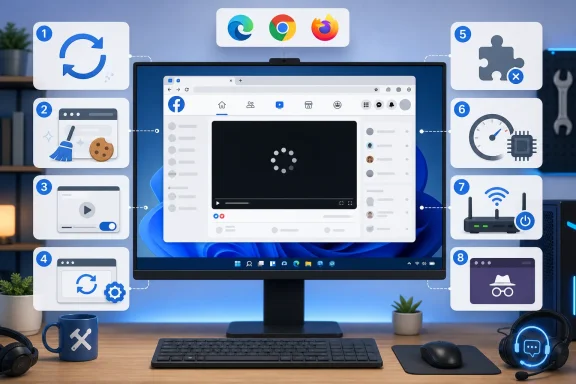
Facebook Video Player Not Working? These eight fixes apply to Facebook videos and Reels played in Microsoft Edge, Google Chrome, or Mozilla Firefox on Windows 11 and Windows 10. Work through them in order, testing the same video after each one. If only one specific video fails, it may have been deleted, restricted by its audience/privacy setting, or blocked in your region—browser repair will not restore it.
A partial page load can leave the player blank, stuck on a spinner, or unable to start audio.
Warning: Clearing cookies may sign you out of Facebook and other websites. Do not select saved passwords unless you intend to remove them.
Do not download random “codec packs,” Flash Player installers, or browser repair utilities. Modern Facebook playback uses current browser media support; Adobe Flash support ended on December 31, 2020.
Warning: Windows Network Reset removes and reinstalls network adapters and resets their settings. You may need to reconnect to Wi-Fi, reinstall VPN software, or reconfigure virtual network adapters afterward.
Use Network Reset only when Facebook and other streaming services fail across browsers and basic router restarting did not help:
If the video player still fails after testing another browser, a private window, cleared site data, disabled extensions, and a different network, report the issue from Facebook: select your profile picture, then Help & support > Report a problem, and follow the on-screen prompts.
 1. Reload Facebook, then restart the browser
A partial page load can leave the player blank, stuck on a spinner, or unable to start audio.- Open the affected Facebook tab.
- Press
Ctrl+Ror select the browser’s Reload button. - If the player still fails, close that Facebook tab.
- Open a new tab, sign in to Facebook again, and test the video.
- Close all browser windows, then restart Windows:
- Select Start > Power > Restart.
- After Windows restarts, open Facebook and test again.
2. Check whether Facebook itself or the video is the problem
Before changing browser settings, isolate the scope of the failure.- Try a different Facebook video or Reel in the same tab.
- Open the original video in a new browser tab.
- Try Facebook in an InPrivate or Incognito window:
- Microsoft Edge: select Settings and more (...) > New InPrivate window.
- Google Chrome: select More (...) > New Incognito window.
- Firefox: select the menu button, then New private window.
- Sign in and play the same video.
- The video works in a private window: cached Facebook data, cookies, or an extension in the normal browser profile is likely responsible.
- Other Facebook videos work, but one does not: the upload may no longer be available to your account.
- Facebook fails in every browser but other websites stream normally: the issue may be temporary on Facebook’s side. Wait and test again later.
- Videos fail on multiple websites: investigate the Windows network, browser, security software, or graphics settings.
3. Confirm Facebook autoplay is enabled
Autoplay settings affect videos that should begin while you scroll. They do not normally fix a player that cannot play even after you select the Play button, but they are worth checking for autoplay-only problems.- On Facebook in a desktop browser, select your profile picture in the upper-right corner.
- Select Settings & privacy > Settings.
- Under Preferences, select Media.
- Locate Autoplay animations.
- Turn the setting on if you want Facebook videos and animations to start automatically.
4. Clear Facebook cookies and cached files
Facebook recommends clearing browser cache and temporary data when the site displays incorrectly. This removes stored page files that can become stale or corrupted.Warning: Clearing cookies may sign you out of Facebook and other websites. Do not select saved passwords unless you intend to remove them.
Microsoft Edge
- Select Settings and more (...) > Settings.
- Select Privacy, search, and services.
- Under Clear browsing data, select Choose what to clear.
- Set Time range to All time if the problem has persisted, or choose a shorter period first.
- Select:
- Cookies and other site data
- Cached images and files
- Select Clear now.
- Close every Edge window, reopen Edge, sign in to Facebook, and retest.
Google Chrome
- Select More (...) > Delete browsing data.
- Choose a Time range.
- Select:
- Cookies and other site data
- Cached images and files
- Select Delete data.
- Restart Chrome, sign in to Facebook, and test the video.
Mozilla Firefox
- Select the Firefox menu button.
- Select History > Clear recent history.
- Set When to Everything.
- Select:
- Cookies and site data
- Temporary cached files and pages
- Select Clear.
- Restart Firefox and test Facebook.
5. Update Windows and the browser
Current browsers include compatibility, security, and media-playback fixes. Install available updates before resetting more settings.- In Windows, select Start > Settings > Windows Update.
- Select Check for updates.
- Install available updates.
- Restart when Windows requests it.
- Microsoft Edge: select Settings and more (...) > Help and feedback > About Microsoft Edge. Install an offered update, then select Restart.
- Google Chrome: select More (...) > Help > About Google Chrome. Chrome checks for updates automatically; select Relaunch if offered.
- Firefox: select the menu button, then Help > About Firefox. Let Firefox download an update and select Restart to update Firefox when available.
6. Disable ad blockers, privacy tools, and other extensions
Content blockers, script-control tools, VPN extensions, download helpers, and security extensions can prevent Facebook’s player components from loading. This is a fix, not a reason to permanently disable every extension.Microsoft Edge
- Select Extensions beside the address bar. If it is not visible, select Settings and more (...) > Extensions.
- Select Manage extensions.
- Turn off extensions, especially ad blockers and privacy/security tools.
- Reload Facebook and test a video.
- If playback returns, turn extensions back on one at a time, testing Facebook after each one.
Google Chrome
- Select More (...) > Extensions > Manage extensions.
- Turn off extensions one at a time or disable likely blockers first.
- Reload Facebook and test.
- Re-enable only extensions that do not reproduce the issue.
Firefox
- Select the Firefox menu button.
- Select Help > Troubleshoot Mode.
- Select Restart, then select Open.
- Test Facebook.
7. Test graphics acceleration for black, green, or frozen video
Use this fix only when the player loads but shows black or green frames, freezes while audio continues, or causes the browser tab to crash. Hardware acceleration can improve video playback on healthy graphics drivers, but it can also expose a driver problem.- In Edge or Chrome, open browser Settings.
- Use the Settings search box and search for hardware acceleration or graphics acceleration.
- Change the available graphics-acceleration setting.
- Restart the browser when prompted.
- Test the same Facebook video.
Do not download random “codec packs,” Flash Player installers, or browser repair utilities. Modern Facebook playback uses current browser media support; Adobe Flash support ended on December 31, 2020.
8. Repair the connection only if Facebook fails on one network
If Facebook video works on a phone hotspot but not your home or work network, restart the local network equipment first.- Close the browser.
- Turn off the modem and router.
- Unplug both devices for about one minute.
- Plug in the modem first and wait until its connection lights stabilize.
- Plug in the router and wait for Wi-Fi to return.
- Restart the PC and test Facebook again.
Warning: Windows Network Reset removes and reinstalls network adapters and resets their settings. You may need to reconnect to Wi-Fi, reinstall VPN software, or reconfigure virtual network adapters afterward.
Use Network Reset only when Facebook and other streaming services fail across browsers and basic router restarting did not help:
- Windows 11: select Start > Settings > Network & internet > Advanced network settings > Network reset > Reset now > Yes.
- Windows 10: select Start > Settings > Network & Internet > Status > Network reset > Reset now > Yes.
If the video player still fails after testing another browser, a private window, cleared site data, disabled extensions, and a different network, report the issue from Facebook: select your profile picture, then Help & support > Report a problem, and follow the on-screen prompts.
References
- Primary source: Technobezz
Published: 2026-07-16T17:10:27.101000+00:00
Loading…
www.technobezz.com