

File Explorer crashing, freezing, or vanishing mid-task is one of those Windows annoyances that feels random but usually has a clear set of causes — and clear, practical fixes. The usual culprits are corrupted Explorer caches or indexes, problematic preview/thumbnail handlers, third‑party shell extensions, and occasionally damaged system files or driver/Windows updates. This feature walks through six fixes that actually work, explains why each one helps, flags the risks and edge cases, and shows how to escalate safely when simple fixes fail. The steps below synthesize practical troubleshooting from hands‑on community experience and vendor guidance so you can restore reliable file navigation quickly.
File Explorer (explorer.exe) does more than show folders — it hosts the taskbar, Start menu and a range of UI extensions (context menus, preview handlers, thumbnail generators). That design makes Explorer lightweight for everyday use but also means a problem in one component can bring down what looks like a “single” app. Typical failure patterns include:
How to clear Explorer history and Quick Access:
Caveat: Removing Quick Access history just clears metadata — your files and folders are untouched. Rebuilding thumbnail/icon caches can be slightly disruptive (icons may be generic briefly) but is safe.
How to disable:
How to rebuild:
The recommended tool: ShellExView (NirSoft)
Caution: Do not disable Microsoft- or OS-provided extensions. Keep careful notes of what you change so you can restore the original state when done. If you find the offending app, update it first (driver or app vendor fix) before uninstalling. Major community diagnostic threads and Microsoft-supported guidance both recommend this method for persistent, reproducible Explorer failures.
If the issue persists after all of the above, collect Event Viewer errors, test in a clean user account and Safe Mode, and consider an in‑place repair or professional diagnostics — those steps are the definitive path to restoring a stable shell without losing data.
Source: How-To Geek Windows File Explorer keeps crashing? 6 fixes that actually work
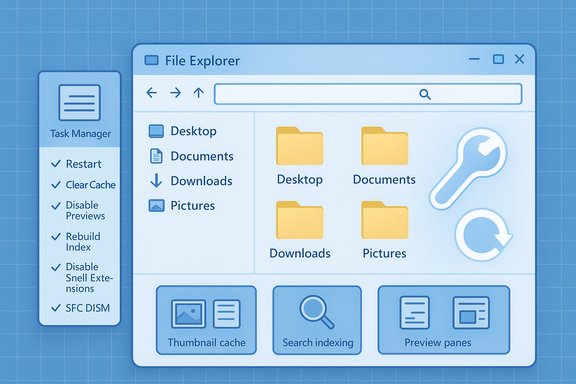 Background / Overview
File Explorer (explorer.exe) does more than show folders — it hosts the taskbar, Start menu and a range of UI extensions (context menus, preview handlers, thumbnail generators). That design makes Explorer lightweight for everyday use but also means a problem in one component can bring down what looks like a “single” app. Typical failure patterns include:- Explorer freezes or restarts when opening particular folders (often large media folders, Downloads, or network shares).
- Explorer crashes immediately after right‑clicking or when thumbnails/preview pane renders a file.
- Explorer becomes unresponsive systemwide because a shell extension or driver hooks into its process.
- Explorer behaves inconsistently after a Windows update or driver change.
1. Restart File Explorer the right way
Restarting Explorer is the fastest first step because it reloads the entire shell and clears transient glitches. Closing every File Explorer window isn’t enough — the shell process continues running in the background. Do the restart correctly:- Press Ctrl + Shift + Esc to open Task Manager.
- On the Processes tab find Windows Explorer (or explorer.exe under Details).
- Right‑click → Restart. If Restart isn’t available, choose End task and then File → Run new task → type explorer.exe → Enter.
- taskkill /f /im explorer.exe
- start explorer.exe
Quick checklist after restart
- Does the taskbar/Start menu reappear normally?
- Does Explorer crash only when opening a specific folder?
- If Explorer works after restart but later fails, note what action preceded the failure — that’s the clue.
2. Clear File Explorer history, Quick Access and thumbnail caches
File Explorer stores history and cache data to speed navigation. Corrupted Quick Access entries, a busted thumbnail cache, or a bad recent‑files entry can cause repeated freezes or crashes.How to clear Explorer history and Quick Access:
- Open File Explorer → three‑dot menu → Options → General tab → click Clear under Privacy. Optionally uncheck “Show recently used files in Quick access” and “Show frequently used folders in Quick access” while testing.
- File Explorer Options → View tab → check Always show icons, never thumbnails, Apply → OK. This forces Explorer to stop generating thumbnails while you test.
- %localappdata%\IconCache.db and relevant thumbcache files, then restarting Explorer.
Caveat: Removing Quick Access history just clears metadata — your files and folders are untouched. Rebuilding thumbnail/icon caches can be slightly disruptive (icons may be generic briefly) but is safe.
3. Temporarily disable the Preview pane and thumbnails
The Preview pane and thumbnails are convenient but also common crash triggers when a preview handler tries to parse a malformed file or an unsupported format. If Explorer crashes only in certain folders or when a specific file is selected, test with previews disabled.How to disable:
- Preview pane: File Explorer → View → toggle Preview Pane off.
- Thumbnails: File Explorer Options → View → Always show icons, never thumbnails.
- A corrupted media file (large or malformed image, video, PDF, etc..
- A buggy preview handler (a third‑party preview extension).
- A security change: note that recent Windows security updates may purposely block previewing of files downloaded from the Internet to prevent credential leaks — the preview pane can be disabled by policy for some files. Microsoft documents that previewing Internet‑origin files may be disabled by default after recent security updates.
- Move suspect files out of the folder, delete them, or open them with a dedicated viewer.
- Update or remove third‑party applications that install preview handlers (e.g., PDF viewers, raw photo plugins).
4. Rebuild the Windows search index (when search-related Explorer operations fail)
Explorer leverages Windows Search indexing to provide fast results. An index that’s corrupted or stale can cause search UI hangs or Explorer slowdowns. Rebuilding the index forces Windows to re‑scan and re‑index content.How to rebuild:
- Start → Settings → Privacy & security → Searching Windows → Advanced Indexing Options (opens Indexing Options dialog).
- Click Advanced, then click Rebuild.
- Rebuilding can take minutes or hours depending on the number of files and disk speed. Explorer’s search may be slower while indexing runs.
- While rebuilding, avoid heavy disk activity to reduce I/O contention.
5. Find and disable buggy shell extensions (the most common persistent cause)
Third‑party shell extensions are powerful but risky: they run inside Explorer’s process and can crash the entire shell if they misbehave. Common offenders include context menu handlers (archive tools, cloud sync clients), preview handlers, and icon/thumbnail providers.The recommended tool: ShellExView (NirSoft)
- ShellExView scans installed shell extensions and lets you disable/enable them selectively.
- Best practice: choose Options → Hide all Microsoft extensions to focus on third‑party items, then disable non‑Microsoft items in small batches and test Explorer.
- Open ShellExView, hide Microsoft extensions.
- Disable roughly half of third‑party extensions.
- Restart Explorer and test.
- If the issue disappears, re‑enable the other half in chunks to narrow the culprit; if it persists, disable the other half instead.
- When you identify the problematic extension, note the associated application and uninstall or update it.
Caution: Do not disable Microsoft- or OS-provided extensions. Keep careful notes of what you change so you can restore the original state when done. If you find the offending app, update it first (driver or app vendor fix) before uninstalling. Major community diagnostic threads and Microsoft-supported guidance both recommend this method for persistent, reproducible Explorer failures.
6. Repair corrupted system files with SFC and DISM
If Explorer problems persist after the above steps, damaged system files or a corrupted component store may be involved. Use the built‑in tools in this order:- Open an elevated Windows Terminal (Run as Administrator).
- Run DISM to repair the component store:
- DISM /Online /Cleanup-Image /RestoreHealth
- After DISM completes, run the System File Checker:
- sfc /scannow
- If DISM or SFC repairs files, reboot and test Explorer.
- If DISM fails with error codes like 0x800f081f, you may need to specify a source image (installation media or ISO) for repair or consider a repair/upgrade install.
- Repeated Explorer crashes with Event Viewer logs pointing to explorer.exe or ShellHost exceptions.
- SFC/DISM report errors they cannot fix.
- If a recent Windows update or driver seems to coincide with the issue, consider uninstalling the update temporarily as a diagnostic or performing an in‑place repair (Windows Setup → Upgrade this PC) to preserve files while fixing system files.
Advanced diagnostics and escalation
If Explorer remains unstable after all six fixes, follow this escalation path:- Check Event Viewer: Windows Logs → Application/System for Explorer.exe errors or crash dumps. Note timestamps and faulting module names.
- Test in Safe Mode: If Explorer is stable in Safe Mode, the cause is almost certainly a third‑party driver or shell extension.
- Create a new local user: if Explorer works in a fresh profile, the problem is profile‑specific (corrupted per‑user cache/settings).
- Clean boot: msconfig → Services → Hide Microsoft services → disable rest; disable startup apps in Task Manager; reboot and reintroduce services in small groups to find the conflict. This is the controlled way to find the misbehaving background service without uninstalling.
- Run chkdsk if you see I/O errors: chkdsk C: /f /r (requires reboot). Disk errors can cause intermittent hangs that manifest in Explorer.
- Update graphics drivers: display drivers are a frequent cause of rendering hangs or unstable UI. Use the GPU vendor (Intel, NVIDIA, AMD) driver packages when possible.
- Restart Explorer → 2. Clear caches / disable previews → 3. Disable third‑party shell extensions → 4. Rebuild index → 5. DISM + SFC → 6. Clean boot / Safe Mode → 7. In‑place repair or System Restore.
What to watch for — risks and gotchas
- ShellExView and similar tools require administrative rights and alter system behavior. Document what you disable and proceed cautiously.
- Some NirSoft tools may trigger false‑positive antivirus detections; this is known and documented by the vendor. If flagged, verify hashes on the official vendor page or use an alternate trusted download site. Avoid running unknown binaries from untrusted sites.
- SFC/DISM take time and may require a reboot. If DISM fails due to missing source files, you may need an ISO or installation media to provide a repair source.
- Rebuilding large indexes can temporarily slow search and increase disk activity. Schedule it when you can leave the PC idle.
- Disabling thumbnails reduces usability for photo/video work. If thumbnails are essential, focus on isolating the offending file or handler and restore thumbnails once fixed.
- Automatic security changes in Windows may affect preview behavior for files marked as downloaded from the Internet — this is by design to mitigate credential‑leak attack vectors in previews. If you rely on the preview pane for downloaded content, you may need to unblock trusted files or change security zone settings carefully.
Useful commands and a small checklist
Commands you’ll use:- Restart Explorer (command line)
- taskkill /f /im explorer.exe
- start explorer.exe
- SFC and DISM
- DISM /Online /Cleanup-Image /RestoreHealth
- sfc /scannow
- Disk check (when I/O errors appear)
- chkdsk C: /f /r
- Restart Explorer properly (Task Manager).
- Clear Quick Access & thumbnail caches; disable preview pane.
- Pause cloud sync and disconnect mapped network drives (slow/unavailable shares hang Explorer).
- Rebuild search index if search operations hang.
- Use ShellExView to disable non‑Microsoft shell extensions in batches.
- Run DISM then SFC; reboot.
- Clean boot or Safe Mode test; check Event Viewer.
Final analysis — what works and why
The six fixes above are effective because they methodically eliminate progressively deeper fault categories:- Quick restart clears transient issues that don’t require diagnosis.
- Clearing caches and disabling previews cuts off common data or handler corruption causes.
- Rebuilding the index addresses search‑specific failures.
- Isolating shell extensions targets the frequent persistent culprit (third‑party context menu/preview handlers), which run inside Explorer and can cause reproducible crashes.
- SFC/DISM and disk checks repair systemic corruption or hardware‑caused errors that survive process restarts.
- Repeated crashes after SFC/DISM and Event Viewer showing repeated, identical faults.
- A system that is otherwise unreliable or critical data integrity concerns after chkdsk reports bad sectors.
- If an in‑place repair (Windows setup upgrade) is required — it repairs Windows without wiping user data but should be done after backups.
Conclusion
File Explorer instability is rarely mysterious. A short, methodical workflow — restart the shell, clear caches and previews, isolate third‑party extensions, fix search indexing, and repair system files — will fix the majority of cases. These steps minimize risk, preserve data, and let you escalate only when the problem is deeper than a single handler or cache entry. For administrators and power users, keep a small toolkit handy (Task Manager, an elevated terminal, ShellExView, and knowledge of SFC/DISM) so Explorer interruptions become an annoyance you can fix in minutes rather than a recurring productivity drain.If the issue persists after all of the above, collect Event Viewer errors, test in a clean user account and Safe Mode, and consider an in‑place repair or professional diagnostics — those steps are the definitive path to restoring a stable shell without losing data.
Source: How-To Geek Windows File Explorer keeps crashing? 6 fixes that actually work
