

If File Explorer refuses to open or keeps crashing on you, don’t panic — there is a clear, practical path to diagnose and fix the problem that protects your files and restores productivity quickly.
File Explorer is the central file-management shell in Windows. It provides the taskbar, Start menu surface, desktop, and the windowed file browser most users rely on daily. Because Explorer is both a process (explorer.exe) and the visible shell, failures in Explorer range from a single window not opening to the entire desktop and taskbar disappearing. Microsoft’s official support page lays out the simplest first steps — check for updates, restart the device, and if needed, consider resetting Windows — but real-world troubleshooting usually requires more targeted diagnostics to find the underlying cause.
Community engineers and technicians routinely report a consistent set of root causes for File Explorer failures: corrupted system files, problematic shell extensions (third‑party add‑ins that run inside Explorer), graphics driver regressions, corrupted Quick Access / Recent caches, and interactions with cloud or network drives. Those community-tested recipes for isolatioted with Microsoft’s vendor‑recommended tools, restore Explorer reliability for the vast majority of users.
Why both? DISM fixes the image so SFC has a correct source to copy known‑good files from; running SFC ahen the component store is broken, which is why DISM is the safe first step. Independent guides echo this sequence and provide troubleshooting if DISM cannot download repair files.
If you’ve followed these steps and Explorer still fails, gather the following diagnostics before pursuing escalations or support: the exact Windows version and build, Event Viewer error text (faulting module), the top CPU process during a crash from Task Manager, and any recent installs or updates. That information lets support or the community pinpoint the problem far more quickly and avoids unnecessary destructive actions.
Good troubleshooting is methodical and minimally destructive: isolate, test, repair, and document. Follow that sequence and you’ll be back to a stable Explorer — and a productive desktop — far sooner than you might expect.
Source: Microsoft Support Fix File Explorer if it won't open or start - Microsoft Support
 Background
File Explorer is the central file-management shell in Windows. It provides the taskbar, Start menu surface, desktop, and the windowed file browser most users rely on daily. Because Explorer is both a process (explorer.exe) and the visible shell, failures in Explorer range from a single window not opening to the entire desktop and taskbar disappearing. Microsoft’s official support page lays out the simplest first steps — check for updates, restart the device, and if needed, consider resetting Windows — but real-world troubleshooting usually requires more targeted diagnostics to find the underlying cause.Community engineers and technicians routinely report a consistent set of root causes for File Explorer failures: corrupted system files, problematic shell extensions (third‑party add‑ins that run inside Explorer), graphics driver regressions, corrupted Quick Access / Recent caches, and interactions with cloud or network drives. Those community-tested recipes for isolatioted with Microsoft’s vendor‑recommended tools, restore Explorer reliability for the vast majority of users.
Quick triage — the immediate steps that often fix the issue
Start here before deeper troubleshooting. These actions are safe, fast, and in many cases, restorative.1. Try the obvious: open File Explorer from the taskbar or press Win + E
It’s basic but quick: press the Windows logo key + E to attempt an explicit launch. If nothing happens, move to the next steps. Microsoft lists this as the normal way to launch Explorer and recommends simple checks first.2. Reboot the PC
A full reboot clears pending Windows updates and refreshes drivers and services. Microsoft specifically recommends restarting the device because pending update components can prevent Explorer from launching reliably.3. Check for Windows Updates
Open Start > Settings > Windows Update and select Check for updates. If updates are available, install them and reboot. Many Explorer crashes coincide with buggy update rollouts; installing a subsequent fix or the next cumulative update may resolve the issue entirely.4. Restart Windows Explorer (fast workaround)
If the desktop or taskbar is missing or Explorer is unresponsive, restart the process:- Press Ctrl + Shift + Esc to open Task Manager.
- Find Windows Explorer under Processes.
- Right‑click → Restart.
When a restart doesn’t stick — targeted diagnostics and fixes
If Explorer still won’t open or repeatedly crashes, follow these structured steps. Each one isolates a class of root causes and has minimal risk when executed carefully.A. Safe Mode test and new user profile
Be** disables third‑party drivers and many startup items. If Explorer works in Safe Mode, the cause is almost certainly a third‑party driver, startup item, or shell extension. Likewise, creating a new local user account and testing Explorer there isolates profile-specific corruption.- Settings → System → Recovery → Advanced startup → Restart now → Troubleshoot → Advanced options → Startup Settings → Restart → choose Safe Mode.
- If Safe Mode fixes Explorer, proceed to clean‑boot alation. Community guidance strongly recommends these steps as a diagnostic first move.
B. Clean boot to isolate startup items
A clean boot temporarily disables non‑Microsoft services and startup items:- Win + R → msconfig.
- Services tab → check Hide all Microsoft services → Disable all.
- Startup tab → Open Task Manager → disable startup items.
- Reboot and test Explorer.
C. Check Ebility Monitor for faulting modules
Explorer crashes often record an error in Event Viewer with a faulting module name (DLL). Open Event Viewer (Win + R → eventvwr.msc) → Windows Logs → Application and search for Error events around the crash time. The faulting module DLL usually points straight to the responsible app (for example, a context‑menu handler from a zip tool or a PDF previewer). Use that DLL name to identify and update or remove the related application. Community troubleshooting repeatedly recommends this as a high‑value next step.D. Clear Quick Access / Home cache (common cause of “Home tab” hangs)
If Explorer freezes when opening the Home or *Quicted cache files are a frequent culprit. To reset Quick Access:- Win + R → enter: %AppData%\Microsoft\Windows\Recent\AutomaticDestinations
- Delete all files in that folder.
- Also check: %AppData%\Microsoft\Windows\Recent\CustomDestinations and delete contents.
- Reboot.
The heavier‑duty repairs (SFC, DISM, CHKDSK)
When crashes persist across accounts and after disabling add‑ons, corrupted system files or a damaged component store are likely. Microsoft’s recommended path is DISM then SFC; these tools repair the component store and protected system files.Run DISM then SFC (vendor‑recommended sequence)
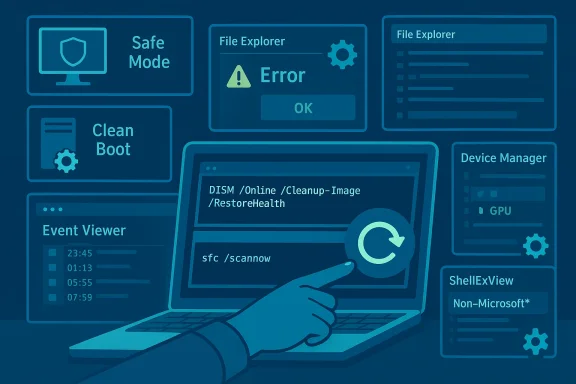
Open an elevated Command Prompt or Windows Terminal (Admin) and run:- DISM /Online /Cleanup-Image /RestoreHealth
- sfc /scannow
Why both? DISM fixes the image so SFC has a correct source to copy known‑good files from; running SFC ahen the component store is broken, which is why DISM is the safe first step. Independent guides echo this sequence and provide troubleshooting if DISM cannot download repair files.
Run chkdsk if you see I/O errors
If Event Viewer or Reliability Monitor shows disk I/O errors, schedule a check disk:- Open an elevated prompt and run: chkdsk C: /f /r
Shell extensions: the most common third‑party culprit
Because shell extensions (context‑menu handlers, thumbnail/preview providers) run inside Explorer, a misbehaving third‑party DLL can crash the entire shell. The standard diagnostic and remediation is to use a shell‑extension viewer to disable non‑Microsoft items in batches.Use ShellExView to find the bad extension
ShellExView (NirSoft) is the industry tool for this purpose. Best practice:- Run ShellExView as Administrator.
- Options → Hide all Microsoft extensions.
- Disable non‑Microsoft context menu and preview handlers in small batches.
- Restart Explorer and test.
- If Explorer stabilizes, re‑enable half of the disabled items to binary‑search the exact offender.
Common offender applications
- Compression and archive utilities (7‑Zip, WinRAR)
- Cloud sync tools (OneDrive, Dropbox)
- PDF tools and image previewers
- Vendor peripheral utilities (RGB, keyboard/gamepad software)
- Codecs and media preview handlers
Graphics drivers and UI regressions
Explorer UI freezes, flicker, or total desktop disappearance can be caused by GPU driver regressions. Microsoft’s guidance on Explorer stopping working explicitly lists video drivers as a top candidate for resolution. Update, roll back, or install vendor‑supplied drivers for Intel, NVIDIA, or AMD depending on your hardware.- Device Manager → Display adapters → right‑click GPU → Update driver or Roll back driver.
- If the problem began after a driver update, rolling back often restores stability.
- For reliable drivers, prefer the GPU vendor’s driver package for your model.
When an update causes Explorer to fail
Sometimes a Windows cumulative update introduces a regression that crashes Explorer. In those cases:- Check Windows Update history and recent patches.
- Consider uninstalling the problematic update temporarily (Settings → Windows Update → Update history → Uninstall updates) if your system was stable before the patch. Be cautious: uninstalling removes security fixes.
- Microsoft periodically issues optional or preview updates to address such regressions; these can be installed by users experiencing severe breakage, but they carry the normal risks of preview releases.
Recovery options: System Restore, Reset, and in‑place repair
If all diagnostic and repair attempts fail, escalate carefully:- System Restore to a point before the issue began (non‑destructive to personal files if the restore point predates the problem).
- In‑place repair (Repair install) using Windows installation media keeps files and apps while repairing system files.
- Reset this PC (Settings → Recovery) — this is disruptive and should be a last resort after backing up critical data.
Pra short scripts for busy users
- Quick rescue (one‑minute fix):
- Ctrl + Shift + Esc → Task Manager → Restart Windows Explorer.
- Command‑line restart (when GUI is blocked):
- Open elevated Command Prompt.
- taskkill /f /im explorer.exe
- start explorer.exe
This kills and restarts the shell; use a batch file if you need to repeat it frequently. - System‑repair trio (10–30 minutes):
- DISM /Online /Cleanup-Image /RestoreHealth
- sfc /scannow
- chkdsk C: /f /r (if disk errors are evident)
These are vendor‑recommended and often resolve deeper integrity issues.
Risks, caveats, and safety notes
-changes. Always create a restore point or full backup before uninstalling updates, rolling back drivers, or performing a Reset/Repair.- Be cautious with third‑party diagnostic tools. ShellExView is widely used by technicians, but antivirus suites may flag NirSoft tools; limit usage to quick diagnostics and re‑enable protections afterward.
- Uninstalling updates removes security patches. If you remove a cumulative update to escape an Explorer regression, reinstall or reapply security patches when Microsoft releases a safe replacement.
- When running DISM or SFC, let the commands complete. Interrupting these operations can leave the component store or protected files in an incomplete state.
Prevention and long‑term best practices
- Keep Windows and drivers up to date, but stagger major updates on critical machines until initial telemetry and community feedback stabilize.
- Maintain regular backups and create system restore points before applying major updates.
- Minimize shell‑integrated tools where possible (choose lightweight sync clients and avoid shell‑hooking codecs or previewers unless you need them).
- Monitor Reliability Monitor and Event Viewer periodically if you manage multiple machines; early error entries identify patterns before users are affected. Community posts emphasize the value of proactive monitoring.
Conclusion — a pragmatic, staged path forward
File Explorer failures are stressful because they strike at the heart of daily workflow. Start with the safe and supported actions Microsoft lists — reboot and check for updates — then move through an orderly escalation: restart Explorer, run diagnostics in Safe Mode, isolate problematic shell extensions, repair system integrity with DISM + SFC, check disks, and finally consider system restore or reset only as a last resort. Combine Microsoft’s official steps with the practical community tools (ShellExView, Event Viewer analysis, targeted driver rollbacks) and you’ll resolve the majority of Explorer issues without a reinstall.If you’ve followed these steps and Explorer still fails, gather the following diagnostics before pursuing escalations or support: the exact Windows version and build, Event Viewer error text (faulting module), the top CPU process during a crash from Task Manager, and any recent installs or updates. That information lets support or the community pinpoint the problem far more quickly and avoids unnecessary destructive actions.
Good troubleshooting is methodical and minimally destructive: isolate, test, repair, and document. Follow that sequence and you’ll be back to a stable Explorer — and a productive desktop — far sooner than you might expect.
Source: Microsoft Support Fix File Explorer if it won't open or start - Microsoft Support
