

Forza Horizon 6 crashing at the Turn 10 Studios splash screen is usually not a sign that the game has reached the menu and then failed. It is more often a failure during the PC startup sequence: the point where the game checks its installation, initializes DirectX 12, opens its first graphics window, contacts required Xbox platform components, detects controllers, and begins preparing local data. The logo is simply the final visible frame before that chain breaks.
That distinction matters because repeatedly restarting the game, or immediately reinstalling all 167 GB, is rarely the most efficient response. A crash before the main menu has a relatively narrow set of likely causes: an outdated game build, a Gaming Services mismatch, an unsupported graphics architecture, a damaged or poorly located Steam installation, a driver-level conflict, or an overlay and peripheral hook interfering with the game’s first render window.
For Windows gamers, the best fix is a disciplined process that changes one variable at a time. Start with the checks that rule out hard compatibility blocks, then move toward installation repair, background software, devices, and diagnostic reporting.
The Turn 10 Studios logo appears extremely early in the Forza Horizon 6 startup path. At that point, the game has not necessarily finished loading the player profile, cloud save, map data, cars, or Horizon Festival world. In practical terms, that means a splash-screen crash is less likely to be caused by an in-game graphics setting or a corrupted save than a crash occurring after reaching the title screen.
Before the menu appears, Forza Horizon 6 must successfully complete several tasks:
The key is to resist treating every crash as a generic “bad install” issue. A verification pass is useful, but it cannot make an unsupported GPU architecture compatible, repair an outdated platform service, or stop an RGB utility from injecting itself into a DirectX process.
Forza Horizon 6 is a demanding modern PC release. Its baseline requirements include Windows 10 version 22H2 or later, 16 GB of RAM, DirectX 12 support, an SSD, and substantial available storage. The minimum graphics tier includes an NVIDIA GeForce GTX 1650, AMD Radeon RX 6500 XT, or Intel Arc A380, while the recommended tier steps up to hardware such as an RTX 3060 Ti, RX 6700 XT, or Arc A580.
That GPU list is important because it represents more than rough performance guidance. Some older cards may expose DirectX 12 support in Windows but still lack the graphics architecture or feature implementation that Forza Horizon 6 expects. A card can have plenty of VRAM, have performed well in older games, and still fail the game’s early hardware checks.
Likewise, older AMD Polaris and Vega GPUs are below the supported hardware floor for Forza Horizon 6. This can be frustrating for owners of cards that remain capable in many DirectX 11 and older DirectX 12 games, but it is a compatibility limit rather than a conventional performance setting problem.
Do not use unofficial workarounds designed to bypass GPU detection. A forced launch on unsupported hardware can create instability, graphical corruption, repeated crashes, unreliable saves, or poor performance that cannot be meaningfully troubleshot.
On Steam, allow all queued downloads to complete and ensure Steam is online before launching. On the Xbox app or Microsoft Store version, open the Xbox app and Microsoft Store, then check for pending game, Store, and Gaming Services updates.
A useful order is:
That means a Steam player can encounter an early Forza Horizon 6 startup crash caused by a Windows-side service problem. The fact that other Steam games work normally does not rule it out.
Search for Gaming Services, select the menu button beside it, and open Advanced options. This is useful for confirming that Gaming Services is installed and for accessing Windows repair controls when appropriate.
Use the repair path cautiously:
That is why the Gaming Services check belongs near the beginning of a Forza Horizon 6 crashing on launch troubleshooting workflow. It is quick, reversible, and relevant to both storefront versions.
This is not a typical “Windows path is too long” issue in the broad operating-system sense. It is a game-specific limitation that can surface during early loading, when the executable and supporting components attempt to resolve files from the installed library folder.
The risk grows when the game sits in a deeply nested custom library, such as:
Even a few extra folder names can push the full path past the supported limit once the Forza Horizon 6 directory and internal file names are added.
The game may not display an intuitive “path too long” warning. It can instead crash at the logo, disappear after a brief black screen, or fail before the menu.
or:
To move the installation:
Overlays, frame-rate counters, screen recorders, hardware monitors, RGB utilities, controller remappers, and wheel software are not automatically harmful. Many work with Forza Horizon 6 without issue. The problem is that a conflict can occur when several of them attempt to access the game’s render or input process at the same time.
The right response is not to uninstall everything permanently. It is to run one minimal-launch test.
If the game launches successfully after this cleanup, restore programs one at a time. That makes it possible to identify the actual offender rather than continuing to run Windows in an unnecessarily stripped-down state.
Perform one test with all nonessential input hardware unplugged:
Extra peripherals can be added back after the game launches. This is especially important with multi-device rigs that include a wheelbase, pedals, shifter, handbrake, button box, headset receiver, webcam, and several controllers. Windows may detect all of them properly, yet a game can still encounter an input initialization conflict.
In that scenario:
Forza Horizon 6 requires a healthy intersection of Windows, DirectX 12, GPU drivers, account components, storage, and network services. Broad system “tweaks” are more likely to complicate that environment than improve it.
Take a screenshot with
Open Reliability Monitor by searching for:
Look for the red failure marker corresponding to the Forza Horizon 6 crash. The details may show the failing executable, faulting module, exception code, or timestamp. This information is particularly valuable if the game dies consistently at the same point.
Event Viewer can provide further detail under:
However, Reliability Monitor is often easier to read for a single game crash. Avoid changing settings based solely on a cryptic module name; use it to document the failure and identify whether the pattern points to the game executable, a GPU component, an overlay DLL, or a Windows service.
Consider reinstalling Forza Horizon 6 when:
Do not delete save data as a first response to a crash at the Turn 10 Studios screen. Since the game is failing before the menu, save corruption is not the leading explanation. Deleting local data prematurely risks losing progress without fixing the actual startup fault.
That integration provides genuine benefits. Cross-platform services, broad controller support, wheel support, account linking, cloud-connected features, high-end graphics features, and Steam availability make the game accessible across a wide range of PCs. Yet the same interconnected design introduces more possible failure points before a player has even reached the title screen.
The most reliable fix for a Forza Horizon 6 crash at the Turn 10 Studios screen is therefore not a single magic setting. It is a targeted elimination process: verify compatibility, update the game and Gaming Services, correct the Steam install path where applicable, validate files, launch with a clean background environment, isolate peripherals, and use crash codes as evidence rather than guesswork.
Once the game clears the first logo and reaches the main menu, the troubleshooting picture changes. But until then, the focus should remain on the launch chain itself—the Windows services, installation structure, DirectX 12 environment, and device conflicts that determine whether the Horizon Festival can start at all.
That distinction matters because repeatedly restarting the game, or immediately reinstalling all 167 GB, is rarely the most efficient response. A crash before the main menu has a relatively narrow set of likely causes: an outdated game build, a Gaming Services mismatch, an unsupported graphics architecture, a damaged or poorly located Steam installation, a driver-level conflict, or an overlay and peripheral hook interfering with the game’s first render window.
For Windows gamers, the best fix is a disciplined process that changes one variable at a time. Start with the checks that rule out hard compatibility blocks, then move toward installation repair, background software, devices, and diagnostic reporting.
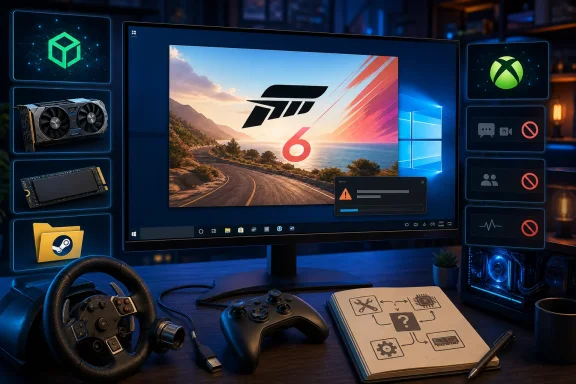 Why the Turn 10 Studios Screen Crash Happens
The Turn 10 Studios logo appears extremely early in the Forza Horizon 6 startup path. At that point, the game has not necessarily finished loading the player profile, cloud save, map data, cars, or Horizon Festival world. In practical terms, that means a splash-screen crash is less likely to be caused by an in-game graphics setting or a corrupted save than a crash occurring after reaching the title screen.Before the menu appears, Forza Horizon 6 must successfully complete several tasks:
- Validate that the game build is current.
- Confirm access to Xbox network and account services.
- Initialize Gaming Services on Windows.
- Confirm that the operating system and GPU meet the game’s requirements.
- Create a DirectX 12 graphics device and an initial presentation window.
- Load core files from the game installation folder.
- Enumerate controllers, wheels, USB devices, and audio hardware.
- Allow supported overlays and background applications to coexist with the game process.
The key is to resist treating every crash as a generic “bad install” issue. A verification pass is useful, but it cannot make an unsupported GPU architecture compatible, repair an outdated platform service, or stop an RGB utility from injecting itself into a DirectX process.
The Essential First Check: Updates and Hardware Support
Before changing launch options, disabling security software, or reinstalling drivers, confirm that the PC is running a supported configuration.Forza Horizon 6 is a demanding modern PC release. Its baseline requirements include Windows 10 version 22H2 or later, 16 GB of RAM, DirectX 12 support, an SSD, and substantial available storage. The minimum graphics tier includes an NVIDIA GeForce GTX 1650, AMD Radeon RX 6500 XT, or Intel Arc A380, while the recommended tier steps up to hardware such as an RTX 3060 Ti, RX 6700 XT, or Arc A580.
That GPU list is important because it represents more than rough performance guidance. Some older cards may expose DirectX 12 support in Windows but still lack the graphics architecture or feature implementation that Forza Horizon 6 expects. A card can have plenty of VRAM, have performed well in older games, and still fail the game’s early hardware checks.
Unsupported GPUs Cannot Be Fixed With a Reinstall
Older NVIDIA graphics cards are a particular point of confusion. A powerful Pascal-era model, for example, may outperform a newer entry-level card in many benchmarks. However, game support is not based solely on raw frame-rate potential. It can also depend on feature-level behavior, driver support, memory management paths, and architectural capabilities used by the game engine.Likewise, older AMD Polaris and Vega GPUs are below the supported hardware floor for Forza Horizon 6. This can be frustrating for owners of cards that remain capable in many DirectX 11 and older DirectX 12 games, but it is a compatibility limit rather than a conventional performance setting problem.
Do not use unofficial workarounds designed to bypass GPU detection. A forced launch on unsupported hardware can create instability, graphical corruption, repeated crashes, unreliable saves, or poor performance that cannot be meaningfully troubleshot.
Update the Game Before Testing Anything Else
The update check remains worthwhile even on a capable PC. Forza Horizon 6 has received post-launch fixes and stability updates, and an incomplete download or version mismatch can stop the game before it reaches the menu.On Steam, allow all queued downloads to complete and ensure Steam is online before launching. On the Xbox app or Microsoft Store version, open the Xbox app and Microsoft Store, then check for pending game, Store, and Gaming Services updates.
A useful order is:
- Restart Windows.
- Open Steam or the Xbox app.
- Let the launcher finish all updates.
- Open Microsoft Store and check for application updates.
- Restart once more if Gaming Services or Windows components were updated.
- Launch Forza Horizon 6 without opening unnecessary utilities first.
Gaming Services Is a Core Requirement, Not an Xbox App Extra
One of the most easily missed facts about Forza Horizon 6 on PC is that Gaming Services matters even for the Steam version. Steam handles purchase, downloads, and installation, but the game still uses Microsoft account and Xbox ecosystem components for several functions, including account linking and online service integration.That means a Steam player can encounter an early Forza Horizon 6 startup crash caused by a Windows-side service problem. The fact that other Steam games work normally does not rule it out.
Update Gaming Services Through Microsoft Store
The least invasive repair path begins with a normal update check.- Open Microsoft Store.
- Select Downloads in the lower-left area of the app.
- Choose Check for updates.
- Install any update listed for Gaming Services, Xbox-related apps, or Microsoft Store.
- Restart Windows after the update completes.
- Launch Forza Horizon 6 again.
Check the Installed App Entry
If the update check finds nothing, open:Settings > Apps > Installed appsSearch for Gaming Services, select the menu button beside it, and open Advanced options. This is useful for confirming that Gaming Services is installed and for accessing Windows repair controls when appropriate.
Use the repair path cautiously:
- Repair attempts to fix the registered app without broadly wiping associated data.
- Reset is more disruptive and should not be the first step.
- Removing system-linked gaming components without a clear need can create further Xbox app or Microsoft Store issues.
Why a Service Problem Can Look Like a Graphics Crash
Gaming Services failures can be deceptive. A game may open a black window, show an introductory logo, or disappear immediately without an obvious message about account services. The launch process may simply terminate after the platform handoff fails.That is why the Gaming Services check belongs near the beginning of a Forza Horizon 6 crashing on launch troubleshooting workflow. It is quick, reversible, and relevant to both storefront versions.
Steam Players Must Check the Installation Path Length
The Steam release of Forza Horizon 6 has an unusually specific installation requirement: the Steam library path needs to remain within the game’s supported character limit. A path longer than 59 characters can prevent the game from launching correctly, even when Steam reports that the installation is complete.This is not a typical “Windows path is too long” issue in the broad operating-system sense. It is a game-specific limitation that can surface during early loading, when the executable and supporting components attempt to resolve files from the installed library folder.
How an Innocent Folder Name Becomes a Launch Problem
A default Steam path often works without intervention:C:\Program Files (x86)\Steam\steamapps\common\The risk grows when the game sits in a deeply nested custom library, such as:
D:\Games\SteamLibrary\InstalledGames\Racing\Collection\SteamApps\common\Even a few extra folder names can push the full path past the supported limit once the Forza Horizon 6 directory and internal file names are added.
The game may not display an intuitive “path too long” warning. It can instead crash at the logo, disappear after a brief black screen, or fail before the menu.
Move the Game to a Shorter Library Location
For Steam users, a short library near the root of a drive is the safest option. Examples include:D:\SteamLibrary\or:
E:\Steam\To move the installation:
- Open Steam.
- Go to Settings > Storage.
- Add a short Steam library folder if one does not already exist.
- Select Forza Horizon 6 from the installed-games list.
- Use the move option to relocate the game.
- Let Steam complete the transfer.
- Verify files after the move.
Verify the Game Files After Moving
Once the Steam library path is short enough, verify the installation:- Right-click Forza Horizon 6 in the Steam Library.
- Select Properties.
- Open Installed Files.
- Choose Verify integrity of game files.
- Wait for Steam to complete the check.
- Restart Steam before the next launch attempt.
Remove Overlays, Monitoring Tools, and Input Conflicts
Forza Horizon 6 has to initialize graphics and input very early. That makes the logo screen a sensitive point for software that hooks into game processes.Overlays, frame-rate counters, screen recorders, hardware monitors, RGB utilities, controller remappers, and wheel software are not automatically harmful. Many work with Forza Horizon 6 without issue. The problem is that a conflict can occur when several of them attempt to access the game’s render or input process at the same time.
The right response is not to uninstall everything permanently. It is to run one minimal-launch test.
Build a Clean Launch Environment
Before starting the game, temporarily close or disable:- Steam Overlay
- Discord Overlay
- Xbox Game Bar
- NVIDIA or AMD in-game overlay features
- MSI Afterburner
- RivaTuner Statistics Server
- OBS Game Capture, if actively running
- Medal, Outplayed, Overwolf, or similar capture tools
- RGB management suites
- Fan-control applications with game overlay modules
- Third-party frame-rate limiters
- Controller remappers and virtual-controller utilities
If the game launches successfully after this cleanup, restore programs one at a time. That makes it possible to identify the actual offender rather than continuing to run Windows in an unnecessarily stripped-down state.
Disconnect Controllers and Racing Wheels for One Test
Input hardware deserves special attention in a racing game. Forza Horizon 6 supports controllers and wheels, but complex peripheral setups can introduce complications during startup.Perform one test with all nonessential input hardware unplugged:
- Disconnect racing wheelbases.
- Disconnect pedal sets.
- Disconnect shifters and handbrakes.
- Disconnect additional controllers.
- Disconnect a Steam Controller if one is connected.
- Disable virtual gamepads created by remapping software.
Wheel Owners Should Favor Direct USB Connections
Racing wheel users should avoid troubleshooting through a USB hub if possible. Connect the wheelbase directly to a dedicated USB 3.x port on the motherboard or laptop, then ensure the wheel firmware and driver package are current.Extra peripherals can be added back after the game launches. This is especially important with multi-device rigs that include a wheelbase, pedals, shifter, handbrake, button box, headset receiver, webcam, and several controllers. Windows may detect all of them properly, yet a game can still encounter an input initialization conflict.
GPU Driver Updates, Rollbacks, and the Value of Stability
A graphics driver is necessary for DirectX 12 initialization, which makes it an obvious suspect when Forza Horizon 6 crashes at the splash screen. But driver troubleshooting should be deliberate. Blindly installing multiple driver versions in succession can make the original issue harder to identify.When to Update the Driver
Install the newest stable driver from NVIDIA, AMD, or Intel when:- The current driver is clearly old.
- Windows Update supplied a generic or older display driver.
- The release notes for a newer driver address game compatibility or crash issues.
- The game began failing after a Windows reinstall or hardware change.
- Device Manager indicates a graphics-driver warning.
When a Rollback Is Reasonable
A rollback is not an automatic fix. It becomes reasonable when the crash began immediately after a known driver update and Forza Horizon 6 previously launched reliably on the same PC.In that scenario:
- Record the current driver version.
- Download the prior known-good stable driver from the GPU manufacturer.
- Install it using the vendor’s normal clean-install option if available.
- Restart Windows.
- Test Forza Horizon 6 before restoring overlays or extra peripherals.
Avoid Aggressive Registry and “Optimizer” Fixes
A surprising amount of PC game troubleshooting advice recommends registry cleaners, game boosters, memory cleaners, or scripts that disable multiple Windows services. Those tools rarely address the specific cause of a splash-screen failure and can damage the reliability of Windows gaming services.Forza Horizon 6 requires a healthy intersection of Windows, DirectX 12, GPU drivers, account components, storage, and network services. Broad system “tweaks” are more likely to complicate that environment than improve it.
Treat Error Codes as Diagnostics, Not Decorations
When Forza Horizon 6 shows a crash code, do not dismiss it and immediately begin generic fixes. Capture it first.Take a screenshot with
Win + Shift + S, photograph the screen, or write down the complete code and message. The exact code may distinguish between an unsupported GPU, insufficient memory, missing media components, a platform-service issue, or another startup validation failure.Common Failure Families
Although the exact wording can vary by game version, crash codes and dialogs commonly point toward a few broad categories:- Graphics hardware support: DirectX 12 capability, GPU architecture, feature support, or driver compatibility.
- Memory pressure: Low available system RAM, inadequate page file capacity, or VRAM exhaustion.
- Windows components: Missing or damaged media, gaming, Store, or account services.
- Installation and update failures: Incomplete content, blocked files, or outdated builds.
- Account and platform handoff: Xbox network, Gaming Services, or Microsoft account integration issues.
Do Not Assume “No Error” Means “No Clue”
A crash without a visible code can still leave useful data in Windows.Open Reliability Monitor by searching for:
View reliability historyLook for the red failure marker corresponding to the Forza Horizon 6 crash. The details may show the failing executable, faulting module, exception code, or timestamp. This information is particularly valuable if the game dies consistently at the same point.
Event Viewer can provide further detail under:
Windows Logs > ApplicationHowever, Reliability Monitor is often easier to read for a single game crash. Avoid changing settings based solely on a cryptic module name; use it to document the failure and identify whether the pattern points to the game executable, a GPU component, an overlay DLL, or a Windows service.
A Sensible Troubleshooting Order
The most effective Forza Horizon 6 startup troubleshooting sequence is structured around the likelihood and impact of each cause.Recommended Order for Steam Players
- Confirm Windows, Steam, and Forza Horizon 6 are fully updated.
- Check that the PC meets the supported CPU, RAM, SSD, OS, and GPU requirements.
- Update Gaming Services through Microsoft Store.
- Confirm the Steam library path is 59 characters or shorter.
- Verify the integrity of game files.
- Restart Windows.
- Run a minimal launch with overlays and monitoring tools disabled.
- Disconnect controllers, wheels, and virtual input devices.
- Update or carefully roll back the GPU driver if the timing supports it.
- Check Reliability Monitor and retain any Forza crash code.
Recommended Order for Xbox App and Microsoft Store Players
- Update Windows, the Xbox app, Microsoft Store, Gaming Services, and Forza Horizon 6.
- Confirm the system meets the supported hardware floor.
- Restart Windows.
- Run the game with overlays, capture tools, monitoring utilities, and unnecessary controllers disabled.
- Repair the relevant app entry only if a normal update and clean launch do not help.
- Update or roll back the GPU driver based on when the issue began.
- Record crash codes and Reliability Monitor data before escalating the issue.
When Reinstallation Is Justified
A full reinstall is sometimes appropriate, but it should come later in the process.Consider reinstalling Forza Horizon 6 when:
- File verification repeatedly finds missing or corrupted files.
- The installation was interrupted by a power loss, drive error, or forced shutdown.
- The game folder was manually modified.
- The game crashes after every prior step, including a clean launch environment.
- Reliability Monitor or the launcher indicates installation corruption.
- The game was installed on a drive with known health problems or insufficient free space.
Do not delete save data as a first response to a crash at the Turn 10 Studios screen. Since the game is failing before the menu, save corruption is not the leading explanation. Deleting local data prematurely risks losing progress without fixing the actual startup fault.
The Bigger Lesson Behind FH6 Startup Crashes
Forza Horizon 6 demonstrates how modern PC games depend on more than an executable and a graphics card. The game sits at the intersection of Steam or Xbox delivery systems, Microsoft account components, DirectX 12, GPU drivers, controller ecosystems, and background software that wants access to the same render window.That integration provides genuine benefits. Cross-platform services, broad controller support, wheel support, account linking, cloud-connected features, high-end graphics features, and Steam availability make the game accessible across a wide range of PCs. Yet the same interconnected design introduces more possible failure points before a player has even reached the title screen.
The most reliable fix for a Forza Horizon 6 crash at the Turn 10 Studios screen is therefore not a single magic setting. It is a targeted elimination process: verify compatibility, update the game and Gaming Services, correct the Steam install path where applicable, validate files, launch with a clean background environment, isolate peripherals, and use crash codes as evidence rather than guesswork.
Once the game clears the first logo and reaches the main menu, the troubleshooting picture changes. But until then, the focus should remain on the launch chain itself—the Windows services, installation structure, DirectX 12 environment, and device conflicts that determine whether the Horizon Festival can start at all.
References
- Primary source: Appuals
Published: 2026-07-22T14:06:36+00:00
Loading…
appuals.com - Related coverage: store.steampowered.com
Loading…
store.steampowered.com - Related coverage: forza.net
Loading…
forza.net - Related coverage: gameinformer.com
Loading…
gameinformer.com - Related coverage: support.forzamotorsport.net
Loading…
support.forzamotorsport.net - Related coverage: pcgamer.com
Loading…
www.pcgamer.com