

Google Chrome sound not working on Windows is usually caused by a muted site, blocked Chrome sound permission, the wrong Windows output device, or Chrome being muted in the Volume mixer. These steps apply to Google Chrome on Windows 11 and Windows 10; Windows 10 reached end of support on October 14, 2025, but its audio controls remain broadly similar.
Before changing settings, test audio from a second Chrome site and from another app such as Windows Media Player or a system sound.
If several websites have the same problem, clear broader Chrome data:
For a clean restart without an update:
Warning: This affects the Chrome profile on devices where you are signed in and settings sync. Record important extension names and website permissions first.
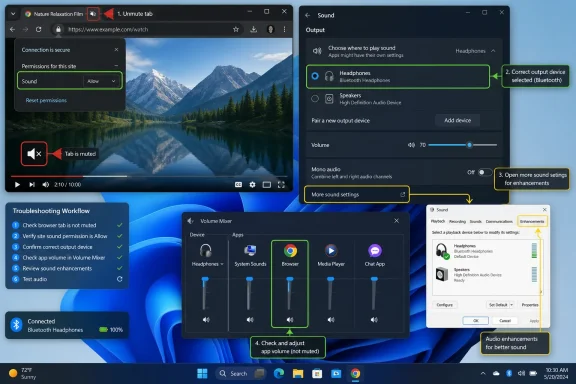 Confirm whether the problem is Chrome or the website
Before changing settings, test audio from a second Chrome site and from another app such as Windows Media Player or a system sound.- If only one website is silent, start with Chrome’s site mute and permission settings.
- If every Chrome site is silent but other apps work, check the Windows Volume mixer and Chrome extensions.
- If every app is silent, troubleshoot Windows output, enhancements, and drivers first.
Unmute the site in Chrome
Chrome can mute an entire website, not just one tab. That site will remain quiet until you reverse the setting.- Open the website that should play sound.
- Right-click its tab.
- Select Unmute site.
Allow websites to play sound
Chrome has a global sound permission and site-specific exceptions. A site listed as blocked will not play audio even if Windows volume is correct.- In Chrome, select More (three dots) > Settings.
- Select Privacy and security > Site settings.
- Under Content, select Additional content settings > Sound.
- Choose the setting that allows sites to play sound.
- Review the blocked-site list. If the affected website appears there, remove it or change its permission.
- Open the affected website.
- Select the icon to the left of the address bar.
- Select Site settings.
- Find Sound and set it to Allow.
- Reload the page and start playback again.
Check casting and the Windows output device
Chrome media may be playing through a Cast target, Bluetooth headset, monitor speakers, dock, or another output device instead of the speakers you expect.Stop or change Chrome casting
- Start audio or video in Chrome.
- Select Media control to the right of the address bar.
- If a cast session is active, select Cast to a device.
- Select the correct device or stop casting.
Select the correct Windows output device
- Select Start > Settings > System > Sound.
- Under Output, choose the speakers, headphones, monitor, or Bluetooth device you intend to use.
- Confirm the device is not muted and raise the volume slider.
- Return to Chrome, reload the media page, and test playback.
- Open Start > Settings > System > Sound.
- Select More sound settings.
- Open the Playback tab.
- Right-click the intended audio device and select Set as Default.
- Select OK, then test Chrome again.
Check Chrome in Windows Volume mixer
Windows can apply a separate volume level or output device to each application. Chrome must be actively playing or recently have played audio before it normally appears in the mixer.- Start a video or audio item in Chrome and leave it playing.
- Open Start > Settings > System > Sound.
- Select Volume mixer.
- Under Apps, find Google Chrome.
- Ensure Chrome is not muted.
- Raise its volume slider.
- If Windows shows an output-device selector for Chrome, choose the same speakers or headphones selected in the main Sound page.
Use Incognito mode to rule out extensions
An extension can interfere with media players, privacy scripts, advertising components, DRM playback, or a site’s controls. Incognito mode is a useful test because extensions are normally disabled unless you explicitly allowed one to run there.- In Chrome, select More > New Incognito window.
- Open the same website.
- Try the same audio or video.
- Select More > Extensions > Manage extensions.
- Turn off every extension.
- Test the affected website.
- Re-enable extensions one at a time, testing after each change.
- When the audio failure returns, leave the last extension disabled or select Remove to uninstall it.
Clear data for the affected site
Old cookies, cached content, and stored website settings can preserve a playback problem. Start by clearing data for the individual site rather than wiping all browsing data.- Open Chrome Settings.
- Select Privacy and security > Third-party cookies.
- Select See all site data and permissions.
- Search for the affected website.
- Select the delete icon next to its entry and confirm.
- Close and reopen the site, then sign in again if required.
If several websites have the same problem, clear broader Chrome data:
- Select More > Delete browsing data.
- Choose a time range. Use All time only if shorter ranges do not help.
- Select Cookies and other site data and Cached images and files.
- Select Delete data.
- Restart Chrome and test audio.
Update Chrome and restart it fully
Chrome updates are installed through its built-in updater. Restarting Chrome is required when an update is ready.- Select More > Help > About Google Chrome.
- Wait while Chrome checks for and downloads an update.
- Select Relaunch if it appears.
- Test the same media again.
For a clean restart without an update:
- Close all Chrome windows.
- Open Task Manager with Ctrl+Shift+Esc.
- Under Processes, end remaining Google Chrome processes only if Chrome did not close normally.
- Reopen Chrome and test sound.
Fix Windows audio settings that can affect Chrome
Turn off audio enhancements temporarily
Microsoft notes that audio enhancements can cause playback problems. This is a diagnostic fix; turn them back on later if you rely on an enhancement feature.- Open Start > Settings > System > Sound.
- Under Output, select the audio device you use.
- Under Advanced settings, set Audio enhancements to Off.
- Test Chrome.
Run the Windows audio troubleshooter
- Open the Get Help app from Start.
- Search for or select the audio troubleshooter.
- Follow the prompts and allow Windows to test the selected output device.
- Apply any recommended repair.
- Restart Chrome and test audio.
Check the audio driver only when the issue affects more than Chrome
If sound fails in several applications or repeatedly disappears after reconnecting a device:- Right-click Start and select Device Manager.
- Expand Sound, video and game controllers.
- Right-click the audio device and select Update driver.
- Select Search automatically for drivers.
- Restart Windows if prompted.
Reset Chrome settings if the browser remains silent
Resetting Chrome is a repair step for browser-level settings and extensions. Google states that bookmarks and saved passwords are not deleted, but Chrome resets items such as content settings, cookies and site data, extensions, themes, startup settings, and the default search engine.Warning: This affects the Chrome profile on devices where you are signed in and settings sync. Record important extension names and website permissions first.
- In Chrome, select More > Settings.
- Select Reset settings.
- Select Restore settings to their original defaults.
- Select Reset settings.
- Restart Chrome.
- Test sound before reinstalling extensions.
Check whether Chrome is managed
On a work PC, school device, shared kiosk, or browser signed in with an organization account, an administrator can enforce Chrome settings and extensions.- Open Chrome.
- Select More.
- Look at the bottom of the menu for Managed by your organization.
- In the address bar, enter
chrome://managementand press Enter. - To review enforced policies, enter
chrome://policyand press Enter.
Reinstall Chrome only after the checks above
Reinstalling is a last-resort repair for damaged Chrome program files or a profile that still fails after reset.- Close Chrome completely.
- Open Start > Settings > Apps > Installed apps.
- Find Google Chrome.
- Select More options > Uninstall, then confirm.
- Restart Windows.
- Download and install Chrome from Google’s official Chrome download page.
- Open Chrome without restoring extensions first.
- Test audio on two different websites.
References
- Primary source: Technobezz
Published: 2026-07-16T17:15:14.903000+00:00
Loading…
www.technobezz.com