

Minecraft sign-in failures are rarely caused by a single broken password. In 2026, access to the game can depend on the Microsoft account that owns the license, Xbox network authentication, the Microsoft Store and Xbox app on Windows, family-safety permissions, and—on consoles—a platform account link that may have been created years earlier. The fastest fix is to identify which layer is failing before resetting apps, changing credentials, or unlinking accounts.
A player who sees Demo Mode, a missing purchase, repeated sign-in prompts, or “Can’t connect to Minecraft services” is not necessarily locked out of Minecraft. Those messages often point to mismatched accounts or stale local sign-in tokens rather than a lost game license. Likewise, a child account that successfully opens Minecraft but cannot join a Realm has a different problem from a player who cannot authenticate at the title screen.
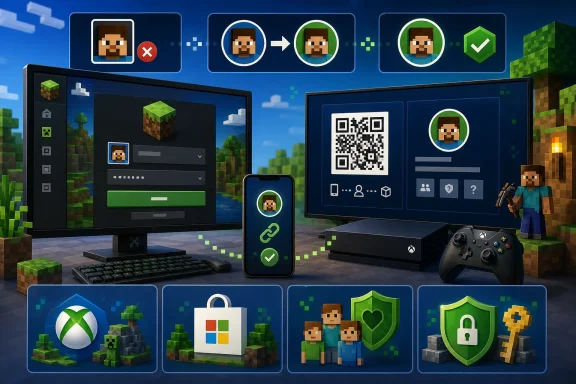
This guide breaks down the practical fixes for Minecraft Launcher login problems, Bedrock Edition account issues, Windows authentication failures, console linking errors, parental controls, and Microsoft account recovery.
Before repairing Windows apps or attempting password recovery, rule out a broader service issue. Minecraft uses Microsoft and Xbox infrastructure for authentication, multiplayer, licensing checks, Realms, Marketplace features, and account-based safety controls.
After restarting, sign in once and note the exact result:
A common scenario is simple: a household has several Microsoft accounts, one account owns Minecraft, and a different one is active in the Launcher, Microsoft Store, or Xbox app.
For the cleanest result, sign into the same Microsoft account in all three places:
There are legitimate situations where the Store account and player account differ, such as a family-managed Windows installation. However, that configuration adds complexity and can interfere with purchases, installations, or entitlement checks. When diagnosing a login failure, matching the accounts removes one major variable.
Once connected, the Xbox gamertag should appear on the Minecraft title screen. If it does not match expectations, stop and resolve the account issue before making Marketplace purchases or joining a Realm.
If the error identifies a gamertag that seems unfamiliar, attempt to recover or identify the associated Microsoft account before creating a new one. A new account does not restore prior Minecraft identity, purchases, multiplayer progress, or account-linked access.
The legacy Xbox Console Companion should not be used as a modern Minecraft Launcher troubleshooting tool. It was deprecated on August 28, 2023, and it does not represent the current Xbox app environment used for PC gaming features.
Resetting is more disruptive than repairing. It may remove local app data and require another sign-in, so it should be used only after the account has been verified.
A reinstall can correct damaged application files and incomplete dependencies. It cannot recover a lost Microsoft account, bypass family restrictions, or fix an account link on PlayStation or Switch.
Deleting entries that contain terms such as Xbl, Xbox, Microsoft, or Minecraft can sign the user out of related services. It may also create new problems if the wrong credentials are removed.
For the best chance of successful recovery:
Once access is restored, update the recovery email, phone number, and authentication methods. A Minecraft license may be valuable, but the Microsoft account can also hold Xbox identity, purchase history, cloud services, and personal account information.
Players with an old Java Edition installation, old world files, screenshots, or a remembered Minecraft username should not mistake those local files for proof of a currently usable game entitlement. Existing single-player world data may still be stored on a PC, but access to the official game requires a supported account and valid license.
Messages such as “You cannot play online multiplayer because of how your Microsoft account is set up” point to account permissions, not a bad internet connection.
The most important settings commonly include:
The correct solution is not to create a fake adult account or share a parent’s password. Those workarounds can create purchase, safety, privacy, and ownership problems later. Configure the child’s own account with the intended permissions instead.
When family sharing is involved, verify the following separately:
From the Minecraft Education welcome screen, choose Sign In and use the institution-provided email address and password. If authentication fails, the school or organization’s IT administrator must verify:
Once those pieces are aligned, most apparent Minecraft login failures resolve without drastic measures—and without risking the account, purchases, worlds, or connected multiplayer access that players are trying to protect.
A player who sees Demo Mode, a missing purchase, repeated sign-in prompts, or “Can’t connect to Minecraft services” is not necessarily locked out of Minecraft. Those messages often point to mismatched accounts or stale local sign-in tokens rather than a lost game license. Likewise, a child account that successfully opens Minecraft but cannot join a Realm has a different problem from a player who cannot authenticate at the title screen.
This guide breaks down the practical fixes for Minecraft Launcher login problems, Bedrock Edition account issues, Windows authentication failures, console linking errors, parental controls, and Microsoft account recovery.
 Start With the Fastest Checks
Before repairing Windows apps or attempting password recovery, rule out a broader service issue. Minecraft uses Microsoft and Xbox infrastructure for authentication, multiplayer, licensing checks, Realms, Marketplace features, and account-based safety controls.Check whether services are unavailable
Open the official Xbox service-status page and the official Minecraft status channels. Look specifically for incidents involving:- Account and profile services
- Sign-in and authentication
- Minecraft services
- Multiplayer and Realms
- Store, licensing, or purchase validation
- Xbox network features
Restart the right components
A full restart is still worthwhile when the service dashboards are clear. On Windows, restart the PC rather than only closing the Launcher. On consoles, fully quit Minecraft instead of leaving it suspended in Quick Resume or a similar standby state.After restarting, sign in once and note the exact result:
- Does the Launcher reject the credentials?
- Does it accept the account but show Demo Mode?
- Does the game open but refuse multiplayer?
- Does the login code link the wrong gamertag?
- Does the sign-in window loop or close unexpectedly?
The Most Common Cause: The Wrong Microsoft Account
The Minecraft ecosystem now relies on Microsoft accounts. For Java Edition on PC, Bedrock Edition on Windows, Xbox services, Marketplace access, and cross-platform play, the account relationship matters as much as the password itself.A common scenario is simple: a household has several Microsoft accounts, one account owns Minecraft, and a different one is active in the Launcher, Microsoft Store, or Xbox app.
Recognize an ownership mismatch
The following symptoms usually indicate that Minecraft is signed in with the wrong account:- The Launcher displays Play Demo despite a previous purchase.
- A purchased edition appears unavailable.
- The Launcher reports a license or entitlement error.
- Minecraft for Windows will not install while Java Edition appears available, or vice versa.
- Marketplace purchases and Minecoins do not appear where expected.
- A different Xbox gamertag appears than the one normally used.
Switch accounts in the Minecraft Launcher
In the Minecraft Launcher:- Select the username or gamertag in the upper-left corner.
- Choose View all accounts.
- Select Switch Account.
- Choose the appropriate Microsoft account or select the option to use a different account.
- Complete the Microsoft sign-in process.
- Confirm that the account shown in the Launcher is the account that owns Minecraft.
Align the Launcher, Xbox app, and Microsoft Store
On Windows, account consistency matters. The Minecraft Launcher, Xbox app, and Microsoft Store can each retain different signed-in accounts. That can produce confusing results, including a Launcher that knows who the player is but cannot confirm that the player owns the game.For the cleanest result, sign into the same Microsoft account in all three places:
- Minecraft Launcher
- Xbox app
- Microsoft Store
There are legitimate situations where the Store account and player account differ, such as a family-managed Windows installation. However, that configuration adds complexity and can interfere with purchases, installations, or entitlement checks. When diagnosing a login failure, matching the accounts removes one major variable.
Reset Minecraft Sign-In on Bedrock, Console, and Mobile
Minecraft: Bedrock Edition uses an in-game Microsoft account sign-out process on several platforms. This is usually safer and more effective than repeatedly entering credentials from the title screen.Use the in-game sign-out path
On PlayStation, Nintendo Switch, and mobile devices:- Open Minecraft.
- Select Settings.
- Open Account.
- Choose Sign out of your Microsoft Account.
- Select Sign in for free!
- Follow the browser, QR code, or alphanumeric-code prompt.
- Verify the Microsoft account before confirming the sign-in.
Mobile sign-in failures
On Android and iPhone or iPad, Minecraft may present a separate Microsoft sign-in window. If it loops, uses the wrong saved identity, or returns to the game without authenticating:- Close Minecraft completely.
- Confirm that the device has a stable connection.
- Reopen Minecraft and choose Sign In again.
- Carefully inspect the Microsoft account shown in the browser prompt.
- Use the option for a different account if an unwanted saved account appears.
Fix PlayStation and Nintendo Switch Account Linking Errors
Console sign-in problems can be more persistent than PC errors because a Microsoft account may be linked to a specific PlayStation Network or Nintendo account. These links support cross-play, Realms, friends, and other connected features.Nintendo Switch: complete the remote connection carefully
To sign into Minecraft on Nintendo Switch:- Launch Minecraft.
- Select Sign in with a Microsoft Account.
- Open the remote connection page shown by Minecraft in a phone or PC browser.
- Enter the code displayed on the Switch.
- Sign in with the intended Microsoft account.
- Confirm the gamertag before completing the link.
Once connected, the Xbox gamertag should appear on the Minecraft title screen. If it does not match expectations, stop and resolve the account issue before making Marketplace purchases or joining a Realm.
PlayStation: understand what “already connected” means
On PlayStation, two common messages have different meanings:- The account is already connected usually means the PlayStation Network profile was previously linked to another Microsoft account.
- The Microsoft account is already connected to another PlayStation Network account means the Microsoft account has been tied to a different PSN profile.
Unlinking a PlayStation account
If the wrong Microsoft account is linked to the current PlayStation Network profile:- Start Minecraft on PlayStation.
- Select Settings from the launch screen.
- Open the Account tab.
- Select Unlink Microsoft account.
- Confirm the unlinking process.
- Return to the title screen.
- Sign in again with the intended Microsoft account.
If the error identifies a gamertag that seems unfamiliar, attempt to recover or identify the associated Microsoft account before creating a new one. A new account does not restore prior Minecraft identity, purchases, multiplayer progress, or account-linked access.
Windows: Repair the Minecraft Launcher Without Overreacting
Windows login failures are frequently caused by cached authentication data, an outdated Store component, a damaged Launcher installation, or missing Xbox gaming services. The order of operations matters because the least disruptive fixes should come first.Clear cached account tokens in the Launcher
If Minecraft Launcher asks for a sign-in every time it opens, repeatedly returns to the login screen, or continues using stale account information, clean the cached account tokens:- Open Minecraft Launcher.
- Select Settings.
- Open the Accounts section.
- Expand Advanced Options.
- Select Clean up cached account tokens.
- Restart the Launcher and sign in again.
Verify Xbox app services
Open the current Xbox app on Windows and sign in with the same account used by Minecraft. If the Xbox app has trouble loading content, installing games, or updating services, use its built-in support and repair options where available.The legacy Xbox Console Companion should not be used as a modern Minecraft Launcher troubleshooting tool. It was deprecated on August 28, 2023, and it does not represent the current Xbox app environment used for PC gaming features.
Repair, then reset the Launcher
If the Launcher crashes during sign-in, fails to display the Microsoft authentication window, or behaves as though its cache is corrupt:- Open Settings.
- Go to Apps and then Installed apps.
- Find Minecraft Launcher.
- Open its additional options.
- Choose Advanced options.
- Select Repair.
Resetting is more disruptive than repairing. It may remove local app data and require another sign-in, so it should be used only after the account has been verified.
Reset the Microsoft Store cache
When the Microsoft Store is unable to validate a license, update the Launcher, or process an installation, reset its cache:- Press Windows key + R.
- Type
wsreset.exe. - Press Enter.
- Wait for the blank command window to close and Microsoft Store to open.
- Restart the Minecraft Launcher and test sign-in again.
Reinstall only after the lighter fixes
If repair, reset, token cleanup, and account alignment fail, uninstall the Minecraft Launcher from Settings > Apps > Installed apps, restart Windows, then install the Launcher again from an official Microsoft or Minecraft distribution channel.A reinstall can correct damaged application files and incomplete dependencies. It cannot recover a lost Microsoft account, bypass family restrictions, or fix an account link on PlayStation or Switch.
Be Careful With Credential Manager and “Fix Everything” Scripts
Windows Credential Manager can hold saved Microsoft, Xbox, and Launcher-related credentials. Removing specific stale entries can sometimes resolve repeated authentication prompts, but it is an advanced step and should not be the first one attempted.Deleting entries that contain terms such as Xbl, Xbox, Microsoft, or Minecraft can sign the user out of related services. It may also create new problems if the wrong credentials are removed.
A safer escalation order
Use this sequence before manually deleting stored Windows credentials:- Verify the Microsoft account that owns Minecraft.
- Sign out and back in through the Minecraft Launcher.
- Clean cached account tokens in Launcher settings.
- Align the Launcher, Xbox app, and Microsoft Store accounts.
- Repair the Launcher.
- Reset the Microsoft Store cache.
- Restart Windows.
- Only then consider targeted Credential Manager cleanup.
Recover the Microsoft Account Behind Minecraft
If Microsoft rejects the password, security code, recovery email, or phone verification, the problem has moved beyond Minecraft. Minecraft cannot independently restore access because the game entitlement is held by the Microsoft account.Use the Microsoft sign-in and recovery tools
Start with Microsoft’s sign-in helper or normal password-reset process. If the account is locked, compromised, or the player cannot access the normal verification methods, use the Microsoft account recovery form.For the best chance of successful recovery:
- Use a device previously used with the account.
- Submit the request from a familiar location, such as the normal home network.
- Provide a working contact email address.
- Include as much accurate historical account information as possible.
- List older passwords if requested.
- Verify spelling carefully for the email address being recovered.
The limitation of two-step verification
Strong account security can complicate recovery if every verification method has been lost. When two-step verification is enabled and no alternative verification method is available, recovery options may be limited by design. That is not a Minecraft-specific restriction; it is part of protecting the Microsoft account from unauthorized takeover.Once access is restored, update the recovery email, phone number, and authentication methods. A Minecraft license may be valuable, but the Microsoft account can also hold Xbox identity, purchase history, cloud services, and personal account information.
Mojang account migration is not a fix
Migrating an old Mojang account is no longer an available solution. The migration process ended on December 18, 2023. Unmigrated Mojang accounts cannot be migrated now, and they cannot be used to sign into the Minecraft Launcher or Minecraft website as a substitute for a Microsoft account.Players with an old Java Edition installation, old world files, screenshots, or a remembered Minecraft username should not mistake those local files for proof of a currently usable game entitlement. Existing single-player world data may still be stored on a PC, but access to the official game requires a supported account and valid license.
Fix Child Account, Multiplayer, and Realm Restrictions
A child account may sign into Minecraft successfully and still be blocked from multiplayer. This is one of the most misunderstood Minecraft access problems because it can look like a failed login even when authentication is working correctly.Messages such as “You cannot play online multiplayer because of how your Microsoft account is set up” point to account permissions, not a bad internet connection.
Change Xbox privacy and online safety settings
A parent or family organizer must manage these restrictions from the adult account. In Xbox privacy and online-safety settings, locate the child profile and allow the features needed for Minecraft.The most important settings commonly include:
- You can join multiplayer games
- You can join cross-network play
- You can create or join clubs
- Communication permissions, where chat is required
- Profile and social permissions, where friend connections are required
Realms and club-related access
Minecraft Realms can depend on more than the multiplayer toggle. In some account configurations, club access or other Xbox social controls can also block a child from joining the expected online experience.The correct solution is not to create a fake adult account or share a parent’s password. Those workarounds can create purchase, safety, privacy, and ownership problems later. Configure the child’s own account with the intended permissions instead.
Family sharing on Windows
Family sharing can help a child use eligible Minecraft content on a shared PC, but it is not identical to giving every account a full independent Java Edition license. Windows Store entitlements, the account signed into the Store, and the account signed into Minecraft may all matter.When family sharing is involved, verify the following separately:
- Which account purchased the game
- Which account is active in Microsoft Store
- Which account is active in Minecraft Launcher
- Which account is the child’s Windows profile
- Whether multiplayer permissions are enabled for the child
Minecraft Education Requires a Different Account Path
Minecraft Education is not designed around a personal Microsoft, Gmail, Yahoo, or iCloud account. It requires a school or organization account that has been assigned a valid Minecraft Education license.From the Minecraft Education welcome screen, choose Sign In and use the institution-provided email address and password. If authentication fails, the school or organization’s IT administrator must verify:
- The account exists and is active
- The user has the correct organizational sign-in credentials
- A Minecraft Education license has been assigned
- Any applicable identity, device, or network policies permit access
A Practical Minecraft Login Troubleshooting Order
The most efficient way to fix a Minecraft login problem is to move from least disruptive to most disruptive:- Check Xbox and Minecraft service status.
- Restart the device and fully close Minecraft.
- Confirm the Microsoft account that owns the game.
- Align the Launcher, Xbox app, and Microsoft Store accounts on Windows.
- Sign out and back in through Minecraft’s own account controls.
- Clean cached Launcher account tokens.
- Repair the Launcher, then reset it if necessary.
- Reset the Microsoft Store cache if Windows licensing or installations fail.
- Review console account links on PlayStation or Nintendo Switch.
- Check family safety settings for multiplayer, cross-network play, and Realms.
- Use Microsoft account recovery when credentials or verification are the actual blocker.
- Contact the appropriate Minecraft, Xbox, Microsoft account, or school IT support channel when the issue is account-specific.
Once those pieces are aligned, most apparent Minecraft login failures resolve without drastic measures—and without risking the account, purchases, worlds, or connected multiplayer access that players are trying to protect.
References
- Primary source: Technobezz
Published: 2026-07-22T19:11:45.462000+00:00
Can't Log Into Minecraft? How to Fix It (2026) | Technobezz
Minecraft login not working? Fix Xbox outages, Microsoft account mix-ups, Launcher tokens, Windows services, and family settings.www.technobezz.com