

If your Windows PC is suddenly printing at a crawl, the fix is often a handful of settings and housekeeping tasks rather than throwing away your printer or calling in expensive support; Microsoft’s guidance and the Windows community converge on a short checklist you can run through in 10–30 minutes to restore reasonable print speeds. The most common culprits are overly high print-quality settings, network latency on Wi‑Fi printers, driver or firmware mismatches, and spooler congestion — and each has a straightforward diagnostic or mitigation.
Slow printing in Windows is a frequent, low-to-medium-severity problem that impacts home users, small offices, and even larger organizations. Unlike mechanical printer failures, slow prints are usually caused by software configuration, network behavior, or how documents are prepared before sending them to the device. Windows routes print jobs through the Print Spooler service, drivers and print processors, and then across whatever transport (USB, Ethernet, Wi‑Fi, or SMB) the printer uses; a bottleneck anywhere in that chain can cause long delays. Community troubleshooting guides and Microsoft’s own support guidance recommend the same primary actions: check print quality and paper settings, try a wired connection to isolate network problems, update drivers/firmware, and simplify complex jobs.
The combination of Microsoft’s basic steps and community-tested spooler and driver tactics gives a reliable troubleshooting path that minimizes downtime and avoids risky actions. When in doubt, document each change, back up spool files before deleting them, and escalate to vendor or IT support only after isolating where the delay occurs (printer hardware vs. PC vs. network vs. server). These disciplined steps restore normal printing performance in the majority of cases with minimal disruption.
Source: Microsoft Support Troubleshoot slow printing issues in Windows - Microsoft Support
 Background / Overview
Slow printing in Windows is a frequent, low-to-medium-severity problem that impacts home users, small offices, and even larger organizations. Unlike mechanical printer failures, slow prints are usually caused by software configuration, network behavior, or how documents are prepared before sending them to the device. Windows routes print jobs through the Print Spooler service, drivers and print processors, and then across whatever transport (USB, Ethernet, Wi‑Fi, or SMB) the printer uses; a bottleneck anywhere in that chain can cause long delays. Community troubleshooting guides and Microsoft’s own support guidance recommend the same primary actions: check print quality and paper settings, try a wired connection to isolate network problems, update drivers/firmware, and simplify complex jobs.Why printing slows down: the technical causes you should know
Printers are deceptively simple devices from a user perspective, but the data flow behind them is where delays appear.- High print quality / DPI settings — Higher DPI and “best” quality modes cause much larger print jobs, dramatically increasing processing time and network transfer size. Windows and vendor drivers often default to higher quality than necessary.
- Complex document content — Large embedded images, high-resolution PDFs, or complicated vector graphics can balloon job size. Some applications also render pages as large raster images before sending them, which multiplies job size.
- Network latency and packet loss (Wi‑Fi) — Wireless printers are convenient but add variability; delay, retransmits, or poor Wi‑Fi signal make jobs take much longer than USB or wired Ethernet. Switching to a temporary wired connection is the quickest way to test this.
- Driver or firmware mismatches — Outdated or incorrect drivers introduce extra processing on the PC or printer, mis-handle job compression, or degrade protocol efficiency. Firmware updates often include performance optimizations and bug fixes.
- Print Spooler congestion or corruption — The spooler queues and processes jobs. If it’s corrupted, stuck, or overloaded, jobs can hang or be processed slowly. Clearing stuck jobs and restarting the spooler commonly resolves systemic slowness.
- Protocol/port inefficiencies — On networked printers, using the raw TCP/9100 (printer’s native protocol) is typically faster than SMB shared printing or slower IPP implementations. Misconfigured ports can force jobs through inefficient paths.
- Application-level issues — Some apps (especially older PDF viewers) produce inefficient print streams. Printing the same document from Notepad or Word can help isolate whether an app is the source.
Immediate triage: what to check first (0–10 minutes)
Start with the low-effort, high-impact checks. These often fix the issue or narrow the problem quickly.- Check and reduce print quality:
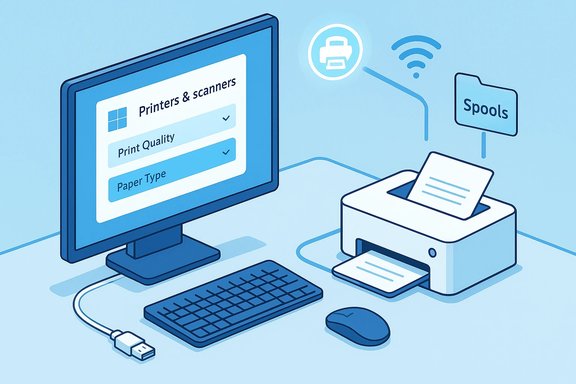
- Open Settings > Bluetooth & devices > Printers & scanners, select the printer, Manage > Printing preferences, and choose a lower Print Quality (Draft or Standard) and the correct Paper Type. This reduces the size and time of each job.
- Try a wired connection:
- If the printer is on Wi‑Fi, temporarily connect by USB or Ethernet. If print speed returns to normal, the network is the culprit.
- Print a simple test page:
- Print from the printer’s control panel (self-test) and from Notepad on the PC. If the self-test is fast, hardware is OK and the problem is likely on the PC or network.
- Restart the Print Spooler service:
- Run services.msc, find Print Spooler, choose Restart. If Restart isn’t available, Stop, clear the spool folder (see next section), then Start. This often clears stuck jobs causing cascading slowness.
Deep dive: step-by-step troubleshooting (10–60 minutes)
1. Adjust print quality and paper settings (Windows-level change)
- Why: High resolution or wrong paper-type selections force the printer to perform extra processing and can change how the driver encodes data.
- How: Start > Settings > Bluetooth & devices > Printers & scanners > select your printer > Manage > Printing preferences. Set a lower Print Quality and ensure Paper Type matches the loaded tray. If you print mostly text, choose Draft or Normal rather than Best.
2. Isolate network issues by switching to wired
- Why: Wi‑Fi adds latency and packet retransmission; interference and weak signals slow large transfers.
- How: Temporarily use USB or Ethernet. If speed improves, investigate the Wi‑Fi network: move the printer closer to the AP, reserve a stable IP, and ensure the printer and PC are on the same SSID and network profile (Private).
3. Update drivers and firmware
- Why: Updated drivers fix inefficiencies, resolve buggy print processors, and add compatibility with recent Windows releases. Firmware updates for the printer can optimize on-device processing and networking stacks.
- How:
- Download the latest full-feature driver package from the printer maker’s support site (prefer OEM over generic Windows drivers when you need advanced features).
- Check the manufacturer’s site for firmware; apply firmware updates per vendor instructions. Reboot the printer after firmware updates.
4. Reduce print job complexity
- Why: Images and PDFs can be orders of magnitude larger than plain text. Large, complex pages stress both the PC and the printer.
- How:
- Compress or downsample images before printing.
- For PDFs, avoid “Print as Image” unless needed; instead print a flattened, optimized PDF.
- Use draft modes where acceptable and remove unnecessary high-DPI elements (logos, full-bleed photos).
5. Restart and (carefully) clear the print spooler
- Why: Stuck or corrupt jobs clog the queue; restarting clears transient faults and allows fresh job processing.
- How:
- Open Services (services.msc), stop Print Spooler.
- Navigate to C:\Windows\System32\spool\PRINTERS and delete files in the folder (back them up first if you need to preserve queued jobs).
- Restart Print Spooler and test. This is a safe and commonly recommended technique but should be performed with attention to the correct folder.
6. Check Event Viewer and dependencies
- Why: Event logs show spooler and driver errors with timestamps that help pinpoint root causes.
- How: Open Event Viewer > Windows Logs > System and filter for sources like Spooler, PrintService, or RPC. Also, verify Print Spooler dependencies (RPCSS, DCOM Server Process Launcher) are running.
Advanced optimizations and settings that actually improve speed
- Use the printer’s native emulation (PCL over PostScript if supported) when performance matters; PostScript can be slower for certain jobs. Vendor drivers often let you select the emulation.
- For network printers, prefer a Standard TCP/IP port (raw/9100) for high-volume printing; SMB or network discovery can add overhead. Recreating the TCP/IP port can resolve misbinding issues.
- Enable “Print directly to the printer” only if the spooler is causing trouble; note this bypasses spooling benefits (job management, multi-user queuing) and is best for one-off troubleshooting.
- If you run a print server, set the spooling behavior to “Start printing after last page is spooled” or “Start printing immediately” depending on memory vs. speed trade-offs. On low-memory printers, letting the PC do more work (spooling) may improve throughput.
Application-specific and file-type troubleshooting
- If a specific app (e.g., older PDF reader) generates slow jobs, test by printing the same file from Notepad, Word, or Edge. App-level rendering or “print to PDF” behaviors often cause huge rasterized jobs that are slow to send and print.
- For PDFs: when Acrobat or other viewers produce slow jobs, try “Print as Image” only if necessary; otherwise export or optimize the PDF for print using the application’s optimization features. Large layered PDFs will be slow.
Risks, caveats, and safety notes (what to avoid)
- Deleting spool files clears queues irreversibly. Back them up if you might need them later. Community guides recommend this but caution users to ensure the correct directory.
- Don’t install unsigned drivers from untrusted sites; forcing unsigned drivers can fix legacy hardware but exposes you to security and stability risks. Always prefer the vendor site or Windows Update.
- When disabling antivirus or firewall during troubleshooting, re-enable protections immediately after testing; these settings can affect networked printing, but turning them off is a temporary diagnostic step only.
- Firmware updates are powerful but must match the exact model and revision. Applying incorrect firmware can brick a device; follow vendor instructions precisely. Verify the printer model/serial before flashing.
Enterprise and server-side considerations
Print servers and group policy
- In environments with a print server, ensure driver parity across client architectures and that the Print Spooler is set to Automatic. Use Print Management and PrintBRM for exporting/importing printers and drivers. Misconfigured server deployments often cause widespread slow printing.
Shared printers and sleep/hybrid states
- If a host PC shares the printer, make sure the host isn’t sleeping or using aggressive power-saving modes. A shared print server asleep will appear to print slowly or not at all.
Special hardware (POS, label printers)
- Specialty printers frequently use vendor virtual COM ports or proprietary utilities and can require manufacturer tools to test throughput and configure the correct emulation. Community guides emphasise matching emulation (ESC/POS, ZPL, etc. for speed and compatibility.
When to escalate: manufacturer vs. IT support
- Escalate to the printer manufacturer when the printer’s self-test fails, mechanical errors persist, or firmware recovery is required.
- Escalate to IT or print server admins when multiple users are affected, the spooler crashes system‑wide, or group policy/driver deployment issues appear across many endpoints. These symptoms indicate server-side or domain policy problems rather than a single PC misconfiguration.
Quick troubleshooting checklist (copyable)
- Lower Print Quality (Draft/Standard).
- Switch to USB/Ethernet to test if Wi‑Fi is the cause.
- Print a self-test page from the printer and a test from Notepad.
- Restart Print Spooler and clear C:\Windows\System32\spool\PRINTERS if needed.
- Update Windows, install the latest printer driver and firmware from OEM.
- Test the same document from a different application and another PC.
- Check Event Viewer for Spooler/PrintService errors and verify service dependencies.
Special note about ARM devices and Windows 11 builds
There are community reports and Microsoft notes indicating compatibility quirks for printers on ARM-based Windows 11 systems, especially around newer feature updates. If you’re on an ARM device and experiencing slow printing or missing functionality, verify that your printer vendor provides an ARM-compatible driver or that Windows Update supplies the correct driver. If uncertainty remains, test printing from another x86/x64 machine to isolate whether the ARM platform is a factor. This is a model- and build-dependent area; treat vendor/driver claims as model-specific until confirmed.Conclusion: prioritize fast wins, reserve heavy actions for persistent problems
Most slow-printing problems in Windows are resolved by simple, safe adjustments: lower the print quality for everyday documents, switch to a wired connection to rule out Wi‑Fi, restart and clear the spooler, and apply the latest drivers and firmware from the manufacturer. If those fast wins don’t deliver, proceed to application-level debugging, Event Viewer checks, and targeted network diagnostics. For shared or enterprise setups, include print server and Group Policy checks before making broad changes.The combination of Microsoft’s basic steps and community-tested spooler and driver tactics gives a reliable troubleshooting path that minimizes downtime and avoids risky actions. When in doubt, document each change, back up spool files before deleting them, and escalate to vendor or IT support only after isolating where the delay occurs (printer hardware vs. PC vs. network vs. server). These disciplined steps restore normal printing performance in the majority of cases with minimal disruption.
Source: Microsoft Support Troubleshoot slow printing issues in Windows - Microsoft Support
