

Spotify Web Player not working on Windows 11 or Windows 10 is usually a browser-profile, DRM, network, or audio-output problem—not a Spotify account failure. This guide covers Spotify Web Player in Chrome, Microsoft Edge, and Firefox on supported Windows PCs, including Windows N editions.
Open Spotify Web Player directly at
Spotify supports current desktop versions of Chrome, Firefox, Edge, Opera, and Safari. On Windows, use Chrome, Edge, or Firefox and install pending browser updates before changing other settings.
Start with Spotify-only data where the browser provides the option. Use full browsing-data clearing only if needed.
A browser reset is a last resort, not the first fix. It can remove extensions and change browser preferences.
Then confirm Windows is using the expected sound device:
Be aware that Sign out everywhere does not sign out partner devices such as speakers, game consoles, and TVs. Remove access to those devices separately from your Spotify account if needed. Reset your Spotify password if you do not recognize a device or sign-in.
If Spotify Web Player still fails after testing another browser, another network, and the DRM steps, use the official Spotify desktop app as the supported workaround. Spotify supports the current desktop app on Windows 10 64-bit and Windows 11.
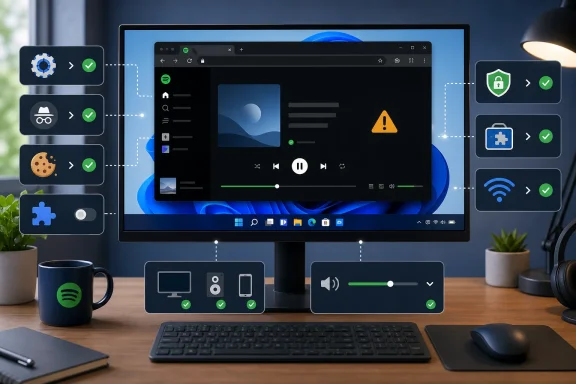 1. Start with the official player and a supported browser
Open Spotify Web Player directly at open.spotify.com, sign in, and test a different track or playlist. Avoid old bookmarks, embedded players, and search-result redirects while troubleshooting.Spotify supports current desktop versions of Chrome, Firefox, Edge, Opera, and Safari. On Windows, use Chrome, Edge, or Firefox and install pending browser updates before changing other settings.
- In Google Chrome, select More > Help > About Google Chrome. Install any update, then select Relaunch.
- In Microsoft Edge, select Settings and more > Help and feedback > About Microsoft Edge. Wait for Edge to update, then restart it if prompted.
- In Firefox, select Menu > Help > About Firefox. Firefox checks for updates automatically; restart it if required.
- Return to Spotify Web Player and test playback.
2. Test Spotify in a private browser window
A private session starts without most existing cookies, cached files, and extensions. If Spotify works there, your Spotify account and basic connection are probably fine; the ordinary browser profile is the likely cause.- Open one of these windows:
- Chrome: Select More > New Incognito window.
- Edge: Select Settings and more > New InPrivate window.
- Firefox: Select Menu > New private window.
- Go to
open.spotify.com. - Sign in and play a track.
What the result means
- Works in private browsing: Clear Spotify site data and review extensions in the next two sections.
- Does not work in private browsing: Check protected-content settings, Windows media components, network access, and audio output.
- Private browsing is unavailable: A work, school, or family-managed browser may have disabled it. Test with another supported browser or contact the organization that manages the PC.
3. Clear Spotify cookies and cached site files
Clearing site data signs you out of Spotify in that browser. It does not delete playlists, saved music, or your Spotify account.Start with Spotify-only data where the browser provides the option. Use full browsing-data clearing only if needed.
Google Chrome
- Open Chrome and select More > Settings.
- Select Privacy and security > Third-party cookies.
- Select See all site data and permissions.
- Search for
spotifyoropen.spotify.com. - Delete the matching Spotify entries.
- Close every Spotify tab, reopen Chrome, then sign in at Spotify Web Player.
- Select More > Delete browsing data.
- Choose a Time range.
- Select Cookies and other site data and Cached images and files.
- Select Delete data.
Microsoft Edge
- Select Settings and more > Settings.
- Select Privacy, search, and services.
- Under Clear browsing data, select Choose what to clear.
- Choose a time range.
- Select Cookies and other site data and Cached images and files.
- Select Clear now.
- Restart Edge, sign in again, and test playback.
Firefox
- Select Menu > Settings.
- Select Privacy & Security.
- Under Cookies and Site Data, select Manage Data.
- Search for Spotify.
- Remove Spotify entries, then select Save Changes.
- Restart Firefox and sign in again.
4. Disable extensions that interfere with playback
Ad blockers, privacy tools, script blockers, cookie-control extensions, VPN extensions, and security products can prevent Spotify from loading its player controls or protected audio playback.- Open Spotify Web Player in a normal browser window.
- Disable one likely blocking extension.
- Reload the Spotify tab and play a track.
- Repeat until playback works.
- Chrome: More > Extensions > Manage Extensions
- Edge: Extensions > Manage extensions
- Firefox: Menu > Add-ons and themes > Extensions
A browser reset is a last resort, not the first fix. It can remove extensions and change browser preferences.
5. Enable protected-content playback (DRM)
If Spotify shows “Playback of protected content is not enabled” or a similar message, enable the browser’s DRM support. Spotify uses protected-content technology for playback.Google Chrome
- Type
chrome://settings/contentin the address bar and press Enter. - Select
open.spotify.com. - Scroll to Protected content IDs.
- Set the option to Allow or Default.
- Reload Spotify Web Player and test a track.
Firefox
- If Firefox displays a yellow message bar in Spotify, select Enable DRM.
- If there is no message bar, type
about:preferences#contentin the address bar and press Enter. - Under Digital Rights Management (DRM) Content, turn on Play DRM-controlled content.
- If playback still fails, open Menu > Add-ons and themes > Plugins.
- Find Widevine Content Decryption Module provided by Google Inc.
- Open its three-dot menu and select Always Activate.
- Restart Firefox and test Spotify again.
Windows 10 N and Windows 11 N
Windows N editions exclude certain media technologies needed by streaming services. Install the Microsoft Media Feature Pack.Windows 11 NWarning: Restart Windows after installation. Microsoft states that a restart is required to complete Media Feature Pack installation successfully.
- Open Start > Settings > Apps > Optional features.
- Select View features next to Add an optional feature.
- Search for Media Feature Pack.
- Select it and install it.
- Restart the PC.
- Open Start > Settings > Apps > Apps & features.
- Select Optional features > Add a feature.
- Find and install Media Feature Pack.
- Restart the PC.
6. Rule out a network restriction or unstable connection
Spotify confirms that shared and public networks, including school and workplace networks, can restrict access to services. A browser setting cannot override a network policy.- Disconnect from the current Wi-Fi network.
- Wait 30 seconds, then reconnect.
- Restart the router only if you manage it and it is safe to interrupt other users.
- Test Spotify on another trusted network, such as a phone hotspot.
- If Spotify works elsewhere, contact the network administrator and ask whether Spotify traffic or streaming media is restricted.
- Windows 11: Start > Settings > Windows Update > Check for updates
- Windows 10: Start > Settings > Update & Security > Windows Update > Check for updates
7. Make sure playback is not going to another device
Spotify can control playback on another signed-in device through Spotify Connect. Your browser may show an active track while audio is playing through a speaker, TV, phone, or another computer.- In Spotify Web Player, start a track.
- Select the Connect device icon near the bottom of the player.
- Select the browser or PC you want to use for playback.
- If you see an unfamiliar device, open its three-dot menu and select Log out of this device.
Then confirm Windows is using the expected sound device:
- Open Start > Settings > System > Sound.
- Under Output, select your speakers, headset, or monitor audio device.
- Increase the Windows volume and confirm the device is not muted.
- Play a Spotify track again.
8. Refresh the Spotify session or use the desktop app
A stale sign-in session can leave Web Player loaded but unresponsive.- In Spotify Web Player, select your profile picture.
- Select Log out.
- Close the browser tab.
- Reopen Spotify Web Player, sign in, and test playback.
Be aware that Sign out everywhere does not sign out partner devices such as speakers, game consoles, and TVs. Remove access to those devices separately from your Spotify account if needed. Reset your Spotify password if you do not recognize a device or sign-in.
If Spotify Web Player still fails after testing another browser, another network, and the DRM steps, use the official Spotify desktop app as the supported workaround. Spotify supports the current desktop app on Windows 10 64-bit and Windows 11.
References
- Primary source: Technobezz
Published: 2026-07-18T16:59:55.742000+00:00
Spotify Web Player Not Working? 8 Fixes That Work Now | Technobezz
Spotify Web Player not working? Fix browser, cache, protected content, network, sound, and account problems with current steps.www.technobezz.com - Related coverage: support.spotify.com
Spotify web player help - Spotify
 support.spotify.com