

Windows 11 can show “There was a problem resetting your PC” when its local recovery files, Windows component store, or Windows Recovery Environment cannot complete the reinstall. This guide covers personal Windows 11 PCs that can still start, plus PCs that need recovery tools or installation media. Start with repair methods that preserve files, apps, and settings; use a full reset or clean install only after backing up important data.
A failed reset does not necessarily mean your files are gone. Do not repeatedly force-restart the computer while a reset is in progress: Microsoft notes that the display can remain black for an extended period and the PC may restart itself.
Before making recovery changes:
If it reports Disabled, run:
Do not use
If Reset this PC still fails in Windows RE, use Troubleshoot > Advanced options > Startup Repair if Windows also has boot problems. You can also use System Restore or Uninstall Updates when the error began after a recent software, driver, or Windows update change.
From Windows:
On a working PC, create Windows 11 installation media using Microsoft’s Media Creation Tool. You need a blank USB flash drive with at least 8 GB capacity; creating the media erases that USB drive.
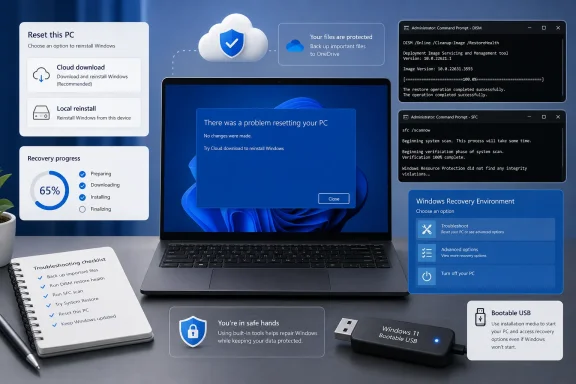 Before you retry Reset this PC
A failed reset does not necessarily mean your files are gone. Do not repeatedly force-restart the computer while a reset is in progress: Microsoft notes that the display can remain black for an extended period and the PC may restart itself.Before making recovery changes:
- Back up documents, photos, browser exports, and any files stored outside OneDrive to external storage or cloud storage.
- Make sure you know the password for an administrator account.
- Connect a laptop to AC power.
- Have a reliable internet connection available if you intend to use Cloud download.
- If BitLocker or Device Encryption is enabled, obtain the 48-digit BitLocker recovery key before entering Windows Recovery Environment. On a personal PC, it may be saved with the Microsoft account used on the device. On an organization-managed PC, contact IT rather than changing recovery or encryption settings yourself.
- Open Start > Settings > Windows Update.
- Select Check for updates.
- Install all offered updates.
- Restart Windows when prompted.
- Go to Settings > System > Recovery.
- Under Recovery options, select Reset PC.
Change the reset source
Windows 11 provides two ways to obtain the files needed for Reset this PC:- Cloud download downloads a fresh Windows image from Microsoft. It is the better choice if local recovery files may be damaged.
- Local reinstall uses Windows files already stored on the PC. It can be faster and avoids a large download, but cannot help if those files are corrupt or incomplete.
- Open Start > Settings > System > Recovery.
- Select Reset PC.
- Choose one of these reset types:
- Keep my files reinstalls Windows and retains personal files, but removes installed apps and resets settings.
- Remove everything removes personal files, apps, and settings.
- Select Cloud download if Local reinstall failed, or Local reinstall if Cloud download failed.
- Review the reset summary carefully and follow the prompts.
Repair Windows without removing apps or files
If Windows starts normally, use Fix problems using Windows Update before attempting another reset. This is a repair reinstall of the current Windows 11 version that preserves installed apps, personal files, and settings.- Open Start > Settings > System > Recovery.
- Under Fix problems using Windows Update, select Reinstall now.
- Decide whether Windows may restart automatically 15 minutes after installation completes.
- Select OK.
- Keep the PC connected to power and the internet while Windows downloads and installs the repair version.
- Restart if Windows does not restart automatically.
- Return to Settings > System > Recovery > Reset PC and test the reset again only if you still need it.
Repair damaged Windows files with DISM and SFC
A damaged Windows component store can prevent both local recovery and reset operations. Microsoft recommends running DISM first, then System File Checker.- Open Search and type cmd.
- Right-click Command Prompt and select Run as administrator.
- Select Yes if User Account Control appears.
- Run this command:
DISM.exe /Online /Cleanup-image /Restorehealth - Wait for DISM to finish. It can take several minutes and normally uses Windows Update to obtain replacement files.
- Run this command:
sfc /scannow - Wait until verification reaches 100 percent. Do not close the Command Prompt window during the scan.
- Restart the PC.
- Try Settings > System > Recovery > Reset PC again.
Check and re-enable Windows Recovery Environment
Reset this PC depends on Windows Recovery Environment, also called Windows RE or WinRE. If it is disabled, Advanced startup and reset features may fail or behave unpredictably.- Open Command Prompt as administrator.
- Run:
reagentc /info - Look for the Windows RE status line.
If it reports Disabled, run:
reagentc /enable- Restart the PC.
- Try Reset PC again.
reagentc /info does not show a valid recovery configuration, use Windows installation media rather than trying registry edits or downloaded recovery-image scripts.Do not use
reagentc /setosimage as a Windows 11 reset repair. Microsoft documents that this setting is not used in Windows 10 or later.Reset from Windows Recovery Environment
If the Settings app fails to start the reset, launch the same reset feature from Windows RE instead.Enter Windows RE from Windows
Use either method:- Go to Start > Settings > System > Recovery.
- Next to Advanced startup, select Restart now.
- Open Start > Power.
- Hold Shift.
- While holding Shift, select Restart.
- Select Troubleshoot.
- Select Reset this PC.
- Choose Keep my files or Remove everything.
- Select Cloud download or Local reinstall when asked.
- Follow the remaining prompts.
If Windows will not start
Windows may automatically enter Windows RE after repeated failed starts. If it does not, use one of these supported entry points:- A recovery drive previously created for that PC.
- Windows 11 installation media.
- A manufacturer-provided recovery button or key combination, if your PC model has one.
If Reset this PC still fails in Windows RE, use Troubleshoot > Advanced options > Startup Repair if Windows also has boot problems. You can also use System Restore or Uninstall Updates when the error began after a recent software, driver, or Windows update change.
Roll back a recent change
Use System Restore only if the reset problem began soon after installing software, a driver, or an update and a restore point exists. System Restore keeps personal files but removes apps, drivers, and system changes made after the selected restore point.From Windows:
- Press Windows key + R.
- Type:
rstrui.exe - Press Enter.
- Select a restore point dated before the problem began.
- Select Next > Finish.
- Select Troubleshoot > Advanced options > System Restore.
- Choose the Windows installation and an administrator account if asked.
- Select an appropriate restore point.
- Select Next > Finish.
Repair reinstall or reinstall Windows from installation media
When Reset this PC continues to fail, Windows 11 installation media is the dependable recovery path.On a working PC, create Windows 11 installation media using Microsoft’s Media Creation Tool. You need a blank USB flash drive with at least 8 GB capacity; creating the media erases that USB drive.
Preserve apps and files with an in-place reinstall
If you can still sign in to Windows, do not boot from the USB drive first.- Insert the Windows 11 installation USB drive.
- Open File Explorer and select the USB drive.
- Open
setup.exe. - Approve the User Account Control prompt.
- Select Change what to keep.
- Choose Keep personal files and apps.
- Select Next, then Install.
Perform a clean installation only as a last resort
Warning: A clean installation removes personal files, installed programs, manufacturer customizations, and Settings changes. Back up first.- Start the PC from the Windows 11 installation USB drive.
- Select language and regional settings, then select Next.
- Choose keyboard settings, then select Next.
- Select Install Windows 11.
- Confirm that everything, including files, apps, and settings, will be deleted.
- If asked for a product key, select I don’t have a product key only when the device already has a valid digital license.
- Select the Windows edition that matches the existing license.
- Complete Windows Setup and connect to the internet so Windows can activate normally.
References
- Primary source: Technobezz
Published: 2026-07-17T16:16:50.361000+00:00
How to Fix There Was a Problem Resetting Your PC in Windows 11 | Technobezz
Fix there was a problem resetting your PC in Windows 11 with Reset PC, WinRE, Windows Update repair, DISM, or reinstall media.www.technobezz.com - Official source: support.microsoft.com
Reset your PC | Microsoft Support
Learn about the different reset options in Windows and how to reset your device.support.microsoft.com
