

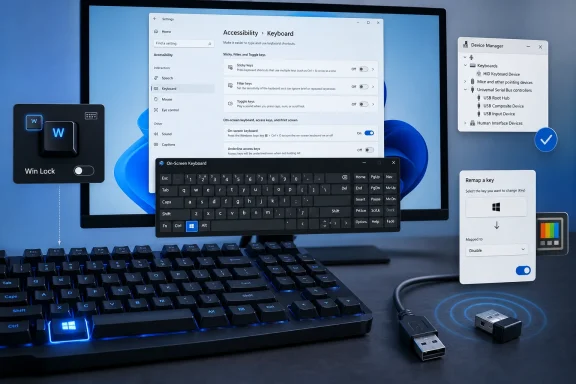
If the Windows logo key is not working—it does not open Start and shortcuts such as Windows key + E do nothing—check the keyboard’s own Windows-lock or gaming mode first, then test Windows with the On-Screen Keyboard, remove remaps, and refresh the keyboard driver. These steps cover Windows 11 and Windows 10 PCs with built-in, USB, Bluetooth, and wireless-receiver keyboards. Windows 10 reached end of support on October 14, 2025, but its applicable troubleshooting paths are included for existing installations.
The Windows logo key normally opens Start when pressed alone. It also participates in shortcuts such as:
If you need Start while testing, click the Start button with the mouse. You can also use the On-Screen Keyboard in the next section.
If the on-screen Windows key also does not open Start, continue with the accessibility, remap, update, and managed-device checks below.
You can normally open the On-Screen Keyboard with Windows key + Ctrl + O, but use the Settings path if the physical Windows key is the problem.
If the keyboard has onboard profiles, switch to another profile and test again. A profile can retain a Windows-key lock even after a vendor app has been closed.
For a USB keyboard:
Do not assume accessibility settings are the cause if the On-Screen Keyboard’s Windows key works. In that situation, the physical keyboard path remains the more likely issue.
Also check other keyboard-customization tools, macro utilities, remote-desktop tools, and gaming software. Temporarily exit one program at a time, then retest. This is a diagnostic step, not a permanent fix: remove or correct the specific mapping before re-enabling the software.
Signs that policy is likely involved include:
If the problem began after installing a driver, keyboard utility, or other software, System Restore can return system files, installed programs, drivers, and settings to an earlier restore point without removing personal files.
If the issue started immediately after a Windows update, Windows Recovery Environment can remove a recent update.
A full Reset this PC is rarely justified for one non-working key. If all other checks fail and Windows itself appears broadly damaged, back up important files first. In Windows 11, go to Settings > System > Recovery > Reset this PC; in Windows 10, use Settings > Update & Security > Recovery > Reset this PC. Even Keep my files removes installed apps and settings, so treat it as a last-resort operating-system repair.
 Confirm the symptom and preserve a way to use Start
The Windows logo key normally opens Start when pressed alone. It also participates in shortcuts such as:- Windows key + E: File Explorer
- Windows key + I: Settings
- Windows key + R: Run
- Windows key + D: Show or hide the desktop
If you need Start while testing, click the Start button with the mouse. You can also use the On-Screen Keyboard in the next section.
Test the Windows key with the On-Screen Keyboard
This separates a Windows issue from a physical-keyboard issue.- Open Start > Settings.
- On Windows 11, select Accessibility > Keyboard.
- On Windows 10, select Ease of Access > Keyboard.
- Turn on On-Screen Keyboard.
- Select the Windows logo key displayed on the on-screen keyboard.
If the on-screen Windows key also does not open Start, continue with the accessibility, remap, update, and managed-device checks below.
You can normally open the On-Screen Keyboard with Windows key + Ctrl + O, but use the Settings path if the physical Windows key is the problem.
Disable the keyboard’s Windows lock or gaming mode
Many gaming keyboards intentionally disable the Windows key to prevent accidental presses during a game. This feature is implemented by the keyboard or its management software; it is different from Windows Game Mode.- Inspect the keyboard for a key or indicator labeled Win Lock, a padlock symbol, a gaming-controller symbol, or Game Mode.
- Press that key once and test the Windows logo key again.
- If your keyboard includes vendor software, open it and look for a setting named Windows Key, Win Lock, Game Mode, Gaming Mode, or similar.
- Re-enable the Windows key or turn off the mode that disables it.
- Save or apply the change, then test Windows key + E.
If the keyboard has onboard profiles, switch to another profile and test again. A profile can retain a Windows-key lock even after a vendor app has been closed.
Rule out the physical keyboard, cable, receiver, or Bluetooth connection
A single stuck, dirty, damaged, or poorly connected key can fail while ordinary typing still works.For a USB keyboard:
- Disconnect the keyboard from the PC.
- Wait a few seconds and reconnect it directly to another USB port.
- Do not use a USB hub, monitor USB port, dock, KVM switch, or extension cable for this test.
- Restart Windows and test the Windows key again.
- Check the cable and connector for looseness, fraying, bent pins, or visible damage.
- Charge the keyboard or install fresh batteries.
- Move the wireless receiver to a direct USB port on the PC.
- Re-pair the keyboard or reconnect its receiver according to the manufacturer’s instructions.
- Keep the receiver close to the keyboard while testing.
- Disconnect nearby wireless devices temporarily if interference is suspected.
- Power off the keyboard if it has a power switch, or disconnect it.
- Check around the Windows key for debris or a keycap that is sitting unevenly.
- Use a soft brush or short bursts of compressed air around the key. Do not spray liquid cleaner into the switch.
- Test the keyboard on another Windows PC if possible.
Turn off Filter Keys and review keyboard accessibility settings
Filter Keys can ignore brief or repeated keystrokes. Sticky Keys and related options do not normally disable the Windows key outright, but reviewing them eliminates accidental input changes.- Open Start > Settings.
- On Windows 11, go to Accessibility > Keyboard.
- On Windows 10, go to Ease of Access > Keyboard.
- Turn Filter Keys off.
- Review Sticky Keys and Toggle Keys. Turn them off temporarily if they were enabled unexpectedly.
- Test the Windows key.
Do not assume accessibility settings are the cause if the On-Screen Keyboard’s Windows key works. In that situation, the physical keyboard path remains the more likely issue.
Remove a PowerToys or third-party key remap
Microsoft PowerToys Keyboard Manager can remap a key or shortcut globally while PowerToys is running. A mapping involving Win, Left Windows, Right Windows, or a shortcut containing the Windows key can make the key appear inactive.- Open PowerToys from Start.
- Select Keyboard Manager.
- Turn off Enable Keyboard Manager to stop all PowerToys remaps immediately.
- Test the Windows key.
- If it now works, open Remap a key and Remap a shortcut.
- Remove mappings that use the Windows key, then select OK to save them.
- Re-enable Keyboard Manager only after confirming the unwanted mapping is gone.
Also check other keyboard-customization tools, macro utilities, remote-desktop tools, and gaming software. Temporarily exit one program at a time, then retest. This is a diagnostic step, not a permanent fix: remove or correct the specific mapping before re-enabling the software.
Update Windows and reinstall the keyboard device if necessary
Install Windows updates before reinstalling a keyboard device.- Open Start > Settings > Windows Update.
- Select Check for updates.
- Install available updates and restart the PC when prompted.
- In Windows 11, go to Windows Update > Advanced options > Optional updates and install any relevant driver updates.
- Return to the desktop and test the Windows key.
- Right-click Start and select Device Manager.
- Expand Keyboards.
- Right-click the relevant keyboard device and select Properties.
- On the General tab, note any warning or error code.
- Select the Driver tab and choose Update Driver.
- Select Search automatically for drivers.
Warning: If you are working on a laptop, do not uninstall every keyboard-related entry at once. Remove only the device associated with the affected keyboard, and keep a mouse or touchpad available.
- In Device Manager > Keyboards, right-click the affected device.
- Select Uninstall device and confirm.
- Restart the PC.
- Windows should detect and reinstall the keyboard automatically.
- If it does not, open Device Manager, select Action, then select Scan for hardware changes.
Check whether work or school management is blocking the key
On managed PCs, an administrator can restrict Windows-key combinations or use Keyboard Filter to suppress specific keys. This is common on kiosk, point-of-sale, classroom, shared-device, and other locked-down deployments.Signs that policy is likely involved include:
- The same keyboard works normally on an unmanaged personal PC.
- The Windows key stopped working after joining a work or school organization.
- Multiple users on the same managed device have the same symptom.
- Other shortcuts, such as Windows key + L, are also blocked.
- The PC displays organization-management notices in Settings.
Use recovery only when the failure began after a known change
Use recovery after the keyboard, lock mode, connection, accessibility settings, remaps, updates, and management restrictions have been checked.If the problem began after installing a driver, keyboard utility, or other software, System Restore can return system files, installed programs, drivers, and settings to an earlier restore point without removing personal files.
- Open Control Panel.
- Select Recovery > Open System Restore.
- Select Next.
- Choose a restore point from before the Windows key stopped working.
- Select Scan for affected programs if available.
- Select Next > Finish.
If the issue started immediately after a Windows update, Windows Recovery Environment can remove a recent update.
Warning: Uninstalling an update can remove security fixes. Use this only when the timing clearly matches the failure, then install current updates again after testing.
- Open Settings > System > Recovery in Windows 11.
- Under Advanced startup, select Restart now.
- Select Troubleshoot > Advanced options > Uninstall Updates.
- Choose Uninstall latest quality update first.
- Restart and test the Windows key.
A full Reset this PC is rarely justified for one non-working key. If all other checks fail and Windows itself appears broadly damaged, back up important files first. In Windows 11, go to Settings > System > Recovery > Reset this PC; in Windows 10, use Settings > Update & Security > Recovery > Reset this PC. Even Keep my files removes installed apps and settings, so treat it as a last-resort operating-system repair.
References
- Primary source: Technobezz
Published: 2026-07-16T16:11:11.017000+00:00
Windows Logo Key Not Working? 8 Fixes That Actually Work | Technobezz
Windows logo key not working? Fix Win Lock, accessibility settings, remaps, drivers, and keyboard hardware on Windows.www.technobezz.com
