

Right-click not working in Windows 11 or Windows 10 is usually caused by a reversed mouse-button setting, a touchpad gesture setting, a connection problem, a driver issue, or an app-specific override. Start by checking whether the failure happens everywhere—on the desktop, in File Explorer, and inside an app—then use the matching fix below. These steps cover wired USB mice, wireless receiver mice, Bluetooth mice, and Windows laptop touchpads.
You do not need the physical right button to continue using Windows.
On a Windows 11 touchpad, you can also:
Restart the PC after changing a manufacturer touchpad setting if the gesture does not begin working immediately.
Warning: Removing a touchpad, mouse, or Bluetooth driver can temporarily leave you without that input method. Keep a keyboard connected and use Shift + F10 if you need a context menu.
If Windows cannot restore a working driver, obtain the current mouse, touchpad, chipset, or Bluetooth driver from the PC manufacturer’s support service for your exact computer model.
For Microsoft Edge:
If you use Logitech, Razer, Corsair, or other mouse configuration software, open the manufacturer’s current supported app and inspect the physical right-button assignment. Restore it to the standard right-click or secondary-click action. Do not assign macros, gestures, or application-specific commands to that button unless you intend to replace normal right-click behavior.
If the right button fails on multiple computers, while another mouse works normally on your PC, the mouse hardware is defective. Replace the mouse or use the manufacturer’s warranty process. If it fails only on a managed work or school PC, ask the administrator whether a policy is disabling File Explorer context menus or restricting mouse software.
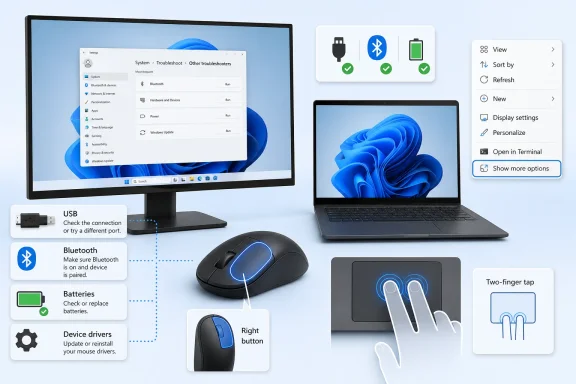 Use a right-click alternative while you troubleshoot
You do not need the physical right button to continue using Windows.- Select the file, folder, desktop item, or control you want.
- Press Shift + F10 on the keyboard.
- If your keyboard has a Menu or Application key, usually near the right Ctrl key, press it instead.
On a Windows 11 touchpad, you can also:
- Tap the touchpad with two fingers.
- Press the lower-right corner of the touchpad.
- Press and hold an item on a touchscreen.
Confirm where right-click fails
Before changing drivers or reinstalling anything, test the mouse in three places:- Right-click an empty area of the desktop.
- Open File Explorer with Windows key + E, then right-click a file or folder.
- Right-click inside the affected program or browser.
- Fails everywhere: Check the mouse button, USB receiver, Bluetooth connection, driver, or Windows settings.
- Fails only on the laptop touchpad: Enable the secondary-click gesture or reinstall the touchpad driver.
- Fails only in one app or browser: Check that app’s extensions, settings, or mouse-button assignments.
- The menu appears but lacks an expected command in Windows 11: The right-click is working; use Show more options in File Explorer.
Put the primary mouse button back on Left
If clicking the physical right button selects, opens, or drags items, Windows may be configured for a left-handed mouse layout. In that layout, the physical right button becomes the primary button.Windows 11
- Open Start > Settings > Bluetooth & devices > Mouse.
- Open the Primary mouse button drop-down menu.
- Select Left.
Windows 10
- Open Start > Settings > Devices > Mouse.
- Under Select your primary button, choose Left.
Enable right-click on a Windows touchpad
A touchpad can move the pointer and left-click normally while its two-finger or lower-right-corner right-click gesture is disabled.Windows 11
- Open Start > Settings > Bluetooth & devices > Touchpad.
- Confirm the main Touchpad switch is turned on.
- Expand Taps.
- Enable Tap with two fingers to right-click.
- Enable Press the lower right corner of the touchpad to right-click, if that option is available.
Windows 10
- Open Start > Settings > Devices > Touchpad.
- Confirm the touchpad is enabled.
- Look for touchpad tap or secondary-click options and enable two-finger tapping or lower-right-corner clicking.
Restart the PC after changing a manufacturer touchpad setting if the gesture does not begin working immediately.
Check the mouse connection and power
A failing right-click can be a hardware fault, but first rule out a weak connection or low battery.Wired USB mouse
- Disconnect the mouse from the PC.
- Check the cable and connector for visible damage, bending, or looseness.
- Connect it directly to another USB port on the computer.
- Avoid USB hubs, monitor USB ports, docks, and adapters during testing.
- Test right-click again.
Wireless receiver mouse
- Replace the battery or fully charge the mouse.
- Turn the mouse off, wait a few seconds, and turn it back on.
- Move the USB receiver to another direct USB port.
- If the receiver is connected through a dock or hub, connect it directly to the PC.
- If possible, test with another compatible receiver only when the mouse manufacturer documents that pairing method.
Bluetooth mouse
- Charge the mouse or install a fresh battery.
- Open Start > Settings > Bluetooth & devices.
- Turn Bluetooth off.
- Wait 10 seconds, then turn Bluetooth back on.
- Turn the mouse off and back on.
- Keep the mouse close to the computer and away from other wireless devices while testing.
Re-pair a Bluetooth mouse in Windows 11
- Open Start > Settings > Bluetooth & devices > Devices.
- Find the mouse.
- Select More options beside it, then choose Remove device.
- Confirm the removal.
- Select Add device.
- Choose Bluetooth and put the mouse into pairing mode.
- Select the mouse when it appears.
Re-pair a Bluetooth mouse in Windows 10
- Open Start > Settings > Devices > Bluetooth & other devices.
- Select the mouse under the device list.
- Choose Remove device.
- Select Add Bluetooth or other device > Bluetooth.
- Put the mouse into pairing mode and select it when Windows finds it.
Install Windows and driver updates
Windows Update can provide mouse, touchpad, chipset, and Bluetooth driver updates.- Save open work.
- Open Start > Settings > Windows Update in Windows 11.
- In Windows 10, open Start > Settings > Update & Security > Windows Update.
- Select Check for updates.
- Install available updates.
- Restart the computer when Windows requests it.
- Open Start, type Device Manager, and open it.
- Expand Bluetooth.
- Right-click the Bluetooth adapter. Its name may include “Bluetooth,” “Wireless,” or “Radio.”
- Select Update driver.
- Select Search automatically for drivers.
- Restart Windows after the update completes.
- In Device Manager, right-click the relevant Bluetooth adapter, mouse, or touchpad device.
- Select Properties.
- Open the Driver tab.
- Select Roll Back Driver if it is available.
- Restart Windows and test again.
Reinstall the affected device driver
Use this only after checking button settings, connections, Windows Update, and Bluetooth pairing.Warning: Removing a touchpad, mouse, or Bluetooth driver can temporarily leave you without that input method. Keep a keyboard connected and use Shift + F10 if you need a context menu.
Reinstall a mouse or touchpad device
- Open Device Manager.
- Expand Mice and other pointing devices.
- For a laptop touchpad, also check Human Interface Devices for a device identified as a touchpad, precision touchpad, Synaptics, ELAN, or the laptop manufacturer.
- Right-click the suspected device and choose Uninstall device.
- Confirm the removal if prompted.
- Restart the PC.
Reinstall a Bluetooth adapter
- Open Device Manager.
- Expand Bluetooth.
- Right-click the Bluetooth adapter.
- Select Uninstall device.
- Shut down the PC.
- Wait several seconds, then turn it back on.
If Windows cannot restore a working driver, obtain the current mouse, touchpad, chipset, or Bluetooth driver from the PC manufacturer’s support service for your exact computer model.
Check browser extensions and mouse software
If right-click works on the Windows desktop and in File Explorer but fails only in Chrome, Edge, or another program, do not reinstall the mouse driver first. The problem is likely isolated to that application.For Microsoft Edge:
- Open Edge.
- Select Extensions.
- Select Manage extensions.
- Turn off extensions one at a time and test right-click after each change.
- Remove the extension that causes the failure.
- Open Chrome.
- Select More > Extensions > Manage extensions.
- Turn off extensions one at a time.
- Test right-click on the affected site after each change.
If you use Logitech, Razer, Corsair, or other mouse configuration software, open the manufacturer’s current supported app and inspect the physical right-button assignment. Restore it to the standard right-click or secondary-click action. Do not assign macros, gestures, or application-specific commands to that button unless you intend to replace normal right-click behavior.
Use Mouse Keys if the physical button has failed
Mouse Keys can keep you working while you arrange a replacement mouse.- Open Start > Settings > Accessibility > Mouse.
- Turn on Mouse keys.
- Use the numeric keypad to move and click the pointer according to the on-screen Mouse Keys instructions.
If the right button fails on multiple computers, while another mouse works normally on your PC, the mouse hardware is defective. Replace the mouse or use the manufacturer’s warranty process. If it fails only on a managed work or school PC, ask the administrator whether a policy is disabling File Explorer context menus or restricting mouse software.
References
- Primary source: Technobezz
Published: 2026-07-16T17:31:32.995000+00:00
Right Click Not Working on Mouse? How to Fix It | Technobezz
Right-click not working on mouse? Fix Windows, Mac, Chromebook, browser, touchpad, Bluetooth, and mouse app causes.www.technobezz.com - Official source: learn.microsoft.com
Request for Configuration to Disable Right-Click Context Menu in File Explorer's Home and Gallery Views - Microsoft Q&A
Hello, We are writing to inquire whether Microsoft provides any supported configuration — via Group Policy, registry key, or MDM policy — to disable the right-click context menu specifically within the Home and Gallery views of Windows File Explorer…learn.microsoft.com
