

A keyboard that will not type in Windows 11 or Windows 10 is usually not permanently locked. First disable Filter Keys, Sticky Keys, Mouse Keys, Num Lock, or Scroll Lock according to the symptom, then reconnect the keyboard and repair its connection or driver if no keys respond. These instructions cover built-in laptop keyboards, USB and wireless keyboards, Bluetooth keyboards, and Microsoft Surface Pro Keyboards and Type Covers.
Use the On-Screen Keyboard when the physical keyboard cannot enter a password, search for settings, or complete the repair.
You can now click keys with the mouse or touch screen while troubleshooting.
If the keyboard does not include a Num Lock key:
Keep at least one working keyboard layout installed. At the sign-in screen, check the input-language indicator before entering a password because the selected layout can differ from the one used inside your account.
Removing the device deletes its existing pairing. Re-pairing is the rollback: place the keyboard in pairing mode and add it again. Do not remove a Bluetooth keyboard unless you have a mouse, touch screen, built-in keyboard, or another way to control Windows.
If F1 through F12 adjust brightness, volume, or media playback:
Warning: Uninstalling the only working keyboard temporarily removes it from Windows. Make sure you can restart the PC with a mouse, touch screen, or the physical power control.
For manufacturer-specific gaming or programmable keyboards, install the current driver or configuration application supplied for the exact model. Avoid generic driver-download utilities.
A Surface keyboard that works in the UEFI interface but not in Windows points to a Windows, driver, or installed-software problem. If it does not respond in UEFI and its indicator lights never activate, the keyboard or connector may require hardware service.
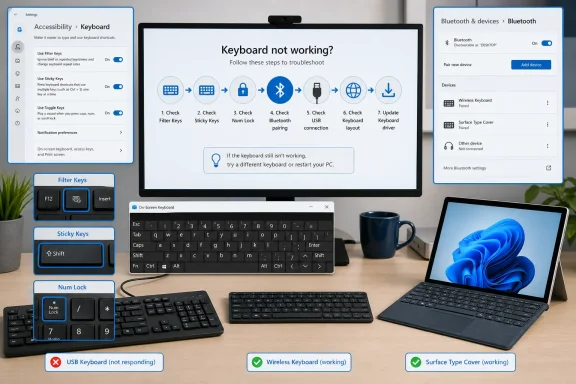 Open the On-Screen Keyboard first
Use the On-Screen Keyboard when the physical keyboard cannot enter a password, search for settings, or complete the repair.- Press Windows key + Ctrl + O to open it.
- In Windows 11, use Start > Settings > Accessibility > Keyboard, then turn on On-screen keyboard.
- In Windows 10, use Start > Settings > Ease of Access > Keyboard, then turn on Use the On-Screen Keyboard.
You can now click keys with the mouse or touch screen while troubleshooting.
Match the symptom to the likely keyboard lock
Use the keyboard’s behavior to choose the fastest fix:- Short or repeated presses are ignored: Turn off Filter Keys.
- Ctrl, Alt, Shift, or the Windows key acts held down: Turn off Sticky Keys.
- The numeric keypad moves the mouse pointer: Turn off Mouse Keys.
- The numeric keypad does not enter numbers: Press Num Lock.
- Excel arrow keys scroll the worksheet: Turn off Scroll Lock.
- Keys type unexpected letters or symbols: Select the correct Windows keyboard layout.
- F1 through F12 control volume or brightness: Change the keyboard’s Fn Lock or action-key mode.
- The Windows key or common shortcuts stop working in games: Disable the keyboard’s gaming mode.
- No keys respond anywhere: Check the connection, batteries, Windows updates, and driver.
Turn off Filter Keys
Filter Keys changes keyboard sensitivity and can ignore brief or repeated keystrokes. It is a common cause when a keyboard appears slow, misses letters, or requires each key to be held down.- Hold the right Shift key for eight seconds.
- If Windows displays a Filter Keys prompt, turn the feature off.
- Open Notepad and test several short and repeated key presses.
Windows 11
- Open Start > Settings > Accessibility > Keyboard.
- Turn Filter keys off.
- Select Filter keys to open its detailed settings.
- If you do not use the feature, turn off the keyboard shortcut that allows Filter Keys to be activated accidentally.
Windows 10
- Open Start > Settings > Ease of Access > Keyboard.
- Turn Use Filter Keys off.
- Disable its shortcut option if the feature keeps returning unexpectedly.
Turn off Sticky Keys
Sticky Keys allows modifier keys such as Ctrl, Alt, Shift, and the Windows key to remain active without being held. When enabled accidentally, normal keys may launch shortcuts instead of typing.- Press Shift five times.
- Turn Sticky Keys off if Windows displays its prompt.
- Press and release Ctrl, Alt, Shift, and the Windows key once each to clear any latched modifier.
- Test the keyboard again.
- Windows 11: Open Settings > Accessibility > Keyboard, then turn Sticky keys off.
- Windows 10: Open Settings > Ease of Access > Keyboard, then turn Use Sticky Keys off.
Stop the number pad from moving the mouse
Mouse Keys uses the numeric keypad to control the pointer. When it is active, number-pad keys may move the cursor rather than enter numbers.- Press Left Alt + Left Shift + Num Lock.
- If a confirmation prompt appears, choose the option that turns Mouse Keys off.
- Press Num Lock once and test the number pad.
Windows 11
- Open Start > Settings > Accessibility > Mouse.
- Turn Mouse keys off.
Windows 10
- Open Start > Settings > Ease of Access > Mouse.
- Turn Control your mouse with a keypad off.
Restore number-pad input with Num Lock
Press Num Lock once, then test the number pad. Some keyboards have an indicator light showing whether Num Lock is enabled.If the keyboard does not include a Num Lock key:
- Open the On-Screen Keyboard.
- Select Options.
- Select Turn on numeric key pad.
- Select OK.
- Select NumLock on the displayed keypad.
Turn off Scroll Lock in Excel
When Scroll Lock is enabled, the arrow keys scroll an Excel worksheet instead of moving the active cell.- Look at the Excel status bar for Scroll Lock.
- Press the physical Scroll Lock or ScrLk key.
- Confirm that the arrow keys now move between cells.
- Open the On-Screen Keyboard.
- Select ScrLk.
- Return to Excel and test the arrow keys.
Correct keys that type the wrong characters
If the keyboard responds but letters, punctuation, or symbols do not match the keycaps, Windows may be using the wrong input layout.- Press Windows key + Spacebar.
- Continue pressing Spacebar while holding the Windows key until the intended layout is selected.
- Test the affected keys.
- Open Start > Settings > Time & language > Language & region.
- Find the relevant language and select its More options button.
- Select Language options.
- Under Keyboards, remove the unwanted layout.
Keep at least one working keyboard layout installed. At the sign-in screen, check the input-language indicator before entering a password because the selected layout can differ from the one used inside your account.
Reconnect a USB or wireless keyboard
If no keys respond, repair the hardware connection before changing Windows settings.USB keyboard
- Unplug the keyboard.
- Wait several seconds so Windows can unload the device.
- Connect it to a different USB port.
- If it uses a hub or docking station, connect it directly to the PC.
- Check the cable and connector for damage.
- Restart Windows if the keyboard remains unresponsive.
Wireless USB keyboard
- Replace or recharge the batteries.
- Turn the keyboard off and back on.
- Unplug its USB receiver.
- Wait approximately 10 seconds.
- Reconnect the receiver directly to the PC.
- Use the keyboard or receiver’s pairing or reset control if the manufacturer provides one.
Reconnect a Bluetooth keyboard
- Confirm that the keyboard is charged and in pairing mode.
- Open Start > Settings > Bluetooth & devices in Windows 11.
- Turn Bluetooth off, wait 10 seconds, and turn it back on.
- Select Devices and locate the keyboard.
- If it remains disconnected, select its More options button and choose Remove device.
- Select Add device > Bluetooth.
- Choose the keyboard and complete any displayed pairing confirmation.
Removing the device deletes its existing pairing. Re-pairing is the rollback: place the keyboard in pairing mode and add it again. Do not remove a Bluetooth keyboard unless you have a mouse, touch screen, built-in keyboard, or another way to control Windows.
Check Fn Lock and gaming mode
Function-key and gaming locks are controlled by the keyboard firmware or manufacturer’s software rather than one universal Windows setting.If F1 through F12 adjust brightness, volume, or media playback:
- Look for an Fn Lock, padlock, or secondary function symbol on the keyboard.
- Try the manufacturer-documented Fn Lock combination. Many keyboards use Fn + Esc, but this is not universal.
- Open the laptop or keyboard manufacturer’s control application and look for settings named Function Key Behavior, Action Keys, Hotkey Mode, or Fn Lock.
- Test an F-key in the application where you need it.
- Look for a Gaming Mode, Game Mode, or Windows-key-lock button.
- Turn the mode off using the keyboard’s documented shortcut.
- Open the keyboard manufacturer’s configuration application and verify which keys Gaming Mode blocks.
Install Windows and driver updates
Use Microsoft-supported updates before downloading third-party driver tools.- Open Start > Settings > Windows Update.
- Select Check for updates.
- Install applicable updates.
- Check Advanced options > Optional updates for relevant driver updates if that section is available.
- Restart the PC.
- Right-click Start and select Device Manager.
- Expand Bluetooth.
- Right-click the PC’s Bluetooth adapter and select Update driver.
- Select Search automatically for drivers.
- Restart Windows after the update.
Reinstall the keyboard device
Reinstall the device only after checking accessibility settings and the physical connection.Warning: Uninstalling the only working keyboard temporarily removes it from Windows. Make sure you can restart the PC with a mouse, touch screen, or the physical power control.
- Right-click Start and select Device Manager.
- Expand Keyboards.
- Right-click the affected keyboard and select Uninstall device.
- Confirm the removal.
- Restart the PC.
For manufacturer-specific gaming or programmable keyboards, install the current driver or configuration application supplied for the exact model. Avoid generic driver-download utilities.
Troubleshoot a Surface Pro Keyboard or Type Cover
- Save your work and shut down the Surface.
- Disconnect power and detach the Keyboard or Type Cover.
- Check the magnetic connector and attachment area for debris or damage.
- Reattach the keyboard so the magnetic edge connects completely.
- Start the Surface and install updates from Settings > Windows Update.
- Press the Caps and Fn keys and check whether their indicator lights respond.
A Surface keyboard that works in the UEFI interface but not in Windows points to a Windows, driver, or installed-software problem. If it does not respond in UEFI and its indicator lights never activate, the keyboard or connector may require hardware service.
Determine whether the keyboard has failed
Test these final conditions:- The keyboard fails in every application and at the Windows sign-in screen.
- A USB keyboard fails in multiple known-working USB ports.
- A wireless keyboard has fresh batteries but fails after re-pairing.
- The keyboard also fails on another computer.
- Only certain physical keys fail, repeat, or feel obstructed.
- The device has liquid, cable, connector, or key-switch damage.
References
- Primary source: Technobezz
Published: 2026-07-14T17:05:53.685000+00:00
How to Unlock a Keyboard That Won't Type | Technobezz
How to unlock a keyboard that won't type on Windows, Mac, Chromebook, iPad, Android, and gaming keyboards.www.technobezz.com - Official source: support.microsoft.com
Troubleshoot Surface Pro Keyboard or Type Cover | Microsoft Support
Troubleshoot problems with your Surface Pro Keyboard or Type Cover.support.microsoft.com
