

Windows 10 users reporting that their Mpow (or similar discount-brand) Bluetooth headphones appear as “connected” but profilesduce no audio are encountering a familiar — and fixable — class of Bluetooth problems that usually trace back to driver, profile, power-management, or routing mismatches rather than a dead headset. This feature explains why the “connected-but-silent” symptom happens, gives a prioritized, step‑by‑step repair plan you can run in minutes to hours, highlights important tradeoffs on Windows 10 (notably the A2DP/HFP codec limitation), and flags where claims about LE Audio or vendor discounts are not reliably verifiable without vendor documentation.
Bluetooth audio on Windows is governed by four interacting elements: the headset firmware, the PC’s Bluetooth radio and its firmware, the vendor drivers (chipset or OEM), and Windows’ audio/pairing stack. When those four components are misaligned — after a Windows update, a headset firmware change, or due to power-management policies — pairing or audio routing can fail in ways that look identical to hardware faults. The “connected but no sound” scenario is one of the most common manifestations of those mismatches.
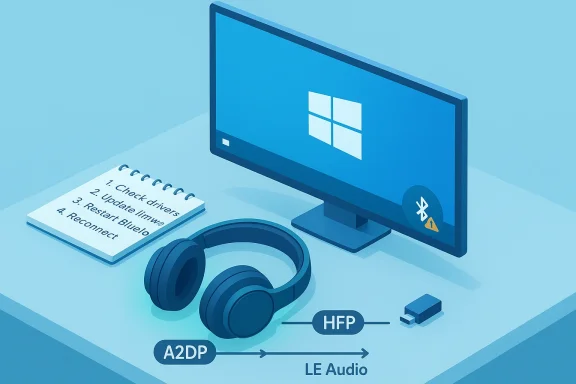
On Windows 10 specifically, a legacy limitation remains important to understand: Windows 10 typically relies on the classic Bluetooth profiles A2DP (high‑quality stereo playback) and HFP/HSP (hands‑free voice/microphone). When Windows switches a headset from A2DP to HFP to use the microphone, media quality often collapses to a lower-quality mono stream. This is a protocol-level limitation of Bluetooth Classic that Microsoft addressed with LE Audio and the LC3 codec in later Windows 11 updates — but that improvement only helps if the headset, the PC radio, and the drivers all implement LE Audio end‑to‑end. Treat claims of automatic LE Audio benefits on Windows 10 as unlikely unless explicitly stated by the headset or PC vendor.
Be cautious about trusting third‑party coverage or retailer marketing that promises LE Audio or Windows 10 compatibility without vendor documentation. Verify firmware and driver release notes from Mpow (or the PC OEM / chipset vendor) for your exact model before relying on claims. If you need a dependable Bluetooth audio experience on Windows 10 and often require simultaneous high‑quality mic + stereo audio, consider hardware solutions that ship with a proprietary USB dongle or explicit vendor driver support — these are the lowest-risk options today.
If immediate resolution is needed, follow the Practical Repair Checklist in order and document which step fixed the problem; that trace is extremely helpful if you must escalate to vendor or IT support. The bulk of Windows 10 Bluetooth headaches resolve with patient, stepwise troubleshooting — and a modern USB Bluetooth adapter is often the pragmatic final step for stubborn hardware-driver mismatches.
Source: Born2Invest https://born2invest.com/?b=style-324571612/
 Background / Overview
Bluetooth audio on Windows is governed by four interacting elements: the headset firmware, the PC’s Bluetooth radio and its firmware, the vendor drivers (chipset or OEM), and Windows’ audio/pairing stack. When those four components are misaligned — after a Windows update, a headset firmware change, or due to power-management policies — pairing or audio routing can fail in ways that look identical to hardware faults. The “connected but no sound” scenario is one of the most common manifestations of those mismatches.On Windows 10 specifically, a legacy limitation remains important to understand: Windows 10 typically relies on the classic Bluetooth profiles A2DP (high‑quality stereo playback) and HFP/HSP (hands‑free voice/microphone). When Windows switches a headset from A2DP to HFP to use the microphone, media quality often collapses to a lower-quality mono stream. This is a protocol-level limitation of Bluetooth Classic that Microsoft addressed with LE Audio and the LC3 codec in later Windows 11 updates — but that improvement only helps if the headset, the PC radio, and the drivers all implement LE Audio end‑to‑end. Treat claims of automatic LE Audio benefits on Windows 10 as unlikely unless explicitly stated by the headset or PC vendor.
Why a headset can show “Connected” with no audio
- Windows lists the Bluetooth device as connected but does not route audio because the headset is not set as the default playback device. The UI can misleadingly show a connection even when the audio endpoint isn’t active.
- The Bluetooth stack negotiated a profile that does not include the A2DP media endpoint (for example the host only enumerated a Hands‑Free endpoint). In this case the headset can provide phone-call audio without offering the stereo media endpoint.
- Driver or firmware mismatch: the PC’s Bluetooth adapter driver is buggy, outdated, or the headset firmware expects features (or codecs) the host driver doesn’t advertise. Vendor-provided drivers often expose codecs and features that generic Microsoft drivers do not.
- Windows audio services or Bluetooth services are stopped, paused, or misconfigured (bthserv, Windows Audio, Windows Audio Endpoint Builder). When services fail, the OS can report a connection but not actually stream audio.
- Power management or USB selective suspend (for USB-based radios) has suspended the Bluetooth controller, leaving a phantom “connected” device without an active audio pipeline.
- Per‑app routing: an app-level device override sends audio to a different endpoint (e.g., built-in speakers), so the headset stays connected but receives nothing.
Quick triage — fixes to try first (5–15 minutes)
Start with these safe, reversible steps. They resolve the majority of transient cases quickly. Test audio after each step so you stop as soon as the problem is solved.- Confirm basics: headset powered on, charged, and in pairing mode; move within a few feet of the PC.
- Toggle Bluetooth off → on: Settings → Bluetooth & devices (or Quick Settings Win+A) and toggle Bluetooth. This clears transient stack state.
- Re-select the headset as the Output: Settings → System → Sound → Output. Some builds don’t auto‑switch the default output. If you see multiple endpoints for the headset (Stereo vs Hands‑Free), explicitly choose the Stereo/A2DP endpoint for media.
- Run Windows troubleshooters: Settings → System → Troubleshoot → Other troubleshooters → Bluetooth and Playing Audio. Let Windows apply fixes.
- Test the headset on another device (phone/tablet). If it fails on all hosts, the headset likely needs a factory reset or firmware update from the vendor.
Stepwise troubleshooting (30–90 minutes)
Work from the least intrusive solutions toward more advanced repairs. Test after each action.1) Check audio routing and per‑app settings
- Open Settings → System → Sound. Under Output, explicitly choose the Bluetooth headset. Use App volume and device preferences to ensure the app you’re testing isn’t routed elsewhere. The Windows classic Sound Control Panel (mmsys.cpl) remains useful for seeing “disabled” or “disconnected” devices.
2) Restart relevant Windows services
- Press Win+R → services.msc → find Bluetooth Support Service (bthserv), Windows Audio, and Windows Audio Endpoint Builder. Restart them and set appropriate startup types (Manual/Automatic/Trigger Start as needed). A stopped service often explains a “connected-but-silent” device.
3) Power management & USB issues
- Device Manager → Bluetooth adapter → Properties → Power Management → uncheck “Allow the computer to turn off this device to save power.” For USB-based radios, disable USB selective suspend in Power Options to avoid the host suspending the adapter. Plug USB dongles directly into motherboard ports (avoid hubs).
4) Drivers: update, rollback, reinstall
- Open Device Manager (Win+X → Device Manager). Expand Bluetooth and Sound categories. For the Bluetooth adapter, choose Update driver → search automatically or install a chipset/OEM driver (Intel, Qualcomm, Broadcom, Realtek, or laptop OEM). If the issue began after a recent driver update, use Roll Back Driver; if rollback is not available, uninstall and reboot to force a reinstall. Prefer vendor packages over third‑party updaters. Keep a copy of known‑good drivers offline.
5) Adjust audio endpoint properties
- Playback device → Properties → Advanced tab: set a stable Default Format (2 channels, 16 bit, 48000 Hz) and disable Exclusive Mode. Disable audio enhancements if present. These prevent apps from monopolizing the endpoint and remove sample-rate negotiation conflicts.
6) Hands‑Free Telephony workaround (when mic collapses stereo)
- If the headset switches to “Hands‑Free” (HFP) and media degrades or disappears when the mic is active, you can disable Hands‑Free Telephony (Control Panel → Devices and Printers → right‑click headset → Properties → Services → uncheck Hands‑Free Telephony). This forces A2DP for media but disables the headset mic. Use a dedicated USB or built‑in mic for calls as a workaround. Note: this is a trade‑off, not a fix.
7) Test with another host or USB Bluetooth dongle
- Pair the headset with a smartphone. If it works there, the PC is the problem. If your internal adapter is old or limited, a modern USB Bluetooth dongle (one that advertises aptX, AAC, or LE Audio/LC3 support where applicable) often improves stability and codec availability. Disable the internal radio in Device Manager and re‑pair to the dongle to isolate issues.
8) System repair & diagnostics (advanced)
- Run SFC and DISM from an elevated prompt: sfc /scannow and DISM /Online /Cleanup-Image /RestoreHealth. Inspect Event Viewer for Bluetooth-related errors and generate a powercfg /energy report if you suspect power-policy issues. These steps help when system components are corrupted or misconfigured. Proceed with caution on managed devices.
Codec, profile, and LE Audio realities (what works, what doesn’t)
- Windows 10: mostly reliant on Bluetooth Classic profiles (A2DP, HFP/HSP). That architecture forces the media vs mic tradeoff: activating the mic can collapse stereo media to a low-quality path. This is why music can stop or sound terrible during voice activity.
- LE Audio (LC3) and “super wideband stereo”: Microsoft added LE Audio support in Windows 11 builds, enabling stereo media and a high-quality mic simultaneously — but only if the headset, the PC’s Bluetooth radio and firmware, and the vendor drivers all support LE Audio. A Bluetooth 5.x radio alone is not a guarantee. Claims that LE Audio “works on my PC” must be verified against vendor documentation and driver release notes.
- Codec negotiation (SBC, AAC, aptX, LDAC, LC3) depends on both host and accessory. If Windows does not surface a high-quality codec, updating chipset/OEM drivers is the usual remedy — not a Windows setting.
Mpow-specific notes and the “discount headset” angle
Mpow sells many popular low‑cost Bluetooth headsets and earbuds. The troubleshooting checklist above applies equally well to Mpow hardware, but there are two vendor‑specific caveats:- Many budget headsets do not expose firmware update tools for PCs; they rely on mobile apps or have no firmware update path. If a model lacks a firmware update channel, persistent compatibility issues with Windows 10 may only be solvable by using a compatible USB dongle or switching to a wired connection. If you cannot find a firmware update path for your Mpow model, treat persistent failures as a likely hardware/firmware limitation. This claim should be verified against Mpow’s product pages or support portal for your exact model.
- Discount headsets sometimes implement a limited subset of Bluetooth features (reduced codec support, older HCI commands) to save cost. That strategy can make them more prone to Windows mismatches. The practical consequences are exactly what users report: quick pairing, but occasional silence or poor audio quality on PC hosts that expect fuller stacks.
Practical repair checklist — copyable in order (safe → advanced)
- Confirm headset power & pairing mode.
- Toggle Bluetooth Off/On on the PC.
- Explicitly set the headset as the Default Playback device (Settings → Sound).
- Run Bluetooth and Playing Audio troubleshooters.
- Restart Bluetooth Support Service, Windows Audio, and Endpoint Builder.
- In Device Manager, disable power‑save on Bluetooth adapter and related HID/headset entries.
- Update or roll back Bluetooth and audio drivers using OEM/vendor downloads.
- If the mic collapses stereo, disable Hands‑Free Telephony to force A2DP (temporary).
- Test the headset on a phone; if the headset works there but not on PC, consider a USB Bluetooth dongle and re‑pair.
- Advanced: SFC/DISM, Event Viewer inspection, powercfg energy reports; coordinate with IT for managed devices.
When to escalate or replace
- If the headset fails on multiple hosts (phone and PC) after resets and battery checks, escalate to the vendor for warranty/repair. Firmware or hardware faults are likely.
- If the headset works on smartphones but not on your PC despite driver rollbacks/clean installs and service restarts, the issue is host-side (adapter/driver/firmware). Consider a quality USB Bluetooth dongle with explicit codec/LE Audio support as a pragmatic replacement for the internal radio.
- On managed (corporate/education) Windows 10 machines, involve IT before doing driver rollbacks or uninstalling devices: group policies and MDM can block changes and complicate recovery. Document changes when troubleshooting.
Risks, trade‑offs, and security notes
- Disabling Hands‑Free Telephony restores audio fidelity but removes the headset mic for system calls — unacceptable for users who rely on hands‑free calling. Treat it as a temporary workaround, not a permanent fix.
- Aggressive driver purges, using third‑party driver updaters, or running kernel stress tools can cause system instability. Prefer official vendor downloads and conservative rollback steps. Back up critical data before deep system changes.
- Firmware updates delivered through vendor mobile apps are the usual route for many headsets; forcing PC-side updates via unsupported methods (emulators, APKs) can brick devices. Avoid unsupported firmware routes.
Final assessment and practical recommendations
The “connected but no audio” symptom for Mpow and other budget Bluetooth headphones on Windows 10 is overwhelmingly caused by mismatched profiles, driver/firmware gaps, service or power-management suspensions, or per‑app routing — not necessarily a dead headset. A methodical approach starting with quick checks (reselect output, toggle Bluetooth, run troubleshooters) and moving through driver/service/power fixes will resolve most cases in under an hour for typical users. When Windows 10’s A2DP/HFP tradeoff is the root cause for poor media during calls, disabling Hands‑Free Telephony or using a separate mic are pragmatic stopgaps until the vendor and host can deliver LE Audio support end‑to‑end.Be cautious about trusting third‑party coverage or retailer marketing that promises LE Audio or Windows 10 compatibility without vendor documentation. Verify firmware and driver release notes from Mpow (or the PC OEM / chipset vendor) for your exact model before relying on claims. If you need a dependable Bluetooth audio experience on Windows 10 and often require simultaneous high‑quality mic + stereo audio, consider hardware solutions that ship with a proprietary USB dongle or explicit vendor driver support — these are the lowest-risk options today.
If immediate resolution is needed, follow the Practical Repair Checklist in order and document which step fixed the problem; that trace is extremely helpful if you must escalate to vendor or IT support. The bulk of Windows 10 Bluetooth headaches resolve with patient, stepwise troubleshooting — and a modern USB Bluetooth adapter is often the pragmatic final step for stubborn hardware-driver mismatches.
Source: Born2Invest https://born2invest.com/?b=style-324571612/
