

If a recent Windows 11 update has left your laptop struggling to last a full workday, you’re not alone — but this is usually fixable without replacing the battery. The glow of a nearly empty battery icon at midday is often the visible symptom of one of three root causes: software power-policy changes, an errant driver or update that forces hardware to stay awake, or genuine battery degradation. This deep-dive explains what’s happening, how to diagnose the real cause, and step-by-step actions you can take — from quick setting fixes to advanced troubleshooting — to regain usable battery life and avoid repeating the problem.
Windows 11 includes multiple built-in features designed to conserve power — historically called Battery saver, and in newer builds replaced or extended by Energy saver and experimental adaptive energy tools. Those features pause background activity, reduce syncing and dim the screen when enabled. But an update can change defaults, add new services, or introduce a driver that prevents the system from entering low-power states. That’s when a working battery suddenly feels like it’s “dying” faster.
In addition, modern laptop power behavior is shaped by three layers working together:
Warning: Uninstalling security updates increases risk; only do this as a short-term diagnostic step and consider reinstalling or using an alternative fix if the update was critical.
Not every decrease in runtime is the OS’s fault. Batteries age and lose capacity — that’s physics. The diagnostic reports in Windows exist for exactly this reason: to distinguish whether the problem is the battery’s chemistry or how the system is being managed. Use them.
Source: CNET Windows 11 Update Killing Your Battery? Here's What You Need to Do
 Background
Windows 11 includes multiple built-in features designed to conserve power — historically called Battery saver, and in newer builds replaced or extended by Energy saver and experimental adaptive energy tools. Those features pause background activity, reduce syncing and dim the screen when enabled. But an update can change defaults, add new services, or introduce a driver that prevents the system from entering low-power states. That’s when a working battery suddenly feels like it’s “dying” faster.In addition, modern laptop power behavior is shaped by three layers working together:
- The operating system’s power policy (Windows power plans, Battery/ Energy saver).
- Device drivers and firmware (GPU, Wi‑Fi, Bluetooth, platform firmware/EC).
- The physical battery’s capacity and health (design capacity vs current full-charge capacity).
Quick fixes you should try first
These are low-effort, high-impact changes you can make right now. Try them in order; each one is non-destructive and reversible.1. Turn on Battery / Energy saver
- Open Settings > System > Power & battery.
- If the build shows Battery saver, enable it. On newer releases you may see Energy saver; enable it.
- Configure the activation threshold to a higher percentage if you want automatic engagement earlier.
2. Turn off unnecessary background app activity
- Open Settings > Apps > Installed apps (or System > Power & battery > Battery usage).
- For each app you don’t need running, open Advanced options and set Background apps permissions to Never or Power optimized.
- Also disable unnecessary startup items in Task Manager > Startup.
3. Lower the display refresh rate
- Open Settings > System > Display > Advanced display.
- Under Choose a refresh rate, select the lowest supported rate you can tolerate (for example, 60 Hz instead of 120/144 Hz).
4. Use a dark theme on OLED displays
- Open Settings > Personalization > Colors > Choose your mode > Dark or apply a dark theme.
- If your laptop has an OLED screen, a darker UI reduces the number of illuminated pixels and saves battery.
5. Shorten the screen-off and lock screen timeout
- Settings > System > Power & battery > Screen and sleep.
- Set the “On battery power” values to low numbers (1–2 minutes for screen off, 5–10 minutes for sleep).
6. Disable unused radios and peripherals
- Turn off Bluetooth if not used.
- Consider using airplane mode in low-coverage areas to avoid constant radio scanning.
- Dim or disable keyboard backlighting if present.
Diagnose: separate software bugs from real battery wear
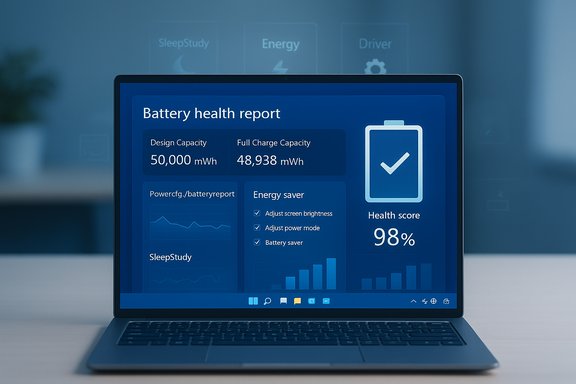
Before you assume a bad battery, run these built-in Windows tools to see what’s actually happening.1. Generate a battery health report
- Open an elevated Command Prompt or PowerShell (run as Administrator).
- Run: powercfg /batteryreport
- Open the generated HTML file (typically saved to C:\Users\<YourUser>\battery-report.html).
- Design Capacity vs Full Charge Capacity. If full charge is far below design capacity (e.g., < 70–80%), the battery has aged and won’t reach original run times.
- Recent usage and cycle count for trends.
2. Run SleepStudy on Modern Standby systems
- Open an elevated Command Prompt.
- Run: powercfg /sleepstudy
- Open the generated SleepStudy-report.html in your current folder.
- Modern Standby sessions and which devices or processes woke the system.
- How much energy was consumed during screen‑off periods.
3. Create a quick energy analysis
- Open an elevated Command Prompt.
- Run: powercfg /energy
- After 60 seconds the tool writes an HTML report showing inefficient drivers, devices preventing sleep, and other power issues.
Advanced troubleshooting: targeted fixes when an update caused the change
If battery issues started immediately after a Windows update or driver upgrade, the problem is likely a change in system behavior caused by that update. Use these steps in order.Step 1 — Reboot and run a clean boot
A clean boot removes third-party services and startup apps from the equation.- Press Win+R, type msconfig and press Enter.
- On the Services tab, check Hide all Microsoft services, then click Disable all.
- On the Startup tab open Task Manager and disable non-essential startup items.
- Reboot and compare battery behavior.
Step 2 — Check Device Manager for problematic drivers
- Open Device Manager and inspect key categories: Display adapters, Network adapters, Bluetooth, USB controllers, and System devices.
- Right‑click any device that looks suspicious and choose Properties > Driver > Roll Back Driver if the option is available.
- If rollback isn’t available, download the OEM driver (not the generic Windows Update driver) from the laptop maker or GPU vendor and install it.
Step 3 — Use OEM support utilities and update firmware
- Check the laptop maker’s support app (Lenovo Vantage, Dell SupportAssist, HP Support Assistant, etc. for BIOS/EC and firmware updates.
- Update platform firmware and the embedded controller (EC) if updates are available — these often contain power-management fixes.
Step 4 — Uninstall the last Windows update (if necessary)
If you have strong reason to believe a specific quality update (KB) introduced the issue:- Settings > Windows Update > Update history > Uninstall updates.
- Select the latest update and click Uninstall.
Warning: Uninstalling security updates increases risk; only do this as a short-term diagnostic step and consider reinstalling or using an alternative fix if the update was critical.
Step 5 — Restore the system (System Restore or rollback)
- If System Restore points exist, choose a restore point created before the update and revert the system.
- If a feature update was recently installed and the system shows a Go back option under Settings > System > Recovery, you can roll back to the previous build (available only for a limited time).
Application-specific and OS-level optimizations
Beyond system tweaks, these app and OS-level changes reduce background power usage significantly.- Disable sync for heavy cloud apps while on battery (OneDrive, OneNote, Phone Link). Many syncing processes continuously read/write and wake hardware.
- In web browsers, enable sleeping tabs (Edge, Chrome have tab discarding or sleeping features). Video autoplay and background scripts are hidden battery killers.
- Use the OS Power mode slider (if present) to select Better battery or Best power efficiency.
- For video playback, set Apps > Video playback > Battery options to Optimize for battery life.
- If you have a high-performance GPU and integrated graphics, configure the OS or GPU control panel to use the integrated GPU for low-power tasks.
When the battery itself is the problem
If diagnostics show a significant capacity loss, software fixes will only regain small amounts of runtime. Look for these indicators:- Full Charge Capacity is much lower than Design Capacity in the battery report.
- Cycle count is high (many manufacturers begin to show meaningful degradation after 300–500 cycles).
- The laptop’s behavior is erratic: rapid falls in percentage or the device shuts off before 0%.
- Use OEM battery-health modes (often available in OEM utilities) to limit charging to ~80%, which can preserve long-term capacity.
- If under warranty, contact the manufacturer for battery replacement.
- If out of warranty and comfortable with hardware, consider OEM battery replacement kits — avoid third‑party batteries of unknown provenance.
Emergency measures and safe recovery
If battery life drops suddenly and severely, and you need an immediate remediation:- Charge to 100% and confirm whether the laptop still won’t hold a charge. If it won’t, likely a hardware issue.
- Boot into Safe Mode and measure battery drain. If drain slows, a third‑party driver or app is likely responsible.
- Generate powercfg reports (batteryreport and sleepstudy) and capture the Windows Update history (Settings > Windows Update > Update history) for later analysis.
Preventive actions to avoid repeat problems
- Keep drivers updated from the laptop manufacturer’s website rather than automatically accepting driver updates from Windows Update for critical components.
- Use the OEM support utility and enable automatic firmware checks.
- Enable adaptive energy features only after testing (Windows has introduced an adaptive energy saver in Insider builds that tries to automatically toggle saver modes; use caution until it’s stable on your hardware).
- Create regular system restore points and keep a recent image backup before installing major updates.
- Periodically generate a powercfg /batteryreport and archive it to track gradual capacity loss.
When to contact support or seek professional help
- If the battery-report shows severe capacity loss and your device is under warranty, contact OEM support for battery replacement.
- If SleepStudy or energy reports identify a firmware or device driver as the top offender and you’re uncomfortable performing firmware updates, reach out to the OEM or a trusted service center.
- If you’ve uninstalled updates and the system behaves erratically, professional help can avoid data loss or reinstalling necessary security patches.
Practical checklists
Use these quick checklists depending on the urgency.Fast checklist — get through the day
- Enable Battery/Energy saver.
- Reduce display brightness and sleep timeout.
- Disable Bluetooth and unused radios.
- Close heavy background apps and browser tabs.
- Switch to integrated graphics for casual tasks.
Investigation checklist — find the root cause
- Run powercfg /batteryreport.
- Run powercfg /sleepstudy (on Modern Standby systems).
- Run powercfg /energy for a 60-second analysis.
- Do a clean boot and test battery behavior.
- Check Device Manager for recent driver changes; roll back if needed.
Recovery checklist — after diagnosing a bad update
- Roll back or uninstall the offending driver or Windows update.
- Update OEM firmware/EC and BIOS if available.
- Reinstall OEM driver packages (prefer OEM over generic WU drivers).
- Re-run power reports to confirm behavior improved.
The bigger picture: updates vs. battery life — balance and reality
Windows updates are essential for security and stability, but they occasionally modify energy policies, add background telemetry, or install drivers that are not yet fully tuned to every OEM config. When battery life worsens after an update, the right approach balances short-term remediation (turn on Energy saver, revert a problematic driver) with long-term measures (firmware updates, battery health management).Not every decrease in runtime is the OS’s fault. Batteries age and lose capacity — that’s physics. The diagnostic reports in Windows exist for exactly this reason: to distinguish whether the problem is the battery’s chemistry or how the system is being managed. Use them.
Final recommendations
- Start with the easy, reversible setting changes: enable Energy/Battery saver, reduce refresh rate, shorten screen timeout, and disable unnecessary background apps.
- Run the built-in diagnostic tools (powercfg /batteryreport, /sleepstudy, /energy) to identify where power is being consumed.
- If the problem began after a specific update, isolate it with a clean boot and use Device Manager to roll back the driver or uninstall the update — but only as a temporary diagnostic step.
- Keep OEM firmware and drivers current and rely on the manufacturer’s drivers for core components rather than always trusting automatic updates.
- If diagnostics show real battery capacity loss, prioritize battery-health options or a replacement.
Source: CNET Windows 11 Update Killing Your Battery? Here's What You Need to Do
