

GPT header corruption in Windows 11 usually means the PC cannot reliably read the partition information on its system disk. This guide covers Windows 11 PCs that boot in UEFI mode from a GPT disk, including systems that stop before the sign-in screen or show a firmware-level GPT warning. Start with non-destructive checks and Windows Recovery Environment (WinRE); do not erase or reformat the disk unless your files are backed up and you have decided to reinstall Windows.
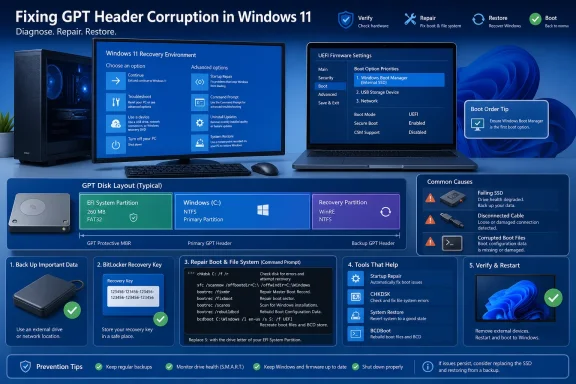
A GPT disk contains partition-layout information near both the beginning and end of the drive. On a normal Windows 11 UEFI installation, the disk also contains an EFI System Partition (ESP), the Windows partition, and usually a recovery partition.
A GPT-header warning can be caused by:
If the internal disk is not shown in UEFI, shut down again. On a desktop or a laptop designed for service, reseat the drive and its SATA data/power connections. If you are not comfortable opening the device, use the PC manufacturer’s service process instead. An NVMe SSD that is absent from UEFI is not a Windows repair problem.
If Windows can still reach the desktop:
Review the output carefully:
Use the letter that displays folders such as
If
First run a read-only scan:
If it reports errors, run:
Use
When CHKDSK finishes, restart the PC. If the GPT warning persists, return to WinRE.
If BCDBoot cannot find a system partition, do not format partitions as a first response. Recheck the disk and volumes with DiskPart. The EFI System Partition should be a small FAT32 partition on the same system disk. If it is missing, inaccessible, or the disk’s GPT layout is not readable, the problem has moved beyond a simple BCD repair.
Do not use DiskPart
The commands below are sometimes presented as a “GPT corruption fix”:
They are not a repair for an existing installation.
Use this only when all of the following are true:
 Understand what the error does—and does not—mean
A GPT disk contains partition-layout information near both the beginning and end of the drive. On a normal Windows 11 UEFI installation, the disk also contains an EFI System Partition (ESP), the Windows partition, and usually a recovery partition.A GPT-header warning can be caused by:
- A failing SSD or hard drive.
- A loose SATA data or power cable on a desktop or serviceable laptop.
- A corrupted partition table after an unexpected shutdown, storage error, or interrupted disk operation.
- Firmware attempting to boot the wrong drive.
- Damaged Windows boot files or Boot Configuration Data (BCD) alongside an otherwise readable GPT disk.
Before making changes
Have these items ready before entering recovery tools:- The BitLocker recovery key, if device encryption or BitLocker is enabled. WinRE may ask for the 48-digit key before it gives access to Startup Repair, Command Prompt, or the Windows volume.
- AC power for a laptop. Do not perform storage repairs on battery power.
- A Windows 11 installation USB, if the built-in recovery menu will not load. Boot from it and select Repair your computer rather than Install now.
- A backup destination if Windows still starts, even occasionally.
Disconnect removable storage and check the boot target
External drives, USB flash drives, SD cards, docks, and older cloned system disks can cause the firmware to select an unintended boot device.- Shut down the PC fully.
- Disconnect all nonessential USB storage, external SSDs, memory cards, and optical media.
- Leave connected only the keyboard, mouse, display, and the internal system drive.
- Start the PC again.
- Open the Boot, Boot Options, or similarly named section.
- Confirm that the internal system disk is detected.
- Put Windows Boot Manager for the internal system drive first in the boot order.
- Save changes and restart.
If the internal disk is not shown in UEFI, shut down again. On a desktop or a laptop designed for service, reseat the drive and its SATA data/power connections. If you are not comfortable opening the device, use the PC manufacturer’s service process instead. An NVMe SSD that is absent from UEFI is not a Windows repair problem.
Use Startup Repair first
Startup Repair is Microsoft’s least invasive built-in repair option for common startup issues, including damaged boot configuration files.If Windows can still reach the desktop:
- Open Settings.
- Go to System > Recovery.
- Under Recovery options, select Restart now beside Advanced startup.
- Confirm the restart.
- Turn on the PC.
- When the Windows logo or manufacturer logo appears, hold the power button until the PC turns off.
- Repeat the interruption one more time.
- Start the PC a third time. Windows should load Automatic Repair and then offer Advanced options.
- Select Troubleshoot > Advanced options > Startup Repair.
- Select the Windows installation if prompted and enter the account password or BitLocker recovery key when required.
- Let the tool complete, then restart.
Identify the Windows disk and partition letters in WinRE
Drive letters in WinRE often differ from the letters used when Windows is running. Do not assume that Windows isC:.- In WinRE, select Troubleshoot > Advanced options > Command Prompt.
- Enter the following commands:
Code:
diskpart
list disk
list vol
exitlist diskshows physical disks. A*in the GPT column indicates that DiskPart recognizes the disk as GPT.list volshows volumes and temporary drive letters.- The Windows volume is normally NTFS and contains a
Windowsfolder. - The EFI System Partition is normally a small FAT32 partition and usually has no drive letter.
- Test possible volume letters until you locate the Windows folder. For example:
Code:
dir C:\Windows
dir D:\Windows
dir E:\WindowsSystem32 and WinSxS. In the examples below, assume it is D:. Substitute the correct letter for your PC.If
list disk does not show the expected internal disk, stop using software repair commands. Return to UEFI to check detection, inspect connections where appropriate, or arrange hardware diagnosis. A missing disk cannot be repaired by rebuilding BCD.Check the Windows file system without erasing the disk
CHKDSK checks an NTFS volume and can repair file-system errors. It does not rebuild a corrupted GPT header or partition table, but it is useful when Windows files or the NTFS volume were damaged after a power loss.First run a read-only scan:
chkdsk D:If it reports errors, run:
chkdsk D: /fUse
/r only when you suspect bad sectors or the drive has read errors:chkdsk D: /r/r includes the repair work performed by /f and can take a long time, particularly on large hard drives. It also places sustained read load on a failing drive. If the disk appears to be failing and important data has not been copied, stop and pursue backup or professional recovery before running an extended scan.When CHKDSK finishes, restart the PC. If the GPT warning persists, return to WinRE.
Rebuild Windows UEFI boot files when GPT is visible
Use this section only when DiskPart can see the system disk as GPT and the Windows partition is readable. This repairs the Windows boot environment; it does not repair a missing or unreadable GPT header.- Return to Troubleshoot > Advanced options > Command Prompt.
- Confirm the Windows partition letter again:
dir D:\Windows- Recreate the boot files from that Windows installation:
bcdboot D:\Windows /f UEFI- Wait for the confirmation that boot files were successfully created.
- Type
exit, remove any installation USB or recovery drive, and restart.
If BCDBoot cannot find a system partition, do not format partitions as a first response. Recheck the disk and volumes with DiskPart. The EFI System Partition should be a small FAT32 partition on the same system disk. If it is missing, inaccessible, or the disk’s GPT layout is not readable, the problem has moved beyond a simple BCD repair.
When the GPT disk is readable but Windows still will not boot
Try these WinRE options before reinstalling:- Select Troubleshoot > Advanced options > System Restore if a restore point exists.
- Select Troubleshoot > Advanced options > Uninstall Updates if the failure began immediately after a Windows update.
- Run Startup Repair once more after a successful BCDBoot operation.
Do not use DiskPart clean as a repair
The commands below are sometimes presented as a “GPT corruption fix”:
Code:
diskpart
select disk <number>
clean
convert gptclean removes the partition information from the selected disk. Afterward, Windows, recovery partitions, installed programs, and files on that disk are no longer available through the normal partition layout.Use this only when all of the following are true:
- You have a verified backup or do not need the disk’s existing data.
- The drive has passed hardware checks or has been replaced.
- You intend to perform a clean Windows 11 installation.
- You have identified the correct disk by its capacity and model, especially if more than one drive is installed.
Replace the drive when corruption returns
A successful startup repair does not prove the storage hardware is healthy. Replace the system drive and restore or reinstall Windows when any of these occur:- The GPT error returns after repairs.
- UEFI intermittently fails to detect the disk.
- CHKDSK reports bad sectors, unreadable segments, or recurring errors.
- The drive disconnects, freezes the PC, or causes repeated blue-screen errors.
- The disk is an aging hard drive that clicks, spins down unexpectedly, or is unusually slow to read.
References
- Primary source: Guiding Tech
Published: 2026-07-15T01:30:00+00:00
Loading…
www.guidingtech.com