

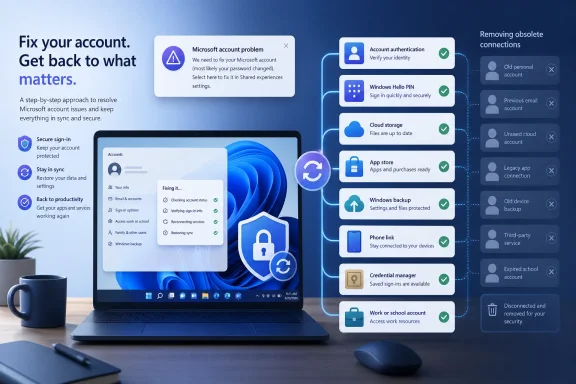
A recurring “Microsoft account problem” notification in Windows usually means the operating system, an app, or a connected service can no longer authenticate with a saved account. The underlying cause may be as simple as a recently changed password, but it can also involve an expired sign-in token, an old work account, inaccessible verification methods, stale credentials, Windows Backup synchronization, or a phone that remains linked to the PC. The reliable fix is to identify which account Windows is actually requesting, repair that account first, and only then remove obsolete connections or suppress any leftover alert.
Microsoft accounts have become part of the identity layer underpinning modern Windows. The same account may connect the Windows profile, Microsoft Store, OneDrive, Microsoft 365, Edge, Xbox services, Windows Backup, passkeys, device encryption recovery keys, and Phone Link.
That integration is convenient while every service has a valid authentication token. When a password changes, an organization withdraws access, or Microsoft requests additional verification, however, one stale connection can repeatedly generate an account warning even though the user can still unlock the PC.
The alert may also reappear after being dismissed because dismissal does not refresh the failed token. Windows or the affected app simply tries to authenticate again during the next synchronization cycle.
Settings labels can vary slightly by Windows release, edition, organization policy, and staged feature rollout. If a page does not look exactly as described, use the Settings search box to find terms such as Your info, Email & accounts, Access work or school, or Sign-in options.
If an email address appears beneath the profile name, it is normally the Microsoft account attached to the Windows profile. If the page identifies the user as a local account, Windows may still have separate Microsoft accounts connected to apps and services.
Before making changes, note the affected email address and take a screenshot of any error code. Specific codes can distinguish an incorrect password from a blocked account, a tenant policy failure, or a network-related problem.
The Microsoft account password is not necessarily what the user enters every time the PC starts. Windows Hello can continue to provide a device-specific PIN, fingerprint, face recognition, or security-key sign-in after the cloud account is connected.
In that situation, leave the Windows profile local and repair only the Microsoft account required by the affected application. Do not convert the profile merely to make a notification disappear if cloud integration is unwanted.
A password can also be reset through Microsoft’s online account-recovery process from another trusted device. After the reset, connect the Windows PC to the internet and use the new password at least once where requested.
Changing the PIN therefore does not repair a cloud password failure. If the notification follows a password reset, update the cloud sign-in first and recreate the PIN only if Windows Hello itself reports a problem.
Some locked-account messages display a shortened Microsoft address leading to a reinstatement form. Use the address shown directly on the genuine Microsoft sign-in page rather than following links from unsolicited email or messages.
If the tool directs you to the account-recovery form:
This makes preparation essential. Maintain more than one current verification method, save recovery codes securely where available, and remove phone numbers or email addresses that you no longer control.
To remove an obsolete account:
Open the profile or account menu in the application and sign out of the unwanted identity. If the account is still required, sign out and then sign back in to force a clean authentication token.
If uncertain, sign out of the relevant application first and test its behavior. This is safer than immediately removing every account and then attempting to reconstruct the original configuration.
On an employer-owned device, contact the IT department rather than attempting to remove management components. Administrators may need to retire the device properly before the account can be disconnected.
This distinction matters on personal computers. Broad device registration can create additional single sign-on behavior and may expose limited device details to the organization, while app-only access maintains a clearer separation.
Remove one clearly associated credential group at a time, restart, and test. This method makes it easier to identify the actual cause and reduces the chance of disrupting unrelated connections.
Enter the current password and complete multifactor authentication if required. If an application immediately recreates a failing credential, update or repair that application rather than repeatedly deleting the same entry.
Temporarily turn off the category most likely connected to the problem. Restart the PC and determine whether the alert returns before disabling unrelated backup features.
Likewise, deleting a local credential may not be permanent if a synchronized copy is restored. If the entry returns, remove it again after disabling the relevant backup category.
This action may affect personalization, remembered preferences, Wi-Fi information, and other conveniences on multiple devices. Record any important settings first and treat cloud clearing as a later-stage repair, not the opening move.
Microsoft describes Phone Link as deeply integrated with Windows and does not offer a normal supported uninstall path. Removing the device relationship is therefore preferable to using unsupported commands to strip the application from the operating system.
A version mismatch can create synchronization or reconnection errors that resemble an account problem. Update both sides before assuming the Microsoft account itself is damaged.
Optional driver updates are rarely the direct solution to an account prompt. Prioritize Windows servicing updates and application packages before changing hardware drivers.
For persistent app-specific failures, use Settings > Apps > Installed apps, open the application’s advanced options when available, and try Repair before Reset. Reset can delete local application data and require full reconfiguration, so use it selectively.
Running the scan first reduces the risk that an information-stealing program will capture the replacement password. For a high-confidence compromise, consider following the full scan with Microsoft Defender Offline scanning.
Disabling a specific sender is preferable to turning off notifications globally. Security warnings, update prompts, backup failures, and time-sensitive communications may otherwise disappear along with the nuisance alert.
For scheduled quiet periods, open Settings > System > Notifications and expand the automatic Do Not Disturb options. Configure it for specific times, full-screen applications, games, or other supported conditions.
A repaired account should authenticate normally without constant intervention. Continued warnings after suppression often indicate that another account connection remains active elsewhere on the PC.
Users should treat account pages as part of routine PC maintenance. Reviewing connected identities after changing jobs, leaving a school, replacing a phone, or retiring an email address can prevent stale-token warnings months later.
For work and school identities, learn the organization’s password-reset and device-retirement process before access ends. A former employee may not be able to repair a stale organizational connection after the administrator disables the account.
The Microsoft account problem notification is best understood as an authentication symptom rather than a single Windows defect. Repair the cloud identity first, reconnect the application or Windows profile that needs it, and then remove stale accounts, credentials, backups, and phone links in a controlled order. That approach fixes the recurring warning without sacrificing important data, organizational access, or the security protections designed to keep the account from falling into the wrong hands.
 Background
Microsoft accounts have become part of the identity layer underpinning modern Windows. The same account may connect the Windows profile, Microsoft Store, OneDrive, Microsoft 365, Edge, Xbox services, Windows Backup, passkeys, device encryption recovery keys, and Phone Link.That integration is convenient while every service has a valid authentication token. When a password changes, an organization withdraws access, or Microsoft requests additional verification, however, one stale connection can repeatedly generate an account warning even though the user can still unlock the PC.
Why the notification is often vague
Windows may know that an authentication request failed without clearly identifying which component initiated it. The visible notification can therefore appear to blame the primary Microsoft account when the actual source is an old Outlook address, a former employer’s Microsoft Entra account, or a credential retained by an individual application.The alert may also reappear after being dismissed because dismissal does not refresh the failed token. Windows or the affected app simply tries to authenticate again during the next synchronization cycle.
Windows 11 is now the primary target
Microsoft ended free security support for most Windows 10 installations on October 14, 2025, although qualifying devices and organizations may have access to extended support arrangements. In 2026, the instructions in this guide primarily reflect Windows 11, but many of the account-management paths remain available in Windows 10.Settings labels can vary slightly by Windows release, edition, organization policy, and staged feature rollout. If a page does not look exactly as described, use the Settings search box to find terms such as Your info, Email & accounts, Access work or school, or Sign-in options.
Identify Which Account Is Failing
Do not begin by deleting every Microsoft-related credential on the computer. First determine whether the notification concerns the Windows sign-in identity, an account used only by apps, or an organizational connection.Check the Windows profile
Open Start > Settings > Accounts > Your info. This page shows whether the current Windows user is signed in with a Microsoft account or a local account.If an email address appears beneath the profile name, it is normally the Microsoft account attached to the Windows profile. If the page identifies the user as a local account, Windows may still have separate Microsoft accounts connected to apps and services.
Inspect the other account pages
Review these Settings locations:- Accounts > Email & accounts lists personal and organizational identities used by email, calendar, contacts, and other apps.
- Accounts > Access work or school lists workplace, university, and device-management connections.
- Accounts > Other users lists separate Windows profiles that can sign in to the PC.
- Accounts > Windows backup shows whether preferences, application information, and credentials are being synchronized through a Microsoft account.
- Bluetooth & devices > Mobile devices shows phones authorized for cross-device Windows features.
Look for the first failure
The most useful clue is often the application or action that immediately precedes the alert. For example, a warning that appears when OneDrive starts points toward its saved account, while a notification after opening Outlook may concern an email or organizational identity.Before making changes, note the affected email address and take a screenshot of any error code. Specific codes can distinguish an incorrect password from a blocked account, a tenant policy failure, or a network-related problem.
Reconnect the Microsoft Account Used by Windows
If the PC uses a local Windows profile but regularly requests a Microsoft account for built-in features, connecting the profile directly may resolve fragmented authentication. This is especially relevant when Microsoft Store, Windows Backup, OneDrive, and other services are all intended to use the same personal account.Switch from a local account
To connect the current profile:- Open Start > Settings > Accounts > Your info.
- Select Sign in with a Microsoft account instead.
- Enter the intended Microsoft account credentials.
- Complete any identity-verification or multifactor-authentication prompt.
- Select Next, followed by Sign out and finish when prompted.
- Sign back into Windows and allow connected services time to refresh.
Understand what changes
Switching the profile does not create a second copy of the user’s documents. It changes the identity associated with the existing Windows profile and allows Windows services to use a common account more consistently.The Microsoft account password is not necessarily what the user enters every time the PC starts. Windows Hello can continue to provide a device-specific PIN, fingerprint, face recognition, or security-key sign-in after the cloud account is connected.
A local account remains valid
Connecting a Microsoft account is not the correct solution for every PC. A dedicated offline system, lab machine, shared workshop computer, or tightly controlled enterprise endpoint may deliberately use a local account.In that situation, leave the Windows profile local and repair only the Microsoft account required by the affected application. Do not convert the profile merely to make a notification disappear if cloud integration is unwanted.
Refresh a Rejected or Changed Password
Password changes are among the most common triggers for repeated account prompts. Windows Hello may continue unlocking the computer because the PIN is validated locally, while OneDrive, Store, Outlook, or Windows Backup fails because it still holds an old cloud credential.Change a known password from Windows
When the current Microsoft account password still works:- Open Start > Settings > Accounts > Sign-in options.
- Expand Password.
- Select Change.
- Enter the current password.
- Create and confirm the replacement password.
- Restart Windows and sign back into affected applications.
Reset a forgotten password
From the Windows sign-in screen, select I forgot my password beneath the password field. Another supported route on compatible configurations is Sign-in options > Web sign-in, followed by the password-recovery option presented in the browser-style sign-in window.A password can also be reset through Microsoft’s online account-recovery process from another trusted device. After the reset, connect the Windows PC to the internet and use the new password at least once where requested.
Do not confuse the PIN with the password
A Windows Hello PIN belongs to a particular device. The Microsoft account password belongs to the online account and can be used across Microsoft services.Changing the PIN therefore does not repair a cloud password failure. If the notification follows a password reset, update the cloud sign-in first and recreate the PIN only if Windows Hello itself reports a problem.
Unlock or Recover the Microsoft Account
Repeated password attempts, suspicious activity, unusual travel, automated abuse detection, or security-policy enforcement can cause Microsoft to lock an account. When that happens, clearing credentials on the PC will not solve the underlying restriction.Complete the locked-account verification
Attempt to sign in to the Microsoft account through a browser. If Microsoft reports that the account is locked or temporarily suspended, request the offered security code and complete the verification process.Some locked-account messages display a shortened Microsoft address leading to a reinstatement form. Use the address shown directly on the genuine Microsoft sign-in page rather than following links from unsolicited email or messages.
Use Sign-in Helper before the recovery form
Microsoft’s Sign-in Helper is the preferred starting point when a personal account password has stopped working, the username is not recognized, verification codes do not arrive, or the user cannot identify the reason for the failure. It evaluates the supplied email address or phone number and routes the user toward the relevant recovery procedure.If the tool directs you to the account-recovery form:
- Use a device and network previously associated with the account when possible.
- Provide a working contact email address that you can currently access.
- Enter old passwords, account aliases, contacts, and other requested information as accurately as possible.
- Answer as many questions as possible instead of guessing wildly.
- Watch the contact inbox for Microsoft’s decision, which is normally sent within 24 hours.
- If recovery fails, improve the evidence before submitting another attempt; Microsoft currently limits submissions to two per day.
Two-step verification creates a hard boundary
If two-step verification is enabled and every alternate authentication method has been lost, Microsoft support cannot bypass the protection or manually hand over the account. That restriction prevents an attacker from socially engineering support into defeating multifactor authentication.This makes preparation essential. Maintain more than one current verification method, save recovery codes securely where available, and remove phone numbers or email addresses that you no longer control.
Remove Old Personal and App Accounts
A successfully repaired primary account does not automatically remove obsolete identities from Windows. An old Hotmail address, former family member’s account, test tenant, or abandoned application login can continue attempting background synchronization.Clean up Email & accounts
Open Start > Settings > Accounts > Email & accounts and inspect every entry. Pay particular attention to the areas for accounts used by email, calendar, contacts, and other apps.To remove an obsolete account:
- Select the account.
- Choose Manage or expand its available controls.
- Select Remove account where available.
- Confirm the removal.
- Restart the affected application or Windows.
Sign out inside applications too
Some Microsoft applications maintain their own account lists. Outlook, OneDrive, Teams, Microsoft Store, Edge, and Microsoft 365 may therefore retain a login even after an account disappears from Windows Settings.Open the profile or account menu in the application and sign out of the unwanted identity. If the account is still required, sign out and then sign back in to force a clean authentication token.
Avoid removing the wrong account
Before deleting an account entry, verify whether it owns a Microsoft 365 license, OneDrive folder, encrypted backup, Store purchase, or subscription used on the PC. An old-looking address may still provide entitlement for installed software.If uncertain, sign out of the relevant application first and test its behavior. This is safer than immediately removing every account and then attempting to reconstruct the original configuration.
Disconnect Former Work or School Accounts
Organizational accounts differ from personal Microsoft accounts. They may be managed through Microsoft Entra ID, subject to Conditional Access, enrolled in mobile-device management, or connected to security policies controlled by an employer or school.Remove a stale organizational connection
For an organization you no longer use:- Open Start > Settings > Accounts > Access work or school.
- Expand the account.
- Select Disconnect.
- Select Yes to confirm.
- Restart Windows.
- Check Outlook, Teams, OneDrive, Edge, and Microsoft 365 for the same identity.
Expect managed-device restrictions
The Disconnect button may be unavailable when the organization manages the PC or when the account is the device’s primary workplace identity. Removing it could also withdraw access to corporate applications, certificates, Wi-Fi profiles, virtual private networks, and protected data.On an employer-owned device, contact the IT department rather than attempting to remove management components. Administrators may need to retire the device properly before the account can be disconnected.
Choose app-only access when appropriate
When signing into a work or school application on a personal PC, Windows may ask whether the account should be available to all applications on the device. Selecting an app-only option limits the sign-in to the current application and avoids registering the broader Windows installation with the organization.This distinction matters on personal computers. Broad device registration can create additional single sign-on behavior and may expose limited device details to the organization, while app-only access maintains a clearer separation.
Clear Stale Entries in Credential Manager
Credential Manager stores saved sign-in information for websites, networks, and connected applications. After a password change or account migration, an obsolete entry can repeatedly supply the wrong credential before the user gets a chance to enter the new one.Remove only relevant credentials
To review the store:- Search the taskbar for Credential Manager.
- Open the Credential Manager Control Panel.
- Select Web Credentials or Windows Credentials.
- Expand an entry related to the affected account or application.
- Select Remove.
- Restart the PC.
- Sign into the affected service when prompted.
Use a targeted approach
Do not indiscriminately erase the entire credential store. Windows Credentials can include network shares, Remote Desktop logins, business applications, backup targets, and other services unrelated to the Microsoft account notification.Remove one clearly associated credential group at a time, restart, and test. This method makes it easier to identify the actual cause and reduces the chance of disrupting unrelated connections.
Expect fresh prompts
Deleting a valid credential does not damage the account, but it signs the local application out of its remembered session. The next launch should request authentication again.Enter the current password and complete multifactor authentication if required. If an application immediately recreates a failing credential, update or repair that application rather than repeatedly deleting the same entry.
Review Windows Backup and Cloud-Synced Settings
Windows Backup can remember application information, preferences, Wi-Fi profiles, and web credentials through a Microsoft account. This enables a smoother move to a new PC, but it can also reintroduce settings or identities that the user thought had been removed locally.Temporarily disable preference synchronization
Open Start > Settings > Accounts > Windows backup. Review Remember my apps and Remember my preferences, including any available subcategories such as accounts and passwords.Temporarily turn off the category most likely connected to the problem. Restart the PC and determine whether the alert returns before disabling unrelated backup features.
Separate backup from account repair
Turning off Windows Backup does not fix a locked account, incorrect password, or broken app token. It only prevents selected settings from continuing to synchronize.Likewise, deleting a local credential may not be permanent if a synchronized copy is restored. If the entry returns, remove it again after disabling the relevant backup category.
Clear stored cloud settings cautiously
Microsoft account device management includes controls for cloud-synchronized Windows settings. Clearing those settings can help when a corrupt or unwanted configuration follows the account between PCs.This action may affect personalization, remembered preferences, Wi-Fi information, and other conveniences on multiple devices. Record any important settings first and treat cloud clearing as a later-stage repair, not the opening move.
Unlink Phone Link and Mobile Devices
Phone Link uses Microsoft account authentication across the PC, Windows Settings, and the mobile device. A phone that was replaced, reset, sold, or signed into another Microsoft account can become the hidden source of recurring prompts.Remove the phone from every connection point
A complete unlink may require three steps:- Open Phone Link > Settings > Devices, open the device menu, and select Remove.
- Open Windows Settings > Bluetooth & devices > Mobile devices > Manage devices, then remove the same phone if it remains listed.
- On the phone, open Link to Windows, sign out of the Microsoft account, and remove or unlink the PC where applicable.
Reconnect rather than reinstall
If the phone is still in use, sign out of Link to Windows on the handset and remove it from Phone Link before pairing it again. Confirm that the PC and phone use the intended Microsoft account during setup.Microsoft describes Phone Link as deeply integrated with Windows and does not offer a normal supported uninstall path. Removing the device relationship is therefore preferable to using unsupported commands to strip the application from the operating system.
Check for outdated components
Phone Link and Link to Windows evolve independently. Update Phone Link through its in-app update page or Microsoft Store, and update Link to Windows through the mobile platform’s app-update mechanism.A version mismatch can create synchronization or reconnection errors that resemble an account problem. Update both sides before assuming the Microsoft account itself is damaged.
Install Windows and Application Updates
Account authentication depends on more than a password. Windows components, Web Account Manager, embedded web sign-in controls, Microsoft Store packages, and individual applications all participate in issuing and renewing tokens.Update Windows first
Open Start > Settings > Windows Update, select Check for updates, and install available quality, security, and component updates. Restart even if Windows does not appear to require it, then check again for remaining updates.Optional driver updates are rarely the direct solution to an account prompt. Prioritize Windows servicing updates and application packages before changing hardware drivers.
Run the Windows Update troubleshooter
If Windows Update fails:- Open the automated Windows Update troubleshooter in the Get Help app.
- Allow it to perform diagnostics and proposed repairs.
- If necessary, open Settings > System > Troubleshoot > Other troubleshooters.
- Run Windows Update under the most frequently used troubleshooters.
- Restart Windows.
- Return to Windows Update and check again.
Update Microsoft Store applications
Open Microsoft Store, go to its library or downloads area, and check for updates. Install updates for Store, Phone Link, Outlook, OneDrive, Microsoft 365 components, and any other application associated with the notification.For persistent app-specific failures, use Settings > Apps > Installed apps, open the application’s advanced options when available, and try Repair before Reset. Reset can delete local application data and require full reconfiguration, so use it selectively.
Check for a Compromised Account
Unexpected account notifications deserve additional scrutiny when they coincide with unfamiliar sign-in alerts, changed recovery information, sent messages the user did not write, or unexplained Microsoft purchases.Scan before changing the password
If compromise is suspected, disconnect from untrusted networks and update the installed security software. Then open Windows Security > Virus & threat protection > Scan options > Full scan > Scan now.Running the scan first reduces the risk that an information-stealing program will capture the replacement password. For a high-confidence compromise, consider following the full scan with Microsoft Defender Offline scanning.
Secure the identity
After the system is clean:- Change the Microsoft account password to a unique value.
- Review recent account activity for unfamiliar sessions.
- Remove security methods you do not recognize.
- Add current backup verification methods.
- Sign out of unfamiliar devices or sessions.
- Review Outlook forwarding rules and automatic replies.
- Check Microsoft Store, Xbox, and subscription purchase history.
- Replace any reused passwords on other services.
Silence Notifications Only After Repair
Notification controls can hide an alert, but they cannot renew an authentication token or restore account access. Suppression should therefore be the final step after the account, saved credentials, connected apps, and Windows updates have been checked.Disable one sender when possible
Open Start > Settings > System > Notifications. Locate the relevant application under the list of notification senders and adjust its banners, notification-center presence, sounds, lock-screen visibility, or priority.Disabling a specific sender is preferable to turning off notifications globally. Security warnings, update prompts, backup failures, and time-sensitive communications may otherwise disappear along with the nuisance alert.
Use Do Not Disturb for temporary relief
Open Notification Center and select the bell icon marked with zZ to enable Do Not Disturb. Most alerts will be routed quietly to Notification Center, while configured priority notifications can still appear.For scheduled quiet periods, open Settings > System > Notifications and expand the automatic Do Not Disturb options. Configure it for specific times, full-screen applications, games, or other supported conditions.
Recognize the limitation
If an account remains broken, hiding its notification may allow OneDrive synchronization, email delivery, Windows Backup, Store licensing, or organizational access to fail silently. Check the relevant application directly after muting any sender.A repaired account should authenticate normally without constant intervention. Continued warnings after suppression often indicate that another account connection remains active elsewhere on the PC.
Strengths and Opportunities
Windows’ connected account model provides substantial value when its identity records remain consistent. The repair process can also expose old access that should have been removed earlier.- Unified authentication reduces repeated sign-ins. A healthy Microsoft account can connect Windows, Store, OneDrive, Microsoft 365, and cross-device services with fewer separate prompts.
- Windows Hello limits routine password exposure. A device-bound PIN or biometric sign-in can protect the daily unlock process without replacing the underlying cloud password.
- Account cleanup improves security. Removing former employers, abandoned email addresses, and retired phones reduces unnecessary authentication surfaces.
- Windows Backup simplifies migration. Synchronized settings and application information can make replacement-PC setup faster when the correct account owns the backup.
- Targeted credential removal avoids drastic repairs. Credential Manager can resolve many persistent loops without reinstalling Windows or deleting the user profile.
- Organizational separation supports privacy. App-only workplace sign-in can reduce the scope of a company or school connection on a personally owned computer.
Risks and Concerns
Account troubleshooting can create additional problems when performed too aggressively. The largest risks come from deleting the wrong identity, confusing local data with cloud data, or weakening security to regain convenience.- Removing a Windows user can delete local data. The Accounts > Other users > Account and data > Remove command removes that user’s sign-in information and local profile data from the PC.
- Disconnecting a managed account can break access. Corporate applications, certificates, VPNs, Wi-Fi profiles, and encrypted resources may depend on the organizational connection.
- Clearing all credentials can disrupt unrelated services. Network shares, Remote Desktop sessions, and third-party applications may also rely on Credential Manager.
- Notification suppression can conceal real failures. Muting the sender does not restore synchronization, licensing, or identity verification.
- Recovery attempts attract scammers. Genuine Microsoft account recovery does not require paying an unknown technician to bypass two-step verification.
- Unsupported system-app removal can damage Windows. Force-removing integrated packages such as Phone Link is unnecessary when the device can be unlinked through supported controls.
- A password reset is ineffective on an infected PC. Malware should be removed before new credentials are entered.
- Two-step verification cannot be overridden by support. Losing every alternate verification method may make the account unrecoverable despite proof of device ownership.
What to Watch Next
Microsoft continues moving Windows toward cloud-backed identity, passkeys, Windows Hello, device-to-device restoration, and cross-platform integration. That direction should reduce password dependence, but it also increases the number of places where an outdated account relationship can persist.Expect deeper identity integration
Future Windows features are likely to rely even more heavily on Web Account Manager and brokered sign-in rather than each application maintaining a completely separate password store. This can improve consistency, although a failure in the shared identity layer may affect several applications simultaneously.Users should treat account pages as part of routine PC maintenance. Reviewing connected identities after changing jobs, leaving a school, replacing a phone, or retiring an email address can prevent stale-token warnings months later.
Build a recovery plan before it is needed
Keep at least two current verification methods on important accounts. Store recovery information securely, maintain access to backup email addresses, and ensure the phone number on the account still belongs to you.For work and school identities, learn the organization’s password-reset and device-retirement process before access ends. A former employee may not be able to repair a stale organizational connection after the administrator disables the account.
Escalate in the right order
If the alert persists after the standard fixes, use this escalation sequence:- Confirm which account and application are failing.
- Test the account in a private browser window.
- Repair or recover the cloud account.
- Sign out and back into the affected application.
- Remove obsolete personal, organizational, and mobile-device connections.
- Delete only the relevant saved credentials.
- Disable potentially restoring Windows Backup categories temporarily.
- Update Windows and Microsoft Store applications.
- Repair or reset the affected application.
- Create a temporary Windows user profile to determine whether the fault is profile-specific.
The Microsoft account problem notification is best understood as an authentication symptom rather than a single Windows defect. Repair the cloud identity first, reconnect the application or Windows profile that needs it, and then remove stale accounts, credentials, backups, and phone links in a controlled order. That approach fixes the recurring warning without sacrificing important data, organizational access, or the security protections designed to keep the account from falling into the wrong hands.