

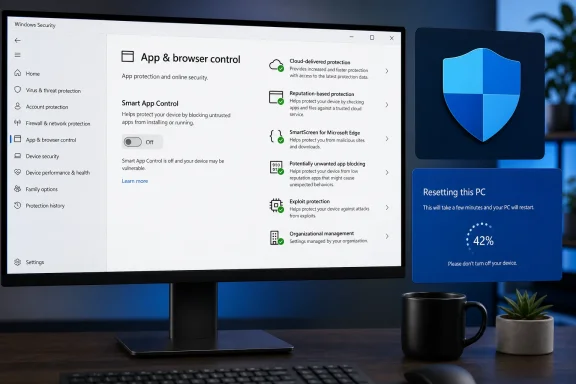
Smart App Control is one of Windows 11’s most aggressive built-in safeguards against untrusted software, but a greyed-out switch can make the feature look broken when it is often behaving exactly as Windows intends. The key is to distinguish a genuine Windows Security problem from a device that is ineligible, managed by an organization, still undergoing evaluation, or already locked into the Off state.
Unlike ordinary Microsoft Defender options, Smart App Control is not simply a universal on/off preference. It uses Microsoft’s cloud-based reputation signals, code-integrity controls, and application signing checks to decide whether potentially unsafe software should be permitted to run. That stronger protection comes with stricter eligibility rules and fewer manual overrides.
A greyed-out Smart App Control setting therefore requires a more careful fix than restarting Windows or changing a single Registry value. Some cases can be resolved with updates or a policy review. Others require a Windows reset or reinstallation before the option becomes available again.
Smart App Control is located in the Windows Security app under App & browser control. When active, it helps prevent software from running unless Windows can establish that the app is likely safe.
The feature uses two main signals:
This makes Smart App Control particularly useful for users who regularly download tools, installers, utilities, and apps from the web. It adds another layer beyond traditional antivirus scanning, but it does not replace Microsoft Defender Antivirus or another installed security suite.
Once Windows has moved from Evaluation to Off, the switch may no longer be available through the normal Windows Security interface.
Microsoft has since expanded Smart App Control behavior through Windows updates, and some systems can now enable the feature without a full clean installation. However, this is not guaranteed on every Windows 11 device, build, configuration, or region.
That means an in-place upgrade from Windows 10 to Windows 11 can still be a major reason why Smart App Control is unavailable. A PC that has accumulated years of software, drivers, scripts, installers, and configuration changes may not qualify in the same way as a fresh Windows 11 deployment.
Windows may therefore determine that enabling strict app-control enforcement would create too many interruptions. In that case, Smart App Control can turn itself off after Evaluation mode ends.
This is not a verdict that the PC is infected or unsafe. It is a compatibility decision based on how the device is used.
In these environments, a greyed-out Smart App Control switch should not be bypassed casually. IT policy may be enforcing a different and more comprehensive protection model.
Signs that management is involved include:
If Developer Mode is enabled, Smart App Control may be disabled or may decide that the device is not a suitable candidate for enforcement.
To check it:
This is especially relevant on privacy-hardened systems, PCs configured with third-party privacy tools, or devices where diagnostic settings have been changed through policy or Registry edits.
Review the setting here:
Leaving S mode is a one-way decision, and doing so does not automatically make Smart App Control ready to use. A Windows reset may be necessary afterward for Smart App Control to enter Evaluation mode on a newly prepared installation.
However, it is important to set expectations correctly: Windows Update is not a guaranteed fix for a greyed-out Smart App Control switch. It can resolve bugs and add support, but it cannot always overcome an ineligible installation state or enterprise policy.
Use Restart, not Shut down, because Fast Startup can preserve parts of the previous Windows session after a normal shutdown.
Windows Security > App & browser control > Smart App Control settings
If the option is no longer greyed out, inspect the available state carefully before making a change.
Avoid treating a particular knowledge-base update as the presumed cause unless the timing is clear and the issue is widely confirmed. A security update may coincide with a greyed-out setting without actually being responsible for it.
This is the strongest mode, but it can be inconvenient for people who routinely use independent utilities, older software, self-built programs, or specialized installation packages.
An Evaluation setting is not a promise that Smart App Control will eventually turn on. It can instead turn off automatically if the PC’s software activity suggests that enforcement would be disruptive.
This is the best-case greyed-out scenario: after updates, a previously unavailable control may become usable without resetting the device.
In that case, changing unrelated settings, installing random Registry “fixes,” or repeatedly rebooting is unlikely to help. The reliable supported path may be to reset Windows or perform a clean Windows 11 installation.
The values commonly associated with Smart App Control are:
On an ineligible system, Windows can ignore the modification or restore the previous state. This is why some users report that changing a value to Evaluation or On works briefly, while others find that it immediately returns to Off.
More importantly, a complete testing workflow may require changes outside the simple Registry path, including recovery-environment operations and code-integrity refresh procedures. Copying only one Registry step from an online guide can create an inconsistent configuration.
A Registry edit can be reasonable for experienced IT professionals who understand Windows application-control policy. For most home users, it should be considered a last-resort diagnostic action, not the primary fix for a greyed-out Smart App Control setting.
A reset counts as a fresh Windows installation for Smart App Control purposes. It can provide the feature with a new evaluation path without requiring a full manual USB installation.
Save or verify:
A full clean installation using official Windows 11 installation media can be more appropriate for systems with deeper corruption, persistent policy remnants, malware concerns, or years of accumulated configuration changes.
This can include:
Smart App Control does not offer a convenient per-app exception list. If it blocks software that is genuinely needed, users may have to disable the feature rather than approve a one-off exception. That limitation is intentional, but it reduces the feature’s flexibility.
Keep the following protections enabled where practical:
Start with the safe fundamentals: restart Windows, install all Windows and Defender updates, check the Smart App Control page directly, disable Developer Mode when it is not needed, and verify that the computer is not managed by an organization. Do not rely on Registry edits as a permanent fix, because Windows may reject or reverse them when the underlying device state is not eligible.
If Smart App Control remains locked Off on a personal Windows 11 PC, Reset this PC or a clean Windows installation is the most reliable route to a fresh evaluation and potential reactivation. For users who depend on unsigned tools, development workflows, or specialized legacy software, leaving Smart App Control off may be the more practical choice—provided the rest of Windows 11’s security defenses remain properly configured.
Unlike ordinary Microsoft Defender options, Smart App Control is not simply a universal on/off preference. It uses Microsoft’s cloud-based reputation signals, code-integrity controls, and application signing checks to decide whether potentially unsafe software should be permitted to run. That stronger protection comes with stricter eligibility rules and fewer manual overrides.
A greyed-out Smart App Control setting therefore requires a more careful fix than restarting Windows or changing a single Registry value. Some cases can be resolved with updates or a policy review. Others require a Windows reset or reinstallation before the option becomes available again.
 What Smart App Control Does in Windows 11
Smart App Control is located in the Windows Security app under App & browser control. When active, it helps prevent software from running unless Windows can establish that the app is likely safe.The feature uses two main signals:
- Cloud-powered app intelligence, which evaluates a file’s reputation and known behavior.
- Digital signatures, which help confirm that an app came from an identified publisher and has not been altered after release.
This makes Smart App Control particularly useful for users who regularly download tools, installers, utilities, and apps from the web. It adds another layer beyond traditional antivirus scanning, but it does not replace Microsoft Defender Antivirus or another installed security suite.
Smart App Control Has Three States
The apparent greyed-out issue often comes down to the mode Windows has assigned:- Evaluation: Windows observes the device and determines whether Smart App Control is likely to cause excessive disruption. It does not actively block applications during this stage.
- On: Smart App Control is in enforcement mode and blocks untrusted or potentially dangerous code.
- Off: Smart App Control is disabled and will not enforce its application trust rules.
Once Windows has moved from Evaluation to Off, the switch may no longer be available through the normal Windows Security interface.
Why Smart App Control Is Greyed Out
A disabled Smart App Control control can have several causes, and not all of them represent a Windows defect. The most common explanations involve eligibility, management policy, security configuration, or the PC’s installation history.The PC Was Upgraded Instead of Cleanly Installed
Smart App Control originally depended heavily on a clean Windows 11 installation or a Windows reset. That requirement existed because the feature is designed to observe a relatively known starting point and determine whether the system’s software habits are compatible with strict application control.Microsoft has since expanded Smart App Control behavior through Windows updates, and some systems can now enable the feature without a full clean installation. However, this is not guaranteed on every Windows 11 device, build, configuration, or region.
That means an in-place upgrade from Windows 10 to Windows 11 can still be a major reason why Smart App Control is unavailable. A PC that has accumulated years of software, drivers, scripts, installers, and configuration changes may not qualify in the same way as a fresh Windows 11 deployment.
Evaluation Mode Determined the PC Was Not a Good Fit
Smart App Control is deliberately conservative about disrupting legitimate software. Developers, IT professionals, advanced users, and people who frequently run scripts or niche utilities can encounter false positives more often than typical home users.Windows may therefore determine that enabling strict app-control enforcement would create too many interruptions. In that case, Smart App Control can turn itself off after Evaluation mode ends.
This is not a verdict that the PC is infected or unsafe. It is a compatibility decision based on how the device is used.
The Device Is Managed by Work or School IT
A work-managed Windows 11 PC may have Smart App Control unavailable because an organization has configured its own security policies. Businesses commonly use Microsoft Defender Application Control, endpoint protection platforms, Group Policy, mobile device management, or custom application allowlists.In these environments, a greyed-out Smart App Control switch should not be bypassed casually. IT policy may be enforcing a different and more comprehensive protection model.
Signs that management is involved include:
- A “Some settings are managed by your organization” message in Windows Security or Settings.
- A connected work or school account under Settings > Accounts > Access work or school.
- A PC enrolled in Microsoft Intune or another enterprise device-management service.
- Group Policy settings that control code integrity, application control, or Windows security features.
- A company-owned device with restricted administrative access.
Developer Mode Can Affect Availability
Developer Mode is useful for app testing, package deployment, debugging, and development workflows. However, Smart App Control is intentionally cautious around environments where users may run unsigned code, testing builds, and experimental tools.If Developer Mode is enabled, Smart App Control may be disabled or may decide that the device is not a suitable candidate for enforcement.
To check it:
- Open Settings with
Win + I. - Select System.
- Open For developers.
- Review the Developer Mode setting.
Optional Diagnostic Data Is Disabled
Smart App Control relies on cloud intelligence and evaluation logic. Windows may not be able to perform the required assessment if optional diagnostic data is disabled.This is especially relevant on privacy-hardened systems, PCs configured with third-party privacy tools, or devices where diagnostic settings have been changed through policy or Registry edits.
Review the setting here:
- Open Settings.
- Go to Privacy & security.
- Select Diagnostics & feedback.
- Confirm that Send optional diagnostic data is enabled.
Windows Is Running in S Mode
Windows 11 in S mode has its own restrictions and security model. Smart App Control may not be available in the ordinary way on an S mode installation.Leaving S mode is a one-way decision, and doing so does not automatically make Smart App Control ready to use. A Windows reset may be necessary afterward for Smart App Control to enter Evaluation mode on a newly prepared installation.
The System Is Not Fully Updated
Keeping Windows 11 and Microsoft Defender components current is always sensible, especially when a Windows Security feature is missing or behaves unexpectedly. Updates can deliver compatibility changes, security-platform fixes, and revised feature availability.However, it is important to set expectations correctly: Windows Update is not a guaranteed fix for a greyed-out Smart App Control switch. It can resolve bugs and add support, but it cannot always overcome an ineligible installation state or enterprise policy.
Start With the Safe Fixes
Before attempting a reset or any Registry modification, use the normal Windows troubleshooting path. These steps are low risk and can resolve a temporary Windows Security interface problem.Restart the PC Properly
A restart clears many temporary conditions affecting Windows Security, service status, pending updates, and user-session state.Use Restart, not Shut down, because Fast Startup can preserve parts of the previous Windows session after a normal shutdown.
- Open Start.
- Select the Power button.
- Choose Restart.
- Sign in and open Windows Security again.
Windows Security > App & browser control > Smart App Control settings
If the option is no longer greyed out, inspect the available state carefully before making a change.
Install Windows and Security Updates
Use Windows Update to bring the operating system, security intelligence, and servicing components up to date.- Open Settings.
- Select Windows Update.
- Click Check for updates.
- Install all available updates.
- Restart when prompted.
- Return to Windows Update and check again until no important updates remain.
Avoid treating a particular knowledge-base update as the presumed cause unless the timing is clear and the issue is widely confirmed. A security update may coincide with a greyed-out setting without actually being responsible for it.
Update Microsoft Defender Security Intelligence
Windows Security normally updates Microsoft Defender automatically, but a manual check is worthwhile.- Open Windows Security.
- Select Virus & threat protection.
- Open Protection updates.
- Select Check for updates.
Check the Smart App Control Page Directly
Open the setting directly instead of relying on an older Settings shortcut or third-party instructions.- Open Windows Security.
- Select App & browser control.
- Choose Smart App Control settings.
Understand the Difference Between “Off” and “Unavailable”
The words Off, greyed out, and missing may seem interchangeable, but they indicate different situations.Smart App Control Is On
When Smart App Control is on, it is actively enforcing trust decisions. Unknown unsigned apps, potentially unwanted programs, suspicious installers, and untrusted code may be blocked.This is the strongest mode, but it can be inconvenient for people who routinely use independent utilities, older software, self-built programs, or specialized installation packages.
Smart App Control Is in Evaluation
Evaluation is a transitional state. Windows observes the system to determine if enforcement is practical.An Evaluation setting is not a promise that Smart App Control will eventually turn on. It can instead turn off automatically if the PC’s software activity suggests that enforcement would be disruptive.
Smart App Control Is Off but Selectable
If Off is visible and selectable, Windows may allow the feature to be enabled again on that particular system. Recent Windows updates have broadened the ability to manually enable Smart App Control on some PCs.This is the best-case greyed-out scenario: after updates, a previously unavailable control may become usable without resetting the device.
Smart App Control Is Off and Locked
If Smart App Control is set to Off and the control cannot be changed, Windows may have permanently finalized the device’s current Smart App Control state.In that case, changing unrelated settings, installing random Registry “fixes,” or repeatedly rebooting is unlikely to help. The reliable supported path may be to reset Windows or perform a clean Windows 11 installation.
Why Registry Edits Are Not the Best Consumer Fix
Many guides recommend changing a Registry value calledVerifiedAndReputablePolicyState under this location:HKEY_LOCAL_MACHINE\SYSTEM\CurrentControlSet\Control\CI\PolicyThe values commonly associated with Smart App Control are:
0= Off1= On / Enforcement2= Evaluation
The Registry Value Is Not a Magic Eligibility Override
Smart App Control is tied to Windows code-integrity policies, cloud intelligence, protected configuration data, and installation-state decisions. A Registry edit may change the visible state temporarily, fail to take effect, or revert after restarting.On an ineligible system, Windows can ignore the modification or restore the previous state. This is why some users report that changing a value to Evaluation or On works briefly, while others find that it immediately returns to Off.
Microsoft Treats Registry Configuration as a Testing Scenario
Registry-driven Smart App Control configuration is primarily documented for testing and controlled technical scenarios. It is not the same as a supported consumer recovery method.More importantly, a complete testing workflow may require changes outside the simple Registry path, including recovery-environment operations and code-integrity refresh procedures. Copying only one Registry step from an online guide can create an inconsistent configuration.
Incorrect Registry Changes Can Reduce Protection
The Registry controls core Windows behavior. Editing the wrong key, changing related code-integrity values, or importing an untrusted.reg file can weaken protection or create boot and software-launch problems.A Registry edit can be reasonable for experienced IT professionals who understand Windows application-control policy. For most home users, it should be considered a last-resort diagnostic action, not the primary fix for a greyed-out Smart App Control setting.
If a Registry Check Is Necessary
If the setting is being inspected for troubleshooting, create a restore point and export the relevant Registry key first.- Search for Create a restore point and make a new restore point.
- Open Registry Editor as an administrator.
- Navigate to the Smart App Control policy location.
- Export the
Policykey before changing anything. - Do not create or modify additional values based on incomplete instructions.
- Restart Windows after any legitimate change.
- Reopen Windows Security and verify the actual status.
The Reliable Fix: Reset or Reinstall Windows 11
When Smart App Control is permanently unavailable because of installation history, evaluation results, disabled diagnostic data, or an irreversible Off state, a Windows reset is often the cleanest supported answer.A reset counts as a fresh Windows installation for Smart App Control purposes. It can provide the feature with a new evaluation path without requiring a full manual USB installation.
Prepare Before Resetting
A reset can preserve personal files, but it removes installed desktop applications and may reset settings. Back up important data regardless.Save or verify:
- Personal documents, photos, and project files.
- Browser bookmarks and saved passwords.
- Encryption recovery keys, including BitLocker recovery information.
- License keys for paid software.
- Drivers or installers needed for specialized hardware.
- Local email archives and game saves that are not cloud-synced.
- Any custom scripts, virtual machines, or development environments.
Use Reset This PC
- Open Settings.
- Go to System > Recovery.
- Select Reset this PC.
- Choose Keep my files if personal files should remain on the device.
- Choose Cloud download for a fresh Windows image when the internet connection is reliable, or Local reinstall when appropriate.
- Follow the prompts and allow Windows to complete setup.
A full clean installation using official Windows 11 installation media can be more appropriate for systems with deeper corruption, persistent policy remnants, malware concerns, or years of accumulated configuration changes.
When Smart App Control Should Stay Off
A greyed-out Smart App Control control is not always a problem worth solving. The feature may be a poor match for users whose daily work depends on software that lacks broad cloud reputation or trusted signatures.This can include:
- Software developers testing unsigned builds.
- IT administrators using deployment scripts and diagnostic utilities.
- Users of older internal business applications.
- Enthusiasts running custom tools, mods, emulators, or community-built utilities.
- People who frequently use PowerShell, batch files, and advanced automation.
- Organizations that already enforce a separate application-control policy.
Smart App Control does not offer a convenient per-app exception list. If it blocks software that is genuinely needed, users may have to disable the feature rather than approve a one-off exception. That limitation is intentional, but it reduces the feature’s flexibility.
A Better Windows 11 Security Strategy
Smart App Control works best as part of a layered security approach rather than as the only barrier against malicious software.Keep the following protections enabled where practical:
- Microsoft Defender Antivirus with real-time protection.
- Cloud-delivered protection and automatic sample submission where acceptable.
- SmartScreen protection for apps, files, websites, and downloads.
- Reputation-based protection against potentially unwanted apps.
- Windows Update and current browser updates.
- BitLocker or device encryption for data protection.
- Standard user accounts for routine daily work.
- Backups stored separately from the primary PC.
The Bottom Line
A greyed-out Smart App Control switch is usually not a simple Windows 11 glitch. It commonly reflects a deliberate limitation tied to system management, Developer Mode, diagnostic-data settings, Windows S mode, evaluation results, or the device’s original installation path.Start with the safe fundamentals: restart Windows, install all Windows and Defender updates, check the Smart App Control page directly, disable Developer Mode when it is not needed, and verify that the computer is not managed by an organization. Do not rely on Registry edits as a permanent fix, because Windows may reject or reverse them when the underlying device state is not eligible.
If Smart App Control remains locked Off on a personal Windows 11 PC, Reset this PC or a clean Windows installation is the most reliable route to a fresh evaluation and potential reactivation. For users who depend on unsigned tools, development workflows, or specialized legacy software, leaving Smart App Control off may be the more practical choice—provided the rest of Windows 11’s security defenses remain properly configured.
References
- Primary source: Guiding Tech
Published: 2026-07-21T01:30:00+00:00
Loading…
www.guidingtech.com - Official source: support.microsoft.com
Loading…
support.microsoft.com - Official source: learn.microsoft.com
Smart App Control - Windows apps | Microsoft Learn
Overview of Smart App Control, a Windows feature that protects users from untrusted or potentially dangerous code.learn.microsoft.com