

Windows Task Scheduler can run Microsoft, OEM, and third-party jobs automatically at startup, sign-in, idle time, or scheduled intervals, and a recent MakeUseOf piece argues that forgotten updater, telemetry, and vendor-support tasks may be quietly adding friction to Windows 11 boot and background performance. The useful lesson is not that Task Scheduler is a villain. It is that Windows has become a staging ground for everyone else’s “just one tiny background check.” The real maintenance skill is knowing which scheduled tasks are infrastructure, which are convenience, and which are residue.
The MakeUseOf argument lands because it describes a familiar Windows experience: a PC that looks idle, then suddenly behaves as if someone else is using it. The browser hesitates. The fan spins. Disk activity spikes. Nothing obvious is open, yet Windows is busy.
Task Scheduler is one of the places where that invisible work becomes visible. It is the operating system’s calendar and alarm clock, used for everything from legitimate system maintenance to application update checks, telemetry runs, cloud sync nudges, device-vendor reminders, and software leftovers that survived an uninstall.
That breadth is the trap. A scheduled task is not automatically suspicious, and a long Task Scheduler Library is not automatically bloat. But a Windows installation that has lived through years of GPU utilities, RGB suites, game launchers, printer packages, VPN clients, motherboard dashboards, browser updates, and OEM support tools can accumulate a surprising number of recurring chores.
The performance impact is usually not one catastrophic task. It is timing. Ten tiny “lightweight” agents that all decide startup is a fine moment to phone home can make a fast machine feel cheap.
It is also why the Task Scheduler Library can look intimidating. Microsoft tasks live alongside vendor and application tasks. Some are nested deep under Microsoft\Windows folders; others sit in the root library with friendly or cryptic names. The interface exposes enough information to help, but not enough to make every decision obvious.
The MakeUseOf piece correctly points readers toward
A task that runs once a month at 3 a.m. is rarely your boot-time enemy. A task that fires at every user logon, wakes the machine, retries after failure, or launches an updater for software you removed two years ago deserves more scrutiny.
Sometimes this is intentional. Vendors preserve settings in case you reinstall. Sometimes a shared updater supports multiple products from the same company. Sometimes the uninstall routine is simply sloppy. Whatever the reason, Task Scheduler can become a museum of past hardware and software decisions.
That matters most on PCs that have changed roles. A gaming desktop may have remnants of launchers, anti-cheat components, headset utilities, GPU tuning tools, and controller software. A laptop may carry OEM support assistants, warranty registration prompts, telemetry collectors, trialware updaters, and driver-check tasks. A work machine may inherit VPN clients, meeting plugins, remote management agents, and old line-of-business software.
This is why generic “disable these ten Windows tasks” advice is usually weaker than inventory work. The task that is useless on one PC may be essential on another. A Dell SupportAssist task may be redundant for a power user who manually updates firmware, but valuable for a family member who never checks vendor advisories. A browser update task may look duplicative, but disabling it can leave an app stale unless another update path exists.
The better question is not “Can this task be disabled?” It is “What promise is this task making, and do I still need that promise kept automatically?”
This is why the performance symptom often feels disproportionate. A modern SSD and a decent CPU can absorb plenty of background work, but contention still exists. CPU bursts, disk reads, network calls, and security scans can overlap. On lower-memory systems, or PCs with aging storage, the same task mix becomes far more visible.
Windows 11’s published minimum memory requirement remains 4GB, but that number is a floor, not a comfort target. On a machine with limited RAM, every vendor helper and updater competes with the browser, Teams, OneDrive, Explorer, Windows Security, and whatever the user actually launched. Task Scheduler is not the only source of background work, but it is one of the few places where users can see recurring jobs gathered in one console.
The practical fix is often timing rather than total removal. A task that checks for updates at every logon might be fine if shifted to a weekly schedule or allowed to run only when idle. Unfortunately, many consumer apps do not expose that kind of polite scheduling in their own settings. Task Scheduler becomes the place where power users enforce manners.
On performance alone, disabling telemetry-related tasks may not transform a modern PC. These jobs are usually intermittent, and Windows is designed to perform much of its maintenance opportunistically. But privacy is not measured only in milliseconds. For many users, the objection is that the machine is doing diagnostic and usage-reporting work that they did not knowingly request.
Microsoft’s view has long been that diagnostic data improves compatibility, reliability, and update quality. The user’s view is often simpler: I bought the PC, I want less reporting. Both positions can be true in their own frames. The tension is that Windows is both a local operating system and a cloud-managed product whose vendor wants operational feedback at enormous scale.
That makes telemetry tasks tempting targets for enthusiasts. Yet even here, the right advice is measured. Disabling a data-collection task is different from disabling Windows Update, Microsoft Defender, storage maintenance, or power-management work. A privacy tweak that breaks reliability is not privacy; it is deferred troubleshooting.
The safest posture is to separate diagnostic reporting from servicing. Reduce telemetry where policy and settings allow, but do not sabotage the mechanisms that keep the OS patched and recoverable.
Some of these tools are useful. Firmware updates, BIOS advisories, dock firmware, battery health settings, and device-specific drivers can matter. Business-class fleets may rely on vendor tooling for lifecycle management. But the consumer versions often bundle legitimate maintenance with marketing, notifications, and redundant update checks.
Scheduled tasks are one way those utilities maintain presence. They check for offers, scan for support messages, look for driver updates, or relaunch companion services. On a clean high-end laptop, this may be background noise. On a lower-end system, it can be part of the difference between a crisp desktop and a sluggish first five minutes.
The decision is not “HP, Lenovo, Dell, ASUS, Acer, MSI, and Razer tools are bad.” The decision is whether a particular utility still earns its place in the automatic path. If you know how to fetch firmware and drivers manually, you may prefer to disable recurring vendor checks and run the tool only when needed. If you support relatives or small-office users, automatic vendor update alerts may prevent bigger problems later.
This is the unglamorous truth of Windows tuning: the “right” configuration depends on who will maintain the machine after the article is closed.
Sometimes it is. But browser updates are among the least optional updates on a consumer PC. Browsers are application platforms, password gateways, document viewers, video runtimes, extension hosts, and the most exposed software most people use. A stale browser is a real security risk.
That does not mean every browser updater task deserves blind trust. If you no longer use a browser, remove the browser properly and then check whether tasks remain. If duplicate tasks point to missing executables, clean them up carefully. If a task belongs to a portable or abandoned install, it may be dead weight.
But disabling browser update tasks simply because they appear twice is a bad trade unless you understand the update model. The win from shaving a small startup check is not worth the cost of drifting behind on security patches.
This is also where Task Scheduler’s history and action fields matter. A task’s name can be vague, but its action usually reveals the executable path or command. If the path points into an old application directory, a deleted vendor folder, a temporary installer location, or a user profile that no longer exists, you have a concrete lead.
Even then, disabling first is wiser than deleting. Disabling preserves the task definition, giving you a rollback path if you misunderstood it. Deleting is final enough to be annoying and casual enough to be dangerous. A disabled task can sit harmlessly for a week while you watch for side effects.
This is the same discipline sysadmins apply at scale. Change one thing, observe, document, and reverse if needed. The home-user version is simpler but follows the same logic: do not turn a cleanup session into a mystery outage.
But “safer” is not “safe.” A scheduled task can still be part of backup, restore, update, security, diagnostics, or enterprise management. Disabling the wrong task can break expected behavior in ways that do not show up immediately. The machine may seem fine until the next update cycle, device install, or recovery attempt.
This is why the best advice in the MakeUseOf article is also the least exciting: research before disabling. Search the task name, inspect its path, check the author, and understand whether it belongs to Microsoft, your PC maker, a peripheral vendor, or an application. Look at whether it runs as SYSTEM or as your user account. Look at whether it triggers at startup, logon, idle, or a calendar interval.
If the task sounds important because it contains words like Update, Defender, Restore, Maintenance, BitLocker, Backup, Servicing, or Recovery, assume it matters until proven otherwise. If it contains the name of an app you uninstalled, an OEM promo tool, or a vendor assistant you never use, it is a better candidate for testing.
A task that is telemetry on one edition may be tied to compatibility assessment on another. A vendor updater that is noisy on a gaming desktop may be the only thing warning a laptop owner about a critical firmware fix. A corporate device may have scheduled tasks installed by management tools, security agents, backup software, or compliance policies. Disabling those can violate policy or make the device less secure.
That is especially relevant for WindowsForum readers, many of whom support more than their own machines. The tweak you make on your personal workstation is not automatically the tweak you should apply to a parent’s laptop or a client’s fleet. Power users can compensate for disabled automation with manual habits. Ordinary users usually cannot.
The responsible version of this story is therefore not a blacklist. It is a workflow. Identify tasks that run at startup or logon. Sort by last run time and next run time. Inspect actions. Confirm the vendor. Disable only low-risk candidates. Reboot and observe. Keep notes.
That sounds boring. It is also how you avoid becoming the cause of the next support ticket.
Microsoft contributes to this, but it does not act alone. Game stores want to update. Peripheral suites want profiles ready. GPU tools want overlays. Cloud drives want sync. Browsers want patch velocity. OEMs want support visibility. Security products want constant awareness. Collaboration tools want presence before the user even opens them.
Task Scheduler is one registry of those claims on your machine’s time. Services, startup apps, drivers, browser extensions, shell integrations, and background app permissions are others. Cleaning scheduled tasks helps, but it should be part of a broader audit rather than a one-time purge.
This is where Windows still differs from the idealized appliance model. A phone tightly controls background execution. A Windows PC remains a general-purpose computer where installed software can carve out persistence in many ways. That flexibility is why Windows is powerful. It is also why maintenance remains a user skill.
When the uninstaller fails to remove a task, disabling becomes reasonable. But leaving the application installed while disabling its updater or maintenance tasks can create a half-supported state. The app remains present but no longer receives the background care its vendor expected.
This distinction matters for security-sensitive software. VPNs, password managers, browsers, remote access tools, backup clients, and endpoint protection should not be casually deprived of update mechanisms. If you dislike their background behavior, choose a better product rather than quietly freezing the one you have.
For vendor utilities and convenience tools, the calculus is different. If an RGB manager, game overlay, launcher helper, or support assistant exists mostly to nag or self-promote, disabling its scheduled task may be the least invasive way to restore calm. But if you never use the tool, uninstalling it is cleaner.
A tidy PC is not a PC with every background mechanism amputated. It is a PC where the remaining background mechanisms correspond to software you actually trust and use.
Windows includes other places to inspect startup impact, including Task Manager’s Startup apps view and event logs for boot performance. Third-party tools can show autoruns across services, scheduled tasks, drivers, shell extensions, and more. Task Scheduler is one lens, not the whole diagnosis.
Still, subjective responsiveness is not imaginary. If a scheduled task launches an updater that spikes CPU and disk activity every time you sign in, disabling or rescheduling it can improve the first minute of use. If ten tasks do the same thing, the improvement is more noticeable.
The important thing is to avoid magical thinking. If a PC is slow because it has 4GB of RAM, a failing drive, thermal throttling, malware, or a bloated browser profile, Task Scheduler cleanup will not save it. It may remove some grit from the gears. It will not rebuild the engine.
This is where enthusiast culture sometimes undermines itself. There is a difference between reducing telemetry and turning off the systems that patch vulnerabilities. There is a difference between silencing an OEM promo checker and stopping firmware or driver advisories. There is a difference between removing an abandoned updater and blocking a browser’s security channel.
The smarter posture is conservative. Leave Windows Update alone. Leave Defender and security tooling alone unless you know exactly what replaces them. Leave restore and backup mechanisms alone unless you have a better recovery plan. Leave power and maintenance tasks alone unless you are diagnosing a specific, understood problem.
Performance tuning should make a PC more pleasant to use. It should not make the machine quietly less safe.
A sane audit begins with the Task Scheduler Library root, where many third-party tasks appear. Then it moves into vendor folders under the library tree. The Microsoft\Windows branch deserves more caution because it contains a mixture of maintenance, compatibility, diagnostics, and system functions.
The method is simple but slow. Open a task, read its triggers, read its actions, check its history if available, and inspect the executable path. If the task runs at logon and belongs to something nonessential, it is a candidate. If it has not run successfully in months, points to nowhere, or belongs to software you removed, it is a stronger candidate.
Disable, reboot, and live with the change before deleting anything. If nothing breaks after a reasonable period, deletion may be acceptable for true orphan tasks, but there is little urgency. A disabled task consumes essentially no runtime resources.
Some promises are valuable. Some are self-serving. Some expired when the related app was uninstalled. The user’s job is not to reject automation wholesale, but to decide which promises still serve the owner of the machine.
For Windows 11 users, especially those on long-lived installs, the MakeUseOf piece is a useful nudge. It turns a vague complaint — “my PC is doing something” — into a place to look. The article’s weaker implication is that hidden scheduled tasks are broadly “unnecessary.” The more accurate version is that many tasks are necessary to someone, but not always to you.
That distinction is everything. Windows is full of defaults designed for the median user, the vendor’s support model, Microsoft’s telemetry pipeline, or the software maker’s update strategy. A power user can improve the machine by making those defaults more intentional.
Source: MakeUseOf Windows Task Scheduler is running tasks you've never heard of, and they could be slowing your startup
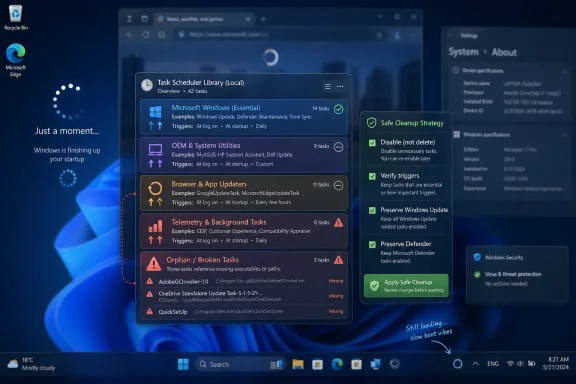 The Startup Slowdown Is Usually a Crowd Problem, Not a Single Culprit
The MakeUseOf argument lands because it describes a familiar Windows experience: a PC that looks idle, then suddenly behaves as if someone else is using it. The browser hesitates. The fan spins. Disk activity spikes. Nothing obvious is open, yet Windows is busy.Task Scheduler is one of the places where that invisible work becomes visible. It is the operating system’s calendar and alarm clock, used for everything from legitimate system maintenance to application update checks, telemetry runs, cloud sync nudges, device-vendor reminders, and software leftovers that survived an uninstall.
That breadth is the trap. A scheduled task is not automatically suspicious, and a long Task Scheduler Library is not automatically bloat. But a Windows installation that has lived through years of GPU utilities, RGB suites, game launchers, printer packages, VPN clients, motherboard dashboards, browser updates, and OEM support tools can accumulate a surprising number of recurring chores.
The performance impact is usually not one catastrophic task. It is timing. Ten tiny “lightweight” agents that all decide startup is a fine moment to phone home can make a fast machine feel cheap.
Task Scheduler Is Windows’ Automation Backbone, Not a Junk Drawer
Task Scheduler exists because Windows needs a reliable way to perform work without asking the user to remember it. It launches tasks based on triggers: at logon, at startup, on a schedule, when idle, when an event appears, or under certain power conditions. That makes it useful for operating-system maintenance, enterprise administration, security tooling, and ordinary software updates.It is also why the Task Scheduler Library can look intimidating. Microsoft tasks live alongside vendor and application tasks. Some are nested deep under Microsoft\Windows folders; others sit in the root library with friendly or cryptic names. The interface exposes enough information to help, but not enough to make every decision obvious.
The MakeUseOf piece correctly points readers toward
taskschd.msc, which can be opened from the Start menu by searching for Task Scheduler or through the Run dialog. Once inside, the important columns are not just “Status” and “Triggers.” The “Last Run Time,” “Last Run Result,” “Next Run Time,” and “Author” fields often tell the more useful story.A task that runs once a month at 3 a.m. is rarely your boot-time enemy. A task that fires at every user logon, wakes the machine, retries after failure, or launches an updater for software you removed two years ago deserves more scrutiny.
The Leftovers Are Where the Story Gets Interesting
The most credible part of the MakeUseOf claim is not that Windows itself is uniquely wasteful. It is that software removal on Windows has never been as clean as users imagine. Uninstallers often leave services, scheduled tasks, folders, registry entries, logs, helper binaries, and update mechanisms behind.Sometimes this is intentional. Vendors preserve settings in case you reinstall. Sometimes a shared updater supports multiple products from the same company. Sometimes the uninstall routine is simply sloppy. Whatever the reason, Task Scheduler can become a museum of past hardware and software decisions.
That matters most on PCs that have changed roles. A gaming desktop may have remnants of launchers, anti-cheat components, headset utilities, GPU tuning tools, and controller software. A laptop may carry OEM support assistants, warranty registration prompts, telemetry collectors, trialware updaters, and driver-check tasks. A work machine may inherit VPN clients, meeting plugins, remote management agents, and old line-of-business software.
This is why generic “disable these ten Windows tasks” advice is usually weaker than inventory work. The task that is useless on one PC may be essential on another. A Dell SupportAssist task may be redundant for a power user who manually updates firmware, but valuable for a family member who never checks vendor advisories. A browser update task may look duplicative, but disabling it can leave an app stale unless another update path exists.
The better question is not “Can this task be disabled?” It is “What promise is this task making, and do I still need that promise kept automatically?”
Startup Is the Worst Time to Ask for Attention
Scheduled tasks are especially annoying when they pile onto startup. Windows startup is already a busy negotiation among drivers, services, shell components, security software, cloud sync clients, startup apps, update checks, and user-session initialization. A scheduled task triggered “At log on” joins that queue at the exact moment the user expects responsiveness.This is why the performance symptom often feels disproportionate. A modern SSD and a decent CPU can absorb plenty of background work, but contention still exists. CPU bursts, disk reads, network calls, and security scans can overlap. On lower-memory systems, or PCs with aging storage, the same task mix becomes far more visible.
Windows 11’s published minimum memory requirement remains 4GB, but that number is a floor, not a comfort target. On a machine with limited RAM, every vendor helper and updater competes with the browser, Teams, OneDrive, Explorer, Windows Security, and whatever the user actually launched. Task Scheduler is not the only source of background work, but it is one of the few places where users can see recurring jobs gathered in one console.
The practical fix is often timing rather than total removal. A task that checks for updates at every logon might be fine if shifted to a weekly schedule or allowed to run only when idle. Unfortunately, many consumer apps do not expose that kind of polite scheduling in their own settings. Task Scheduler becomes the place where power users enforce manners.
Telemetry Tasks Are a Privacy Story Before They Are a Performance Story
MakeUseOf highlights Microsoft Compatibility Appraiser, ProgramDataUpdater, Consolidator, UsbCeip, and KernelCeipTask as examples of tasks associated with compatibility or customer-experience data collection. That is the part of the discussion that tends to drift from performance tuning into privacy politics.On performance alone, disabling telemetry-related tasks may not transform a modern PC. These jobs are usually intermittent, and Windows is designed to perform much of its maintenance opportunistically. But privacy is not measured only in milliseconds. For many users, the objection is that the machine is doing diagnostic and usage-reporting work that they did not knowingly request.
Microsoft’s view has long been that diagnostic data improves compatibility, reliability, and update quality. The user’s view is often simpler: I bought the PC, I want less reporting. Both positions can be true in their own frames. The tension is that Windows is both a local operating system and a cloud-managed product whose vendor wants operational feedback at enormous scale.
That makes telemetry tasks tempting targets for enthusiasts. Yet even here, the right advice is measured. Disabling a data-collection task is different from disabling Windows Update, Microsoft Defender, storage maintenance, or power-management work. A privacy tweak that breaks reliability is not privacy; it is deferred troubleshooting.
The safest posture is to separate diagnostic reporting from servicing. Reduce telemetry where policy and settings allow, but do not sabotage the mechanisms that keep the OS patched and recoverable.
OEM Utilities Are the New Trialware
The old bloatware model was obvious: preinstalled games, shopping portals, antivirus trials, and desktop shortcuts. The newer model is quieter. It is the vendor “experience” layer that runs as support assistant, driver updater, warranty notifier, system optimizer, audio console, display manager, device health checker, or registration reminder.Some of these tools are useful. Firmware updates, BIOS advisories, dock firmware, battery health settings, and device-specific drivers can matter. Business-class fleets may rely on vendor tooling for lifecycle management. But the consumer versions often bundle legitimate maintenance with marketing, notifications, and redundant update checks.
Scheduled tasks are one way those utilities maintain presence. They check for offers, scan for support messages, look for driver updates, or relaunch companion services. On a clean high-end laptop, this may be background noise. On a lower-end system, it can be part of the difference between a crisp desktop and a sluggish first five minutes.
The decision is not “HP, Lenovo, Dell, ASUS, Acer, MSI, and Razer tools are bad.” The decision is whether a particular utility still earns its place in the automatic path. If you know how to fetch firmware and drivers manually, you may prefer to disable recurring vendor checks and run the tool only when needed. If you support relatives or small-office users, automatic vendor update alerts may prevent bigger problems later.
This is the unglamorous truth of Windows tuning: the “right” configuration depends on who will maintain the machine after the article is closed.
Browser Updaters Are Annoying Because They Are Also Necessary
The MakeUseOf example of multiple BraveSoftwareUpdate or MicrosoftEdgeUpdate tasks captures another common confusion. Modern browsers often install system-level and user-level update tasks, or separate tasks for periodic checks and on-logon checks. To a user inspecting Task Scheduler, that can look redundant or careless.Sometimes it is. But browser updates are among the least optional updates on a consumer PC. Browsers are application platforms, password gateways, document viewers, video runtimes, extension hosts, and the most exposed software most people use. A stale browser is a real security risk.
That does not mean every browser updater task deserves blind trust. If you no longer use a browser, remove the browser properly and then check whether tasks remain. If duplicate tasks point to missing executables, clean them up carefully. If a task belongs to a portable or abandoned install, it may be dead weight.
But disabling browser update tasks simply because they appear twice is a bad trade unless you understand the update model. The win from shaving a small startup check is not worth the cost of drifting behind on security patches.
“File Not Found” Is the Breadcrumb Worth Following
One of the most practical suggestions in the MakeUseOf piece is searching for tasks that point to files that no longer exist. That is where the case for cleanup becomes strongest. If a scheduled task launches an executable that has been removed, it is not helping you. It may generate errors, waste time, or simply clutter the library.This is also where Task Scheduler’s history and action fields matter. A task’s name can be vague, but its action usually reveals the executable path or command. If the path points into an old application directory, a deleted vendor folder, a temporary installer location, or a user profile that no longer exists, you have a concrete lead.
Even then, disabling first is wiser than deleting. Disabling preserves the task definition, giving you a rollback path if you misunderstood it. Deleting is final enough to be annoying and casual enough to be dangerous. A disabled task can sit harmlessly for a week while you watch for side effects.
This is the same discipline sysadmins apply at scale. Change one thing, observe, document, and reverse if needed. The home-user version is simpler but follows the same logic: do not turn a cleanup session into a mystery outage.
The Registry Is Not the Bravery Test
Task Scheduler tuning is attractive partly because it feels safer than registry editing. That instinct is right. The registry is a huge configuration database where small changes can have broad and opaque consequences. Task Scheduler presents discrete jobs with triggers, actions, authors, and run history.But “safer” is not “safe.” A scheduled task can still be part of backup, restore, update, security, diagnostics, or enterprise management. Disabling the wrong task can break expected behavior in ways that do not show up immediately. The machine may seem fine until the next update cycle, device install, or recovery attempt.
This is why the best advice in the MakeUseOf article is also the least exciting: research before disabling. Search the task name, inspect its path, check the author, and understand whether it belongs to Microsoft, your PC maker, a peripheral vendor, or an application. Look at whether it runs as SYSTEM or as your user account. Look at whether it triggers at startup, logon, idle, or a calendar interval.
If the task sounds important because it contains words like Update, Defender, Restore, Maintenance, BitLocker, Backup, Servicing, or Recovery, assume it matters until proven otherwise. If it contains the name of an app you uninstalled, an OEM promo tool, or a vendor assistant you never use, it is a better candidate for testing.
The Dangerous Advice Is the Advice That Sounds Universal
Windows enthusiasts love lists. Disable this. Remove that. Turn off these services. Kill these scheduled tasks. The problem is that Windows is not one machine; it is an ecosystem of hardware, editions, policies, languages, vendors, and user habits.A task that is telemetry on one edition may be tied to compatibility assessment on another. A vendor updater that is noisy on a gaming desktop may be the only thing warning a laptop owner about a critical firmware fix. A corporate device may have scheduled tasks installed by management tools, security agents, backup software, or compliance policies. Disabling those can violate policy or make the device less secure.
That is especially relevant for WindowsForum readers, many of whom support more than their own machines. The tweak you make on your personal workstation is not automatically the tweak you should apply to a parent’s laptop or a client’s fleet. Power users can compensate for disabled automation with manual habits. Ordinary users usually cannot.
The responsible version of this story is therefore not a blacklist. It is a workflow. Identify tasks that run at startup or logon. Sort by last run time and next run time. Inspect actions. Confirm the vendor. Disable only low-risk candidates. Reboot and observe. Keep notes.
That sounds boring. It is also how you avoid becoming the cause of the next support ticket.
Windows’ Background Economy Keeps Expanding
The larger issue is that Windows has become a background economy. Every vendor wants a tiny resident process, scheduled updater, notification channel, telemetry loop, licensing check, sync agent, or helper service. Each one can be defended in isolation. Together they turn the PC into a committee.Microsoft contributes to this, but it does not act alone. Game stores want to update. Peripheral suites want profiles ready. GPU tools want overlays. Cloud drives want sync. Browsers want patch velocity. OEMs want support visibility. Security products want constant awareness. Collaboration tools want presence before the user even opens them.
Task Scheduler is one registry of those claims on your machine’s time. Services, startup apps, drivers, browser extensions, shell integrations, and background app permissions are others. Cleaning scheduled tasks helps, but it should be part of a broader audit rather than a one-time purge.
This is where Windows still differs from the idealized appliance model. A phone tightly controls background execution. A Windows PC remains a general-purpose computer where installed software can carve out persistence in many ways. That flexibility is why Windows is powerful. It is also why maintenance remains a user skill.
The Best Fix Is Often Uninstalling, Not Disabling
If a scheduled task belongs to software you no longer want, the first remedy should be uninstalling the software, not manually suppressing its task. A clean uninstall removes more than the visible app. It may remove services, drivers, shell extensions, scheduled tasks, and update components that would otherwise remain.When the uninstaller fails to remove a task, disabling becomes reasonable. But leaving the application installed while disabling its updater or maintenance tasks can create a half-supported state. The app remains present but no longer receives the background care its vendor expected.
This distinction matters for security-sensitive software. VPNs, password managers, browsers, remote access tools, backup clients, and endpoint protection should not be casually deprived of update mechanisms. If you dislike their background behavior, choose a better product rather than quietly freezing the one you have.
For vendor utilities and convenience tools, the calculus is different. If an RGB manager, game overlay, launcher helper, or support assistant exists mostly to nag or self-promote, disabling its scheduled task may be the least invasive way to restore calm. But if you never use the tool, uninstalling it is cleaner.
A tidy PC is not a PC with every background mechanism amputated. It is a PC where the remaining background mechanisms correspond to software you actually trust and use.
Startup Performance Needs Measurement, Not Vibes
The MakeUseOf piece is careful to say users likely will not see massive performance gains. That caveat matters. Task Scheduler cleanup can make a PC feel better, especially at boot, but it is not a substitute for enough RAM, healthy storage, current drivers, and sane startup apps.Windows includes other places to inspect startup impact, including Task Manager’s Startup apps view and event logs for boot performance. Third-party tools can show autoruns across services, scheduled tasks, drivers, shell extensions, and more. Task Scheduler is one lens, not the whole diagnosis.
Still, subjective responsiveness is not imaginary. If a scheduled task launches an updater that spikes CPU and disk activity every time you sign in, disabling or rescheduling it can improve the first minute of use. If ten tasks do the same thing, the improvement is more noticeable.
The important thing is to avoid magical thinking. If a PC is slow because it has 4GB of RAM, a failing drive, thermal throttling, malware, or a bloated browser profile, Task Scheduler cleanup will not save it. It may remove some grit from the gears. It will not rebuild the engine.
Security Updates Are the Line You Do Not Cross Casually
The red line in any scheduled-task cleanup is servicing. Windows Update, Microsoft Defender, recovery, certificate, time synchronization, and core maintenance tasks are not the place to hunt for quick wins. Disabling them can create delayed, compounding risk.This is where enthusiast culture sometimes undermines itself. There is a difference between reducing telemetry and turning off the systems that patch vulnerabilities. There is a difference between silencing an OEM promo checker and stopping firmware or driver advisories. There is a difference between removing an abandoned updater and blocking a browser’s security channel.
The smarter posture is conservative. Leave Windows Update alone. Leave Defender and security tooling alone unless you know exactly what replaces them. Leave restore and backup mechanisms alone unless you have a better recovery plan. Leave power and maintenance tasks alone unless you are diagnosing a specific, understood problem.
Performance tuning should make a PC more pleasant to use. It should not make the machine quietly less safe.
The Sensible Cleanup Starts With the Tasks That Should Not Exist Anymore
The best candidates for action are not obscure Microsoft components. They are the obvious orphans and nuisances. Tasks from uninstalled software, missing executables, abandoned vendor utilities, redundant promotional assistants, and updaters for apps you no longer use are low-drama targets.A sane audit begins with the Task Scheduler Library root, where many third-party tasks appear. Then it moves into vendor folders under the library tree. The Microsoft\Windows branch deserves more caution because it contains a mixture of maintenance, compatibility, diagnostics, and system functions.
The method is simple but slow. Open a task, read its triggers, read its actions, check its history if available, and inspect the executable path. If the task runs at logon and belongs to something nonessential, it is a candidate. If it has not run successfully in months, points to nowhere, or belongs to software you removed, it is a stronger candidate.
Disable, reboot, and live with the change before deleting anything. If nothing breaks after a reasonable period, deletion may be acceptable for true orphan tasks, but there is little urgency. A disabled task consumes essentially no runtime resources.
The Registry of Promises Your PC Makes Behind Your Back
Task Scheduler is best understood as a list of promises. Windows promises to maintain itself. Microsoft promises to assess compatibility and collect diagnostics. OEMs promise to check support status. Browsers promise to update. Game tools promise to keep launchers fresh. Peripheral vendors promise to keep their ecosystems awake.Some promises are valuable. Some are self-serving. Some expired when the related app was uninstalled. The user’s job is not to reject automation wholesale, but to decide which promises still serve the owner of the machine.
For Windows 11 users, especially those on long-lived installs, the MakeUseOf piece is a useful nudge. It turns a vague complaint — “my PC is doing something” — into a place to look. The article’s weaker implication is that hidden scheduled tasks are broadly “unnecessary.” The more accurate version is that many tasks are necessary to someone, but not always to you.
That distinction is everything. Windows is full of defaults designed for the median user, the vendor’s support model, Microsoft’s telemetry pipeline, or the software maker’s update strategy. A power user can improve the machine by making those defaults more intentional.
The WindowsForum Rulebook for a Quieter Boot
The useful response to Task Scheduler anxiety is not panic; it is disciplined housekeeping. The goal is a Windows installation where startup work is deliberate, update paths remain intact, and background jobs no longer include the ghosts of hardware and software past.- Disable scheduled tasks before deleting them, because reversibility is the difference between tuning and gambling.
- Treat missing-file tasks and jobs from uninstalled applications as the safest first cleanup targets.
- Leave Windows Update, Microsoft Defender, recovery, backup, time, certificate, and core maintenance tasks alone unless you have a specific documented reason.
- Be cautious with browser and security software updaters, because their background work often protects the most exposed parts of the system.
- Consider uninstalling unused OEM utilities and third-party tools rather than merely suppressing their scheduled tasks.
- Judge success by boot responsiveness and reduced background noise, not by expecting a dramatic benchmark uplift.
Source: MakeUseOf Windows Task Scheduler is running tasks you've never heard of, and they could be slowing your startup
