

Windows audio lag in PC games is usually fixed by isolating the playback device, running Windows’ audio troubleshooter, updating or reinstalling audio drivers, disabling sound enhancements, and clean-booting Windows to expose third-party software conflicts. The familiar “five easy steps” framing is useful, but it understates the real story: game audio latency is rarely one bug with one cure. It is a chain problem, and Windows sits in the middle of that chain with drivers, Bluetooth profiles, enhancement layers, vendor utilities, game engines, and background services all competing for timing. The fix is not to randomly toggle settings until the sound catches up, but to shorten and simplify the route between the game and your ears.
Audio lag in games feels like a hardware problem because it arrives through hardware. A gunshot lands late, a footstep trails the animation, or a cutscene’s dialogue drifts just enough to make the whole PC feel haunted. The instinct is to blame the headset, the speakers, or the game.
Sometimes that instinct is right. A weak Bluetooth connection, a nearly dead headset battery, or an overloaded USB hub can add just enough delay to become noticeable. But in Windows gaming, the more common culprit is the software stack between the game engine and the device: drivers, enhancements, virtual surround tools, chat overlays, capture utilities, and Windows’ own audio routing.
That distinction matters because it changes the repair strategy. If the problem is a broken speaker, the fix is replacement. If the problem is the stack, the fix is simplification: remove variables, test one layer at a time, and stop treating every audio feature as harmless decoration.
The good news is that most Windows audio lag complaints do not require a registry edit, a new motherboard, or a ritual sacrifice to the Realtek tray icon. They require a disciplined pass through the obvious layers first. The bad news is that the obvious layers are often precisely the ones gamers have customized over months or years.
Bluetooth in particular remains a compromise for PC gaming. Windows 11 has improved Bluetooth LE Audio support, and newer devices can behave far better than the miserable old headset profiles that wrecked sound quality when a microphone was active. But lower latency is not the same thing as no latency, and not every PC or headset supports the newer stack.
That is why the cable test remains the cleanest first diagnostic. If the same game, same save file, and same scene suddenly snap back into sync over wired headphones, Windows has not mysteriously healed itself. You have identified the wireless leg as the likely source, whether through Bluetooth codec behavior, signal stability, headset firmware, dongle placement, or power management.
USB wireless gaming headsets can be better than Bluetooth because they often use proprietary 2.4GHz links tuned for lower delay. Even then, the dongle’s placement matters. A receiver wedged behind a metal PC case, surrounded by Wi-Fi antennas and USB 3 interference, can behave very differently from the same receiver placed on a short extension cable in open air.
Battery level is another boring variable that earns its place near the top of the checklist. Some headsets change behavior as power drops, and some users only notice lag after long sessions when battery, heat, and background processes have all shifted from their cold-start baseline. Before diagnosing Windows, make sure the audio device is not limping.
For audio issues, the troubleshooter is useful because it checks the kind of dull configuration failures humans skip. It can catch disabled services, misrouted default devices, muted endpoints, driver state problems, and format mismatches. It may not understand why your competitive shooter feels 80 milliseconds late after installing a virtual surround suite, but it can still confirm that Windows itself sees the output path as sane.
On Windows 11, the route is straightforward: open Settings, go to System, select Troubleshoot, choose Other troubleshooters, and run the audio troubleshooter. Depending on the build, Microsoft may label the relevant option as Audio or Playing Audio, but the intent is the same. Let it run before changing five other things at once.
The value here is not that the troubleshooter always fixes the problem. The value is that it establishes a baseline. If Windows detects and repairs something obvious, you have saved time. If it finds nothing, you have learned that the failure may sit in a driver, enhancement, app, headset link, or game-specific layer.
That matters because audio lag is easy to misdiagnose. A user may blame Windows when the issue appears only in one title with one spatial audio mode enabled. Another may blame a game when the same delay exists in browser video, Discord streams, and local media playback. Running the built-in check is not the final answer; it is the point where guesswork starts becoming a test plan.
Device Manager remains the familiar entry point. Open the Run dialog, type
That last sentence is important. Reboot and retest before changing anything else. Audio troubleshooting collapses into superstition when users update a driver, toggle enhancements, change sample rate, reinstall a game overlay, and move the USB dongle all in the same five-minute window. If the lag disappears, no one knows which lever mattered.
There is also a case for reinstalling the existing driver rather than chasing novelty. In Device Manager, uninstalling the device and then rebooting can force Windows to rebuild the endpoint. For integrated audio, Windows may fall back to a generic driver; for dedicated headsets or DACs, the vendor driver may reinstall. Either way, the goal is to clear corrupted state.
Gamers should be especially wary of driver bundles that install more than a driver. Realtek consoles, motherboard utilities, headset control panels, virtual surround systems, microphone noise suppression tools, and RGB suites often land together. They promise features, but they also add processing layers. The best audio driver for gaming is not always the one with the longest feature list; it is the one that delivers stable, predictable timing.
Processing does not always mean perceptible latency. A well-written enhancement may be effectively invisible to the player. But the gaming problem is cumulative. Add a game’s own spatial audio, Windows enhancements, a headset surround mode, a voice chat noise filter, and a capture utility, and the path becomes long enough that timing can slip.
Disabling enhancements is therefore not an aesthetic judgment. It is a diagnostic step. In Windows 11, open Settings, go to System, select Sound, choose the active output device, and look for the Enhance audio toggle or related enhancement settings. Turn it off, restart the affected game, and test again.
This is also the moment to check whether multiple spatial systems are fighting each other. Many games include built-in 3D audio or headphone virtualization. Windows offers spatial audio options. Headset vendors add their own “7.1” or “cinematic” modes. Running more than one at a time can smear positional cues and introduce delay.
For competitive games, the cleanest configuration is often boring stereo plus the game’s own audio engine, assuming the game is designed for headphones. For single-player games, a virtual surround effect may be worth the tradeoff. But that should be a conscious choice, not the accidental result of three different utilities all deciding to “improve” the same signal.
For games, that assumption is usually misplaced. Many assets are authored and mixed around common consumer formats, and resampling everything upward does not make a footstep more accurate. It can, however, add complexity if a driver or enhancement package handles the conversion poorly.
A practical test is to set the output device to a common format such as 24-bit, 48 kHz or 16-bit, 48 kHz, then retest. The exact path varies by Windows build and device, but it generally lives under the output device’s advanced properties. The point is not to find a magical number; the point is to avoid exotic settings while diagnosing latency.
Exclusive mode also deserves a look. Some applications can take exclusive control of an audio device, bypassing parts of the shared Windows mixer. That can be beneficial for some pro-audio workflows, but it can also create confusion when games, launchers, voice apps, and capture tools compete for the same endpoint. If lag appears only when another app is open, exclusive-mode behavior may be part of the story.
Still, format settings should not become the first stop. They are a refinement step after device checks, driver sanity, and enhancement removal. The most common audio lag fixes are about removing unnecessary processing, not pretending a Windows gaming PC is a mastering studio.
The process is familiar but should be handled carefully. Open the Run dialog, launch
If the lag disappears in a clean boot, Windows is probably not the villain. Something you installed is. That could be headset software, motherboard audio utilities, GPU overlays, streaming tools, screen recorders, virtual audio cables, voice changers, noise suppression software, chat clients, or performance monitors.
The next phase is controlled reintroduction. Turn services and startup items back on in small batches, rebooting and testing as needed, until the lag returns. It is tedious, but it is far more reliable than forum archaeology. Once the offender is found, update it, remove it, or disable only the feature that touches audio.
This is where many gaming PCs reveal their age. A system built for convenience accumulates helpers: launchers, overlays, device managers, clip recorders, RGB daemons, macros, audio effects, telemetry, and updater services. Individually, each seems harmless. Together, they turn a straightforward audio path into a committee meeting.
But performance tuning should not distract from audio-specific diagnosis. A PC that cannot maintain frame pacing may produce symptoms that resemble audio desync, especially in cutscenes or heavily scripted sequences. In that case, the fix may involve lowering graphics settings, capping frame rate, improving cooling, or closing background workloads.
Thermals are worth mentioning because laptops and compact desktops can change behavior under load. A game may sound fine for ten minutes and then begin to lag as the CPU or GPU throttles. If audio delay appears alongside frame drops, fan ramping, or input latency, the problem may be system pressure rather than the audio stack alone.
The practical test is to compare conditions. Does the lag happen in every game or only demanding ones? Does it appear in menus or only during gameplay? Does it vanish when graphics settings are lowered? Does local video playback remain in sync while games drift? These questions keep the investigation from collapsing into “Windows audio is broken.”
Game Mode is not irrelevant, but it is not a magic latency solvent. The same applies to endless “debloat” scripts and registry tweaks passed around gaming forums. Before altering scheduler behavior or stripping services, remove the extra audio processing and test the device path. That is where the evidence usually lives.
Windows 11 has been moving toward better support for LE Audio and improved headset behavior on compatible hardware. That is a real improvement, especially for users who want a single pair of earbuds or headphones for calls, games, and media. It also makes the Windows audio story less embarrassing than it used to be.
But compatibility is the catch. The PC needs the right Bluetooth hardware and drivers, the headset needs to support the relevant features, and Windows needs to expose them properly. A laptop marketed as Bluetooth-capable is not automatically a low-latency gaming audio platform. Nor is every headset firmware update a latency cure.
Gamers should treat Bluetooth LE Audio as a promising platform feature, not a blanket fix. If a headset supports it and the PC does too, great. If not, a wired connection or dedicated low-latency wireless dongle remains the more predictable route.
There is also a cultural problem here: consumer audio marketing often blurs quality, latency, and immersion into the same promise. “HD audio,” “spatial sound,” and “gaming mode” do not guarantee synchronized audio. For games, latency is not a vibes metric; it is a timing budget.
The order matters because each step narrows the field. A wired-device test distinguishes radio delay from Windows delay. The troubleshooter catches obvious configuration faults. Driver work addresses the hardware contract. Enhancement removal strips processing. Clean boot identifies external interference.
Skipping straight to clean boot may still work, but it makes the process harder than necessary. Likewise, updating drivers before testing wired audio may waste time if the real issue is Bluetooth link behavior. Good troubleshooting is not about doing the most advanced thing first. It is about choosing the next test that eliminates the most uncertainty.
This sequencing is especially important for households with multiple audio endpoints. A desktop may have monitor speakers over HDMI, a USB headset, motherboard analog output, Bluetooth earbuds, a webcam microphone, and virtual audio devices from streaming software. Windows may select the wrong default device after an update or game launch, and users may mistake routing weirdness for latency.
The fix is to simplify the battlefield. Set one output device as default, disconnect or disable devices you are not testing, close unnecessary apps, and reproduce the problem. Once the system behaves, add complexity back deliberately.
Each layer is defensible in isolation. Together, they make audio lag hard to diagnose because no single component looks guilty. A game sends audio on time, Windows routes it, a driver processes it, a headset suite virtualizes it, a wireless link buffers it, and the player hears it late. Every vendor can plausibly say its piece is working as designed.
That is why “disable enhancements” is more than a quick tip. It is a philosophy. Start with the least processed path that still meets your needs. If stereo over a wired headset fixes the lag, add features back one at a time and keep the ones that earn their delay.
This is not purist minimalism for its own sake. Virtual surround can help in some games. Noise suppression can make chat usable in a noisy room. Loudness normalization can help late-night play. The point is that features have costs, and latency is one of them.
The mistake is treating every checkbox as free. On a gaming PC, every audio layer should be presumed guilty until it proves otherwise.
That does not mean every competitive player needs expensive audio hardware. It means they need a predictable path. Wired headphones, minimal enhancements, a stable driver, and a game-specific headphone mix will often beat a more expensive wireless setup buried under virtual surround and vendor effects.
Microphone routing also matters. If enabling voice chat changes your playback quality or introduces delay, test with a separate microphone or a wired headset. The classic Bluetooth headset problem — good playback until the mic activates — is less universal than it once was, but it has not vanished from every setup.
Competitive players should also avoid troubleshooting during live matches. Use a training range, replay, benchmark, or repeatable game scene. Audio lag diagnosis depends on repeatability, and nothing is less repeatable than a chaotic match where network latency, frame rate, server tick behavior, and human perception all collide.
The best setup is the one you forget about. If the audio path requires constant babysitting, profile switching, or app relaunching, it is not optimized. It is fragile.
This is where Windows users should distinguish between global lag and game-specific sync. If every app is late, Windows or the device path is likely involved. If only one game is wrong, check that game’s audio settings, frame limiter, V-sync behavior, cutscene playback quirks, and known patches.
Some games include audio latency sliders or sync calibration, especially rhythm titles and media-heavy experiences. Those settings should not be used to hide a broken Windows configuration, but they can compensate for unavoidable display or audio chain delay once the system is otherwise clean.
Display latency can also masquerade as audio lag. If the audio seems early rather than late, or if the issue changes with TV modes, HDMI receivers, or external displays, the screen may be part of the problem. Game Mode on televisions and monitors exists for a reason; post-processing on the display side can throw off perceived sync.
For couch PC setups, the chain may include HDMI audio through a TV or AV receiver, wireless controllers, display processing, and Bluetooth headphones. At that point, the “PC audio lag” label may be too narrow. The whole living-room pipeline needs scrutiny.
For labs, esports rooms, classrooms, training centers, and shared workstations, consistency beats customization. A known-good headset model, a tested driver package, disabled consumer enhancements, and controlled startup software will prevent more tickets than any after-the-fact troubleshooting guide. The same logic applies to creators and streamers who need repeatable audio monitoring.
Clean boot findings should be converted into policy. If a particular headset suite or overlay causes latency, do not simply fix one machine and move on. Remove it from the image, block its updater, or document the configuration that avoids the issue. Audio lag is often the first symptom of broader endpoint clutter.
Windows Update complicates this because drivers can change under users. That is not an argument against updating; stale drivers create their own problems. It is an argument for testing audio devices after driver rollouts, especially in environments where real-time audio matters.
The lesson for administrators is that audio belongs in the endpoint-quality conversation. A machine can pass CPU, memory, disk, and network checks while still delivering a poor real-time experience. Users do not experience a device as a benchmark; they experience it as timing.
The practical answer is to make the path shorter when timing matters. Use wired or low-latency wireless gear when possible, keep drivers healthy, disable processing you do not need, and clean-boot when the machine’s software ecosystem becomes suspect. Audio lag is frustrating because it makes a fast PC feel slow, but it is also one of the clearer reminders that performance is not only about frames per second. In games, the machine has to be on time.
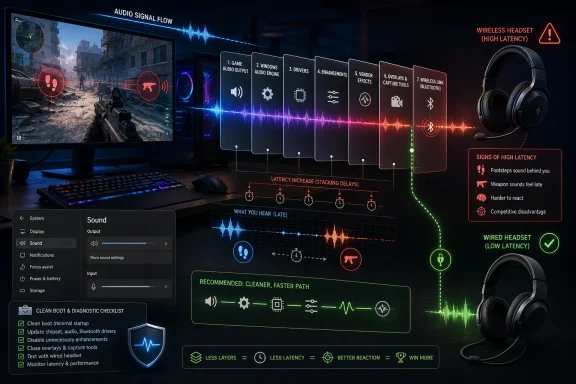 The Lag Is Usually in the Stack, Not the Speaker
Audio lag in games feels like a hardware problem because it arrives through hardware. A gunshot lands late, a footstep trails the animation, or a cutscene’s dialogue drifts just enough to make the whole PC feel haunted. The instinct is to blame the headset, the speakers, or the game.Sometimes that instinct is right. A weak Bluetooth connection, a nearly dead headset battery, or an overloaded USB hub can add just enough delay to become noticeable. But in Windows gaming, the more common culprit is the software stack between the game engine and the device: drivers, enhancements, virtual surround tools, chat overlays, capture utilities, and Windows’ own audio routing.
That distinction matters because it changes the repair strategy. If the problem is a broken speaker, the fix is replacement. If the problem is the stack, the fix is simplification: remove variables, test one layer at a time, and stop treating every audio feature as harmless decoration.
The good news is that most Windows audio lag complaints do not require a registry edit, a new motherboard, or a ritual sacrifice to the Realtek tray icon. They require a disciplined pass through the obvious layers first. The bad news is that the obvious layers are often precisely the ones gamers have customized over months or years.
Wireless Audio Still Has to Obey Physics
The first step is unglamorous: check the playback device before touching Windows. If the headset is wireless, charge it, move it closer to the PC, remove unnecessary dongles from crowded USB ports, and test the game with a wired connection if one is available. This is not a moral argument against wireless gaming gear; it is a latency argument.Bluetooth in particular remains a compromise for PC gaming. Windows 11 has improved Bluetooth LE Audio support, and newer devices can behave far better than the miserable old headset profiles that wrecked sound quality when a microphone was active. But lower latency is not the same thing as no latency, and not every PC or headset supports the newer stack.
That is why the cable test remains the cleanest first diagnostic. If the same game, same save file, and same scene suddenly snap back into sync over wired headphones, Windows has not mysteriously healed itself. You have identified the wireless leg as the likely source, whether through Bluetooth codec behavior, signal stability, headset firmware, dongle placement, or power management.
USB wireless gaming headsets can be better than Bluetooth because they often use proprietary 2.4GHz links tuned for lower delay. Even then, the dongle’s placement matters. A receiver wedged behind a metal PC case, surrounded by Wi-Fi antennas and USB 3 interference, can behave very differently from the same receiver placed on a short extension cable in open air.
Battery level is another boring variable that earns its place near the top of the checklist. Some headsets change behavior as power drops, and some users only notice lag after long sessions when battery, heat, and background processes have all shifted from their cold-start baseline. Before diagnosing Windows, make sure the audio device is not limping.
Windows’ Troubleshooter Is Not Magic, but It Is a Baseline
The Windows audio troubleshooter has a reputation problem. Power users tend to treat troubleshooters as placebo buttons, the sort of interface Microsoft offers when it has run out of useful advice. That reputation is not entirely undeserved, but it is also too cynical.For audio issues, the troubleshooter is useful because it checks the kind of dull configuration failures humans skip. It can catch disabled services, misrouted default devices, muted endpoints, driver state problems, and format mismatches. It may not understand why your competitive shooter feels 80 milliseconds late after installing a virtual surround suite, but it can still confirm that Windows itself sees the output path as sane.
On Windows 11, the route is straightforward: open Settings, go to System, select Troubleshoot, choose Other troubleshooters, and run the audio troubleshooter. Depending on the build, Microsoft may label the relevant option as Audio or Playing Audio, but the intent is the same. Let it run before changing five other things at once.
The value here is not that the troubleshooter always fixes the problem. The value is that it establishes a baseline. If Windows detects and repairs something obvious, you have saved time. If it finds nothing, you have learned that the failure may sit in a driver, enhancement, app, headset link, or game-specific layer.
That matters because audio lag is easy to misdiagnose. A user may blame Windows when the issue appears only in one title with one spatial audio mode enabled. Another may blame a game when the same delay exists in browser video, Discord streams, and local media playback. Running the built-in check is not the final answer; it is the point where guesswork starts becoming a test plan.
Drivers Are the Contract Between Windows and the Audio Hardware
If the device checks out and Windows’ troubleshooter does not resolve the delay, the next suspect is the driver. Audio drivers are the contract between Windows and the hardware, and when that contract is stale, corrupted, or replaced by an overambitious vendor package, timing can suffer.Device Manager remains the familiar entry point. Open the Run dialog, type
devmgmt.msc, and inspect Audio inputs and outputs as well as Sound, video and game controllers. Right-click the relevant device and try updating the driver automatically. If Windows finds a newer driver, install it, reboot, and retest the same game under the same conditions.That last sentence is important. Reboot and retest before changing anything else. Audio troubleshooting collapses into superstition when users update a driver, toggle enhancements, change sample rate, reinstall a game overlay, and move the USB dongle all in the same five-minute window. If the lag disappears, no one knows which lever mattered.
There is also a case for reinstalling the existing driver rather than chasing novelty. In Device Manager, uninstalling the device and then rebooting can force Windows to rebuild the endpoint. For integrated audio, Windows may fall back to a generic driver; for dedicated headsets or DACs, the vendor driver may reinstall. Either way, the goal is to clear corrupted state.
Gamers should be especially wary of driver bundles that install more than a driver. Realtek consoles, motherboard utilities, headset control panels, virtual surround systems, microphone noise suppression tools, and RGB suites often land together. They promise features, but they also add processing layers. The best audio driver for gaming is not always the one with the longest feature list; it is the one that delivers stable, predictable timing.
Enhancements Are Where “Better Sound” Becomes Later Sound
Windows audio enhancements are designed to make bad speakers less bad, laptop audio less thin, and consumer devices more forgiving. In games, that same processing can become a liability. Equalization, loudness normalization, bass boost, room correction, virtual surround, and vendor effects all require the signal to be processed before it reaches the output device.Processing does not always mean perceptible latency. A well-written enhancement may be effectively invisible to the player. But the gaming problem is cumulative. Add a game’s own spatial audio, Windows enhancements, a headset surround mode, a voice chat noise filter, and a capture utility, and the path becomes long enough that timing can slip.
Disabling enhancements is therefore not an aesthetic judgment. It is a diagnostic step. In Windows 11, open Settings, go to System, select Sound, choose the active output device, and look for the Enhance audio toggle or related enhancement settings. Turn it off, restart the affected game, and test again.
This is also the moment to check whether multiple spatial systems are fighting each other. Many games include built-in 3D audio or headphone virtualization. Windows offers spatial audio options. Headset vendors add their own “7.1” or “cinematic” modes. Running more than one at a time can smear positional cues and introduce delay.
For competitive games, the cleanest configuration is often boring stereo plus the game’s own audio engine, assuming the game is designed for headphones. For single-player games, a virtual surround effect may be worth the tradeoff. But that should be a conscious choice, not the accidental result of three different utilities all deciding to “improve” the same signal.
Sample Rate Tweaks Are Less Glamorous Than People Think
Audio format settings are another popular rabbit hole. Windows allows output devices to run at different sample rates and bit depths, and mismatch or exclusive-mode behavior can sometimes cause glitches. The temptation is to assume that higher numbers are always better: 24-bit, 192 kHz, studio quality, maximum everything.For games, that assumption is usually misplaced. Many assets are authored and mixed around common consumer formats, and resampling everything upward does not make a footstep more accurate. It can, however, add complexity if a driver or enhancement package handles the conversion poorly.
A practical test is to set the output device to a common format such as 24-bit, 48 kHz or 16-bit, 48 kHz, then retest. The exact path varies by Windows build and device, but it generally lives under the output device’s advanced properties. The point is not to find a magical number; the point is to avoid exotic settings while diagnosing latency.
Exclusive mode also deserves a look. Some applications can take exclusive control of an audio device, bypassing parts of the shared Windows mixer. That can be beneficial for some pro-audio workflows, but it can also create confusion when games, launchers, voice apps, and capture tools compete for the same endpoint. If lag appears only when another app is open, exclusive-mode behavior may be part of the story.
Still, format settings should not become the first stop. They are a refinement step after device checks, driver sanity, and enhancement removal. The most common audio lag fixes are about removing unnecessary processing, not pretending a Windows gaming PC is a mastering studio.
Clean Boot Turns a Messy Gaming PC Into Evidence
A clean boot is the step that separates Windows from everything users have piled on top of it. It starts the system with a minimal set of services and startup programs, allowing you to test whether third-party software is interfering with the game. For audio lag, that can be decisive.The process is familiar but should be handled carefully. Open the Run dialog, launch
msconfig, go to the Services tab, hide Microsoft services, and disable the remaining third-party services for the test. Then open Task Manager’s Startup section and disable startup items. Reboot, launch the game, and test the same audio scenario.If the lag disappears in a clean boot, Windows is probably not the villain. Something you installed is. That could be headset software, motherboard audio utilities, GPU overlays, streaming tools, screen recorders, virtual audio cables, voice changers, noise suppression software, chat clients, or performance monitors.
The next phase is controlled reintroduction. Turn services and startup items back on in small batches, rebooting and testing as needed, until the lag returns. It is tedious, but it is far more reliable than forum archaeology. Once the offender is found, update it, remove it, or disable only the feature that touches audio.
This is where many gaming PCs reveal their age. A system built for convenience accumulates helpers: launchers, overlays, device managers, clip recorders, RGB daemons, macros, audio effects, telemetry, and updater services. Individually, each seems harmless. Together, they turn a straightforward audio path into a committee meeting.
Game Mode Cannot Save a Bad Audio Pipeline
Windows Game Mode, GPU scheduling, power plans, and latency-oriented tuning guides often enter the conversation because audio lag feels like performance lag. Sometimes there is a connection. If the CPU is saturated, the system is overheating, or the game is stuttering, audio can drift or appear late because the whole frame-and-audio pipeline is unstable.But performance tuning should not distract from audio-specific diagnosis. A PC that cannot maintain frame pacing may produce symptoms that resemble audio desync, especially in cutscenes or heavily scripted sequences. In that case, the fix may involve lowering graphics settings, capping frame rate, improving cooling, or closing background workloads.
Thermals are worth mentioning because laptops and compact desktops can change behavior under load. A game may sound fine for ten minutes and then begin to lag as the CPU or GPU throttles. If audio delay appears alongside frame drops, fan ramping, or input latency, the problem may be system pressure rather than the audio stack alone.
The practical test is to compare conditions. Does the lag happen in every game or only demanding ones? Does it appear in menus or only during gameplay? Does it vanish when graphics settings are lowered? Does local video playback remain in sync while games drift? These questions keep the investigation from collapsing into “Windows audio is broken.”
Game Mode is not irrelevant, but it is not a magic latency solvent. The same applies to endless “debloat” scripts and registry tweaks passed around gaming forums. Before altering scheduler behavior or stripping services, remove the extra audio processing and test the device path. That is where the evidence usually lives.
Bluetooth LE Audio Improves the Story but Does Not End It
Microsoft’s newer Bluetooth LE Audio work matters because it attacks one of the uglier Windows audio compromises: headset quality and behavior when microphone use enters the picture. Historically, many Bluetooth headsets sounded acceptable for playback but fell apart when voice chat activated the microphone, often switching profiles and degrading quality. For gaming, that could mean worse sound, confusing routing, and sometimes perceptible delay.Windows 11 has been moving toward better support for LE Audio and improved headset behavior on compatible hardware. That is a real improvement, especially for users who want a single pair of earbuds or headphones for calls, games, and media. It also makes the Windows audio story less embarrassing than it used to be.
But compatibility is the catch. The PC needs the right Bluetooth hardware and drivers, the headset needs to support the relevant features, and Windows needs to expose them properly. A laptop marketed as Bluetooth-capable is not automatically a low-latency gaming audio platform. Nor is every headset firmware update a latency cure.
Gamers should treat Bluetooth LE Audio as a promising platform feature, not a blanket fix. If a headset supports it and the PC does too, great. If not, a wired connection or dedicated low-latency wireless dongle remains the more predictable route.
There is also a cultural problem here: consumer audio marketing often blurs quality, latency, and immersion into the same promise. “HD audio,” “spatial sound,” and “gaming mode” do not guarantee synchronized audio. For games, latency is not a vibes metric; it is a timing budget.
The Five-Step Fix Works Best as a Sequence
The five-step advice is sound when treated as a sequence rather than a buffet. Start with the device. Then ask Windows to check its own audio path. Then repair or refresh the driver. Then remove enhancements. Then clean boot to expose third-party interference.The order matters because each step narrows the field. A wired-device test distinguishes radio delay from Windows delay. The troubleshooter catches obvious configuration faults. Driver work addresses the hardware contract. Enhancement removal strips processing. Clean boot identifies external interference.
Skipping straight to clean boot may still work, but it makes the process harder than necessary. Likewise, updating drivers before testing wired audio may waste time if the real issue is Bluetooth link behavior. Good troubleshooting is not about doing the most advanced thing first. It is about choosing the next test that eliminates the most uncertainty.
This sequencing is especially important for households with multiple audio endpoints. A desktop may have monitor speakers over HDMI, a USB headset, motherboard analog output, Bluetooth earbuds, a webcam microphone, and virtual audio devices from streaming software. Windows may select the wrong default device after an update or game launch, and users may mistake routing weirdness for latency.
The fix is to simplify the battlefield. Set one output device as default, disconnect or disable devices you are not testing, close unnecessary apps, and reproduce the problem. Once the system behaves, add complexity back deliberately.
The Real Enemy Is Layering
The modern gaming PC is not short on audio features. It is drowning in them. Windows has enhancements and spatial audio. Games have their own headphone mixes. Headsets ship with control panels. GPUs offer HDMI audio. Motherboards bundle processing suites. Chat apps perform echo cancellation, noise suppression, and automatic gain control. Streaming software adds virtual devices and monitoring paths.Each layer is defensible in isolation. Together, they make audio lag hard to diagnose because no single component looks guilty. A game sends audio on time, Windows routes it, a driver processes it, a headset suite virtualizes it, a wireless link buffers it, and the player hears it late. Every vendor can plausibly say its piece is working as designed.
That is why “disable enhancements” is more than a quick tip. It is a philosophy. Start with the least processed path that still meets your needs. If stereo over a wired headset fixes the lag, add features back one at a time and keep the ones that earn their delay.
This is not purist minimalism for its own sake. Virtual surround can help in some games. Noise suppression can make chat usable in a noisy room. Loudness normalization can help late-night play. The point is that features have costs, and latency is one of them.
The mistake is treating every checkbox as free. On a gaming PC, every audio layer should be presumed guilty until it proves otherwise.
Competitive Players Should Optimize for Predictability, Not Spectacle
For competitive players, audio lag is not a comfort issue. It is game information arriving late. Footsteps, reloads, ability cues, directional shots, and environmental tells can matter as much as frames. A delayed or smeared soundstage can be the difference between reacting and merely watching the replay.That does not mean every competitive player needs expensive audio hardware. It means they need a predictable path. Wired headphones, minimal enhancements, a stable driver, and a game-specific headphone mix will often beat a more expensive wireless setup buried under virtual surround and vendor effects.
Microphone routing also matters. If enabling voice chat changes your playback quality or introduces delay, test with a separate microphone or a wired headset. The classic Bluetooth headset problem — good playback until the mic activates — is less universal than it once was, but it has not vanished from every setup.
Competitive players should also avoid troubleshooting during live matches. Use a training range, replay, benchmark, or repeatable game scene. Audio lag diagnosis depends on repeatability, and nothing is less repeatable than a chaotic match where network latency, frame rate, server tick behavior, and human perception all collide.
The best setup is the one you forget about. If the audio path requires constant babysitting, profile switching, or app relaunching, it is not optimized. It is fragile.
Single-Player Gamers Have a Different Tolerance for Delay
Not all audio lag has the same stakes. In a cinematic single-player game, a small delay may be most noticeable in dialogue, cutscenes, or rhythm-heavy sequences. In a racing game, engine note delay can make throttle control feel wrong. In a rhythm game, even minor latency can ruin the premise.This is where Windows users should distinguish between global lag and game-specific sync. If every app is late, Windows or the device path is likely involved. If only one game is wrong, check that game’s audio settings, frame limiter, V-sync behavior, cutscene playback quirks, and known patches.
Some games include audio latency sliders or sync calibration, especially rhythm titles and media-heavy experiences. Those settings should not be used to hide a broken Windows configuration, but they can compensate for unavoidable display or audio chain delay once the system is otherwise clean.
Display latency can also masquerade as audio lag. If the audio seems early rather than late, or if the issue changes with TV modes, HDMI receivers, or external displays, the screen may be part of the problem. Game Mode on televisions and monitors exists for a reason; post-processing on the display side can throw off perceived sync.
For couch PC setups, the chain may include HDMI audio through a TV or AV receiver, wireless controllers, display processing, and Bluetooth headphones. At that point, the “PC audio lag” label may be too narrow. The whole living-room pipeline needs scrutiny.
Administrators Should Treat Audio Lag as a Support Pattern
In managed environments, audio lag may sound like a home-gamer problem, but the pattern is familiar to IT: user reports vague performance trouble, the root cause turns out to be a driver, device policy, background agent, or vendor utility, and the fix depends on standardizing the endpoint.For labs, esports rooms, classrooms, training centers, and shared workstations, consistency beats customization. A known-good headset model, a tested driver package, disabled consumer enhancements, and controlled startup software will prevent more tickets than any after-the-fact troubleshooting guide. The same logic applies to creators and streamers who need repeatable audio monitoring.
Clean boot findings should be converted into policy. If a particular headset suite or overlay causes latency, do not simply fix one machine and move on. Remove it from the image, block its updater, or document the configuration that avoids the issue. Audio lag is often the first symptom of broader endpoint clutter.
Windows Update complicates this because drivers can change under users. That is not an argument against updating; stale drivers create their own problems. It is an argument for testing audio devices after driver rollouts, especially in environments where real-time audio matters.
The lesson for administrators is that audio belongs in the endpoint-quality conversation. A machine can pass CPU, memory, disk, and network checks while still delivering a poor real-time experience. Users do not experience a device as a benchmark; they experience it as timing.
The Sensible Order for Chasing Milliseconds
The repair path is simple enough to fit on a sticky note, but the discipline is in doing it one change at a time. Treat each step as a test, not a superstition, and keep the same game scene or playback condition for comparison.- Test the same game with a wired audio connection before changing Windows settings, because Bluetooth and wireless link behavior can be the whole problem.
- Run Windows’ audio troubleshooter to catch basic routing, service, and endpoint issues before assuming the fault is exotic.
- Update, reinstall, or roll back the relevant audio driver only after identifying the actual playback device Windows is using.
- Disable Windows audio enhancements and vendor surround effects to remove processing layers that can add delay or distort positional cues.
- Use a clean boot to find third-party services, overlays, headset utilities, capture tools, or virtual audio devices that interfere with real-time playback.
- Retest after each change and avoid stacking fixes, because a solved problem is not useful if you cannot identify what solved it.
The Fix Is a Cleaner Audio Path
PC gaming’s audio-lag problem is not going away because the PC is valuable precisely because it is configurable. Users will keep mixing wireless headsets, USB DACs, spatial audio, voice chat, overlays, capture software, and vendor utilities. Microsoft will keep improving Windows’ audio plumbing, headset makers will keep promising lower latency, and game developers will keep building richer sound engines.The practical answer is to make the path shorter when timing matters. Use wired or low-latency wireless gear when possible, keep drivers healthy, disable processing you do not need, and clean-boot when the machine’s software ecosystem becomes suspect. Audio lag is frustrating because it makes a fast PC feel slow, but it is also one of the clearer reminders that performance is not only about frames per second. In games, the machine has to be on time.
References
- Primary source: Guiding Tech
Published: 2026-06-03T03:10:11.217359
How to Fix Audio Lag in PC Games – 5 Easy Steps - Guiding Tech
Struggling with delayed sound in your games? We show you 5 ways to fix audio lag in games on your Windows machine.www.guidingtech.com
- Official source: support.microsoft.com
Fix distorted or crackling audio in Windows  | Microsoft Support
Fix distorted or crackling audio in Windowssupport.microsoft.com - Official source: learn.microsoft.com
Bluetooth Low Energy (LE) Audio - Windows drivers | Microsoft Learn
This article provides an overview of Bluetooth LE Audio introduced in Windows 11 version 22H2 (KB5026446).learn.microsoft.com - Related coverage: tomshardware.com
Microsoft announces super wideband stereo mode for Bluetooth LE devices — audio no longer downgrades to mono when microphone is used | Tom's Hardware
You will need a Bluetooth LE audio headset to use this feature.www.tomshardware.com - Related coverage: windowscentral.com
Windows 11 adds super wideband stereo Bluetooth audio | Windows Central
Windows 11 now supports super wideband stereo audio over Bluetooth LE Audio. The latest update eliminates audio drops during gaming and chats, revolutionizing how users experience sound across multiple platforms.www.windowscentral.com
