

Bluetooth audio delay on Windows 11 in 2026 is usually fixed by checking the selected audio output, running Microsoft’s audio and Bluetooth troubleshooters, restarting Windows Audio services, updating or rolling back drivers, and re-pairing the headset through Settings. The annoyance feels like a headset problem, but on a PC it is just as often a Windows routing, driver, or service-state problem. That distinction matters because the fix is rarely “buy better headphones.” It is usually a methodical reset of the chain between the app, Windows, the Bluetooth radio, and the device on your ears.
Bluetooth delay has a way of making a modern PC feel broken in a very specific, irritating way. A video starts, mouths move, and the dialogue arrives just late enough to make the whole machine feel cheap. In games, the lag is worse because the mismatch is tied to your own input: you click, fire, jump, or switch weapons, and the sound trails behind the action.
The temptation is to blame Bluetooth as a technology, and there is some truth there. Wireless audio has encoding, transmission, decoding, and buffering in the path, and it will never be as immediate as a wired analog connection. But the kind of delay most Windows 11 users complain about is not the unavoidable fraction of a second built into wireless audio. It is the larger, suddenly noticeable delay caused by Windows choosing the wrong endpoint, a stale pairing, a confused audio service, or a driver that is not behaving.
That is why the smartest troubleshooting path starts with Windows itself. Do not begin by buying a USB Bluetooth dongle, resetting your PC, or hunting for obscure codec switches. Start with the boring settings. In Windows audio troubleshooting, the boring settings are often where the bodies are buried.
That distinction matters. A headset selected in the wrong mode may sound worse, behave differently in calls, or feel out of sync depending on what the app is doing. It can also create the impression that Bluetooth itself is lagging when the real problem is that Windows quietly routed audio through a less suitable endpoint.
Start at the taskbar. Select the speaker icon, then use the output selector next to the volume control to choose your Bluetooth headphones or speaker. On Windows 11, the fuller path is Settings, then System, then Sound, where the Output section lets you choose the device explicitly.
If you see two entries with similar names, test them both. The correct choice is usually the one presented as the main headphone or stereo output rather than a communications-oriented version of the same device. This is not elegant, but it is the Windows audio stack as many users encounter it: powerful, flexible, and occasionally too clever for its own good.
For audio, Windows 11 routes troubleshooting through the Get Help app. That is the supported path Microsoft now points users toward for many built-in diagnostics. It can check the obvious failure points, apply repairs, and nudge the system back into a sane configuration.
Bluetooth deserves its own pass. Audio delay can originate in the sound stack, but it can also come from the wireless connection layer: pairing state, device discovery, adapter behavior, or a radio that is technically connected but not communicating cleanly. Running the Bluetooth troubleshooter through Get Help gives Windows a chance to inspect that side of the chain.
This is not an admission that the operating system knows best. It is simply good triage. If a built-in tool can clear the problem in two minutes, it is better than spending half an hour reinstalling drivers you did not need to touch.
Open the Services console by searching for Services from the taskbar, or by running
This is especially useful after docking and undocking, switching between speakers and headsets, joining and leaving calls, or waking a laptop from sleep. Those transitions force Windows to renegotiate audio endpoints, and occasionally the result is untidy. A service restart is a controlled way to make Windows rebuild that part of the house.
The important point is restraint. Restart the audio services; do not start randomly disabling unrelated services because a forum post said it helped someone in 2021. Bluetooth audio delay is frustrating, but it is not a license to turn Windows into a science experiment.
Start with the Bluetooth adapter driver. Open Device Manager, expand Bluetooth, right-click the adapter, and choose Update driver. Let Windows search automatically first. If it finds and installs something, restart the PC before judging the result.
If Windows says the best driver is already installed, that is not always the final answer. For laptops and prebuilt desktops, the manufacturer’s support site may have a newer or more appropriate Bluetooth driver than the one Device Manager finds automatically. That is particularly true for systems with Intel, Realtek, Qualcomm, or MediaTek wireless hardware, where the adapter is part of a larger Wi-Fi and Bluetooth package.
Then do the same for the audio driver. In Device Manager, expand Sound, video and game controllers, right-click the audio device, and check for an updated driver. Bluetooth headphones may feel separate from the PC’s sound hardware, but Windows still routes application audio through the operating system’s audio stack before it reaches the Bluetooth path. A bad audio driver can therefore create symptoms that look like a Bluetooth defect.
In Device Manager, open the audio device’s Properties, go to the Driver tab, and look for Roll Back Driver. If it is available, Windows has an earlier driver package it can return to. That is often the cleanest way to undo a regression without hunting the web for old installer packages.
There is one catch: if the button is greyed out, Windows does not have a previous driver version stored for that device. That does not mean the theory is wrong. It only means the convenient rollback path is unavailable.
When rollback is not possible, a clean reinstall is the next step. Uninstall the device from Device Manager, choose the option to remove the driver package if Windows presents it, and restart. On reboot, Windows will reload a driver for the device. This is not as aggressive as reinstalling the operating system, but it can clear corrupted or badly configured driver state.
The same caution applies here as everywhere else: know which device you are uninstalling. Removing the wrong entry is usually recoverable, but there is no virtue in making a small audio issue larger through haste.
On Windows 11, go to Settings, then Bluetooth & devices, find the headset, open the three-dot menu, and remove the device. Then put the headset back into pairing mode and add it again. On Windows 10, the equivalent path is Settings, Devices, Bluetooth & other devices, Remove device, then Add Bluetooth or other device.
This step is particularly useful when the headset “connects” but behaves wrong. A device can show as connected while still using an unexpected profile, failing to expose the right endpoint, or carrying forward a broken negotiation from a previous session. Removing and re-adding forces Windows and the headset to start over.
The pairing reset also has a psychological advantage: it draws a line between system-side troubleshooting and device-side suspicion. If the headset still lags after a clean pairing on one PC but behaves normally on a phone or another computer, the Windows machine remains the likely culprit. If it lags everywhere, the headset or its firmware moves up the suspect list.
A Windows PC may have multiple output endpoints, app-specific audio choices, communications modes, vendor control panels, Realtek or OEM enhancements, headset microphones, virtual audio devices from conferencing apps, and drivers arriving from several different channels. That flexibility is useful in enterprise and enthusiast environments. It is also why a consumer can connect one pair of headphones and end up with three places to check when sound falls out of sync.
The 2026 reality is that Windows is better than it used to be at self-healing, but not yet good enough to make troubleshooting disappear. The Get Help app can run diagnostics. Windows Update can deliver drivers. Device Manager can roll back or reinstall them. Settings can remove and re-pair devices. The tools are there, but the user still has to walk through them in the right order.
That order matters. Starting with driver surgery before checking the selected output device is backwards. Re-pairing before restarting the audio services may work, but it may also waste time. The best troubleshooting path is conservative: change the least invasive thing first, test, and only then move deeper.
Video calls introduce a different problem. Many Bluetooth headsets switch behavior when the microphone is active, and Windows may move between media playback and hands-free communication modes. That switch can affect quality, routing, and timing. A headset that sounds fine in YouTube may behave differently the moment Teams, Discord, Zoom, or a browser tab asks for microphone access.
This is why users should test audio delay in more than one app. If lag appears only in a game, look at the game’s audio device settings as well as Windows. If it appears only during calls, inspect the app’s selected speaker and microphone. If it appears everywhere, the system-level steps are more likely to matter.
There is also a hard truth for competitive gaming: Bluetooth is rarely the ideal audio path. Even when everything works properly, Bluetooth can add latency that wired headsets or low-latency 2.4 GHz gaming dongles avoid. Windows troubleshooting can fix abnormal delay, but it cannot repeal physics or codec design.
The enterprise lesson is not to ban Bluetooth. It is to manage the stack deliberately. Standardize on tested headset models where possible. Keep OEM driver baselines current. Watch for audio and Bluetooth complaints after driver or feature updates. Document the exact recovery sequence so technicians are not improvising each time a user says “my headphones are delayed.”
There is also value in separating headset problems from PC problems quickly. A known-good headset, a known-good laptop, and a short test video can save a lot of wasted effort. If the same headset behaves correctly on another Windows 11 system, the issue likely lives in the original PC’s configuration, drivers, or pairing state. If multiple headsets lag on the same laptop, the adapter and driver stack deserve attention.
The broader driver story is one Microsoft has been trying to improve, especially as Windows Update continues to serve as a major distribution channel for hardware fixes. But audio peripherals remain a vivid reminder that PC compatibility is not a single Microsoft-controlled surface. It is an ecosystem, and ecosystems fail in ecosystem-shaped ways.
Windows 11’s Bluetooth audio delay problem is less a single bug than a recurring collision between convenience and complexity. The operating system makes wireless headphones feel plug-and-play until the moment routing, services, drivers, or pairing state drift out of alignment. The good news is that the fix usually does not require third-party cleaners, registry edits, or new hardware. It requires patience, a clean sequence, and the recognition that on a modern Windows PC, the shortest path back to synced sound is often through the unglamorous machinery already built into the system.
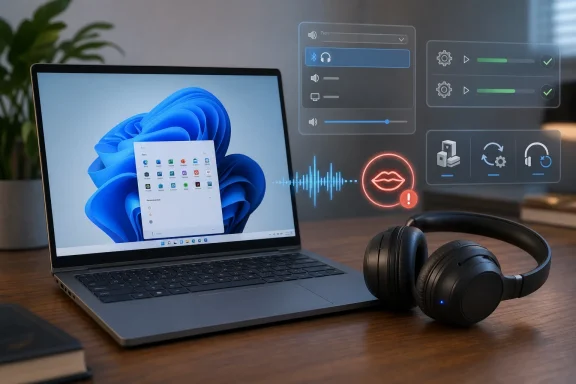 Windows Bluetooth Lag Is Usually a Plumbing Problem, Not a Mystery
Bluetooth delay has a way of making a modern PC feel broken in a very specific, irritating way. A video starts, mouths move, and the dialogue arrives just late enough to make the whole machine feel cheap. In games, the lag is worse because the mismatch is tied to your own input: you click, fire, jump, or switch weapons, and the sound trails behind the action.The temptation is to blame Bluetooth as a technology, and there is some truth there. Wireless audio has encoding, transmission, decoding, and buffering in the path, and it will never be as immediate as a wired analog connection. But the kind of delay most Windows 11 users complain about is not the unavoidable fraction of a second built into wireless audio. It is the larger, suddenly noticeable delay caused by Windows choosing the wrong endpoint, a stale pairing, a confused audio service, or a driver that is not behaving.
That is why the smartest troubleshooting path starts with Windows itself. Do not begin by buying a USB Bluetooth dongle, resetting your PC, or hunting for obscure codec switches. Start with the boring settings. In Windows audio troubleshooting, the boring settings are often where the bodies are buried.
The First Suspect Is the Output Device Windows Chose for You
The most common Bluetooth audio mistake on Windows 11 is also the least dramatic: the PC is not sending sound where you think it is. Windows can expose multiple entries for a headset, especially if the device supports both stereo playback and hands-free communication modes. To the user, those entries may look like duplicates. To Windows, they are different endpoints with different behavior.That distinction matters. A headset selected in the wrong mode may sound worse, behave differently in calls, or feel out of sync depending on what the app is doing. It can also create the impression that Bluetooth itself is lagging when the real problem is that Windows quietly routed audio through a less suitable endpoint.
Start at the taskbar. Select the speaker icon, then use the output selector next to the volume control to choose your Bluetooth headphones or speaker. On Windows 11, the fuller path is Settings, then System, then Sound, where the Output section lets you choose the device explicitly.
If you see two entries with similar names, test them both. The correct choice is usually the one presented as the main headphone or stereo output rather than a communications-oriented version of the same device. This is not elegant, but it is the Windows audio stack as many users encounter it: powerful, flexible, and occasionally too clever for its own good.
Microsoft’s Troubleshooters Are No Longer Just Decorative Buttons
The old reputation of Windows troubleshooters is not flattering. For years, many users treated them as a ritual before doing the real work manually. But in current Windows 11, the audio and Bluetooth troubleshooters are still worth running because they can reset common failure states quickly and without forcing you to remember every service, driver, and setting involved.For audio, Windows 11 routes troubleshooting through the Get Help app. That is the supported path Microsoft now points users toward for many built-in diagnostics. It can check the obvious failure points, apply repairs, and nudge the system back into a sane configuration.
Bluetooth deserves its own pass. Audio delay can originate in the sound stack, but it can also come from the wireless connection layer: pairing state, device discovery, adapter behavior, or a radio that is technically connected but not communicating cleanly. Running the Bluetooth troubleshooter through Get Help gives Windows a chance to inspect that side of the chain.
This is not an admission that the operating system knows best. It is simply good triage. If a built-in tool can clear the problem in two minutes, it is better than spending half an hour reinstalling drivers you did not need to touch.
Restarting the Audio Engine Is the Soft Reboot Most People Skip
If the device selection is correct and the troubleshooters do not fix the delay, the next useful move is to restart the Windows audio services. This is one of those repairs that feels too simple until it works. Windows audio is not just a volume slider and a driver; it is a set of services responsible for building and maintaining the audio session plumbing used by apps and devices.Open the Services console by searching for Services from the taskbar, or by running
services.msc. The two services to restart are Windows Audio and Windows Audio Endpoint Builder. Restarting them is much less disruptive than rebooting the entire PC, but it clears a class of stuck audio states that can cause weird timing, missing devices, or output behavior that no longer matches the Settings app.This is especially useful after docking and undocking, switching between speakers and headsets, joining and leaving calls, or waking a laptop from sleep. Those transitions force Windows to renegotiate audio endpoints, and occasionally the result is untidy. A service restart is a controlled way to make Windows rebuild that part of the house.
The important point is restraint. Restart the audio services; do not start randomly disabling unrelated services because a forum post said it helped someone in 2021. Bluetooth audio delay is frustrating, but it is not a license to turn Windows into a science experiment.
Drivers Remain the Place Where Windows Promises Meet PC Reality
If Bluetooth lag persists, drivers move to the center of the story. Windows 11 depends heavily on driver quality, and Bluetooth audio sits at an awkward intersection of hardware vendors, headset firmware, radio chipsets, motherboard vendors, laptop OEMs, and Microsoft’s own update pipeline. When everything lines up, the user never thinks about it. When it does not, the user hears the mismatch every time an actor’s lips move.Start with the Bluetooth adapter driver. Open Device Manager, expand Bluetooth, right-click the adapter, and choose Update driver. Let Windows search automatically first. If it finds and installs something, restart the PC before judging the result.
If Windows says the best driver is already installed, that is not always the final answer. For laptops and prebuilt desktops, the manufacturer’s support site may have a newer or more appropriate Bluetooth driver than the one Device Manager finds automatically. That is particularly true for systems with Intel, Realtek, Qualcomm, or MediaTek wireless hardware, where the adapter is part of a larger Wi-Fi and Bluetooth package.
Then do the same for the audio driver. In Device Manager, expand Sound, video and game controllers, right-click the audio device, and check for an updated driver. Bluetooth headphones may feel separate from the PC’s sound hardware, but Windows still routes application audio through the operating system’s audio stack before it reaches the Bluetooth path. A bad audio driver can therefore create symptoms that look like a Bluetooth defect.
The Newest Driver Is Not Always the Best Driver
Updating drivers is the obvious move, but it is not always the winning move. If the delay appeared immediately after a Windows update, an OEM update utility run, or a driver refresh, the newest driver becomes a suspect rather than a savior. This is where Roll Back Driver earns its place.In Device Manager, open the audio device’s Properties, go to the Driver tab, and look for Roll Back Driver. If it is available, Windows has an earlier driver package it can return to. That is often the cleanest way to undo a regression without hunting the web for old installer packages.
There is one catch: if the button is greyed out, Windows does not have a previous driver version stored for that device. That does not mean the theory is wrong. It only means the convenient rollback path is unavailable.
When rollback is not possible, a clean reinstall is the next step. Uninstall the device from Device Manager, choose the option to remove the driver package if Windows presents it, and restart. On reboot, Windows will reload a driver for the device. This is not as aggressive as reinstalling the operating system, but it can clear corrupted or badly configured driver state.
The same caution applies here as everywhere else: know which device you are uninstalling. Removing the wrong entry is usually recoverable, but there is no virtue in making a small audio issue larger through haste.
Re-Pairing Works Because Bluetooth Remembers Too Much
If routing, troubleshooters, services, and drivers do not solve the delay, the pairing itself may be stale. Bluetooth pairings are not just names in a Settings list. They preserve trust relationships, profiles, and connection state between the PC and device. Over time, especially across Windows updates, headset firmware updates, and repeated connection failures, that stored state can become part of the problem.On Windows 11, go to Settings, then Bluetooth & devices, find the headset, open the three-dot menu, and remove the device. Then put the headset back into pairing mode and add it again. On Windows 10, the equivalent path is Settings, Devices, Bluetooth & other devices, Remove device, then Add Bluetooth or other device.
This step is particularly useful when the headset “connects” but behaves wrong. A device can show as connected while still using an unexpected profile, failing to expose the right endpoint, or carrying forward a broken negotiation from a previous session. Removing and re-adding forces Windows and the headset to start over.
The pairing reset also has a psychological advantage: it draws a line between system-side troubleshooting and device-side suspicion. If the headset still lags after a clean pairing on one PC but behaves normally on a phone or another computer, the Windows machine remains the likely culprit. If it lags everywhere, the headset or its firmware moves up the suspect list.
The Built-In Fixes Are Also a Map of Windows’ Weak Spots
The repair sequence tells us something about Windows 11 itself. Microsoft has spent years smoothing Settings, centralizing troubleshooters, and modernizing device handling, but audio remains one of the operating system’s messier crossroads. Bluetooth audio is where that mess becomes audible.A Windows PC may have multiple output endpoints, app-specific audio choices, communications modes, vendor control panels, Realtek or OEM enhancements, headset microphones, virtual audio devices from conferencing apps, and drivers arriving from several different channels. That flexibility is useful in enterprise and enthusiast environments. It is also why a consumer can connect one pair of headphones and end up with three places to check when sound falls out of sync.
The 2026 reality is that Windows is better than it used to be at self-healing, but not yet good enough to make troubleshooting disappear. The Get Help app can run diagnostics. Windows Update can deliver drivers. Device Manager can roll back or reinstall them. Settings can remove and re-pair devices. The tools are there, but the user still has to walk through them in the right order.
That order matters. Starting with driver surgery before checking the selected output device is backwards. Re-pairing before restarting the audio services may work, but it may also waste time. The best troubleshooting path is conservative: change the least invasive thing first, test, and only then move deeper.
Gamers and Video Call Users Hit the Problem First
Bluetooth delay is annoying in movies, but it becomes harder to ignore in games and calls. Games expose latency because the user controls the action. If the audio response lags behind the click or keypress, the whole system feels sluggish even if frame rates are fine.Video calls introduce a different problem. Many Bluetooth headsets switch behavior when the microphone is active, and Windows may move between media playback and hands-free communication modes. That switch can affect quality, routing, and timing. A headset that sounds fine in YouTube may behave differently the moment Teams, Discord, Zoom, or a browser tab asks for microphone access.
This is why users should test audio delay in more than one app. If lag appears only in a game, look at the game’s audio device settings as well as Windows. If it appears only during calls, inspect the app’s selected speaker and microphone. If it appears everywhere, the system-level steps are more likely to matter.
There is also a hard truth for competitive gaming: Bluetooth is rarely the ideal audio path. Even when everything works properly, Bluetooth can add latency that wired headsets or low-latency 2.4 GHz gaming dongles avoid. Windows troubleshooting can fix abnormal delay, but it cannot repeal physics or codec design.
Enterprise IT Should Treat Bluetooth Audio as a Driver Governance Issue
For home users, Bluetooth lag is an inconvenience. For IT departments, it is a support pattern. A fleet of laptops, headsets, conferencing apps, and monthly Windows updates can turn audio delay into a recurring help desk category.The enterprise lesson is not to ban Bluetooth. It is to manage the stack deliberately. Standardize on tested headset models where possible. Keep OEM driver baselines current. Watch for audio and Bluetooth complaints after driver or feature updates. Document the exact recovery sequence so technicians are not improvising each time a user says “my headphones are delayed.”
There is also value in separating headset problems from PC problems quickly. A known-good headset, a known-good laptop, and a short test video can save a lot of wasted effort. If the same headset behaves correctly on another Windows 11 system, the issue likely lives in the original PC’s configuration, drivers, or pairing state. If multiple headsets lag on the same laptop, the adapter and driver stack deserve attention.
The broader driver story is one Microsoft has been trying to improve, especially as Windows Update continues to serve as a major distribution channel for hardware fixes. But audio peripherals remain a vivid reminder that PC compatibility is not a single Microsoft-controlled surface. It is an ecosystem, and ecosystems fail in ecosystem-shaped ways.
The Sensible Repair Order Saves the Most Time
The most effective way to fix Bluetooth audio delay is not to guess harder. It is to move from the simplest Windows-controlled checks toward the deeper driver and pairing resets. That approach avoids unnecessary risk while still reaching the fixes that solve stubborn cases.- Confirm that Windows is sending audio to the correct Bluetooth output before changing drivers or services.
- Run the audio and Bluetooth troubleshooters because they can clear common failure states with minimal risk.
- Restart Windows Audio and Windows Audio Endpoint Builder when the sound engine appears stuck or inconsistent.
- Update both the Bluetooth adapter driver and the audio driver, then check the PC maker’s support site if Device Manager finds nothing.
- Roll back or reinstall the audio driver if the problem started after an update or survives ordinary driver refreshes.
- Remove and re-pair the headset when Windows shows it as connected but the delay remains across apps.
Windows 11’s Bluetooth audio delay problem is less a single bug than a recurring collision between convenience and complexity. The operating system makes wireless headphones feel plug-and-play until the moment routing, services, drivers, or pairing state drift out of alignment. The good news is that the fix usually does not require third-party cleaners, registry edits, or new hardware. It requires patience, a clean sequence, and the recognition that on a modern Windows PC, the shortest path back to synced sound is often through the unglamorous machinery already built into the system.
References
- Primary source: Technobezz
Published: 2026-06-02T15:20:06.634920
Bluetooth Audio Delay on Windows 11? 8 Ways to Fix It (2026) | Technobezz
You hit play, and the sound from your Bluetooth headphones lands a beat behind the action on screen.www.technobezz.com - Official source: support.microsoft.com
Fix Bluetooth problems in Windows | Microsoft Support
Learn how to troubleshoot Bluetooth problems in Windows. Resolve issues connecting a Bluetooth device or accessory.support.microsoft.com - Official source: learn.microsoft.com
Using Device Manager to Uninstall Devices and Driver Packages - Windows drivers | Microsoft Learn
Learn how to use Device Manager to uninstall devices and driver packages on Windows 10 and Windows 11.learn.microsoft.com - Related coverage: support.cleverit.tech
- Official source: answers.microsoft.com
My Windows 11 computer's Bluetooth cannot find any of my bluetooth devices - Microsoft Q&A
Whenever I try to connect any bluetooth device (I've tried three different ones now) to my desktop PC running Windows 11, nothing shows up. It just keeps showing the "Add a device" loading screen, where it says "Make sure your devices is…answers.microsoft.com - Related coverage: makeuseof.com
How to Fix No Audio in Windows 11
Has Windows 11 gone quiet on you? Here's how to fix it. www.makeuseof.com
- Related coverage: dell.com
How to Fix Persistent Audio Issues on Your Dell Computer | Dell US
How to troubleshoot and resolve no sound or audio playback issues on your Dell computer. Follow our guide for common sound problems, such as low volume, distorted audio, and missing devices.www.dell.com - Related coverage: tomshardware.com
Microsoft launches Cloud‑Initiated Driver Recovery for remote rollback of faulty updates — no user action or OEM intervention will be needed to handle broken drivers delivered via Windows Update | Tom's Hardware
CIDR is rolling out now for validation and testing.www.tomshardware.com - Related coverage: windowscentral.com
Windows 11 adds super wideband stereo Bluetooth audio | Windows Central
Windows 11 now supports super wideband stereo audio over Bluetooth LE Audio. The latest update eliminates audio drops during gaming and chats, revolutionizing how users experience sound across multiple platforms.www.windowscentral.com - Related coverage: tomsguide.com
Microsoft will soon automatically uninstall bad Windows drivers and this new tool could be a game changer for your PC | Tom's Guide
Microsoft has released a new Windows 11 tool that lets it remove faulty drivers after updates.www.tomsguide.com
