

Xbox Live Rewards not working is usually a matter of using an outdated name and entry point. The current service is Microsoft Rewards, with Xbox activities and quests managed through Rewards with Xbox and the Rewards hub. These steps cover Xbox Series X|S, Xbox One, the Xbox app on Windows 11 or Windows 10, the Xbox mobile app, and the Microsoft Rewards website. Xbox gameplay-based Rewards features are generally limited to eligible players age 18 or older in supported Xbox Rewards markets.
Old Xbox Live Rewards instructions, including references to discontinued console apps or legacy websites, may no longer match the available menus.
Use the Rewards hub tied to the Microsoft account and gamertag you use for Xbox.
A service outage can affect the hub even when games, multiplayer, and the Microsoft Store otherwise appear to work normally.
Warning: Rewards orders are generally final. Confirm the reward, account, and region before selecting the final redemption button.
Before redeeming:
This is an account-policy issue, not an Xbox console fault. Do not repeatedly submit the same redemption while connected through a VPN or while outside your normal market.
For phone verification:
If searches or daily activities seem to complete but your redeemable balance does not rise, check Give Mode or Give with Bing on the Rewards dashboard. When Give Mode is enabled, qualifying points may be directed toward the selected nonprofit instead of increasing your personal redeemable balance. Turn it off only if you want new points credited to your own balance.
If available during web redemption, QR-code verification through the Bing app is an alternative to SMS verification. It is not offered for every reward, market, device, or Auto-redeem item.
Warning: Removing an Xbox profile signs that account out of the console. Make sure you know the Microsoft account email address and sign-in method before continuing.
First update the app:
For Windows 11:
If repair does not help, return to the same Advanced options page and select Reset.
Warning: Reset removes the Xbox app’s local data and signs you out of the app. It does not delete your Xbox account, cloud saves, games owned by your account, or Microsoft Rewards points.
If reset also fails, uninstall the Xbox app from the Installed apps or Apps & features list, restart Windows, reinstall it from Microsoft Store, and sign in again.
For a repeatable Xbox console hub bug that affects only the console interface, use the Report a Problem app on Xbox and include the exact action that fails, the time it occurred, and any error text. For the Windows Xbox app, submit the issue through Feedback Hub after reproducing it.
If the Rewards website shows the correct balance, the Xbox app or console refreshes successfully, and completed eligible activities can be claimed, the current Rewards hub is working again.
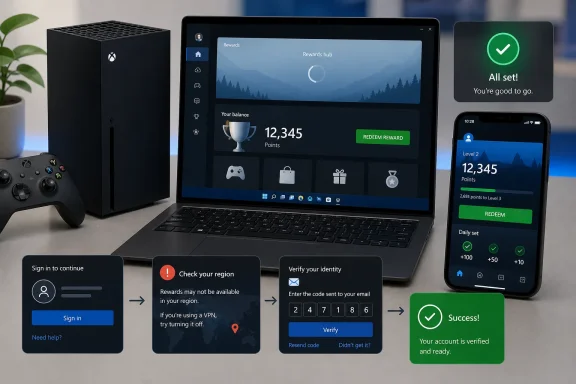 1. Open the current Rewards hub, not an old Xbox Live Rewards page
Old Xbox Live Rewards instructions, including references to discontinued console apps or legacy websites, may no longer match the available menus.Use the Rewards hub tied to the Microsoft account and gamertag you use for Xbox.
- On an Xbox console, press the Xbox button.
- Open Profile & system and select your profile.
- Look for Rewards, My Rewards, or Rewards hub.
- Open the hub and review available quests, completed activities, point totals, and rewards.
- Select Claim or Claim points for any completed eligible activity.
- Open the Xbox app.
- Select your profile icon in the upper-left corner.
- Select My Rewards.
- Check the hub for completed quests and select Claim where available.
- Open the Xbox app and sign in.
- Tap your profile icon.
- Select Rewards and then Get rewarded if that option appears.
- Claim completed items or select a reward to redeem.
2. Check Xbox and Microsoft service status before changing anything
If the Rewards hub suddenly will not load, repeatedly signs you out, shows a blank page, or fails to claim points, check for a service issue first.- Open the official Xbox Status page in a browser.
- Review categories related to:
- Account & profile
- Store & subscriptions
- Games & gaming
- Read any active incident details.
A service outage can affect the hub even when games, multiplayer, and the Microsoft Store otherwise appear to work normally.
3. Confirm that the Microsoft account itself has the expected balance
The Rewards hub is only one view of your account. Check the Microsoft Rewards dashboard to determine whether the fault is with the Xbox app or with the Rewards account.- Open the Microsoft Rewards dashboard in a browser.
- Sign in with the same Microsoft account used by the affected Xbox profile.
- Check the points balance.
- Open the earning and redemption areas to see whether offers and rewards appear.
- If you recently redeemed an item, open Redeem and then Order history.
- Correct balance on the website, but missing or blank information in Xbox: Treat this as an Xbox app, console, or session problem. Continue with the device fixes below.
- Wrong balance or no Rewards activity on the website as well: Treat this as an account, region, verification, or earning-eligibility problem.
- Different account shown in the browser: Sign out and sign in with the Microsoft account attached to the gamertag. A common cause is using a personal account in one place and a different Microsoft account on Xbox.
4. Redeem through the Microsoft Rewards website when Xbox redemption fails
Using the website is a practical workaround when the Xbox Rewards hub will display points but will not complete a redemption.- Open the Microsoft Rewards dashboard.
- Sign in with the account that holds the points.
- Select Redeem.
- Choose the reward shown as available for your account.
- Review the item, point cost, and destination before confirming.
- Complete any requested account verification.
- After redemption, return to Redeem > Order history and check the order status.
- Open Order history.
- Select the affected order.
- Use Resend if it is available.
Warning: Rewards orders are generally final. Confirm the reward, account, and region before selecting the final redemption button.
5. Fix region, travel, VPN, and account-location blockers
Microsoft Rewards offers and redemption catalogs are region-specific. A region conflict can cause redemption failures, canceled orders, missing offers, or messages stating that you are traveling.Before redeeming:
- Disconnect any VPN, proxy, location-masking service, or privacy tool that changes your apparent location.
- Use the service from the country or region associated with your Microsoft Rewards account.
- Do not try to earn points in multiple countries on the same day.
- Do not redeem an offer intended for another market.
- Review the Microsoft Rewards regions list to confirm that Rewards is supported where you live.
This is an account-policy issue, not an Xbox console fault. Do not repeatedly submit the same redemption while connected through a VPN or while outside your normal market.
6. Clear verification and Give Mode issues
A valid point balance does not guarantee that redemption can proceed. Microsoft may require phone verification or another verification method.For phone verification:
- Use a mobile phone number or landline number.
- Do not use a VoIP number.
- Enter the code exactly as received.
- If too many incorrect verification attempts were made, wait 48 hours before trying again.
- If a number has been used with too many Microsoft Rewards accounts, use another eligible number.
If searches or daily activities seem to complete but your redeemable balance does not rise, check Give Mode or Give with Bing on the Rewards dashboard. When Give Mode is enabled, qualifying points may be directed toward the selected nonprofit instead of increasing your personal redeemable balance. Turn it off only if you want new points credited to your own balance.
If available during web redemption, QR-code verification through the Bing app is an alternative to SMS verification. It is not offered for every reward, market, device, or Auto-redeem item.
7. Refresh the Xbox console and sign-in session
Use these steps when the Rewards hub is blank, stuck loading, displays the wrong account, or fails to refresh after the website shows the correct balance.- Press and hold the Xbox button on the controller.
- Select Restart console.
- Select Restart.
- Go to Profile & system > Settings > System > Updates.
- Install a console update if one is offered.
- Go to Profile & system > Settings > General > Network settings.
- Select Test network connection.
- If the test reports a connection issue, select Test network speed & statistics and correct the network problem before retrying the hub.
Warning: Removing an Xbox profile signs that account out of the console. Make sure you know the Microsoft account email address and sign-in method before continuing.
- Go to Profile & system > Settings > Account > Remove accounts.
- Select the affected profile.
- Select Remove.
- Restart the console.
- Go to Profile & system > Add or switch > Add new.
- Sign in with the Microsoft account that owns the Rewards balance.
8. Repair or reset the Xbox app on Windows
Use this fix when the Xbox app on Windows opens but the Rewards hub is blank, crashes, will not sync, or shows an incorrect session.First update the app:
- Open Microsoft Store.
- Select Library.
- Select Get updates.
- Install available updates for Xbox, Gaming Services, and Microsoft Store components.
- Restart Windows.
For Windows 11:
- Open Start > Settings > Apps > Installed apps.
- Find Xbox.
- Select the More button next to it.
- Select Advanced options.
- Select Repair.
- Open Start > Settings > Apps > Apps & features.
- Select Xbox.
- Select Advanced options.
- Select Repair.
If repair does not help, return to the same Advanced options page and select Reset.
Warning: Reset removes the Xbox app’s local data and signs you out of the app. It does not delete your Xbox account, cloud saves, games owned by your account, or Microsoft Rewards points.
If reset also fails, uninstall the Xbox app from the Installed apps or Apps & features list, restart Windows, reinstall it from Microsoft Store, and sign in again.
9. Escalate account-specific Rewards errors to Microsoft Rewards Support
Use Microsoft Rewards Support when the issue follows your account across the website, Xbox console, Windows Xbox app, and mobile app. This includes:- Missing points after an eligible completed activity
- A redemption that is canceled, pending indefinitely, or marked unsuccessful
- Account-level earning limits or suspended redemption
- Persistent Give Mode or verification problems
- An account that shows the wrong point balance everywhere
- A region error after returning to your home country and disconnecting VPN or proxy services
For a repeatable Xbox console hub bug that affects only the console interface, use the Report a Problem app on Xbox and include the exact action that fails, the time it occurred, and any error text. For the Windows Xbox app, submit the issue through Feedback Hub after reproducing it.
If the Rewards website shows the correct balance, the Xbox app or console refreshes successfully, and completed eligible activities can be claimed, the current Rewards hub is working again.
References
- Primary source: Technobezz
Published: 2026-07-19T16:15:49.509000+00:00
Xbox Live Rewards Not Working? 9 Fixes for the Current Rewards Hub | Technobezz
Fix Xbox Live Rewards not working with current Rewards hub, account, region, redemption, console, and Xbox app steps.www.technobezz.com - Related coverage: news.xbox.com
New Year, New Rewards with Xbox - XBOX Wire
Rewards with Xbox are our way of, well, rewarding you for your love of gaming, and today we're thrilled to announce new ways for players to earn points.news.xbox.com - Official source: support.microsoft.com
