

YouTube playback speed not working in Microsoft Edge, Google Chrome, or Firefox on Windows 10 and Windows 11 is usually fixed by confirming the player control works, testing without extensions, and clearing only YouTube’s saved browser data. This guide also covers the YouTube mobile and TV apps where the Speed option is missing, ignored, resets to normal, or causes buffering.
On a Windows PC, YouTube’s normal playback-speed control is available from the video player:
YouTube also supports these desktop keyboard shortcuts:
Do not confuse YouTube’s temporary fast-forward gesture with a saved speed setting. On a computer, clicking and holding within the video plays it at 2x only until you release the mouse button. Use Settings > Speed when you need a persistent change.
On phones and tablets, tap the video once, choose Settings, then select Playback speed. On smart TVs and streaming devices, select Settings > Speed from a video watch page. YouTube notes that playback speed is not available on every TV or streaming-device model; a missing Speed item on one of those devices may be a product limitation rather than a fault.
Warning: Clearing cookies signs you out of sites and can remove site preferences. Save work in other tabs first. If you use Edge sync, check whether you are clearing data only on the local PC or across synced devices.
Work through these checks in order:
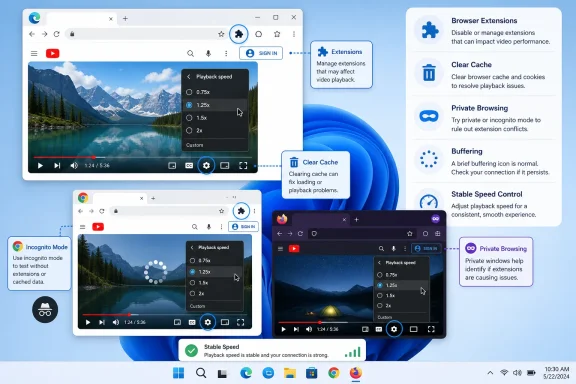 Confirm that YouTube supports the control on your device
On a Windows PC, YouTube’s normal playback-speed control is available from the video player:- Open a regular YouTube video in a supported, up-to-date browser.
- Move the pointer over the video player.
- Select Settings (the gear icon).
- Select Speed.
- Choose a rate such as 0.75, 1.25, 1.5, or 2.
YouTube also supports these desktop keyboard shortcuts:
- Click once inside the video player. This is important: the player must have keyboard focus.
- Press > to increase speed.
- Press < to decrease speed.
Do not confuse YouTube’s temporary fast-forward gesture with a saved speed setting. On a computer, clicking and holding within the video plays it at 2x only until you release the mouse button. Use Settings > Speed when you need a persistent change.
On phones and tablets, tap the video once, choose Settings, then select Playback speed. On smart TVs and streaming devices, select Settings > Speed from a video watch page. YouTube notes that playback speed is not available on every TV or streaming-device model; a missing Speed item on one of those devices may be a product limitation rather than a fault.
Separate a YouTube problem from a browser problem
Before deleting data or changing settings, run two quick tests. They identify whether the failure is tied to one video, one browser profile, or the device itself.- Open a different standard YouTube video and try Settings > Speed again.
- If the problem occurs in Edge, test the same video in Chrome or Firefox. If it occurs in Chrome, test it in Edge.
- If speed works in another browser, leave YouTube alone and repair the affected browser profile using the steps below.
- If speed fails in every browser on the same Windows PC but works on your phone using the same account, restart the PC and test again.
- If it fails across browsers, devices, and networks, treat it as a possible YouTube-side or account-specific issue and use YouTube’s feedback option after completing the basic checks.
Restart and update the browser
Close the browser fully before testing again. Do not simply close the YouTube tab if the player has become unresponsive.- Save any work in other tabs.
- Close every Edge, Chrome, or Firefox window.
- Open the browser again.
- Return to YouTube and test the same video.
Microsoft Edge on Windows 10 or Windows 11
- Open Edge.
- Select Settings and more (...) in the upper-right corner.
- Select Settings.
- Select About Microsoft Edge.
- Allow any available update to download.
- Select Restart if Edge requests it.
- Reopen YouTube and test playback speed.
Google Chrome on Windows 10 or Windows 11
- Open Chrome.
- Select More (...) in the upper-right corner.
- Select Help > About Google Chrome.
- Let Chrome check for and install updates.
- Select Relaunch when prompted.
- Test YouTube again.
Test without extensions before clearing data
Extensions that alter ads, scripts, privacy settings, video controls, picture-in-picture behavior, or video speed can interfere with YouTube’s player. A private browsing window is a fast diagnostic test because it starts with a separate browsing session and often excludes extensions unless you explicitly allowed them there.Microsoft Edge: use an InPrivate window
- Open Edge.
- Select Settings and more (...).
- Select New InPrivate window.
- Open YouTube, sign in only if necessary, and test Settings > Speed.
- Select the Extensions icon beside the address bar.
- Select Manage extensions.
- Turn off extensions that can affect YouTube, especially ad blockers, content blockers, script-control tools, VPN/proxy extensions, and video-enhancement or playback-speed tools.
- Reload YouTube and test again.
- Re-enable extensions one at a time, testing YouTube after each one, until the problem returns.
Google Chrome: use an Incognito window
- Open Chrome.
- Select More (...).
- Select New Incognito window.
- Open YouTube and test the Speed menu.
- In a normal Chrome window, select More > Extensions > Manage extensions.
- Disable likely conflicts.
- Refresh the YouTube tab and test playback speed.
- Re-enable extensions individually until the issue reappears.
Clear YouTube site data and cache
If YouTube speed fails only in one normal browser profile, clearing cached files and cookies is the next supported repair. This can resolve corrupted site data or a stuck player session.Warning: Clearing cookies signs you out of sites and can remove site preferences. Save work in other tabs first. If you use Edge sync, check whether you are clearing data only on the local PC or across synced devices.
Microsoft Edge
- Open Edge.
- Select Settings and more (...) > Settings.
- Select Privacy, search, and services.
- Under Clear browsing data, select Choose what to clear.
- Set Time range to All time if the problem has persisted for days or weeks.
- Select Cookies and other site data and Cached images and files.
- Leave saved passwords unchecked unless you intentionally want to remove them.
- Select Clear now.
- Close every Edge window, reopen Edge, sign in to YouTube again if needed, and test Speed.
Google Chrome
- Open Chrome.
- Select More (...) > Delete browsing data.
- Choose Basic or Advanced.
- Set Time range to All time when a shorter time range did not help.
- Select Cookies and other site data and Cached images and files.
- Select Delete data.
- Close and reopen Chrome, then sign in to YouTube and test the control.
Fix buffering when speed changes but playback stutters
A Speed menu that changes to 1.5x or 2x successfully but then buffers is not a broken control. Faster playback can expose connection, browser, or device performance limits.Work through these checks in order:
- In YouTube, select Settings > Quality and choose a lower resolution temporarily.
- Close unused browser tabs, apps, and downloads. This frees memory, processor time, and bandwidth.
- Restart the PC.
- Restart the modem/router if other devices also stream poorly.
- If possible, connect the PC by Ethernet instead of Wi-Fi.
- Pause or stop cloud backups, game downloads, and other high-bandwidth activity.
- Test at 1.25x, then 1.5x, before retrying 2x.
Check mobile, TV, and casting cases
For Android, iPhone, or iPad:- Force-close YouTube.
- Reopen the app and test a different video.
- Update YouTube through Google Play or the Apple App Store.
- Restart the phone or tablet.
- On Android, open the device’s Settings > Apps > YouTube > Storage and select Clear cache if that option is available.
- On iPhone or iPad, delete and reinstall the YouTube app if the app remains unresponsive.
- Update the YouTube app and the device’s system software.
- Restart the device.
- If restarting does not help, disconnect its power for at least 30 seconds, reconnect it, then test again.
- Open a normal video watch page and look for Settings > Speed.
Report a persistent player fault
If the speed control fails in a clean browser session, with extensions disabled, after cache/cookie clearing, and on more than one supported device, send a report from YouTube while the problem is visible:- Sign in to YouTube on the affected device.
- Select your profile picture.
- Select Send feedback.
- Describe the exact symptom: for example, “Speed menu opens but selection returns to 1x,” “> shortcut does nothing after player is focused,” or “2x causes repeated buffering at every quality.”
- Include the browser name, Windows version, whether extensions were disabled, and whether the issue occurs on another network.
- Include a screenshot if it shows the missing or incorrect control.
- Select Send.
References
- Primary source: Technobezz
Published: 2026-07-16T19:18:19.377000+00:00
Loading…
www.technobezz.com - Related coverage: idownloadblog.com
Loading…
www.idownloadblog.com - Related coverage: positioniseverything.net
Loading…
www.positioniseverything.net - Related coverage: techradar.com
Loading…
www.techradar.com