Fluent New Tab: Minimalist Windows 11 Style Edge Replacement for a Faster Start

  • Thread Author
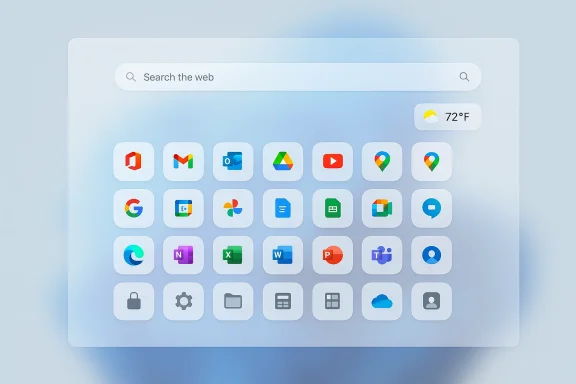
A futuristic blue app launcher with rounded icons arranged in a grid and a search bar.
Microsoft Edge's New Tab page has quietly become a mixed bag: an increasingly crowded canvas of news cards, widgets, Copilot modules, and promotional panels that many Windows 11 users never asked for. A new community-built solution, Fluent New Tab, aims to push back — replacing Edge’s default New Tab experience with a minimalist, Windows 11–native-looking home screen that emphasizes speed, privacy, and a distraction-free start to the browsing session.

Background​

Windows 11 and Microsoft Edge have moved closer together in recent years, with the browser adopting features and visual cues that try to mirror the operating system. That convergence has benefits — consistency, integrated services, and a smoother look — but it has also led Edge’s New Tab page to accumulate a lot of surface-level functionality: news feeds, content cards, Copilot prompts, recommended links, and promotional modules. For users who simply want a quick grid of favorite sites and a small set of controls, this can feel cluttered and noisy.
Enter Fluent New Tab, an open-source extension created by a community developer known as snw-mint. Built specifically for Microsoft Edge and released publicly in early February 2026, the extension intentionally strips the New Tab page down to the essentials while applying Microsoft’s Fluent Design language to make the page look like a native part of Windows 11. It’s not trying to out-feature Edge; it’s trying to undo the bloat.

What Fluent New Tab offers​

At its core, Fluent New Tab is a purpose-built replacement for Edge’s New Tab page that focuses on three main principles: native look, local-first privacy, and simplicity. The extension’s public codebase and release notes list the following high-level features:
  • Fluent Design visuals with Mica-like background effects, dynamic Dark/Light mode support, and smooth transitions.
  • An uncluttered grid of shortcuts (more rows and flexibility than Edge’s default).
  • A configurable search bar that can switch between search engines (Bing, Google, etc.) and control search suggestions.
  • A small, optional weather widget that retrieves only the minimal data needed to show current conditions.
  • An ecosystem app launcher for Microsoft 365, Google Workspace, and Proton apps.
  • Full local storage of shortcuts and settings (no third-party analytics or server-side sync by default).
  • Export/import tools so users can move or back up their configuration.
  • Open-source licensing (MIT) with a public repository and release cadence.
Those are concise, familiar features for a New Tab replacement — but the way the extension frames them is important. Fluent New Tab intentionally avoids content feeds, trending headlines, or any server-provided personalization. Instead it gives users a clean speed-dial experience that visually matches Windows 11's aesthetic.

Notable UI choices​

Fluent New Tab’s UI makes a few deliberate trade-offs:
  • The emphasis is on a light, native feel — no autoplaying media, no news cards, and no cluttered information streams.
  • Shortcuts are presented in a grid that supports more than Edge’s standard two-row limit, giving power users more direct access to frequently used sites without scrolling through multiple pages.
  • The search box is optional and configurable; it is included to match user expectations for a New Tab but can be hidden if you prefer using the omnibox.
These choices position the extension as a utility for people who value a calm browsing start page over the “discover and consume” model that many modern New Tab pages now push.

How this compares to Microsoft Edge’s default New Tab experience​

Understanding why Fluent New Tab resonates with some users requires a brief comparison with Edge’s built-in New Tab page.
  • Edge’s default New Tab has historically prioritized content: news feeds, personalized cards, and promotional elements (including Copilot exposure). That creates a rich — but busy — page.
  • Edge limits the built-in “quick links” grid to a fixed size (traditionally two rows of quick links and a constrained number of tiles), which frustrates users who want a denser speed-dial. Fluent New Tab removes that ceiling and supports additional rows of shortcuts.
  • Microsoft’s New Tab is tightly integrated with services like MSN and Bing and may surface content or telemetry tied to Microsoft accounts and feature usage. By contrast, Fluent New Tab stores data locally in the browser and avoids remote analytics by design.
The result: Fluent New Tab offers a highly minimalist approach that removes noise, while Edge’s default experience continues to favor a content-forward, integrated services model.

Installation and real-world quirks​

Fluent New Tab is distributed via the official Microsoft Edge Add-ons store and is also available on the developer’s GitHub repository for manual installation. That dual path ensures both convenience (store install with automatic updates) and transparency (open-source code you can audit or sideload).
However, there are practical caveats every user should understand:
  1. Microsoft Edge has policies and behaviors that can complicate New Tab replacements. Extensions that override the New Tab page are sometimes flagged or disabled by Edge’s safety checks. Edge’s own documentation explains that the browser may turn off extensions that try to change settings such as the default search provider or New Tab page without clear user consent. When Edge disables such an extension, it can usually be re-enabled through the Extensions management page.
  2. Because New Tab overrides are implemented using a redirection mechanism in Chromium-based browsers, they are not always as seamless as native browser settings. Users occasionally report that Edge reverts to the built-in New Tab or prompts to re-enable the extension.
  3. Manual installation via the GitHub releases page is an option for users who want the absolute latest build before it appears in the store, but this requires enabling developer mode in edge://extensions and is therefore more advanced.
These realities mean Fluent New Tab will work best for users who are comfortable toggling extension settings and understand the occasional friction between browser policies and third-party New Tab pages.

Privacy and telemetry: a local-first approach — but not a magic bullet​

One of Fluent New Tab’s strongest selling points is its privacy posture. The extension explicitly stores configuration, shortcuts, and settings locally in the browser’s localStorage and does not include analytics endpoints or telemetry in its codebase. The project’s privacy documentation, included in the repository, makes a point to highlight that only strictly necessary external requests are made — for example, fetching favicons or weather data directly from the client.
That said, there are important caveats:
  • Local-first storage means the extension itself does not send your custom configuration to third-party servers. However, this does not mean your browsing data is invisible to Microsoft Edge or to other integrations in the browser.
  • Microsoft Edge collects required diagnostic data and, depending on user and system settings, may also collect optional diagnostic data that includes browsing telemetry. Those settings are controlled separately from browser extensions and can be adjusted in the browser and Windows privacy settings. In short, installing a local-first New Tab extension does reduce the extension-specific surface for privacy leakage, but it does not neutralize the broader telemetry mechanisms of Edge or Windows.
  • Where third-party services are used — for instance, a weather provider — the extension must contact an external API to obtain the data. Fluent New Tab’s README indicates it uses a Weather API but also notes that those requests are limited to the minimum necessary. Users who want zero external contacts must disable optional widgets.
The practical takeaway: Fluent New Tab is more privacy-respecting than many alternatives because it keeps settings local and is open-source, but users should remain aware of the underlying browser and OS telemetry settings that operate independently.

Security considerations and the benefits of open source​

Fluent New Tab being open-source is a major advantage for security-savvy users. The public repository includes manifest and source code so anyone can audit what the extension does — a meaningful contrast to closed-source add-ons that may request broad permissions. The developer has licensed the project under MIT and published a privacy.md and contributing guide.
Security pros:
  • Open code allows community review for malicious or sloppy code.
  • Minimal permissions reduce attack surface. The extension’s main job is UI and local storage; it does not require blanket access to all website data.
  • Clear dependency and release notes enable users to track changes and updates.
Potential risks:
  • New Tab overrides are implemented through mechanisms that can be misused by malicious add-ons. While Fluent New Tab appears benign, the general class of New Tab extensions has occasionally been abused in the ecosystem.
  • Users should prefer the official Add-ons store release (which gets Microsoft review) or audit the GitHub code before installing an unpacked extension from the releases page.
  • Because the extension fetches favicons and weather data, those external requests could, in theory, reveal the pages a user is viewing if the extension is ever modified or if a dependency is compromised. Vigilant maintainership and community oversight reduce this risk, but they do not eliminate it.
For power users and enterprise administrators, open-source, minimal-permissions extensions like Fluent New Tab are generally preferable to opaque alternatives — provided users validate what they install and keep the extension up to date.

Community reaction and adoption signals​

Early community response has been positive. A public launch thread and conversation on social platforms show praise for the visual fidelity — many users commented that the extension looks “more Fluent than Microsoft” — and for the focus on productivity. Requests and feature suggestions are largely pragmatic: better weather customization, ability to hide the search bar, rearrange and edit shortcuts, and optional syncing.
The extension’s release history indicates an active development cadence shortly after launch, with a new point release within days introducing the ability to edit shortcuts and incremental feature work in progress. That responsiveness from the developer is a strong sign of healthy community maintenance, at least in the short term.
Two community dynamics to watch:
  • As Edge itself continues to evolve (including experiments with Copilot-inspired interfaces and a broader Copilot design language), the baseline New Tab experience in Edge could change, which can alter the extension’s relative appeal and compatibility.
  • Because Edge can automatically disable extensions that change important browser settings, adoption may be protracted: users will need to confirm and re-enable the extension after installation, and some workflows (work-managed devices, for example) may block such changes entirely.

Where Fluent New Tab fits in your workflow​

If you prefer a calm, native-looking New Tab page and you use Microsoft Edge on Windows 11, Fluent New Tab is an appealing option. It’s particularly suited for users who:
  • Want a fast, distraction-free landing page at the start of a browsing session.
  • Value local-first privacy and an open-source codebase.
  • Prefer visual consistency with Windows 11 and the Fluent Design language.
  • Use Edge but dislike the built-in news and content-first New Tab approach.
It’s less appropriate for users who:
  • Rely on Edge’s integrated news, headlines, or personalized content cards.
  • Need cloud-synced New Tab settings across devices (the extension offers export/import but not native cloud sync).
  • Run Edge on managed devices where New Tab overrides are blocked by policy.

Practical tips and best practices​

If you decide to try Fluent New Tab, here are sensible steps and considerations to keep your experience smooth and secure:
  1. Install via the official store release for automatic updates and Microsoft’s review protections. If the newest features are only on GitHub, audit the code before unpacking and loading it manually.
  2. After installation, check edge://extensions and ensure the extension is enabled. If Edge warns or disables it, follow the on-screen instructions to allow the New Tab override.
  3. Review the extension’s permissions and privacy policy in the Add-ons listing and on the repository. Minimal permissions and an absence of analytics endpoints are positive signals.
  4. Configure the search engine and weather options to your preference and use the export feature if you plan to move to another device.
  5. If privacy is a top concern, review Edge’s diagnostic and telemetry settings in Settings > Privacy, search, and services and, at the OS level, in Windows Settings > Privacy & security > Diagnostics & feedback.
  6. Monitor the GitHub repository for updates and security advisories. Open-source projects are most secure when their maintainers and community are active reviewers.

Risks and long-term considerations​

No extension is maintenance-free, and a few broader dynamics could affect Fluent New Tab’s viability:
  • Browser evolution: Microsoft’s moves toward a Copilot design language and deeper OS integration for AI features may change how Edge treats New Tab pages and which APIs are available to extensions. That could either break or enrich the extension depending on how the browser teams shape extension APIs.
  • Store policy changes: Browsers periodically adjust extension store policies around privacy, permissions, and redirection techniques. A future policy tweak could force changes to how Fluent New Tab implements New Tab overrides or how it’s distributed.
  • Dependency management: The extension relies on third-party assets for favicons and weather data. If those endpoints change, the extension needs quick updates to avoid degraded functionality.
  • Organizational controls: In enterprise environments where administrators lock down browser preferences, New Tab replacements may be blocked or periodically reverted by policy.
These are not objections to using Fluent New Tab but a reminder that any third-party extension needs ongoing attention and compatible platform policies to remain healthy.

Final assessment​

Fluent New Tab is a strong example of grassroots software solving a real user problem: the steadily increasing visual and informational density of modern browser home pages. By focusing on a clean, native appearance, local-first privacy, and practical features like unlimited shortcuts and a configurable search box, the extension offers a compelling, lightweight alternative for users who just want to get to work.
Its open-source model and minimalist permission set are especially welcome in a landscape where many New Tab replacements come with heavy analytics or opaque behaviors. The developer’s responsiveness in the early days, plus quick feature updates, suggests the project will continue to mature.
That said, users should remain aware of two realities: Fluent New Tab reduces extension-specific tracking but does not change Edge’s overall telemetry behavior, and the browser’s handling of New Tab overrides can add friction to installation and ongoing use. For those who accept those trade-offs, Fluent New Tab is a clean, well-executed antidote to Edge’s cluttered New Tab — and a reminder that small, focused community projects can often restore the simplicity that power users miss.

Source: Windows Central New Tab extension aims to fix Microsoft Edge’s cluttered layout
 

If you’ve ever opened a fresh tab in Microsoft Edge and felt assaulted by headlines, autoplaying cards, Copilot prompts, and an array of widgets you never asked for, a small open‑source project called Fluent New Tab aims to give that moment back to you — clean, calm, and visually integrated with Windows 11’s Fluent Design language. The extension, built by a hobbyist developer known as snw‑mint, replaces Edge’s default New Tab page with a lightweight, local‑first start page that emphasizes shortcuts, a configurable search box, and a minimal set of optional widgets rather than a news feed or promotional content.

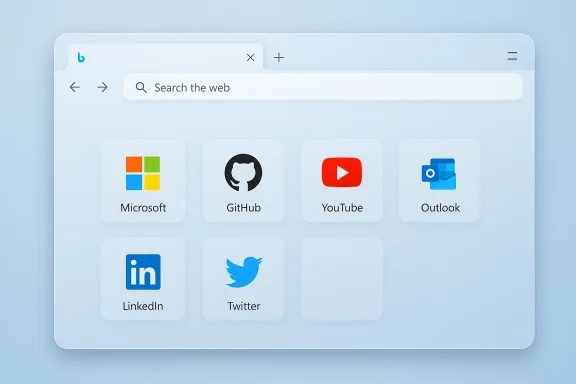
A blue browser window with a search bar and app shortcuts: Microsoft, GitHub, YouTube, Outlook, LinkedIn, Twitter.Background​

Microsoft Edge’s New Tab has evolved from a simple speed‑dial into a content‑heavy experience over the last few Windows 11 updates. What started as a place to land quickly and jump into a search now often surfaces news, discovery cards, and Microsoft services promotion — useful to some, distracting to many. This steady accretion of content has reopened an old tension in modern browsers: build a discover‑first surface and risk annoyance, or keep a barebones speed dial that maximizes user control. Fluent New Tab explicitly chooses the latter, working as a replacement New Tab page extension that visually mirrors Windows 11 while removing what its author calls “clutter.”

What Fluent New Tab does (at a glance)​

Fluent New Tab is intentionally narrow in scope: it replaces Edge’s New Tab page with a clean home screen that puts shortcuts and an optional search box front and center. Key user‑facing features include:
  • Windows 11–style Fluent Design visuals, including a Mica‑like background feel and theme matching with the browser’s system color mode.
  • A compact grid of shortcuts (speed‑dial) that supports more rows than Edge’s built‑in layout, letting you keep more sites front and center.
  • A configurable search box that can point to Bing or Google (and, in some coverage, other search engines), with options for suggestion behavior.
  • One or two small optional widgets — most notably a simple weather widget — that you can toggle on or off.
  • Local storage for preferences and shortcuts (no cloud sync by default), plus export/import tools for moving or backing up your configuration.
  • Open‑source code on Git hosting for transparency and community review.
Those are the visible wins: a pleasing native look, a familiar UX for Windows 11 users, and the ability to avoid a noisy news feed or autoplaying content right when you open a new tab.

Why people care: the UX and privacy angle​

There are two separate, closely related reasons users are embracing alternatives like Fluent New Tab.
  • Experience control. Many Edge users want a distraction‑free start page — a fast place to jump into a task or search without a dozen cards vying for attention. Fluent New Tab replaces the discovery‑first default with a speed‑dial first model that empowers users to curate exactly what they see. Early community reaction reflects that appetite; posts in social channels show quick praise for the extension’s visual fidelity and simplicity.
  • Lo transparency. Fluent New Tab stores its settings and shortcuts locally in the browser’s storage and does not ship with analytics or telemetry baked in, according to the project’s documentation and the developer’s statements. For privacy‑minded users who prefer to minimize third‑party endpoints and server‑side personalization, this is an attractive property. That said, local storage in the extension does not affect Edge or Windows telemetry settings themselves; those remain controlled by the browser and OS preferences. It’s important to understand the distinction: the extension reduces its own data‑sharing surface, but it does not change what Edge or Windows may collect independently.

Installation and real‑world quirks​

Fluent Newthe official Microsoft Edge Add‑ons store and — per the developer’s posts — the source is published for manual installation or inspection. That distribution model gives both the convenience of automatic store updates and the transparency of a public codebase. But there are practical realities to be aware of:
  • Edge treats New Tab overrides as a special case. Because replacing the New Tab page changes a core browser surface, Edge may occasionally disable such extensions via built‑in safety checks or prompt users about the change. If Edge disables the extension, re‑enabling it is done through the Extensions management page. Some users running extensions that override New Tab pages have reported intermittent re‑enabling or small UI artifacts due to the redirection mechanism used by Chromium‑based browsers.
  • For users who want the absolute latest build before the store review process, the Git‑hosted releases let you download a ZIP and load the unpacked extension in Edge developer mode (edge://extensions → Developer mode → Load unpacked). This provides early access but requires a little technical confidence and bypasses the store’s automatic update and review pipeline.
  • On managed devices (enterprise or school devices), policies may block New Tab changes. Administrators typically control extension policies and might disallow overrides on work‑managed profiles.
If you plan to try Fluent New Tab, be prepared for these minor frictions and keep in mind the safest route is the official store release.

Deep dive: design and functionality​

Visual fidelity and theming​

Fluent New Tab aims to look like it belongs on a Windows 11 system. The extension follows the browser and system color modes (Light/Dark/Auto) and uses subtle visual effects so the New Tab feels like a native OS surface rather than a generic webpage. That’s not just cosmetic: a consistent look reduces cognitive friction and helps a start page feel trustworthy. Reviewers and community responders have repeatedly noted that it “feels more Fluent than Microsoft’s own New Tab,” which speaks to the polish of the interface.

Shortcuts and quick access​

Edge’s built‑in quick links historically limit how many shortcuts are visible at once, often constraining the grid and encouraging scrolling or nested menus. Fluent New Tab expands that capacity to several rows (public coverage notes up to four in early builds), allowing users to keep more frequently used sites accessible at a glance. The extension also tries to automatically fetch high‑quality favicons for each shortcut to make the grid feel visually complete.

Search and Copilot behavior​

Fluent New Tab offers an optional search box that can be switched between at least Bing and Google; the developer’s posts indicate additional choices may be available or added. Early iterations experimented with a Copilot‑style Chat integration, but browser constraints meant that feature had issues and was temporarily scaled back — an example of the practical limits third‑party new‑tab pages face when trying to integrate native browser features. In short: search is configurable and usable, but integrated assistant features may be limited by the browser environment.

Widgets and extras​

The extension keeps extras intentionally small: a minimal weather widget, an app launcher for productivity ecosystems (Microsoft 365, Google Workspace, Proton), and optional UI elements like a clock or greeting. The design philosophy is to provide useful glanceable elements while avoiding the heavy, scrolling news blocks that dominate many native New Tab pages.

Security and privacy analysis​

Fluent New Tab’s open‑source nature and local storage model ares from a security and privacy standpoint, but they are not absolute guarantees.
  • Open code equals auditability. Publishing the source under an OSI‑style license lets security‑minded users and the community inspect the manifest, the JavaScript, and any third‑party dependencies. That transparency reduces the chance of hidden telemetry or obfuscated exfiltration, and it makes community vetting possible.
  • Minimal permissions reduce attack surface. The extension’s primary role is presenting a UI and saving configuration locally; it does not need broad host permissions to perform this. Extensions that request sweeping permissions (read and change all data on websites) are riskier. Fluent New Tab’s manifest shows a narrower permission set appropriate for its job, which is a sensible design choice.
  • Local storage ≠ total privacy. While the extension doesn’t send your shortcuts and settings to the cloud by default, it still performs a small set of external requests if you enable optional widgets like weather (to fetch conditions) or when it fetches favicons. Those calls are minimal but do contces. Also, installing a third‑party extension doesn’t alter Edge or Windows telemetry behaviors; OS‑level diagnostic settings must be adjusted separately if you want to reduce telemetry beyond the extension itself.
  • Store vs. unpacked installation. Installing from the official Edge Add‑ons store gives you Microsoft’s review assurances and automatic updates. Loading an unpacked copy from GitHub lets you inspect the files locally but bypasses store review — a trade‑off between immediate transparency and convenience. For most users, the store build is recommended.

Practical recommendations for power users and administrators​

If you’re considering Fluent New Tab in a personal or managed environment, keep these practical steps in mind:
  • Choose the store install if you prefer automatic updates and a reviewed package.
  • If you want to audit before installing, download the GitHub release and inspect manifest.json and the source files. Look for any unexpected network endpoints or unusual host permissions.
  • Disable optional widgets if you want zero external outbound calls (for example, turn off weather to remove external API requests).
  • On managed devices, consult your admin: group policy and enterprise extension policies may block New Tab overrides.
  • If Edge disables the extension, re‑enable it via edge://extensions and check permissions. Document the change if you plan to scale deployment across machines.

Where Fluent New Tab fits in the ecosystem​

There are many New Tab replacements and start‑page customizers across Chromium‑based browsers; Fluent New Tab’s differentiators are its focused scope, Fluent Design fidelity, and local‑first privacy stance. Compared with feature‑rich alternatives that bundle notes, extensive widgets, wallpapers, and AI integrations, Fluent New Tab aims to be small and fast. That makes it especially attractive to:
  • Users who want a native look and simple speed‑dial behavior on Windows 11.
  • Privacy‑conscious users who prefer local storage over cloud sync for their start‑page settings.
  • People who are tired of discovery‑first New Tabs and want a predictable, no‑surprises start.
At the same time, the extension is not a one‑size‑fits‑all replacement for people who value heavy customization, pinned live feeds, or integrated AI assistants on the New Tab page. Those users may prefer richer extensions or a different browser that exposes more internal hooks for a start‑page replacement.

Developer responsiveness and community signals​

One of the positive signs for a small open‑source project is how actively the developer engages with users. In public discussion threads and the extension’s release cadence, the developer responded quickly to early requests (for example, adding a shortcut edit feature shortly after launch) and iterated to fix small UX limitations. Community feedback has been constructive — requests for rearranging icons, background image options, and deeper weather customization are common — and the developer has shown a pragmatic roadmap approach. That responsiveness is a good indicator of short‑term health for the project, though long‑term maintenance still depends on continued community interest or contributor uptake.

Risks and caveats (what to watch for)​

No third‑party extension is risk‑free. Here are the specific risks and trade‑offs to be aware of before you adopt Fluent New Tab broadly:
  • Edge behavior and stability. Extensions that override the New Tab page rely on redirection mechanisms that can be affected by browser updates. Edge may sometimes disable or prompt re‑enabling the extension. This is an expected but annoying friction for users who prefer seamless, permanent changes.
  • Potential changes in Edge’s New Tab feature set. Microsoft continues experimenting with Copilot and discovery features. If Microsoft introduces a more native, polished New Tab that offers the same minimal UX, the extension’s relative advantage will shrink. That’s a product‑market risk for any third‑party replacement.
  • Third‑party requests for widgets. Optional widgets will alwaysxternal data endpoints. Users who need strict no‑network setups should disable widgets and use only local features.
  • Supply‑chain and dependency risk. Although the extension appears to use minimal dependencies, dependency issues (compromised libraries or supply‑chain problems) are always a remote possibility. Open source helps here, but vigilance from maintainers and community reviewers matters.
  • Enterprise compliance. For organizations, installing non‑catalogue extensions on managed devices may violate policy or support agreements. Administrators should test and vet before wide deployment.

Quick install and configuration checklist​

  • Install from the Microsoft Edge Add‑ons store for the safest and simplest path.
  • After installation, open a new tab and confirm Fluent New Tab is active; if Edge disabled it, go to edge://extensions and enable it manually.
  • Configure theme (Light/Dark/Auto) to match system preferences.
  • Add shortcuts you use frequently; export your settings after setup as a backup.
  • If you want no external calls, disable the weather widget and other optional features.
  • To audit the code, download the GitHub release and inspect manifest.json and source files before loading the unpacked extension.

Verdict: who should try Fluent New Tab​

Fluent New Tab is a tidy, well‑executed answer to a common complaint about modern browsers: too much content when you simply want a place to start. For people who value a Windows‑native feel, minimalism, and local‑first settings, Fluent New Tab is worth installing and testing. It’s especially appealing if you’ve been tempted to switch browsers solely because Edge’s New Tab became too noisy.
That said, it’s not a panacea. Users who depend on integrated discovery features, live news, or advanced AI assistants will find Fluent New Tab intentionally reductive. And because it changes a core browser surface, you should expect occasional friction with Edge’s internal policies or UI updates.
If you want a calm, Fluent‑native start page that’s open for inspection and respectful of local privacy, Fluent New Tab is a thoughtful, pragmatic option — and a reminder that small community projects often produce cleaner, user‑centered alternatives to default vendor experiences.

In a landscape where browsers increasingly try to become content platforms, Fluent New Tab stands out by doing less — and doing it well. If simplicity, speed, and privacy matter to you, it’s one of the cleaner solutions available today.

Source: XDA This Edge extension instantly cleans up the browser's busy New Tab page
 

Back
Top