

Windows 11’s taskbar looks familiar, predictable, and—if you’re anything like many power users—frustratingly limited when it comes to modern media and status interactions; FluentFlyout fills that gap with a polished, Fluent 2–inspired suite of flyouts, lock-key indicators, and taskbar widgets that feel native while adding genuinely useful features you’ll use every day.
Windows has offered basic on-screen feedback for decades: volume OSDs, simple media overlays, and tiny lock-key notifications. In Windows 11, Microsoft leaned into subtlety and minimalism, but that minimalism comes at the cost of discoverability and visual coherence with the rest of the OS’s Fluent design language. Third‑party projects have stepped in to restore both function and form, and FluentFlyout is one of the most notable examples.
Originally created as an open-source replacement for Windows’ default flyouts, FluentFlyout now combines detailed media metadata displays, lock-key indicators, and taskbar widgets—most notably a live audio visualizer—into a consistent Fluent 2 aesthetic. The project is available as a free, open-source download and as a Microsoft Store package that unlocks a small set of optional paid features. Recent updates improved multi-monitor support, added a taskbar visualizer widget that animates to your audio output in real time, and tightened playback controls directly into the taskbar experience.
Third-party tools like FluentFlyout demonstrate how small, focused enhancements can restore productivity and enjoyment without compromising system integrity. Because FluentFlyout is open-source and designed to mirror system aesthetics, it walks a middle path: giving users modern interaction patterns while preserving the look and feel of Windows.
However, these gains come with trade-offs: compatibility friction, small friction in installation for non-Store builds, and the need to evaluate trust when importing certificates or enabling software that hooks input or audio.
Buy the Store unlock if you want the integrated widget and visualizer and prioritize automatic updates and minimal fuss. For tinkerers and privacy-conscious users, the open-source GitHub build provides transparency and the ability to run the latest features—at the cost of manual certificate handling.
If you want your Windows 11 experience to feel more cohesive, responsive, and visually modern in those moments when you change volume, toggle Caps Lock, or glance at what’s playing, FluentFlyout is an excellent, low-friction tool to try. Its mix of Fluent 2 polish, practical controls, and community-driven development make it a standout option among third-party taskbar and flyout customizers.
Concluding thought: small refinements often deliver the most consistent improvements to day‑to‑day productivity. FluentFlyout is not a dramatic overhaul of Windows behavior, but it is a thoughtful, well‑executed set of refinements that simply make those small interactions nicer—and that, for many users, is more than enough reason to install it.
Source: Nerd's Chalk Transform Your Windows 11 Taskbar with FluentFlyout's Sleek Visualizer Widgets and Media Flyouts
 Background
Windows has offered basic on-screen feedback for decades: volume OSDs, simple media overlays, and tiny lock-key notifications. In Windows 11, Microsoft leaned into subtlety and minimalism, but that minimalism comes at the cost of discoverability and visual coherence with the rest of the OS’s Fluent design language. Third‑party projects have stepped in to restore both function and form, and FluentFlyout is one of the most notable examples.Originally created as an open-source replacement for Windows’ default flyouts, FluentFlyout now combines detailed media metadata displays, lock-key indicators, and taskbar widgets—most notably a live audio visualizer—into a consistent Fluent 2 aesthetic. The project is available as a free, open-source download and as a Microsoft Store package that unlocks a small set of optional paid features. Recent updates improved multi-monitor support, added a taskbar visualizer widget that animates to your audio output in real time, and tightened playback controls directly into the taskbar experience.
What FluentFlyout Adds to Windows 11
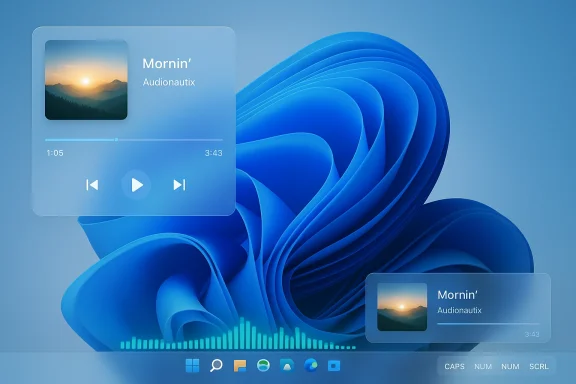
FluentFlyout is more than just a visual refresh; it reimagines several interaction points that Windows leaves bare:- Modern media flyouts that show album art, track title, artist, and in-line playback controls (play/pause, skip, shuffle, repeat).
- A compact taskbar media widget that surfaces cover art and playback progress for immediate control without opening a player.
- A real-time audio visualizer widget that pulses and waves along the taskbar, synchronized with your currently selected audio device.
- Lock key flyouts for Caps Lock, Num Lock, and Scroll Lock, replacing the cryptic LEDs on many keyboards with clear on-screen indicators.
- “Up Next” preview inside the media flyout, letting you see the following track before the current one finishes.
- Theme matching and Fluent 2 effects (Mica and Acrylic blur) so the UI blends seamlessly with modern Windows 11 visuals.
Installation Options and Practical Setup
FluentFlyout offers two primary distribution paths: the Microsoft Store package (recommended for most users) and the open-source .msixbundle from the project’s release assets.Microsoft Store (recommended for most users)
- Install from the Microsoft Store for automatic updates and frictionless installation.
- Buying the in-app premium unlocks taskbar widgets and other paid features with a single one‑time fee, typically modest.
- The Store version avoids manual certificate management and integrates with Windows’ update mechanism.
GitHub .msixbundle (open-source distribution)
- For users who prefer direct control or want the latest build, download the .msixbundle from the project releases.
- The developer-signed .msixbundle typically requires you to install the provided certificate (.cer) into Trusted Root Certification Authorities before Windows will allow the package to install.
- To install the certificate: open certificate manager as an administrator, import the .cer, and place it into the Trusted Root Certification Authorities store. Then run the .msixbundle installer.
- This route requires a few more manual steps and administrative rights but keeps the installation fully open-source and verifiable.
FluentFlyout in Detail: Features and Customization
FluentFlyout is notable for packing a large set of configurable options into a streamlined UI. Below are the most impactful features and how they can be tailored.Media flyouts and playback controls
The media flyout is the heart of the experience. When you press volume keys or media keys, FluentFlyout can display:- Album artwork, track title, and artist metadata.
- Play/pause, skip, and seek controls.
- Shuffle/repeat toggles and a dedicated seek slider for scrubbing.
- An Up Next view for imminent autoplay items.
- Flyout backdrop: choose between Mica (subtle background tinting) or Acrylic (blurred acrylic effect) and adjust opacity to taste.
- Timeouts and interaction behavior: control how long flyouts stay on-screen, and whether they dismiss on mouse leave.
- Theme matching: automatically match system theme (light/dark) for consistent appearance.
Taskbar media widget
For users who want persistent control without an extra window, the taskbar media widget can sit directly on the taskbar and display:- Small cover art thumbnail.
- Track title and a progress indicator.
- Compact playback buttons on hover.
- Positioning on the taskbar (left, center, right) with padding controls.
- Choosing which monitor shows the widget in multi-monitor setups.
- Enabling or disabling the widget’s auto-hide behavior.
Real-time audio visualizer widget
The visualizer is a standout addition: it renders a live waveform or bar visual along the taskbar that reacts to audio output in real time.- Visual styles range from classic bars to flowing waveforms.
- Controls let you pick which audio device is monitored (useful if you have headphones, speakers, or virtual devices).
- Blur, opacity, and color matching options help the visualizer blend with your chosen taskbar aesthetic.
- It works per-monitor, so you can choose where to display the effect in multi-monitor setups.
Lock key and other status flyouts
Small but frequently helpful, the lock key indicators replace the old-fashioned LED reliance:- On-screen indicators for Caps Lock, Num Lock, and Scroll Lock.
- Immediate, localized feedback when these keys are toggled, useful on laptops without dedicated indicator LEDs.
- Optional sound or haptic feedback settings where hardware supports it.
Why FluentFlyout Looks and Feels Native
FluentFlyout deliberately follows Fluent 2 design patterns—both visually and in motion. That includes:- Fluid animations with subtle easing, which feel responsive but unobtrusive.
- Mica and Acrylic backdrops that match Windows 11’s material language, making the flyouts look integrated rather than overlaid.
- Color and theme matching, allowing light/dark modes and accent colors to reflect in controls and backgrounds.
Compatibility and Integrations
FluentFlyout is designed to coexist with a broad set of Windows applications and customization tools, but real-world usage raises a few compatibility considerations.- The app generally works well with major media players and system media sessions, exposing metadata and playback state reliably.
- Users have reported successful co-existence with tools like Windhawk and other desktop modification utilities when configured carefully.
- Because many third-party applications and drivers can hook into media key handling or audio endpoints, occasional conflicts can occur. For example:
- Some media players or keyboard drivers intercept media keys at a low level, which might prevent FluentFlyout from receiving events.
- Virtual audio devices or noise-suppression utilities could alter the audio stream, affecting the visualizer’s sensitivity.
Performance, Security, and Privacy Considerations
Any app that hooks input events and monitors audio deserves scrutiny. FluentFlyout generally scores well, but here are the specifics.Performance
- The app is lightweight and designed to use minimal CPU when idle.
- Visual effects like acrylic blur and live visualizers use GPU acceleration where available, minimizing CPU overhead.
- On low-power or integrated systems, you can reduce effect complexity (disable acrylic, lower visualizer resolution) to keep responsiveness high.
Security and privacy
- FluentFlyout is open-source, which significantly increases transparency: you can audit the code or rely on community oversight.
- Installing the GitHub-signed .msixbundle requires adding the developer’s certificate to Trusted Root Certification Authorities—this is a standard pattern for non-Store packages but requires care. Only import certificates from developers you trust.
- The Microsoft Store version avoids manual certificate management and is preferable for users unwilling to install a root certificate.
Data handling
- FluentFlyout’s core functionality requires accessing media session metadata and, for the visualizer, audio output. That implies the app reads local media metadata and monitors audio levels but does not inherently transmit personal data off your machine.
- Always review permissions and be cautious if enabling telemetry or diagnostic options (if present).
Real-World Pros and Cons: A Critical Look
No app is perfect. Here’s a balanced assessment.Strengths
- Visual polish and integration: Fluent 2 styling, motion, and Mica/Acrylic effects make the UI feel native.
- Useful feature set: The media flyouts, lock-key indicators, and taskbar widgets solve actual usability problems.
- Open-source transparency: The source code is available for audit and community contributions.
- Affordable premium features: A small one-time fee (commonly around a few dollars) unlocks widgets that many users will find worth the price.
- Multi-monitor support: Control over which monitor shows widgets and flyouts is a practical boon for multi-display setups.
Potential drawbacks and risks
- Manual certificate step for non-Store builds: Installing the .cer adds friction and carries risk if users import certificates from unknown sources.
- Feature gating: Some of the most eye-catching features (taskbar visualizer and widgets) are behind a paywall, which can be a barrier for users expecting fully free open-source parity.
- Possible conflicts: Low-level key hooking and audio monitoring can conflict with other utilities or proprietary keyboard drivers.
- Maintenance risk: As a community-driven project, long-term support depends on maintainers; users who prefer vendor-backed stability may prefer Store installs.
Troubleshooting and Tips
If you try FluentFlyout and run into issues, the following steps solve most common problems.- Widget or visualizer not appearing
- Verify you have unlocked the premium widget features in the Store version or are running a build that includes them.
- Ensure the app is allowed to run at startup and has the appropriate audio device selected in its settings.
- Check that no other application is exclusively capturing the audio device.
- Media keys aren’t triggering the flyout
- Confirm the media keys aren’t intercepted by keyboard driver software or a conflicting utility.
- Try running FluentFlyout with elevated privileges (temporary test) to see if permission differences are the issue.
- Disable other media-overlay utilities to isolate the conflict.
- Certificate or install errors for the .msixbundle
- Don’t import certificates from unknown sources. For the developer-provided .cer, follow these steps as an admin: open Certificate Manager → Trusted Root Certification Authorities → Import → select the provided .cer → complete import.
- If Windows blocks the installer, double-check that the package signature matches the certificate you imported.
- Visuals feel sluggish or cause stutter
- Lower the visualizer resolution and disable acrylic blur.
- Update GPU drivers and ensure hardware acceleration is enabled where applicable.
- App suddenly stops working after a Windows update
- Reinstalling via the Microsoft Store tends to resolve compatibility breakages quickly.
- If using the GitHub build, check for a newer release or community fix, and report the issue with logs if possible.
Recommended Workflow for New Users
If you’re curious about FluentFlyout but want a low-risk path to try it, follow this sequence:- Install the Microsoft Store version for automatic updates and easier rollback.
- Test the free flyouts and lock-key indicators for a few days to confirm they behave as expected.
- If you want persistent taskbar widgets and the visualizer, consider the small in-app purchase to unlock them.
- For advanced users who need the latest builds, switch to the GitHub .msixbundle after auditing the release notes and developer certificate.
- Keep a simple rollback plan: create a system restore point or note how to uninstall the Store app so you can revert quickly if something conflicts.
Who Should (and Shouldn’t) Use FluentFlyout
FluentFlyout is an excellent fit for:- Desktop power users who want consistent, information-rich media flyouts and intuitive lock-key indicators.
- Multi-monitor setups where control over which screen displays widgets matters.
- Users who appreciate Fluent 2 visuals and prefer integrations that look native.
- Those willing to spend a small one-time fee for refined taskbar widgets.
- Uncomfortable importing developer certificates or managing non-Store packages.
- Relying on vendor-supported, enterprise-grade update channels where third-party UI tweaks are prohibited.
- Running highly customized input stacks or proprietary keyboard drivers that already claim media keys at a low level.
The Bigger Picture: Why Third-Party UI Tools Still Matter
Windows 11 made significant strides in visual design, but the OS intentionally kept several peripheral interactions minimal. The result is a user experience that looks consistent but sometimes neglects practical feedback and control.Third-party tools like FluentFlyout demonstrate how small, focused enhancements can restore productivity and enjoyment without compromising system integrity. Because FluentFlyout is open-source and designed to mirror system aesthetics, it walks a middle path: giving users modern interaction patterns while preserving the look and feel of Windows.
However, these gains come with trade-offs: compatibility friction, small friction in installation for non-Store builds, and the need to evaluate trust when importing certificates or enabling software that hooks input or audio.
Final Assessment: Is FluentFlyout Worth It?
For typical Windows 11 users who care about polished UX, FluentFlyout offers meaningful improvements. The media flyouts and lock-key indicators alone address real usability gaps; the taskbar widgets and audio visualizer are delightful extras that genuinely enhance the desktop without feeling gimmicky.Buy the Store unlock if you want the integrated widget and visualizer and prioritize automatic updates and minimal fuss. For tinkerers and privacy-conscious users, the open-source GitHub build provides transparency and the ability to run the latest features—at the cost of manual certificate handling.
If you want your Windows 11 experience to feel more cohesive, responsive, and visually modern in those moments when you change volume, toggle Caps Lock, or glance at what’s playing, FluentFlyout is an excellent, low-friction tool to try. Its mix of Fluent 2 polish, practical controls, and community-driven development make it a standout option among third-party taskbar and flyout customizers.
Concluding thought: small refinements often deliver the most consistent improvements to day‑to‑day productivity. FluentFlyout is not a dramatic overhaul of Windows behavior, but it is a thoughtful, well‑executed set of refinements that simply make those small interactions nicer—and that, for many users, is more than enough reason to install it.
Source: Nerd's Chalk Transform Your Windows 11 Taskbar with FluentFlyout's Sleek Visualizer Widgets and Media Flyouts
