

The latest wave of Windows automation enthusiasm has done something rare: it has made Task Scheduler feel interesting again. A free, community-built app called FluentTaskScheduler is drawing attention because it does not try to replace Windows’ scheduling engine so much as hide its dated edges behind a modern, fluent interface. That distinction matters, because the underlying Task Scheduler API is still the same engine many admins trust; what changes is the day-to-day experience of creating, finding, editing, and monitoring tasks. In practical terms, that could lower the barrier for everyone from casual power users to small IT teams that simply want automation to feel less intimidating. s automation has always had a split personality. On one side is enormous capability: triggers, conditions, actions, security contexts, and event-based scheduling that can drive almost any local workflow. On the other side is an interface that still feels like a relic from an earlier era of Windows administration. FluentTaskScheduler is interesting because it attacks the second problem without breaking the first, and that is a more disciplined idea than replacing the scheduler outright.
The app’s appeal isIt gives the Task Scheduler experience a cleaner dashboard, a modern Fluent Design look, and a workflow that seems intentionally built for discovery rather than punishment. The article that sparked the discussion frames it as a free wrapper around the Windows Task Scheduler API, which is exactly the sort of positioning that makes sense for a Windows utility in 2026: let Microsoft’s engine do the work, but give users a front end that does not fight them.
That framing also explains why the tool pure aesthetics. A visually updated shell would be nice, but the reported additions are more substantive: task search, filters, keyboard shortcuts, a script library, tags, categories, and notification/reminder support. In other words, the app is trying to make scheduled automation feel usable rather than merely possible.
The timing is notable too. Windows users have spent years asking why so many shell components and built-in utilities continue to receive polish while Task Scheduler remains largely untouched. In that context, a third-party tool built with WinUI 3 and .NET 8 looks less like a novelty and more like a response to a long-standing product gap. The reaction around the project suggests that even if only a small slice of users adopt it, the software is tapping into a genuine frustration.
Task Scheduler is one of those Windows components that most people only meet when they are already in trouble. Maybe a maintenance job failed. Maybe an app refuses to auto-start. Maybe someone is trying to wake a sleeping PC for backups or run a script after logon. For seasoned admins, the tool is familiar and powerful. For beginners, it is often a maze of tabs, dialogs, and obscure settings that feel more like MMC archaeology than modern software.
This is not a new criticism. The scheduler’s model is robust because it is built to handle serious automation, including triggers at logon, on idle, at startup, on a schedule, or in response to system events. But the interface has historically been optimized for completeness rather than clarity. That means the real barrier is not lack of capability; it is friction, and friction is exactly what kills adoption among casual users.
The broader Windows ecosystem has already shown that a better front end can change user behavior without changing the core engine. Power Automate Desktop, for example, makes repeatable file workflows much more approachable, but users still lean on Task Scheduler for unattended execution on a local machine. That parallel is important because it shows a recurring pattern in Windows: build a friendlier surface, then let the platform’s existing infrastructure do the hard part.
FluentTaskScheduler sits squarely inside that pattern. According to the reporting, it is not a separate scheduling system but a wrapper over the native one, presented in a portable app with a modern UI and quality-of-life features. That makes it safer conceptually than a completely new scheduler, because it preserves the proven backend while improving the human interface around it. It also means its success depends less on invention and more on execution.
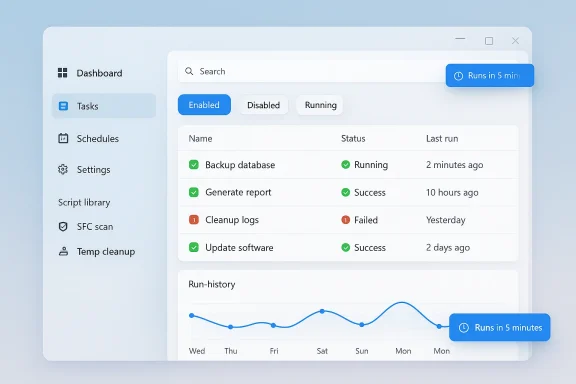
That is why its search bar, status filters, and task history views matter. They reduce the amount of “memory work” a user has to perform. Instead of drilling through nested dialogs, users can visually confirm whether a task is running, enabled, disabled, or failing, which is the difference between a tool and a chore. That is the real productivity promise.
It also broadens the potential audience. A USB-friendly utility is attractive to IT technicians, incident responders, and enthusiasts who want to avoid polluting a system with yet another installed app. The portability angle makes the tool feel practical rather than indulgent, which may explain some of the positive
In plain English, that means fewer clicks and less anxiety. If a user wants to know whether a backup task is healthy or whether a maintenance job has been failing for the past seven days, the dashboard should answer that without sending them into log files immediately. That is a meaningful usability improvement because it reduces the burden of verification.
The app also seems to streamline task actions in ways that mirror everyday behavior. You can click a task to see history, edit it, stop it, delete it, or toggle it on and off. The inclusion of multi-select checkboxes suggests the developer is thinking about batch management, which matters once a user has more than a handful of tasks.
That is the kind of detail that often separates a hobby project fro. If automation is supposed to make life easier, the automation manager itself should be easy to operate. Keyboard-first flows also feel right in an admin context, where speed and precision matter more than decorative polish.
The bottom filters for enabled, disabled, and running tasks are equally important. They let users narrow the display without resorting to detective work. That soly what should have been part of the built-in experience a long time ago.
This matters because automationocked by setup fatigue. People know they should run maintenance tasks, but they do not want to write or copy scripts every time. A script library lowers the activation energy, and in Windows-land, lower friction often beats deeper capability.
The developer’s choice here also suggests a good product instinct. Instead of trying to become a full scripting environment, the app is acting as a bridge between common tasks and a scheduling interface. That keeps the scope focused aroachable for users who are not power users every hour of the day.
That is especially relevant for consumers. Most home users do not want a scheduler that makes them learn system administration from scratch. They want a tool that turns “I should automate this” into “it is als few steps as possible.
Without thatis would risk becoming a novelty for maintenance chores only. With it, the app has a chance to serve both beginners and more advanced users who already know what they want to automate.
Tags and categories are similarly practical. Once a user has a dozen or more tasks, a flat list becomes cognitively expensive. Organization tools allow people to think in groups—maintenance, backups, cleanup, startup, tch is exactly how humans actually manage systems.
Import and export support rounds out the administrative story. That is not glamorous, but it is the kind of feature that makes a utility feel complete. When a machine changes, or when a configuration needs to be migrated, the ability to move setup data without rebuilding everything from scratch becomes a real advantage.
That is especially useful for sre no one is staring at logs all day. Home users and small businesses alike benefit from lightweight observability, and this app appears to be trying to deliver exactly that.
That is one reason FluentTaskScheduler feels more serious than a simple skin. It is attempting to support the lifecycle of scheduled work, not just the initial creation of a task.
But the native tool’s complexity is exactly why a modern wrapper has a place. The reporting emphasizes how the app’s interface is clearer, more searchable, and more consistent with newers enough to shift behavior, especially among users who avoid the built-in scheduler because it feels too dated or too bureaucratic.
The best comparison may be to modern settings sue broadly. Users do not need every old control panel-style interface to remain unchanged just because it is capable. When a more thoughtful front end can reduce mistakes and improve confidence, it changes what people are willing to automate in the first place.
The key consumer win is psychological as much as technical. A friendlier interface lowers the fear of “breaking something,” which is often the real reason people do not automate routine Windows tasks.
It also reinforces a broader trend in Windows utilities: successful tools are increasingly judged not only by raw function but by discoverability. The more a tool hides complexity intelligently, the more likely users are to adopt advanced features. That is true for scripting tools, file managers, PowerToys modules, and now apparently scheduling front ends as well.
For competing utilities, this sets a high bar. Any rival would need to match the modern look, preserve compatibility, and offer a similarly thoughtful experience. Purely cosmetic clones will not be enough; the audience that cares about this tool is already looking for practical, workflow-improving details.
That lesson applies beyond Task Scheduler. If a third-party developer can make one of Windows’ least approachable utilities feel clean and current, it suggests there are still overlooked opportunities across the shell and administrative stack.
That is where the app’s design could pay real dividends. A dashboard that surfaces current state, a library that supplies common actions, and shortcuts that speed up repetition all combine into a more humane automation loop. In other words, FluentTaskScheduler may not make Windows more powerful, but it could make people use Windows power more often.
The article’s emphasis on early-stage bugs is also worth taking seriously. New utilities often look better than they behave in theirand a scheduler front end has very little room for reliability mistakes. If the app is to move from “interesting” to “trusted,” it will need consistent behavior, accurate state reporting, and steady development.
The broader qurosoft notices the lesson. Windows users are not asking for a new schere asking for a scheduler that feels like it belongs in 2026, with fewer mysteries and more feedback. When a free third-party wrapper can make that argument so persuasively, it suggests the market has already answered the product question for Microsoft.
Source: MakeUseOf I found a free Task Scheduler replacement that makes Windows automation actually simple
The app’s appeal isIt gives the Task Scheduler experience a cleaner dashboard, a modern Fluent Design look, and a workflow that seems intentionally built for discovery rather than punishment. The article that sparked the discussion frames it as a free wrapper around the Windows Task Scheduler API, which is exactly the sort of positioning that makes sense for a Windows utility in 2026: let Microsoft’s engine do the work, but give users a front end that does not fight them.
That framing also explains why the tool pure aesthetics. A visually updated shell would be nice, but the reported additions are more substantive: task search, filters, keyboard shortcuts, a script library, tags, categories, and notification/reminder support. In other words, the app is trying to make scheduled automation feel usable rather than merely possible.
The timing is notable too. Windows users have spent years asking why so many shell components and built-in utilities continue to receive polish while Task Scheduler remains largely untouched. In that context, a third-party tool built with WinUI 3 and .NET 8 looks less like a novelty and more like a response to a long-standing product gap. The reaction around the project suggests that even if only a small slice of users adopt it, the software is tapping into a genuine frustration.
 Background
Task Scheduler is one of those Windows components that most people only meet when they are already in trouble. Maybe a maintenance job failed. Maybe an app refuses to auto-start. Maybe someone is trying to wake a sleeping PC for backups or run a script after logon. For seasoned admins, the tool is familiar and powerful. For beginners, it is often a maze of tabs, dialogs, and obscure settings that feel more like MMC archaeology than modern software.This is not a new criticism. The scheduler’s model is robust because it is built to handle serious automation, including triggers at logon, on idle, at startup, on a schedule, or in response to system events. But the interface has historically been optimized for completeness rather than clarity. That means the real barrier is not lack of capability; it is friction, and friction is exactly what kills adoption among casual users.
The broader Windows ecosystem has already shown that a better front end can change user behavior without changing the core engine. Power Automate Desktop, for example, makes repeatable file workflows much more approachable, but users still lean on Task Scheduler for unattended execution on a local machine. That parallel is important because it shows a recurring pattern in Windows: build a friendlier surface, then let the platform’s existing infrastructure do the hard part.
FluentTaskScheduler sits squarely inside that pattern. According to the reporting, it is not a separate scheduling system but a wrapper over the native one, presented in a portable app with a modern UI and quality-of-life features. That makes it safer conceptually than a completely new scheduler, because it preserves the proven backend while improving the human interface around it. It also means its success depends less on invention and more on execution.
Why the UI matters more than it seems
For automation tools, the interface is not cosmetic; it is the product. If a person cannot confidently create a task, inspect the trigger, understand the action, or verify the last run result, the power of the underlying engine becomes irrelevant in practice. FluentTaskScheduler appears to understand that reality and attempts to translate a technical subsystem into a readable workflow.That is why its search bar, status filters, and task history views matter. They reduce the amount of “memory work” a user has to perform. Instead of drilling through nested dialogs, users can visually confirm whether a task is running, enabled, disabled, or failing, which is the difference between a tool and a chore. That is the real productivity promise.
Why portable matters
The article describes FluentTaskScheduler as portable, meaning it does not require a traditional installation. That sounds small, but for Windows utilities it is a major advantage. Portable tools are easier to test, easier to carry, and easier to use in ad hoc support staller would be overkill or impossible.It also broadens the potential audience. A USB-friendly utility is attractive to IT technicians, incident responders, and enthusiasts who want to avoid polluting a system with yet another installed app. The portability angle makes the tool feel practical rather than indulgent, which may explain some of the positive
What FluentTaskScheduler Changes
The most obvious improvement is the dashboard. The reporting says it shows the total number of scheduled tasks, the recent success rate, tasks scheduled for the next few hours, currently running tasks, and a run-history summary over the past week. That is not just prettier reporting; it is an operational layer that turns the scheduler into something people can glance at and understand.In plain English, that means fewer clicks and less anxiety. If a user wants to know whether a backup task is healthy or whether a maintenance job has been failing for the past seven days, the dashboard should answer that without sending them into log files immediately. That is a meaningful usability improvement because it reduces the burden of verification.
The app also seems to streamline task actions in ways that mirror everyday behavior. You can click a task to see history, edit it, stop it, delete it, or toggle it on and off. The inclusion of multi-select checkboxes suggests the developer is thinking about batch management, which matters once a user has more than a handful of tasks.
Keyboard shortcuts and discovery
One of the strongest ideas het. The article highlights shortcuts such as Ctrl + N for a new task, Ctrl + E to modify one, and Ctrl + R to run the selected task. Those shortcuts do more than save time; they signal that the app expects repeated use, not just occasional emergency visits.That is the kind of detail that often separates a hobby project fro. If automation is supposed to make life easier, the automation manager itself should be easy to operate. Keyboard-first flows also feel right in an admin context, where speed and precision matter more than decorative polish.
Search and filtering
The search bar may be the most underrated feature of the whole package. Task lists grow messy quickly, estion that has been used for months or years. A fast way to locate one specific task is not a luxury; it is table stakes for any serious management tool.The bottom filters for enabled, disabled, and running tasks are equally important. They let users narrow the display without resorting to detective work. That soly what should have been part of the built-in experience a long time ago.
The Script Library and Automation Templates
FluentTaskScheduler’s script library is where the app moves beyond “pretty scheduler” territory and into real utility. The article points to ready-made templates for SFC scans, flushes, battery reports, shutdowns, and cleaning the Recycle Bin or Temp folder. That is a smart move because it packages common Windows maintenance tasks into repeatable actions that users can schedule with less effort.This matters because automationocked by setup fatigue. People know they should run maintenance tasks, but they do not want to write or copy scripts every time. A script library lowers the activation energy, and in Windows-land, lower friction often beats deeper capability.
The developer’s choice here also suggests a good product instinct. Instead of trying to become a full scripting environment, the app is acting as a bridge between common tasks and a scheduling interface. That keeps the scope focused aroachable for users who are not power users every hour of the day.
Why templates beat blank pages
Blank configuration screens are where many users give up. A template is different because it tells the user what “good” looks like and reduces the number of decisions they have to make. If youcleanup or a battery report from a starting point that already works, you are far more likely to finish the task.That is especially relevant for consumers. Most home users do not want a scheduler that makes them learn system administration from scratch. They want a tool that turns “I should automate this” into “it is als few steps as possible.
Extensibility still matters
The article also notes that users can create their own templates if the built-in library is not enough. That is crucial, because the value of such a utility rises when it handles both common tasks and custom workflows. The script library is the on-ramp; extensibility is the road beyond it.Without thatis would risk becoming a novelty for maintenance chores only. With it, the app has a chance to serve both beginners and more advanced users who already know what they want to automate.
Notifications, Tags, and Organization
One of the quiet strengths r is that it seems to treat scheduling as an ongoing relationship rather than a one-time setup. The article mentions notifications five minutes before a task runs and after successful execution, which means users get feedback instead of silence. That may sound minor, but automation without feedback is how people end up not tTags and categories are similarly practical. Once a user has a dozen or more tasks, a flat list becomes cognitively expensive. Organization tools allow people to think in groups—maintenance, backups, cleanup, startup, tch is exactly how humans actually manage systems.
Import and export support rounds out the administrative story. That is not glamorous, but it is the kind of feature that makes a utility feel complete. When a machine changes, or when a configuration needs to be migrated, the ability to move setup data without rebuilding everything from scratch becomes a real advantage.
Why notifications are not fluff
Notifications matter becas are often invisible until the damage is done. If a task is supposed to clean temp files, run a scan, or perform a backup, and it fails quietly for a week, the user may not discover it until they need the results. Alerts give the system some accountability.That is especially useful for sre no one is staring at logs all day. Home users and small businesses alike benefit from lightweight observability, and this app appears to be trying to deliver exactly that.
Why tags matter more for power users
Tags and categories are also a subtle admission that automation sprawl is real. The more a user automatesa structure that prevents their own cleverness from becoming maintenance debt. Good organization turns automation from a pile of tricks into a system.That is one reason FluentTaskScheduler feels more serious than a simple skin. It is attempting to support the lifecycle of scheduled work, not just the initial creation of a task.
How It Task Scheduler
The built-in Task Scheduler remains the authoritative engine, and any comparison has to acknowledge that fact. FluentTaskScheduler is not replacing the underlying scheduling architecture; it is replacing the experience around it. That distinction matters because the native tool will still be the most complete option for deep system integration and enterprise administration.But the native tool’s complexity is exactly why a modern wrapper has a place. The reporting emphasizes how the app’s interface is clearer, more searchable, and more consistent with newers enough to shift behavior, especially among users who avoid the built-in scheduler because it feels too dated or too bureaucratic.
The best comparison may be to modern settings sue broadly. Users do not need every old control panel-style interface to remain unchanged just because it is capable. When a more thoughtful front end can reduce mistakes and improve confidence, it changes what people are willing to automate in the first place.
Consumer use cases
For consumers, the appeal is obvious. Automating shutdowns, cleanups, battery reports, DNS flushes, and reminders becomes easier when the app does not feel like a server console from another era. Consumers are also more likely to appreciate the dark mode, the clean layout, and the fact that the app is portable and free.The key consumer win is psychological as much as technical. A friendlier interface lowers the fear of “breaking something,” which is often the real reason people do not automate routine Windows tasks.
Enterprise use cases
For enterprise users, the story is narrower. FluentTaskScheduler may be useful for quick local inspection, troubleshooting, or small-team automation hygiene, but it does not suddenly become a full orchestration platform. The reporting itself points out that this is not a replacement for enterprise-grade scheduling or centralizerestraint is important. Enterprises care about policy enforcement, auditability, scale, identity, and repeatable deployment. A polished wrapper can help at the edges, but it does not replace the governance story that large organizations need.Competitive and Market Implications
The broader market implication is that Windows still leaves rooelopers to improve first-party experiences in meaningful ways. That is not a flattering message for Microsoft, but it is a useful one for users. When an outside developer can make a system utility feel mises questions about why the platform owner has not done it sooner.It also reinforces a broader trend in Windows utilities: successful tools are increasingly judged not only by raw function but by discoverability. The more a tool hides complexity intelligently, the more likely users are to adopt advanced features. That is true for scripting tools, file managers, PowerToys modules, and now apparently scheduling front ends as well.
For competing utilities, this sets a high bar. Any rival would need to match the modern look, preserve compatibility, and offer a similarly thoughtful experience. Purely cosmetic clones will not be enough; the audience that cares about this tool is already looking for practical, workflow-improving details.
What this says about Windows itself
The existence of FluentTaskScheduler is also an indictment of older Windows UX debt. A platform can be technically stable and still be unwelcoming. This tool shows that users often do not need radical reinvention; they need respectful redesign.That lesson applies beyond Task Scheduler. If a third-party developer can make one of Windows’ least approachable utilities feel clean and current, it suggests there are still overlooked opportunities across the shell and administrative stack.
Practical Value for Daily Windows Automation
The tool’s best use case is not glamorous enterprise orchestration. It is the messy, everyday automation that keeps a PC tidy and a user sane. Things like clearing temporary files, generating routine reports, and launching maintenance scripts are exactly the sort of tasks that get postponed when the scheduler looks too much like a punishment.That is where the app’s design could pay real dividends. A dashboard that surfaces current state, a library that supplies common actions, and shortcuts that speed up repetition all combine into a more humane automation loop. In other words, FluentTaskScheduler may not make Windows more powerful, but it could make people use Windows power more often.
The article’s emphasis on early-stage bugs is also worth taking seriously. New utilities often look better than they behave in theirand a scheduler front end has very little room for reliability mistakes. If the app is to move from “interesting” to “trusted,” it will need consistent behavior, accurate state reporting, and steady development.
Reliability is the real test is only valuable when it is boring. If tasks do not run, run late, or report misleading status, the prettiest UI in the world becomes a liability. That is why the early-stage disclaimer in the reporting matters more than the visual polish.
For that reason, the true measure of FluentTaskScheduler will be whether it can stay transparent to the underlying scheduler while staying readable to the is hard, and it is where many good ideas fail.Strengths and Opportunities
FluentTaskScheduler has a genuinely strong starting position because it solves a real user problem instead of inventing one. The opportunity is not just to make Task Scheduler prettier; it is to make scheduled automation something more Windows users will actually maintain.ps polishing reliability and usability, the app could become the default front end for a surprisingly broad audience.- Modern Fluent Design makes the utility feel native to newer Windows apps.
- Portable deployment lowers the barrier for testing and troubleshooting.
- Search and filters dramatically improve task discovery.
- Keyboard shortcuts reward repeated use and speed up power workflows.
- Script templates reduce setup friction for routine maintenance jobs.
- Notifications and reminders make automation easier to trust.
- Import/export support helps with migration and system changes.
Risks and Concerns
The biggest concern is not that the app is third-parting software must be accurate, stable, and trustworthy. A small glitch in a visual app is annoying, but a small glitch in a scheduler can mean missed backups, failed maintenance, or mistaken confidence in a task that never ra is not a cosmetic issue here; it is a reliability issue.- Early-stage bugs could undermine trust in critical tasks.
- Third-party status may concern cautious users and IT departments.
- Limited scope means it does not replace enterprise orchestration.
- Template coverage may not satisfy advanced or niche workflows.
- Dependency on the native API means it inherits Windows scheduler quirks.
- Newer users may overestimate simplicity and still need to understand triggers, conditions, and privileges.
- Maintenance burden corowth outpaces testing.
Looking Ahead
What happens next will depend on whuler keeps turning design wins into workflow wins. If the develing task creation, status visibility, and the script library, the project coimportant utility in the Windows ecosystem. The most compelling path forward; it is consistency, clarity, and confidence.The broader qurosoft notices the lesson. Windows users are not asking for a new schere asking for a scheduler that feels like it belongs in 2026, with fewer mysteries and more feedback. When a free third-party wrapper can make that argument so persuasively, it suggests the market has already answered the product question for Microsoft.
- Bug fixes and stability improvements will determine whether early curiosity turns into long-term use.
- Broader template support could eaintenance chores.
- Ongoing community feedback may shape theinternal roadmap.
- Cross-platform build maturity such as ARM64 suppover time.
- Enterprise skepticism will remain unless the project proves exceptional reliability.
Source: MakeUseOf I found a free Task Scheduler replacement that makes Windows automation actually simple
