

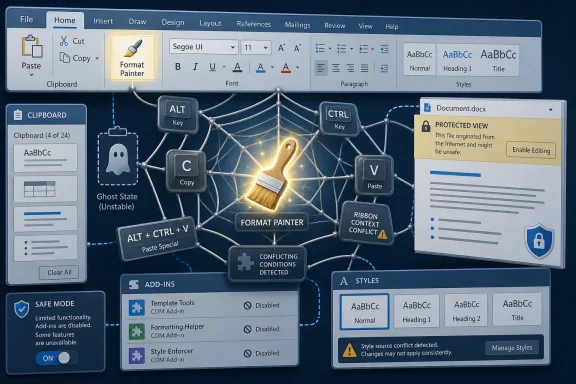
Microsoft Office users can usually fix Format Painter failures by restarting the affected app, trying Microsoft’s formatting-copy shortcuts, testing the file in Office Safe Mode, disabling add-ins, and checking whether the document is protected against formatting or editing changes. The problem is rarely one single bug. More often, Format Painter is where Office exposes a deeper conflict among clipboard state, keyboard shortcuts, add-ins, document protection, and Microsoft’s evolving shortcut conventions. Treat it less like a broken paintbrush and more like a diagnostic signal from the Office stack.
Format Painter is one of those Office features that feels almost too simple to deserve troubleshooting. In Word, Excel, PowerPoint, Outlook, and other Office apps, it copies formatting from one selection and applies it somewhere else. Font, size, color, borders, paragraph style, object formatting, and spacing can all move in seconds without forcing the user back through the ribbon.
That simplicity is exactly why failure feels disproportionate. When Format Painter stops working, users usually notice during a task that is already fiddly: cleaning up a proposal, standardizing a slide deck, fixing a spreadsheet report, or pasting content between Office apps. The feature is not glamorous, but it is a pressure valve for Office’s most persistent annoyance: formatting drift.
The first mistake is assuming that Format Painter itself is always the culprit. The command sits on top of Office’s clipboard behavior, selection logic, document permissions, add-ins, and sometimes keyboard shortcut mappings. If any one of those layers is misbehaving, the visible symptom may simply be that the paintbrush button does nothing, copies the wrong formatting, works once and quits, or refuses to apply formatting in a protected section.
This is not superstition. Office applications can remain open for days on workstations that are only slept or locked, and the clipboard is one of the first places where long sessions become weird. A stale clipboard entry, a hung add-in, or a half-failed Office process can make a small feature look broken when the real problem is simply accumulated state.
A full restart also clears out conflicts from other apps that monitor the clipboard. Clipboard managers, screen capture utilities, remote desktop tools, browser extensions, and collaboration software can all interact with copy-and-paste behavior. Format Painter is not ordinary paste, but it lives close enough to clipboard infrastructure that a messy session can still affect it.
If a restart fixes the issue, do not over-diagnose it. Office is a sprawling desktop suite with decades of compatibility baggage. Sometimes the practical answer is that the process needed to die and come back clean.
That mismatch matters because Microsoft has been nudging parts of Office toward more modern shortcut behavior, including plain-text paste conventions that collide with older Format Painter muscle memory. A user who says “Format Painter stopped working” may actually mean “the shortcut I have used for years no longer does what it used to do.” The ribbon command may still work perfectly.
The safest test is to use the official ribbon path first. Select text or an object that has the formatting you want, go to the Home tab, click Format Painter, and apply it to the destination. If that works but your shortcut does not, you are dealing with a shortcut issue rather than a Format Painter issue.
If the shortcut works but the button does not, the problem may be ribbon customization, display scaling weirdness, a corrupt Office UI state, or an add-in interfering with the interface. If neither works, move deeper into Safe Mode, add-ins, document restrictions, and repair.
One more detail trips people up: a single click on Format Painter usually applies formatting once. A double-click keeps Format Painter active so you can apply the same formatting to multiple selections. Pressing
The quickest method on Windows is to hold
This test is more revealing than it looks. If Format Painter works in Office Safe Mode, the feature is probably not fundamentally broken. Something loaded during normal startup is interfering with the app. That “something” may be an add-in, a template, a startup macro, a custom toolbar, a damaged Normal template in Word, or another extension point that Office normally loads without fanfare.
If Format Painter still fails in Safe Mode, the suspect list changes. You may be looking at file-level restrictions, a corrupt document, a damaged Office installation, a profile issue, or a misunderstanding about what kind of formatting can be copied between the selected source and destination. Safe Mode does not solve everything, but it gives you a clean fork in the road.
If Format Painter works in Safe Mode, disable add-ins manually and bring them back one at a time. Open the affected Office app, go to File, then Options, then Add-ins. At the bottom of the window, use the Manage box to inspect COM Add-ins and other add-in categories, then click Go and disable them.
After disabling add-ins, restart the Office app normally and test Format Painter. If the feature works again, re-enable add-ins one by one until the problem returns. That process is tedious, but it is the only reliable way to identify the offender without guessing.
Pay special attention to add-ins that manipulate formatting, templates, document review, content controls, PDF conversion, or clipboard behavior. A citation manager that touches styles, a legal template system that enforces document structure, or a PDF add-in that monitors selections may have more opportunity to interfere with Format Painter than a passive helper.
Administrators should resist the urge to blame users for “breaking Word” when add-ins are centrally deployed. In managed environments, Office instability is often policy plus plug-in plus version drift. If the same Format Painter problem appears across multiple machines after an add-in update, the fix belongs in endpoint management, not at the individual help desk ticket level.
In Word, check the Review tab and look for Restrict Editing. If formatting restrictions are enabled, the file may allow only selected styles or prevent direct formatting changes. If editing restrictions are enabled, parts of the document may be read-only or limited to specific kinds of changes.
This is especially common in corporate templates, legal forms, HR documents, policy drafts, procurement forms, and files downloaded from managed repositories. The document may have been designed to keep users from casually altering layout or branding. Format Painter is precisely the kind of tool such restrictions are meant to contain.
The practical fix depends on whether you are allowed to change the document. If you own the file, remove or loosen the restrictions and test again. If the file came from someone else, ask for an editable copy or permission to modify formatting. If it is governed by company policy, do not fight the protection; use the approved styles instead.
This is where Office’s interface can be misleading. A command can be visible without being fully usable in the current context. Format Painter may sit there on the ribbon, but the document’s permissions decide whether the paint actually lands.
This distinction explains many “it worked yesterday” complaints. If you copy formatting from the middle of a sentence and apply it to a paragraph, you may not get paragraph spacing. If you copy from a paragraph without selecting the paragraph mark, you may miss the structural formatting that makes the paragraph look right. Word’s paragraph mark is invisible unless formatting marks are shown, but it carries a surprising amount of layout DNA.
PowerPoint and Excel have their own selection traps. In PowerPoint, copying formatting from text inside a shape is different from copying formatting from the shape itself. In Excel, copying a cell’s formatting is not the same as copying only the text inside the formula bar. The source and destination must be comparable enough for the formatting to make sense.
There is also a limit to Format Painter’s magic. It is excellent for repeating a known format inside one app. It is less reliable as a universal formatting translator between radically different objects or across apps with different layout engines. Copying a look from Word into PowerPoint or from Excel into Word may require Paste Special, styles, themes, or manual cleanup.
Windows Clipboard History is usually harmless, but tools that aggressively intercept clipboard operations deserve suspicion. So do remote desktop sessions where keyboard shortcuts are captured by the host, the guest, or a management layer in between. If Format Painter works locally but not inside a remote session, the problem may be shortcut routing rather than Office itself.
Keyboard utilities can be equally deceptive. GPU overlay software, screen recorders, macro tools, accessibility utilities, and conferencing apps may reserve shortcut combinations. A shortcut that looks like an Office command to the user may be swallowed before Word ever sees it.
That is why the ribbon test is important. If clicking Format Painter works but the shortcut fails, stop reinstalling Office and look at shortcut conflicts. If both fail only in a remote or virtualized environment, look at session policy and input handling. If both fail everywhere after a new utility was installed, disable that utility before blaming Microsoft.
Before repairing, test Format Painter in a new blank document. Then test it in another Office app. If it fails only in one file, repair is probably overkill. If it fails only in one app but not others, the issue may be app-specific configuration or add-ins. If it fails across every Office app in a clean Windows session, repair becomes more plausible.
There are usually two repair paths: a quicker local repair and a more thorough online repair. The online repair is more disruptive because it can take longer and may require connectivity and reactivation behavior depending on the environment. In business settings, users should check with IT before triggering repairs on managed Microsoft 365 Apps installations.
A repair also will not fix everything. It will not remove a document’s protection, rewrite a bad template policy, or stop a third-party shortcut from hijacking keystrokes. It is a tool for damaged Office installation state, not a universal exorcism.
Browser context also adds another layer. Extensions, enterprise browser policies, JavaScript restrictions, and clipboard permission prompts can affect what Office on the web is allowed to do. A feature that feels native in desktop Word may be mediated by the browser when used online.
For serious formatting work, the desktop app remains the safer environment. That is especially true when the document uses complex styles, section breaks, protected regions, embedded objects, or legacy formatting. Office on the web is excellent for collaboration and quick edits, but desktop Office still has the deeper formatting machinery.
This distinction matters for support teams. “Format Painter not working” means different things depending on whether the user is in Word for Windows, Word for Mac, Word on the web, Excel desktop, or PowerPoint in a browser. The first diagnostic question should be where the user is working, not just what they clicked.
In Word, styles are the more durable answer. If headings, body text, captions, lists, and callouts are defined properly, users should not need to paint formatting repeatedly. They can apply the right style and update the style definition when the design changes. That is less satisfying in the moment, but far more stable across a long document.
In PowerPoint, slide masters and layouts play the same role. If every title box and content placeholder is manually formatted, Format Painter becomes a crutch. If the theme and layouts are correct, formatting consistency is built into the deck.
In Excel, cell styles, table formatting, and templates reduce the need to copy formats from cell to cell. Format Painter remains useful for quick repairs, but it should not be the main mechanism for enforcing workbook design. If it is, the workbook is probably carrying more manual formatting debt than it should.
This is not a scolding. Office users reach for Format Painter because it solves real problems quickly. But when the tool fails, it is worth asking whether the document has outgrown ad hoc formatting.
Admins should capture the Office version, update channel, Windows build, affected app, file type, storage location, and whether the problem occurs in Safe Mode. They should also test with a blank local file, a known-good template, and a file from the affected user’s normal workflow. That separates app failure from document policy and storage behavior.
In Microsoft 365 environments, update channels matter. Current Channel users may see changed behavior sooner than Monthly Enterprise Channel or Semi-Annual Enterprise Channel users. If shortcut behavior changes, help desk documentation can lag behind reality, especially where users have years of muscle memory tied to older Office builds.
The enterprise lesson is simple: Format Painter is tiny, but it touches the same surfaces that make Office support hard. Add-ins, templates, permissions, update channels, and user customization all meet at the point where one employee just wants the heading to look like the other heading.
Start with the smallest reproducible test. Open a new blank document in the same app, type two short lines, format one differently, and try Format Painter from the ribbon. If it works there, the feature is alive. The problem is probably the original file, selection, protection, or object type.
Next, test the keyboard shortcut only after the ribbon test. If the ribbon works and the shortcut does not, focus on shortcut changes, shortcut conflicts, or app-specific key assignments. Do not disable add-ins or repair Office until you know whether the command itself works.
Then open the app in Office Safe Mode. If Safe Mode fixes the issue, add-ins and startup customizations become prime suspects. If Safe Mode does not fix it, check document restrictions, try another file, and consider Office repair only after simpler explanations are exhausted.
Finally, if the issue is limited to one document, treat the document as the patient. Check protection, styles, compatibility mode, corruption, and whether copying the content into a fresh file resolves the problem. Some Office files are less documents than archaeological digs.
 Format Painter Is Small Enough to Ignore Until It Breaks the Workflow
Format Painter is one of those Office features that feels almost too simple to deserve troubleshooting. In Word, Excel, PowerPoint, Outlook, and other Office apps, it copies formatting from one selection and applies it somewhere else. Font, size, color, borders, paragraph style, object formatting, and spacing can all move in seconds without forcing the user back through the ribbon.That simplicity is exactly why failure feels disproportionate. When Format Painter stops working, users usually notice during a task that is already fiddly: cleaning up a proposal, standardizing a slide deck, fixing a spreadsheet report, or pasting content between Office apps. The feature is not glamorous, but it is a pressure valve for Office’s most persistent annoyance: formatting drift.
The first mistake is assuming that Format Painter itself is always the culprit. The command sits on top of Office’s clipboard behavior, selection logic, document permissions, add-ins, and sometimes keyboard shortcut mappings. If any one of those layers is misbehaving, the visible symptom may simply be that the paintbrush button does nothing, copies the wrong formatting, works once and quits, or refuses to apply formatting in a protected section.
The First Fix Is Still the Boring One
Start by closing the affected Office app completely and reopening it. If Word is the problem, close Word. If PowerPoint is refusing to copy object formatting, close PowerPoint. If the issue appears across several apps, restart Windows rather than trying to nurse a stale session back to health.This is not superstition. Office applications can remain open for days on workstations that are only slept or locked, and the clipboard is one of the first places where long sessions become weird. A stale clipboard entry, a hung add-in, or a half-failed Office process can make a small feature look broken when the real problem is simply accumulated state.
A full restart also clears out conflicts from other apps that monitor the clipboard. Clipboard managers, screen capture utilities, remote desktop tools, browser extensions, and collaboration software can all interact with copy-and-paste behavior. Format Painter is not ordinary paste, but it lives close enough to clipboard infrastructure that a messy session can still affect it.
If a restart fixes the issue, do not over-diagnose it. Office is a sprawling desktop suite with decades of compatibility baggage. Sometimes the practical answer is that the process needed to die and come back clean.
The Shortcut Story Is Messier Than Users Remember
If the ribbon button is not working, try the keyboard route. In many Office contexts, Microsoft documentsAlt + Ctrl + C to copy formatting and Alt + Ctrl + V to paste formatting. In some older habits and app-specific workflows, users may remember Ctrl + Shift + C and Ctrl + Shift + V, especially from Word and PowerPoint usage.That mismatch matters because Microsoft has been nudging parts of Office toward more modern shortcut behavior, including plain-text paste conventions that collide with older Format Painter muscle memory. A user who says “Format Painter stopped working” may actually mean “the shortcut I have used for years no longer does what it used to do.” The ribbon command may still work perfectly.
The safest test is to use the official ribbon path first. Select text or an object that has the formatting you want, go to the Home tab, click Format Painter, and apply it to the destination. If that works but your shortcut does not, you are dealing with a shortcut issue rather than a Format Painter issue.
If the shortcut works but the button does not, the problem may be ribbon customization, display scaling weirdness, a corrupt Office UI state, or an add-in interfering with the interface. If neither works, move deeper into Safe Mode, add-ins, document restrictions, and repair.
One more detail trips people up: a single click on Format Painter usually applies formatting once. A double-click keeps Format Painter active so you can apply the same formatting to multiple selections. Pressing
Esc cancels the active painter state, which is useful when Office appears to be “stuck” in formatting mode or when you want to clear the current formatting copy and start again.Safe Mode Separates Office From Its Entourage
Office Safe Mode is the clean-room test. It starts an Office application with a reduced set of functionality and is specifically useful when crashes, startup problems, or add-ins may be involved. This is different from booting Windows itself into Safe Mode; you are only starting Word, Excel, PowerPoint, or another Office app in a stripped-down Office environment.The quickest method on Windows is to hold
Ctrl while launching the Office application. Keep holding it until Office asks whether you want to start in Safe Mode, then confirm. Once the app opens, test Format Painter in a new blank document and, if possible, in the original file.This test is more revealing than it looks. If Format Painter works in Office Safe Mode, the feature is probably not fundamentally broken. Something loaded during normal startup is interfering with the app. That “something” may be an add-in, a template, a startup macro, a custom toolbar, a damaged Normal template in Word, or another extension point that Office normally loads without fanfare.
If Format Painter still fails in Safe Mode, the suspect list changes. You may be looking at file-level restrictions, a corrupt document, a damaged Office installation, a profile issue, or a misunderstanding about what kind of formatting can be copied between the selected source and destination. Safe Mode does not solve everything, but it gives you a clean fork in the road.
Add-Ins Are Productivity Features Until They Become Saboteurs
The modern Office desktop is rarely just Office. PDF tools, citation managers, document management systems, grammar checkers, mail merge tools, CRM integrations, template managers, conferencing add-ins, and security software all like to plant hooks inside Word, Excel, Outlook, and PowerPoint. Most are useful until they are not.If Format Painter works in Safe Mode, disable add-ins manually and bring them back one at a time. Open the affected Office app, go to File, then Options, then Add-ins. At the bottom of the window, use the Manage box to inspect COM Add-ins and other add-in categories, then click Go and disable them.
After disabling add-ins, restart the Office app normally and test Format Painter. If the feature works again, re-enable add-ins one by one until the problem returns. That process is tedious, but it is the only reliable way to identify the offender without guessing.
Pay special attention to add-ins that manipulate formatting, templates, document review, content controls, PDF conversion, or clipboard behavior. A citation manager that touches styles, a legal template system that enforces document structure, or a PDF add-in that monitors selections may have more opportunity to interfere with Format Painter than a passive helper.
Administrators should resist the urge to blame users for “breaking Word” when add-ins are centrally deployed. In managed environments, Office instability is often policy plus plug-in plus version drift. If the same Format Painter problem appears across multiple machines after an add-in update, the fix belongs in endpoint management, not at the individual help desk ticket level.
Protected Documents Can Make the Paintbrush Look Broken
Format Painter cannot override document protection. If a Word file restricts formatting or editing, the command may appear to copy formatting but fail to apply it where the user expects. That is not a Format Painter bug; that is Word obeying the document’s rules.In Word, check the Review tab and look for Restrict Editing. If formatting restrictions are enabled, the file may allow only selected styles or prevent direct formatting changes. If editing restrictions are enabled, parts of the document may be read-only or limited to specific kinds of changes.
This is especially common in corporate templates, legal forms, HR documents, policy drafts, procurement forms, and files downloaded from managed repositories. The document may have been designed to keep users from casually altering layout or branding. Format Painter is precisely the kind of tool such restrictions are meant to contain.
The practical fix depends on whether you are allowed to change the document. If you own the file, remove or loosen the restrictions and test again. If the file came from someone else, ask for an editable copy or permission to modify formatting. If it is governed by company policy, do not fight the protection; use the approved styles instead.
This is where Office’s interface can be misleading. A command can be visible without being fully usable in the current context. Format Painter may sit there on the ribbon, but the document’s permissions decide whether the paint actually lands.
Selection Matters More Than the Button Suggests
Format Painter is also sensitive to what you select. In Word, selecting a few characters may copy character formatting such as font, size, and color. Selecting an entire paragraph, including the paragraph mark, can copy paragraph-level formatting such as spacing, indentation, alignment, and style behavior. Users often think Format Painter failed when they actually copied only half of what they meant to copy.This distinction explains many “it worked yesterday” complaints. If you copy formatting from the middle of a sentence and apply it to a paragraph, you may not get paragraph spacing. If you copy from a paragraph without selecting the paragraph mark, you may miss the structural formatting that makes the paragraph look right. Word’s paragraph mark is invisible unless formatting marks are shown, but it carries a surprising amount of layout DNA.
PowerPoint and Excel have their own selection traps. In PowerPoint, copying formatting from text inside a shape is different from copying formatting from the shape itself. In Excel, copying a cell’s formatting is not the same as copying only the text inside the formula bar. The source and destination must be comparable enough for the formatting to make sense.
There is also a limit to Format Painter’s magic. It is excellent for repeating a known format inside one app. It is less reliable as a universal formatting translator between radically different objects or across apps with different layout engines. Copying a look from Word into PowerPoint or from Excel into Word may require Paste Special, styles, themes, or manual cleanup.
The Clipboard Is Still the Old Plumbing Under the New Office
Office may now live in a Microsoft 365 world of cloud files, AutoSave, co-authoring, and web companions, but the desktop apps still depend on local behaviors that can feel old-fashioned. Clipboard history, remote sessions, virtualization, and third-party clipboard tools can all complicate the path between “copy formatting” and “apply formatting.”Windows Clipboard History is usually harmless, but tools that aggressively intercept clipboard operations deserve suspicion. So do remote desktop sessions where keyboard shortcuts are captured by the host, the guest, or a management layer in between. If Format Painter works locally but not inside a remote session, the problem may be shortcut routing rather than Office itself.
Keyboard utilities can be equally deceptive. GPU overlay software, screen recorders, macro tools, accessibility utilities, and conferencing apps may reserve shortcut combinations. A shortcut that looks like an Office command to the user may be swallowed before Word ever sees it.
That is why the ribbon test is important. If clicking Format Painter works but the shortcut fails, stop reinstalling Office and look at shortcut conflicts. If both fail only in a remote or virtualized environment, look at session policy and input handling. If both fail everywhere after a new utility was installed, disable that utility before blaming Microsoft.
Repair Office Only After You Have Narrowed the Blast Radius
Office repair is a legitimate fix, but it should not be the first serious move. Microsoft 365 and modern Office builds can be repaired from Windows settings, and a repair can replace damaged program files or restore broken application components. The catch is that repair is slower, broader, and less diagnostic than the earlier tests.Before repairing, test Format Painter in a new blank document. Then test it in another Office app. If it fails only in one file, repair is probably overkill. If it fails only in one app but not others, the issue may be app-specific configuration or add-ins. If it fails across every Office app in a clean Windows session, repair becomes more plausible.
There are usually two repair paths: a quicker local repair and a more thorough online repair. The online repair is more disruptive because it can take longer and may require connectivity and reactivation behavior depending on the environment. In business settings, users should check with IT before triggering repairs on managed Microsoft 365 Apps installations.
A repair also will not fix everything. It will not remove a document’s protection, rewrite a bad template policy, or stop a third-party shortcut from hijacking keystrokes. It is a tool for damaged Office installation state, not a universal exorcism.
Web Office and Desktop Office Are Not the Same Beast
Another source of confusion is the gap between Office on the web and the full desktop apps. Microsoft has improved browser-based Word, Excel, and PowerPoint dramatically, but not every desktop command behaves identically in the web versions. If Format Painter is missing, limited, or inconsistent in a browser, the fix may be to open the document in the desktop app.Browser context also adds another layer. Extensions, enterprise browser policies, JavaScript restrictions, and clipboard permission prompts can affect what Office on the web is allowed to do. A feature that feels native in desktop Word may be mediated by the browser when used online.
For serious formatting work, the desktop app remains the safer environment. That is especially true when the document uses complex styles, section breaks, protected regions, embedded objects, or legacy formatting. Office on the web is excellent for collaboration and quick edits, but desktop Office still has the deeper formatting machinery.
This distinction matters for support teams. “Format Painter not working” means different things depending on whether the user is in Word for Windows, Word for Mac, Word on the web, Excel desktop, or PowerPoint in a browser. The first diagnostic question should be where the user is working, not just what they clicked.
Styles Are the Fix Microsoft Wanted You to Use All Along
Format Painter is a convenience feature, not a document architecture. When users rely on it heavily, they are often compensating for a document that lacks clean styles, a PowerPoint deck without disciplined layouts, or a spreadsheet that has become a formatting patchwork. The paintbrush is fast, but it is also manual.In Word, styles are the more durable answer. If headings, body text, captions, lists, and callouts are defined properly, users should not need to paint formatting repeatedly. They can apply the right style and update the style definition when the design changes. That is less satisfying in the moment, but far more stable across a long document.
In PowerPoint, slide masters and layouts play the same role. If every title box and content placeholder is manually formatted, Format Painter becomes a crutch. If the theme and layouts are correct, formatting consistency is built into the deck.
In Excel, cell styles, table formatting, and templates reduce the need to copy formats from cell to cell. Format Painter remains useful for quick repairs, but it should not be the main mechanism for enforcing workbook design. If it is, the workbook is probably carrying more manual formatting debt than it should.
This is not a scolding. Office users reach for Format Painter because it solves real problems quickly. But when the tool fails, it is worth asking whether the document has outgrown ad hoc formatting.
The Windows Admin View Is About Repeatability
For home users, the fix may be as simple as restarting Word or trying the ribbon instead of a shortcut. For administrators, the question is whether the issue is reproducible, scoped, and tied to a change. A single user with one protected document is a support ticket. A department reporting the same Format Painter failure after Patch Tuesday, an Office channel update, or an add-in rollout is a deployment problem.Admins should capture the Office version, update channel, Windows build, affected app, file type, storage location, and whether the problem occurs in Safe Mode. They should also test with a blank local file, a known-good template, and a file from the affected user’s normal workflow. That separates app failure from document policy and storage behavior.
In Microsoft 365 environments, update channels matter. Current Channel users may see changed behavior sooner than Monthly Enterprise Channel or Semi-Annual Enterprise Channel users. If shortcut behavior changes, help desk documentation can lag behind reality, especially where users have years of muscle memory tied to older Office builds.
The enterprise lesson is simple: Format Painter is tiny, but it touches the same surfaces that make Office support hard. Add-ins, templates, permissions, update channels, and user customization all meet at the point where one employee just wants the heading to look like the other heading.
The Fix Path That Saves the Most Time
The fastest troubleshooting path is not the longest checklist. It is a sequence that separates user error, app state, extension conflict, and file restriction without wasting effort.Start with the smallest reproducible test. Open a new blank document in the same app, type two short lines, format one differently, and try Format Painter from the ribbon. If it works there, the feature is alive. The problem is probably the original file, selection, protection, or object type.
Next, test the keyboard shortcut only after the ribbon test. If the ribbon works and the shortcut does not, focus on shortcut changes, shortcut conflicts, or app-specific key assignments. Do not disable add-ins or repair Office until you know whether the command itself works.
Then open the app in Office Safe Mode. If Safe Mode fixes the issue, add-ins and startup customizations become prime suspects. If Safe Mode does not fix it, check document restrictions, try another file, and consider Office repair only after simpler explanations are exhausted.
Finally, if the issue is limited to one document, treat the document as the patient. Check protection, styles, compatibility mode, corruption, and whether copying the content into a fresh file resolves the problem. Some Office files are less documents than archaeological digs.
The Paintbrush Usually Points to One of Six Culprits
Format Painter failures look chaotic because users encounter them in the middle of real work, not in a lab. But the causes usually collapse into a short list once you test them in order.- Restarting the affected Office app and then Windows clears many temporary clipboard, memory, and process-state problems.
- Testing the ribbon command before testing shortcuts shows whether Format Painter itself is failing or whether a keyboard shortcut has changed or been intercepted.
- Opening the Office app in Safe Mode is the cleanest way to determine whether add-ins, templates, or startup customizations are involved.
- Disabling add-ins one at a time is the practical route when Safe Mode makes Format Painter work again.
- Checking Restrict Editing and document permissions explains cases where Office allows you to select formatting but refuses to apply it.
- Using styles, slide masters, table formats, and templates reduces dependence on Format Painter for work that should be structurally consistent.
References
- Primary source: Guiding Tech
Published: 2026-06-15T12:12:07.755770
How to Fix Format Painter Not Working in Office - Guiding Tech
Format Painter is invaluable, but not when it isn’t working. We show you how to troubleshoot Format Painter not working in Office.www.guidingtech.com
- Official source: support.microsoft.com
Open Office apps in safe mode on a Windows PC - Microsoft Support
See how to work with Office safe modes to safely use a Office program that has encountered certain problems.support.microsoft.com - Related coverage: microcenter.zendesk.com
Microsoft Office Freezing or Does Not Open – Micro Center
Microsoft Office apps (like Word, Excel, or Outlook) may sometimes freeze, crash, or refuse to open. This guide will walk you through the...microcenter.zendesk.com - Related coverage: office-watch.com
Ctrl+Shift+V in Microsoft 365: The Paste Shortcut That Changed and Broke a Few Things Along the Way
Microsoft finally gave Word the Ctrl+Shift+V shortcut for pasting plain text. It is a change that millions of people wanted, but it came at a cost: several longoffice-watch.com
- Related coverage: thesoftwarepro.com
How to Copy Formatting with the Microsoft 365 Format Painter
The Format Painter saves time by duplicating formatting in Microsoft Excel, Word, PowerPoint, and other popular Microsoft 365 applications.thesoftwarepro.com - Related coverage: lifecycle365.com
- Related coverage: subornaa.github.io
- Related coverage: publichealth.hsc.wvu.edu
</rdf:Alt> </dc:title> <dc:description> <rdf:Alt> <rdf:li xml:lang="x-default"/> </rdf:Alt> </dc:description> <dc:creator> <rdf:Seq> <rdf:li>Michell
</rdf:Alt> </dc:description> <dc:creator> <rdf:Seq> <rdf:li>Michellepublichealth.hsc.wvu.edu
- Related coverage: support.sou.edu
SOU Support for Microsoft Office Add-Ins - Knowledgebase / Security / Desktop Security - SOU IT Help Desk
PDF documentsupport.sou.edu
