

Before switching to the new Outlook for Windows, users and IT teams should first test PST-heavy mailboxes, COM add-in dependencies, and public-folder workflows because Microsoft’s current migration caveats affect those classic Outlook assumptions more than the visible interface change. The practical move is simple: run classic Outlook and new Outlook side by side, open representative mail data, validate add-ins, and keep users who depend on unsupported workflows on classic Outlook for now. New Outlook is improving, but the audit comes before the toggle.
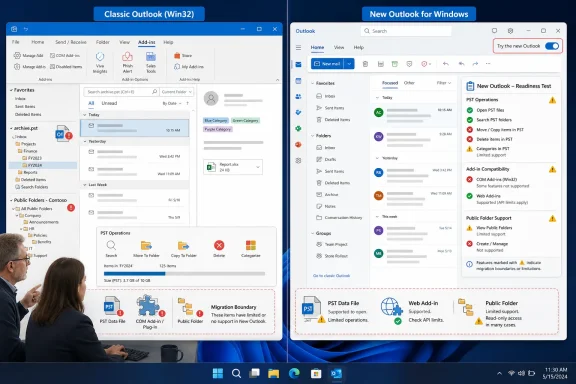
Microsoft has made the new Outlook for Windows easy to try, and that is both useful and dangerous. In classic Outlook, the visible path is the upper-right Try the new Outlook toggle; in new Outlook, users can toggle back to classic Outlook if they hit a blocker. Microsoft also says both clients can be run side by side during the transition, which is the correct way to test a migration rather than pretending a mail client is just another skin over the same behavior.
For an individual user, the first concrete step is to open classic Outlook, switch on Try the new Outlook, let the new app launch, and choose whether to import settings when prompted. If you need to return, use the toggle in new Outlook to switch back to classic Outlook, then pin both “Outlook (new)” and “Outlook (classic)” from Start or the taskbar so the two clients are easy to compare during real work.
For administrators, the better sequence is not “turn it on and see who complains.” Choose pilot users who represent the awkward corners of your estate: someone with large local archives, someone whose job depends on Outlook add-ins, and someone who still uses public folders as part of a departmental process. Have them perform the work they actually do, not a demo-script tour of the ribbon.
That distinction matters because the new Outlook story is no longer just a feature checklist. Microsoft has been filling gaps, including expanded PST actions, and the product is plainly moving toward broader coverage. But migration risk lives in the workflows that were never documented because everyone assumed classic Outlook would always behave like classic Outlook.
The setup path is concrete. In new Outlook, go to Settings, then Files, then Outlook Data Files, choose Add file, select the PST file, and open it. Once it is open, test whether the user can read messages, search the file, move items, copy items, delete items, flag items, apply categories, and rearrange folders in the way their job requires.
That last phrase is doing a lot of work. PST support being “better” is not the same thing as PST support being interchangeable with every archive-heavy classic Outlook setup. Microsoft also says PST support is still limited in some scenarios, including ARM versions of new Outlook, and that future releases will expand capabilities further. If your migration plan includes Windows on ARM devices, that caveat is not a footnote; it is a deployment blocker for users who depend on local Outlook Data Files.
PST-heavy users are also the group most likely to have workflows nobody wrote down. They may archive by client, by litigation matter, by fiscal year, by departed employee, or by a personal taxonomy that made sense in 2014 and still keeps a department moving today. A migration test that merely confirms the file opens misses the real question: can the user still find the message, preserve the folder structure, and act on archived mail without inventing a new manual workaround?
WindowsForum readers have seen this dynamic for years in smaller, messier forms. Forum discussions about Outlook and browser mail often circle the same truth: server mail, browser mail, local Outlook data, and PST files can expose different user expectations about what is “really” present or gone. New Outlook does not erase that complexity; it makes it more important to know which data lives where before the switch.
This is where many organizations will discover that “Outlook” is really a front end for other business systems. A CRM button, document-management filing panel, encryption workflow, billing timer, mail-merge tool, legal hold utility, phone integration, or line-of-business plug-in may have become invisible precisely because it worked every day in classic Outlook. The user may not know the phrase COM add-in, but they know the button they click before sending a contract or filing a client email.
The audit should start in classic Outlook, not in a procurement spreadsheet. Open the add-ins configuration, identify what is loaded, and ask the user which buttons, panes, forms, or send-time prompts they rely on. Then move to new Outlook and test whether a web add-in equivalent exists, whether it installs, and whether it covers the same job rather than merely sharing a vendor name.
This is also where IT should resist the temptation to treat the migration as a user training issue. A missing COM add-in is not a user who failed to learn the new ribbon. It is an integration boundary between the older Windows desktop Outlook model and the newer Outlook model Microsoft is pushing forward.
The result may be perfectly manageable. Some organizations will find that a web add-in counterpart handles the workflow well enough, or that the old add-in was no longer needed. Others will find a hard dependency that keeps a team on classic Outlook. Both outcomes are acceptable if they are discovered during a controlled pilot rather than during a Monday morning cutover.
That is about as clear as migration guidance gets. If a team uses public folders only to browse or reference some content, new Outlook may be worth testing. If the team administers the structure, changes folders, deletes folders, or otherwise treats public folders as an active working system, classic Outlook remains the safer client.
The trap is that public-folder dependency often hides inside departmental process rather than IT inventory. A shared mailbox may be documented; a public-folder workflow may be remembered by the two people who run it. The migration test should therefore ask users to perform the actual public-folder actions they take in a normal week, not merely confirm that a folder appears in the pane.
There is a broader lesson here for Windows administrators. Microsoft’s modern clients often handle the mainstream path first and the old enterprise edge later, if at all. Public folders sit exactly on that edge: unglamorous, persistent, and business-critical in places that would rather not redesign a workflow just because the client changed.
For a power user, the side-by-side procedure is straightforward. Switch to new Outlook from classic Outlook, then switch back if needed, and pin both app entries so each can be launched directly. Keep classic Outlook available while the user tests PST files, add-ins, and public folders in new Outlook against normal work.
For IT, side-by-side use creates a cleaner support conversation. Instead of asking “do you like the new Outlook,” ask “which task forced you back to classic Outlook.” That answer produces a blocker list: PST operation, COM add-in, public-folder modification, or something else. The migration then becomes a workstream rather than a sentiment poll.
There is a subtle cultural benefit too. Users are more willing to test a new client when they know the old one is not being ripped away mid-task. The ability to return to classic Outlook lowers the emotional temperature and makes feedback more specific. That is particularly important in Outlook, where decades of muscle memory are mixed with genuinely business-critical automation.
This is why the right audit starts with user cohorts. Identify archive-heavy users, compliance-sensitive users, administrative assistants, legal or finance teams, sales teams with CRM integration, and departments with shared filing habits. Then test new Outlook with the actual mail data and actual business actions those users perform.
The test plan should be boring, because boring is what makes it useful. Open a PST. Search old mail. Move a message. Apply a category. Reorganize a folder. Send a message that normally triggers an add-in. File a message into whatever system the add-in connects to. Create, modify, or delete a public folder if that is part of the job, and stop the migration for that user group if new Outlook cannot support it.
Do not confuse Microsoft’s roadmap language with your acceptance criteria. Microsoft says future releases will expand PST capabilities further, and the feature matrix continues to evolve. That is encouraging, but a future release does not process today’s invoice, preserve today’s archive workflow, or support today’s public-folder administrator.
Classic Outlook also accumulated years of personal workarounds. Some users have multiple PSTs split by year. Others keep an old file mounted because it contains software licenses, account recovery messages, family records, or client correspondence from a previous job. New Outlook may be a better everyday client for many accounts, but that does not mean it should become the only mail tool on a machine before those archives are checked.
There is also a hardware wrinkle. Microsoft’s note that PST files are not supported with the ARM version of new Outlook is easy to miss until a user moves to an ARM-based Windows device and discovers that the local archive assumption does not hold. For enthusiasts testing new hardware, this is exactly the kind of compatibility detail that should be verified before the old PC is wiped.
The right home-user procedure is modest. Install or open new Outlook, add the account, open the PST from Settings to Files to Outlook Data Files, and test the archive. If the PST workflow breaks, keep classic Outlook installed and available rather than forcing a migration around a limitation.
The decision should be framed around job function, not seniority. An executive with ordinary cloud mailbox use may be an easy migration candidate. A back-office employee maintaining a public-folder structure or filing messages through a COM add-in may be a poor candidate, even if their machine looks standard in an endpoint inventory.
There is also a support burden question. If new Outlook creates a split estate where some users work in the new client and some remain in classic Outlook, IT needs a clear reason for each exception. “Public folder modification required” is a defensible exception. “User does not like change” is a different conversation. The audit turns messy preference into operational classification.
The more precise the classification, the less dramatic the migration becomes. Users with no PST dependencies, no COM add-ins, and no public-folder administration may be reasonable pilots. Users with one of those dependencies need testing. Users with multiple dependencies should be treated as classic Outlook holdouts until proven otherwise.
But the verified facts also show the migration boundary plainly. PST support is expanding, yet still limited in some scenarios. COM add-ins are not supported, while web add-ins are the migration path where counterparts exist. Public folders are only partially supported, and users who depend on creating, modifying, or deleting them should remain on classic Outlook.
That is not a scandal; it is a map. New Outlook is not merely a newer coat of paint over classic Outlook. It is a different client with different assumptions about extensibility, local data, and legacy collaboration models. The sooner administrators accept that, the better their migration plans will be.
For WindowsForum’s audience, this is the familiar Microsoft transition pattern. The mainstream user gets a cleaner path first. The messy Windows estate follows only after somebody inventories the old assumptions, argues with the edge cases, and decides which ones still matter.
 The Toggle Is Not the Migration Plan
Microsoft has made the new Outlook for Windows easy to try, and that is both useful and dangerous. In classic Outlook, the visible path is the upper-right Try the new Outlook toggle; in new Outlook, users can toggle back to classic Outlook if they hit a blocker. Microsoft also says both clients can be run side by side during the transition, which is the correct way to test a migration rather than pretending a mail client is just another skin over the same behavior.For an individual user, the first concrete step is to open classic Outlook, switch on Try the new Outlook, let the new app launch, and choose whether to import settings when prompted. If you need to return, use the toggle in new Outlook to switch back to classic Outlook, then pin both “Outlook (new)” and “Outlook (classic)” from Start or the taskbar so the two clients are easy to compare during real work.
For administrators, the better sequence is not “turn it on and see who complains.” Choose pilot users who represent the awkward corners of your estate: someone with large local archives, someone whose job depends on Outlook add-ins, and someone who still uses public folders as part of a departmental process. Have them perform the work they actually do, not a demo-script tour of the ribbon.
That distinction matters because the new Outlook story is no longer just a feature checklist. Microsoft has been filling gaps, including expanded PST actions, and the product is plainly moving toward broader coverage. But migration risk lives in the workflows that were never documented because everyone assumed classic Outlook would always behave like classic Outlook.
PST Support Has Improved, but Archives Are Still a Migration Boundary
PST files are the first place to look because they turn Outlook from a mail client into a local evidence locker, filing cabinet, and sometimes a personal compliance archive. Microsoft says new Outlook now supports more PST actions, including moving, copying, deleting, flagging, categorizing, and reorganizing folders inside PST files, with support expanded in March 2025. That is a meaningful change for anyone who previously dismissed new Outlook because it could only see old mail rather than work with it.The setup path is concrete. In new Outlook, go to Settings, then Files, then Outlook Data Files, choose Add file, select the PST file, and open it. Once it is open, test whether the user can read messages, search the file, move items, copy items, delete items, flag items, apply categories, and rearrange folders in the way their job requires.
That last phrase is doing a lot of work. PST support being “better” is not the same thing as PST support being interchangeable with every archive-heavy classic Outlook setup. Microsoft also says PST support is still limited in some scenarios, including ARM versions of new Outlook, and that future releases will expand capabilities further. If your migration plan includes Windows on ARM devices, that caveat is not a footnote; it is a deployment blocker for users who depend on local Outlook Data Files.
PST-heavy users are also the group most likely to have workflows nobody wrote down. They may archive by client, by litigation matter, by fiscal year, by departed employee, or by a personal taxonomy that made sense in 2014 and still keeps a department moving today. A migration test that merely confirms the file opens misses the real question: can the user still find the message, preserve the folder structure, and act on archived mail without inventing a new manual workaround?
WindowsForum readers have seen this dynamic for years in smaller, messier forms. Forum discussions about Outlook and browser mail often circle the same truth: server mail, browser mail, local Outlook data, and PST files can expose different user expectations about what is “really” present or gone. New Outlook does not erase that complexity; it makes it more important to know which data lives where before the switch.
COM Add-Ins Are Not Coming Along for the Ride
The second audit target is add-ins, and here Microsoft’s position is much sharper. COM add-ins are not supported in new Outlook for Windows. Web add-in counterparts can be installed during migration, but that is not the same thing as saying every COM-based workflow has a drop-in replacement.This is where many organizations will discover that “Outlook” is really a front end for other business systems. A CRM button, document-management filing panel, encryption workflow, billing timer, mail-merge tool, legal hold utility, phone integration, or line-of-business plug-in may have become invisible precisely because it worked every day in classic Outlook. The user may not know the phrase COM add-in, but they know the button they click before sending a contract or filing a client email.
The audit should start in classic Outlook, not in a procurement spreadsheet. Open the add-ins configuration, identify what is loaded, and ask the user which buttons, panes, forms, or send-time prompts they rely on. Then move to new Outlook and test whether a web add-in equivalent exists, whether it installs, and whether it covers the same job rather than merely sharing a vendor name.
This is also where IT should resist the temptation to treat the migration as a user training issue. A missing COM add-in is not a user who failed to learn the new ribbon. It is an integration boundary between the older Windows desktop Outlook model and the newer Outlook model Microsoft is pushing forward.
The result may be perfectly manageable. Some organizations will find that a web add-in counterpart handles the workflow well enough, or that the old add-in was no longer needed. Others will find a hard dependency that keeps a team on classic Outlook. Both outcomes are acceptable if they are discovered during a controlled pilot rather than during a Monday morning cutover.
Public Folders Are the Classic Outlook Assumption That Refuses to Die
Public folders are the third area to test early because they tend to survive in organizations for practical reasons long after architects have declared them old-fashioned. Microsoft warns that new Outlook provides only limited support for public folders. More importantly, Microsoft says users who depend on creating, modifying, or deleting public folders should stay on classic Outlook.That is about as clear as migration guidance gets. If a team uses public folders only to browse or reference some content, new Outlook may be worth testing. If the team administers the structure, changes folders, deletes folders, or otherwise treats public folders as an active working system, classic Outlook remains the safer client.
The trap is that public-folder dependency often hides inside departmental process rather than IT inventory. A shared mailbox may be documented; a public-folder workflow may be remembered by the two people who run it. The migration test should therefore ask users to perform the actual public-folder actions they take in a normal week, not merely confirm that a folder appears in the pane.
There is a broader lesson here for Windows administrators. Microsoft’s modern clients often handle the mainstream path first and the old enterprise edge later, if at all. Public folders sit exactly on that edge: unglamorous, persistent, and business-critical in places that would rather not redesign a workflow just because the client changed.
Side-by-Side Testing Is the Escape Hatch Microsoft Actually Gives You
The best part of Microsoft’s transition story is that it does not require an all-or-nothing leap. Microsoft says users can run classic and new Outlook side by side during the transition. That should be treated not as a convenience feature, but as the core migration tool.For a power user, the side-by-side procedure is straightforward. Switch to new Outlook from classic Outlook, then switch back if needed, and pin both app entries so each can be launched directly. Keep classic Outlook available while the user tests PST files, add-ins, and public folders in new Outlook against normal work.
For IT, side-by-side use creates a cleaner support conversation. Instead of asking “do you like the new Outlook,” ask “which task forced you back to classic Outlook.” That answer produces a blocker list: PST operation, COM add-in, public-folder modification, or something else. The migration then becomes a workstream rather than a sentiment poll.
There is a subtle cultural benefit too. Users are more willing to test a new client when they know the old one is not being ripped away mid-task. The ability to return to classic Outlook lowers the emotional temperature and makes feedback more specific. That is particularly important in Outlook, where decades of muscle memory are mixed with genuinely business-critical automation.
The Real Inventory Is Behavioral, Not Technical
A conventional application inventory will catch installed Office versions and maybe some add-ins. It will not automatically tell you which users rely on PST archives for work, which teams administer public folders, or which add-in must fire before a message leaves the company. Outlook migrations fail in the gap between installed software and lived workflow.This is why the right audit starts with user cohorts. Identify archive-heavy users, compliance-sensitive users, administrative assistants, legal or finance teams, sales teams with CRM integration, and departments with shared filing habits. Then test new Outlook with the actual mail data and actual business actions those users perform.
The test plan should be boring, because boring is what makes it useful. Open a PST. Search old mail. Move a message. Apply a category. Reorganize a folder. Send a message that normally triggers an add-in. File a message into whatever system the add-in connects to. Create, modify, or delete a public folder if that is part of the job, and stop the migration for that user group if new Outlook cannot support it.
Do not confuse Microsoft’s roadmap language with your acceptance criteria. Microsoft says future releases will expand PST capabilities further, and the feature matrix continues to evolve. That is encouraging, but a future release does not process today’s invoice, preserve today’s archive workflow, or support today’s public-folder administrator.
The Windows Enthusiast’s Trap Is Assuming Mail Is Just Mail
For home users and enthusiasts, the risk looks smaller but is not imaginary. Anyone with POP accounts, old Outlook archives, or years of mail saved locally should treat PST testing as the migration step that matters. If the local file is the only place a message exists, the experience of opening, searching, and managing that file in the new client is not optional.Classic Outlook also accumulated years of personal workarounds. Some users have multiple PSTs split by year. Others keep an old file mounted because it contains software licenses, account recovery messages, family records, or client correspondence from a previous job. New Outlook may be a better everyday client for many accounts, but that does not mean it should become the only mail tool on a machine before those archives are checked.
There is also a hardware wrinkle. Microsoft’s note that PST files are not supported with the ARM version of new Outlook is easy to miss until a user moves to an ARM-based Windows device and discovers that the local archive assumption does not hold. For enthusiasts testing new hardware, this is exactly the kind of compatibility detail that should be verified before the old PC is wiped.
The right home-user procedure is modest. Install or open new Outlook, add the account, open the PST from Settings to Files to Outlook Data Files, and test the archive. If the PST workflow breaks, keep classic Outlook installed and available rather than forcing a migration around a limitation.
Where Administrators Should Draw the Line
Administrators do not need to block new Outlook everywhere to be prudent. They need to block it where the consequences of a missing workflow are worse than the benefits of a modernized client. PST-heavy, COM-add-in-dependent, and public-folder-administration users are the obvious first line.The decision should be framed around job function, not seniority. An executive with ordinary cloud mailbox use may be an easy migration candidate. A back-office employee maintaining a public-folder structure or filing messages through a COM add-in may be a poor candidate, even if their machine looks standard in an endpoint inventory.
There is also a support burden question. If new Outlook creates a split estate where some users work in the new client and some remain in classic Outlook, IT needs a clear reason for each exception. “Public folder modification required” is a defensible exception. “User does not like change” is a different conversation. The audit turns messy preference into operational classification.
The more precise the classification, the less dramatic the migration becomes. Users with no PST dependencies, no COM add-ins, and no public-folder administration may be reasonable pilots. Users with one of those dependencies need testing. Users with multiple dependencies should be treated as classic Outlook holdouts until proven otherwise.
Microsoft’s Direction Is Clear, but the Edges Are Still Enterprise-Shaped
Microsoft’s messaging around new Outlook emphasizes a modern client, unified experience, and evolving feature coverage. That is the product direction, and it is not surprising. The classic Outlook model carries decades of Windows desktop history, and Microsoft has strong incentives to move users toward a client aligned more closely with its web and Microsoft 365 services.But the verified facts also show the migration boundary plainly. PST support is expanding, yet still limited in some scenarios. COM add-ins are not supported, while web add-ins are the migration path where counterparts exist. Public folders are only partially supported, and users who depend on creating, modifying, or deleting them should remain on classic Outlook.
That is not a scandal; it is a map. New Outlook is not merely a newer coat of paint over classic Outlook. It is a different client with different assumptions about extensibility, local data, and legacy collaboration models. The sooner administrators accept that, the better their migration plans will be.
For WindowsForum’s audience, this is the familiar Microsoft transition pattern. The mainstream user gets a cleaner path first. The messy Windows estate follows only after somebody inventories the old assumptions, argues with the edge cases, and decides which ones still matter.
The Three Workflows That Should Decide Your Outlook Pilot
The useful migration question is not whether new Outlook is “ready” in the abstract. It is whether new Outlook is ready for the people whose Outlook client is also an archive browser, add-in host, or public-folder management console. Start there, because those users will tell you more in a day than a generic pilot will tell you in a month.- Test PST-heavy users first by opening their real Outlook Data Files in new Outlook through Settings, Files, and Outlook Data Files, then validating search, move, copy, delete, flag, category, and folder organization behavior.
- Keep ARM-based new Outlook deployments away from PST-dependent workflows unless Microsoft’s stated limitation changes in a future release.
- Inventory classic Outlook COM add-ins before migration and prove that any web add-in counterpart performs the same business task, not merely that it installs.
- Leave users on classic Outlook if they depend on creating, modifying, or deleting public folders, because Microsoft’s own guidance says new Outlook support is limited for that scenario.
- Use side-by-side classic and new Outlook as the standard pilot model, with each rollback treated as evidence of a workflow blocker rather than as user resistance.
References
- Primary source: support.microsoft.com
Getting started with the new Outlook for Windows | Microsoft Support
Get started with the new Outlook for Windows by joining Office Insiders. You'll get a first look at the newest version of Outlook and you can give feedback to help improve it.support.microsoft.com - Independent coverage: blogs.microsoft.com
Introducing the First Frontier Suite built on Intelligence + Trust - The Official Microsoft Blog
Today Microsoft is announcing: Wave 3 of Microsoft 365 Copilot Expanded model diversity with Claude and next-gen OpenAI models available today General availability of Agent 365 on May 1 for $15 per user General availability of the new Microsoft 365 E7: The Frontier Suite on May 1 for $99 per...blogs.microsoft.com
