

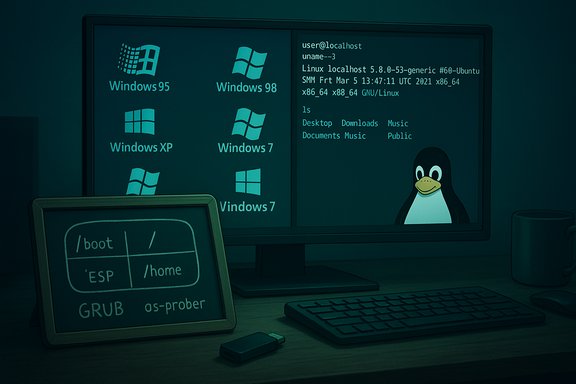
I switched from a comfortable, decades‑long Windows routine to a Linux desktop and promptly broke things — repeatedly — and learned far more about how operating systems, bootloaders, codecs, and recovery processes actually work than I ever did clicking “Next” through Windows installers. The experience the XDA author describes — moving from Windows 95 through Windows 11, testing Linux Mint and Fedora, attempting a manual Arch install, and then tripping over dual‑boot and bootloader issues — is a practical case study in what happens when a Windows user has to learn the inner workings of a computer to make it useful every day.
The XDA piece is a first‑person narrative of migration: curiosity sparked by Windows 10’s looming end of life, an initial dual‑boot with Linux Mint, a move to Fedora, and a deliberate “throw me in the deep end” attempt to install Arch Linux manually. The article charts the author’s learning curve — the terminal, repositories, desktop environments, codec oddities, package management, GRUB and os‑prober, and the fallout from repeated dual‑boot experiments that ultimately required full reinstalls and recovery strategies.
This is not an isolated story; it mirrors a pattern seen across community discussions and forum posts where users trade stories about the power of Linux’s transparency and the hazards of tinkering without a tested backup plan. The community response underlines two recurring points: Linux rewards curiosity and knowledge, and dual‑booting or messing with bootloaders without robust backups is a frequent source of data loss and frustration.
Why that matters: repositories create a centralized trust chain for packages and updates. The ArchWiki confirms archinstall and pacman workflows; the Fedora ecosystem offers similar repository‑driven practices. For users who get comfortable with terminal installs, the speed and reproducibility are transformative.
Linux exposes the machinery. That exposure is the pedagogical payoff: breaking a Linux install isn’t merely frustrating — it’s a fast path to a deeper, practical understanding of computers. For many hobbyists and professionals, that makes the pain worth it. The XDA author’s story is a vivid, representative example of how leaving Windows can be less about escaping Microsoft and more about learning how your computer works.
Breaking things is not a bug in this story — it’s the curriculum. Done responsibly, with images, backups, and a willingness to read the manual, the same mistakes that would terrify a casual Windows user become an accelerated learning path into system administration, filesystems, boot firmware, and the politics of codecs. The XDA author’s arc, from “I’ve used Windows since 95” to “I can repair and recover my own installs,” is the most compelling proof that sometimes the fastest way to learn how computers work is to stop treating them as black boxes and start treating them as systems you can probe, fail, and fix.
Source: XDA Breaking my Linux install taught me more about computers than Windows ever did
 Background
The XDA piece is a first‑person narrative of migration: curiosity sparked by Windows 10’s looming end of life, an initial dual‑boot with Linux Mint, a move to Fedora, and a deliberate “throw me in the deep end” attempt to install Arch Linux manually. The article charts the author’s learning curve — the terminal, repositories, desktop environments, codec oddities, package management, GRUB and os‑prober, and the fallout from repeated dual‑boot experiments that ultimately required full reinstalls and recovery strategies.This is not an isolated story; it mirrors a pattern seen across community discussions and forum posts where users trade stories about the power of Linux’s transparency and the hazards of tinkering without a tested backup plan. The community response underlines two recurring points: Linux rewards curiosity and knowledge, and dual‑booting or messing with bootloaders without robust backups is a frequent source of data loss and frustration.
Overview: What the migration actually taught the author
- The terminal isn’t scary — it’s efficient. Using the command line to install and manage packages changed how the author approached software on the desktop.
- Package management and repositories felt safer and faster than hunting down random installers and clicking through GUI wizards.
- Desktop environments (Cinnamon, Plasma, GNOME) and how they shape workflows were a new dimension of customization.
- Manual Arch installation revealed the low‑level building blocks of a Linux system: partitions, boot partitions, /home, fstab, and mounting.
- Dual‑boot experiments exposed the reality of bootloader interactions: GRUB, os‑prober, and how installers can overwrite or ignore existing entries.
- Codec and DRM/licensing limitations (notably for HEVC/H.265) showed that multimedia compatibility can be a legal/technical negotiation on Linux in ways Windows users rarely see.
Why the timing mattered: Windows 10 end of life and the push to change
A major motivator for the author’s move was Microsoft’s Windows 10 end‑of‑support milestone. Microsoft set October 14, 2025 as the cutoff for mainstream Windows 10 security and feature updates, which forced many users to consider upgrading to Windows 11, enrolling in short‑term Extended Security Updates (ESU), or switching platforms entirely. Reputable reporting confirms that Microsoft stopped routine updates on that date and offered a limited consumer ESU option as a bridge for some users. Two practical effects of that EOL decision are worth highlighting:- It created a deadline for people who wanted to remain fully patched without upgrading hardware or OS.
- It exposed edge‑case users — older hardware, local account purists, or those stuck on software that won’t run on Windows 11 — to real security tradeoffs and decisions about migration.
Deep dive: The technical lessons that stick
1) The terminal, package managers, and repositories
One of the first revelations for the author was the difference between Windows’ installer culture and Linux’s repository model. On Linux, repositories and package managers (apt, dnf, pacman) let you install, update, and inspect software in a single trusted workflow. When the author moved from Mint to Fedora, using Fedora’s DNF and RPM‑based repos made software management feel fast, auditable, and safer.Why that matters: repositories create a centralized trust chain for packages and updates. The ArchWiki confirms archinstall and pacman workflows; the Fedora ecosystem offers similar repository‑driven practices. For users who get comfortable with terminal installs, the speed and reproducibility are transformative.
2) Manual Arch taught the OS stack, not just commands
Installing Arch “the hard way” forces you to perform each step manually: create partitions, format them, install a base system, configure fstab, install and configure the bootloader, set timezones and locales, and so on. The archinstall helper exists to provide a guided experience, but following the manual guide is a learning exercise in how Linux boots and where configuration lives. The ArchWiki and archinstall documentation spell out these steps clearly and were explicitly used by the author during the guided manual install. This lesson is valuable: knowing what /boot, EFI System Partition (ESP), root (/) and /home really are helps you diagnose problems in ways that aren’t possible when you treat the OS as a black box.3) Bootloaders, os‑prober, and the fragility of multi‑OS setups
The author’s repeated dual‑boot failures center on one hard technical fact: bootloaders are stateful, platform‑dependent, and installers sometimes overwrite or ignore existing boot arrangements. GRUB historically ran an external tool, os‑prober, to find other operating systems and automatically create menu entries, but that behavior changed upstream. GRUB disabled automatic os‑prober execution by default for security reasons; distributions inheriting newer GRUB versions followed suit. To restore the old behavior you must explicitly enable os‑prober (for example by setting GRUB_DISABLE_OS_PROBER=false in /etc/default/grub and regenerating the GRUB config), or manually create chainload entries. The change is deliberate and meant to reduce attack surface, but it also explains why many users see “missing” boot entries after installing an additional distro. Practical implications:- If you plan to dual‑boot, document your partition layout, keep separate disks if possible, and test recovery media before you delete anything.
- Know how to mount the ESP and use efibootmgr to inspect and restore firmware boot entries.
- Don’t assume installers will be polite; expect to fix GRUB manually.
4) Multimedia and codecs: the legal/technical wrinkles
The author notes a frustrating observation: some players (e.g., Dragon/MPV/VLC) would play an H.265 file while browsers could not. That inconsistency is a predictable outcome of codec licensing and platform support. HEVC/H.265 is encumbered by patents and collective licensing regimes, which makes distribution inside free Linux distros legally and practically complicated. Many distros ship only free codecs by default and offer third‑party repositories (for example, RPM Fusion on Fedora) to provide patent‑encumbered decoders. Browsers also avoid built‑in HEVC due to licensing and instead rely on the operating system’s codecs and hardware decoders where available — which is why a native media player (VLC or MPV with proper libs) will play a file while a browser may not. This is not a bug; it’s a licensing and ecosystem reality. Practical steps users should know:- Expect to enable third‑party codec repositories (RPM Fusion, Packman, etc. or install FFmpeg builds that include HEVC.
- On Linux, check hardware acceleration (VA‑API / VDPAU) and ensure the right drivers are present.
- In browsers, HEVC playback is typically possible only if the underlying OS provides a HEVC decoder (Windows HEVC extension, macOS built‑in support, or relevant hardware decoders on Linux).
Strengths of the Linux learning path
- Transparency and control. Linux exposes configuration files and logs; you can read exactly what an init system or package manager is doing. This is an educational goldmine.
- Reproducibility. Package manifests, dotfiles, and scripts make environments portable and reproducible in ways the typical Windows “download‑installer” model does not.
- Community documentation. The ArchWiki, distribution documentations, and countless how‑tos are both deep and practical; following those resources while installing Arch explained why each step mattered.
- Tooling for recovery. Disk imaging tools like Rescuezilla and Clonezilla provide robust ways to image an entire drive and restore it — an approach the author adopted after breaking setups. These tools make aggressive experimentation survivable when used properly.
Risks and realistic downsides
- Application compatibility. If your workflow depends on native Windows programs (Adobe Creative Cloud, some professional studio tools, niche corporate apps), Wine or Proton or VMs may not provide a flawless replacement. Migration requires an inventory of needs and careful testing. This is a common blocker and should not be minimized.
- Hardware edge cases. Printers, specialized audio interfaces, or proprietary graphics features sometimes have vendor support that favors Windows. While Linux support has improved, edge cases remain.
- Bootloader fragility. Repeated tinkering with installers and GRUB can leave systems unbootable without tested recovery images and USB rescue disks. The GRUB os‑prober change makes this an especially common pitfall.
- Legal and codec friction. Multimedia codecs like HEVC are patent‑encumbered; redistributing them in free distros can be legally fraught. This leads to inconsistent playback behavior between native players and browsers, and adds friction for new users.
- Learning curve and time. The reward curve is steep — major gains in understanding and control — but requires a time investment that not every user can spare.
Practical checklist for Windows users who want to try the same thing
- Inventory everything you need from Windows: applications, hardware, gaming titles, and workflows.
- Create a full, verifiable disk image of your Windows system (use Clonezilla, Rescuezilla, or similar) and store it on external media. Test the restore process at least once.
- Boot a Live USB and test hardware: Wi‑Fi, GPU, audio, and peripherals before installing.
- If you want to dual‑boot, prefer separate physical drives where possible; if not, ensure consistent UEFI vs BIOS mode for all installs.
- Learn how to inspect and regenerate GRUB config; if GRUB doesn’t list Windows, check /etc/default/grub and consider enabling os‑prober intentionally and deliberately. Know how to run grub‑mkconfig and use efibootmgr.
- Be explicit about codecs: Fedora and many distros avoid patent‑encumbered codecs by default — plan to enable third‑party repos or use players like VLC.
- Consider virtualization for occasional Windows apps instead of dual‑boot to avoid bootloader headaches.
Where the XDA narrative is anecdotal (and where to be careful)
The article’s strength is its candid narrative, but a few claims are inherently anecdotal and dependent on the author’s exact hardware, installer versions, and choices. For example:- Saying “the Fedora partition became totally unrecognisable” is descriptive but not diagnostic: the root cause could be partition table overwrite, BIOS/UEFI mismatch, or installer bug. That precise failure mode is not universal and depends on the exact install steps.
- The unnamed “excellent recovery app” is useful advice in spirit, but the article does not identify the tool; that makes it impossible to verify the recommendation directly. Practical alternatives include Rescuezilla and Clonezilla, both well‑established imaging and recovery tools. If the article’s intent was to point readers to a particular program, that specific claim is unverifiable without the app name.
Final assessment: what this migration means for Windows users
The author’s journey is instructive for two different types of readers:- For the curious power user, it’s an encouragement: Linux rewards learning. You’ll gain real skills — how kernels, bootloaders, repos, and codecs fit together — that translate into stronger troubleshooting and more control.
- For mainstream or productivity‑first users, it’s a cautionary tale: leave yourself an exit strategy. Back up, image, test, and consider virtualization if you occasionally need Windows.
Linux exposes the machinery. That exposure is the pedagogical payoff: breaking a Linux install isn’t merely frustrating — it’s a fast path to a deeper, practical understanding of computers. For many hobbyists and professionals, that makes the pain worth it. The XDA author’s story is a vivid, representative example of how leaving Windows can be less about escaping Microsoft and more about learning how your computer works.
Practical resources and next steps
- If you want to replicate this learning path, start with Live USBs and imaging before installing. Rescuezilla and Clonezilla are reliable choices for creating restorations you can trust.
- Read the ArchWiki carefully if you plan Arch; use archinstall as a safety net or follow the manual guide to maximize learning.
- If you plan to dual‑boot, read GRUB’s documentation on os‑prober and understand the security tradeoffs before enabling automatic OS discovery.
- For multimedia, expect to add third‑party codec repositories or use players like VLC until upstream distribution policies and licensing are no longer obstacles.
Breaking things is not a bug in this story — it’s the curriculum. Done responsibly, with images, backups, and a willingness to read the manual, the same mistakes that would terrify a casual Windows user become an accelerated learning path into system administration, filesystems, boot firmware, and the politics of codecs. The XDA author’s arc, from “I’ve used Windows since 95” to “I can repair and recover my own installs,” is the most compelling proof that sometimes the fastest way to learn how computers work is to stop treating them as black boxes and start treating them as systems you can probe, fail, and fix.
Source: XDA Breaking my Linux install taught me more about computers than Windows ever did
