

Galaxy Buds will pair with virtually every modern device you own, but the experience — and the features available — vary wildly between Android, iPhone, macOS, Windows 10 and Windows 11. This guide pulls together tested pairing steps, Windows-specific troubleshooting and the new LE Audio / Shared Audio landscape so you can connect reliably, preserve audio quality, and avoid the most common driver and firmware traps.
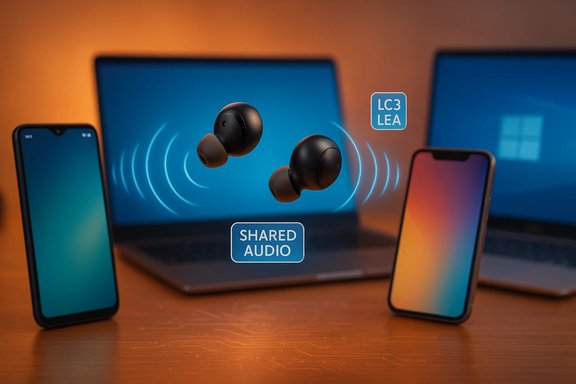
Samsung’s Galaxy Buds family uses Bluetooth for audio and control, and recent models support both classic Bluetooth audio profiles (A2DP/HFP) and newer Bluetooth Low Energy (LE) Audio features when vendors enable them in firmware. The difference matters: classic Bluetooth trades off quality vs. mic utility (stereo music usually drops to low-quality mono during calls), while LE Audio with the LC3 codec and isochronous channels is designed to preserve stereo fidelity and enable multi‑sink streaming when the whole software/hardware chain supports it. Microsoft explicitly requires Windows 11 + vendor drivers for LE Audio support; Windows 10 does not support the LE Audio stack. Samsung provides a companion app on Android (Galaxy Wearable / Galaxy Buds app) and a Windows app in the Microsoft Store for firmware updates and advanced features; some of those apps have had stability problems in recent releases, so prefer the store-provided clients and update them before troubleshooting.
Source: Born2Invest https://born2invest.com/?b=style-327554512/
 Background
Samsung’s Galaxy Buds family uses Bluetooth for audio and control, and recent models support both classic Bluetooth audio profiles (A2DP/HFP) and newer Bluetooth Low Energy (LE) Audio features when vendors enable them in firmware. The difference matters: classic Bluetooth trades off quality vs. mic utility (stereo music usually drops to low-quality mono during calls), while LE Audio with the LC3 codec and isochronous channels is designed to preserve stereo fidelity and enable multi‑sink streaming when the whole software/hardware chain supports it. Microsoft explicitly requires Windows 11 + vendor drivers for LE Audio support; Windows 10 does not support the LE Audio stack. Samsung provides a companion app on Android (Galaxy Wearable / Galaxy Buds app) and a Windows app in the Microsoft Store for firmware updates and advanced features; some of those apps have had stability problems in recent releases, so prefer the store-provided clients and update them before troubleshooting. Overview: what “works” on each platform
- Android (best experience): Full feature set via Galaxy Wearable — firmware updates, ANC control, EQ, multipoint where supported. Fast Pair and companion features are consistent on Samsung phones and many Android devices.
- iPhone/iPad: Basic audio and control work via standard Bluetooth pairing. Full companion features are limited or unavailable.
- macOS: Manual pairing works via Bluetooth settings; no official Mac companion app for full feature parity — update firmware via a Samsung phone when possible.
- Windows 10: Standard Bluetooth pairing works for audio, but advanced LE Audio features and Microsoft’s Shared Audio preview require Windows 11 and specific driver/firmware support. Use the Windows Bluetooth pairing UI or Samsung’s Microsoft Store app for firmware updates where applicable.
- Windows 11 (latest, with LE Audio drivers): When the OS, OEM Bluetooth drivers and earbud firmware all support LE Audio, you can get stereo + mic without legacy tradeoffs and try Microsoft’s Shared Audio (preview) to stream one PC to two LE-compatible accessories — but this is gated to preview builds and compatible Copilot+ PCs for initial testing. Verify your PC and Bluetooth driver support before assuming it will work.
How to pair Galaxy Buds: device-by-device
Android (recommended path for full features)
- Charge the buds and close the case for 5–6 seconds, then open it to enter pairing/discovery mode.
- Open Settings > Connections > Bluetooth (or the Quick Settings Bluetooth tile), choose Pair new device.
- Select your Galaxy Buds when they appear. For the best experience, install the Galaxy Wearable / Galaxy Buds app and use it to update firmware and enable features.
- If the Buds are already paired elsewhere, wear them and press and hold both touch sensors to force pairing mode.
iPhone / iPad (basic pairing)
- Open your Buds case (or put them in pairing mode via touch controls).
- Go to Settings > Bluetooth on iOS and tap the Buds’ name when it appears.
Note: advanced features and the Samsung companion app are limited on iOS; expect core audio, calls and basic controls only.
macOS
- Confirm Bluetooth is enabled on the Mac.
- Put the Buds into pairing mode (close and reopen case or use touch controls).
- System Settings > Bluetooth, click Connect when the Buds appear.
Firmware updates are usually done on a Samsung phone; macOS won’t provide the Samsung companion experience.
Windows 10 (step-by-step)
- Settings → Devices → Bluetooth & other devices → Add Bluetooth or other device → Bluetooth.
- Close the Buds’ case for 5–6 seconds, then open it to make them discoverable. Select them from the list and click Pair.
- If you want firmware updates or the vendor UI, install the Galaxy Buds (or Galaxy Wearable) app from the Microsoft Store rather than a random download. Some older unofficial installers are broken or outdated.
Windows 11 + LE Audio notes
- LE Audio is an OS + driver + firmware story: Windows 11 must expose an “Use LE Audio when available” setting and the Bluetooth controller’s driver and firmware must support LC3 and isochronous channels. Windows 10 does not support native LE Audio.
- Microsoft’s Shared Audio (preview) lets a compatible Windows 11 PC send audio to two LE Audio sinks simultaneously; the feature was introduced in Insider builds and initially limited to selected Copilot+ PCs. If you see a Quick Settings tile called “Shared audio (preview)” you’re in the right place to test it. Expect hardware/firmware gating and OEM driver updates to be required.
Galaxy Buds Manager / Galaxy Wearable on Windows: practical notes
- Use the Microsoft Store version of Samsung’s Windows companion app. Community reports show older downloads and side-loaded installers may not work or crash — keep the app up to date via the store. If the app cannot see your Buds but Windows Bluetooth can, rely on Windows pairing for audio and troubleshoot the app separately.
- Firmware updates are best performed from a Samsung phone when possible. If you own a Samsung Galaxy phone, update the Buds there first, then pair to your PC. That usually reduces Windows-side oddities.
Troubleshooting: Windows-specific fixes that work
Short checklist (try these in order):- Confirm Buds are charged and in pairing mode; keep them within a few feet of the PC.
- Toggle Windows Bluetooth Off → On. Re‑pair if needed.
- Remove stale pairings on both the Buds and the PC before a fresh attempt.
- Reboot both devices; small transient state problems are often cleared by power cycles.
- Device Manager — update, roll back or reinstall the Bluetooth adapter driver. Use the OEM or chipset vendor package (Intel, Qualcomm, Broadcom), not third‑party driver updaters. If a recent driver caused regressions, prefer Roll Back.
- Check Bluetooth Support Service (bthserv) and the Windows Audio services in services.msc; restart if needed. Ensure device power management doesn’t allow Windows to turn off the adapter to save power.
- Use the Windows troubleshooters: Settings → System → Troubleshoot → Other troubleshooters → Bluetooth and Playing Audio. Let Windows attempt automated fixes and then re‑test.
- If audio only works when Buds are in the case or only a single bud plays, reset the Buds per Samsung’s instructions and re‑pair. If the PC shows multiple audio endpoints, explicitly set the Buds as the default output: Settings → System → Sound.
- Show hidden devices in Device Manager and remove greyed-out ghost entries in Bluetooth and audio categories. Reboot and re‑pair.
- Run DISM and SFC to repair corrupted Windows components if driver install fails: DISM /Online /Cleanup-Image /RestoreHealth and sfc /scannow. Reboot afterwards.
- Use a modern USB Bluetooth dongle that explicitly advertises LE Audio or Bluetooth 5.x with updated firmware as a pragmatic workaround if the internal adapter is old or unsupported. This often resolves compatibility when the OEM won’t ship new drivers.
- Windows may expose two profiles for a headset: A2DP for stereo media and Hands‑Free / HFP for calls. If enabling Hands‑Free Telephony collapses music quality, temporarily uncheck Hands‑Free Telephony in Devices and Printers → device → Properties → Services to force A2DP (you’ll lose the headset mic). Use a separate mic for calls until LE Audio (or vendor fixes) eliminate the tradeoff.
LE Audio, Shared Audio and why Windows 10 users should care (but not panic)
LE Audio fixes a longstanding Bluetooth compromise: stereo music was often downgraded when the microphone activated because legacy stacks forced A2DP/HFP profile switches. With LE Audio and LC3, a single link can deliver high-quality stereo and modern microphone performance — if the entire chain supports it: the accessory firmware, Bluetooth controller firmware, the OEM driver and the OS. Microsoft’s documentation emphasizes that Windows 10 does not support LE Audio; users must move to Windows 11 and appropriate driver releases to access these new capabilities. Microsoft’s Shared Audio preview (Windows 11 Insider Build 26220.7051) demonstrates the one-to-many promise for PCs by letting one machine stream synchronized audio to two LE Audio sinks at once. It is noteworthy, but still an ecosystem play — it will only work consistently when OEMs and accessory vendors ship compatible firmware and drivers. Treat early compatibility lists as provisional and verify with your PC vendor and Samsung before assuming your hardware is supported. Flagged claim: lists of supported PC models and accessory models in early preview notes are illustrative and change rapidly. Confirm on-device Quick Settings and vendor driver release notes rather than relying solely on early press lists.Common problems and precise fixes
- Problem: Buds pair but disconnect when removed from the case.
Fix: Update Buds firmware on a Samsung phone, ensure Bluetooth drivers on PC are current, and test a re‑pair cycle. If the Buds still disconnect immediately, use the Samsung reset sequence (press and hold both earbuds or use the companion app) and re‑pair. Community reports show device-side firmware often fixes this symptom. - Problem: Only one earbud plays, or audio collapses during calls.
Fix: Reset earbuds, re‑pair, then confirm Windows audio routing. If the mic activation forces low-quality audio, consider disabling Hands‑Free Telephony and using a dedicated mic until LE Audio support reaches your device. - Problem: Buds not visible to Samsung Windows app but visible to Windows Bluetooth.
Fix: Use the Microsoft Store app version, update both Windows and the Samsung app, and update the Buds via a Samsung phone if possible. If the app persists in crashing, check for the app patch and update (Samsung patched a recent crashing issue in the Galaxy Buds app).
Security, privacy and operational notes
- Pairing is a brief discoverable window — perform pairing in a controlled environment to minimize the chance of an unwanted pairing. Remove stale or unused pairings from device lists to reduce attack surface.
- When using vendor companion tools (Galaxy Wearable, Phone Link, etc., those apps request permissions (contacts, notifications, files) necessary for features like firmware updates, notification popups and call routing. Audit those permissions in app settings and apply the minimum necessary for your workflow. Phone Link-style continuity features require explicit permission grants.
- Cloud-powered AI features (e.g., Samsung’s Browsing Assist/Galaxy AI in Samsung Internet) may process page contents off‑device — enterprise and regulated users should evaluate those data flows before enabling them for sensitive work. Treat cloud-processing features differently from on-device functions.
Quick reference checklists
If you want the simplest, most reliable connection
- Update Galaxy Buds firmware on a Samsung phone (if available).
- Update Windows and your Bluetooth drivers (OEM- or chipset-vendor packages).
- Pair via Windows Settings > Bluetooth & devices → Add device.
- Use the Microsoft Store Galaxy Buds app for firmware and settings where necessary.
If you want LE Audio / Shared Audio on a PC
- Confirm your PC runs a Windows 11 build that supports LE Audio and/or Shared Audio (check Settings > Bluetooth & devices for a “Use LE Audio when available” toggle).
- Enroll in the Windows Insider Program only if you accept preview builds and their instability. Shared Audio was introduced in Insider build 26220.7051 and initially restricted to Copilot+ PCs.
- Update the PC’s Bluetooth and audio drivers via OEM channels and update Buds firmware via Samsung’s app. Re‑pair after updates.
Critical analysis — strengths, caveats and risks
Strengths:- Galaxy Buds are highly portable and interoperable across Android, iOS, macOS and Windows for core audio and calls. Samsung’s ecosystem offers strong firmware/feature parity on Android.
- LE Audio and Microsoft’s Shared Audio represent a genuine technical upgrade that resolves long-standing tradeoffs between stereo fidelity and mic use, and enables multi-sink streaming in a standards-based way. When fully deployed, this will materially improve the desktop listening experience.
- Ecosystem dependency: LE Audio benefits only arrive after a coordinated chain of vendor firmware and driver updates. A Windows 10 user cannot access LE Audio; Windows 11 and OEM support are required. Expect delays and gaps for older laptops and corporate-managed machines.
- Feature fragmentation: Samsung’s full feature set requires Samsung’s apps; non‑Samsung Android phones and PCs may lack parity. On iOS and macOS, advanced features are limited or require workarounds.
- Support complexity: Windows audio stacks and Bluetooth drivers are notoriously sensitive to firmware and driver mismatches. Aggressive fixes (driver deletion, pnputil cleanup) are sometimes required and can be risky on managed devices; document changes and prefer vendor-supplied drivers.
- Any press or preview list of supported SKUs (exact Surface or Galaxy Book models) is a snapshot and may change as vendors push drivers. Confirm compatibility on your specific SKU with OEM release notes rather than a press list. Early coverage naming specific model support is provisional.
Final recommendations
- For the smoothest setup, update Buds firmware on a Samsung phone (if available), update Windows and the Bluetooth driver from the laptop maker, then pair via Settings. That simple sequence eliminates the majority of connection oddities.
- If you rely on Windows 10 and your priority is stable stereo media and calls, accept the legacy A2DP/HFP tradeoffs (or use a dedicated mic) unless you can move to a Windows 11 environment with LE Audio driver support. Windows 10 will not provide the LE Audio improvements.
- When testing new Shared Audio/LE Audio features, keep expectations modest: test with fully updated firmware and drivers, in a controlled environment, and be prepared for re‑pairing after updates. Report reproducible bugs to OEMs and Microsoft to accelerate fixes.
Source: Born2Invest https://born2invest.com/?b=style-327554512/
