

A tiny, portable utility from the Windows toolbox era still proves useful today: Gamma Panel gives one‑click control over brightness, contrast and gamma, lets users save named color profiles and bind them to hotkeys, and — despite being decade‑old software — continues to run on recent Windows builds, making it a practical fallback when the built‑in display sliders or monitor OSDs are inconvenient or unavailable.
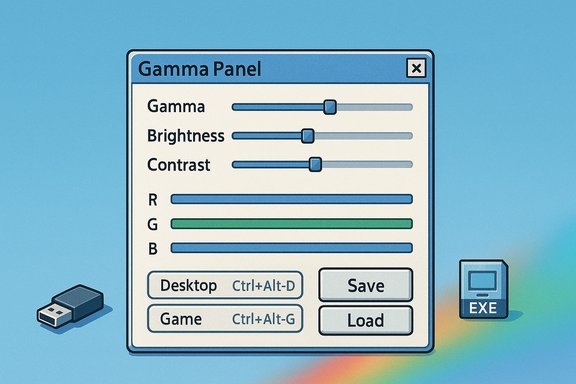
Gamma Panel surfaced in the mid‑2000s as a no‑friction, single‑purpose tool for manipulating a display’s gamma ramp and simple color parameters. The interface is deliberately minimal: three core sliders (Gamma, Brightness, Contrast), per‑channel adjustments for red/green/blue, a small set of presets, and the ability to assign hotkeys to profiles so adjustments can be toggled without leaving a full‑screen application such as a game.
Contemporary software repositories and archive pages list Gamma Panel 1.0.0.20 (April 19, 2007) under the author name Tomasz Porosiński and host the executable as a portable, lightweight utility — reported download sizes on mirrors range around 100–150 KB. Multiple modern download mirrors still carry the program, which reflects both its small footprint and continued demand: gamers, creators and anyone who needs quick, temporary shifts in apparent brightness/color often find it handy. However, the original developer’s website appears not to be actively maintained or discoverable via public indexes, so most safe options for obtaining the program are reputable download mirrors or community archives rather than a developer home page. That absence should be treated as a caution flag and handled conservatively.
Source: gHacks Technology News Tiny Windows-Tool gives you one-click access to brightness, contrast, and gamma - gHacks Tech News
 Background / Overview
Gamma Panel surfaced in the mid‑2000s as a no‑friction, single‑purpose tool for manipulating a display’s gamma ramp and simple color parameters. The interface is deliberately minimal: three core sliders (Gamma, Brightness, Contrast), per‑channel adjustments for red/green/blue, a small set of presets, and the ability to assign hotkeys to profiles so adjustments can be toggled without leaving a full‑screen application such as a game.Contemporary software repositories and archive pages list Gamma Panel 1.0.0.20 (April 19, 2007) under the author name Tomasz Porosiński and host the executable as a portable, lightweight utility — reported download sizes on mirrors range around 100–150 KB. Multiple modern download mirrors still carry the program, which reflects both its small footprint and continued demand: gamers, creators and anyone who needs quick, temporary shifts in apparent brightness/color often find it handy. However, the original developer’s website appears not to be actively maintained or discoverable via public indexes, so most safe options for obtaining the program are reputable download mirrors or community archives rather than a developer home page. That absence should be treated as a caution flag and handled conservatively.
How Gamma Panel works — the technical picture
Gamma ramps vs. backlight control
Gamma Panel changes the gamma ramp and related color table entries used by Windows and many legacy graphics pipelines. This is distinct from adjusting a monitor’s physical backlight level:- Gamma and contrast shifts are software‑level transformations that remap RGB values for the entire desktop output.
- Backlight/brightness in modern monitors (the actual LED/LCD backlight) is a hardware setting that, for external displays, typically requires communicating via DDC/CI (Display Data Channel / Command Interface) or vendor‑specific APIs.
Profiles and hotkeys
A standout convenience of Gamma Panel is the ability to save multiple profiles and assign hotkeys. Practically, this allows:- One hotkey to switch to a high‑gamma/high‑brightness game profile for better visibility in dark scenes.
- Another hotkey to restore a calibrated or default desktop profile for color‑sensitive work.
Installation, safety and where to download
Portable, tiny, but unsigned and old
- Portable: Gamma Panel typically does not require installer privileges; the executable runs from any folder and writes a small settings file locally.
- Tiny: Official mirror listings show download sizes commonly reported near 100–150 KB, confirming the “tiny” description being correct.
- Unsigned / legacy: The program predates modern code‑signing practices used by major vendors. That increases the importance of verifying the binary before running it on production machines.
Practical safety checklist before running legacy utilities
- Download from well‑known, reputable archives (MajorGeeks, Uptodown, or other long‑standing repositories) rather than random file‑hosters.
- Scan the downloaded file locally with updated antivirus/anti‑malware tools and, if possible, verify a checksum provided by the host. Softonic and similar sites often provide scan metadata, but independent scanning is strongly recommended.
- Prefer running the program in a sandbox or on a non‑critical test machine first to confirm behavior and that it doesn’t conflict with GPU drivers or vendor utilities.
- If used in enterprise or managed environments, consult IT policy before deploying unsigned binaries.
Alternatives and modern replacements
The problem Gamma Panel addresses — quick, in‑system changes to how a display looks — has a wide ecosystem of alternative tools. These range from modern, actively maintained apps to single‑purpose utilities focused on gamma alone.- Gamminator — A focused, open‑source tool that adjusts gamma only and supports global hotkeys for use while in fullscreen applications. Archives and SourceForge listings show Gamminator remains available and is updated more regularly than some decade‑old tools. It’s a good lightweight alternative when only gamma adjustment is needed.
- Gamma Manager / Gamma‑Manager (GitHub) — Community projects on GitHub provide newer variants that support multiple monitors, per‑channel controls, and contemporary build systems. These community forks sometimes offer a safer route because the code is public. Confirm license and build instructions before trusting third‑party releases.
- DDC/CI monitor controllers (Twinkle Tray, Monitorian, DisplayBuddy, ClickMonitorDDC) — These actively maintained tools speak directly to supported monitors via DDC/CI and can change hardware brightness, contrast and (where exposed) color temperature. They are the better choice when the intent is to change the monitor’s physical backlight rather than the gamma ramp inside Windows. Twinkle Tray and Monitorian also provide hotkeys, profiles and automation. Community and forum documentation discuss how these tools rely on DDC/CI and how that limits compatibility in some docked or DisplayLink setups.
- PowerToys / PowerDisplay (work in progress) — Microsoft’s PowerToys project has been prototyping a monitor control module (referred to in public previews as “PowerDisplay” or “Power Monitor”) that aims to provide per‑monitor sliders for brightness, contrast and color temperature from a system tray flyout. If adopted and shipped, this first‑party option would be the most straightforward, trusted route for Windows users — but it will still depend on monitor hardware and driver support (DDC/CI/MCCS) for full functionality. Community and forum reports detail the feature proposal and the constraints that will carry over from third‑party solutions.
Practical uses and real‑world workflows
Gaming: see more in the dark without touching the monitor
Gamers frequently want a quick visibility boost in dark scenes. A common workflow is:- Create a “game” profile in Gamma Panel with higher gamma and brightness.
- Assign a convenient hotkey (e.g., Ctrl+Alt+G) to the profile.
- Toggle the profile when a game starts and revert when done.
Evening / low‑light ergonomics
Reducing overall brightness and slightly warming gamma/contrast can reduce eye strain at night. Because Gamma Panel stores presets, a timed (manual) switch or a simple hotkey can transition the desktop quickly between daytime and evening profiles.Quick troubleshooting when the native slider is missing
Some Windows 11 systems — particularly desktops with multiple external monitors or laptops using non‑standard display drivers — expose limited brightness controls to the OS. In such cases, software that manipulates the gamma ramp or software that talks to the monitor via DDC/CI can restore practical control. Forum discussions and community recommendations repeatedly note this pattern and suggest DDC/CI utilities when external monitors are the bottleneck.Compatibility caveats and risks
No utility that changes display output is risk‑free. Key limitations and hazards:- Not a replacement for hardware backlight on external monitors: Gamma Panel modifies the output ramp; it does not change the monitor’s LED/LCD backlight. For hardware brightness control of external displays, DDC/CI utilities or vendor OSD are required.
- Color‑critical workflows: Software ramps break ICC/monitor calibration. For photo, video, or print work, any change to gamma/brightness should be followed by re‑profiling with a colorimeter. Gamma Panel’s quick toggles are useful for convenience, but they can invalidate professional color pipelines.
- HDR and modern display pipelines: HDR modes, local dimming, and advanced panel features can react unpredictably to software‑level gamma adjustments. Results will vary greatly between monitors and GPU drivers.
- Driver and OS interactions: Newer GPU drivers, Windows display driver model updates, and firmware changes can alter how gamma ramps behave. Legacy utilities that directly call CreateGammaRamp or similar APIs may exhibit inconsistent behavior on modern drivers. When issues arise, updating GPU drivers or switching to an actively maintained alternative is the recommended path.
- Security and provenance: With the original developer site absent or inactive, obtaining the executable from a third‑party mirror increases the risk surface. Always verify binaries with local scanning and prefer open‑source, repository‑backed projects where possible.
Step‑by‑step: safe setup and usage (recommended)
- Download from a reputable host (MajorGeeks, Uptodown, or an official GitHub project/fork). Verify the listed file size and checksums where available.
- Scan the binary with up‑to‑date AV/endpoint protection. If there’s any doubt, obtain a copy of a community fork or an open‑source tool instead.
- Place the executable in a dedicated folder (e.g., C:\Tools\GammaPanel) and run it once to allow the config INI to be created.
- Create profile A (desktop/default): set Gamma = 1.00, Brightness = 0, Contrast = 1.00 (or your calibrated baseline). Click Save.
- Create profile B (game/visibility): adjust Gamma to a higher setting (e.g., 1.10–1.30 depending on needs), increase Brightness slightly, and save. Assign a hotkey to the profile via the interface.
- Test switching while running a fullscreen app to confirm hotkeys behave as expected. If visuals look “off” after switching, use Reset or load the default profile and re‑test at lower adjustments.
- If color accuracy is needed later, re‑calibrate with hardware colorimeter and restore the calibration profile after testing.
Critical analysis — strengths, limits and final verdict
Strengths
- Simplicity and immediacy: Gamma Panel’s single‑window UI and hotkey presets provide instant value when quick visibility changes are needed, especially during fullscreen sessions when using monitor OSD is inconvenient.
- Portability: No installer, small footprint, and minimal system impact make the app a handy tool for a toolkit or a USB “first‑aid” stick.
- Practical for non‑critical tasks: For gaming, evening comfort, or quick tweaks, software gamma adjustments are fast, reversible and effective.
Limits and risks
- Aging codebase and signing: The program is old and typically unsigned. That raises legitimate security concerns when downloading from third‑party mirrors. Modern, actively maintained alternatives often provide safer distribution channels.
- Not a hardware substitute: For external monitors, DDC/CI tools are the better technical fit when the intention is to change the physical backlight. Software gamma changes cannot substitute for hardware adjustments in many situations.
- Calibration and professional workflows: Any change to gamma or contrast can invalidate ICC profiles; for color‑accurate work, process the effect as an experiment and re‑calibrate afterwards.
Verdict
Gamma Panel remains a useful, pragmatic utility for quick, on‑the‑fly adjustments when used with appropriate caution. It is best treated as a convenience tool for visibility and comfort rather than a replacement for hardware control or a professional color‑management solution. Users who prefer fully supported, actively maintained software should evaluate modern alternatives (Gamminator, community GitHub projects, DDC/CI utilities, or forthcoming first‑party PowerToys monitor controls) and choose the one that best balances safety, compatibility and long‑term maintenance.Closing recommendations for Windows users
- For immediate, low‑risk needs (gaming or evening viewing), Gamma Panel or a similar portable utility will work — but always scan the executable and run it in a controlled environment first.
- For hardware brightness control on external monitors, prefer DDC/CI‑based tools (Twinkle Tray, Monitorian or DisplayBuddy) or vendor utilities; these actually change the monitor’s backlight and provide more consistent results for multi‑monitor setups.
- For color‑critical workflows, avoid transient gamma tweaks unless planning to re‑profile with a colorimeter.
- When possible, prefer open‑source, signed, or store‑distributed tools that receive regular updates. Microsoft’s PowerToys is evolving toward first‑party monitor controls that may eliminate many of these third‑party needs — but it will still be subject to hardware limitations.
Source: gHacks Technology News Tiny Windows-Tool gives you one-click access to brightness, contrast, and gamma - gHacks Tech News
