

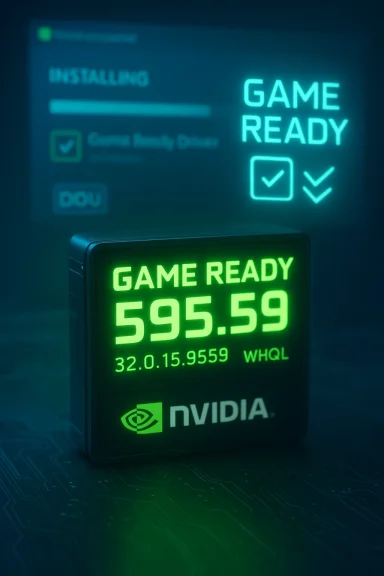
NVIDIA’s GeForce driver cycle has produced another rapid update: community reports and forum mirrors indicate a new WHQL-signed release, GeForce 595.59 (32.0.15.9559), circulated to address a set of gaming and media playback bugs while delivering Game Ready support for recent titles. Early mirrors and user posts list the driver as a WHQL release dated mid‑February 2026 and identify fixes for several high‑visibility issues affecting RTX 50‑series and other recent GPUs. These community announcements have appeared across major enthusiast forums and Reddit threads while users hunt for safe downloads and guidance on installation.
The GeForce driver numbering scheme changed in recent years to a unified format where the public “marketing” version (e.g., 595.59) maps to an internal driver package string such as 32.0.15.9559. NVIDIA releases drivers in multiple channels — Game Ready Drivers for gamers, Studio Drivers for creators, and Data Center drivers for servers — and submits production releases for Microsoft WHQL certification to confirm compatibility and stability on supported Windows builds. WHQL certification is part of NVIDIA’s quality process for Game Ready Drivers.
Historically, community sites and independent download portals host NVIDIA drivers shortly after (or sometimes before) the official NVIDIA driver portal updates. Those sites are widely used by enthusiasts for mirrors and archives, but users should prefer official NVIDIA downloads when possible because vendor pages include release notes, checksums, and the canonical installer builds. Guru3D, TechPowerUp, and other longstanding sites maintain driver pages and archives for many past releases — they are convenient but occasionally show automated security verification pages that can interrupt access.
Important caveat: forum mirrors can reproduce NVIDIA’s official notes verbatim, but they sometimes publish pages before NVIDIA’s own driver index has been refreshed. That means an official vendor download link or the driverDetails page may not be immediately reachable, and release metadata might take hours to propagate through NVIDIA’s content delivery network and partner sites. Community-sourced release notes should be treated as reliable lead indicators, but final verification should come from NVIDIA’s driver download portal or a confirmed vendor statement.
When you decide to install, follow a safe, reversible process: back up, verify installers, use DDU for troubled systems, and keep a tested rollback version handy. If you rely on sensor‑level tools or bespoke configurations, watch community feedback for early reports of regressions and fixes. Community channels will continue to be valuable for early visibility, but the vendor site is the final authority for builds, checksums, and WHQL confirmation.
Source: www.guru3d.com https://www.guru3d.com/download/nvidia-geforce-59559-whql-driver-download/
 Background / Overview
The GeForce driver numbering scheme changed in recent years to a unified format where the public “marketing” version (e.g., 595.59) maps to an internal driver package string such as 32.0.15.9559. NVIDIA releases drivers in multiple channels — Game Ready Drivers for gamers, Studio Drivers for creators, and Data Center drivers for servers — and submits production releases for Microsoft WHQL certification to confirm compatibility and stability on supported Windows builds. WHQL certification is part of NVIDIA’s quality process for Game Ready Drivers.Historically, community sites and independent download portals host NVIDIA drivers shortly after (or sometimes before) the official NVIDIA driver portal updates. Those sites are widely used by enthusiasts for mirrors and archives, but users should prefer official NVIDIA downloads when possible because vendor pages include release notes, checksums, and the canonical installer builds. Guru3D, TechPowerUp, and other longstanding sites maintain driver pages and archives for many past releases — they are convenient but occasionally show automated security verification pages that can interrupt access.
What community reporting says about GeForce 595.59
Across enthusiast forums, the new package is being referenced as:- Version: 595.59 (internal package string 32.0.15.9559)
- WHQL signed (community posts mark it as WHQL)
- Publicized release window: mid‑February 2026 (examples show 17 February 2026 as the referenced build date)
- Claimed focus: Game Ready support for new releases and fixes for multiple gaming and AV issues, including reported fixes for image corruption and black bars on certain displays and GPUs.
Important caveat: forum mirrors can reproduce NVIDIA’s official notes verbatim, but they sometimes publish pages before NVIDIA’s own driver index has been refreshed. That means an official vendor download link or the driverDetails page may not be immediately reachable, and release metadata might take hours to propagate through NVIDIA’s content delivery network and partner sites. Community-sourced release notes should be treated as reliable lead indicators, but final verification should come from NVIDIA’s driver download portal or a confirmed vendor statement.
Notable fixes and Game Ready items (community summary)
Forum lists and early mirror notes highlight these items as part of the 595.59 release (summarized and paraphrased from multiple community posts):- Game Ready support for recent titles (community posts mention Resident Evil Requiem and other launches).
- Fixed gaming issues on RTX 50‑series GPUs, such as intermittent black bars in The Ascent and green artifacting in specific Total War scenarios.
- Fixes for crashes and image corruption in selected older and modern titles (users report resolution of game‑specific issues).
- General media/codec fixes such as improved AV1 decode stability in complex packet cases (one community line item references AV1 OBU handling).
- No widely reported open issues listed in the mirrors captured — community threads show "no open issues highlighted" for the release note copies they host.
Where to download 595.59 — security and authenticity guidance
When a new driver like 595.59 appears, you should follow a conservative, safety‑first approach:- Prefer the vendor: Download from NVIDIA’s official driver portal whenever the new entry is listed there. NVIDIA’s driver pages are the canonical source and include the release notes and the WHQL signature metadata. If the vendor page hasn’t appeared yet, wait a short time rather than pulling installers from random mirrors. Official vendor driver pages include explicit WHQL markers and the file size/version fields that validate the build.
- Reputable mirrors only: If the NVIDIA page is still propagating and you need the driver urgently, use well‑known, long‑standing mirrors that the community trusts (examples in the past include established sites that archive drivers). These sites have historically hosted official driver packages and utility software. However, proceed with caution: confirm the file checksum (when available), verify the file size, and prefer vendor pages. Guru3D and TechPowerUp are widely used mirror sources for driver archives, but the presence of a mirror is not a substitute for the official vendor download.
- Check the signature and checksum: After you download a driver installer, validate the file’s cryptographic signature or checksum when the vendor publishes one. If NVIDIA provides an SHA‑256 or similar hash in the driver details page, compute the hash locally and compare. Do not install packages whose checksums or signatures you cannot verify from a trusted source.
- Beware of third‑party repacks: Some sites repackage drivers (e.g., adding installers, tooling, or unwanted extras). Only use the driver EXE or ZIP from trusted vendors; avoid packages that bundle extra utilities or offer "slimmed" or "modified" installers unless you fully understand and trust the source.
- Bot checks and "Performing security verification": Some download portals protect downloads behind anti‑bot pages or Cloudflare-like checks that mention "performing security verification" before serving the file. That behaviour is normal on some mirror sites; a successful check (page passes) is generally safe. If a mirror refuses downloads or prompts you to run suspicious helper programs, stop and seek the file from the official vendor. The community mirror pages often include a short note when they serve files behind an automated verification gate.
Installation: a robust, reversible workflow
The following workflow is recommended for installing a major driver update like 595.59, especially if you are on a mission‑critical machine or you’ve seen issues with prior driver branches.- Prepare
- Create a full system restore point or a system image backup.
- Download the driver package you intend to install and save the installer to a known local folder. Do not run it yet.
- Download any tools you intend to use for cleanup (e.g., Display Driver Uninstaller) and verify their checksums where provided.
- Optional but recommended for troubled installs (DDU clean install)
- Disconnect network connectivity or disable automatic Windows driver updates to stop Windows from auto‑installing a driver mid‑workflow.
- Boot to Safe Mode, run Display Driver Uninstaller (DDU) to perform a clean removal of NVIDIA drivers and leftovers, then restart. DDU’s official guidance recommends Safe Mode for the most reliable cleanup and provides step‑by‑step instructions for the process.
- Install the new driver
- Run the vendor installer as Administrator.
- Choose Custom / Advanced install if you want to do a Clean install that removes prior NVIDIA settings. The custom path typically allows skipping the additional NVIDIA App or other components if you prefer a minimal install.
- Reboot when prompted.
- Verification
- After restart, open NVIDIA Control Panel → System Information (or Device Manager → Display Adapters → Properties → Driver) to confirm the driver version and date.
- If you have monitoring tools (HWINFO, GPU-Z, etc.), verify that sensors are reporting as expected.
- Rollback plan
- If you encounter issues after the new driver (black screens, boot failures, frequent crashes), boot into Safe Mode and use DDU to remove the driver. Then reinstall a prior, known‑good driver build that you saved before the update.
- Keep notes of the previous driver version (and download links) so you can roll back quickly if necessary. Community threads often report specific regressions tied to particular driver branches — they can help identify which older build to revert to.
Troubleshooting common problems with new driver releases
- Failed installer halfway through: This may be caused by leftover driver components, antivirus interference, or a corrupt installer. Use DDU in Safe Mode to clean the system and reinstall. Also try running the installer as Administrator and temporarily disabling anti‑malware.
- Black screens or no boot after install: Reboot to Safe Mode and use DDU to remove the driver, then install an earlier stable driver. Ensure your system BIOS and display firmware (monitor) are up to date when troubleshooting display anomalies.
- Monitoring tools not reading sensors: Some new driver branches change or break sensor reporting in third‑party tools temporarily; vendors or tool authors usually issue updates to restore compatibility. If you see missing fan sensors or incorrect readings, check the GPU tool’s update channel and community threads for reported regressions and short‑term workarounds. Community reports after 595‑series updates have occasionally noted monitoring incompatibilities that revert on installing the previous driver branch.
- Game‑specific regressions: If a new driver introduces a regression for a specific title, file a bug report using NVIDIA’s bug reporting channels and consult community posts—many times a hotfix or a subsequent driver addresses the issue quickly. Keep screenshots, logs, and exact reproduction steps for the quickest triage.
Why the community spreads mirrors and what that means for you
Enthusiast forums, vendor OEM boards, and Reddit are often the first places where driver pages and mirrored installers appear. They are useful for:- Fast visibility into release highlights and early user feedback,
- Access to direct download mirrors when the vendor site is rolling out,
- Practical advice and rollback experiences from other users.
Quick reference: safe checklist before installing 595.59
- Confirm that 595.59 is listed on NVIDIA’s official driver portal, or that the mirror includes verifiable metadata matching vendor claims.
- Create a restore point or system image backup.
- Save the previous driver installer before upgrading (for rollback).
- If you have experienced driver‑related problems before, plan a DDU clean install and verify DDU’s guidance and version.
- After installation, verify the version string in NVIDIA Control Panel and run a few stability checks (desktop, video playback, and one or two games) before extensive work sessions.
Final assessment and editorial analysis
Strengths- The 595.59 branch (community reports) appears to be a standard WHQL Game Ready release aimed at both new title support and real‑world bugfixes in games and codecs. Early community distribution and repeated mirrored release notes on multiple independent forums make the arrival of this package likely and consistent across channels.
- WHQL signing and the repeated appearance of an internal package ID (32.0.15.9559) indicate this is not an unofficial repack but a production driver branch intended for broad deployment. WHQL status is a meaningful quality signal for enterprise and mainstream users.
- The release targets both new game readiness and a range of regression fixes, which is the standard and expected role of a Game Ready driver.
- Community mirrors sometimes surface before vendor pages are fully live. That makes it easy to find installers quickly, but it also raises the risk of downloading a modified or malicious copy if you pick the wrong mirror. Always verify checksums and prefer official vendor downloads.
- New branches can introduce regressions in corner cases (sensor reporting, specific monitor setups, or unusual game stacks). Community feedback after a release is deliberately quick to surface such regressions, so monitor community threads after installation.
- If you are on a production workstation or require maximum stability for content‑creation workflows, consider delaying the upgrade until the driver has had a few days of community validation or until NVIDIA confirms the release in its official driver index.
Conclusion
The GeForce 595.59 (32.0.15.9559) WHQL release is circulating in the enthusiast ecosystem and appears to be a standard Game Ready driver with targeted fixes and new title support. Community mirrors and forum threads are already reflecting the release notes and issue IDs, but the canonical source is NVIDIA’s own driver portal — always consult that page and the official release notes before installing.When you decide to install, follow a safe, reversible process: back up, verify installers, use DDU for troubled systems, and keep a tested rollback version handy. If you rely on sensor‑level tools or bespoke configurations, watch community feedback for early reports of regressions and fixes. Community channels will continue to be valuable for early visibility, but the vendor site is the final authority for builds, checksums, and WHQL confirmation.
Source: www.guru3d.com https://www.guru3d.com/download/nvidia-geforce-59559-whql-driver-download/
