

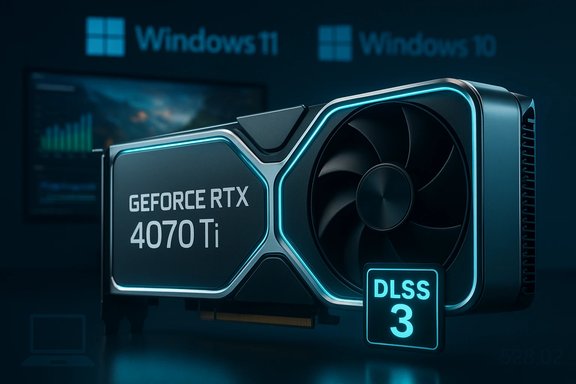
NVIDIA’s GeForce Game Ready Driver 528.02 — released as a WHQL-certified package on January 5, 2023 — remains a notable milestone in the 528 driver family: it added day‑one optimizations for new DLSS 3 titles and official support for the then‑new GeForce RTX 4070 Ti, while carrying the usual mix of gaming fixes and stability improvements for Windows 10 (64‑bit) and Windows 11 systems.
NVIDIA’s Game Ready drivers aim to deliver the best out‑of‑the‑box experience for newly released games and hardware. The 528.02 package is part of that lineage: it was published as a WHQL (Windows Hardware Quality Labs) release and packaged to support both Windows 10 64‑bit and Windows 11, while also being mirrored across NVIDIA’s Game Ready, Studio, and enterprise (R525 / R525 U3) branches in closely related builds. For mainstream laptop GPUs such as the GeForce MX250, the core technical reality is unchanged: the MX250 is a Pascal‑generation mobile GPU supported by NVIDIA’s general driver builds, but notebook OEMs often ship their own certified drivers tailored to a machine’s power, thermal and platform firmware. Notebook users are therefore frequently better served by the OEM driver unless they need a specific day‑0 game fix or a feature introduced in a new GeForce build.
For MX250 notebook owners the practical advice is conservative: prefer your OEM’s certified driver unless you have a clear reason to adopt a generic NVIDIA package. When you do install a general GeForce driver like 528.02: plan a clean install, keep a rollback path, and validate performance with objective tests. Those safeguards will reduce the chance of a disruptive surprise and keep your laptop’s thermals, battery life and creative workflows functioning as expected.
Source: Born2Invest https://born2invest.com/?b=style-230535012/
 Background / Overview
NVIDIA’s Game Ready drivers aim to deliver the best out‑of‑the‑box experience for newly released games and hardware. The 528.02 package is part of that lineage: it was published as a WHQL (Windows Hardware Quality Labs) release and packaged to support both Windows 10 64‑bit and Windows 11, while also being mirrored across NVIDIA’s Game Ready, Studio, and enterprise (R525 / R525 U3) branches in closely related builds. For mainstream laptop GPUs such as the GeForce MX250, the core technical reality is unchanged: the MX250 is a Pascal‑generation mobile GPU supported by NVIDIA’s general driver builds, but notebook OEMs often ship their own certified drivers tailored to a machine’s power, thermal and platform firmware. Notebook users are therefore frequently better served by the OEM driver unless they need a specific day‑0 game fix or a feature introduced in a new GeForce build. What 528.02 Actually Delivers
Headline features
- DLSS 3 preparation and day‑0 game support. 528.02 was one of the early Game Ready builds that broadened DLSS 3 compatibility and added optimizations for titles shipping around the start of 2023.
- Support for GeForce RTX 4070 Ti. The package adds compatibility and optimizations for the then‑new RTX 4070 Ti hardware.
- WHQL certification. 528.02 carries Microsoft’s WHQL signing, which helps ensure driver integrity and compatibility with Windows certification checks.
Bug fixes and stability work
528.02 also addressed a number of specific issues reported by users and software vendors, including:- fixes for application‑level corruption and recording/Shadowplay quirks,
- corrected brightness problems on some notebooks,
- a number of Photoshop, Premiere and other creative‑app stability items that were later referenced in subsequent 528.x updates.
Enterprise / Studio variants
NVIDIA often ships similar codelines as separate Game Ready, Studio and RTX / Quadro (R‑series) packages. R525 U3 (which shares the 528.02 identifier in some manifests) represents the production/enterprise cadence tuned for stability in validated professional workflows. If you run mission‑critical creative or enterprise software, the RTX / Studio/Production branches are the safer choice over the consumer Game Ready branch.What This Means for GeForce MX250 Users (Practical Guidance)
The MX250 is a mainstream laptop GPU that benefits from NVIDIA’s universal driver builds, but notebook platforms introduce important caveats:- OEM driver preference. Original Equipment Manufacturers (HP, Dell, Lenovo, etc. provide certified drivers for many laptops to ensure platform‑specific power/thermals/keyboard‑integration works correctly. NVIDIA explicitly recommends checking OEM drivers before installing a general GeForce package on a notebook. If your laptop manufacturer lists a newer, OEM‑certified driver, use that first.
- When to use 528.02:
- You want specific day‑0 support or features in 528.02 (DLSS 3 titles, RTX 4070 Ti compatibility for desktop users).
- You need WHQL‑signed driver behavior that 528.02 provides.
- You're running a test bench or a desktop that doesn’t rely on vendor‑specific drivers.
- When to avoid updating immediately:
- Your workflow depends on absolute stability for Adobe or enterprise apps and your OEM lists a certified driver that predates 528.02.
- You use a laptop with tightly integrated power/thermal controls that an OEM driver modifies (suspend updates until the OEM catches up).
Installation: Step‑by‑step (Safe, repeatable method)
- Create a System Restore point and back up critical data.
- Check your current Windows build and installed driver (Settings → System → About; Device Manager → Display adapters).
- Decide which driver family you need: Game Ready (gaming/features), Studio (creators), or Enterprise / R‑branch (validated professional).
- If you choose NVIDIA’s 528.02: download from NVIDIA’s official driver page for your region and correct OS build. Confirm the file name, file size and WHQL signature before running the installer.
- For notebooks: consider the OEM first. If you proceed with NVIDIA’s installer, choose Custom → Clean Install to remove legacy remnants and reset the driver stack.
- Reboot and validate with a short test (a repeatable benchmark scene or a representative creative export). Measure performance and stability before returning to full workloads.
Troubleshooting, Rollback and Safety Nets
- If you experience instability after upgrading, use Device Manager → Roll Back Driver or boot to Safe Mode and run Display Driver Uninstaller (DDU) to remove the driver cleanly before reinstalling a previous version. Community reporting around 528.02 included a handful of display/refresh issues on certain monitors and platform combinations, which is a reminder to keep a fallback plan ready.
- For laptops with OEM‑tuned drivers, a driver rollback to the manufacturer’s package will often restore original thermal and power behavior. Reinstalling OEM support software (e.g., Lenovo Vantage, Dell Command) may also be necessary.
- Always document baseline behavior before making changes: capture FPS averages, 1%/0.1% lows for gaming or export times for creatives so you can objectively compare. Independent benchmark coverage demonstrated that the 528 family produced mixed outcomes depending on workload and GPU model, which is why verification matters.
Strengths — Why 528.02 Was a Valuable Release
- Feature support and new hardware readiness. 528.02 added compatibility for new GPUs and new DLSS pathways, which is exactly what enthusiast gamers and early adopters expect from a Game Ready package.
- WHQL signing. The WHQL badge reduces friction on Windows and simplifies enterprise deployment where signature verification is important.
- Multiple delivery channels. NVIDIA distributed closely related builds across Game Ready, Studio and enterprise branches, making it possible to pick a driver channel that more closely matches your use case.
Risks, Reported Problems and Post‑Release Reality
528.02 was not without user complaints and corner‑case bugs. Community reports and follow‑up coverage documented issues such as black/grey screens, flicker on certain monitors, and compatibility troubles in specific apps and monitor/refresh combinations. These community signals underscore two perennial truths about GPU drivers:- Drivers touch deeply integrated code paths. A single driver update can interact with firmware, display controllers, anti‑cheat, overlays, and system power policies — producing emergent bugs that are hard to anticipate with limited QA matrices.
- Hotfix and cadence tradeoffs. NVIDIA’s hotfix mechanism and rapid Game Ready cadence benefit users who need fixes fast, but that speed can sometimes surface regressions. The industry has seen examples where urgent hotfix branches were later rolled into fully tested WHQL drivers; those episodes illustrate both the responsiveness of GPU vendors and the caution needed when installing early patches. File‑level analysis of later hotfix events shows this pattern clearly: an emergency hotfix was published to mitigate OS‑triggered regressions and was later folded into a WHQL driver after further validation.
- Notebook fragmentation. For laptop GPUs such as the MX250, OEM-specific driver packages may differ substantially from NVIDIA’s generic builds because OEMs tune fan curves, power profiles, and integrated drivers. Installing a generic NVIDIA package can sometimes disable or overwrite OEM protections and lead to battery and thermal regressions. That’s why NVIDIA’s own notes recommend checking OEM channels first for notebooks.
Verification and Cross‑Referencing: What We Checked
- NVIDIA’s official driver download pages confirm 528.02 is a WHQL‑signed Game Ready driver released on January 5, 2023, and list the driver as compatible with Windows 10 (64‑bit) and Windows 11. The official pages also explicitly recommend OEM‑provided drivers for notebooks.
- Independent coverage from reputable tech outlets and benchmarks validates the driver’s goals and reports user‑facing outcomes: TechPowerUp’s driver roundups track the 528.x series and its subsequent micro‑releases, while ComputerBase and in‑depth benchmarks documented both feature additions and platform issues that surfaced in the wild. These editorial sources corroborate the official release details and the mixed field reports after rollout.
- Community testing and benchmarks published by independent reviewers (BabelTechReviews and similar outlets) provide hands‑on performance numbers across a broad set of games and workloads and are useful for comparing driver revisions. Those tests underline that driver behavior can vary across GPUs and system configurations — reinforcing the need for personal validation on your specific hardware.
- The broader context of driver lifecycle and hotfix strategy (why vendors push rapid hotfixes and how those fixes migrate into WHQL releases) is documented in community and aggregated technical threads. These cover examples of emergency hotfixes and their later integration into certified drivers, illustrating the tradeoffs between speed and exhaustive QA.
Checklist: Before You Click “Install”
- Back up critical data and create a System Restore point.
- Verify whether your laptop OEM publishes a newer, certified driver — prefer OEM if present.
- If you need general Game Ready features (DLSS updates, day‑0 title fixes), verify the 528.02 change log on NVIDIA’s site and compare with independent reviews for the titles you run.
- Download the driver only from NVIDIA or your OEM; avoid third‑party distribution mirrors for security reasons.
- If you install, perform a Custom → Clean Install and test with objective metrics (FrameView, CapFrameX, or benchmark suites).
Caveats and Unverifiable Claims
- A URL provided in the initial prompt (born2invest.com with query parameters) could not be reliably retrieved during verification checks (the link returned a “Not Found” or a malformed path). That page’s specific claims or text could not be validated; treat any statements attributed to that link as unverified until the correct, fetchable URL or a quoted excerpt can be supplied. This article therefore does not rely on content from that specific born2invest link. ([]
- Community reports from forums and subreddits are valuable for spotting patterns but can be noisy and anecdotal; where possible, statements about field impact were cross‑checked against editorial testing and NVIDIA’s release notes. If an isolated claim cannot be corroborated by at least one independent editorial or vendor source, it has been flagged or described as anecdotal.
Final Assessment: Should MX250 Users Install 528.02?
- For most MX250 notebook owners: not immediately — check the OEM support page for your laptop model first. OEM drivers often include firmware‑tuned integration that generic NVIDIA packages do not. If your OEM lists no newer driver and you need a feature in 528.02, proceed carefully with a clean install and a tested rollback plan.
- For desktop or test‑bench users who need the features introduced in 528.02 (DLSS 3 readiness or compatibility with new desktop GPUs), the official NVIDIA 528.02 WHQL package is a legitimate, signed release to install — but validate with targeted benchmarks.
- If you rely on stability for creative or enterprise workloads, consider the Studio or R‑branch driver variants, or lean on OEM validated packages for laptops. These branches prioritize long‑term stability and application certification over rapid game fixes.
Practical Resources (Where to Download & How to Vet)
- Download the official GeForce Game Ready Driver 528.02 from NVIDIA’s driver portal (choose your OS and variant carefully). Confirm WHQL status and file size presented on the download page before running the installer.
- If your machine is a laptop, check your manufacturer’s support site (HP, Dell, Lenovo, Asus, Acer) for an OEM‑packaged driver tailored to your exact model. NVIDIA itself explicitly recommends OEM drivers for laptops.
- For rollback and troubleshooting: keep a copy of a previously stable driver (download the installer before replacing it), and be comfortable using Display Driver Uninstaller (DDU) from Safe Mode for a clean rollback if needed.
Conclusion
GeForce Game Ready Driver 528.02 was a standard‑bearing WHQL release that delivered feature readiness for new hardware and DLSS‑enabled titles while fixing a set of application and display issues. For the majority of users the update was useful — particularly for gamers and early adopters — but the driver family also illustrated the perennial tradeoffs of the GPU driver ecosystem: rapid feature deployment vs. the risk of platform‑specific regressions.For MX250 notebook owners the practical advice is conservative: prefer your OEM’s certified driver unless you have a clear reason to adopt a generic NVIDIA package. When you do install a general GeForce driver like 528.02: plan a clean install, keep a rollback path, and validate performance with objective tests. Those safeguards will reduce the chance of a disruptive surprise and keep your laptop’s thermals, battery life and creative workflows functioning as expected.
Source: Born2Invest https://born2invest.com/?b=style-230535012/
